How Long Should a Gaming PC Last? A Complete Guide
How long should a gaming PC last? Its tier, parts, and workload matter; use the Canadian-dollar upgrade-versus-replacement guide to choose your next step.

A gaming PC’s useful life is how long it can run the games you want at settings you find acceptable, while its physical lifespan is how long it keeps working. Entry-level systems may stay useful for 2–4 years, mid-range systems for 3–5, and high-end systems for 6–10, depending on parts, gaming demands, heat, and care. Keep it cool and clean, then upgrade the weak part, often the graphics card, before replacing the whole PC.
Think about your favourite running shoes. How long they last depends on how hard you run in them. Your gaming PC works the same way.
The short answer is that a gaming PC’s useful lifespan (the point where it can no longer run your games at the settings you want) depends on three things: the tier you bought, the parts inside, and what you ask it to do.
In this post, we’ll cover each factor, then a Canadian-dollar guide for upgrading versus replacing.
How Long Should a Gaming PC Last
A gaming PC’s life depends on its tier, its form factor, and the games you play. Keep two terms apart: lifespan is how long it keeps running, while playable years are how long it still runs your games well. Free tweaks and later upgrades can stretch those years, so how to optimize pc for gaming is the next read.
Expected lifespan at each price tier
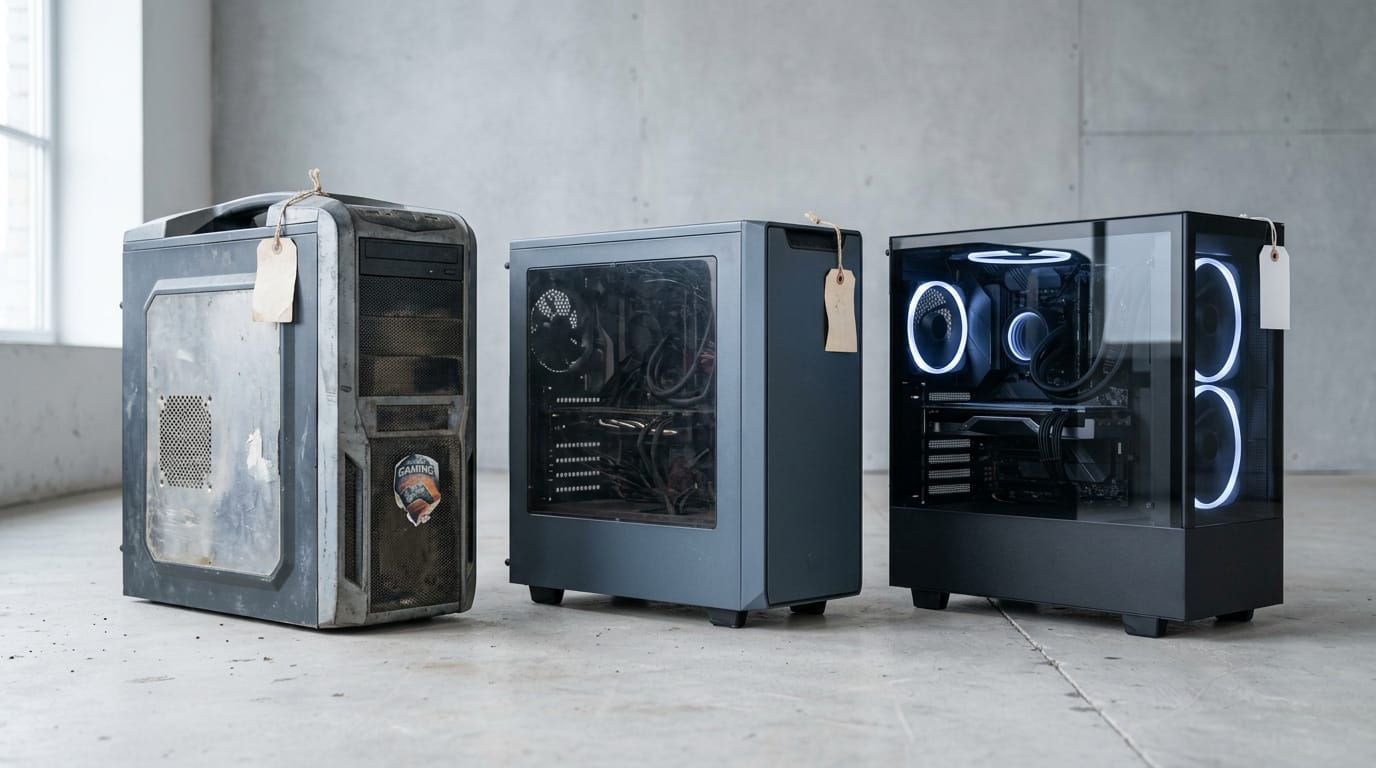
Lifespan roughly follows the tier you buy:
- Entry-level: 2-4 years
- Mid-range: 3-5 years
- High-end: 6-10 years
Price bands shift with the market, so check current Canadian listings before you pin a tier to your budget. Is a $500 gaming PC worth it? It can be, if you plan for entry-level life of 2-4 years and lower settings as games get heavier.
A mid-range PC can stay useful longer, but a study on graphics settings in selected video games found one had to dial its settings back for smooth play, so the games you run still set the limit.
How pre-builts compare to custom builds
Pre-builts last 4-5 years, and build quality plays a part: a well-assembled machine tends to outlast a rushed one. Custom builds can offer a cost-performance edge.
A project on managing custom PC builds notes that buying the same parts and building it yourself will save money. You trade some convenience for value.
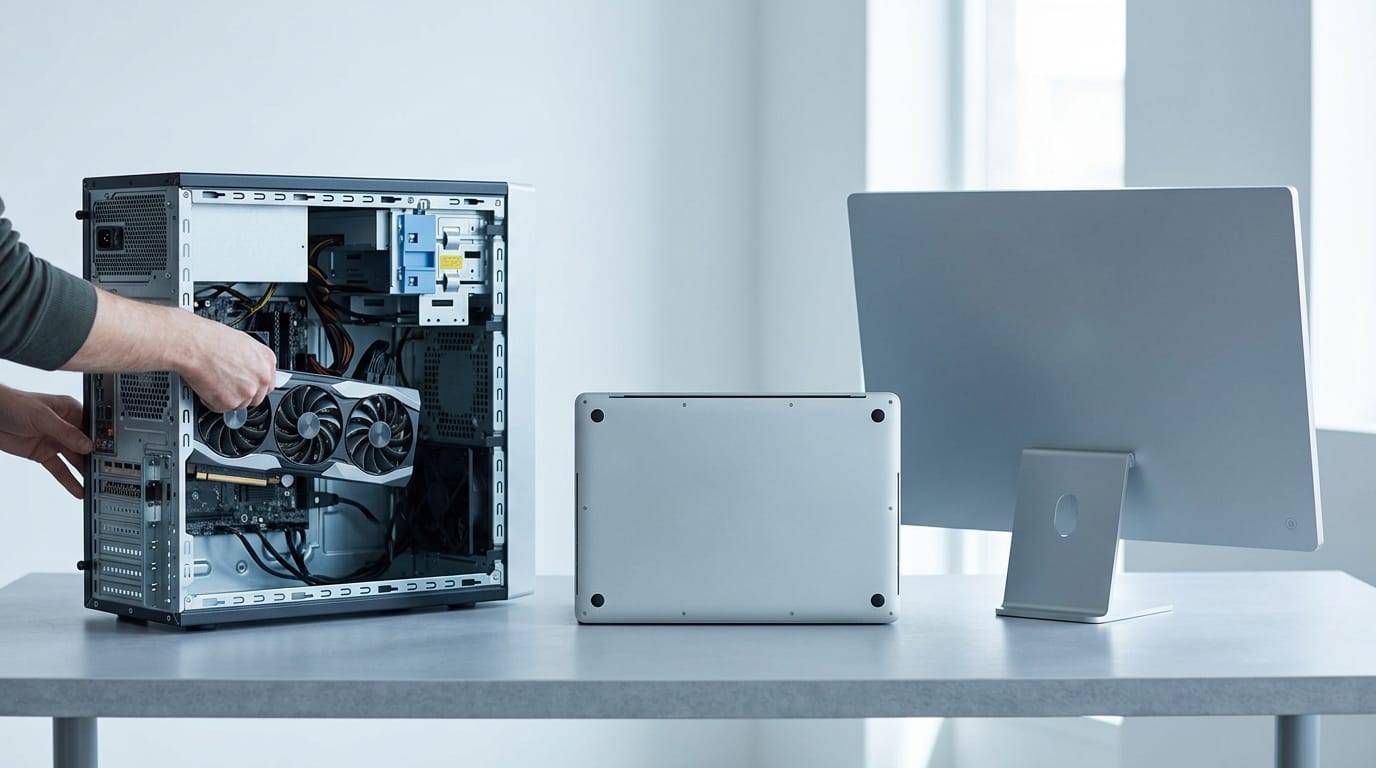
Desktops, laptops, and all-in-ones compared
Your upgrade path depends on form factor:
- Desktops: easiest to upgrade, so swapping a graphics card keeps them going.
- Laptops: mostly fixed hardware, so their playable years are largely set at purchase.
- All-in-ones: hard to upgrade, so buy one for what you need now.
Think of a player whose desktop starts stuttering in new releases. A newer graphics card can buy back playable years, but the same slowdown on a laptop usually means a new machine. Upgrade room makes the difference.
What Shortens a Gaming PC’s Lifespan
Some parts wear out well before others, and your habits set the pace.
Which parts age fastest inside your PC
Your GPU (graphics card) usually ages first, since it works hardest in demanding games. Your CPU (processor) ages more slowly, and RAM (memory) and storage last longer.
Storage ages differently too. Hard disk drives (HDDs) and solid-state drives (SSDs) don’t share identical lifespan profiles, a point the comparative study Lifespan and Failures of SSDs and HDDs: Similarities, Differences, and Prediction Models backs up.
The most failure-prone parts are your power supply (PSU), the fans, and thermal paste (the compound between your CPU and its cooler). The question isn’t whether they wear out, but when.
How heavy gaming and overclocking wear parts
Demanding games and high resolutions like 1440p (sharper than 1080p) keep your GPU near full load for hours. Pushing it that hard, session after session, wears it faster than occasional play does.
Overclocking means running a part faster than its factory settings, raising voltage and heat. Think of a player with a $1,200 CAD build who overclocks their CPU for a few extra frames per second (fps).
If the cooler can’t keep up, that extra heat shortens the chip’s life.
Heat, dust, and power shorten lifespan
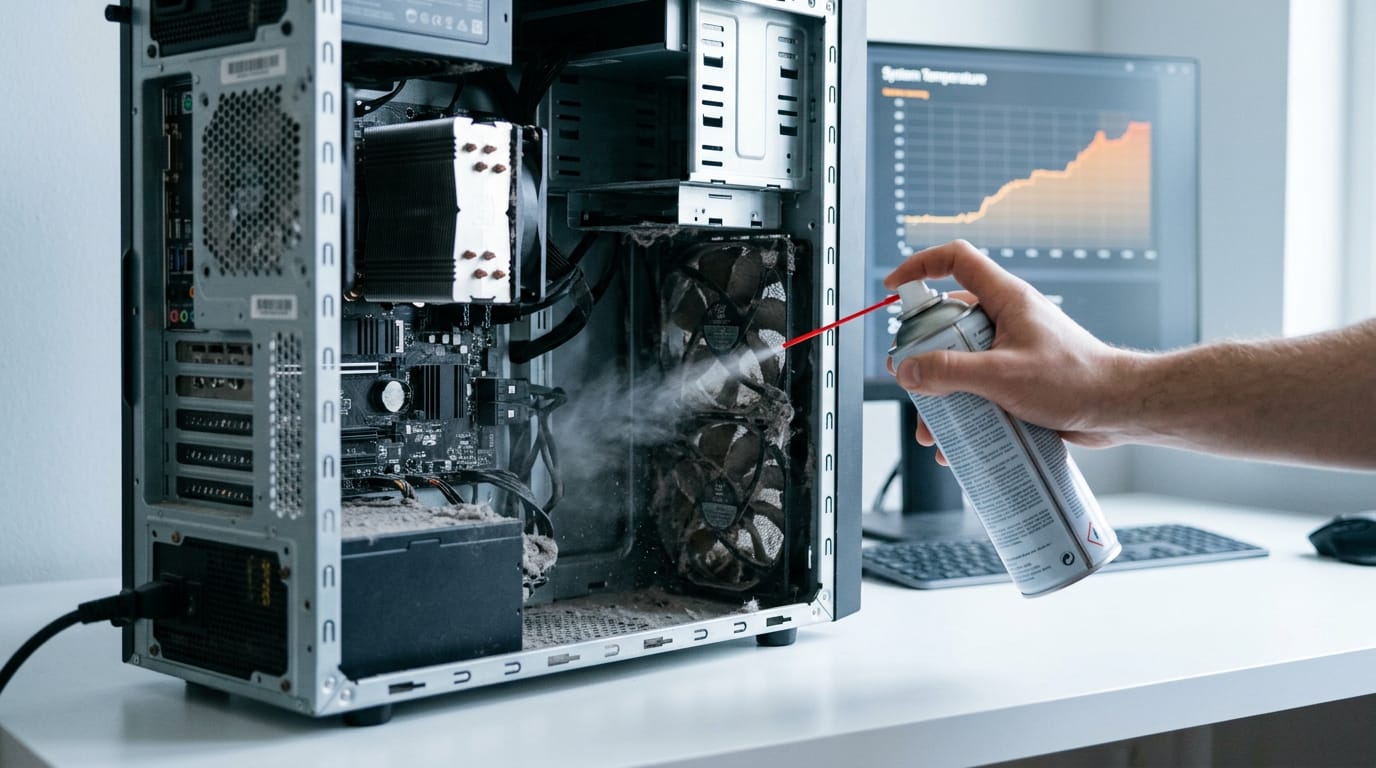
A PC in a warm room starts out running hot. Add dust clogging the filters and fans, and the heat has fewer ways out. Dust builds quietly.
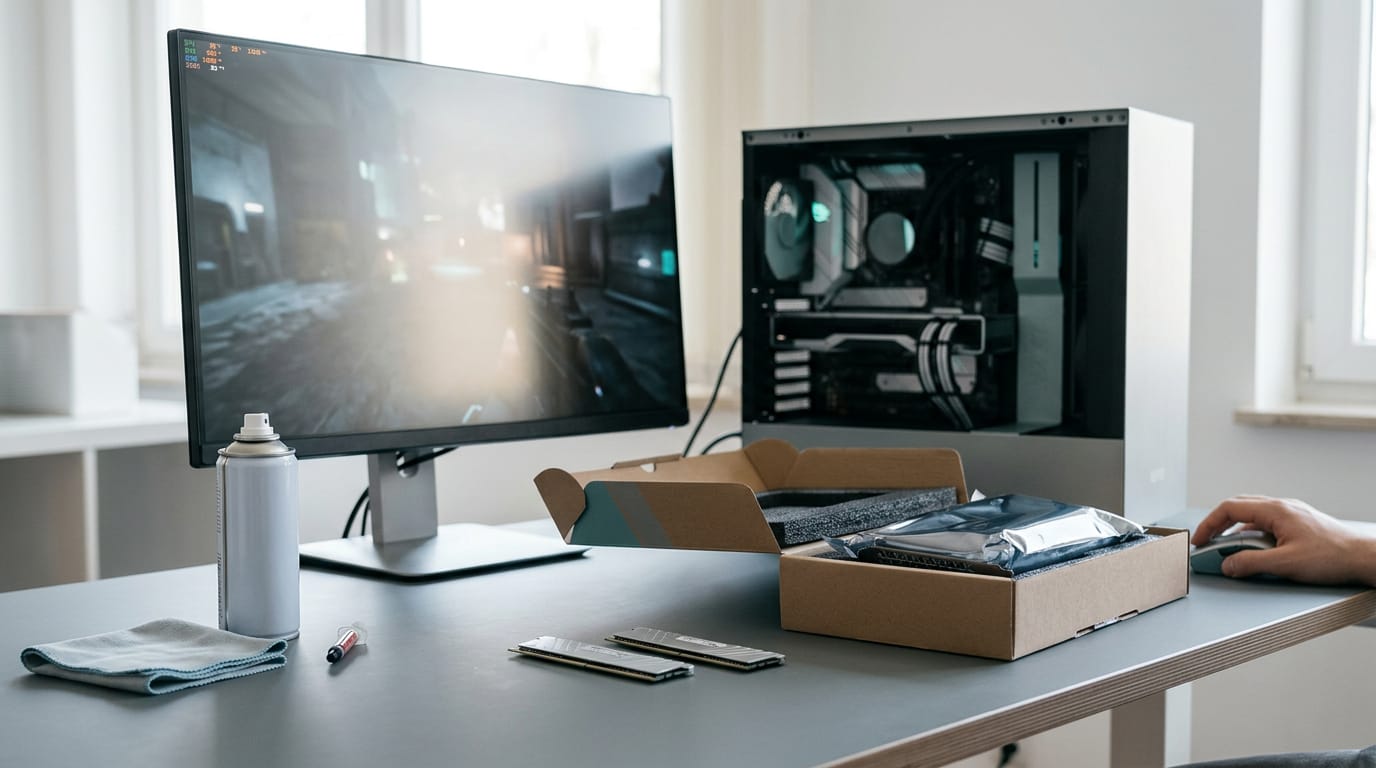
An undersized cooler or a power supply running near its limit adds strain to the whole system. A quick routine helps:
- Clean filters and fans whenever dust builds up.
- Watch temperatures while gaming.
- Check thermal paste and cooler contact if temperatures climb.
Signs Your Gaming PC Needs an Upgrade
Most PCs slow down long before they fail, and each symptom points to a different fix.
Performance slowdowns that point to an upgrade
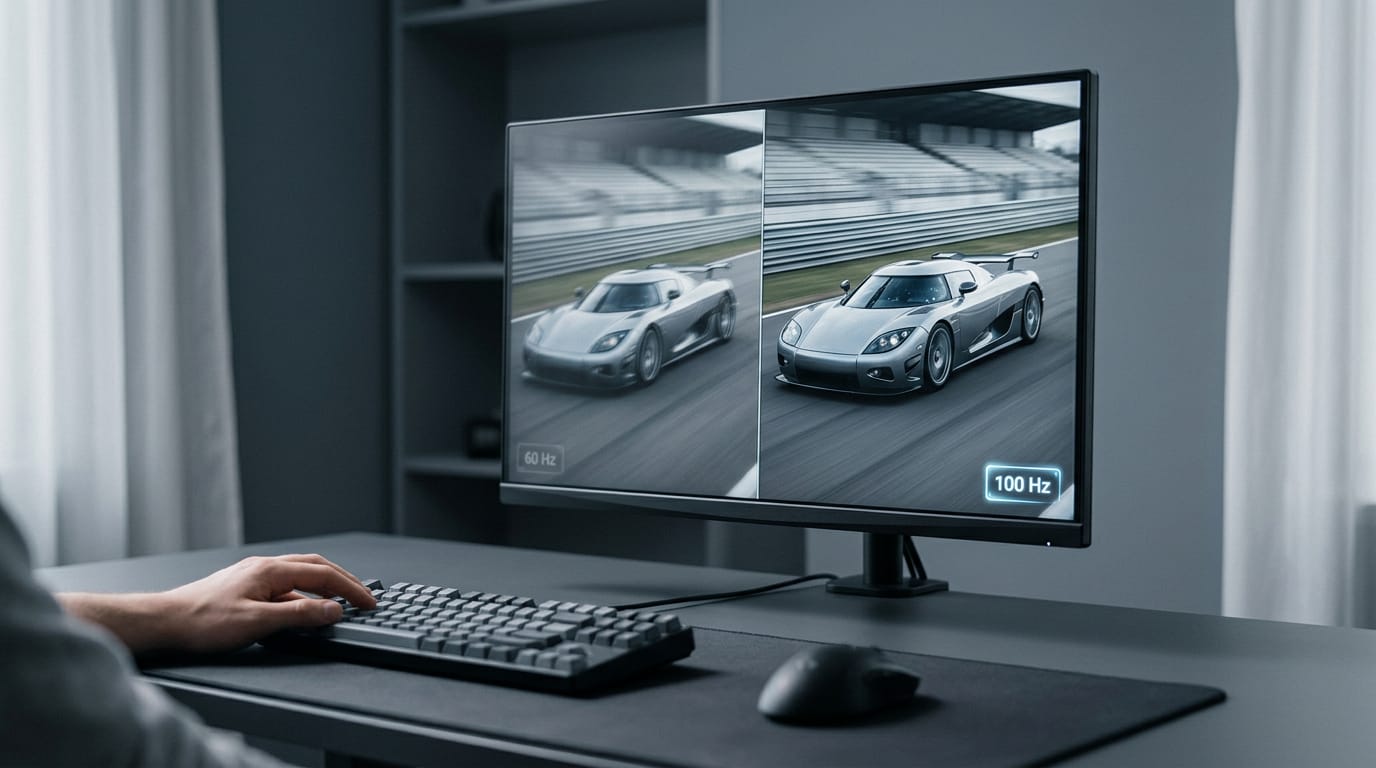
- Missed target frame rates. If a game should hit 60 frames per second (fps) but keeps falling short, your hardware is the limit.
- Insufficient VRAM. Video memory (VRAM) is your graphics card’s own memory. Run short and you’ll see stutters.
- Slow load times. Loading screens that keep stretching often point to an older hard drive. A solid-state drive (SSD) is usually the fix.
- Struggles multitasking or streaming. If your game chokes when you stream or chat, the processor (CPU) or memory (RAM) is maxed out.
- Lag during gameplay. Hitches despite a steady frame rate usually mean background apps are competing for your processor. Close them before you shop.
- Check against your target games. Judge by the games you play most. A student who stutters only in one shooter’s team fights has a targeted problem, and a graphics card can fix it without a new PC.
Is a 7 year old computer worth fixing?
Usually, yes. The question isn’t whether a PC is old, but which part is holding it back.
- Damaged or outdated parts. Visible damage, like swollen parts on the motherboard (the main circuit board), means replacing that part. Healthy but dated parts are an upgrade question, not a write-off.
- Signs of PC dying. Random crashes, blue screens (Windows error screens), or sudden shutdowns can point to failing memory or a power supply. Test those before you spend.
- Failing graphics card. Glitchy on-screen patterns or game-only crashes are classic warning signs. Swapping just the card is often the cheapest fix, as long as the rest is healthy.
Ways to Make Your PC Last Longer
Wondering whether to upgrade a part or replace the whole machine? Here’s how we’d decide, plus the habits that keep your PC running longer.
When to upgrade and what it costs
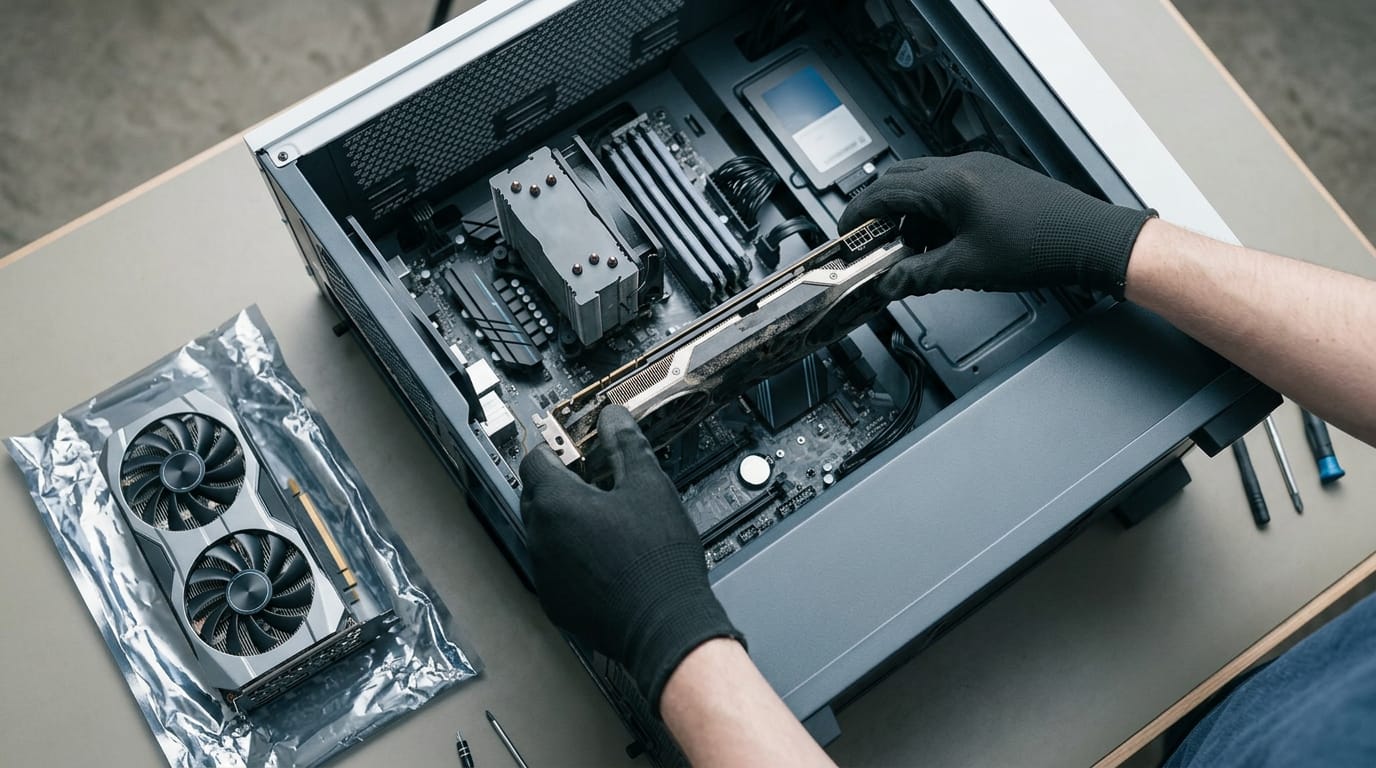
Plan on reviewing your graphics processing unit (GPU) around the five-year mark. A mid-life GPU upgrade can help extend a gaming PC’s useful life, as a paper on Frame-Cached Interlink (FCI), a dual-GPU rendering pipeline, suggests.
Upgrading your central processing unit (CPU) can be trickier, since a new chip may need a different socket, which can mean a new motherboard.
Take a player whose five-year-old PC runs fine except for a struggling graphics card. Swapping the GPU is the whole job, but add a faster CPU and it starts to look like a rebuild.
A mid-life bump to your random access memory (RAM) can also stretch a build. If your games still load from a hard disk drive (HDD), moving them to a solid-state drive (SSD) is worth weighing.
Set your GPU budget in Canadian dollars before you shop.
Here’s the rule of thumb: upgrade the weak part rather than replacing the whole machine. Replace only when several parts are aging together. Fix the weak link. If you do end up replacing the whole machine, building a PC step by step is the next read.
Picking a platform built to last
Buy into a current platform (the motherboard and processor family), such as AM5, AMD’s current desktop platform.
Buying quality up front beats buying cheap and replacing later.
Look for an upgrade-friendly motherboard with spare memory slots. Think of a builder who starts with two memory sticks on a board with four slots. Adding RAM later is a simple job, not a whole new board.
Can I leave my PC on overnight?
You can, as long as the basics are covered. Keep these habits in place:
- Clean dust regularly. Dust clogs fans and filters, so clean them on a schedule.
- Avoid overheating. Keep vents clear and the case somewhere air can circulate.
- Update drivers and the operating system (OS). Current updates keep your PC on patched, stable software.
- Keep OS drive space free. Updates and temporary files need room to work.
- Avoid malware sources. Stick to trusted download sites.
Support, repairs, and warranty coverage
When something breaks, support matters most. Check for lifetime technical support, same-day diagnostics and repair, and a 1-year warranty before you buy, not after.
Move your OS onto a new SSD
Moving your OS keeps your setup intact.
- Back up your data first. Copy personal files to another drive before you touch the hardware.
- Install the new SSD. Connect it and confirm your PC detects it.
- Run the copy disk wizard. In your cloning software, pick your current drive as the source and the new SSD as the destination.
- Check the new drive. Boot from the SSD and confirm your files are all there.
A gaming PC doesn’t come with an expiry date. It ages in layers, and swappable parts are often the cheapest way to keep it going. Save a full replacement for when upgrades stop making sense.
A clean case and a close eye on temperatures help keep the machine you already own running well. Your PC doesn’t need to last forever. It needs to keep running the games you love on the budget you actually have.
References
- The impact of changing graphic settings on performance in selected video games — doi.org (2025)
- Frame-Cached Interlink (FCI): Dual-GPU Rendering & Upscaling Pipeline — doi.org (2025)
- Lifespan and Failures of SSDs and HDDs: Similarities, Differences, and Prediction Models — doi.org (2021)
- Implementing a webpage that helps manage a custom pc build — hdl.handle.net (2021)
Questions
How long should it take to build a gaming PC?
Building a gaming PC usually takes about 2 to 4 hours if you have the parts ready and follow instructions. First-time builders may need longer, especially for cable management or troubleshooting.
How do I build a PC as a beginner?
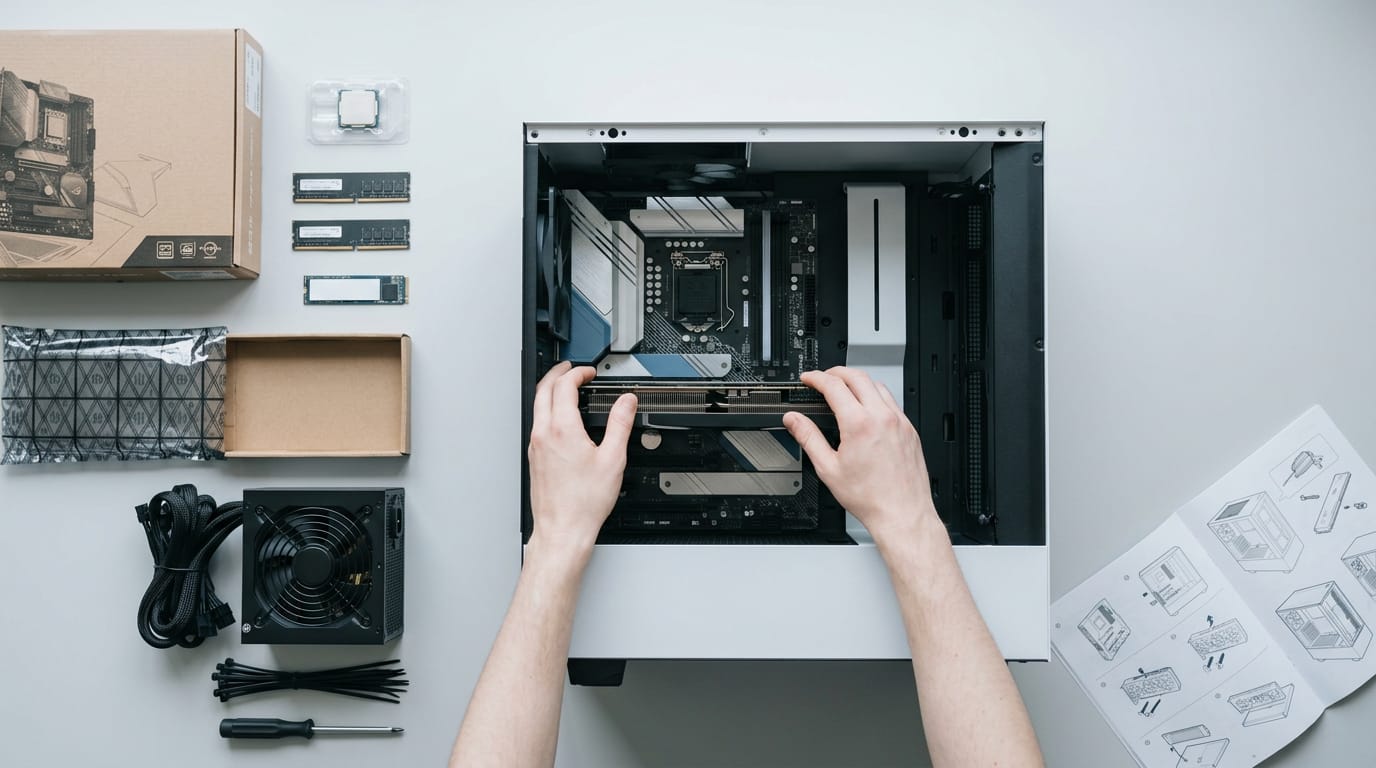
Start by choosing compatible parts, then prepare a clean, well-lit workspace and follow a step-by-step build guide. Install the CPU, RAM, and SSD on the motherboard, mount it and the other components in the case, connect the power cables, and check that the PC boots before installing the operating system.
How long does a gaming PC usually last?
A gaming PC’s useful lifespan depends on its parts, how heavily you use it, and the games you play. Entry-level PCs typically remain useful for about 2 to 4 years, mid-range models for 3 to 5 years, and high-end systems for 6 to 10 years, though a PC can keep running beyond that with upgrades.
How do I tell if my PC is dying?
Warning signs include repeated crashes or blue screens, sudden shutdowns, unusual noises, and graphical glitches. Slower game performance can mean the PC needs an upgrade rather than that it is failing; crashes and shutdowns may point to faulty memory or a power supply, so test components before replacing the whole system.
Is a 7 year old computer worth fixing?
Usually, yes. A seven-year-old computer may still be worth fixing if one part is causing the problem and the rest of the system is healthy. Compare the repair cost with the cost of replacing it, and check for failing parts such as the power supply, memory, or graphics card.
Is a $500 gaming PC worth it?
A $500 gaming PC can be worth it if you expect entry-level performance and are comfortable lowering settings as newer games become more demanding. Entry-level systems typically have about 2 to 4 years of useful gaming life, and the value depends on the parts and current prices.
Is 2 hours of battery life good for a laptop?
Two hours of battery life is generally short for a laptop during light everyday use, but it may be normal for an older laptop or during demanding tasks such as gaming. Battery life varies by model, battery health, screen brightness, and workload.
Should I turn the switch off on my PC?
You do not need to turn off the switch on the back of a desktop PC every time you finish using it. Shut down the computer through its operating system; use the power-supply switch when you need to disconnect power for maintenance or troubleshooting, and avoid switching it off while the PC is running.
Sources
- The impact of changing graphic settings on performance in selected video games, doi.org,
- Forecasting the Value of Excess in Personal Gaming Desktops, doi.org,
- Implementing a webpage that helps manage a custom pc build, hdl.handle.net,
- Lifespan and Failures of SSDs and HDDs: Similarities, Differences, and Prediction Models, doi.org,
- Frame-Cached Interlink (FCI): Dual-GPU Rendering & Upscaling Pipeline, doi.org,
Free · The Build Sheet
The Build Sheet: three gaming PCs priced at Canadian stores