CPU Temp While Gaming: Safe Range, Checks and Fixes
CPU temp while gaming is usually safe within your chip’s rated range; spot throttling, check readings, and lower heat with fixes that don’t overspend.

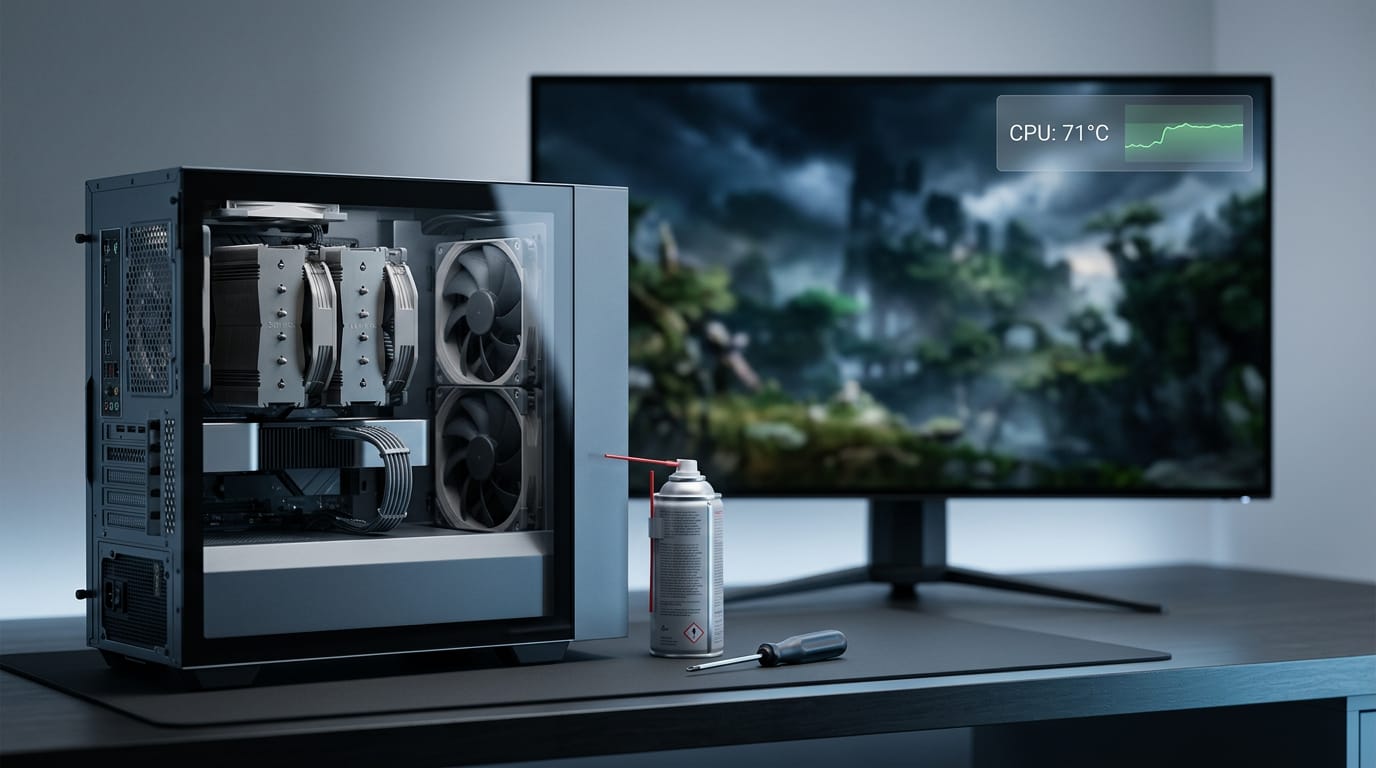
CPU temperature while gaming is how hot the processor gets as it runs a game, and some warmth is normal. Many gaming CPUs run around 65–85°C, but safe limits vary by model, so check its specifications and watch sustained temperatures rather than brief spikes; throttling, crashes, or shutdowns can signal overheating. Monitor temperatures during play and start with dust removal, better airflow, and fewer background apps before buying new cooling hardware.
Think about your car’s temperature gauge on a long summer drive. A little heat is normal, but a steady climb means something needs attention. Your CPU is similar while you game.
A warm chip isn’t automatically a problem, and a number alone doesn’t tell you much.
A CPU running warm while gaming is normal as long as it stays within its rated range and doesn’t slow itself down to cool off. We’ll cover what counts as safe, how to check your temps, what pushes them up, and how to fix them without overspending. If you have already pushed your chip past its factory clock speeds, overclocking safely is the next thing to read about.
Is Your CPU Temp While Gaming Safe?
Most gaming temps are fine. Here’s how to read yours.
Typical temps for gaming sessions
A gaming CPU (processor) usually runs around 65–85°C under load. Laptops and mini PCs run hotter. TechRadar lists 60–70°C as safe for gaming without worry, so 70°C is comfortable and 80°C sits in the typical band. Many players report 50–67°C as fine.
Idle and load are separate ranges, so compare like with like. Per-model idle, load, and maximum junction temperature (Tjmax, the rated ceiling) tables aren’t in our sources, so check your chip’s spec sheet.
Intel and AMD also set different targets, so one number can mean different things on each chip.
When high temps start to matter
Sustained heat at 85°C and up shortens a chip’s lifespan. ThermalStats treats 90–95°C as a cause for concern while gaming, and a three-dimensional modeling study notes that duration and operating context matter. So is 90°C hot for a CPU while gaming?
It’s a zone to watch, and worth acting on if it sticks.
If a chip overheats, it may throttle. A comparative review of multicore architectures describes thermal throttling as the processor adjusting performance to protect the hardware, a warning that you’re near the limit.
At 100°C, the chip hits its shutdown limit.
Picture a player who sees 88°C in one long ranked session. A single spike isn’t an emergency. If it holds night after night, it’s time to look at cooling. Watch the trend, not the spike.
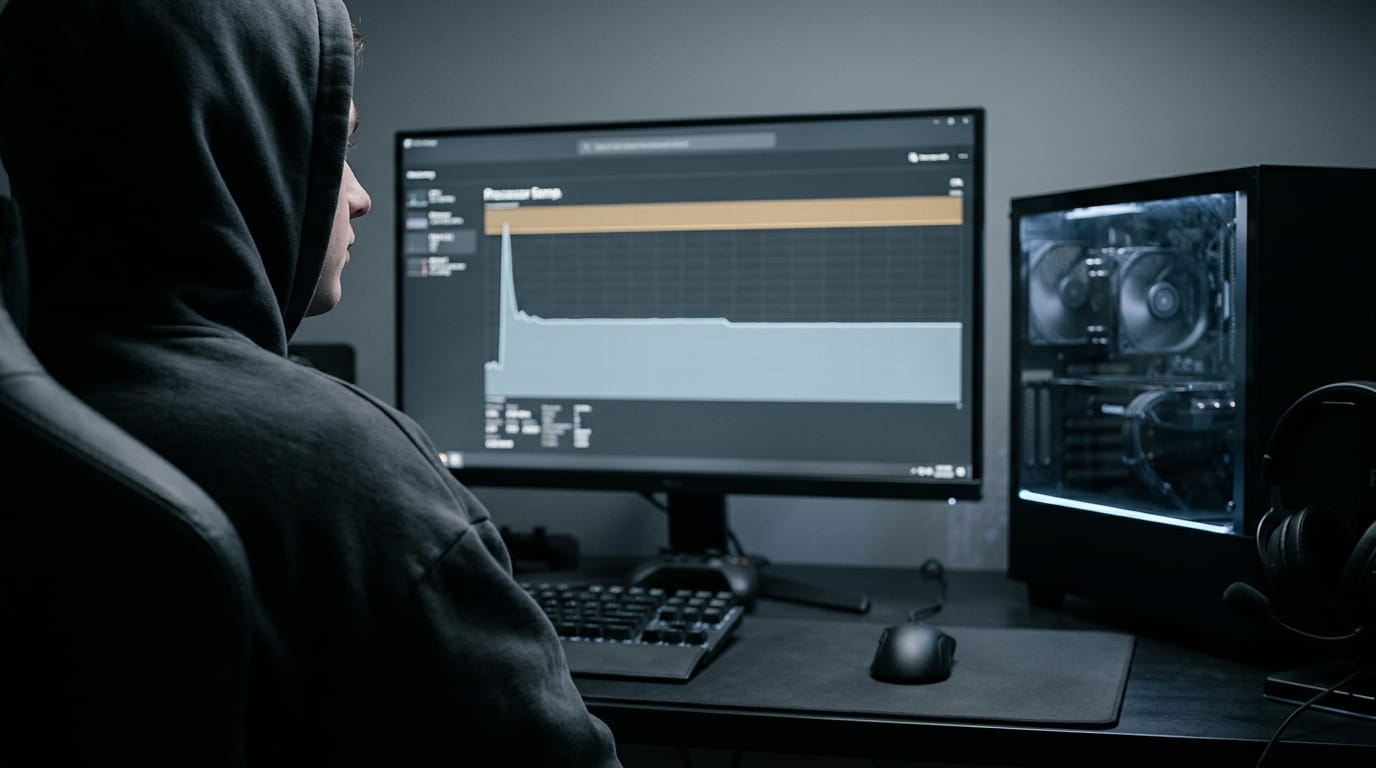
Common myths about hot CPUs
- 85°C doesn’t mean your CPU is dying. It’s a warning band.
- 95°C is by design on Ryzen 7000. AMD designs Ryzen 7000 chips to run up to 95°C, and a guide to normal CPU temps notes they sit closer to 70°C while gaming with a good cooler.
- A hot graphics card (GPU) doesn’t mean a hot CPU. Read each sensor on its own.
- Not broken isn’t the same as comfortable. It can run fine and still run hot.
Our sources don’t cover GPU limits, so check your card’s spec sheet before deciding if 90°C is safe for it.
Signs your PC is overheating
Watch for these:
- Lag, freezing, or crashes
- Unexpected shutdowns or reboots
- Fans roaring at full speed
- A case that’s hot to the touch
- Frame rate drops mid-session
Ways to Check CPU Temp While Gaming
Your processor (the CPU, or central processing unit) works hardest in a game, so you want a reliable temperature read while you play. Here’s where to find one.
Apps that read your CPU temps
Monitoring apps give the most detail:
- HWiNFO reports a wide range of sensors, so it’s thorough but busy.
- Core Temp focuses on processor temperatures, with one reading per core.
- Open Hardware Monitor and HWMonitor list readings in a simple window.
- AIDA64 is a broad diagnostics tool, and NZXT CAM is NZXT’s own monitoring software.
- AMD Ryzen Master and Intel Extreme Tuning Utility (XTU) come from the chip makers, so they’re built around your processor’s family.
- CPU-Z isn’t a temperature tool. Use it to confirm your exact processor model so you’re reading the right chip.
Read the right sensor in any app. The Package reading gives one overall figure for the whole chip, while Core readings show where heat lands. Check individual cores only if one runs well above the rest.
See temps on screen as you play
Switching out of a match defeats the purpose, so put the numbers on screen. MSI Afterburner can draw a small overlay of live stats, called an on-screen display (OSD), over your game. Tick CPU temperature in its Monitoring tab.
Its companion, RivaTuner Statistics Server (RTSS), draws that overlay.
Afterburner can also log temps to a file. Think of a player whose game stutters every time the same match heats up. They log a session, then check whether the processor peaked right before each stutter.
That tells them if heat is the problem before they spend money on a cooler.
What BIOS and Task Manager can show
Your BIOS (Basic Input/Output System, the setup screen you reach at startup) has a hardware monitor page that shows CPU temperature. It’s a quick check, but it captures a snapshot at rest, not a record of a match.
- Idle-only, no tracking: the reading reflects a PC doing nothing. Idle isn’t gaming.
- Task Manager lacks temperature: it shows how hard your CPU works, not how hot it gets.
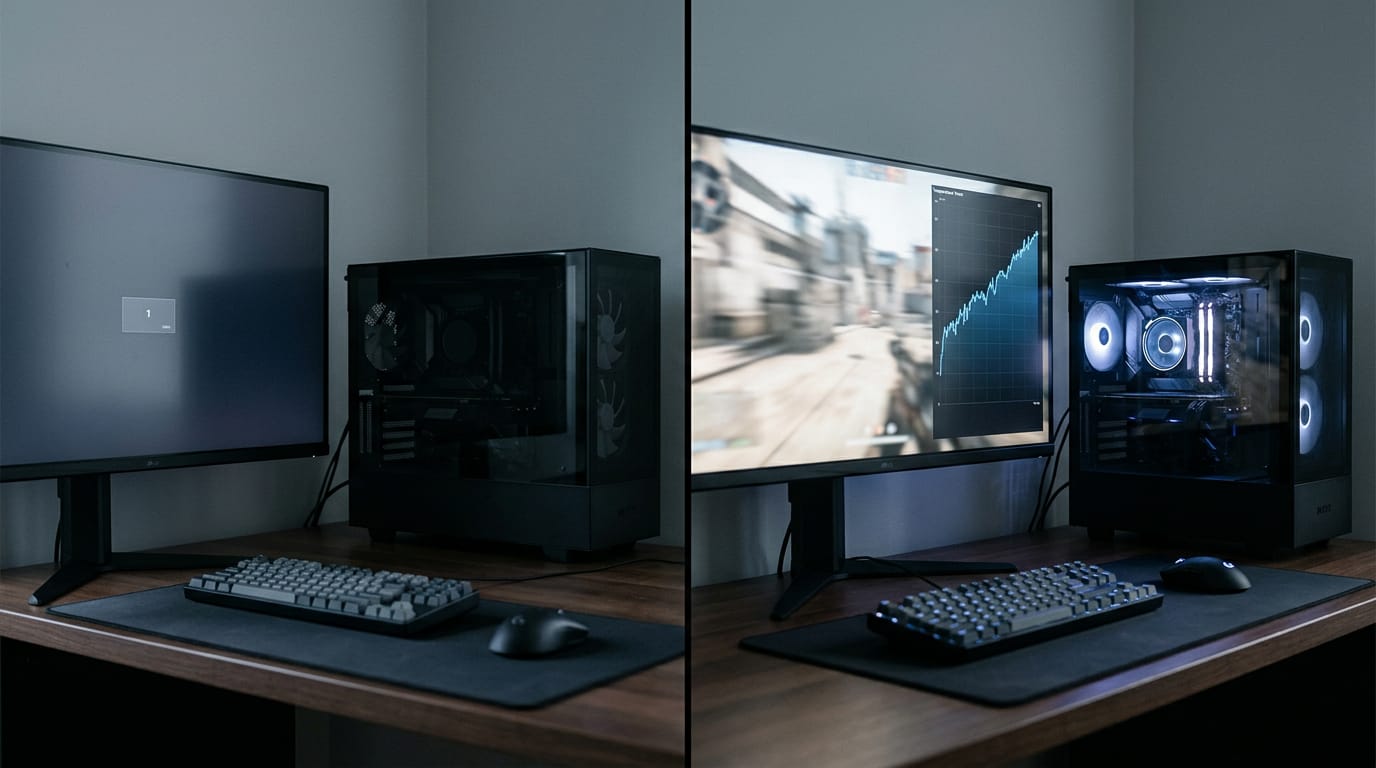
Mac apps for tracking temperature
Mac users have their own options:
- iStat Menus shows CPU temperature alongside other system stats.
- Macs Fan Control shows temperatures next to fan speeds.
- MenuMeters is another menu bar option.
What Causes High CPU Temps
The central processing unit (CPU) rarely runs hot for one reason. Airflow, aging parts, software, and the motherboard all add up, so we’ll start cheap.
Poor airflow and weak cooling
It’s less about how big your cooler is and more about whether air can reach it. The usual culprits:
- Dust buildup. Clogged filters and fins block airflow.
- Poor ventilation or cramped placement. A case jammed against a wall starves its intake.
- Faulty or weak fans. Failed, slowed, or backward-spinning fans move far less air.
- Hot ambient environment. A warm room (ambient air) leaves less cooling headroom.
- All-in-one (AIO) cooler tube orientation. Poorly angled tubes can trap air and reduce heat transfer.
Consider a player with a PC (personal computer) jammed against a bedroom wall. Their game runs fine until the room warms, then the CPU throttles (slows itself to shed heat), and frames drop mid-fight. If frames still drop once the room is cooler, tuning the PC for gaming is the next step.
Old thermal paste and aging parts
The thermal paste between your CPU and cooler fills tiny gaps so heat can cross them, and it’s something to revisit, not set and forget.
- Dried-out paste. Aging paste conducts heat poorly, so temperatures creep up.
- Older systems affected. Older PCs have more wear, so problems stack up.
- Modern CPUs boost aggressively. Newer chips jump to higher speeds in short bursts, pushing heat up fast.
How software and overclocking add heat
- Background processes and updates. Launchers and system updates keep cores busy while you play.
- Overclocking. Pushing past factory speeds adds power draw and heat, so your cooler has to keep pace.
- Malware and junk files. Hidden tasks and clutter make the system work harder.
- Turbo boost heat. Turbo boost is the automatic speed bump a CPU takes when it has room, adding heat.
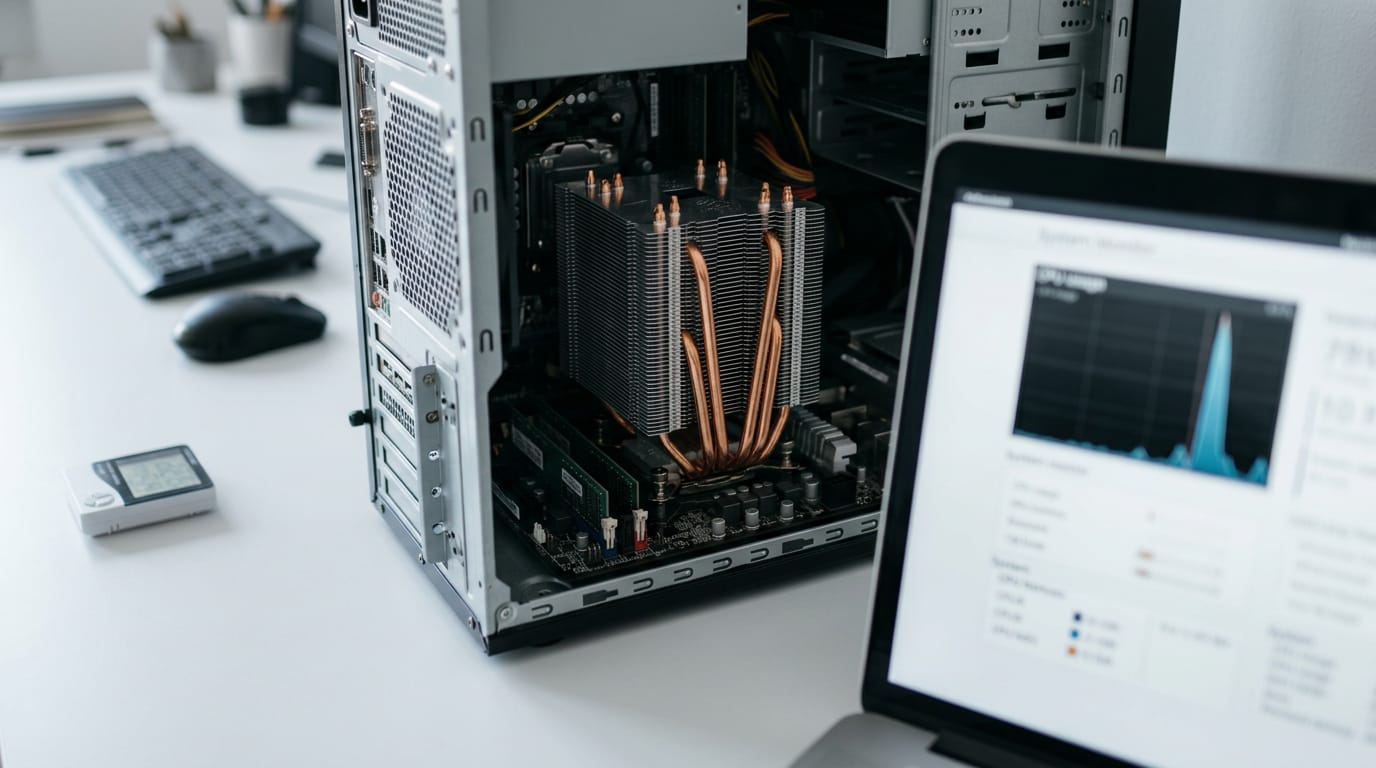
How VRMs and cooler type affect heat
- VRM throttling on cheap boards. Budget boards can run the VRM (voltage regulator module) hot, forcing slowdowns under long loads.
- AIO removes VRM airflow. A big AIO’s radiator and fans can shift airflow away from the VRMs.
- Air cooler may do better. A tower air cooler can keep air moving across the VRM area.
Consider a builder who put a big AIO on a budget board and wonders why long sessions feel sluggish even though CPU temperature looks fine. Check the VRMs first.
Bringing Your CPU Temps Back Down
Start with dust and airflow around your central processing unit (CPU), and verify each change with a before/after test.
Clean out dust and give it room
A student whose tower is wedged in a cabinet can clean the filters tonight for free.
- Compressed air cleaning. Blow dust from fans, filters, and cooler fins.
- Give your computer breathing room. Keep the case off walls.
- Laptop stand or cooler. Lift the laptop on a stand, or add a cooling pad.
- Keep environment cool. A cooler room means less heat to shed.
- Case fan and airflow fixes. Pull cool air in at the front, push warm air out the back: direction beats quantity.
Hardware upgrades that cut heat
- Reapply thermal paste. Refresh the compound between your CPU and its cooler.
- Upgrade CPU cooler. Try a bigger tower air cooler or an all-in-one (AIO) liquid unit.
- Replace fans or add liquid cooling. Swap worn fans, or switch to liquid if air can’t keep up.
- Check AIO tube orientation. Follow the manufacturer’s guidance for mounting the tubes and pump.
- Canadian-priced coolers by budget. Start with a budget air cooler, and compare Canadian prices before stepping up to AIO.
Tweak settings to run cooler
- Close background apps. Quit programs you aren’t using, since they still tax your processor.
- Switch to Balanced power plan. Choose Windows’ Balanced plan so the processor eases off when idle.
- Lower power limit. It’s the most power your CPU can draw, set in motherboard settings. Less power in, less heat out.
- Disable turbo boost. Turn off the feature that lets your CPU boost above base speed, trading peak speed for cooler running.
- Cap frame rate. Limit frames per second (fps) in-game so your CPU isn’t working flat out.
Warm doesn’t have to mean dangerous. Once you know your chip’s safe range, how to read your monitoring tool, and what’s driving the heat, the fix is usually simpler than it looks.
Start with the basics like airflow and cleaning, and only spend money on a new cooler or case when your numbers show you need one.
That approach protects both your hardware and your wallet. Good temps aren’t about chasing the lowest number. They’re about running your games smoothly on the budget you actually have.
References
- ANALYSIS OF THE THERMAL STATE OF PROCESSORS USING THREE-DIMENSIONAL MODELING — doi.org (2025)
- Comparative Review of Multicore Architectures: Intel, AMD, and ARM in the Modern Computing Era — doi.org (2025)
- Safe CPU & GPU Temperatures: What’s Normal, What’s Too Hot, and When to Worry — thermalstats.com (2026)
- Normal CPU temp: what Intel and AMD actually say — aitoolsprimer.com (2026)
- What is a normal temperature for a CPU? — techradar.com
Questions
How hot should my CPU be when gaming?
A gaming CPU typically runs around 65–85°C under load, though laptops and compact PCs may run hotter. Check your processor’s rated temperature limit and watch for sustained heat or performance drops from thermal throttling.
Is 90 C hot for CPU while gaming?
90°C is hot for a CPU while gaming and is worth monitoring, especially if it stays there. A brief spike may be okay, but sustained temperatures near the processor’s limit can cause throttling; check your CPU’s specifications and cooling.
My GPU is idling at 50 degrees Celsius. Is this normal?
A GPU idling at 50°C can be normal, particularly if its fans stop at low temperatures or the room is warm. Check the card’s idle behavior and look for abnormal fan noise, rising temperatures, or problems during use.
Is it okay if my GPU is 70c while I'm gaming?
70°C is generally a normal gaming temperature for a GPU. Compare the reading with your specific card’s rated limits, since models and sensor types differ.
Is 89c too hot for GPU?
89°C is high for a GPU’s core temperature and is close to the thermal limits of many cards, though the exact limit varies by model. Check whether the reading is the core or hotspot temperature and consult your card’s specifications; sustained heat or throttling warrants attention.
Is 90c safe for GPU?
90°C may be within the limit for some GPU sensors or models, but it is too high to judge safely without knowing the card and sensor reading. Check the manufacturer’s temperature specifications, and investigate if the temperature is sustained or the GPU throttles or becomes unstable.
Sources
- What is a normal temperature for a CPU? | TechRadar, techradar.com
- ANALYSIS OF THE THERMAL STATE OF PROCESSORS USING THREE-DIMENSIONAL MODELING, doi.org,
- Safe CPU & GPU Temperatures: What's Normal, What's Too Hot, and When to Worry | ThermalStats, thermalstats.com,
- Comparative Review of Multicore Architectures: Intel, AMD, and ARM in the Modern Computing Era, doi.org,
- Normal CPU temp: what Intel and AMD actually say, aitoolsprimer.com,
Free · The Build Sheet
The Build Sheet: three gaming PCs priced at Canadian stores