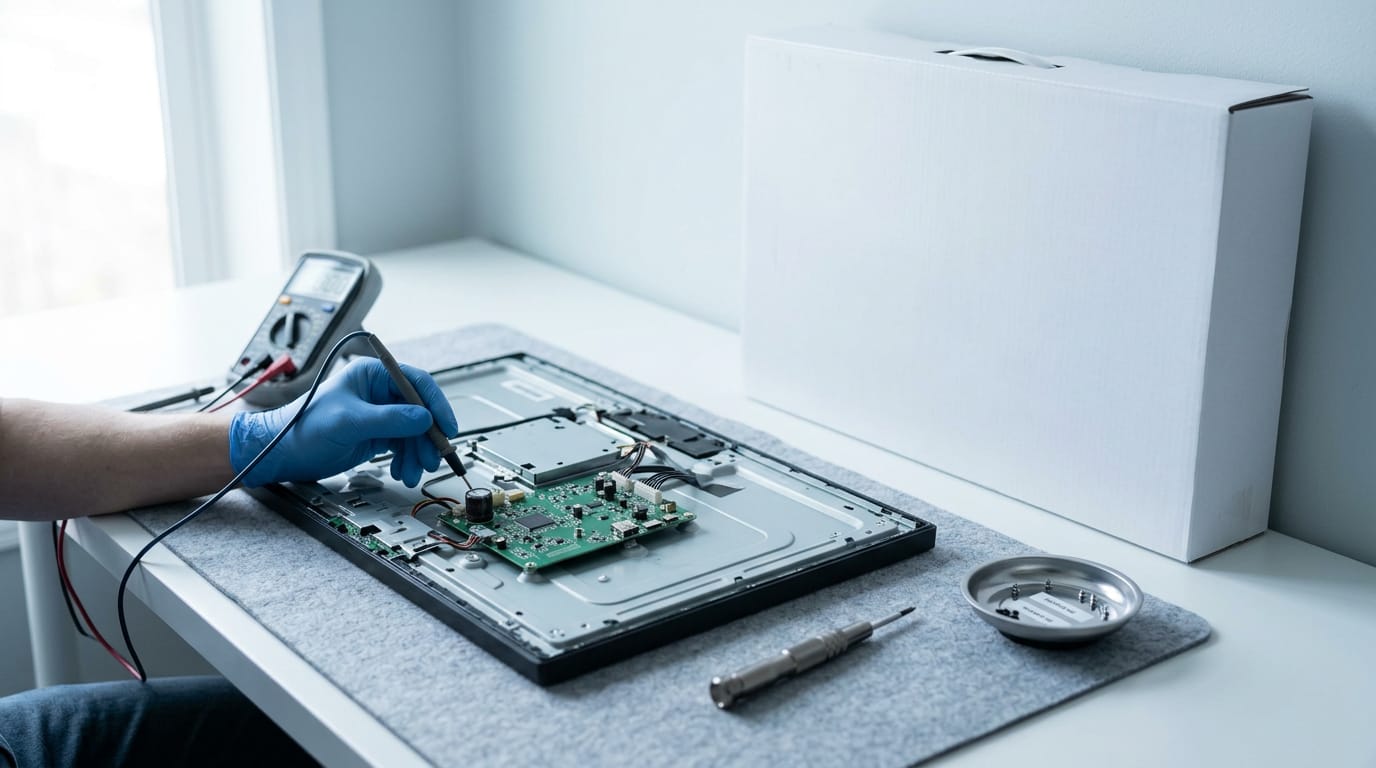
Dual Monitor Setup Explained, Step by Step
A dual monitor setup keeps spreadsheets, calls, and recipes in view. Check your ports, choose screens, and configure Windows or Mac step by step.

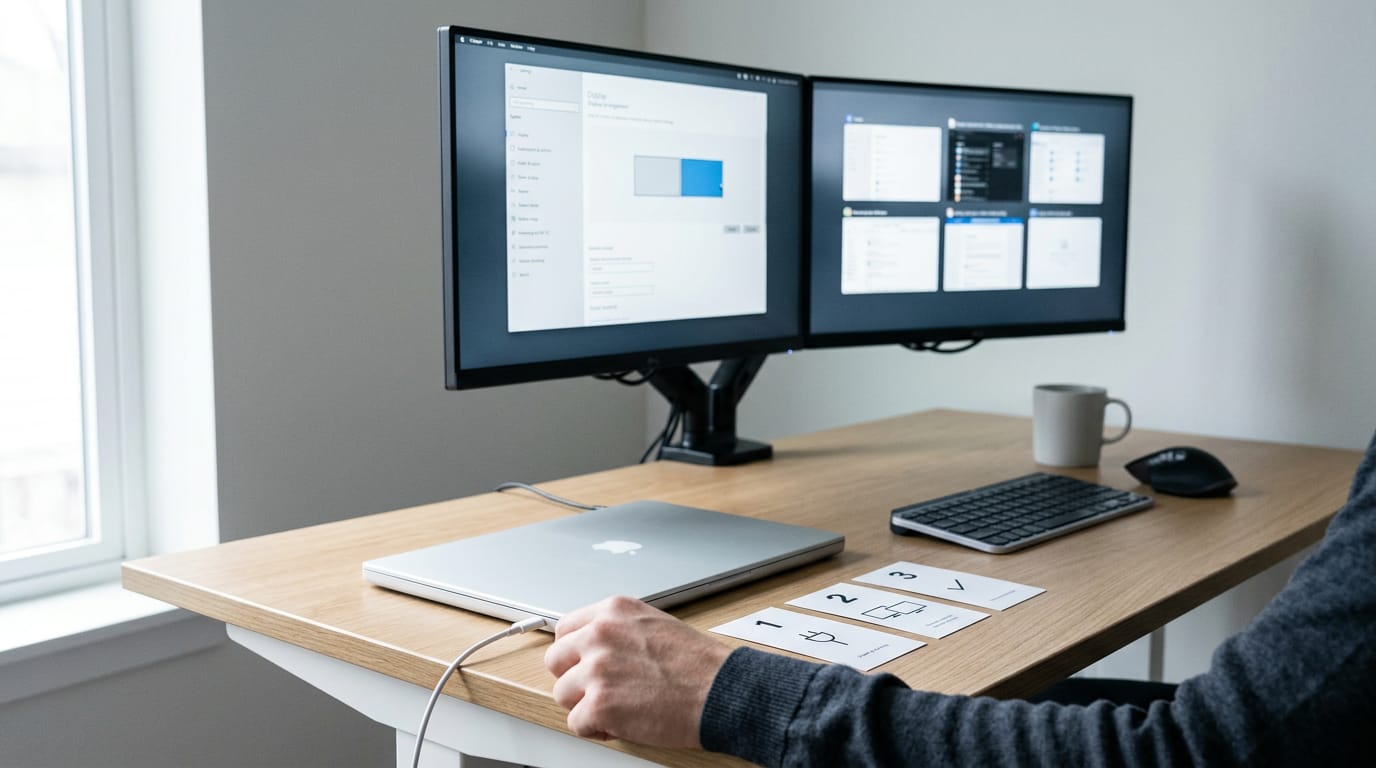
A dual monitor setup uses two screens with one computer, usually as an extended desktop that gives you more workspace instead of showing the same image twice. Check that your graphics hardware and ports can support both displays, then choose compatible screens and arrange them to suit your work, games, and desk. For people who juggle several windows, a well-set-up second monitor reduces window switching, but the best choice depends on your needs and budget.
Think about your desk at home. One notepad works fine until you’re juggling a spreadsheet, a video call, and a recipe at once. A second screen gives you that room without constant window shuffling.
A dual-monitor setup is simply two screens driven by one computer. We’ll cover the ports and cables you need, Windows and Mac configuration, and how to choose monitors.
Then we’ll tackle the extras: gaming with different refresh rates (how often each screen redraws the image), graphics card (GPU, or graphics processing unit) limits, and a second monitor priced in Canadian dollars.
Is a Dual Monitor Setup Worth It?
For most people who keep several windows open, a second monitor is worth buying. If you run one window at a time, it’s a nice extra, not a need.
How two monitors share one computer
Your computer treats two screens as one workspace, so each can show something different. The usual choice is an extended desktop, which gives you more room rather than the same picture twice. Mirroring copies the first screen and adds no room.
That also means one screen can hold a document while the other shows a video call.
Ways a second screen boosts productivity
Put a document beside a browser, and you stop bouncing between windows for the right one. Less switching, more seeing.
Drag and drop between screens is a frequent and fundamental part of interaction in any application that spans two or more displays, according to There and Back Again, a paper on cross-display object movement.
Park a guide or tutorial on the second screen so it stays visible while you work.
Big productivity claims are easy to find, but we don’t have a reliable number to back them, so we won’t guess.
Common jobs that use two monitors
The second screen pays off in jobs like these:
- Office work. A spreadsheet on one screen, email on the other.
- Programming and debugging. Code on one screen, error output or docs on the other.
- Video editing and design. Timeline on the main screen, preview on the second.
- Gaming. A gamer who keeps a walkthrough on the second monitor never has to leave a match to check it.
- Trading and study. Charts on one screen, orders on the other, or a lecture on one and notes on the second.
What Your Hardware Needs for Two Screens
Before you buy a second monitor, check your card, ports, and laptop or Mac.
Whether your graphics card can handle it
Check the spec sheet or manual for how many displays your card supports. What a card supports matters more than how many ports it has.
Integrated graphics (the video chip built into your processor) can drive fewer screens than a dedicated graphics card, so confirm which you have. Extra screens add load, too.
Take a gamer with a sharp 1440p monitor and a second screen for Discord. They confirm the card can run both, so the game stays on the main screen while chat sits on the side.
Matching cables and ports to your screens
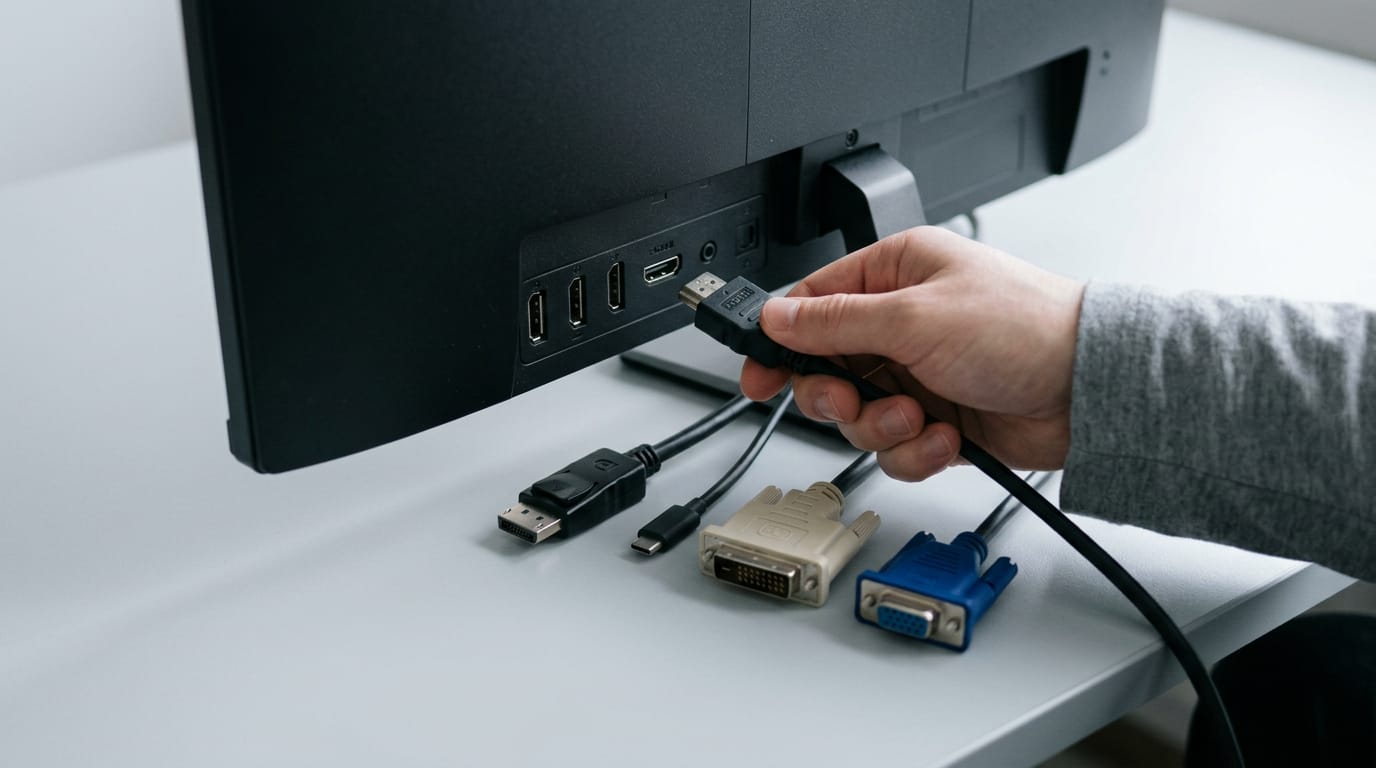
Ports have to match, or you’ll need an adapter. Here’s what you’ll usually see:
- HDMI (High-Definition Multimedia Interface): Common on TVs, consoles, and monitors.
- DisplayPort: The usual PC monitor pick, especially for high refresh rates (how often the picture updates each second).
- USB-C and Thunderbolt: USB-C (short for Universal Serial Bus, Type-C) doesn’t always carry video, so check the spec first. Thunderbolt uses the same plug and can drive displays too.
- DVI, D-Sub, and VGA: DVI (Digital Visual Interface) and VGA (Video Graphics Array) are older, and D-Sub is VGA’s plug shape. They’re fine for basic desktop work, but pick a newer port if you can.
Connecting a laptop to two monitors
A laptop often has fewer video outputs, so you may need help:
- Docking stations: A dock connects through one cable and can provide outputs for two monitors.
- USB-C to dual HDMI adapters: These turn one USB-C port into two HDMI outputs, if your laptop can send video over USB-C.
- USB-to-HDMI/VGA adapters: These add a screen through a free USB port. They often need a driver and lean on the processor, so expect less smoothness in games.
- Single-port laptop limits: One video output drives one external screen, so a second monitor needs a dock or an adapter.
Can one HDMI port run two monitors?
No, not directly. One HDMI port drives one display, so a second cable won’t add a screen. Here’s how the workarounds differ:
- Monitor daisy chaining via DisplayPort or USB-C: Some monitors pass the signal along to a second screen, so one port feeds both, if both support it.
- HDMI splitter duplicates: A splitter copies the picture rather than extends it, so both screens show the same thing.
- HDMI matrix switch for multi-source: It routes several sources to one display, so it swaps inputs instead of adding a desktop.
- One HDMI port: what works: Two separate outputs on your card, a daisy chain between supporting monitors, or a USB adapter. A splitter or switch won’t.
Mac limits and DisplayLink workarounds
Some MacBooks cap external displays, and the cap depends on the model, so check before you buy. DisplayLink adapters send the picture over USB through a driver, so they can add screens past that cap.
Because they lean on the processor, they suit desk work better than fast games.
Picking Monitors and Products for Two Screens
Two screens only feel like an upgrade when they work as a pair. Here’s what to weigh, including what the second screen costs in Canadian dollars (CAD).
Matching monitors or mixing different ones
Matching monitors look seamless, but they aren’t required. It’s less about identical and more about compatible.
- Different sizes work fine, so just line up the top edges.
- Different resolutions need scaling, which resizes text so each screen looks right. Set it per monitor.
- Larger monitor as primary: make the bigger screen your primary display, where games launch by default.
- Mixed refresh rates (60Hz vs 144Hz): hertz (Hz) counts how often a screen updates each second. The pair works, but dragging windows between them can look uneven.
Think of a student who games on a 144Hz panel and keeps a cheaper 60Hz screen for chat and guides. The cheaper screen takes everything else, so the fast panel stays on the game. Fast where it counts.
Tech Insider’s Best Monitors in Canada 2026 guide notes that Canadian prices sit above US figures once exchange rate, freight, and local margins are added, so treat overseas numbers as a loose guide only.
Sizes and specs worth aiming for
The 24-inch and 27-inch sizes are the common picks. Three specs matter most:
- Viewing angle matters if a screen sits off to the side, since some panels shift color at the edges.
- Ergonomic stand (height, tilt, and swivel) keeps each screen near eye level.
- 4K vs 1440p: 4K looks sharper but asks more of your graphics card (GPU), so 1440p is the easier target.
Monitors that stand out
Start with these picks:
- Dell U2725QE: a hub monitor with built-in USB ports, so peripherals plug into the screen.
- ASUS ProArt: the mid-range pick if basic panels feel too limited.
- Dell budget options: the place to look on a tight budget.
- Notable mentions: more models are worth a look, but check CAD pricing first.
Bundles, portable screens, and ultrawide options
- Dual-monitor bundles: two matched screens in one purchase.
- Portable dual-screen monitors: thin travel add-ons, usually smaller than desktop panels.
- Laptop screen extenders: add a screen to the laptop you already own.
- Ultrawide alternatives: an ultrawide is one wide, curved screen that stands in for two.
- Ultrawide vs dual for games: an ultrawide gives you one seamless view, while two screens keep each window on its own edge. For games that support it, one wide screen often feels better. For multitasking, two screens usually win.
Features worth checking before you buy
- Speakers, webcam, USB ports: built-in ones are handy for calls, but dedicated gear usually does better.
- Refresh rate and response time: you’ve seen refresh rate above, and response time measures how fast pixels change.
- Adjustable stands: a fixed stand locks you into one height.
- Power delivery: some monitors charge a laptop over USB-C, so one cable handles video and power.
Set up Your Screens Step by Step
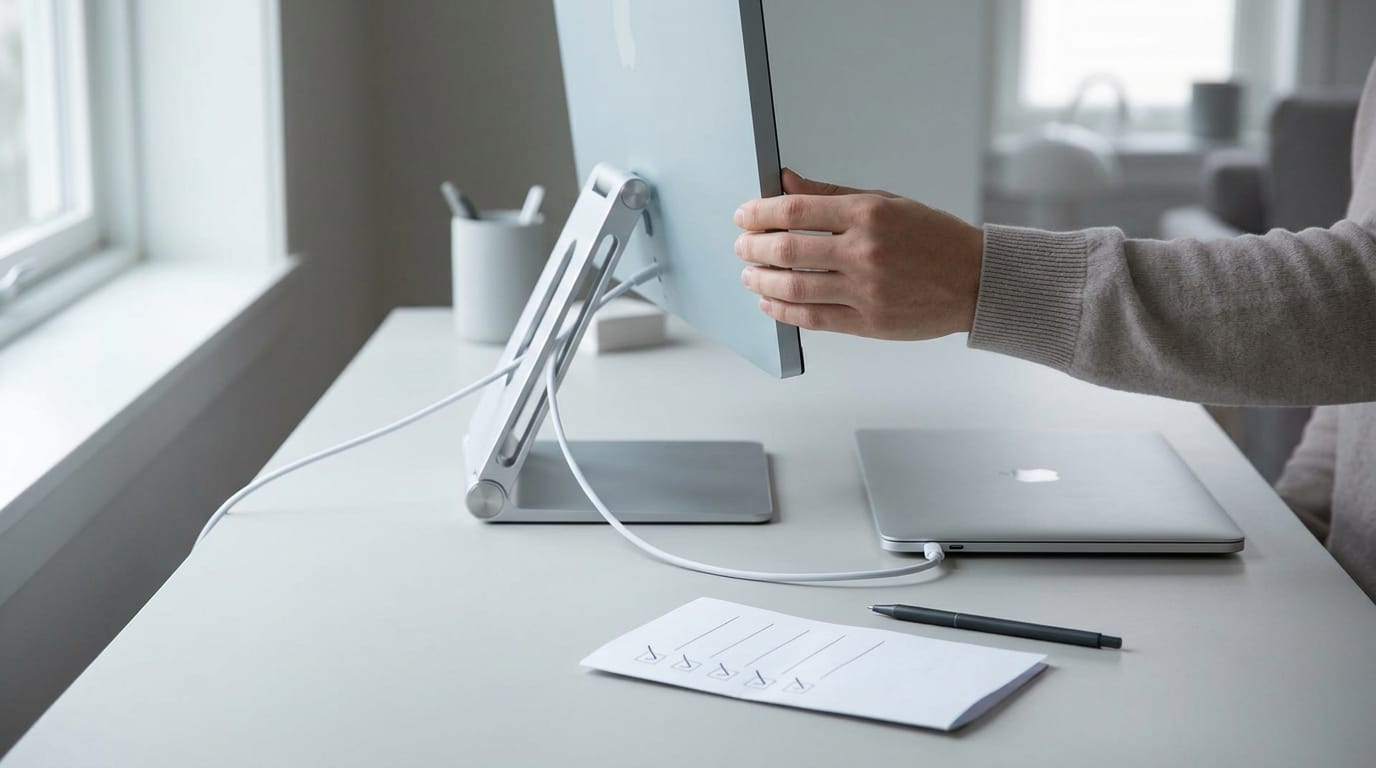
Most second-screen problems come down to order: connect the right way, then adjust settings in sequence.
Power down, then connect in order
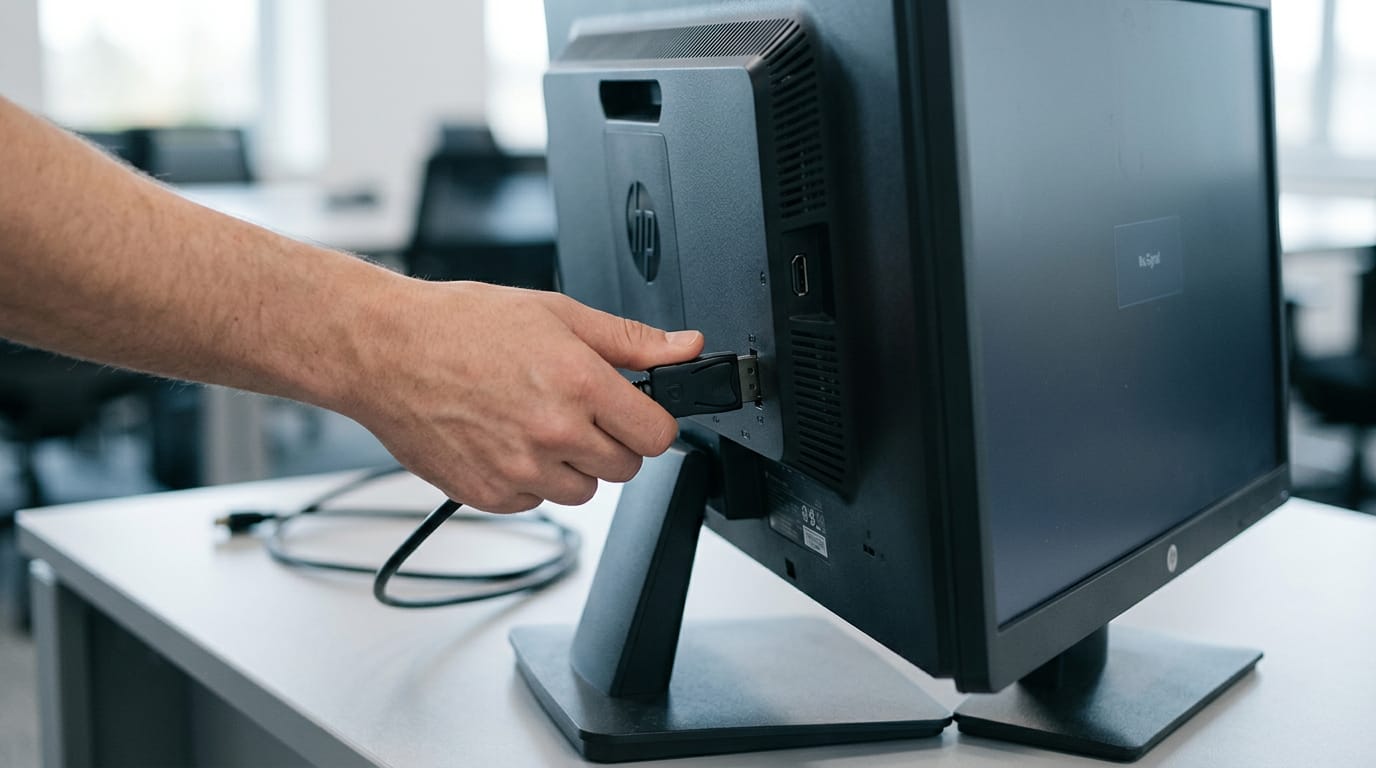
Power off your PC and both monitors before touching a cable. Connect the primary display first, the monitor you’ll use most. Add the second screen after the first one is working, not before.
If your ports don’t match your monitors or run short, a dock can bridge the gap.
Using a PC as a second monitor depends on whether the other machine can accept a video signal at all. Check its ports and documentation before you buy a cable, since the steps above assume a real monitor on the other end.
Windows settings to adjust
Right-click an empty spot on your desktop and open Display settings. Find Extend these displays, which spreads one wide desktop across both screens.
If the second screen doesn’t appear, use Detect displays manually so Windows searches for it. Then set the screen you use most as the main display.
Mac settings for a second screen
Open System Settings > Displays. Turn off Mirror Displays so the second screen shows different content instead of a copy.
Then arrange displays so your cursor moves across them the way your eyes do.
Arrange your screens and tune resolution
Layout decides whether two screens feel like one workspace or two separate ones.
Drag the icons until they match where your monitors actually sit on the desk. Set each screen to its recommended resolution, then tweak scaling if text looks too small or too large.
Check each screen separately, since they don’t always need the same setting.
- Side-by-side suits most desks.
- Stacked works when width is tight.
- Angled layouts turn the outer screen toward you so both feel like they’re in front of you.
Think of a player with a main monitor in front and an older spare screen on the right for chat. Set the spare to the right in the layout, and the game stays front and centre while chat sits where your eyes already go.
No more switching windows every time a message pings. Set it once and forget it.
Choosing Between Extending and Duplicating
Before you touch a setting, decide what the second screen is for. Are you after more room to work, or do you want both screens to show the same thing? Your answer decides which mode to pick.
Stretching your desktop across both screens
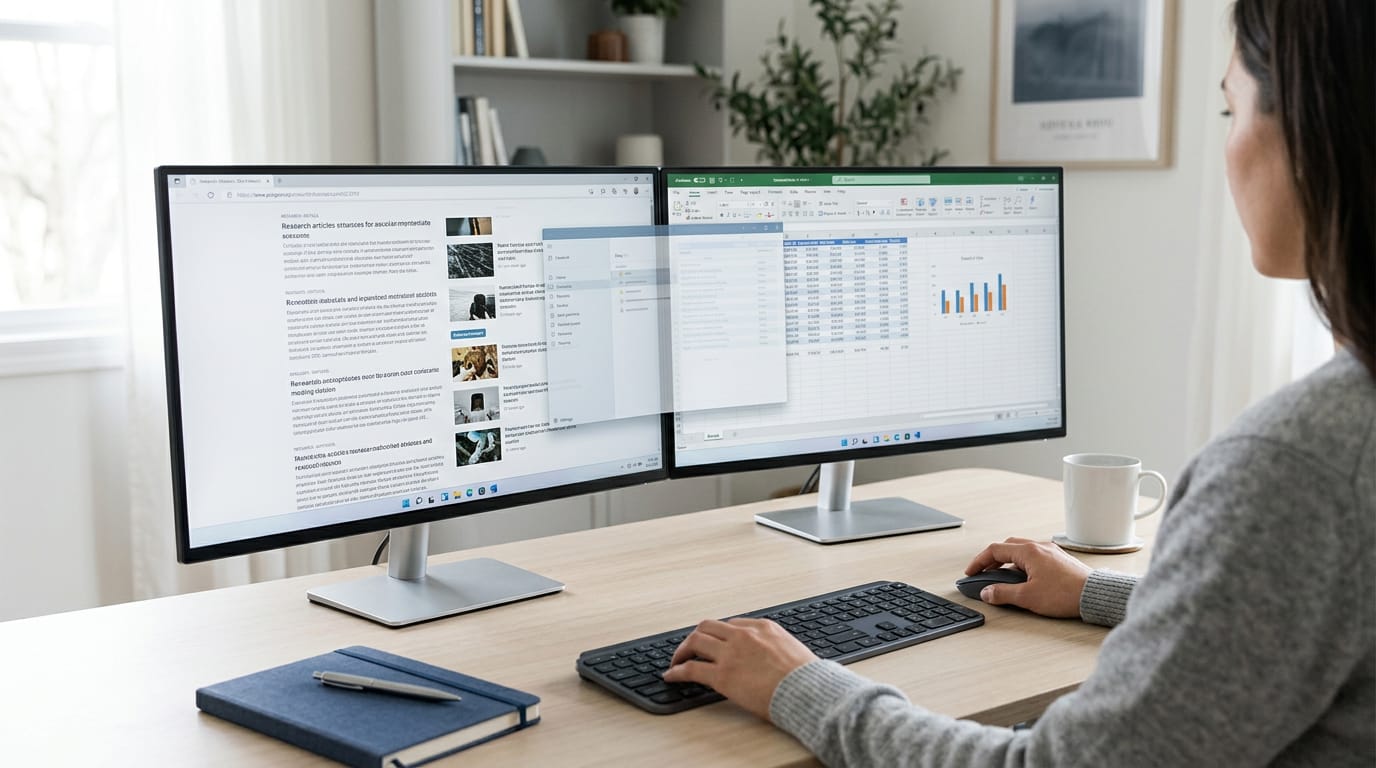
Extending, also called the extended desktop, treats your two monitors as one wide workspace. Here’s what that looks like day to day:
- Separate desktop per screen. Each monitor shows its own part of the desktop, so your browser can sit on the left while a spreadsheet sits on the right.
- Move windows between displays. Drag any window across the edge to the other screen. Nothing gets copied; it simply moves.
- Best for productivity. Writing, research, and editing all benefit from having things side by side.
Think of a gamer who plays on a main monitor and keeps Discord and a guide on a smaller panel beside it. The game stays on the main screen, and the chat window sits to the side instead of covering the action.
The goal isn’t more screens. It’s more room to work.
Showing the same image on both
Duplicating, also called mirroring, sends one image to both screens. Each monitor shows the same picture, not another one. Keeping the same picture on both screens for hours makes monitor pixel burn worth a look.
- Same image on both. Identical content on each monitor, with nothing extra on either side.
- Good for presentations. Everyone in the room sees the slides on the screen in front of them, so nobody has to turn around to check.
- Common cause of identical screens. Mirroring is a common reason two displays suddenly match. If both screens show the same thing by accident, check your display mode before you assume something’s broken.
Making Your Workspace Comfortable and Efficient
Plugging in is the easy part. Arranging the screens well is what makes two monitors feel like one workspace, so let’s get it right.
Layout tips for your desk
Start with height. Line up the tops of both screens so they sit at or just below eye level. Mismatched heights mean you’re tilting your head all day, and that gets old fast.
A monitor stand holds both screens at one level. A monitor arm clamps to the desk and adjusts each screen on its own, which helps most when the monitors differ in size.
Portrait orientation is worth trying too. Rotating one monitor gives you height instead of width, which suits documents, code, or a chat feed.
Think of a player who keeps Discord in a tall column beside a landscape game, so the main screen stays free for the action.
Snapping windows and moving the cursor smoothly
Windows snap features dock windows into place in three handy ways:
- Edge snapping: Drag a window to the left or right edge of a screen and it fills that half.
- Keyboard snapping: Hold the Win key and tap an arrow key to snap without touching the mouse.
- Snap layouts: These split one screen into zones, handy for juggling a game, a browser, and a voice chat.
Smooth cursor movement is mostly about alignment. If one monitor sits higher than the other, the pointer hits an invisible wall and stalls before it crosses over.
Line up the bottom edges, or the tops, and you’ll see the cursor glide from one screen to the next. Match the layout in your Windows display settings by dragging the screen icons to mirror your desk. Small fix, big difference.
Special Cases and Common Questions
Some setups need a different approach, so we’ll cover gaming, remote work, and a second screen that won’t show up.
Gaming setups and console limits
Stretching a game across both screens widens your field of view, the slice of the game world you can see at once. The second screen also works well for monitoring rather than playing. Players who want even more width can look at a 3 monitor gaming setup.
Think of a player who keeps a guide open on the second screen while the game fills the main one, so they never have to alt-tab out of a match.
Consoles rarely support dual monitors, so this part is mainly for PC players. On PC, run the game in borderless windowed mode to keep your second screen in use.
The game fills your main display without locking out the other monitor. That’s the whole trick.
Virtual desktops and VR or AR gear
Virtual desktop platforms from VMware and Citrix support dual monitors, so your virtual desktop can use both of your screens. Virtual reality (VR) and augmented reality (AR) headsets don’t use monitors, so a second screen won’t help them.
Fixing problems with a second screen
When a second screen goes dark or misbehaves, work through these fixes:
- Update your graphics drivers. Drivers control how your GPU (graphics processing unit) sends images to each screen, so start here.
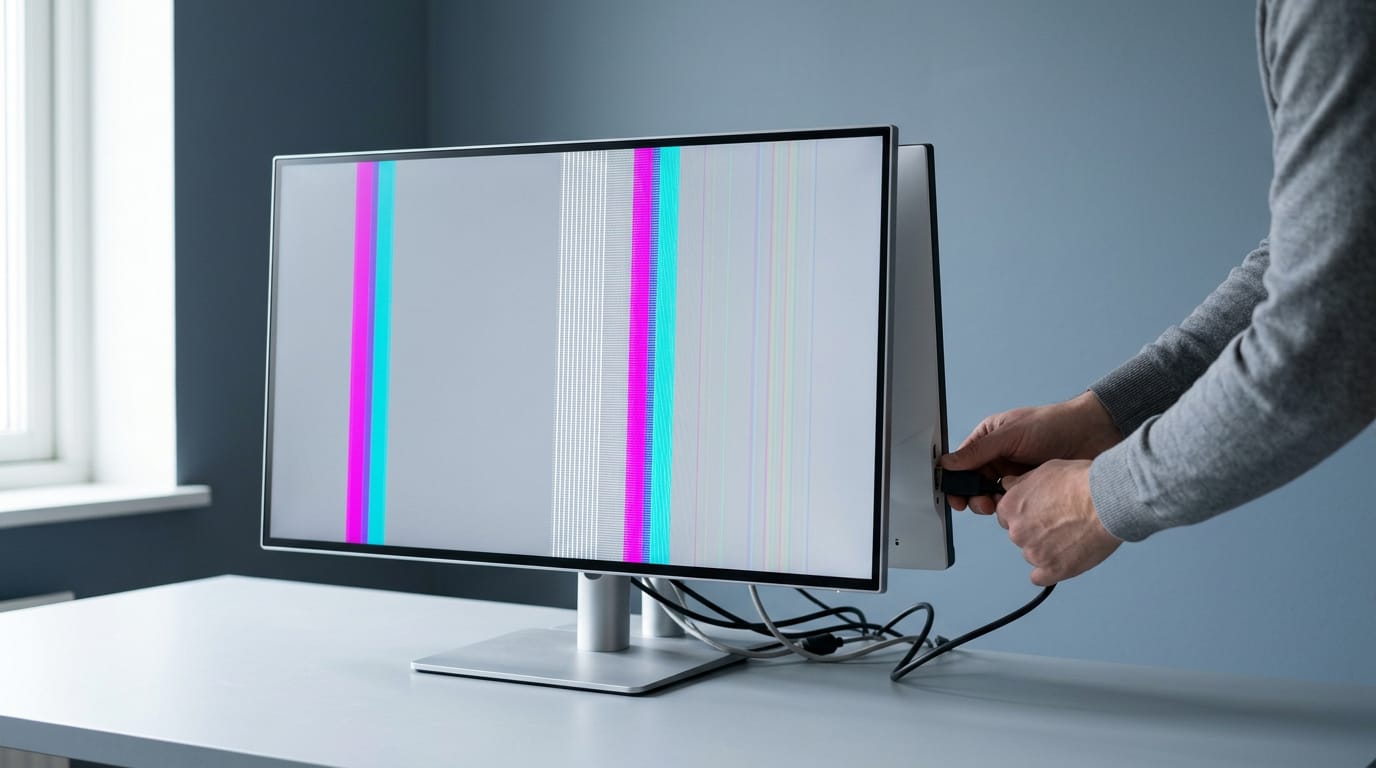
- Check your cables. Make sure each monitor is firmly plugged in at both ends, and into the port you expect.
- Restart your computer. A restart can bring back a screen your PC has stopped seeing.
- Adjust your taskbar settings. If the taskbar only shows on one monitor, change the setting so it appears on every screen.
Try these before you assume the monitor is faulty.
With the right cables, a clear Windows or Mac setup, and monitors chosen for how you actually work and play, a second screen becomes a daily advantage.
Match refresh rates where it counts, respect your graphics card’s limits, and budget for the second monitor before you buy.
Your setup doesn’t need to be perfect. It needs to fit your desk, your budget, and the games you actually play.
References
- There and Back Again: Cross-Display Object Movement in Multi-Display Environments — doi.org (2009)
- Best Monitors in Canada 2026: Work and Gaming — tech-insider.org (2026)
Questions
How to connect 2 monitors to a PC with one HDMI?
One HDMI port cannot directly drive two separate monitors with different images. Use another video output on your PC, a compatible USB-C or USB-to-HDMI adapter, or a dock; an HDMI splitter usually duplicates the same image on both screens.
How do I separate my screens 1 and 2?
On Windows, open Settings > System > Display and drag the numbered display icons to match where your monitors sit. Select Identify if you need to see which screen is 1 or 2. On a Mac, open System Settings > Displays and arrange the displays there.
How do I get my two screens to show different things?
Set the display mode to Extend rather than Duplicate or Mirror. In Windows, open Display settings and choose Extend these displays; on a Mac, open System Settings > Displays and turn off Mirror Displays. Then drag windows between screens.
How do I set up dual monitors?
Connect each monitor to a video output your computer supports, using adapters or a dock if needed. Open Windows Display settings or Mac System Settings > Displays, detect the screens if necessary, choose Extend for separate content, and arrange the displays to match your desk.
How do I get dual monitors to show different things?
Choose Extend these displays in Windows Display settings, or turn off Mirror Displays in Mac System Settings > Displays. Each screen will then have its own desktop area, and you can drag windows from one monitor to the other.
Do I need two HDMI ports for two monitors?
No. You need two supported display outputs, but they do not both have to be HDMI; DisplayPort, USB-C, Thunderbolt, or a compatible dock or adapter can provide additional connections. Check that your computer's graphics hardware supports the number of displays you want to use.
Can I run 2 monitors from 1 HDMI port?
Not directly for two independent displays. An HDMI splitter sends the same picture to both screens, while separate content requires another supported video output, a suitable dock or adapter, or a compatible DisplayPort or USB-C daisy chain.
Is it worth having dual monitors?
For people who regularly keep several windows open, dual monitors can reduce window switching and make it easier to view work side by side. If you usually use one window at a time, a second monitor may be a convenient extra rather than a necessity.
Sources
Free · The Build Sheet
The Build Sheet: three gaming PCs priced at Canadian stores