How to Optimize PC for Gaming, From Free Tweaks to Upgrades
How to optimize PC for gaming? Start with free Windows and GPU tweaks, then use Canadian-priced upgrades and benchmarks to identify what boosts FPS.

Optimizing a PC for gaming means adjusting its software, settings, and hardware so games run smoothly and respond reliably. Start with free steps: update drivers, close background apps, reduce demanding graphics settings, manage heat, and improve your connection; then measure frame rates and temperatures before considering an upgrade. Spend only on the component that testing shows is limiting performance, since careful tuning can improve play without buying a new PC.
Ever notice how a game that ran smooth last month starts stuttering a few weeks later? Your PC can slow down the same way, and most of the fix is already in your settings.
Think of it like tuning a car before you buy a new engine: start with the free adjustments, then move to the parts that cost money.
This guide covers every optimization step in that order, from free software and Windows tweaks to graphics card (GPU) settings and hardware upgrades.
We’ll also show which changes are worth your time and which are worth the spend, priced in Canadian dollars at stores across Canada.
How to Optimize PC for Gaming with FPS
Your frames per second (FPS) is how many images your screen shows each second, and it’s the number you feel every time you move the mouse. Matching your display to that number and setting a target you can track gets you there.
Match your refresh rate to your FPS
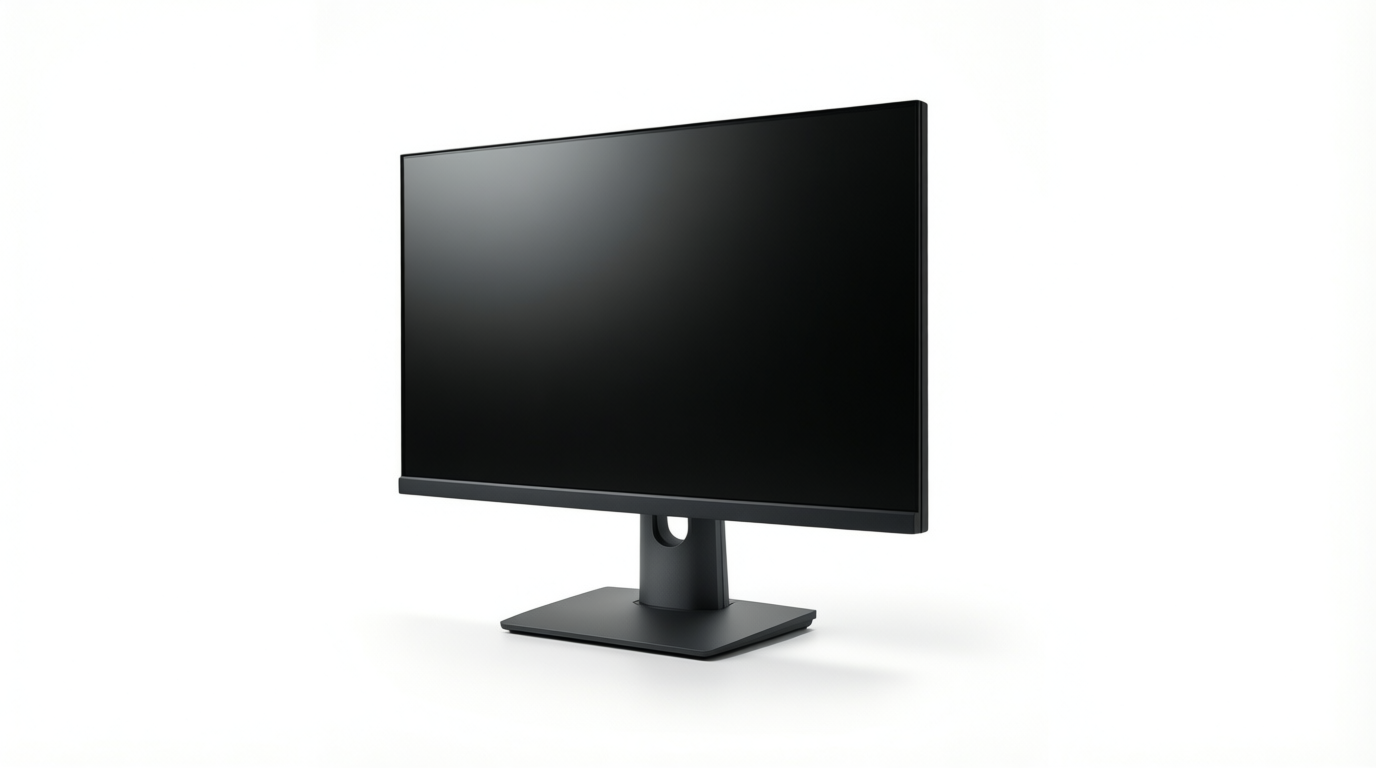
Your refresh rate is how many times per second your monitor redraws the picture, measured in hertz (Hz). Start by setting it to the highest value your monitor supports in your display settings, since it won’t always default to the top option.
Here’s the catch: the monitor sets the ceiling, not the graphics card alone. A 60Hz screen can’t show more frames per second than 60, even if your card produces far more.
A 120Hz or 144Hz monitor gives motion a smoother look, so the extra frames your card makes actually reach your eyes. Fast frames need a fast screen.
Set a target FPS and track it
Pick a target FPS before you start tweaking, so you know what good looks like:
- 60 FPS: the gold standard for smooth play.
- 30 FPS: playable, though motion looks choppier.
Then keep an eye on it. Many games include a built-in counter, and MSI Afterburner can overlay your frame rate on screen while you play.
Think of a player who swears their game feels fine until they switch on a counter and see it dropping well below 60 in every big fight. They lower one demanding setting, check again, and the battles finally feel smooth.
How Can I Make Windows 11 Run Faster?
The short answer: trim what runs in the background, pick a performance-focused power plan, and ease the load on your graphics processing unit (GPU) with fewer visual extras. Here’s where we’d start: the changes that take seconds.
Turn on Game Mode and disable Game Bar
Game Mode pauses some background tasks while a game runs, so the game gets more of your processor’s attention. It’s usually on by default, but if it’s off, switch it on in the Gaming section of Windows Settings.
Then turn off the Game Bar overlay if you don’t use it. It’s about less competition for your hardware, not more power.
Trim background and startup apps
Open Task Manager, click the Startup tab, and disable anything with a high startup impact that you don’t need. Picture a player who installed a launcher, a chat app, and a cloud sync client, all loading every time the PC boots.
Turning them off frees up processor and memory for the game. Then check the background apps list in Settings and close resource hogs, like a browser with a pile of open tabs, before you launch.
Some tools promise to put idle programs to sleep, but try Windows’ own options first.
Pick the High Performance power plan
Windows includes a High Performance plan that keeps your processor from easing off to save energy. On a laptop, plug it in, open the power slider, and pick Best performance. That trades battery life for speed, and at a desk, that’s a fair deal.
Dial back visual effects and advanced options
Search for ‘Adjust the appearance and performance of Windows’ and choose Adjust for best performance to switch off animations and shadows.
In Graphics settings, you can also turn on hardware-accelerated GPU scheduling, which hands some scheduling work to your graphics card. Keep it only if your games run smoother.
DirectX 12 Ultimate isn’t a switch: it’s a feature set your card and games must support, so check the specs. Nagle’s Algorithm batches small network packets, and disabling it is aimed at latency in online games, not frame rate.
That means a registry edit, so only make the change if you’re comfortable. Test each change, and keep what helps.
Clean, Update and Maintain Your System
Free fixes come first, and they’re easier than you think.
Keep drivers and games up to date
Your drivers are the software that lets Windows talk to your graphics card (or GPU, short for graphics processing unit). Picture a player whose game starts stuttering after a Windows update.
A quick check of the GPU maker’s website or driver tool is a good first step. Then check your motherboard maker’s site for chipset drivers, and keep Windows and games patched.
Clear out junk files and bloatware
Bloatware is preinstalled or leftover software that takes up space without earning its keep. Uninstall anything you no longer use, then delete temp files, the throwaway files apps leave behind.
Windows’ built-in Disk Cleanup handles much of this, and tools like CCleaner and TuneUp can automate it.
Keep drive space free too. This is less about deleting everything and more about keeping room for Windows to work.
Do you really need a PC optimizer? Usually not. Disk Cleanup and a careful uninstall cover the basics for free. If you try one, check what it removes and skip any that promise dramatic speed gains.
Defrag HDDs, TRIM SSDs, disable Prefetch
A hard disk drive (HDD) stores data on spinning platters, and defragmenting rearranges its files so they sit closer together. A solid-state drive (SSD) has no spinning parts, so defragging it isn’t needed.
Instead, make sure TRIM (a command that tells the SSD which data blocks are no longer in use) is working, then run Windows’ optimize tool.
Finally, SuperFetch and Prefetch preload the apps you open most. Disabling them is an optional tweak, so keep it only if you notice a difference.
Build a weekly and monthly checkup
Maintenance works best as a habit, not a scramble. Here’s a simple checklist:
- Weekly: Delete temp files, check for driver and game updates, and run a malware and antivirus scan.
- Monthly: Uninstall programs you’ve stopped using, check drive space, and run the optimize tool.
Restart after long sessions, too, to clear out whatever piled up while you played. Picture a player back from a marathon weekend. That restart, scan, and driver check on Sunday night means Monday’s game starts on a clean slate. Routine beats rescue.
Tune Your GPU and Graphics Control Panel
Your GPU (graphics processing unit) has its own settings, and a few free changes can lift frame rates.
Change these NVIDIA and AMD panel settings
- Power management mode: Prefer maximum performance so the card doesn’t throttle mid-match.
- Texture filtering performance: The performance option trades a little sharpness for speed.
- Anti-Lag and Radeon Chill: Anti-Lag cuts input delay; Radeon Chill, AMD’s option, eases frame rates in quiet scenes.
- Threaded optimization and pre-rendered frames: On NVIDIA, threaded optimization spreads driver work across processor cores, and fewer pre-rendered frames means less delay.
Think of a builder with a Radeon card who wants a snappier shooter. These tweaks take minutes and cost nothing, and they’re about consistency rather than peak numbers.
Pick sync, sharpening and upscaling options
- G-Sync: On a compatible monitor, it syncs refresh rate to your card and cuts tearing.
- V-Sync: On stops tearing but adds delay, while off does the opposite, so compare both in-game.
- Image Sharpening: A light touch adds crispness, since too much makes edges look harsh.
- DLSS (Deep Learning Super Sampling): It renders below your resolution and rebuilds detail, asking the card for less work. Supersampling does the reverse: a cleaner image at a heavier load.
Overclock your GPU without overdoing it
- Modest overclock under 15%: Raise the clock in small steps and stay under 15% above stock.
- MSI Afterburner: Use it to adjust GPU clock settings. A performance test of GTA 5 with MSI Afterburner notes it gives easy and precise access to overclocking tools.
- Temperature increase: Overclocking raises GPU temperature, so watch it in long sessions and back off if it climbs.
- Avoid extreme overclocking: Chasing the highest clock rarely pays off, and pushing too far risks crashes. Start small.
Adjust In-game Video and Resolution Settings
Your game menu holds free upgrades.
What is the best resolution for gaming?
The best resolution is usually your monitor’s native resolution, the one it’s built to show sharply, as long as your graphics card (GPU) keeps up. If it can’t, drop the resolution first, since it’s the biggest lever for frames per second (FPS).
Some games also offer resolution scaling, which renders at a lower resolution and stretches the image to fit.
Picture a player in a fast shooter who wants smooth fights. Scaling down a notch looks slightly softer, but enemies move without stuttering. Find the highest setting that holds your frame rate steady, and aim for smooth motion over sharp pixels.
Graphics quality options worth adjusting
These are worth a look:
- Shadows and lighting. Among the heaviest settings, so trim these first.
- Texture quality. Mostly depends on video memory, so lower it if your card runs short.
- Anti-aliasing. Smooths jagged edges. Lower it if frames are tight.
- Draw distance. Controls how far objects render, and it helps most in open-world games.
- Motion blur and effects. Mostly personal taste, though turning it off can make fast action clearer.
- Ray tracing. Simulates realistic light and reflections, and it’s very demanding. Skip it on a midrange card unless frames hold.
Test and tweak each game gradually
Settings vary by game, so one preset won’t suit every title. Say you’re a student running a shooter and a city-builder on one PC. The shooter may need shadows lower, while the city-builder handles them fine.
Test and adjust gradually: change one setting at a time, play a few minutes, and check your FPS counter. Small steps win.
Keep Temperatures in Check While Gaming
A hot PC is a slow PC, and gaming is when you’ll feel it most, so let’s get your system breathing.
Stop heat from slowing your PC
When a part gets too hot, it slows itself down to protect it. That’s thermal throttling, and it’s why your frame rate can sag mid-fight. The goal is less about how many fans you own and more about where the air goes.
Focus on these five areas:
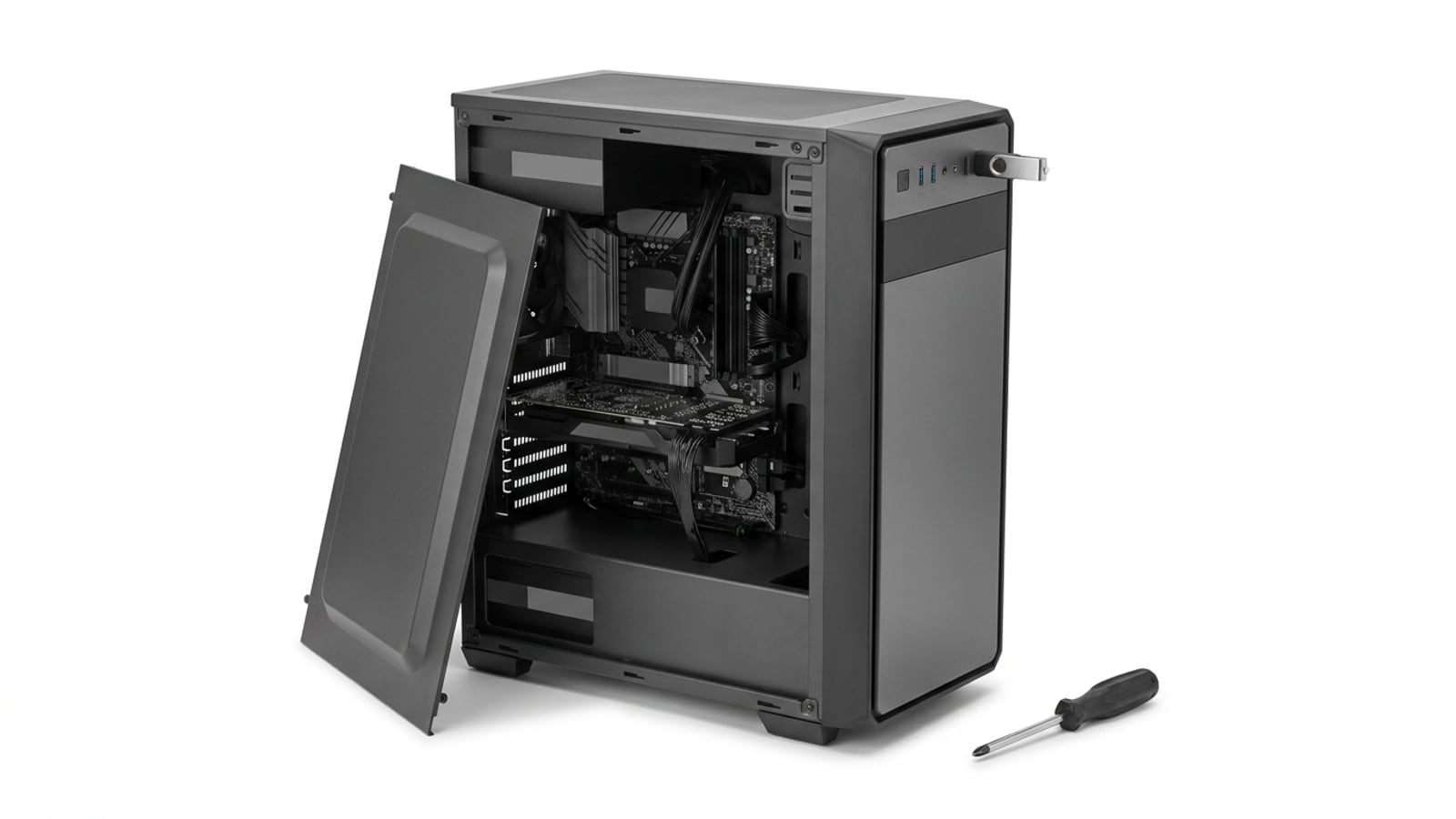
- Clean fans and vents. Dust clogs filters and fan blades. Clean them regularly with compressed air, holding the blades still so they don’t spin.
- Add case fans. One at the front pulls cool air in, and one at the back or top pushes hot air out.
- Cable management airflow. Loose cables across fans and vents block the air. Route them behind the motherboard tray and tie them off.
- Monitor temps. Run a monitoring tool while you play to see how hot your processor and graphics card (GPU) actually get, so you’re checking fixes instead of guessing.
- Laptop cooling stand. A stand lifts your laptop off the table so air can reach its bottom vents.
Think of a student who games on a laptop in bed. The duvet covers the vents, the fan roars, and the frame rate dips mid-match. Moving the laptop to a desk or a cooling stand gives the fan room to keep up, and the match stays smooth.
Give hot air a clear way out.
Lower Network Latency for Smoother Play
If your game feels sluggish even on a fast plan, the culprit is usually latency: the delay between your inputs and the server’s replies, often shown as ping.
It’s less about how fast your plan is and more about how steady the connection stays, so we’ll start with the fixes that improve stability.
Ways to make your connection faster
Here’s what to try:
- Ethernet over Wi-Fi. A cable from your PC to the router gives you a steadier link than wireless, so plug in whenever you can.
- Boost Wi-Fi signal. If you’re stuck on wireless, move the router out from behind the TV and away from thick walls, and keep your PC closer to it.
- Close bandwidth-heavy apps. Cloud sync, video calls, and background downloads all compete with your game, so quit what you aren’t using before a match.
- Enable router QoS. QoS (Quality of Service) is a router setting that decides which devices get priority, so turn it on and put your gaming PC first in line.
- Nearest game server. Many games let you pick a region, so choose the server closest to you for the lowest ping.
Think of a player whose roommate starts streaming a movie in 4K halfway through a ranked match. The stream eats the bandwidth, and the game starts stuttering.
Closing the stream or moving the PC to a wired connection is often enough to save the match. Same game, same PC, different result.
Most of these cost nothing to try, so test your ping after each change to see what actually helped.
Dial in Your Mouse and Input Settings
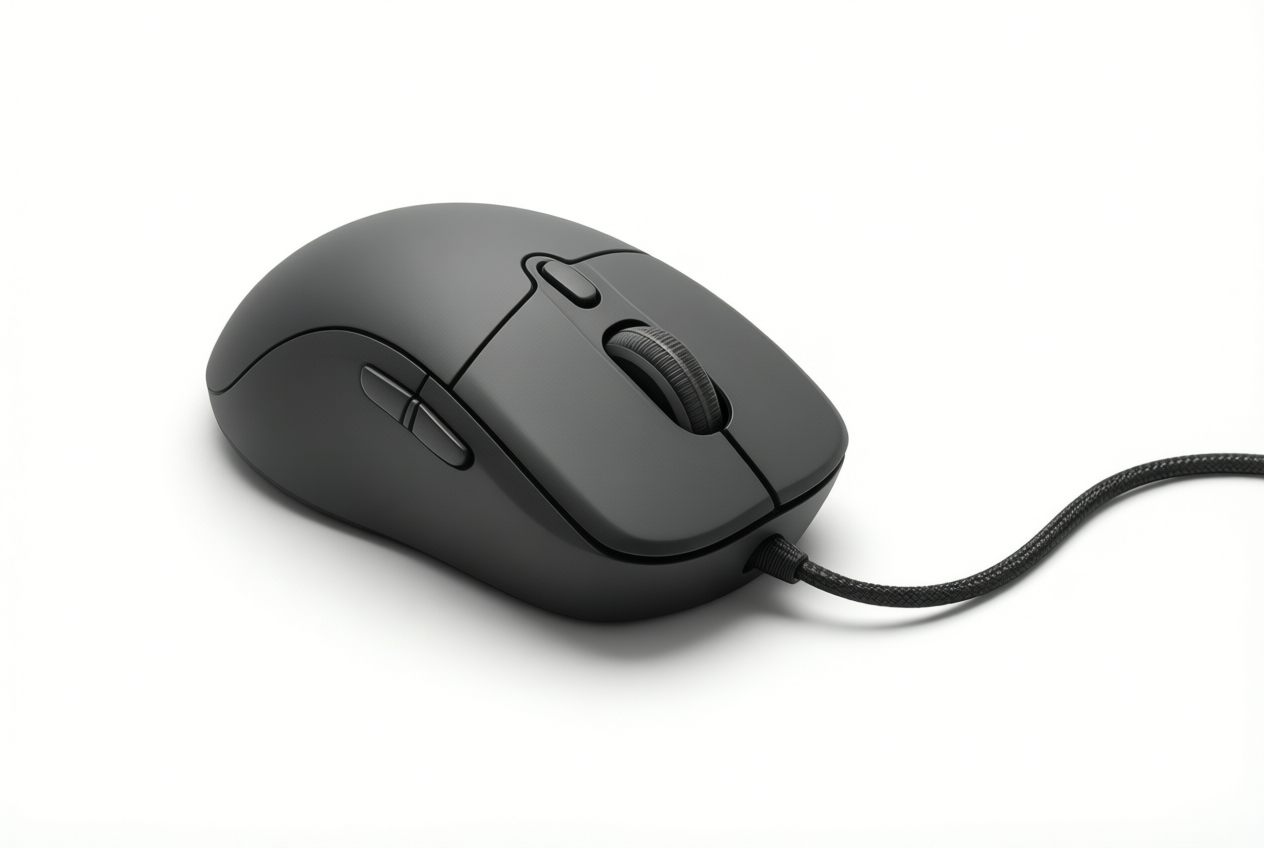
Before you touch a single graphics setting, check how your mouse talks to your PC. Three settings decide how closely your cursor follows your hand, and all of them are free to change.
Turn off mouse acceleration and raise polling
Windows can speed up your cursor when you move the mouse quickly, which is called mouse acceleration. It’s handy for browsing, but it makes aiming unpredictable.
Think of a player flicking toward an enemy in a shooter: the same wrist movement lands in a different spot depending on how fast they swung, so their aim keeps drifting.
Turning acceleration off means one physical movement always moves the cursor the same distance. The goal isn’t a faster cursor. It’s a more predictable one.
Next, find the option called enhance pointer precision in your mouse settings and make sure it’s unchecked. It works on the same principle as mouse acceleration, so it needs to be off as well.
Finally, raise your polling rate. That’s how often your mouse reports its position to your PC, so a higher setting gives the game a more frequent read on your movements. You’ll usually change it in your mouse’s companion software.
Set it to the highest value your mouse supports. Quick change. No cost.
Hardware Upgrades and Components to Consider
Is a seven-year-old computer still good? Often, yes, once you fix the part holding it back.
Is 32GB RAM overkill for gaming?
Random access memory (RAM) is your computer’s short-term workspace, and for gaming alone, 16GB is the baseline. Where 32GB earns its keep is multitasking. It’s less about what you play and more about what else runs alongside it.
Take a player who streams with Discord open: 32GB keeps the game and your other apps from competing for memory. So is 32GB overkill? Only if you game and do nothing else.
Buy RAM as a matched kit so the sticks run together, and check your motherboard’s maximum capacity before you order.
Why an SSD speeds up load times
A solid-state drive (SSD) reads data much faster than an older hard drive, so your games load quicker. Install your operating system (OS) and most-played games on it, and aim for 1TB (a terabyte), since modern games fill a smaller drive fast.
Take a parent buying a computer for a kid who plays the same few games every night: on an SSD, the kid gets back into the match sooner. Less waiting, more playing.
Picking a GPU upgrade for your budget
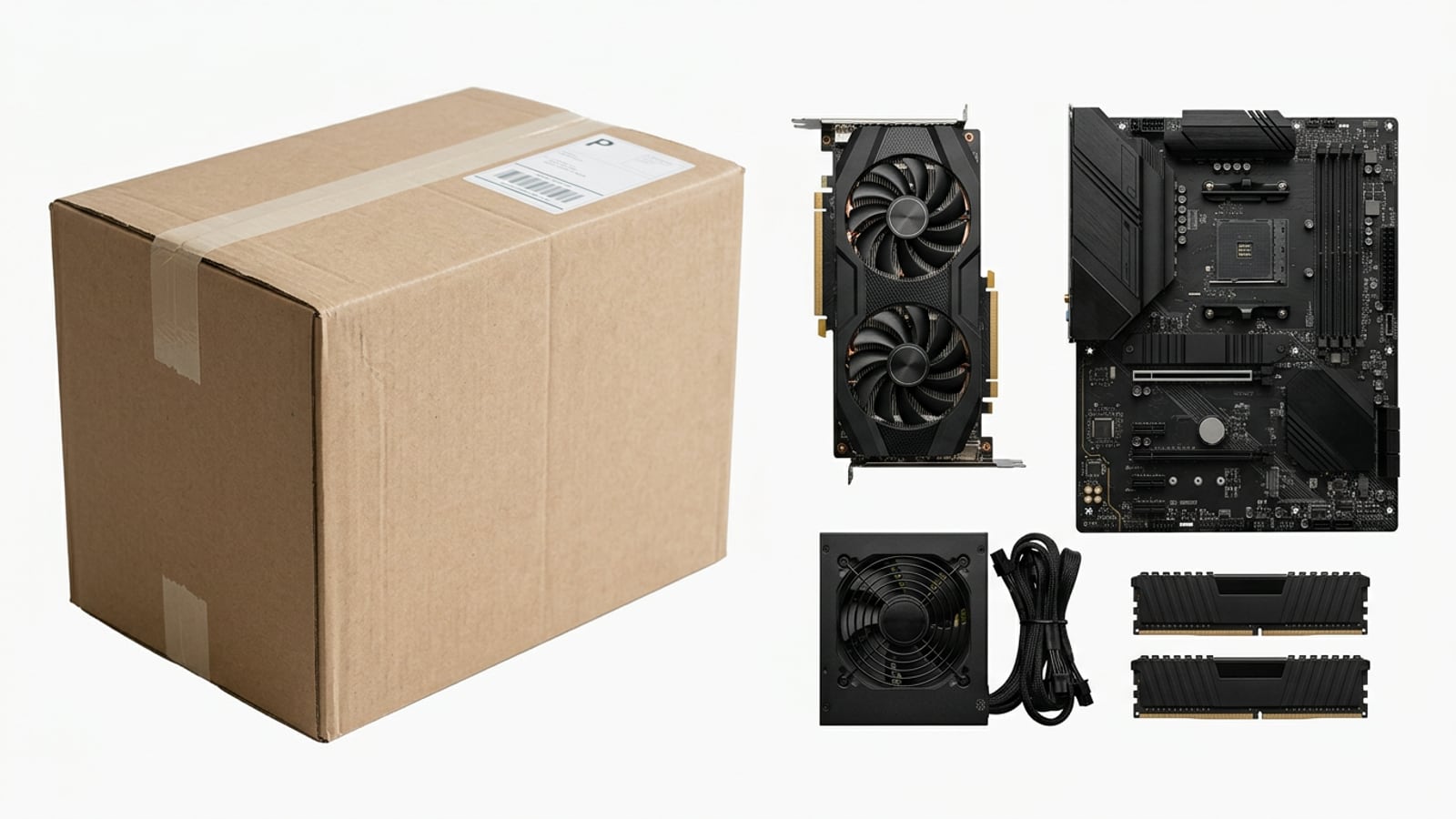
Your graphics card (GPU) is often the main bottleneck, the part limiting your frames per second (FPS). Higher resolutions need a stronger GPU.
According to a data-driven study of game frame rates, the higher the resolution, the more FPS is affected by factors such as the GPU. So moving from 1080p (Full HD) to 1440p means you’ll want a stronger card.
At 1080p, you don’t need a flagship, just a budget card that handles your games. Price GPU options in Canadian dollars (CAD) at a few stores, since prices vary by retailer.
Before you buy, diagnose the bottleneck. If your GPU runs near full load while your processor (CPU) has room to spare, the card is the limit. If your CPU is maxed out while the GPU coasts, a new card won’t help much. Check first. Spend second.
What you can upgrade in a laptop
Laptops are more limited. GPU upgrades are rare because the graphics chip is usually built onto the board, so focus on:
- RAM: check for spare slots or a removable module.
- Storage: many laptops accept a second SSD for your games.
Both often cost less than a new machine.
Check Your Results with Benchmark Tests
Every tweak should earn its place, and a benchmark test is how you prove it. Run one before you change anything, then again after each step, so you know what actually helped and what just felt faster.
Measure results with the right tools
Stick with a few tools you can trust:
- 3DMark: a standardized graphics test that gives you a score you can compare from one run to the next.
- Unigine Heaven: a demanding graphics test that shows how your system handles heavy scenes.
- UserBenchmark: a site that lets you compare your results against other users’ results.
A single score is only part of the picture, so you’ll also want to track three things while you play:
- Frame rate (FPS): frames per second, or how many images your screen shows each second. Higher and steadier is the goal.
- Temperatures: how hot your processor and graphics card run. Sustained high heat is worth keeping an eye on.
- Load times: how long a game takes to start up or load a new area.
To see these live, turn on the MSI Afterburner overlay, a small readout that sits on top of your game as you play.
Consider a builder who just swapped in a new graphics card. They run 3DMark before and after the swap, then leave the overlay on during a busy match to see whether the frame rate holds when the action gets heavy.
Matched numbers settle the question faster than memory ever will.
Your goal is repeatable results, not lucky ones. Keep the settings and the scene the same for each run. Test, tweak, test again.
Budget Options and Cloud Alternatives
Before you buy anything, you’ve got two options: cloud gaming or a free tune-up. Start with the free fixes, since they cost you nothing.
Stream games from the cloud
With cloud gaming, services such as GeForce NOW and Xbox Cloud run the game on remote servers and send the video to your screen. Your own machine mostly just displays the picture, so it doesn’t need to be powerful.
That makes it a real option for weak hardware.
You need fast internet, or the stream stutters. For example, a student with an older laptop can play a newer title without buying a new machine.
The real question is less about what your PC can handle and more about how fast your connection is. Your connection is the weak link.
Optimize for free before buying hardware
On a student budget, start here:
- Trim startup apps. Turn off programs you don’t need while gaming.
- Close background tasks. Quit extra browser tabs and chat apps before you play.
- Update your graphics driver. It’s the software that lets Windows talk to your graphics card (GPU).
- Lower demanding settings. Dial back shadows and draw distance (how far you can see).
This is software before hardware: tuning is about fixing what’s slowing you down, not buying a faster part.
When the free fixes run out, here’s an upgrade order for a Canadian-dollar budget:
- Tight budget: Keep the free tweaks and, if your internet holds up, a cloud subscription.
- Moderate budget: Buy the cheapest part that fixes your weakest link, such as more memory (RAM, your PC’s short-term workspace).
- Bigger budget: Save the graphics card for last, once the rest of the system isn’t holding it back.
Optimizing a PC for gaming doesn’t have to start with a bigger budget. Begin with the free fixes: clean up your software, keep your drivers current, and match your graphics settings to your monitor.
Then benchmark, so you know whether an upgrade is really needed.
Spend only where the results point you. The best build runs your games well at the budget you actually have, and sometimes the best upgrade is the one you didn’t have to buy.
References
Questions
What is a good refresh rate for gaming?
A good refresh rate for gaming is 120Hz or 144Hz if your PC can produce enough frames to take advantage of it. Set your monitor to its highest supported refresh rate; a 60Hz display cannot show more than 60 frames per second.
What is the best PC tweaker?
There is no single best PC tweaker for every system. Start with Windows settings and built-in tools, and use a utility such as MSI Afterburner for monitoring FPS or adjusting GPU settings; change one thing at a time and keep only tweaks that help.
How does RAM affect gaming performance?
RAM provides working space for games and other running programs. If memory is insufficient, performance can suffer when apps compete for it, while 32GB can help when gaming alongside tasks such as streaming or running Discord.
How can I make Windows 11 run faster?
To make Windows 11 run faster, disable unnecessary startup and background apps, turn on Game Mode, and use the Best performance power setting when appropriate. You can also reduce visual effects, uninstall unused software, clear temporary files, and keep Windows and drivers updated.
Is 32GB RAM overkill for a gaming PC?
For gaming alone, 32GB is often more than necessary if 16GB meets your needs. It is useful for multitasking, such as streaming or keeping other apps open while gaming, and you should check your motherboard's capacity before upgrading.
Is 30 or 60 FPS better for gaming?
60 FPS generally looks smoother than 30 FPS, which is playable but has visibly choppier motion. The display's refresh rate also matters: a 60Hz monitor cannot show more than 60 frames per second.
Is a 7 year old computer still good?
A seven-year-old computer may still be good, especially if it runs the games and tasks you need. Check which component is limiting performance, then consider targeted upgrades such as RAM or an SSD before replacing the whole system.
Do I really need a PC optimizer?
Most people do not need a PC optimizer. Windows tools such as Disk Cleanup and careful removal of unused programs handle basic cleanup for free; if you use an optimizer, check what it changes and avoid promises of dramatic speed gains.
Sources
Free · The Build Sheet
The Build Sheet: three gaming PCs priced at Canadian stores