What to upgrade first on your gaming PC, and how to tell
A ten-minute check with free tools shows what your PC is waiting on. Then the order to upgrade in, the compatibility traps and Canadian prices.

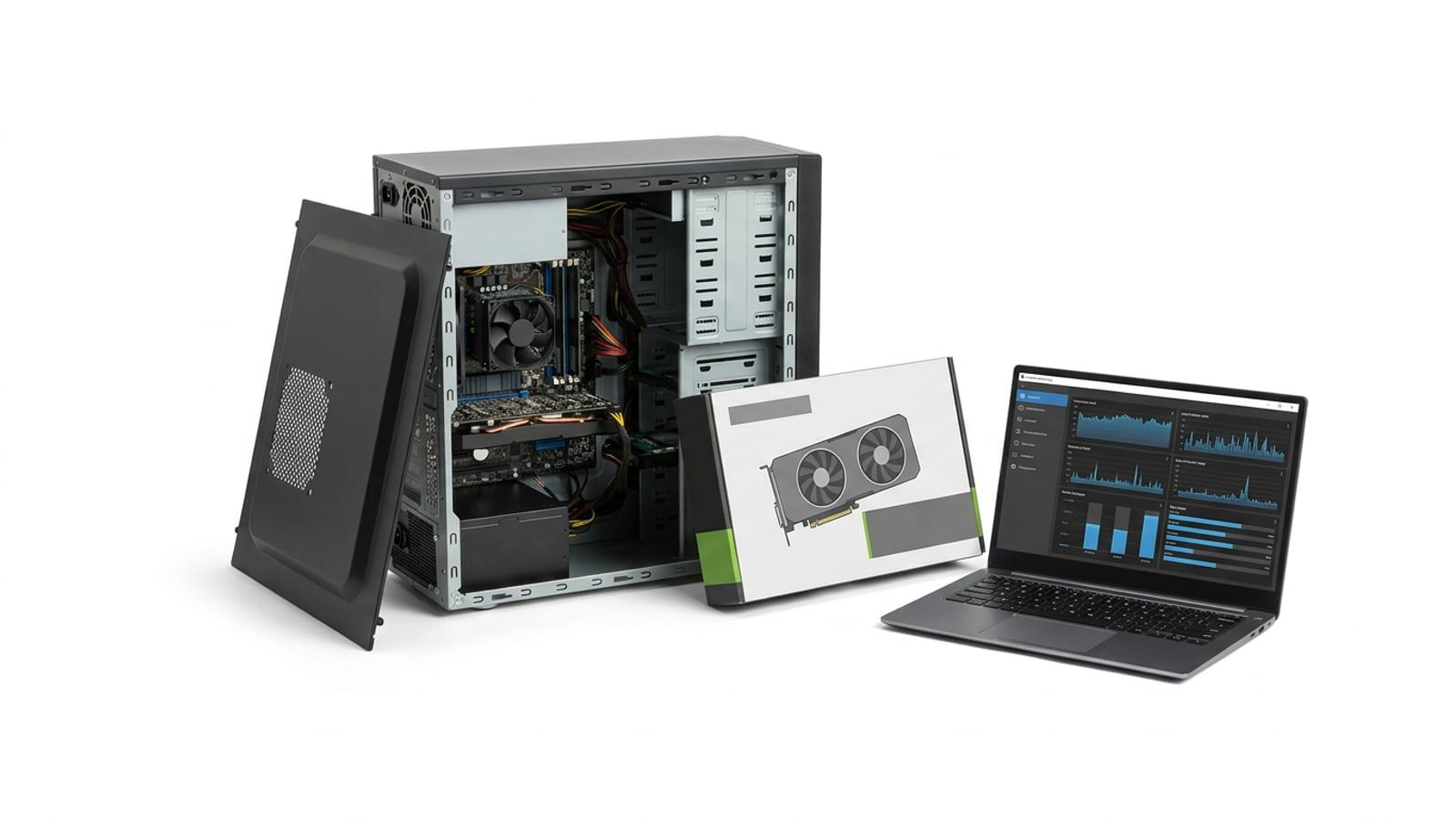
Play the game that bothers you with a hardware monitor open: the part at full load, or the one the others are waiting on, is the one to upgrade. Fix a hard drive or 8GB of memory first because they are cheap, and check the power supply and Resizable BAR before you buy a graphics card.
Before you buy anything, watch the PC play the game that bothers you. Open a free hardware monitor, play for ten minutes, and see which part is at full load: that is the part the others are waiting on. In most gaming PCs it is the graphics card. Two upgrades come first anyway, because they are cheap and easy: an SSD if Windows still starts from a hard drive, and 16GB of memory if you have 8GB. After that, upgrade whatever the check points at, and check the power supply before you buy a new card.
Prices here are in Canadian dollars before tax, from the Build Sheet, at the store named, checked in October 2026.
Find what the PC is waiting on
The check needs three free tools from our Toolkit and one game you play.
- Read what you have. Open CPU-Z and write down the processor, the motherboard model and the memory (size, type and speed). Then open Task Manager, go to Performance, and look at the disk that holds Windows: it says SSD or HDD.
- Open a monitor. Start LibreHardwareMonitor and leave it open on a second screen or behind the game. Watch the graphics card’s load, the processor’s load per thread, the memory in use and the temperatures.
- Play for ten minutes. Play the part of the game where it feels worst, at the settings you normally use.
- Read the numbers. Use the table below.
- If it stutters, record it. CapFrameX captures frame times, so a stutter shows even when the average frame rate looks fine. Run it before and after an upgrade to see what changed.
| What you see while playing | What it points to | First upgrade |
|---|---|---|
| Windows on a hard drive, long loads, hitches when new areas load | Storage | An SSD |
| Memory in use close to the total, 8GB fitted | Memory | 16GB (2×8GB) |
| Graphics card at or near full load the whole time | Graphics card | A faster graphics card |
| Graphics card well below full load, one or more processor threads at full load | Processor | A faster processor for the same socket |
| A temperature that keeps climbing, then the game slows | Cooling | Clean the dust, check the cooler and fans |
The last row costs nothing. A PC that slows down as it heats up needs cleaning or a reseated cooler, not a new part.
If you still boot from a hard drive: an SSD
Moving Windows and your games from a hard drive to an SSD is the cheapest change you will notice every day: faster start-up, faster loads, fewer hitches when a game streams in a new area. It won’t raise the frame rate where the graphics card is the limit.
The Kingston NV3 1TB on our sheets is $199 at Walmart.ca. It is an M.2 NVMe drive, so check that your motherboard has an M.2 slot first: CPU-Z gave you the model, and the board’s manual shows the slots. An older board without one takes a 2.5-inch SATA SSD instead. Before you clone or copy anything, run CrystalDiskInfo on the old drive to see whether it reports any health warnings.
If you have 8GB of memory: 16GB
If the memory in use sits close to 8GB while you play, the PC is moving data to the drive to make room, and you feel it as stutter. Sixteen gigabytes is enough for gaming today.
- Match the type. DDR4 and DDR5 don’t fit each other’s slots. CPU-Z tells you which you have.
- Buy a two-stick kit. A matched 2×8GB kit runs both memory channels. Adding one new stick to an old one can work, but a kit is the safe way.
- Check the speed the board takes. The Kingston FURY Beast 16GB (2×8GB) DDR4-3200 on our sheets is $184 at Canada Computers, and suits most Ryzen and Intel boards that take DDR4.
- Turn on the memory profile in the BIOS afterwards, or the kit runs at a slower default. Our first-boot guide shows where.
If the graphics card is at full load: the graphics card
This is the usual answer, and the one that changes most what you see in games. These are the cards on this month’s Build Sheets:
| Card | Video memory | Price, October 2026 | Sheet |
|---|---|---|---|
| Sparkle Intel Arc B580 Titan OC | 12GB | $506 at Amazon.ca | $1,500 |
| ASRock Radeon RX 9070 Challenger | 16GB | $1,046 at Amazon.ca | $2,000 |
| PNY GeForce RTX 5070 OC | 12GB | $1,200 at Best Buy | $2,000 (swap) |
| Acer Nitro Radeon RX 9070 XT | 16GB | $1,200 at Amazon.ca | $2,500 |
Match the card to the screen you play on: a card chosen for 1440p does little for a 1080p monitor at 60Hz. Our 1080p vs 1440p guide pairs each card with a monitor. Then check three things before you buy:
Resizable BAR, for an Intel Arc card
Intel says Resizable BAR “must be enabled for optimal performance” with its Arc B-Series cards. Its Arc quick start guide lists the platforms: Ryzen 5000 and most Ryzen 3000 processors on AMD 500-series boards, Ryzen 7000 to 9000 on 600-series boards, and Intel 10th Gen Core and newer on their matching boards, where 10th and 11th Gen boards need the board maker to confirm support. On an older PC, or a board without the setting, choose a Radeon or GeForce card instead. On AMD boards the setting may be called Smart Access Memory.
The length and the slot
Measure the space in the case from the back slot to the front fans, and compare it with the card’s length on its maker’s page. Most cards also take two or three slots’ width.
The power supply
Covered in its own section below: check it before you pay for the card.
If the processor is the limit: a drop-in processor first
If the check showed the processor at full load and the graphics card waiting, the cheapest fix is a faster chip for the socket you have, not a new platform. A motherboard maker’s CPU support list tells you which chips the board takes and from which BIOS version.
For example, MSI publishes a CPU support list for the B450 TOMAHAWK MAX, an AM4 board, with each processor it takes and the BIOS version that processor needs; ASUS, Gigabyte and ASRock publish the same kind of list for their boards. Look up your own board the same way:
- Find your board’s model in CPU-Z.
- Open the board’s support page on its maker’s site and find the CPU support list.
- Note the BIOS version the new chip needs.
- Update the BIOS with the old processor still fitted, following the board maker’s instructions, then swap the chip.
Older processors on Intel sockets and early AM4 boards may have no faster chip left to take. Then a processor upgrade means a new board and possibly new memory, which brings you to the last section.
Check the power supply before a new card
A new graphics card often needs more power, and different plugs, than the old one. The card makers publish what they need:
- Radeon RX 9070: AMD gives a typical board power of 220W, a minimum power supply of 650W and two 8-pin connectors on its RX 9070 specifications.
- GeForce RTX 5070: Nvidia gives 250W, 650W for the whole system, and two PCIe 8-pin cables through the adapter in the box, or one 300W PCIe Gen 5 cable.
Read the label on your power supply for its wattage, look at which cables it has spare, and check its age. Partner cards can differ from the reference numbers, so check the exact card’s page too. Our guide to power supply wattage works the sums through and says when an old unit should be replaced along with the card.
When the upgrade is a new PC
Stop upgrading part by part when:
- the processor you need takes a new socket, which means a new motherboard and often new memory at the same time;
- the power supply would need replacing along with the graphics card, and the processor is old too;
- the PC can’t use Resizable BAR and the card you want is an Arc.
Add up the parts you’d need and compare the total with a whole new build. Our cheapest sheet, a complete gaming PC for 1080p, is $1,420 before tax this month; the Build Sheet has all three, and you can keep your old drive and monitor. More builds are in PC Builds.
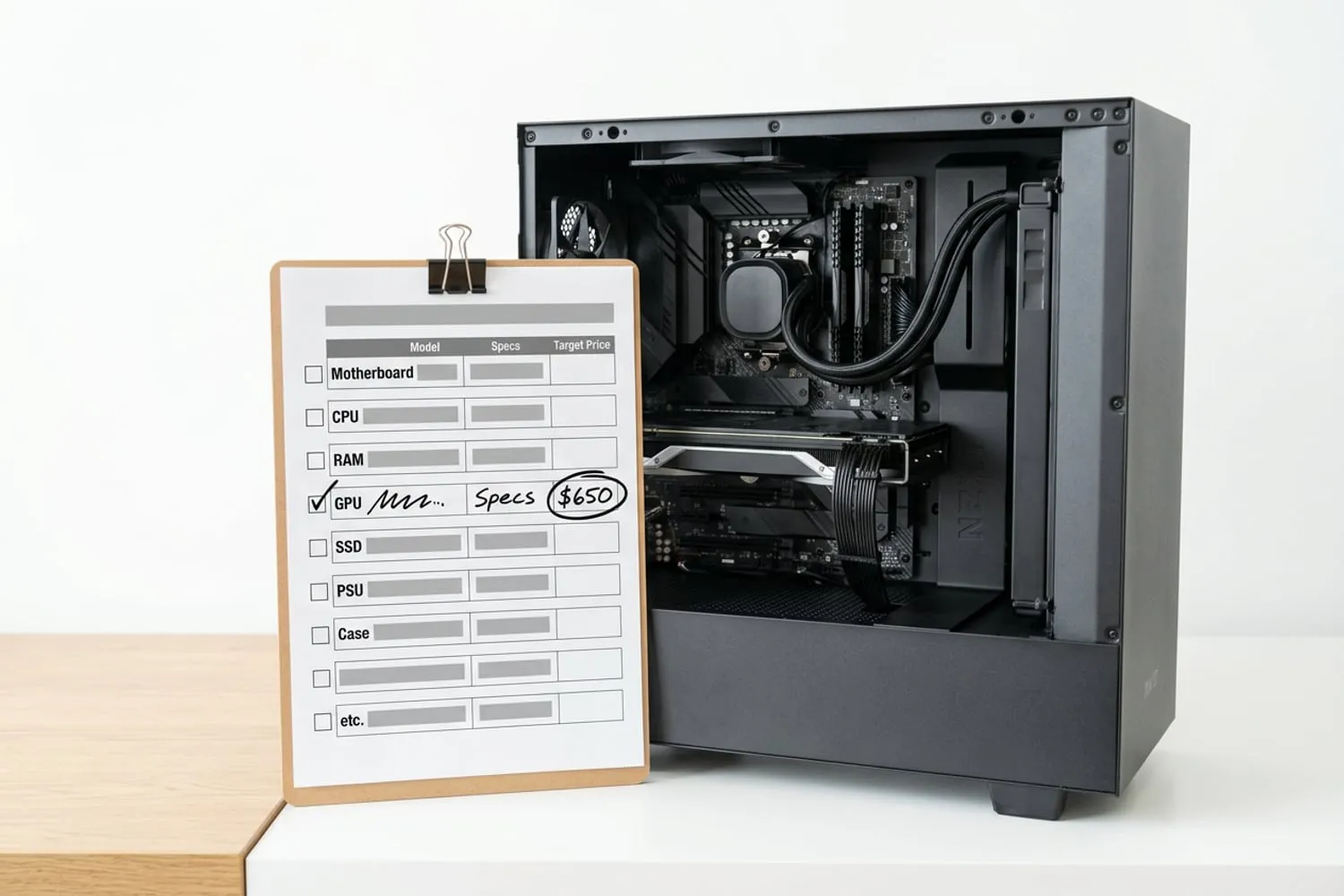
Write it down: the upgrade tracker
Print the upgrade tracker from the Build Sheet and fill in a row for each part: what you have (from CPU-Z), what you’d replace it with, and the price at which the upgrade is worth it to you. Then wait. When a sale reaches your number, buy it and write down the date.
Write the price you’d pay before the sale starts, not during it. A tracker filled in ahead of time stops a discount on a part you don’t need from spending the money you set aside for the one you do.
Questions
Should I upgrade my CPU or GPU first for gaming?
In most gaming PCs, the graphics card, because it does most of the work in games. The exception is a PC where the card is not at full load while the processor is, which the ten-minute check in this article shows. If the processor is the limit, look for a faster chip that fits the motherboard you already have before you think about a new platform.
How do I know if my CPU is bottlenecking my GPU?
Run the game with a monitor such as LibreHardwareMonitor open. If the graphics card sits well below full load while one or more processor threads are at full load, the processor is holding the card back. Lowering the resolution and seeing no change in smoothness points the same way.
Will a new graphics card work in an old PC?
Usually, if the power supply has the wattage and connectors the card maker asks for, and the case has room for its length. Intel Arc cards also need Resizable BAR, which Intel lists for Ryzen 5000 and most Ryzen 3000 processors on AMD 500-series boards, and for Intel 10th Gen Core and newer. On an older platform, a Radeon or GeForce card is the safer choice.
Is 16GB of RAM enough for gaming?
For playing games, yes, for now: most games run well on 16GB, and it is what all three of our Build Sheets use this month. 32GB helps if you stream, record or keep many browser tabs open while you play. With 8GB, going to 16GB is one of the cheapest upgrades that makes a difference.
When is it better to build a new PC than to upgrade?
When the upgrade you need means a new processor, motherboard and memory at once, because those three together are most of a new PC. It is also time when the power supply is too small or too old for the card you want. At that point, price the whole thing against our $1,500 sheet before you spend on parts one at a time.
Sources
Free · The Build Sheet
The Build Sheet: three gaming PCs priced at Canadian stores