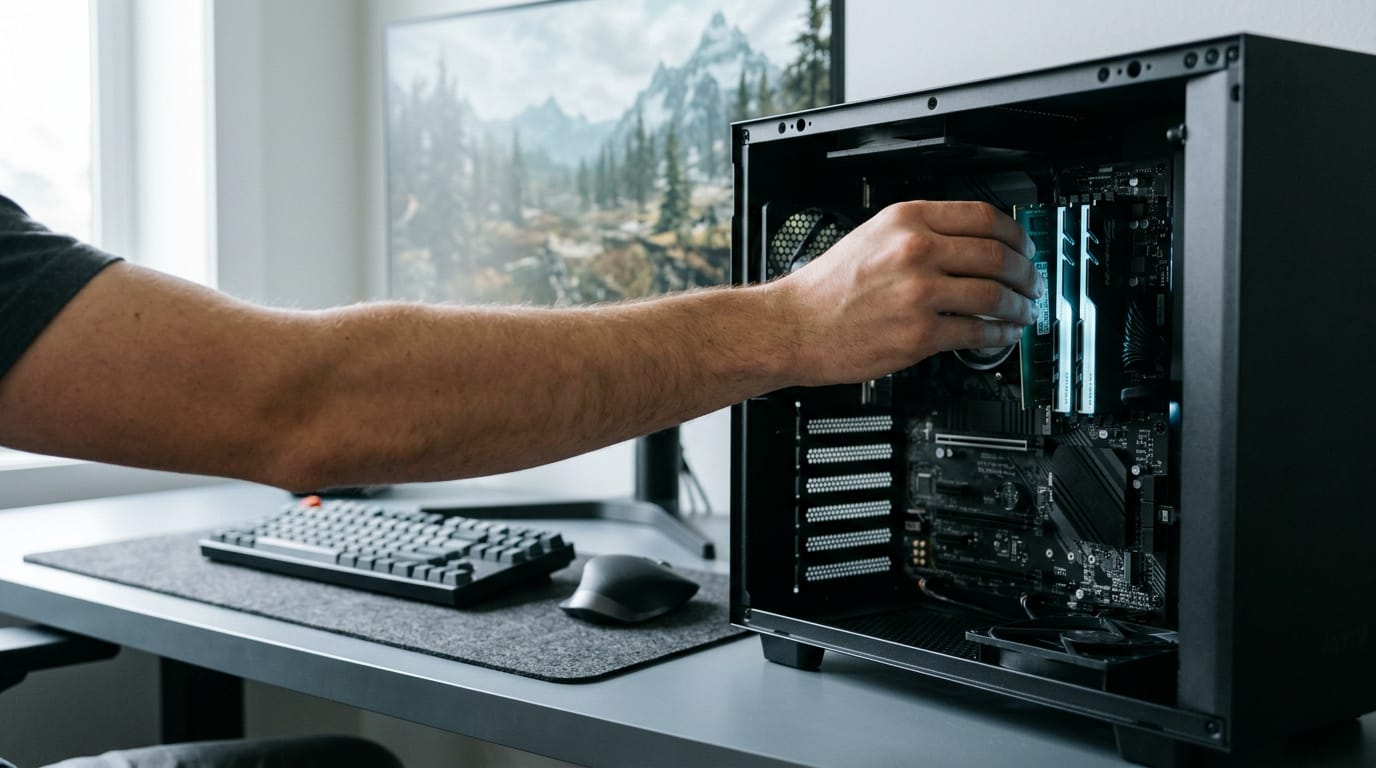
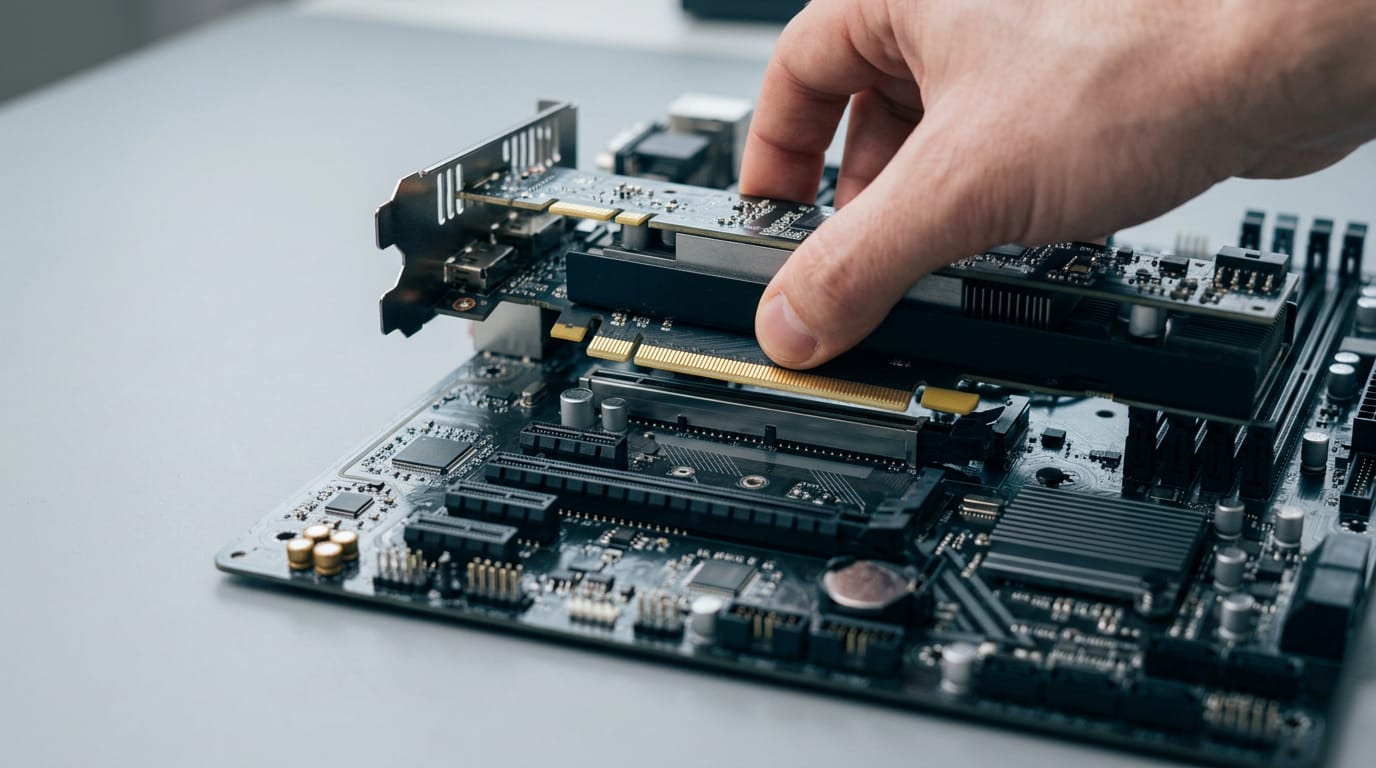
How to Overclock CPU Safely: Step-by-Step Guide
How to overclock a CPU safely: follow prerequisites and steps, test stability, track temperature limits, and compare cooler and PSU costs with a faster chip.

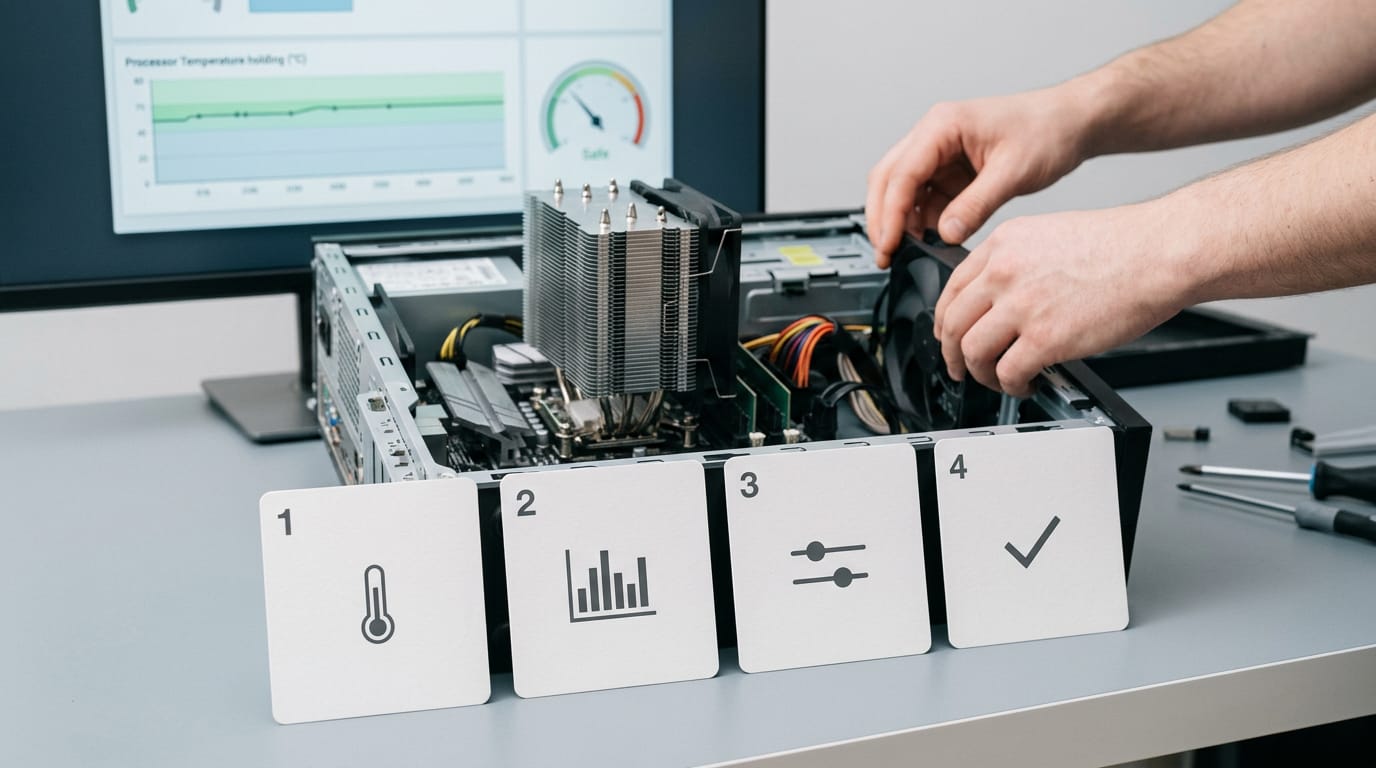
CPU overclocking means running a processor faster than its factory-set speed to get more performance from the chip you already own. On a compatible desktop, raise settings gradually, change one at a time, and stress-test for stability while monitoring temperature and power; extra cooling may be needed. Overclocking can bring crashes, heat, wear, and warranty limits, so weigh the cost of supporting it against buying a faster CPU, and prioritize stable, cool performance over the highest speed.
Think of your central processing unit (CPU) as an engine the factory tuned for everyday driving. Overclocking asks it to rev a little higher than that default, then checks that it still runs smooth and cool.
It’s a real way to get more speed from a chip you already own.
Done carelessly, it can bring crashes, excess heat, or a PC that won’t boot. Here’s the plan: prerequisites, each step in order, stability testing, and safe temperature limits.
We’ll also check whether the cooler, motherboard, and power supply unit (PSU) you’d need are worth the dollars versus a faster CPU.
Understanding How to Overclock a CPU
Ever wondered why a central processing unit (CPU) is sold at one speed but can run at another? That gap is the heart of overclocking, and it’s less mysterious than it sounds.
Running above factory clock speed in GHz
Overclocking means running your CPU faster than the speed its maker set at the factory. That speed is your clock speed, measured in gigahertz (GHz). The clock sets the interval between ticks, and one gigahertz means a billion of them every second.
Think of the clock as a metronome: a faster beat means more work in the same second. Speeds have risen over the decades, but the idea hasn’t changed.
Why factory speeds are set conservatively
No two chips come off the line exactly alike. Silicon manufacturing variations mean some processors handle higher speeds than others, even within the same model. Chipmakers lowball their ratings so the box number is one nearly every chip can reach.
That leaves headroom locked away in the basic input/output system (BIOS), the settings menu on your motherboard. Overclocking is mostly about unlocking that headroom, not adding something new.
Overclocking history and other hardware
Overclocking isn’t new, and it isn’t limited to processors. Enthusiasts have pushed graphics processing units (GPUs) and random access memory (RAM) past their ratings too.
Back in 1990, changing a speed often meant moving a jumper, a small plug on the motherboard, by hand. Its popularity grew in the early 2000s. Extreme CPU records have reached around 9 GHz.
A Wccftech report describes a Core i9 14900KF pushed to 9.13 GHz, which broke the previous world record for a mainstream CPU.
Built-in automatic boosts that are warranty-safe
Not every speed bump counts as overclocking. Chipmakers build in features that raise clock speed automatically when the workload calls for it. Intel Turbo Boost does this on Intel chips, and AMD Turbo Core does a similar job on AMD processors.
Because the chip manages these boosts itself, they aren’t counted as overclocking, and they’re warranty-safe. Think of a player whose mid-range chip runs faster than the box says during a long match.
That’s the boost doing its job, so there’s nothing to tweak and nothing to risk. Turbo is automatic. Overclocking is on you.
What You Gain from Overclocking
Overclocking pushes your CPU (central processing unit) past its factory setting, raising its clock speed, meaning how many cycles it runs each second. Here’s what that buys you.
Is a 4.5 GHz CPU good for gaming?
Yes, if it’s a real step up. A 4.5 GHz (gigahertz, or 4.5 billion cycles per second) clock is good for gaming when it beats your chip’s stock speed and the processor is what’s holding your games back.
When both are true, your frame rates (frames per second, or FPS) climb.
Overclocking also speeds up task completion, meaning how long a job takes from start to finish. The win is less waiting rather than more hardware.
Overclocking can deliver roughly 15 to 30% more computations. Results vary, and a benchmark analysis titled Overclocking Effects on Benchmark Scores reports that users typically see gains of 10% to 30%, depending on the CPU model and cooling in place.
On paper, overclocking is cheaper than a new CPU, since you’re squeezing more from the chip you already own. Same chip, more speed. You may still need a better cooler, board, or power supply, and we’ll get to those costs later.
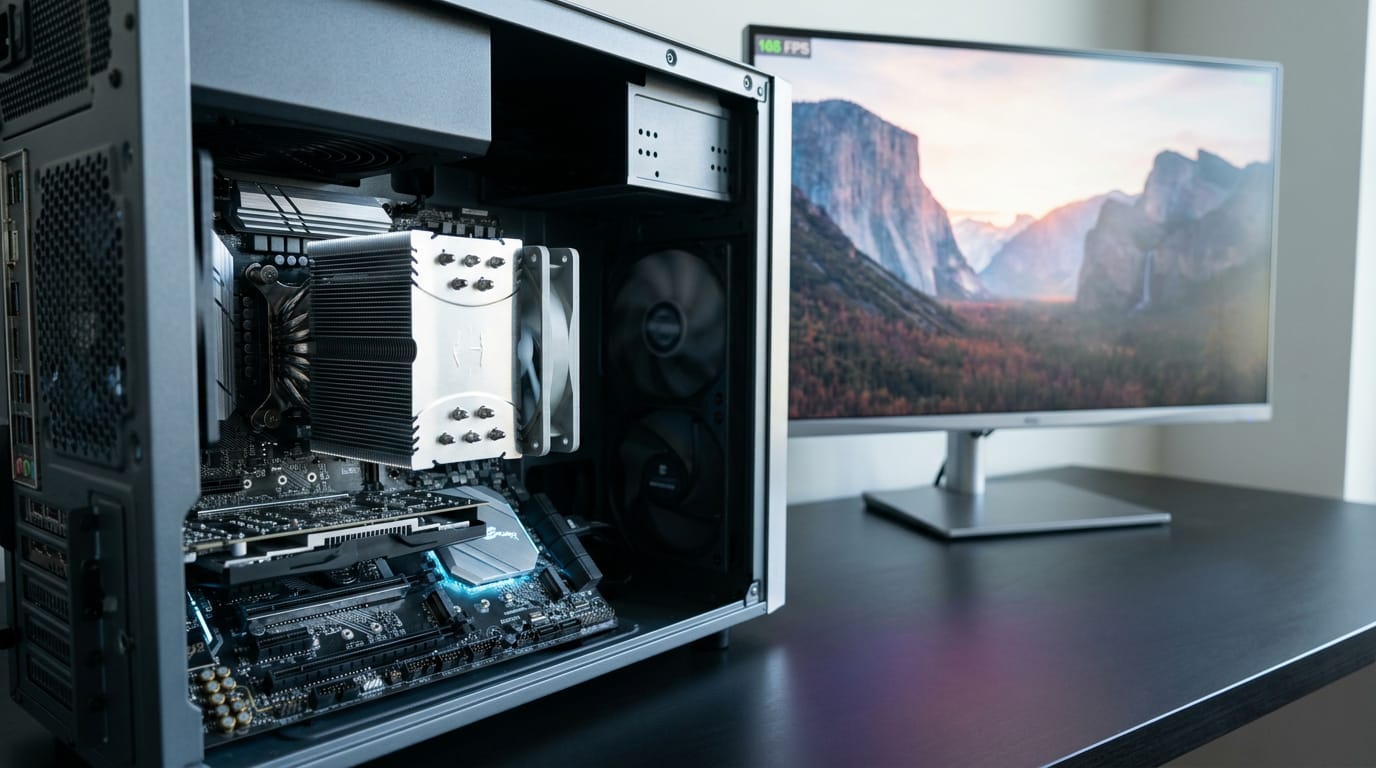
Tasks that lean hardest on your processor
Consider a parent editing holiday videos on a Sunday who wants the export done before dinner. Here’s where extra clock speed earns its keep:
- Photo and video editing. Much of an export runs on the processor, so that holiday video gets done before dinner.
- Demanding games. Heavy physics and crowded battles lean on the CPU, not just the graphics card.
- Software development tools. Compiling large projects means repeated waiting, and a faster chip shortens every build.
- Antivirus scans. Full scans use processor time, so a faster chip finishes sooner and gets out of your way.
- Cryptocurrency mining. Mining rewards raw processing work, but it keeps your chip at full load for long stretches, so cooling matters even more.
Getting Ready Before You Overclock
Overclocking pushes your central processing unit (CPU) past its factory speed, but prep decides whether that speed holds. Aim for stable gains, not peak numbers.
Is it possible to overclock a laptop CPU?
Usually not on a laptop. Consumer and laptop chips are locked, meaning they block speed changes, and the exception is Intel’s unlocked K-series chips. To check yours, open Task Manager’s Performance tab and read the processor name.
On a K-series chip, you also need a motherboard whose chipset, the controller set on the board, supports overclocking. So the steps that follow are for desktop builds.
Record your starting performance first
Before you change anything, run a benchmark and save the score. That’s your baseline, the fixed point every change is measured against. Cinebench works well here since it gives a repeatable score.
Picture a gamer who reruns Cinebench after each small change and compares the results. No guessing. Test after each tweak, not after a pile of them.
Get your PC and cooling ready
Work through these checks:
- Dust-free system. Clean fans and heatsinks, since dust traps heat.
- Adequate power supply. Overclocking draws more power, so confirm your power supply unit (PSU) has headroom.
- Better fans or liquid cooling. A stock cooler may fall behind as the chip runs hotter.
- Best monitoring app. The best app for monitoring CPU temperature reads your processor’s sensors and logs peak values during a stress test, since peaks reveal the spikes idle readings miss.
- Budget costs in CAD. Price the cooler, board, and PSU in Canadian dollars before you commit.
A builder on a fixed budget should price a new cooler and board against a faster CPU. Sometimes the faster chip is the smarter buy.
The Overclocking Steps, One at a Time
Overclocking is a loop: change one setting, reboot, test, and repeat. We’ll go through each step in order.
Pick BIOS settings or vendor software
The first route is the firmware itself, the BIOS (Basic Input/Output System) or UEFI (Unified Extensible Firmware Interface), which runs before Windows loads. It offers the most control.
Vendor software runs inside Windows instead: Intel’s XTU (Extreme Tuning Utility) for Intel chips, or AMD’s Ryzen Master for AMD chips. Both also monitor temperatures and power draw while you test.
Opening the BIOS on your PC
Restart and tap F1, F2, F10, or Delete during boot. The key varies by motherboard, so watch the first screen for the prompt.
If you’re already in Windows, use Advanced Startup instead: open Settings, choose Recovery, and select Restart now under Advanced startup. Then go to Troubleshoot, Advanced options, and UEFI Firmware Settings.
On Windows 11, Recovery sits under System in Settings. Windows 10 kept it under Update & Security, so look there if that’s your system.

Raising the multiplier in small steps
The multiplier sets your CPU’s speed relative to its base clock, making it the main dial. Raise it in small increments and change one thing at a time, rebooting to test after each step.
Consider a player who wants more frame rate in their favourite shooter. They bump the multiplier one step, reboot, and run a stress test. If the PC crashes, they know exactly which change caused it.
Aim for steady gains, not the biggest number on the first try.
Nudging CPU voltage only when needed
Raise voltage only if your chip needs it to stay stable at the new multiplier. A Portuguese-language paper, Overclocking: Princípios e Aplicações em Processadores, argues for the lowest stable voltage, raised incrementally in steps of 0.05 volts.
Small steps win. Beginners may leave voltage alone entirely, and if you do adjust it, avoid going above about 1.5 volts.
Load-line calibration (LLC) controls how much voltage sags under load, and stronger settings can push voltage up when the chip works hardest.
Undervolting runs the chip at lower voltage to keep it cooler, while Precision Boost Overdrive (PBO), an AMD feature, lets the chip boost further on its own within limits you set.
Testing stability and fixing failed boots
Run a stress test and a benchmark after every change. A stress test loads the CPU hard for a sustained stretch, catching instability a short session misses.
Watch your power limits too: if the board caps the chip’s wattage, your gains can vanish under load even when the settings look right.
If the PC won’t boot, don’t panic. Reset the firmware to defaults (look for an option like Load Optimized Defaults), then start again. If a test fails, dial back to the last value that passed.
Once it’s stable, repeat the loop for more speed. Stable beats fast.
Downsides You Should Weigh First
Overclocking pushes your central processing unit (CPU) past its factory speeds, and that extra speed has costs. Here’s what we’d weigh before you change a setting.
How hot is too hot for a CPU?
Heat is the first limit you’ll hit. A research paper on CPU overclocking puts it plainly: a higher clock rate increases the heat generated, so adequate cooling matters.
As a rule of thumb, keep your CPU below about 80°C under load. Push past that and it may start throttling, slowing itself down to protect itself. Too much heat can also trigger crashes.
If you’re creeping toward that line, upgrade your cooling before you push the clock further. Heat sets the ceiling. Stay below it.
Higher power draw can strain your PSU
Overclocking draws more power, which puts more demand on your power supply (PSU). A PSU sized for your stock setup may fail under that extra load, and when it does, the system can shut down without warning.
Picture a player on a tight budget who bumps the clock for a few extra frames, then loses a match when the screen goes black mid-fight. Check your PSU’s wattage first. If it’s already tight, a stronger unit is the safer buy.
Parts that wear out faster when pushed
Overclocking can shorten your CPU’s life. XDA Developers warns that keeping boosted features enabled around the clock can accelerate silicon wear and significantly shorten your CPU’s lifespan.
Pushing hard can also cause premature component failure in other parts, and excess voltage can damage the chip itself. Each step up costs more heat and power than the last, so you’re paying more for less.
That’s diminishing returns, and past a certain point it becomes the power wall, where extra speed stops paying off.
Before you buy a bigger cooler or PSU to support a pushed chip, ask whether a faster CPU would be the simpler buy.
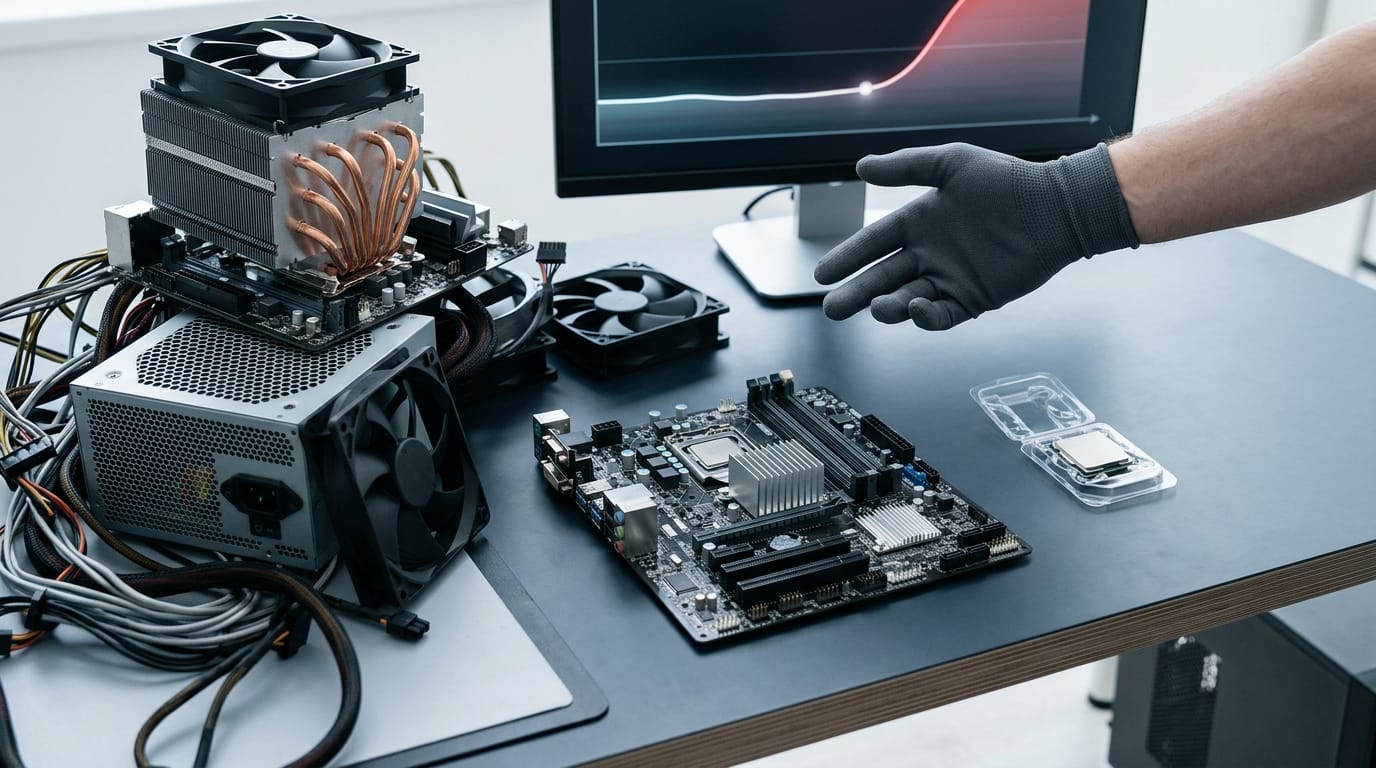
Crashes, failed boots, and lost data
Instability is where overclocking shows its teeth. Three problems can show up:
- System crashes or hangs, where the screen freezes or the machine restarts mid-task.
- Failure to boot, where your system won’t start until you reset your settings.
- Possible data loss, when unsaved work or files get damaged.
The question isn’t whether overclocking can go wrong, but how you keep it from going wrong. Save your work before you test, and if your system won’t start, reset to stock settings. Stability comes first.
What Chipmakers Say About Warranties
Before you touch a setting, check what the company behind your chip says about it. We’ll cover warranties, built-in protections, and the limits you can’t push past.
Whether overclocking voids your warranty
Overclocking may void your warranty, but the real question is what the chipmaker will still cover.
According to AMD’s Ryzen Master 3.1.0 release notes, damage from running a processor outside official AMD specifications or factory settings isn’t covered by any AMD product warranty.
It may not be covered by your board or system manufacturer’s warranty either.
Intel once offered a safety net, but it’s gone. Tom’s Hardware reported that Intel discontinued its Performance Tuning Protection Plan (PTPP), an extended warranty covering overclocking damage.
Consider a builder who tunes a new chip on the weekend, then starts seeing random crashes. Checking the warranty terms before filing a claim beats a surprise at the service counter.
Built-in protections and official support
Both companies have offered official support for tuning. AMD ships Ryzen Master, and Intel once sold a plan covering overclocking damage. The starting point is an unlocked processor, one whose settings you can change.
Chipmakers also build in guardrails:
- Thermal throttling. When a chip runs too hot, it automatically slows down to protect itself, which is why cooling matters once you start tuning.
- Voltage limits. Chips cap how much voltage you can apply, so there’s a hard ceiling on any setting.
These guardrails protect the chip. They don’t guarantee that your overclock is stable. Know the limits before you push.
Deciding If Overclocking Is Right for You
Before you touch a setting, ask whether overclocking (pushing your processor, or CPU, past its factory speed) is the right fix.
Other upgrades that may beat overclocking
Consider a player whose PC stutters in a crowded open-world game. Before changing any clock settings, they check whether their memory (RAM) is running short. If it is, a RAM upgrade may beat any processor tweak, with no risk to the chip. If memory is fine, the next step is installing a graphics card.
- More or faster RAM. It may matter more than a small speed bump.
- A new CPU with more cores. It makes sense if your games or apps already keep your current cores busy.
Many modern processors run strong out of the box. They also pair multi-core designs (several processing units working in parallel) with automatic boosting, which raises speed when a demanding game needs it.
That built-in headroom narrows the gap overclocking would close.
Overclocking gets you a modest bump from the chip you already own. A faster CPU delivers more from day one but costs more up front. Overclocking may also need a better cooler, a compatible board, and a stronger power supply (PSU), and those add up.
It’s less about the chip and more about the total bill.
When overclocking is safe to try
Overclocking is safe when you do it correctly. Raise the speed in small, gradual steps and run a stress test (a tool that loads the chip hard) after each change. Watch temperatures the whole time.
Proceed with caution. Extra speed brings extra heat and power draw. If the system crashes or throws errors during testing, dial it back. Go slowly.
Assume some risk whenever you change these settings. Unstable settings can cause crashes and lost work, so don’t start without backing up your important files.
Overclocking is less about chasing the biggest number and more about stable gains you can live with. Prepare properly, adjust one setting at a time, test for stability, and keep temperatures within safe limits.
Then weigh the cost of the extras against a faster CPU.
Sometimes a modest bump that runs quietly for years is the win, and sometimes a faster chip is the simpler route. Either way, the answer depends on your budget and what you actually play.
The best overclock is the one that runs stable, cool, and within the budget you actually have.
References
- OVERCLOCKING: PRINCÍPIOS E APLICAÇÕES EM PROCESSADORES — doi.org (2024)
- CPU Overclocking: A Performance Assessment of Air, Cold Plates, and Two-Phase Immersion Cooling — doi.org (2021)
- Overclocking Effects on Benchmark Scores: Performance Gains & Risks — chiefdataanalyticsofficermelbourne.com (2025)
- Overclocker Achieves A New World Record With Core i9 14900KF By Pushing It To 9.13 GHz — wccftech.com
- Ryzen Master 3.1.0 — amd.com (2026)
- Your motherboard might be overvolting your CPU and damaging it, here’s how to check — xda-developers.com (2025)
- Intel Kills Off Overclocking-Focused Extended Warranty — tomshardware.com
Questions
How to overclock an Intel graphics card?
Intel integrated graphics are generally not overclocked separately; they use the CPU’s graphics settings and share its power and cooling limits. On supported hardware, check the BIOS/UEFI or Intel tuning software for graphics-frequency controls, raise the setting gradually, and test stability while monitoring temperatures. Many Intel systems do not expose these controls, and changing settings can cause instability or affect warranty coverage.
How hot is too hot for a CPU?
As a general rule, keep a CPU below about 80°C under sustained load, especially when overclocking. Higher temperatures can cause thermal throttling, crashes, or faster component wear; check your processor’s specifications for its exact maximum temperature.
How to tell if a GPU is overheating?
Look for warning signs such as unusually loud fans, game or application crashes, stuttering, or performance dropping during demanding use. Confirm by monitoring GPU temperature with a hardware-monitoring tool while gaming or running a load test, and compare the readings with the GPU maker’s temperature limits.
Is a 4.5 GHz CPU good for gaming?
A 4.5 GHz CPU can be good for gaming if that speed is a meaningful increase over its stock speed and the CPU is limiting game performance. Clock speed alone does not determine gaming performance, since the processor model, core count, cooling, and graphics card also matter.
What does overclocking mean?
Overclocking means running a CPU, GPU, or other component faster than its manufacturer’s factory-set speed. It can improve performance, but also increases heat and power use and may cause instability or hardware wear.
Is overclocking a GPU safe?
GPU overclocking can be safe when done gradually, tested for stability, and kept within safe temperature and power limits, but it is not risk-free. Excessive settings can cause crashes, overheating, or faster wear, so save important work and check warranty terms before tuning.
Is 4.7 GHz fast for a CPU?
A 4.7 GHz CPU can be fast, but the number alone does not tell you how well it will perform. The processor model, workload, cooling, and whether that speed is sustained all affect real-world performance.
Is it possible to overclock a laptop CPU?
Usually, laptop CPUs cannot be overclocked because most are locked and laptops have limited cooling and power headroom. Some specific unlocked models support it, but the laptop’s BIOS, processor, and cooling design must also allow it.
Sources
- Overclocker Achieves A New World Record With Core i9 14900KF By Pushing It To 9.13 GHz, wccftech.com
- Overclocking Effects on Benchmark Scores: Performance Gains & Risks, chiefdataanalyticsofficermelbourne.com,
- OVERCLOCKING: PRINCÍPIOS E APLICAÇÕES EM PROCESSADORES, doi.org,
- CPU Overclocking: A Performance Assessment of Air, Cold Plates, and Two-Phase Immersion Cooling, doi.org,
- Ryzen Master 3.1.0 - Release Notes, amd.com,
- Intel Kills Off Overclocking-Focused Extended Warranty | Tom's Hardware, tomshardware.com
- Your motherboard might be overvolting your CPU and damaging it, here's how to check, xda-developers.com,
Free · The Build Sheet
The Build Sheet: three gaming PCs priced at Canadian stores