How to Install a Graphics Card: Fit, Power, and Drivers
How to install a graphics card starts with checking case fit and power supply needs. Use Canadian-budget checks before seating the card and setting up drivers.

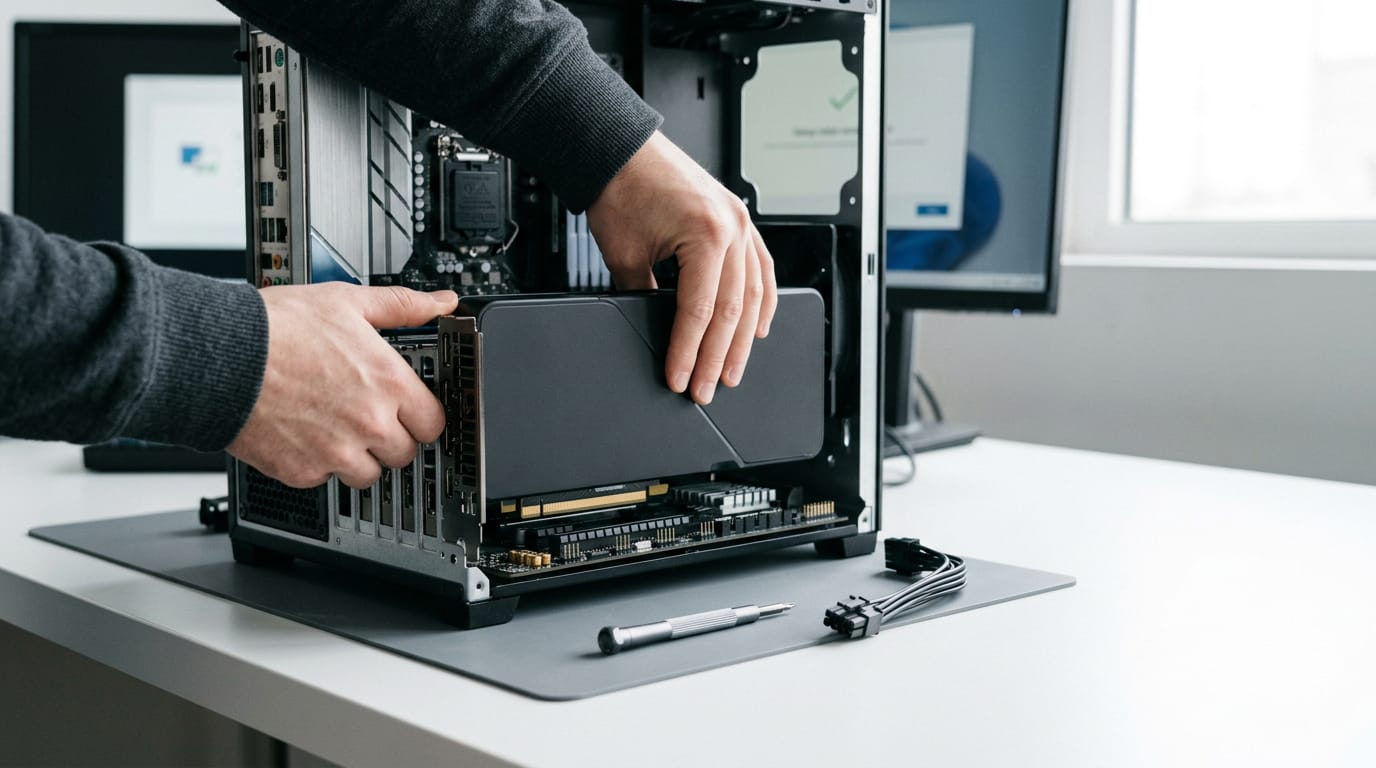
Installing a graphics card means fitting the card into your PC, connecting its power, and installing software so the computer can use it. Before starting, check that the card fits your case and that the power supply has enough wattage and the right connectors; then seat it fully in the PCI Express slot, secure it, and connect every required power cable. Plug your monitor into the new card and install the current driver for its exact model, so the display works properly and the upgrade is ready to use.
Swapping a graphics card is a lot like hanging a new shelf: the tools are simple, and the real work happens in the measuring. Get that part right and the rest goes smoothly.
Installing a graphics card comes down to three things: confirming it fits and has enough power, seating it firmly in the right slot, and setting up drivers so it actually runs. You don’t need to be an expert to do it.
This walkthrough covers each step in order, plus the Canadian-budget checks on power supply and case fit that most guides skip.
Getting Ready to Install a Graphics Card
A few checks up front make the install much smoother.
Talking about GPUs and graphics cards
A graphics processing unit (GPU) is the chip that does the rendering. A graphics card is the whole board built around it.
Can you just swap graphics cards in a personal computer (PC)? Usually, yes. The process is mostly universal across cards, so the same steps apply to most swaps. Fit and power are the real questions. We’ll use one example card throughout to show each step.
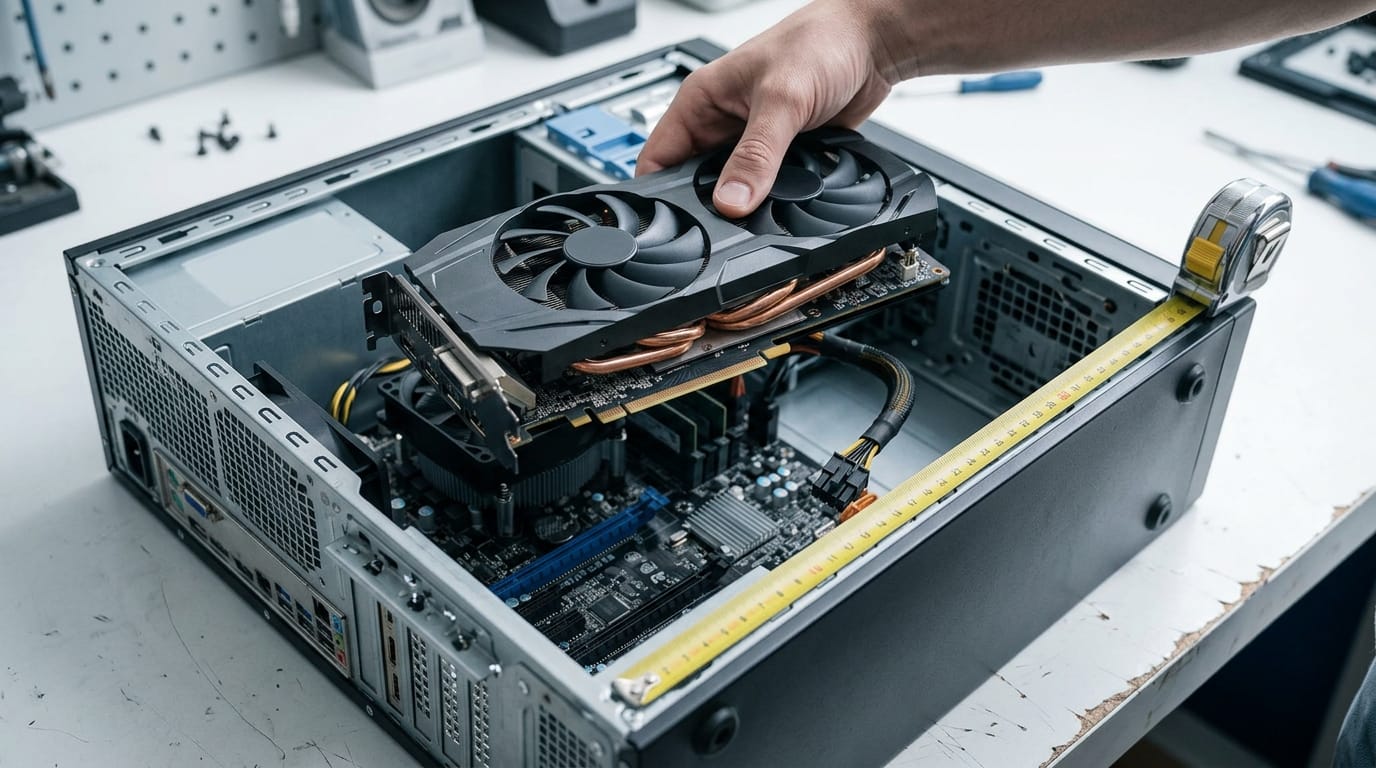
What you get in the box
Here’s what to look for:
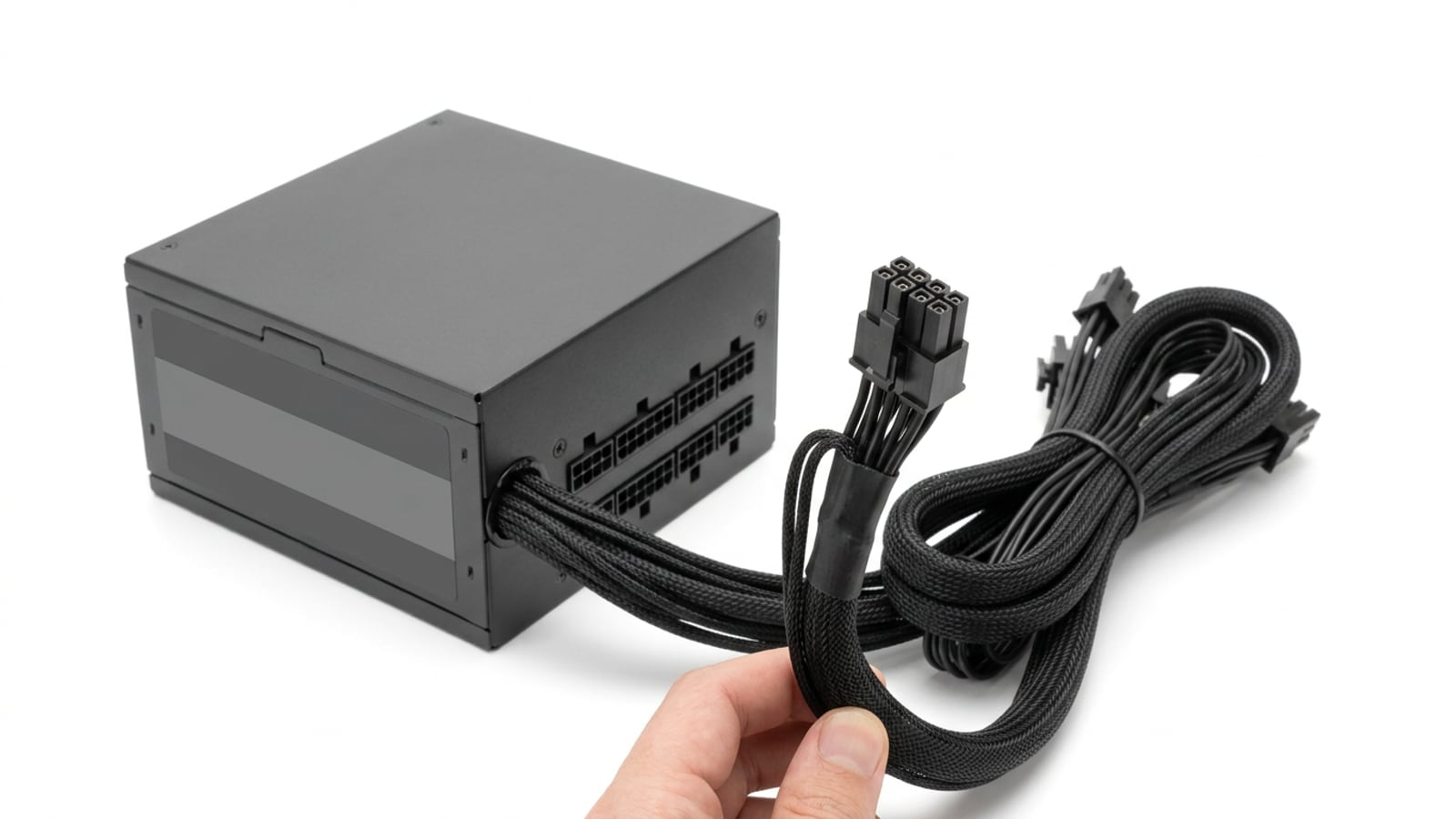
- Molex-to-PCIe power adapters. These convert older Molex plugs into PCI Express (PCIe) power connectors.
- Quick installation guide. Use it for steps specific to your card.
- Driver disk. You’ll use it once the card is seated.
- Adapters for older power supplies. Useful if your supply lacks the right connectors.
Check your power supply unit (PSU) for wattage and connectors. Adapters solve a connector problem, not a wattage problem. A supply that’s too weak needs an upgrade, not an adapter.
Guard against static and prep the case
Ground yourself first, since static can damage a card. Touch unpainted case metal, or consider an anti-static strap. Avoid carpet, and keep pets out of the room.
- Power down, then remove the two expansion slot covers, the metal brackets at the back of the case.
- Locate the 6-pin and 8-pin connectors on the card and your power supply.
- Check card length and slot clearance so the card actually fits.
Picture a builder who checks connectors only after the card is in. A quick check first saves a second trip into the case.
Steps to Physically Install the Card
Is installing a GPU (graphics processing unit) difficult? Usually not. Pull any old card first by unplugging its power, releasing its locking tab, and unscrewing its bracket. Driver cleanup can wait until the new one is running.
Is my GPU seated properly?
Your card plugs into the PCI Express (PCI-E) slot, the long connector built for graphics cards. Line it up with the slot, press down evenly until the locking tab clicks, then screw the bracket to the case.
It should sit flush in the slot, not perched above it.
You’ll know it’s seated when:
- The card sits fully pressed in, with no gap along its length.
- The locking tab has clicked into place.
- The screw holds the bracket firm, with no wobble.
If one end sits higher than the other, lift and press again. Snug beats loose.
Snap a photo from the side before you close the case, since a picture makes gaps much easier to spot.
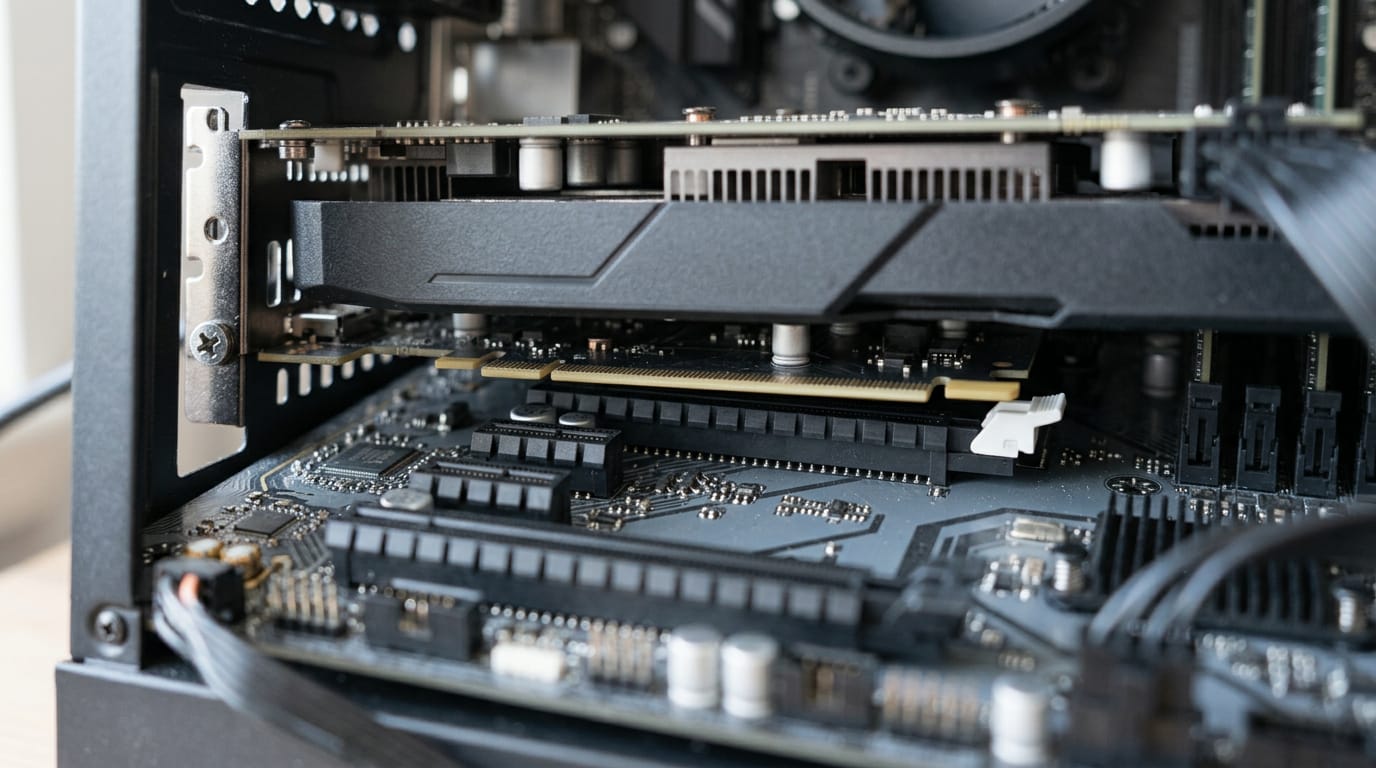
Plugging in the power cables
Match the power inputs on your card to the 6-pin and 8-pin cables from your power supply.
- Attach the 6-pin and 8-pin cables. Match each plug to its socket and push until it’s firmly in place.
- Use adapters if needed. If your power supply lacks the right connector, use an adapter made for your card, never a homemade workaround.
- Verify both cables are seated. Plug in both, then give each a gentle tug to confirm it won’t pull free.
Consider a parent building their kid’s first PC before the holidays. Checking both connectors takes seconds and can save the kid an evening of troubleshooting.
Setting up Once the Card Is In
With the card in place, the last stretch is getting a picture on screen and loading the software that runs it. Here’s how to handle both:
Connecting your monitor and booting up
Plug your monitor into the ports on your new card, not the ones on the motherboard. Your graphics processing unit (GPU) is the card itself, and it’s the part that draws the picture now, so the cable has to run from it.
Next, boot the machine. If the picture looks fuzzy or stuck at a low resolution, that’s normal at first. Your screen is running on basic settings until the driver is in.
Think of a player who just dropped a new card into their build before a weekend of games. They boot up, see a soft, oversized desktop, and assume the card is dead. It isn’t.
Once the driver’s in, the picture sharpens right up, and they’re gaming by Friday.
To get your PC to recognize your new GPU, start with the cable. Confirm it’s in the card’s ports, not the motherboard’s, then boot again before you dig into anything else.
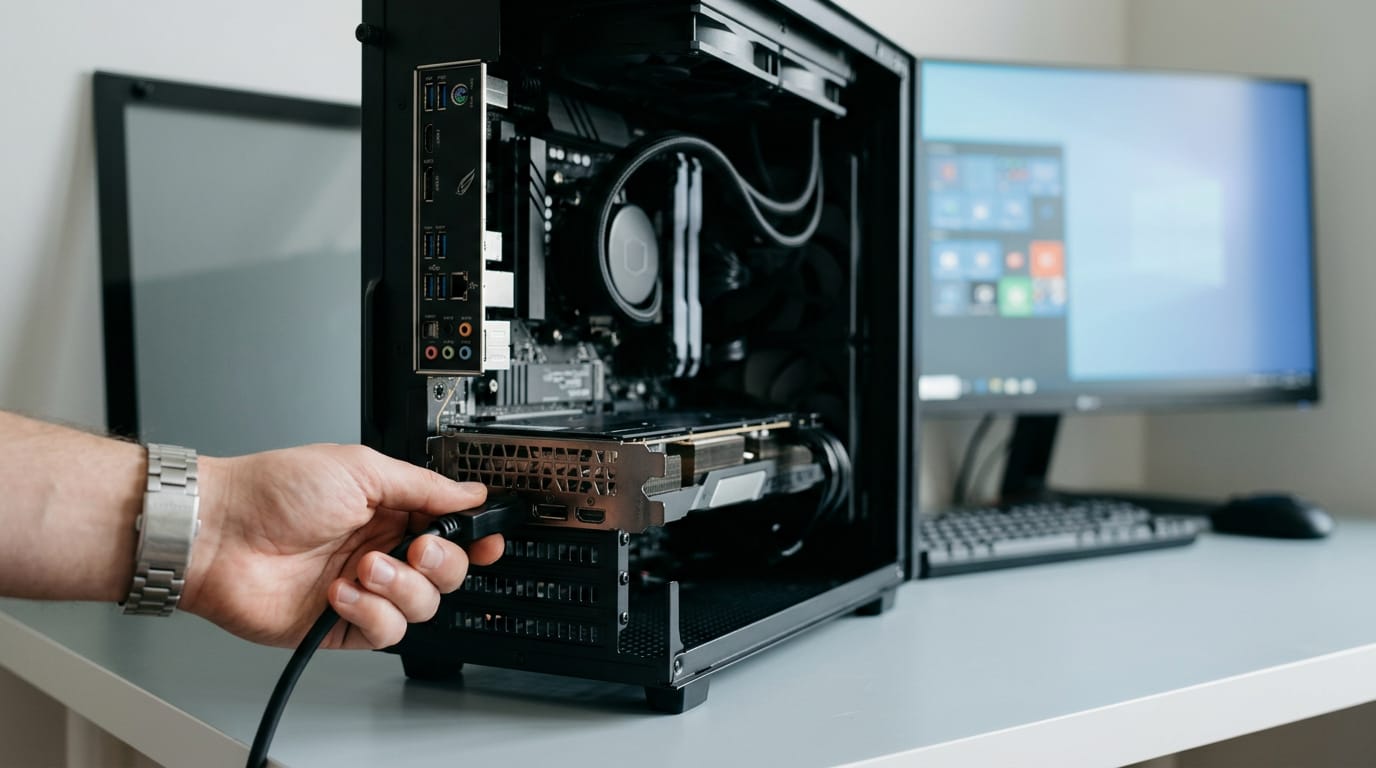
Downloading and installing the right drivers
A driver is the software that lets your operating system use the card. Skip the driver disk in the box and download the current version from the NVIDIA or AMD site, matched to your exact model.
AMD’s installer can also bundle extras like Crossfire, its feature for running more than one card together. If you’re running a single card, you won’t need it.
Restart once the install finishes so the new driver fully takes over. Don’t skip it.
Once you’ve checked fit, power, and drivers, a graphics card install is one of the most satisfying upgrades you can make. The card does the heavy lifting, and your games start looking and running the way you pictured.
Take your time with the checks, and don’t rush the seating or the power cables. A careful install saves a lot of troubleshooting later.
Measure twice, seat once, and enjoy the upgrade.
Questions
How to setup a new GPU?
Power down and unplug the PC, check that the card fits your case and that the power supply has enough wattage and the right connectors, then ground yourself before opening the case. Seat the card firmly in the PCIe slot, secure it to the case, connect any required power cables, and plug your monitor into the new card. Boot the PC and install the latest driver for the exact card model from NVIDIA or AMD, then restart.
How do I know if my GPU is seated properly?
A properly seated GPU sits flush in the PCIe slot with no gap along its length, and the slot’s locking tab clicks into place. Its bracket should be screwed firmly to the case without wobbling. If one end is raised, remove and reseat the card evenly.
How can I activate my graphics card?
Install the card in the PCIe slot, connect its required power cables, and connect your monitor to the ports on the card. Then install the current driver for your exact model from NVIDIA or AMD and restart the PC. There is usually no separate activation step.
How do I get my PC to recognize my new GPU?
First, make sure the monitor cable is connected to the new GPU’s ports rather than the motherboard’s, then restart the PC. If it still is not recognized, check that the card is fully seated, its power cables are firmly connected, and the correct driver is installed.
Does a graphics card plug into a motherboard?
Yes. A graphics card plugs into a long PCI Express (PCIe) slot on the motherboard. It is also secured to the computer case and may need separate power cables from the power supply.
Can you just install a new graphics card?
Usually, yes, if the card fits your case and your power supply can provide enough wattage and the required connectors. Install it in the PCIe slot, connect its power cables, attach the monitor to the card, and install the correct driver.
Can you just swap graphics cards in a PC?
Usually, yes. Check that the replacement fits the case and is supported by the power supply, then power down, remove the old card, and install the new one in the PCIe slot. Connect any required power cables and install the new card’s driver.
Can I just plug a new GPU into my PC?
You can plug in a new GPU if your PC has a compatible PCIe slot, enough room, and a power supply with sufficient wattage and the right connectors. After installing it, connect the monitor to the GPU and install the correct driver. A card that does not fit or has inadequate power may require a case or power-supply upgrade.
Free · The Build Sheet
The Build Sheet: three gaming PCs priced at Canadian stores