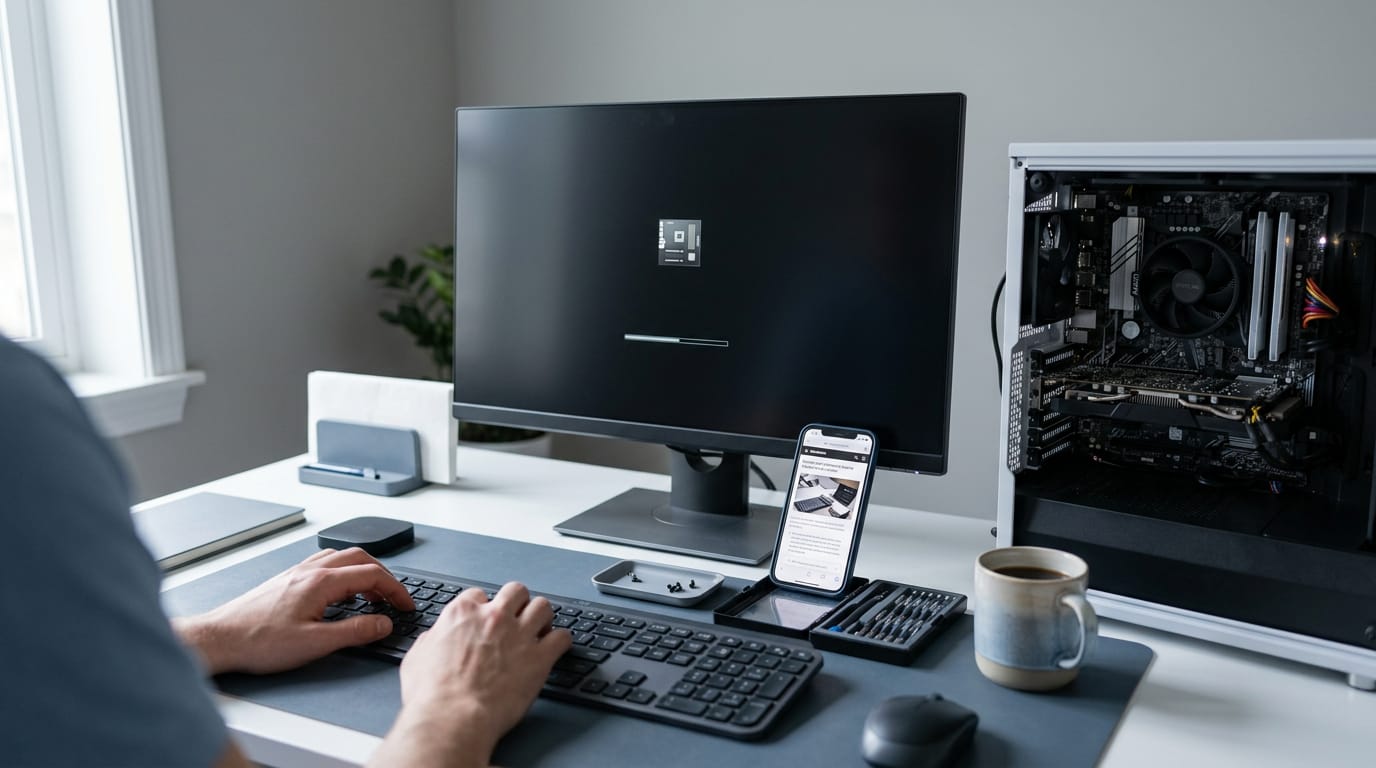
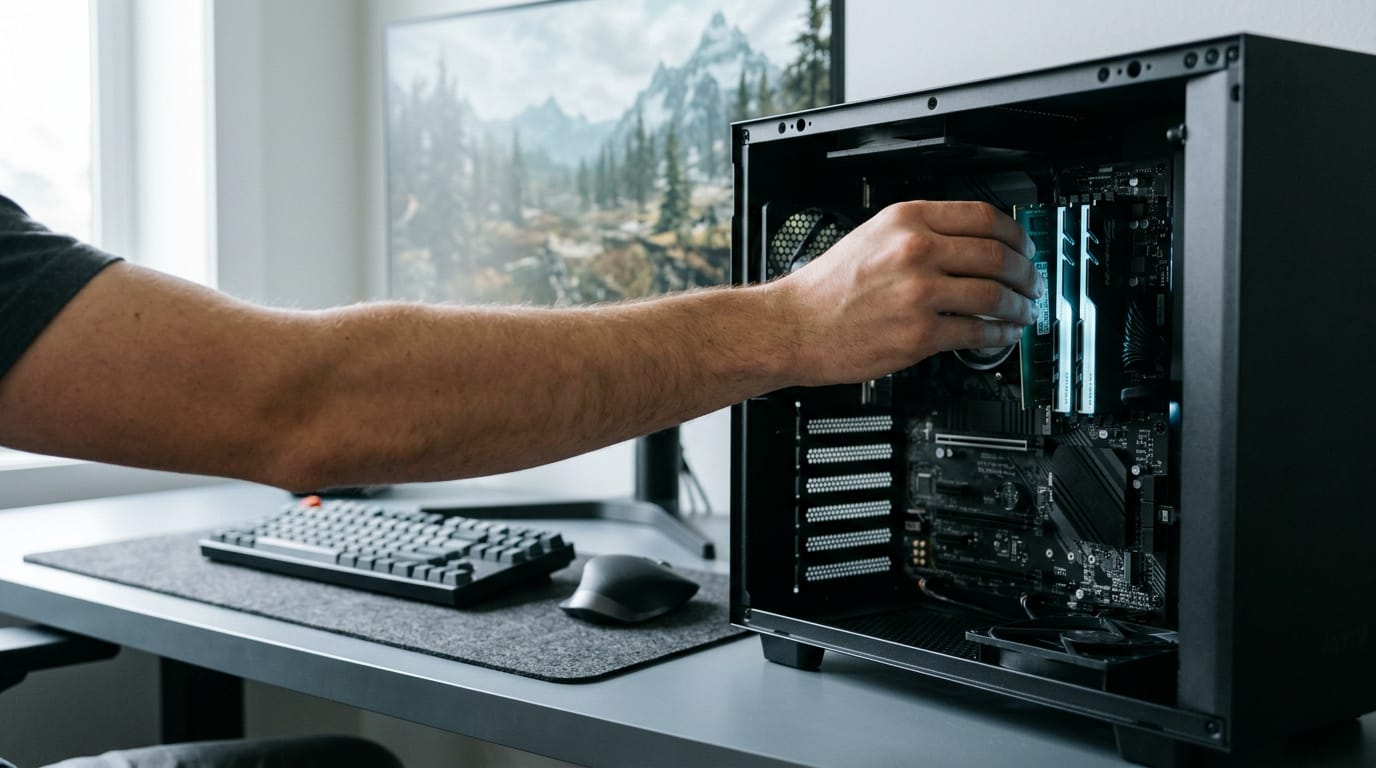
PCI Express Slot in Motherboard: Complete Guide
PCI Express slots on a motherboard vary by size, lanes, and generation; use the compatibility tips and Canadian-budget checklist to choose the right board.

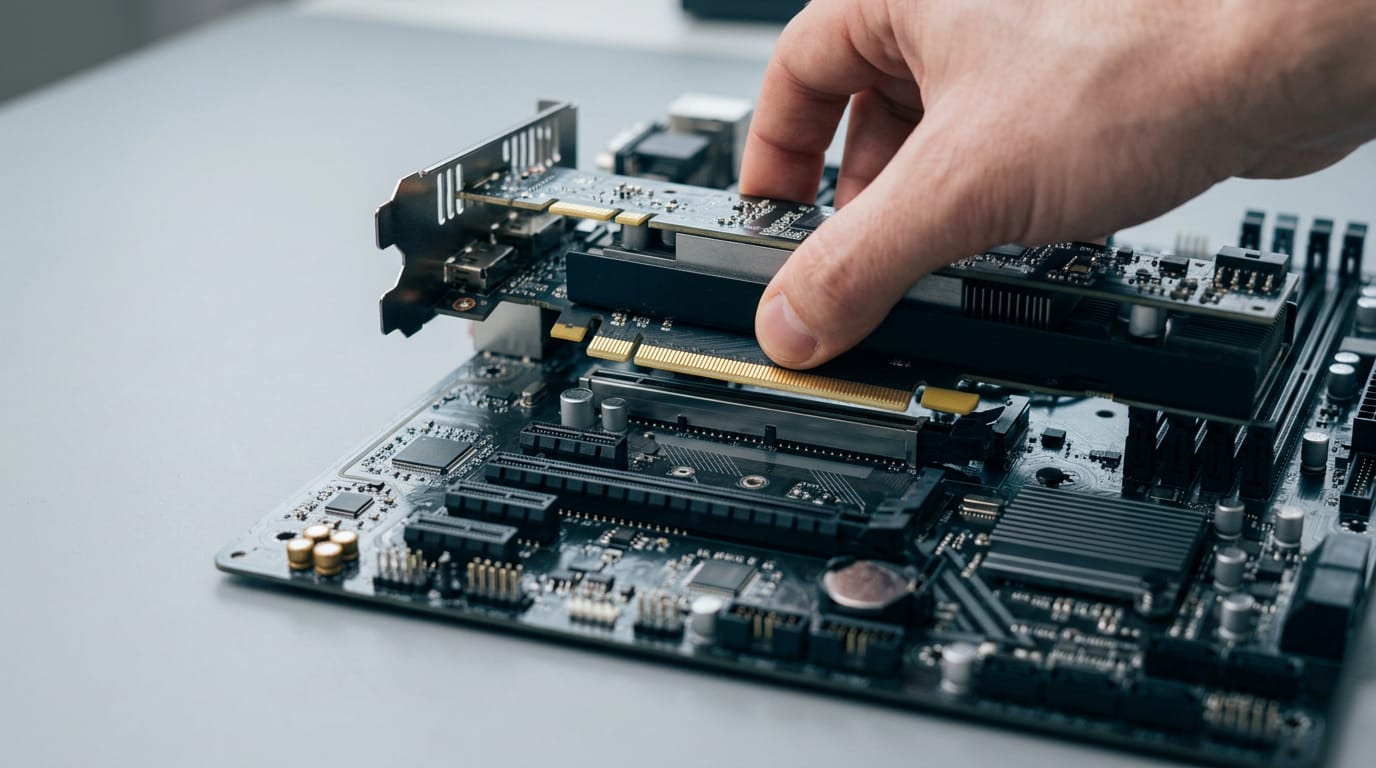
A PCI Express (PCIe) slot is a motherboard connection for graphics cards, storage drives, network adapters, and other expansion cards. The slot’s physical size determines what fits, while its lane count and generation affect bandwidth; cards and slots from different generations are generally compatible, but the slower side sets the link speed. Check the motherboard manual for wiring, lane sharing, and the primary graphics-card slot before buying or installing parts, so your hardware fits and runs as intended.
Think of your motherboard as a power bar with outlets in different shapes. Plug the wrong card into the wrong slot and it simply won’t fit.
The short answer: PCI Express (PCIe) slots are the high-speed ports for your graphics card, add-in NVMe (non-volatile memory express) storage, and other expansion cards. Their size, lane count, and generation decide what fits and how fast data moves.
We’ll cover each of those pieces, then finish with a buying guide for picking a board with the right slots at a Canadian-dollar budget.
How PCI Express Slots Differ from PCI
The slots on a modern board look like a newer take on the old ones, but the real change is how data moves. Here’s what sets PCI Express (PCIe) apart.
What PCIe connects and why it exists
PCI Express is a high-speed expansion interface that connects cards like graphics cards and capture cards to your motherboard.
It succeeded the older PCI (Peripheral Component Interconnect) and AGP (Accelerated Graphics Port) designs, and the PCI Special Interest Group (PCI-SIG) governs the standard.
So are PCI slots still used? Mostly on older machines, since PCIe took over as the successor. For a board you’re buying today, PCIe is the slot that matters.
How shared buses differ from dedicated lanes
Older PCI slots used a shared bus, where devices take turns on one path. PCIe uses point-to-point links instead, giving each device its own dedicated lane, a path to the rest of the system.
Think of a streamer with a graphics card and a capture card. On a shared bus, they’d wait their turn. With PCIe, each card gets a path of its own, so one doesn’t slow the other.
Don’t confuse PCIe with PCI-X, a different technology with a similar name. Plug and Play, which lets your system recognize a newly installed card, is part of the background too.
How PCIe has evolved since 2003
PCIe was introduced in 2003, and a thesis on PCIe Gen 3.0 channel design credits the PCI-SIG organization with introducing the standard.
The design is scalable and versatile: one standard covers different slot sizes and lane counts, from small add-in cards to graphics cards.
Compatibility keeps a board useful. Newer PCIe versions are built to work with older hardware, so a card bought later can often still fit the slot you have now. That’s what makes a board last.
PCIe Slot Sizes and Lane Counts
Two things decide what a PCI Express (PCIe) slot can do: its physical size and how many lanes are wired to it. Know both, and you won’t buy a board that can’t feed the card you have in mind.
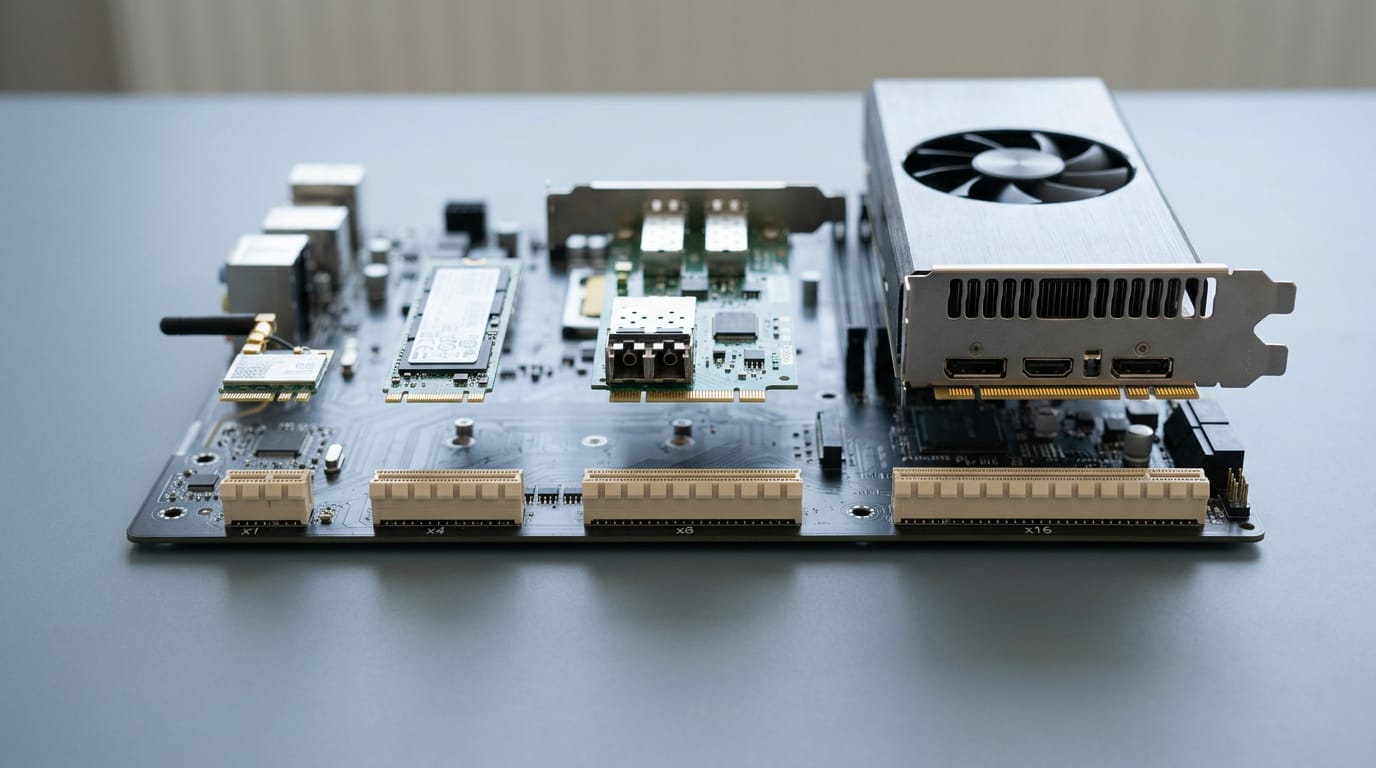
Slot widths from x1 up to x16
Slots come in widths like x1, x4, x8, and x16. The number is how many lanes the slot is wired for, and each width has a common job:
- x1 for sound and Wi-Fi cards
- x4 for solid-state drives (SSDs) and capture cards
- x8 for high-end networking
- x16 for graphics cards
- Rare x2 or x12 variants exist, so don’t be surprised if you spot one
How lanes carry data to your card
A lane is made up of two differential signal pairs, and that’s what lets data travel in both directions at once. That’s full-duplex transmit and receive: the card can send and receive at the same time instead of taking turns.
More lanes, more bandwidth. An x16 slot carries four times the lanes of an x4, so it can move far more data per second, which is why graphics cards go in the x16.
Slot size can differ from its wiring
Here’s the catch: slot size tells you what physically fits, not how many lanes are actually wired to it. An x16 slot may run at x4 or x8, and that limits any high-bandwidth card you plug into it. Size isn’t speed.
Before you buy, read the board’s spec sheet diagram, which shows the lane count for each slot. Then check the motherboard manual to confirm it.
How lanes get split between devices
Your board doesn’t have unlimited lanes. The central processing unit (CPU) provides a limited number directly, and the chipset (the board’s traffic controller) supplies the rest.
Those chipset lanes are also shared with your Serial ATA (SATA) and Universal Serial Bus (USB) ports.
Think of a streamer with a graphics card in the top x16 slot and a capture card in the slot below it. On some boards, filling that second slot can split the lanes and leave the graphics card at x8 instead of x16.
Check the manual before you assume both slots run at full speed.
How PCIe Generations Affect Bandwidth
Every PCI Express (PCIe) slot has a generation and a lane count, which together set how much data moves between your board and your parts.
Speed per lane for each generation
A lane is a single data path, and each generation doubles the speed of the one before it. That makes a Gen 6 lane carry eight times the data of a Gen 3 lane.
Generation sets the speed per lane, but the lane count sets the total: a full x16 slot (sixteen lanes) reaches totals such as 64 GB/s (gigabytes per second). Each generation also arrived later than the last.
Which platforms support which PCIe versions
A platform is the processor (CPU) and chipset pairing, and it sets which PCIe version your slots use:
- PCIe 4.0: Ryzen 3000 and Intel 11th Gen platforms.
- PCIe 5.0: Z690, X670, and B650 boards.
According to PCWorld’s PCIe 4.0 guide, Ryzen 3000 CPUs and the X570 chipset make a PCIe 4.0 platform. The PCIe 5.0 lanes come from the CPU, not the chipset, so check the processor as well as the board.
Watch for M.2 slots (small solid-state drives, or SSDs), which can share lanes with PCIe slots. Populating one can cut lanes from another, so check your manual.
What generation changes mean in practice
- Graphics cards (GPUs) rarely saturate PCIe 4.0. XDA Developers notes that most games don’t come close to saturating a PCIe 4.0 x16 connection, so running at x8 instead of x16 won’t halve your gaming performance.
- NVMe benefits most. NVMe (Non-Volatile Memory Express, a protocol for fast SSDs) gains the most from newer generations.
- Single-lane (x1) cards are fine on PCIe 3.0. You don’t need a newer slot for them.
- A GPU on x8 or Gen 3 may lose FPS (frames per second). Digital Foundry’s RTX 5060 review found some performance degradation in certain bandwidth-heavy games.
Consider a player with a Ryzen 3000 board buying a new card. They check which slot runs at full x16 and use it, so bandwidth-heavy games keep their frame rate. Check the slot before you check out.
Where PCIe 6.0 is heading next
- PAM4 signaling (a four-level method) is how PCIe 6.0 packs more data into each signal step.
- Demand from data centers, AI (artificial intelligence), and HPC (high-performance computing) is driving the push.
- Gen 5 is already in servers today, with 6.0 heading that way next.
Mixing Cards and Slots Across Versions
Cards and PCI Express (PCIe) slots don’t always line up in generation or size. Here’s what we see when they don’t match.
Newer and older versions working together
Think of a gamer who drops a newer graphics card into an older board. The slot caps its speed, but the card keeps running.
- Newer cards work in older slots. The card fits and runs, so no new board is needed.
- Runs at lowest common speed. The link drops to the lowest speed both sides support, so the older part sets the pace.
- PCIe 6.0 is backward compatible. A 6.0 card or slot still works with earlier generations.
Fitting small and large cards into slots
- Small cards fit larger slots. A shorter card slides into a longer slot.
- Large cards need enough lanes. Lanes are the data paths to the rest of the system. A bigger card wants more, and a slot with fewer holds it back.
- Card keeps native link width. It runs at the width it was built for, even in a slot with more lanes.
A streamer’s small capture card fits a long, open slot and runs at its own width, so there’s no hunting for a shorter one. Slot size decides whether a card fits, and lanes decide how well it runs.
Using old PCI cards in PCIe slots
- Runs at standard PCI speed. Peripheral Component Interconnect (PCI) cards run at that older standard’s speed, not modern PCIe speed.
- Not physically interchangeable. The slots look and fit differently, so an old card won’t slide into a PCIe slot.
A builder keeping one old PCI card checks the board’s slots first, so the new PCIe card actually fits.
What You Can Plug into PCIe Slots
The PCI Express (PCIe) slot is the long socket on your motherboard that takes add-in cards. The graphics card is its best-known tenant, but far from the only one.
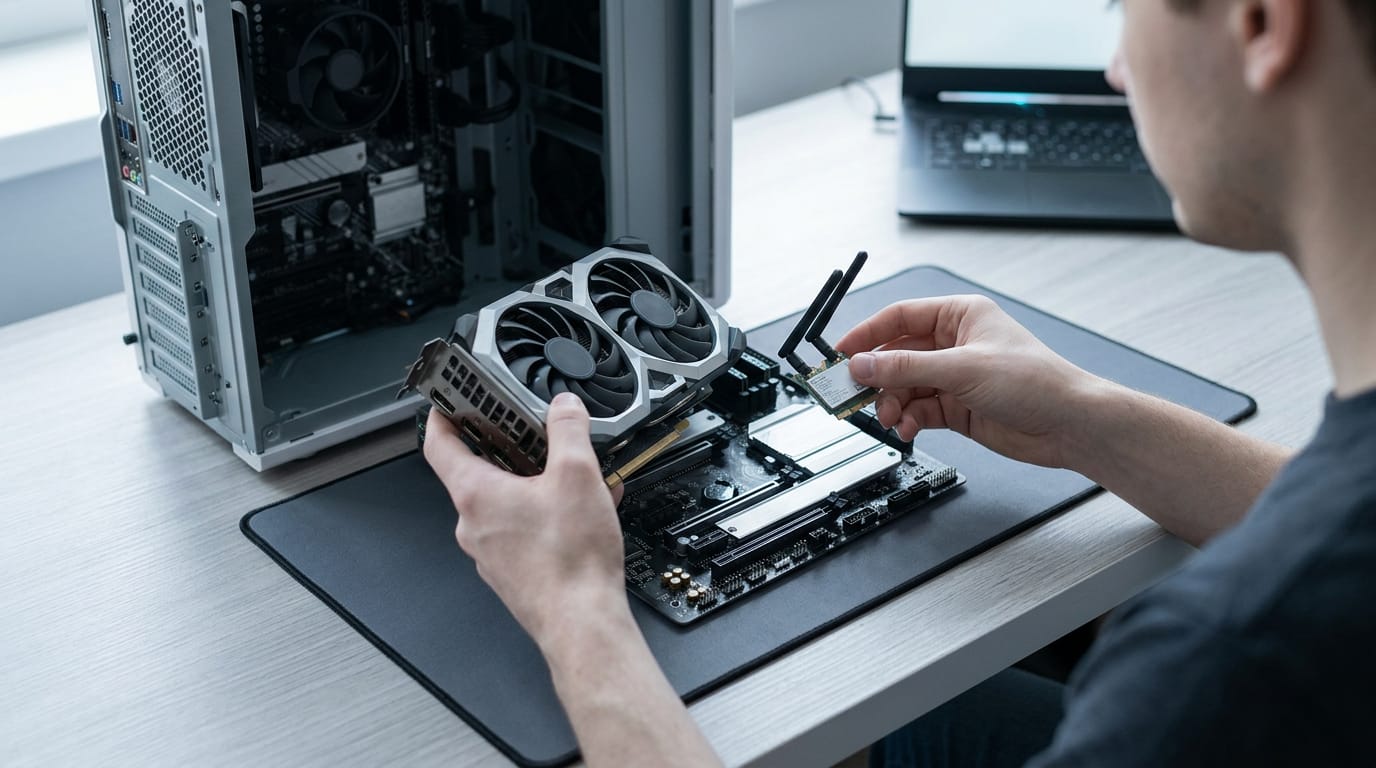
Cards people most often install
Here’s what most often lands there:
- Graphics cards. The GPU (graphics processing unit) draws every frame, so it has the biggest say in how smoothly games run.
- Network adapters. These add a wired or wireless connection when your board’s built-in ports don’t suit your setup.
- Sound and capture cards. A sound card handles audio, and a capture card records video from another device.
- NVMe and storage controllers. NVMe (Non-Volatile Memory Express) drives are fast solid-state storage, and a card can add one when your board runs out of room.
- USB expansion cards. These add USB (Universal Serial Bus) ports when the ones on your board run out.
- RAID cards. A RAID (Redundant Array of Independent Disks) card links several drives so they work as one, for speed or protection.
- AI accelerators. These are built for artificial intelligence (AI) work rather than gaming, so they’re a niche pick for most builders.
- Wi-Fi and capture cards for streamers. A Wi-Fi card connects a streaming PC without a cable, and a capture card feeds console gameplay into your stream.
Take a gamer building their first PC who wants a faster graphics card and a Wi-Fi card, but has only one open slot. Settling which card earns that slot before checkout saves a return trip.
It’s less about whether a card fits and more about what it does for your games. Same slot, very different jobs.
Picking, Checking and Fixing PCIe Slots
Your PCI Express (PCIe) slots decide whether a graphics card, NVMe (Non-Volatile Memory Express) drive, or add-in card runs at the speed you paid for. Count the slots your parts need, then compare boards in Canadian dollars.
Does it matter which PCIe slot I use?
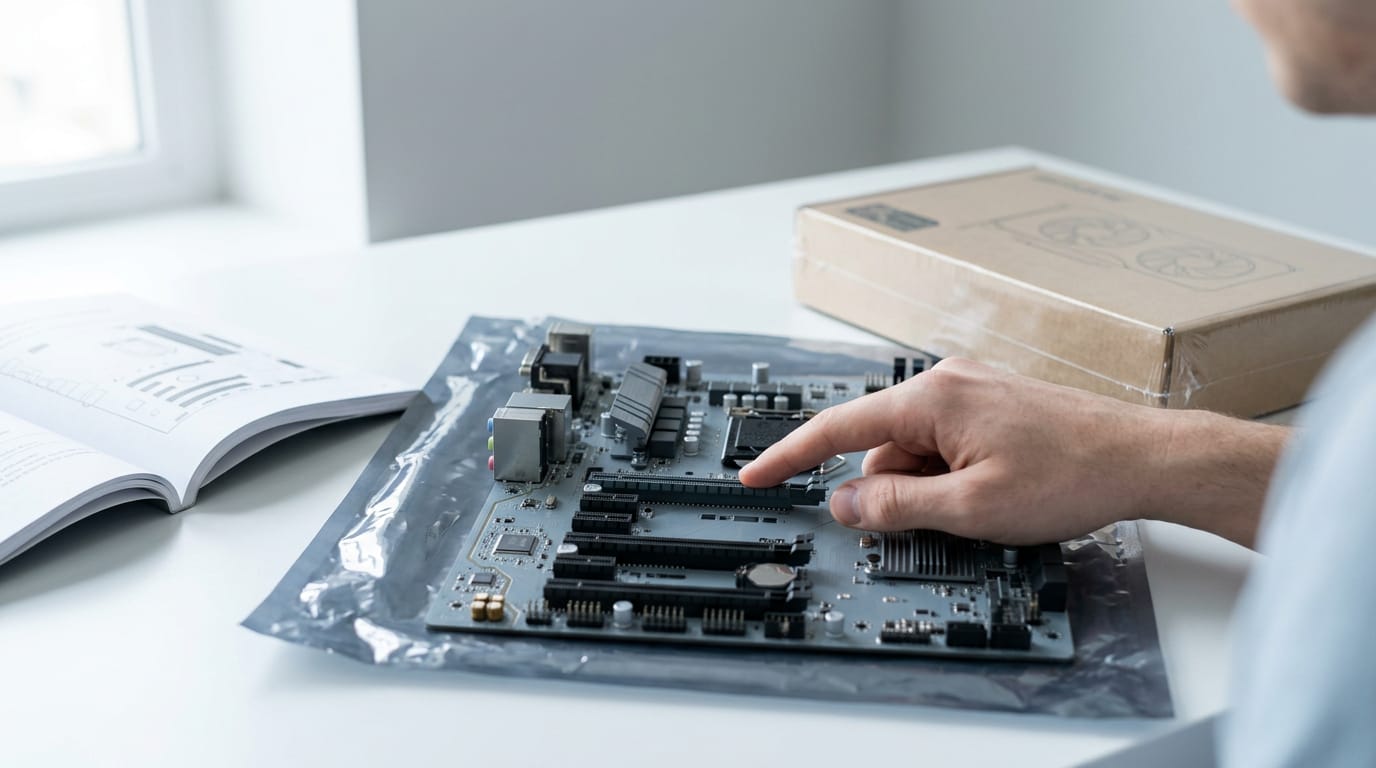
Yes, it does, and where a card sits matters more than whether it fits. Put your graphics card in the primary x16 slot, the main long slot that’s usually wired straight to the processor (CPU).
Think of a gamer who wedges a new card into the lower x16 slot because it looks right. Moving it to the primary slot gives the card its direct link.
Some x16 slots run fewer lanes (the data paths the card uses) than others, so check the specs when two long slots look alike.
Finding your motherboard’s PCIe version
Your board’s PCIe generation, or version, sets the speed ceiling for its slots. To find it:
- Find the board model. It’s printed on the board and in your system information.
- Search online specifications. Look up the model and check each slot’s PCIe version.
- Consult the user manual. It spells out which slots run at which version.
- Contact the manufacturer. Its support team can confirm it for your exact board.
How many slots you get and where
Slot count and layout vary by board, so two boards at similar prices can offer very different room for add-in cards. The main x16 slots usually sit in the row nearest the processor socket, the square where the chip locks in.
Color-coded or labeled slots make the primary x16 slot easy to spot. Reinforced slots hold heavy cards steady, and tool-free latches let you release a card without a screwdriver.
Laptops have few slots, so upgrades there can be limited. Check before you buy.
Fixing errors and common card problems
Correctable errors are ones the system can fix on its own. Uncorrectable errors can’t be repaired that way and may cause crashes or a card that suddenly vanishes. Here’s where we’d start:
- Reseat the card. Power down, remove it, then press it back in until it clicks.
- Check power connectors. Make sure every cable the card needs is fully plugged in.
- Run diagnostics and update drivers. Use the manufacturer’s tools and current drivers.
The right PCIe setup doesn’t come from memorizing every spec. It comes from matching size, lane count, and generation to the cards you actually plan to run, then checking them before you spend a dollar.
Build for the cards you own now and the one you’ll likely buy next, not for the biggest number on the box. A board that fits your budget and leaves room to grow is the smarter buy.
Get the slots right, and every upgrade you add later will have a place to plug in.
References
- Design and simulation of a PCIe Gen 3.0 communication channel — hdl.handle.net (2010)
- Your spare PCIe slot may not actually be free, and checking your manual matters — xda-developers.com (2026)
- PCIe 4.0: Everything you need to know, from specs to compatibility to caveats — pcworld.com
- Nvidia GeForce RTX 5060 review: better than console performance - but not enough VRAM — digitalfoundry.net (2025)
Questions
What is PCI Express slot in motherboard?
A PCI Express (PCIe) slot is a high-speed expansion socket on a motherboard that connects add-in cards to the computer. Its physical size, lane count, and generation affect which cards fit and how much data they can transfer.
What can I plug into my PCIe slot?
You can plug in a graphics card, Wi-Fi or network adapter, sound or capture card, storage controller, USB expansion card, RAID card, or AI accelerator. Check the slot’s physical size and wiring, since a long slot may have fewer lanes than its appearance suggests.
Are PCI slots still used?
Traditional PCI slots are mostly found in older computers. PCIe replaced PCI as the standard expansion interface, so PCIe is the slot type that matters on most modern motherboards.
Does it matter which PCIe slot I use?
Yes. Install a graphics card in the primary x16 slot, usually the top long slot near the processor, because it is typically wired directly to the CPU. Other slots may have fewer lanes or share bandwidth with other devices, so check the motherboard manual.
Sources
- Design and simulation of a PCIe Gen 3.0 communication channel, hdl.handle.net,
- PCIe 4.0: Everything you need to know, from specs to compatibility to caveats | PCWorld, pcworld.com
- Your spare PCIe slot may not actually be free, and checking your manual matters, xda-developers.com,
- Nvidia GeForce RTX 5060 review: better than console performance - but not enough VRAM | Digital Foundry, digitalfoundry.net,
Free · The Build Sheet
The Build Sheet: three gaming PCs priced at Canadian stores