How to Know Your PC Specifications on Windows or Mac
How to know PC specifications: Check Windows or Mac settings and online tools, then use your CPU, GPU, RAM, and storage to judge what you can run.

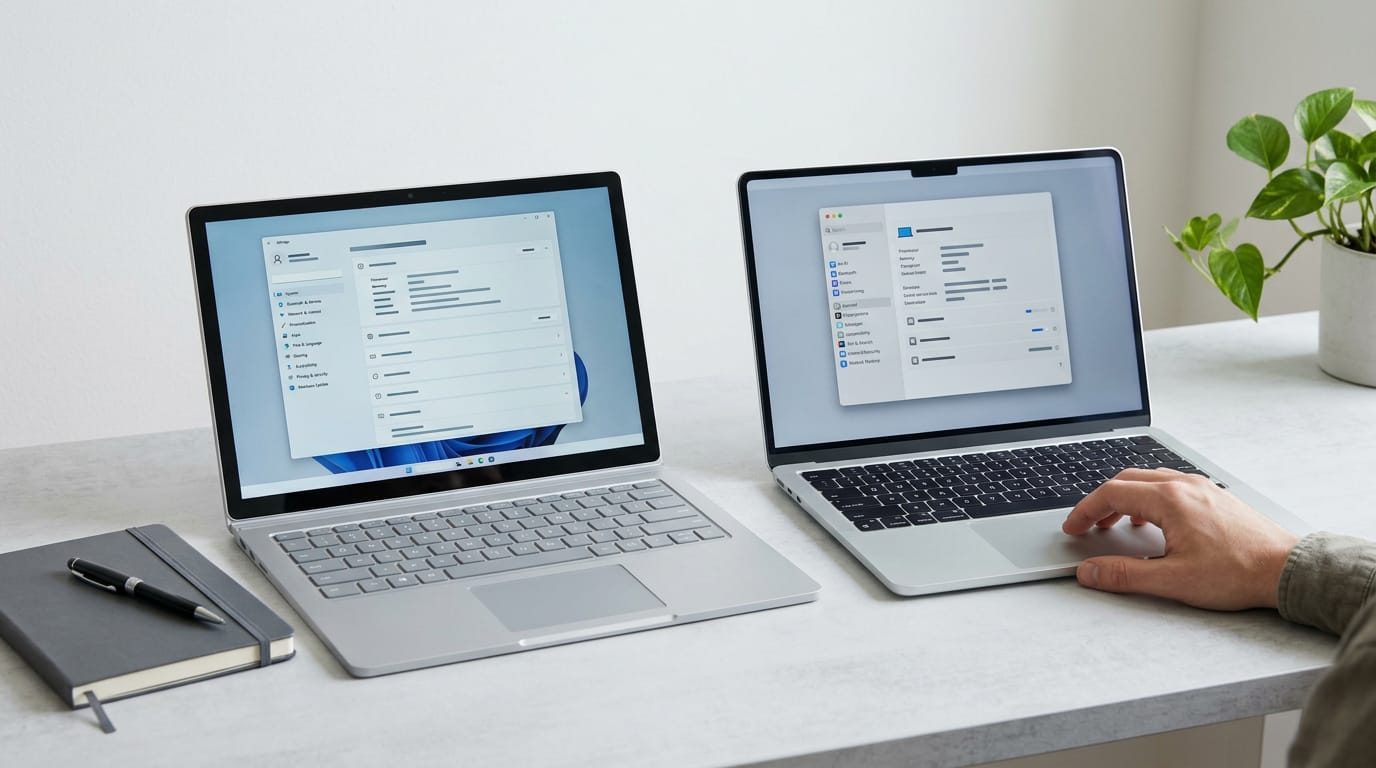
PC specifications are the details of a computer’s hardware and software, including its processor, graphics card, memory, storage, and operating system. Check them in built-in Windows or Mac settings, diagnostic tools, or browser-based tools, then compare the results with software requirements and verify compatibility before buying upgrades. Knowing what your computer has helps you troubleshoot problems, avoid unsuitable purchases, and spend your upgrade budget where it matters.
Ever bought a game only to find your PC can’t handle it? That sinking feeling usually starts with not knowing what’s inside your machine.
Your PC specs (short for specifications) are the list of its parts: the processor (CPU), graphics card (GPU), memory (RAM), and storage. Knowing them tells you what you can run, what’s worth upgrading, and what to skip.
In this guide, we’ll cover every reliable way to check your specs on Windows and Mac, plus the online tools that do it for you. Then we’ll turn those numbers into smart buying decisions.
Why Knowing Your PC Specifications Matters
Your PC specifications (specs for short) are the list of parts inside your computer: the processor, the memory, the graphics card, and the storage.
Knowing them is less about guessing and more about deciding, and you’ll want that clarity the moment something breaks, misbehaves, or needs replacing.
Times your specs come in handy
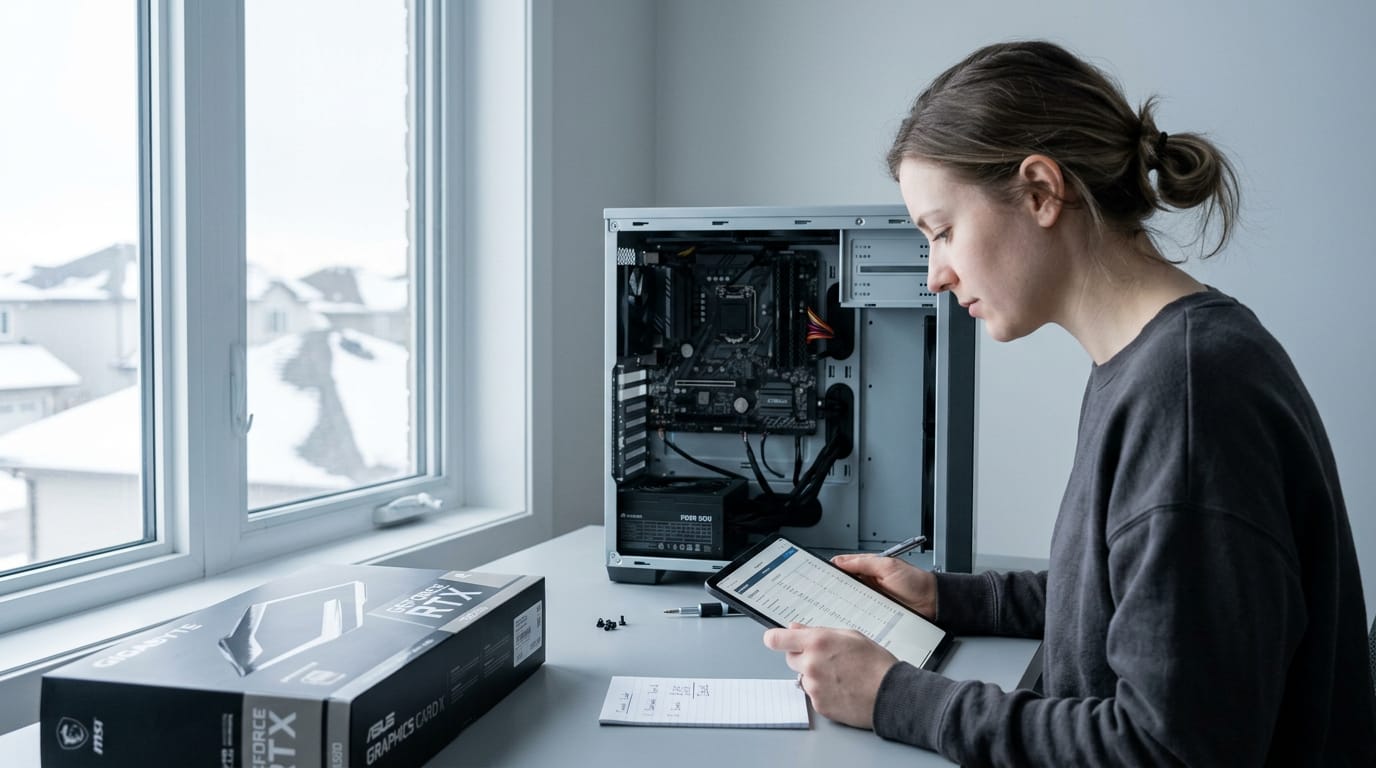
Consider a gamer in Winnipeg who wants a $400 CAD (Canadian dollars) graphics card for the PC she bought three years ago. Before she clicks buy, she checks her specs and finds her power supply is too weak for the new card.
Now she budgets for both parts together instead of finding out after the box arrives.
Specs come in handy in six situations:
- Troubleshooting and diagnostics. When a game stutters or an app crashes, your specs show you which part to check first.
- Avoiding incompatibility and overload. A new part has to fit your motherboard (the main circuit board that connects everything) and your power supply, and your system has to handle the extra load.
- Buying or selling a computer. Accurate specs help you price a used machine fairly and describe it honestly to the next owner.
- Comparing against software requirements. Put a game’s or program’s listed requirements next to your own numbers, and you’ll know in seconds whether it will run.
- Checking gaming capability. Your graphics card, processor, and memory decide which games run smoothly and at what resolution (the number of pixels on your screen).
- Matching specs to your upgrade budget in CAD. Find the one or two parts holding your games back most, then spend within your limit instead of buying a part your system can’t use.
Guessing costs money. Check first, then spend.
The Key Specs to Look For
Before you upgrade or buy, you need to know what’s already inside your machine. A handful of specs covers nearly all of it.
The main hardware and OS details
- Operating system. Your Windows or macOS version, since game requirements often name one.
- Processor (CPU). The central processing unit’s model, plus its cores (separate workers) and threads (extra lanes per core).
- Memory (RAM). How much random access memory you have, plus its speed in megahertz (MHz).
- Storage capacity. How much is free, not just how much is total, since your games live here.
- Graphics card (GPU). The graphics processing unit’s model, since it draws every frame you see.
The motherboard, the board everything plugs into, decides which processors and RAM speeds you can use. Your power supply unit (PSU) is rated in watts, which shows what it can feed a new card.
Picture a player who wants a faster graphics card but never checks the PSU label. A quick look settles it before they buy a part their PC can’t power.
Screen, language and internet connection details
Resolution is how many pixels fill your screen, and scaling is how much your system enlarges text and icons. Note both, since they change how everything looks on screen.
Your browser and system language shape which store pages and support articles you see, so check them if you want a French or English version.
Connection type (Wi-Fi or Ethernet cable) and speed (in megabits per second, or Mbps) complete the picture. Picture a player whose online matches stutter on Wi-Fi. A quick Ethernet test shows whether the network or the graphics card is to blame.
Write them down before you shop.

Online Tools That Check Your Specs Automatically
Want your specs without installing anything? Online tools can pull much of that straight from a web page.
Checking specs right in your browser
A free in-browser tool needs nothing installed. It reads what your browser will share through browser APIs (the built-in interfaces web pages use to request computer information). It shows your:
- processor (CPU)
- memory (RAM)
- graphics card (GPU)
- operating system (OS)
Think of a player with an old family desktop who wants to know if it can run a new game. The page shows the basics without digging through settings, enough to decide whether it’s worth a closer look.
Checking if your PC can run games
Some tools offer a basic view and an advanced view with more detail, and some let you edit the details if a part is misread. Use the tool to find your graphics card and CPU power, then check a game’s system requirements against them.
Consider a builder checking whether a new release will run on last year’s rig. The advanced view confirms the exact graphics card model, so they know whether to buy the game or upgrade first.
Whether a game launches is one question. How well it runs is another.
What online tools can’t tell you
Browsers restrict what web pages can see, so a few things stay out of reach:
- Temperature and clock speed (how fast your processor runs) need native software, meaning a program installed on your PC.
- VRAM (the video memory on your graphics card) needs native software too.
- Anything your operating system doesn’t share with the browser.
The web gives you a quick look, not a complete diagnosis. For a full diagnostic, contact a repair service. Start here, but don’t stop here.
Where Can I See My PC Specs on Windows?
Where can I see the specs for my PC? Start with Settings, then About, for a quick read on your processor and installed memory, and the tools below go deeper.
Run DxDiag and review the results
For the full picture, run DxDiag (the DirectX Diagnostic Tool), which gathers your hardware details in one place. No downloads needed.
- Search for “DxDiag” in the Windows search bar.
- Run the program and confirm the prompt if Windows asks.
- Review the system specs screen, which lists your processor, memory, and Windows version.
- Take a screenshot with Shift+Windows+S so you can keep the results handy.
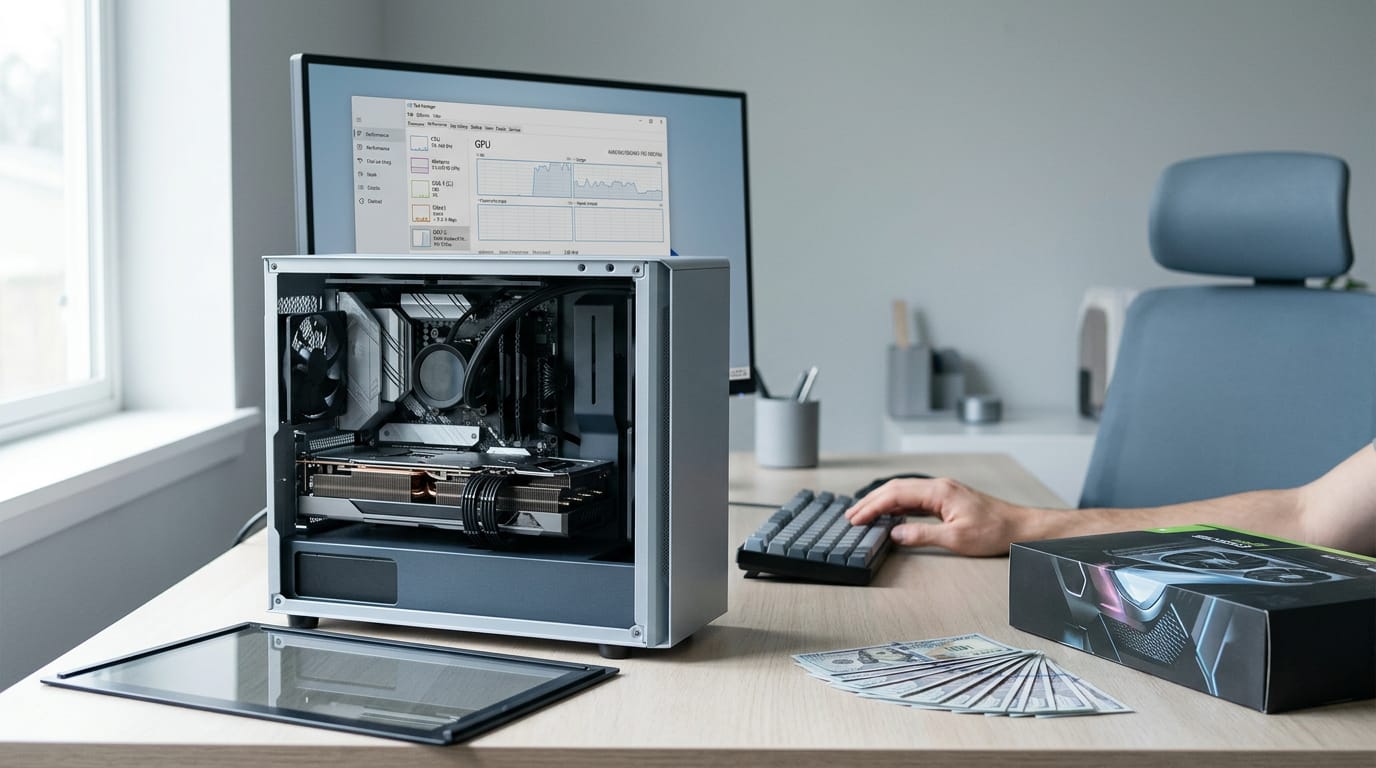
Say you’re a player with $600 to put toward a GPU upgrade (the graphics card). Before you compare prices, you need to know which card you already have.
Task Manager’s Performance tab shows your processor (CPU), memory (RAM), and graphics card side by side. The spec sheet tells you what you own; Task Manager shows you how it’s running right now.
Open the tab, click GPU, and the model name appears at the top of the panel, so you’ll know your card before you shop.
For storage, check Settings and This PC to see how much room each drive has. Need the model number? Look for the sticker on the device or on the original box, since that’s usually where it’s printed. Prefer typing?
Open Command Prompt or PowerShell and run msinfo32 or systeminfo to pull up similar details fast.
Finding Your Specs on a Mac
Macs make this one of the easiest checks you’ll ever do, since the tools you need are already built in. Start with the Apple menu and you’ll have your key numbers in under a minute.
Using About This Mac and System Information
Here’s the quick path:
- Apple menu: Click the Apple logo in the top-left corner and choose About This Mac.
- Basic specs: The first window shows your processor (the chip that does the computing), your RAM (the short-term memory your computer uses to run apps and games), and your operating system (OS, the software that runs everything else), including its version.
- System Report: Click it from that window for a hardware overview of the parts inside your Mac.
- Storage: Open the Storage category to see how much disk space is used and what’s taking it up.
- Screenshot: Press Shift+Cmd+4 (that’s Shift, Command, and 4 together), then drag a box around the info you need.
The About This Mac window tells you what you have, while Storage tells you how much room is left. Think of a gamer in Winnipeg whose game’s requirements call for 16 gigabytes of RAM.
They open About This Mac, see 8 gigabytes, and know in about thirty seconds that they’re short before spending a dollar. That’s it. No downloads, no guesswork.
Checking your specs takes minutes, and it can save you from a wasted purchase. Whichever method you choose, you end up with the same payoff: a clear picture of what your PC can handle.
With that picture in hand, you can upgrade with confidence and buy only what your games actually need. Whether you’re chasing smoother gameplay or planning a whole new build, your specs are where every good decision starts.
Know them first, and every dollar works harder.
Questions
What is the model of my PC?
I can’t identify your PC model from here because I can’t access your device. On Windows, check Settings > System > About or look for the model number on the device or its original box; on a Mac, choose Apple menu > About This Mac.
How to show PC specifications?
On Windows, open Settings > System > About for basic specifications, or search for and open DxDiag for more hardware details. On a Mac, choose Apple menu > About This Mac, then select System Report for a fuller hardware overview.
How do I check my RAM and GPU?
On Windows, open Task Manager and select the Performance tab to see your memory (RAM) and graphics card (GPU); click GPU to see its model. On a Mac, choose Apple menu > About This Mac for memory details, and open System Report to review hardware information.
How to check computer RAM and processor?
On Windows, open Task Manager > Performance to view your memory and processor, or run DxDiag to see processor and memory details together. On a Mac, choose Apple menu > About This Mac to see the processor or chip and RAM.
How do I check my PC's CPU?
On Windows, open Task Manager > Performance > CPU to see your processor model, or search for DxDiag. On a Mac, choose Apple menu > About This Mac to view your processor or chip.
Can you identify my PC specs?
I can’t read your computer’s hardware remotely, so I can’t identify its exact specs. Check Settings > System > About or Task Manager > Performance on Windows, or Apple menu > About This Mac on a Mac.
Where can I see the specs for my PC?
On Windows, find basic details in Settings > System > About, and use DxDiag or Task Manager > Performance for more hardware information. On a Mac, choose Apple menu > About This Mac, then open System Report for additional details.
What graphics card do I have?
On Windows, open Task Manager, select Performance, and click GPU; the graphics card model appears at the top of the panel. A browser-based spec checker may also identify it, but browsers can’t access every hardware detail.
Free · The Build Sheet
The Build Sheet: three gaming PCs priced at Canadian stores