What Does RAM Do for Gaming and How Much You Need
What does RAM do for gaming? See how much memory games need, when an upgrade improves performance, and how to choose DDR4 or DDR5 on a Canadian budget.

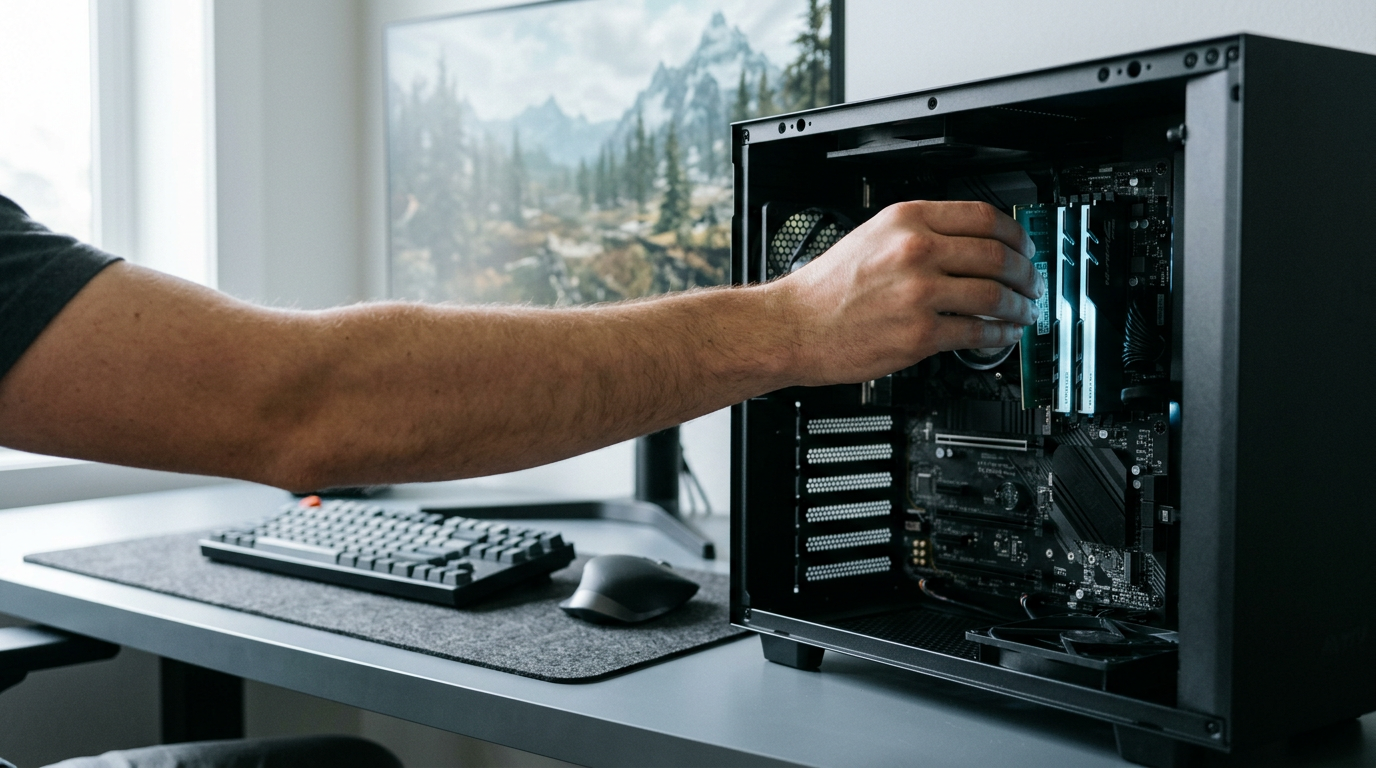
RAM is a PC’s short-term workspace, holding game data and background apps so the processor can access them quickly while you play. For most players, 16GB is a practical starting point and 32GB adds room for demanding games, streaming, and multitasking; extra capacity or faster memory helps only when RAM is limiting performance. Check your usage and system compatibility before upgrading, since a well-matched kit matters more than paying for memory your games will not use.
Think of your desk during a big project. The papers you need right now sit within arm’s reach, and everything else stays in a drawer. Your PC works the same way.
Random-access memory, or RAM, is the short-term workspace your system uses for the game you’re running.
More isn’t always better, though.
Here’s what RAM does for gaming, how much you need, when extra or faster memory actually helps, and how to choose between DDR4 and DDR5 (the two generations of double data rate memory) on a real budget in Canadian dollars.
What RAM Does for Gaming
Before a game can show you anything, it needs a fast place for its working data. On a PC (personal computer), that job belongs to Random Access Memory (RAM).
Why RAM works as short-term memory
Think of RAM as your computer’s short-term memory. It holds the data your central processing unit (CPU) needs right now, so the CPU doesn’t keep fetching it from slower storage. The random access part means the CPU can reach any spot in it directly.
RAM is built for speed rather than space.
RAM is volatile, cleared every time you shut down. Power off, and it’s gone.
You may also see GO RAM in searches. We don’t have a verified definition for it, so treat it as a label, not a spec. Check the capacity and speed on the product page instead.
How RAM keeps your games running smoothly
Games load assets, like textures (the images that give surfaces their detail), into RAM for quick access. Less waiting on storage means smoother gameplay.
Think of a player with a voice chat and a guide open beside their game. Each background app takes its own share of memory, but with enough room for all of it, switching windows to check a map won’t stall the action.
Streaming and encoding (compressing gameplay into a video file) also draw on RAM.
How RAM stacks up against storage
RAM and drives differ in three ways:
- Speed. RAM is faster than a hard disk drive (HDD) or a solid-state drive (SSD).
- Capacity. Drives hold more data than RAM.
- Role. RAM works alongside the CPU, while drives store your games and files long term.
Don’t confuse RAM with read-only memory (ROM). RAM is for working data, not permanent data, and ROM keeps its contents with the power off.
How your PC handles a RAM shortage
When RAM runs short, your PC shuffles some data to slower storage through virtual memory, which borrows a reserved chunk of your drive as overflow. That reserved area is the pagefile.
Those trips to storage are much slower, which shows up as stuttering and slowdowns. Think of a player mid-match whose game is short on memory. The pagefile can keep it from crashing, but the stuttering still hits.
The pagefile only prevents crashes, so a crash-free game isn’t always a smooth one.
How Much RAM Your Games Need
Your games load textures and models into random access memory (RAM) while they run, so installed RAM sets their working room.
Is 32GB DDR5 enough for gaming?
For most players, yes. DDR5 is the newer memory standard. 8GB is entry-level and tight once a game and browser are open. 16GB is the sweet spot: PCMag’s RAM Reality Check calls it “still the gold standard for mainstream PC gaming.”
Going to 32GB buys headroom. A Finnish study on RAM optimization in game development notes that 32GB is nearing the standard amount as game memory needs grow. 64GB suits demanding users, like video editors who also game.
Is 128GB overkill for gaming? For gaming alone, yes: you’d pay for capacity your games won’t touch.
Kit prices move too often for us to quote a number, so compare 16GB and 32GB kits at your store in Canadian dollars. A small gap favours 32GB; a wide one makes 16GB the sensible pick.
What pushes your RAM needs up
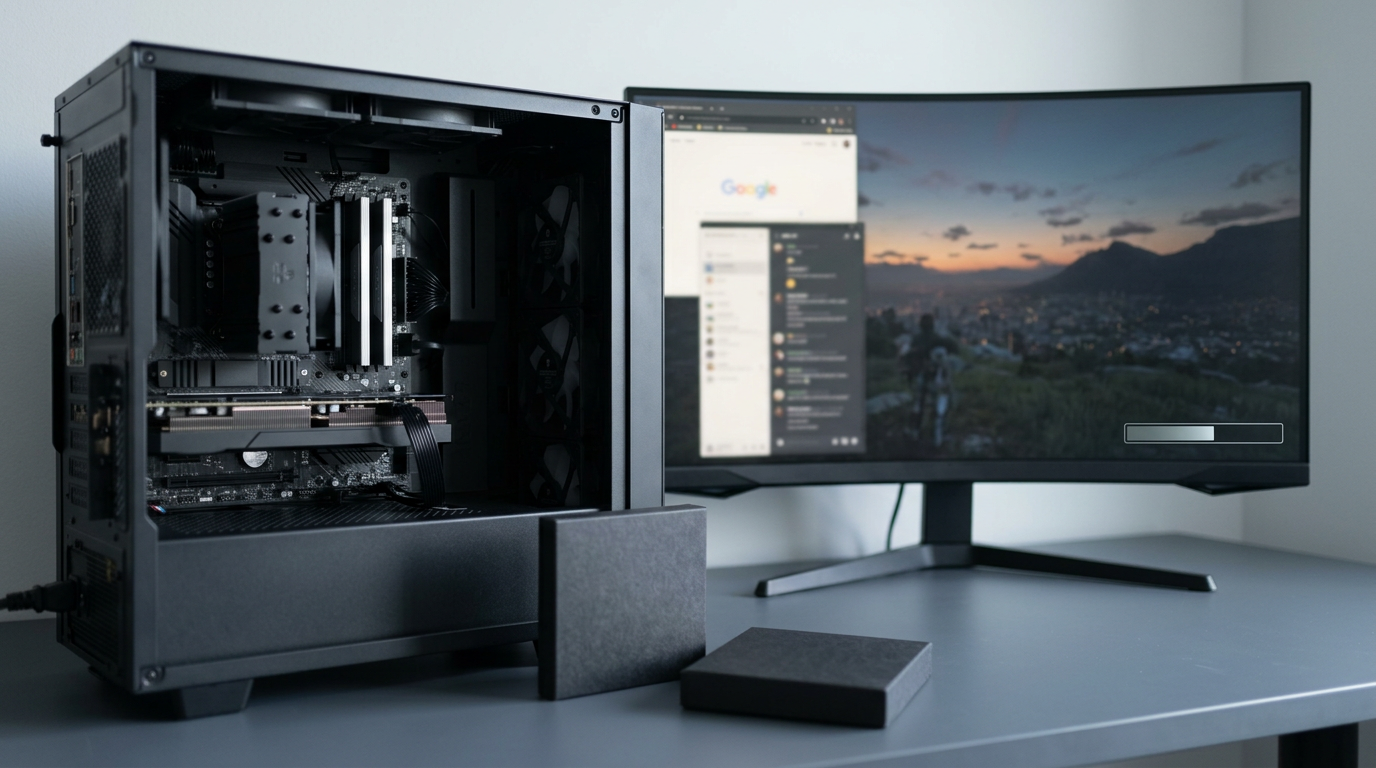
Four things add to the load:
- Streaming and content creation. Every app beside the game shares the same pool.
- Open-world and strategy games. Big maps and many units mean more data held at once.
- Background apps, browsers, and Discord. Dozens of tabs and a voice chat quietly take memory.
- 4K gaming. Resolution mostly tests your graphics card, so budget for the card first.
Picture a player streaming with Discord and OBS Studio (streaming software) open. On 16GB, that stack crowds the game; on 32GB, each app keeps its room. Often it’s what runs alongside the game, not the game itself, that fills your memory.
Why newer game engines demand more memory
Modern games using Unreal Engine 5 features like Nanite (very detailed geometry) and Lumen (real-time lighting) can place real demands on memory for asset loading.
A comparative analysis of virtualized geometry in Unreal Engine 5 measured memory use alongside frame time in a dense scene.
Memory needs keep climbing, so a comfortable amount from a few years back can feel tight now.
Checking your RAM against game requirements
- Compare app requirements to installed RAM. Check each game’s recommended memory against your installed RAM. At or below that number, you’re on the edge.
- Future-proofing. If you’re building new and the 32GB kit is only a little more, it’s the safer buy. Check the number, then buy.
When More RAM Actually Improves Gaming Performance
More random access memory (RAM) isn’t a universal fix, so we’ll show you when it matters.
Spotting when RAM is holding you back
Extra RAM only helps when it’s the bottleneck, the part holding your game back. If your graphics card (GPU) or processor (CPU) is the limit, more memory won’t raise your frames per second (FPS).
Take a player who upgrades memory and sees no change, since their graphics card was already maxed out. Past what your games need, extra capacity sits idle, so don’t assume more is better.
Average FPS is only half the picture: 1% lows, the lowest 1 percent of frames, show how smooth a game feels, not just how fast. A VGTimes comparison found slower memory dropped them in Spider-Man Remastered and Hogwarts Legacy.
Setting up dual-channel memory properly
Dual-channel means two matched sticks (same capacity and speed) working together, not just adding more memory.
A whitepaper on double data rate (DDR) memory notes dual-channel can move double the peak data of single-channel, so bandwidth (how much data moves at once) can double in theory.
At the same capacity, NoobFeed’s testing found dual-channel can outperform single-channel. Use the slots your motherboard manual marks for dual-channel, or you may run single-channel by accident.
Tuning speed, latency and XMP settings
Capacity comes first, speed second. Speed is rated in MHz (megahertz), and DDR4 and DDR5 are separate platforms that don’t mix. DDR5 platforms often cost more, so their speed has to earn that premium in your games.
CAS latency (column address strobe, the delay before memory responds) is the other number to weigh. How-To Geek notes AMD’s Zen 4 and Zen 5 CPUs are memory-sensitive, so Ryzen systems and APUs (chips with graphics built in) can be more sensitive to speed.
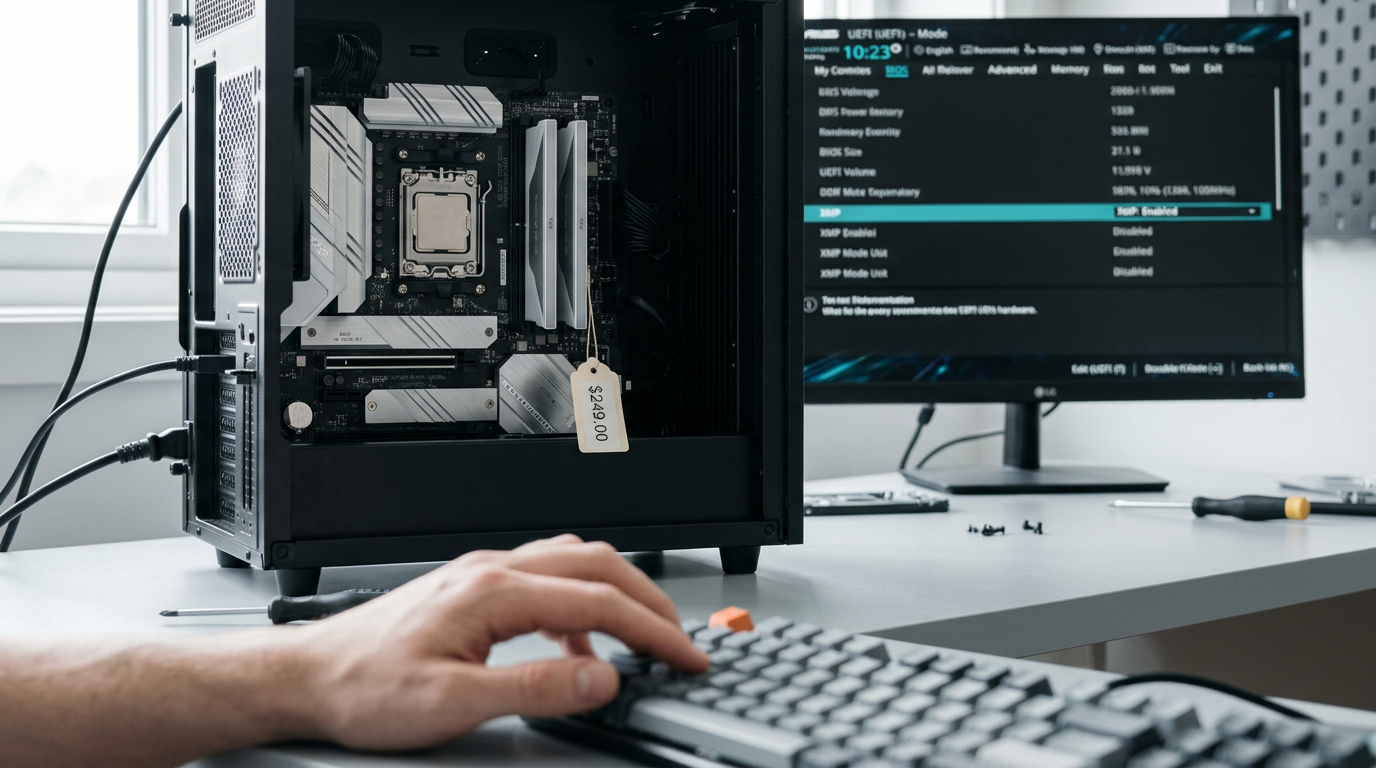
Enable XMP (Extreme Memory Profile) in the BIOS (basic input/output system), or a player who skips it pays for speed they never get.
Pushing memory past its factory speed
Overclocking means running memory past its factory speed, via the BIOS or software.
One study on the AMD Athlon 200GE found targeted memory overclocking can significantly improve gaming experiences, with an 11.7% increase in average FPS, though results depend on hardware and settings.
Pushing too hard risks instability, so plan for cooling and check module compatibility. Stability beats speed.
Checking RAM Use and When to Upgrade
Before you buy more random access memory (RAM), check how your PC is using what it has. Here’s how to tell whether you’re really short.
Where to view installed RAM and usage
Check these spots:
- Task Manager Performance tab: shows RAM in use and total capacity.
- Memory speed in MHz: shows how fast your memory runs, in megahertz (MHz).
- In-game overlays like MSI Afterburner: show live RAM usage while you play.
- System Information panel: lists your installed RAM, so you can confirm capacity.
Signs your PC is short on RAM
According to How-To Geek, high, sustained RAM usage can indicate that a system may need more memory. It’s sustained usage that matters, not a single spike. Watch for these four signs:
- High sustained usage percentage: the number stays high through a whole session.
- Stuttering and long loads: the game hitches mid-match and loading drags on.
- Freezing and crashes: the game or system locks up or closes without warning.
- Performance drops when multitasking: things slow down when you switch apps.
Picture a player with 14GB of 16GB in use whenever they open a match with a browser full of tabs. The game hitches the moment they alt-tab to chat. That’s your cue to act.
Quick ways to free up RAM
Try these first:
- Close background apps: browsers and chat programs you’re not using still hold memory.
- Restart your computer: a fresh start clears out memory that’s piled up.
- Disable startup programs: stop apps from loading as soon as you sign in.
- Update drivers: check for newer versions for your graphics card and chipset.
Free the memory first, then recheck usage.
How to Upgrade and Install RAM
Before you buy, check that your machine can take more memory, then install it the right way.
Making sure new RAM fits your board
- DIMM slots (dual inline memory module sockets): count the empty ones.
- Maximum capacity and frequency: the most memory and fastest speed your board supports.
- DDR4 vs DDR5 (double data rate memory generations): incompatible, so a DDR4 kit won’t seat in a DDR5 board.
- QVL (qualified vendor list): the maker’s list of memory kits tested with that board.
Buying matched kits and seating each stick
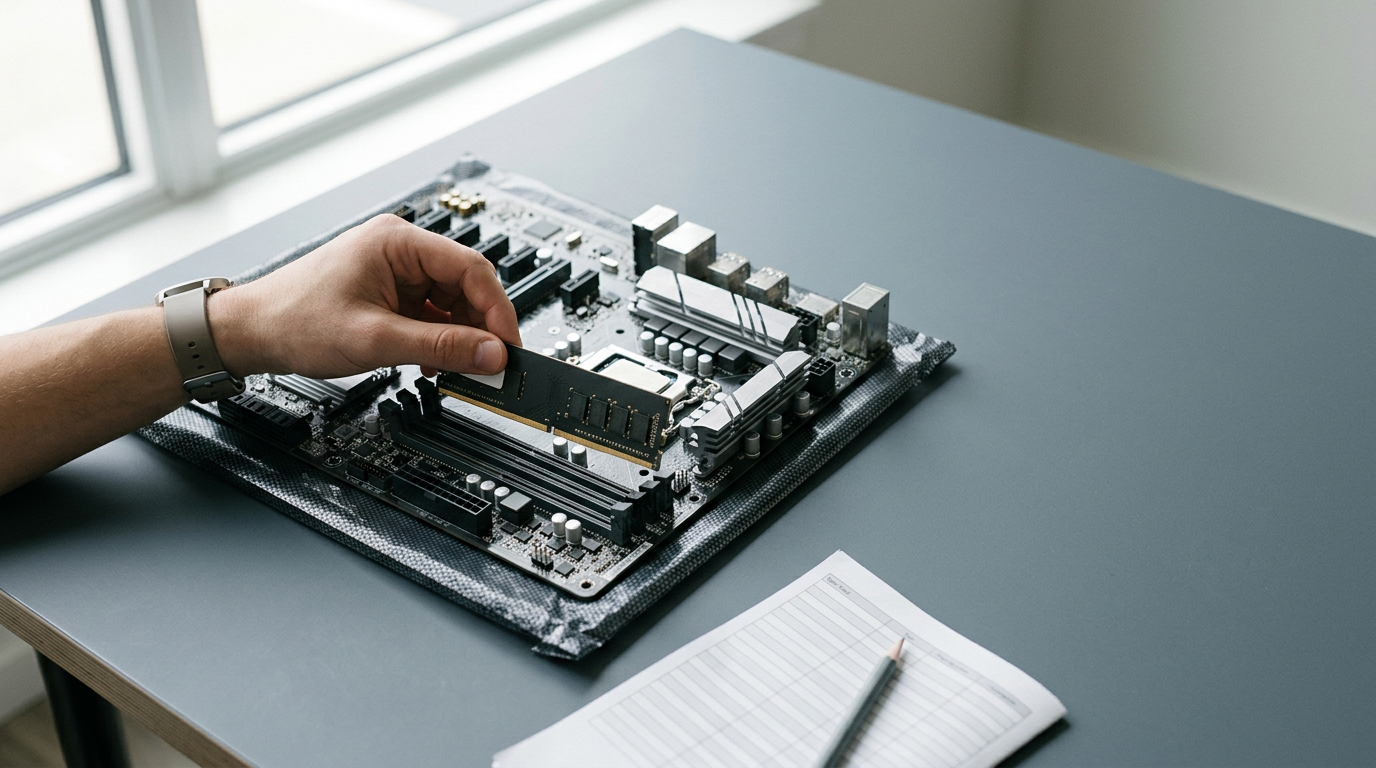
Matched kits share capacity and speed, so buy one set instead of piecing sticks together. Mixing kits is a gamble: sticks may fall back to the slowest speed, and four sticks can make full speed harder to reach.
Power down and press each stick in until both clips snap shut, using the slots your manual recommends. Then enable Extreme Memory Profile (XMP) in the BIOS, the board’s settings screen, or you’ll run at the default speed instead of the rated one.
Not comfortable opening the case? A local shop can seat the sticks for you.
Upgrading RAM or buying a new machine
A decision support study on laptop selection notes that when a computer supports memory expansion, upgrading its RAM can be an alternative to replacing it. Upgrading is often the cost-effective first move.
Consider a player with a budget build and two empty slots: a matched pair fills them, and nothing else gets swapped out.
Some laptops have room to expand, and some don’t. If your board is outdated, a new PC may be the better buy. In a custom build, pick the board and RAM together so the kit matches what the board supports.
Gaming laptops usually use one of two memory types:
- Soldered RAM: fixed to the board, so what you buy is what you keep.
- SODIMM (small-outline DIMM): a removable stick you can swap later.
Common Misconceptions to Clear Up
Five myths about random access memory (RAM) send builders down the wrong path, often right before they spend money. Here’s what’s actually true about each one:
- More RAM always makes games faster. Extra memory only helps when you’re short on it. Think of a player who doubles their memory to chase smoother frame rates in a shooter, then sees the numbers barely move because the graphics card was the real limit. Once your game and background apps fit with room to spare, more sticks won’t add frames.
- Speed doesn’t matter. Memory speed does count in some games, especially ones that lean hard on your processor. It’s worth checking once your capacity is covered, but it’s not the first thing to chase.
- DDR5 is always faster. DDR5 (the newer memory standard) has a higher speed ceiling than DDR4 (the generation before it), but only if your motherboard and processor support it. A pricier kit doesn’t guarantee higher frame rates. The platform decides, not the label.
- Virtual memory fixes a RAM shortage. When RAM runs full, your operating system can borrow space on a storage drive as overflow, but a drive is far slower than memory. Picture a player mid-fight whose game stutters as data gets shuffled to the drive. Overflow keeps things running, but it doesn’t make them smooth.
- Brands must match exactly. Matching kits are the easy path, not a hard rule. Mixing brands can work, but sticks that differ in speed may all drop to the slowest one’s setting. Consider a parent building a kid’s first PC who finds a cheaper stick from another brand: as long as capacity and speed line up, the name on the box matters far less.
RAM is your game’s workspace, and the right amount of it keeps that workspace clear. Start with capacity that covers the games you play, check whether more or faster memory will actually show up in your results, and only then weigh DDR4 against DDR5.
Spend where your games will feel it, and skip the extras they won’t. A right-sized kit beats an expensive one you’ll never fully use.
Let your games decide what’s worth your money, not the spec sheet.
References
- Comparative Analysis of Virtualized Geometry versus Discrete Level of Detail in Unreal Engine 5 — urn.kb.se (2026)
- RAM-muistin optimointi pelikehityksessä — trepo.tuni.fi (2025)
- Analysis of the Impact of Memory Overclocking on the Performance of AMD Athlon 200GE — doi.org (2024)
- Decision Support System for Laptop Selection Using AHP Method and Profile Matching — doi.org (2021)
- Saving on RAM: How DDR5-4800 Performs in Games Compared to DDR5-6000 — vgtimes.com (2026)
- RAM Reality Check: How Much Memory Does Your PC Actually Need in 2026? — au.pcmag.com (2026)
- Single vs Dual Channel DDR5 Gaming Performance Tested — noobfeed.com (2026)
- Building a New Ryzen-Based PC? Don’t Overspend on RAM — howtogeek.com (2025)
- Please stop trusting Task Manager’s RAM numbers — howtogeek.com (2026)
- Asia_DDRwhitepaper.qxd — manuais.iessanclemente.net
Questions
What is go RAM?
“GO RAM” has no verified definition as a RAM specification. Treat it as a product label and check the memory’s capacity and speed before buying.
Is 32GB DDR5 enough?
Yes. 32GB of DDR5 is enough for most players and provides extra room for demanding games and background apps such as browsers, chat, or streaming software. Check that your motherboard and processor support DDR5.
Sources
- Asia_DDRwhitepaper.qxd, manuais.iessanclemente.net
- Single vs Dual Channel DDR5 Gaming Performance Tested | NoobFeed, noobfeed.com,
- Analysis of the Impact of Memory Overclocking on the Performance of AMD Athlon 200GE, doi.org,
- Building a New Ryzen-Based PC? Don’t Overspend on RAM, howtogeek.com,
- Comparative Analysis of Virtualized Geometry versus Discrete Level of Detail in Unreal Engine 5, urn.kb.se,
- Please stop trusting Task Manager's RAM numbers, howtogeek.com,
- Saving on RAM: How DDR5-4800 Performs in Games Compared to DDR5-6000, vgtimes.com,
- RAM-muistin optimointi pelikehityksessä, trepo.tuni.fi,
- Decision Support System for Laptop Selection Using AHP Method and Profile Matching, doi.org,
- RAM Reality Check: How Much Memory Does Your PC Actually Need in 2026?, au.pcmag.com,
Free · The Build Sheet
The Build Sheet: three gaming PCs priced at Canadian stores