Can You Add RAM to a Laptop? It Depends on the Model
Can you add RAM to a laptop? Check whether its memory is soldered or slotted, choose the right capacity for gaming or everyday use, and install it safely.

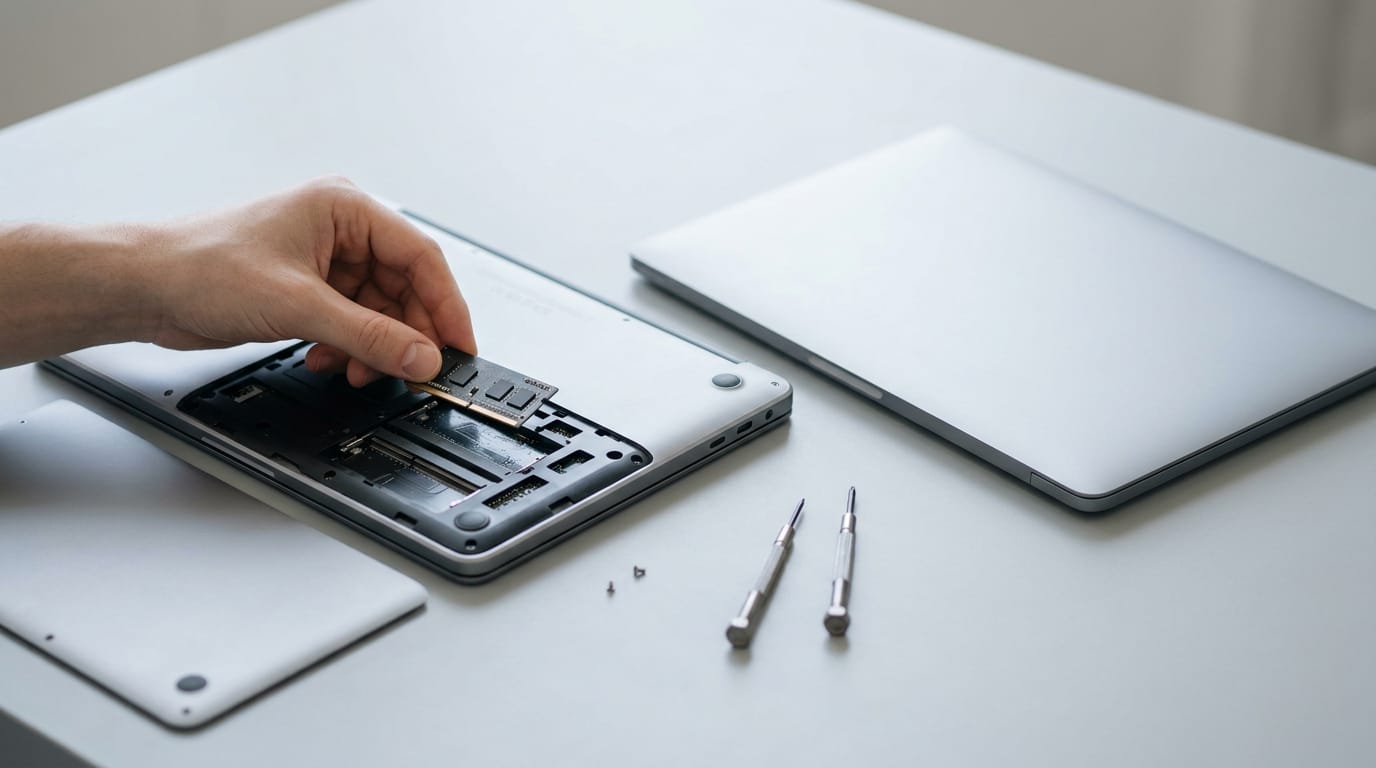
Laptop RAM is short-term workspace for the apps and data you’re using, and whether you can add more depends on your model: some laptops have upgradeable slots, while soldered memory cannot be replaced. Check your laptop’s manual for its RAM type, slot count, and maximum capacity, then choose an amount that suits your tasks and install compatible modules carefully. More RAM can ease slowdowns when memory is limiting performance, but it won’t fix a weak CPU, storage drive, or graphics processor.
Is your laptop starting to stutter? Browser tabs reload, your game hitches when you switch apps, and everything feels slower than it used to. Before you shop for a new machine, check the memory.
RAM, the short-term workspace your laptop uses for open apps and game data, is one of the most practical upgrades you can make.
The short answer is that it depends. Some laptops have slots you can open and swap modules in, while others have RAM soldered directly onto the motherboard, which means it can’t be changed later.
Here’s how to tell which kind you’ve got, how much memory makes sense for gaming and everyday use, and how to install it safely.
What RAM Does and Whether You Can Add It
Before you shop for memory, it helps to know what RAM actually does. That makes the question of whether you can add more much easier to answer.
How RAM works as a short-term workspace
Random access memory (RAM) is the short-term workspace your laptop uses while it runs. Anything you’re actively using, like a game, a browser full of tabs, or a chat app, gets loaded into RAM so the processor can reach it fast.
Consider a student who games on a budget laptop after class, with a match running, Discord open, and a dozen tabs of guides up at the same time. All of that sits in memory at once. With enough room, switching from the game to a guide takes a moment.
Without it, the laptop has to shuffle things around, and everything slows down.
Here’s what to know about it:
- Temporary fast-access storage. RAM holds the data your laptop needs right now, ready to grab at a moment’s notice.
- Short-term workspace. Open programs and game data live here while you use them.
- Faster than hard drive. Reading from RAM is much quicker than pulling from a hard drive, which is why it keeps up when you switch between tasks.
So RAM is built for using your data right now, not keeping it, and your saved files stay on the drive where they belong. Memory is just the workbench.

Why Upgrading RAM Is Worth It
Here’s what more memory buys you.
Smoother multitasking and a cheaper fix
Random access memory (RAM) keeps whatever you’re using right now. For example, a gamer with a voice chat, a browser, and a launcher open can see stutters once memory runs low.
- Smoother multitasking. Switching between open apps stops feeling like a wait.
- Less lag. Games and programs stall less when there’s room to work.
- A cheaper fix. If your laptop has removable RAM sticks, a BGR article says more memory can be cheaper than a new laptop.
- Extends laptop lifespan. Your machine stays useful longer.
Pair the RAM upgrade with an SSD
Solid-state drives (SSDs) store your files and programs, and upgrading one can speed up boot times. A research paper on cloning lab computers reports that switching to SSDs can bring faster boot times and quicker application loading.
Before you buy, check whether your laptop takes a Serial ATA (SATA) drive or an M.2 slot, a small stick-shaped connector. The wrong drive won’t fit.
More RAM keeps your open apps ready, and a faster SSD loads them quicker. Upgrade both for a big gain.
What else affects laptop performance
The real question isn’t whether more RAM helps, but which part is holding you back.
- CPU matters too. The central processing unit (CPU) handles the core work, so a slow one caps what extra memory can deliver.
- Storage type. SSDs load files faster than hard disk drives (HDD), so check which you have.
- GPU for gaming. The graphics processing unit (GPU) draws what you see on screen. A gamer who adds RAM but still stutters in a demanding game may need a better GPU instead.
How Much RAM Your Laptop Needs
Random access memory (RAM) is your laptop’s short-term workspace, so the right amount depends on what you run.
Choosing a RAM size for how you work
- 4GB: basic tasks like browsing, email, and documents.
- 8GB: moderate multitasking, like a video call with a few tabs open.
- 16GB: heavy multitasking with many apps and tabs open.
- 32GB and up: professional workloads. According to a study of Apple M1 processors on machine learning tasks, a 32GB laptop may suit this work.
Prices for 32GB kits in Canadian dollars (CAD) shift often, so check live listings before you buy.
How much RAM gaming takes
- 8GB: the minimum for gaming.
- 16GB: the sweet spot, with room for the game and background apps.
- 32GB: worth it if you stream while you play, since the game and the streaming app both need memory.
Dual-channel mode, where two RAM sticks work side by side, can help integrated graphics (the graphics built into your processor).
LaptopMedia’s comparison of dual-channel and single-channel RAM found the biggest performance gap between the two modes on Low settings.
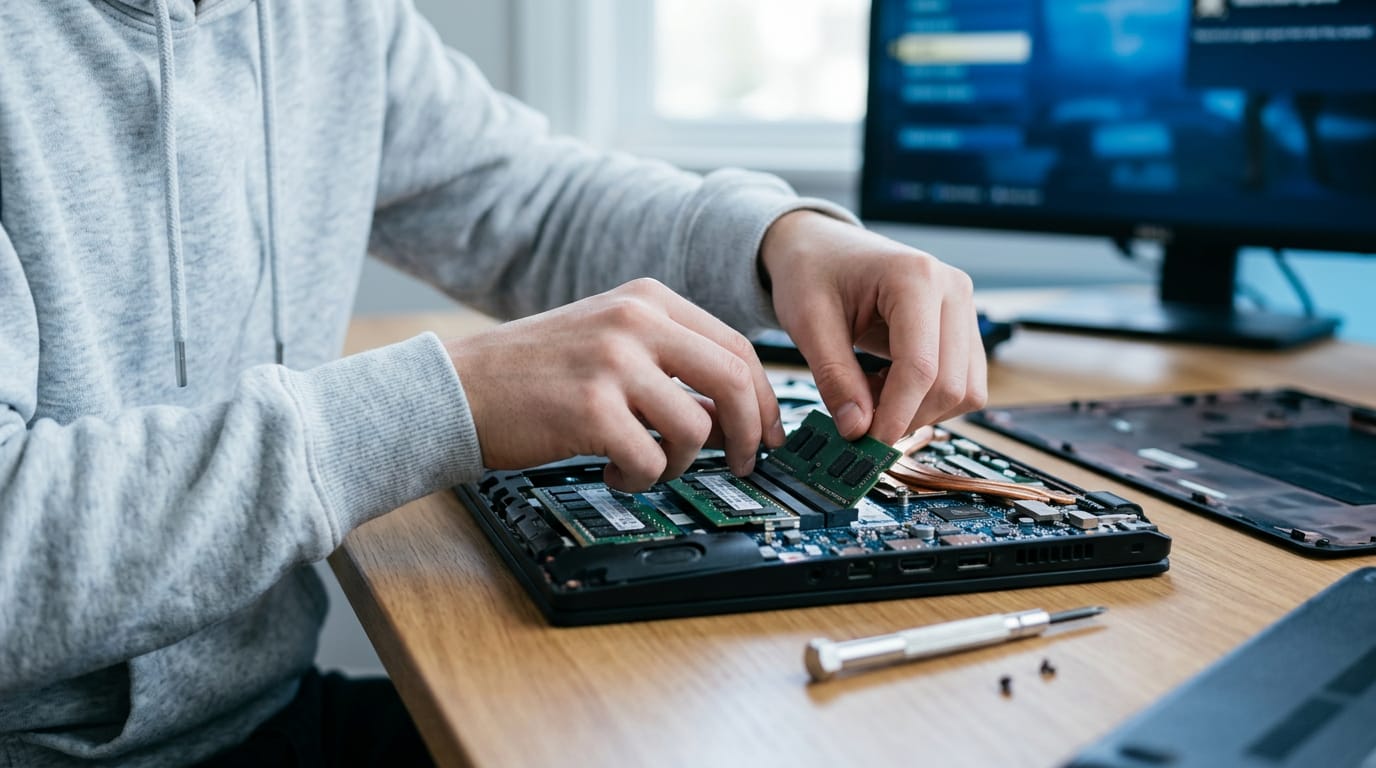
Think of a student who games on a laptop with one stick and a free slot. A matching second stick can switch on dual-channel mode and boost those built-in graphics.
Why extra RAM doesn’t slow things down
Extra RAM won’t slow your system down. What matters is whether you’ll use it, not how much is installed. Seeing lots of RAM in use while you work or game is normal, so there’s no single target.
Task Manager on Windows and Activity Monitor on a Mac show where you stand. Slowdowns are the warning sign, not the number.
Can Your Laptop Take a RAM Upgrade?
Before you buy random access memory (RAM), confirm that your laptop can take it.
Checking if your model allows upgrades
Many laptops allow upgrades, but the real question is whether yours does, not how much you want. Your user manual lists what your model supports, and the manufacturer’s support site has the same specs.
Some models limit capacity. Watch for soldered RAM, memory attached directly to the motherboard. It can’t be upgraded, so no stick will change it.
Specs to match before buying memory
Match these before you buy:
- DDR4 and DDR5 (DDR stands for double data rate) won’t fit each other’s slots, so match your laptop’s type.
- Maximum supported capacity is the most your model accepts, so never buy past it.
- Number of RAM slots shows how many sticks fit. With both full, you’ll swap rather than add.
- Compatibility scanner tools, like the Crucial scanner, help you find memory that fits your model.
- SODIMM is the smaller laptop format; longer desktop DIMM (dual inline memory module) sticks won’t physically fit.
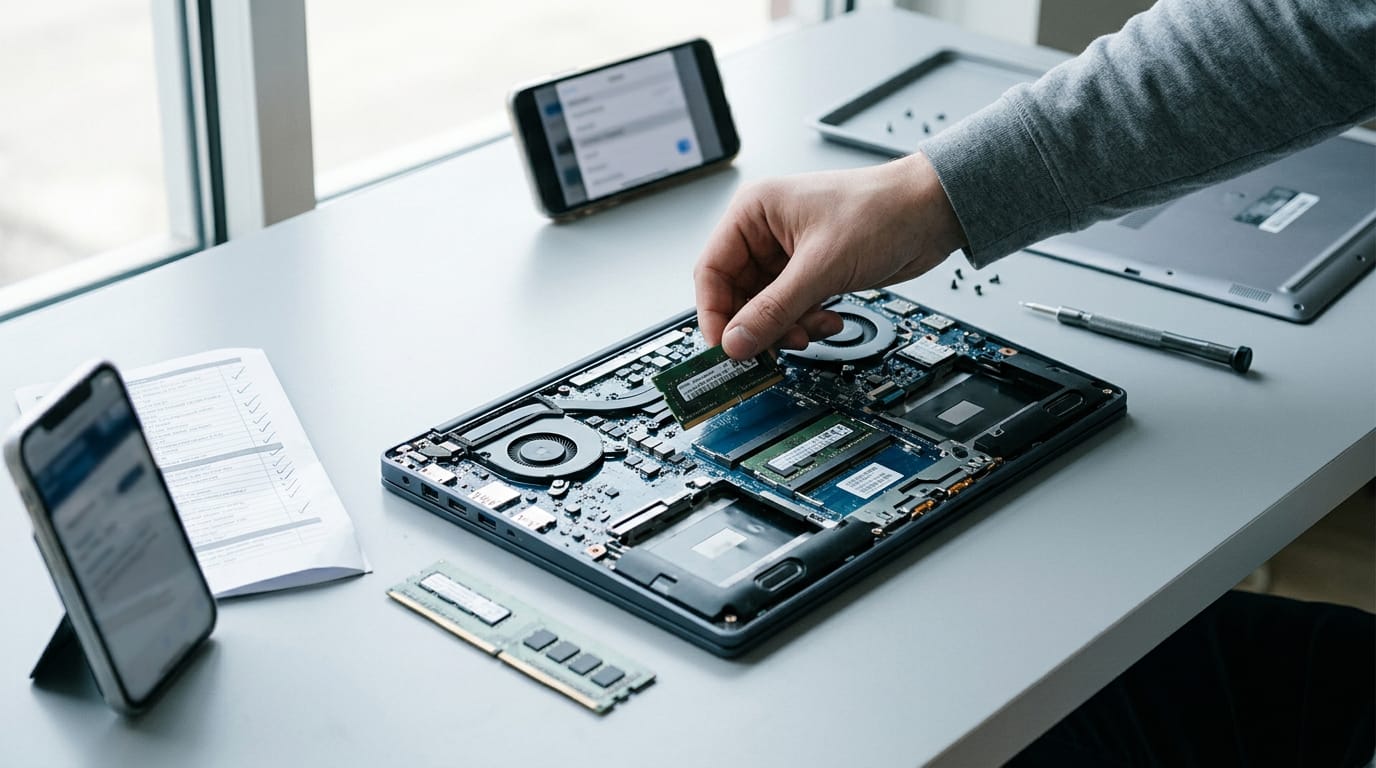
Can you go from 4GB to 16GB? Yes, if your model’s maximum is 16GB or more and a slot is free. Picture a player who closes browser tabs before every match: they confirm both in the manual, buy one stick, and the tabs stay open.
A soldered 4GB can’t be upgraded at all.
See how much RAM you have now
- Windows Start menu settings. Open Settings, then System, then About to find Installed RAM.
- Task Manager Performance tab. Press Ctrl+Shift+Esc, then select Memory.
- macOS System Report. Open About This Mac from the Apple menu, then choose System Report.
- CPU-Z or Crucial scanner. Both list your installed sticks in detail.
Know your number first, then shop.
Installing New RAM in Your Laptop
Swapping RAM is easier than it looks.
What to gather and set up first
Grab a precision screwdriver set, a plastic pry tool, and a screw tray. Work on a hard, non-carpeted surface, wearing an anti-static wrist strap, and snap a photo of the internals first.
Swapping the modules, one step at a time
Work through these in order:
- Power down and unplug. Shut the laptop down and disconnect the charger.
- Discharge the battery or power button. Remove the battery if you can, or hold the power button to drain leftover power.
- Remove the back panel. Keep the screws in your tray.
- Release the clips and remove the old modules. Push the clips outward and the old stick lifts free.
- Insert the new RAM at an angle. Slide it in, then press down until the clips snap.
- Reassemble and boot. Replace the panel, reconnect power, and start up.
Matching modules and checking it works
Two matched sticks give you dual-channel memory, the setup you want, so buy a matched pair, not two random sticks.
Once it’s in, open Task Manager, click Performance, then Memory, and check the total and speed. That’s your proof.
If the full amount doesn’t show up, check your laptop maker’s support page for a newer Basic Input/Output System (BIOS), the firmware that starts the machine.
Then enable the Extreme Memory Profile (XMP) setting, labelled DOCP on some systems, so the RAM runs at its rated speed.
Can you mix different brands of RAM? Usually, yes, as long as the type and speed match. Mixed speeds or capacities can cause headaches, so a matched kit is the safer bet.
A student with a stuttering laptop buys a matched pair, follows these steps, and sees the new total before their next game.
Once you know your laptop’s memory type and slot count, the rest comes down to matching the right modules to how you play and work. Check the model’s specs, buy the type and speed your system already uses, and take your time with the install.
For gaming, more memory keeps busy scenes smooth and lets you run chat, a browser, and a launcher without the whole machine bogging down. Sometimes the best upgrade is the one that needs nothing more than a small screwdriver and a little patience.
References
- Comparison of the Usability of Apple M1 Processors for Various Machine Learning Tasks — doi.org (2022)
- ACCELERATING PERFORMANCE, COST-OPTIMIZATION AND STREAMLINING DEPLOYMENT WITH CLONEZILLA AND SATA SSDS — doi.org (2023)
- Laptop Upgrades Cheaper Than Buying A New Computer — bgr.com (2026)
- Gaming on Dual-Channel vs Single Channel RAM – what is the FPS difference? — laptopmedia.com
Questions
What is RAM on a computer?
RAM, or random access memory, is a computer’s short-term workspace for the apps and data you’re using right now. It gives the processor fast access to that information, but it does not store your files permanently.
What are the differences between 8GB and 16GB of RAM?
8GB can handle basic tasks and moderate multitasking, while 16GB gives more room for many apps, browser tabs, and games to run together. The extra capacity can reduce slowdowns when your workload uses more memory.
How much memory should my computer be using?
There is no single amount of RAM your computer should always be using; it depends on the apps and tasks you have open. High usage can be normal, so look for slowdowns and check Task Manager on Windows or Activity Monitor on Mac to see what is using memory.
How do I know what RAM to buy for my laptop?
Check your laptop’s manual or manufacturer support page for its RAM type, maximum capacity, and number of slots. Buy laptop-sized SODIMM memory that matches the supported DDR generation, and use a compatibility scanner if you need help finding a suitable module.
How much should 32GB of RAM cost?
The price of a 32GB RAM kit varies by country, memory type, speed, and current listings. Check current prices in your local currency and make sure the kit is compatible with your laptop before buying.
Is 16GB of RAM good?
Yes, 16GB is a good amount for heavy multitasking and is a gaming sweet spot, with room for background apps as well as the game. Whether you can install it depends on your laptop’s supported capacity and whether its RAM is upgradeable.
Is 8GB RAM enough for a laptop?
8GB can be enough for basic use and moderate multitasking, such as a video call with a few browser tabs open. For gaming or keeping many apps open at once, 16GB offers more room and is less likely to run short.
Can I upgrade my laptop RAM from 4GB to 16GB?
Yes, you can upgrade from 4GB to 16GB if your laptop supports at least 16GB and has an available slot or replaceable RAM. If the 4GB is soldered to the motherboard, it cannot be upgraded.
Sources
- Laptop Upgrades Cheaper Than Buying A New Computer, bgr.com,
- ACCELERATING PERFORMANCE, COST-OPTIMIZATION AND STREAMLINING DEPLOYMENT WITH CLONEZILLA AND SATA SSDS, doi.org,
- Comparison of the Usability of Apple M1 Processors for Various Machine Learning Tasks, doi.org,
- Gaming on Dual-Channel vs Single Channel RAM – what is the FPS difference? | LaptopMedia.com, laptopmedia.com
Free · The Build Sheet
The Build Sheet: three gaming PCs priced at Canadian stores