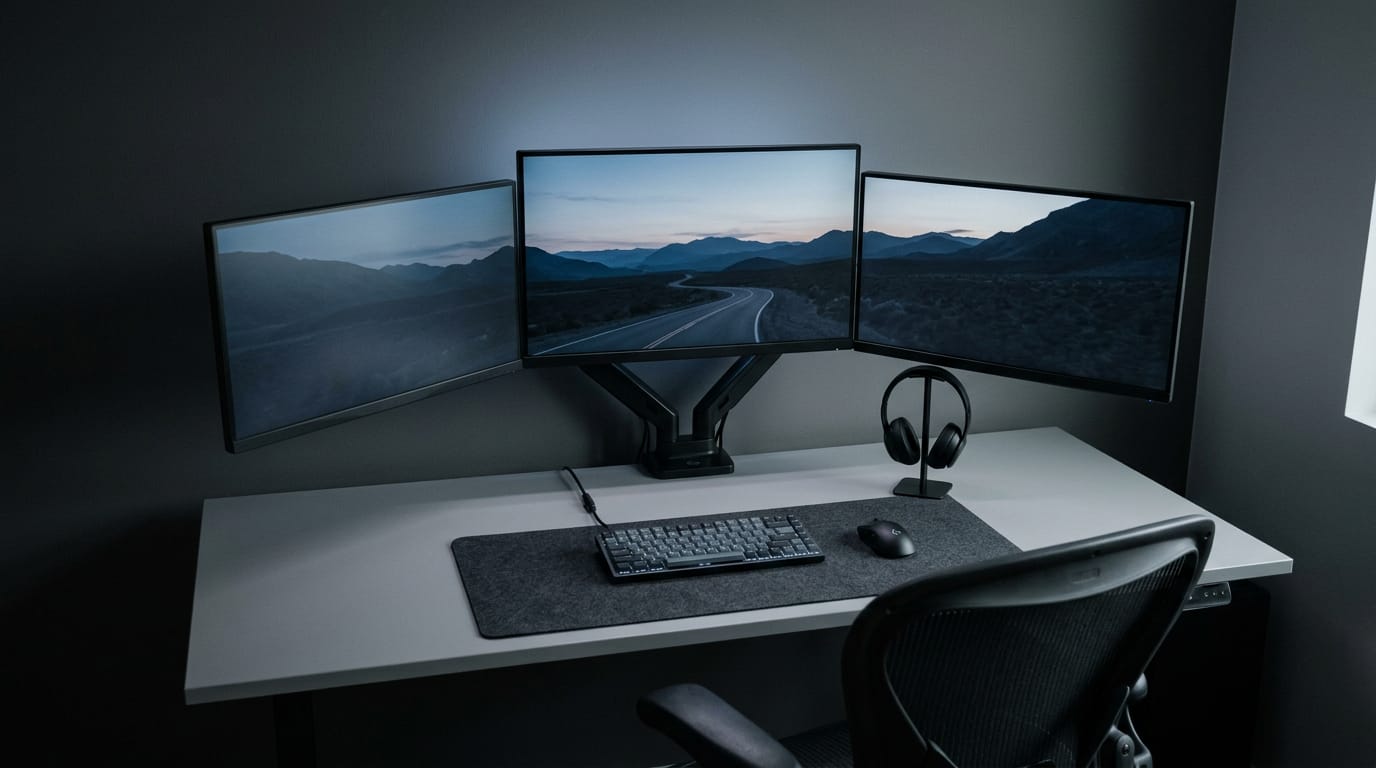
3 Monitor PC Setup Guide: Hardware, Layout and Budget
A 3 monitor PC setup keeps your game, chat, and guide visible at once, with practical port requirements, Canadian budget costs, and desk layout tips.

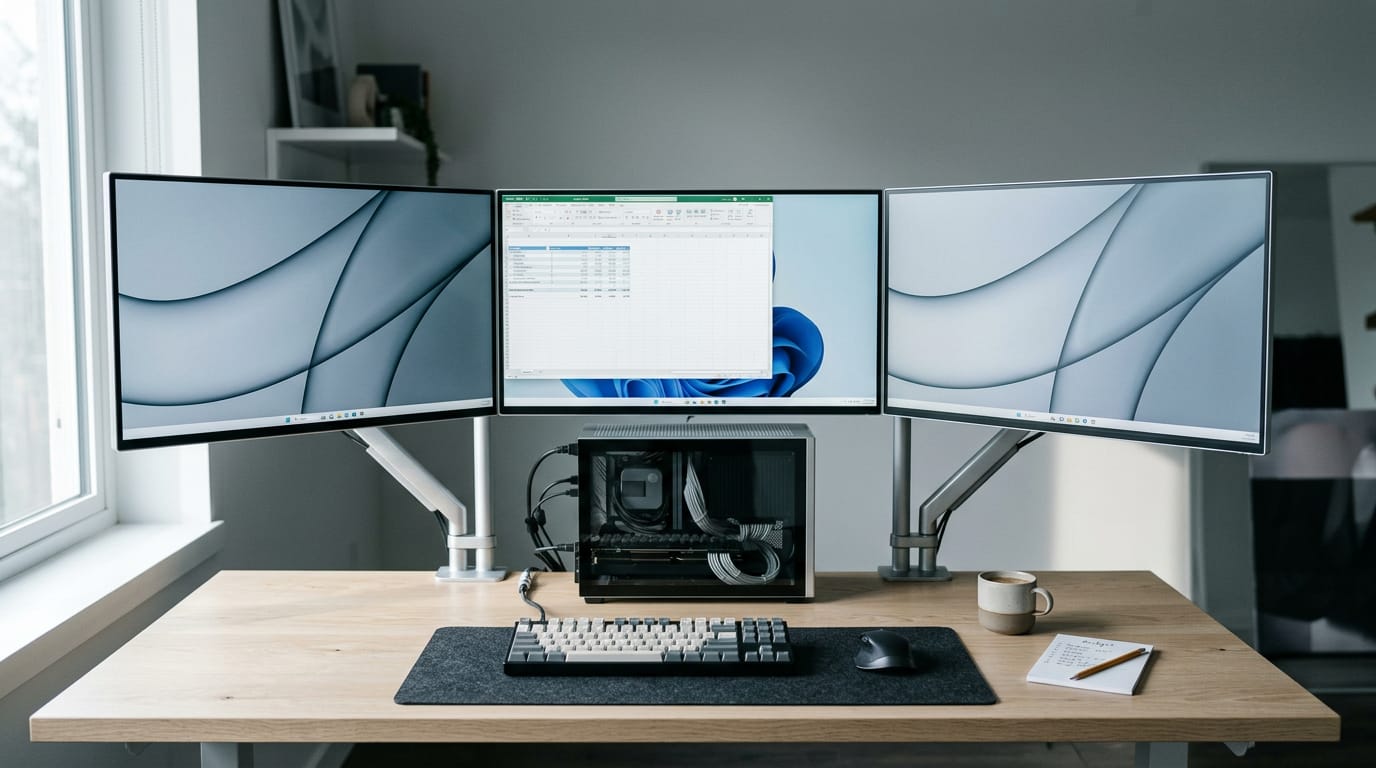
A 3 monitor PC setup uses one computer to run three screens at the same time, giving you room to keep your main task, references, and messages visible. Choose a graphics card with enough display ports and bandwidth, use compatible monitors, and arrange Windows and the screens to suit your work or gaming. Match screen sizes and settings where possible, center the primary display, and plan for desk space, power, and comfort so the setup is practical for your needs and budget.
Think of a kitchen counter with one cutting board: fine for a sandwich, but cramped once a recipe, a timer, and a pot all need a spot. Three monitors give your desk that extra room, so your game, chat, and guide stay visible together.
A three-monitor PC setup is one computer driving three screens at once. Getting it right means picking a graphics card with enough ports, then matching the rest of the build and your Windows settings to it.
We’ll walk through each step, then add budget pricing in Canadian dollars and layouts for gaming and streaming.
Why Choose a 3 Monitor PC Setup
A third screen sounds like a luxury, but it changes how you spend your time at the desk. Here’s where the real gains come from.
What a multi-monitor setup gets you
A multi-monitor setup (two or more displays running from one computer) lets you view multiple apps simultaneously instead of stacking them on one screen. You spend less time on window switching, the constant hunt for the right window.
It’s less about how many windows you can fit and more about where each one lives.
With each task on its own screen, you get reduced cognitive load: less mental effort spent tracking everything at once.
Comparing and referencing sources gets easier, too. A shopper weighing two graphics cards can keep both product pages open side by side instead of switching tabs. Less switching, more deciding.
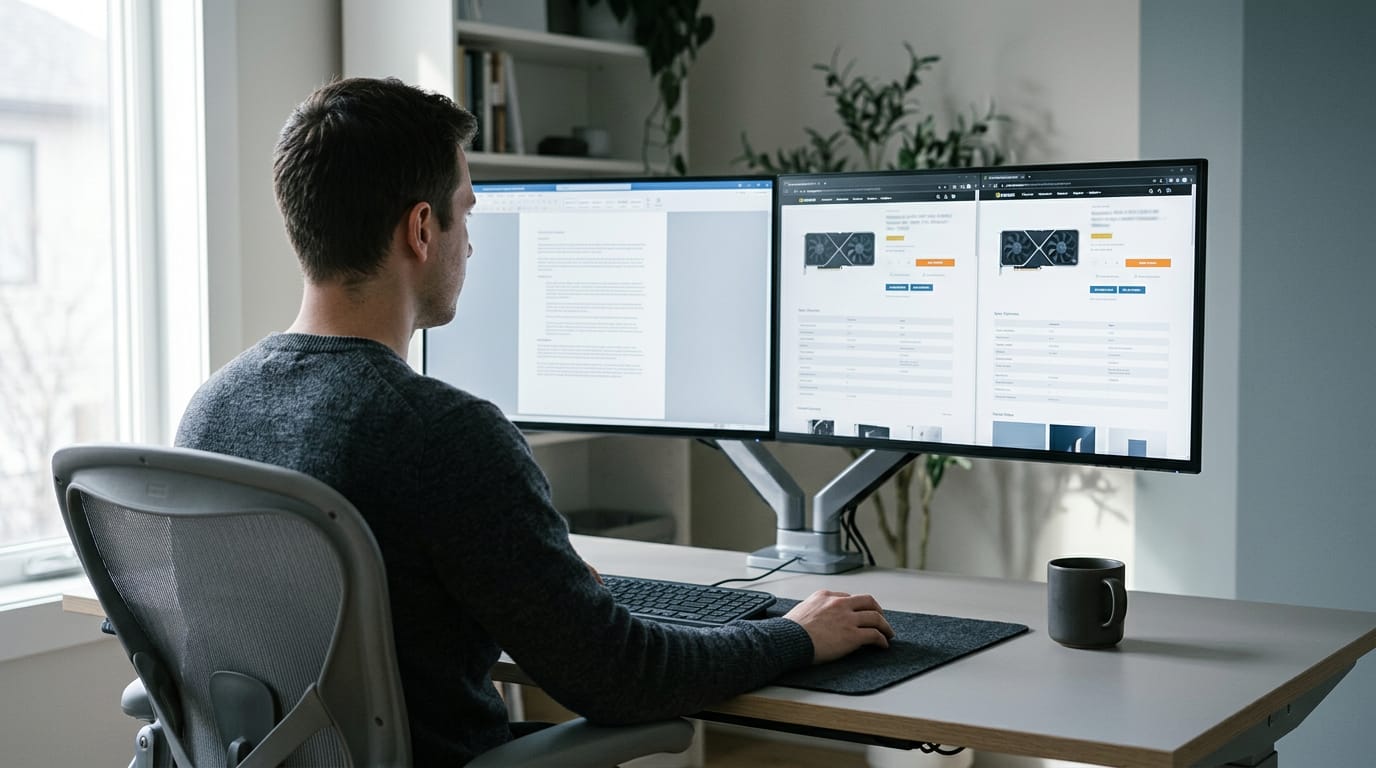
How extra screens speed up your work
The figure you’ll see quoted is a claimed 42% efficiency boost from extra screens. Treat it as a headline, not a promise. Your gain depends on how you set up the desk.
A simple layout gives each screen a role:
- Main screen: your game or main project.
- Reference screen: guides, documents, or a stream dashboard.
- Communication screen: email and chat, so messages don’t pull you off task.
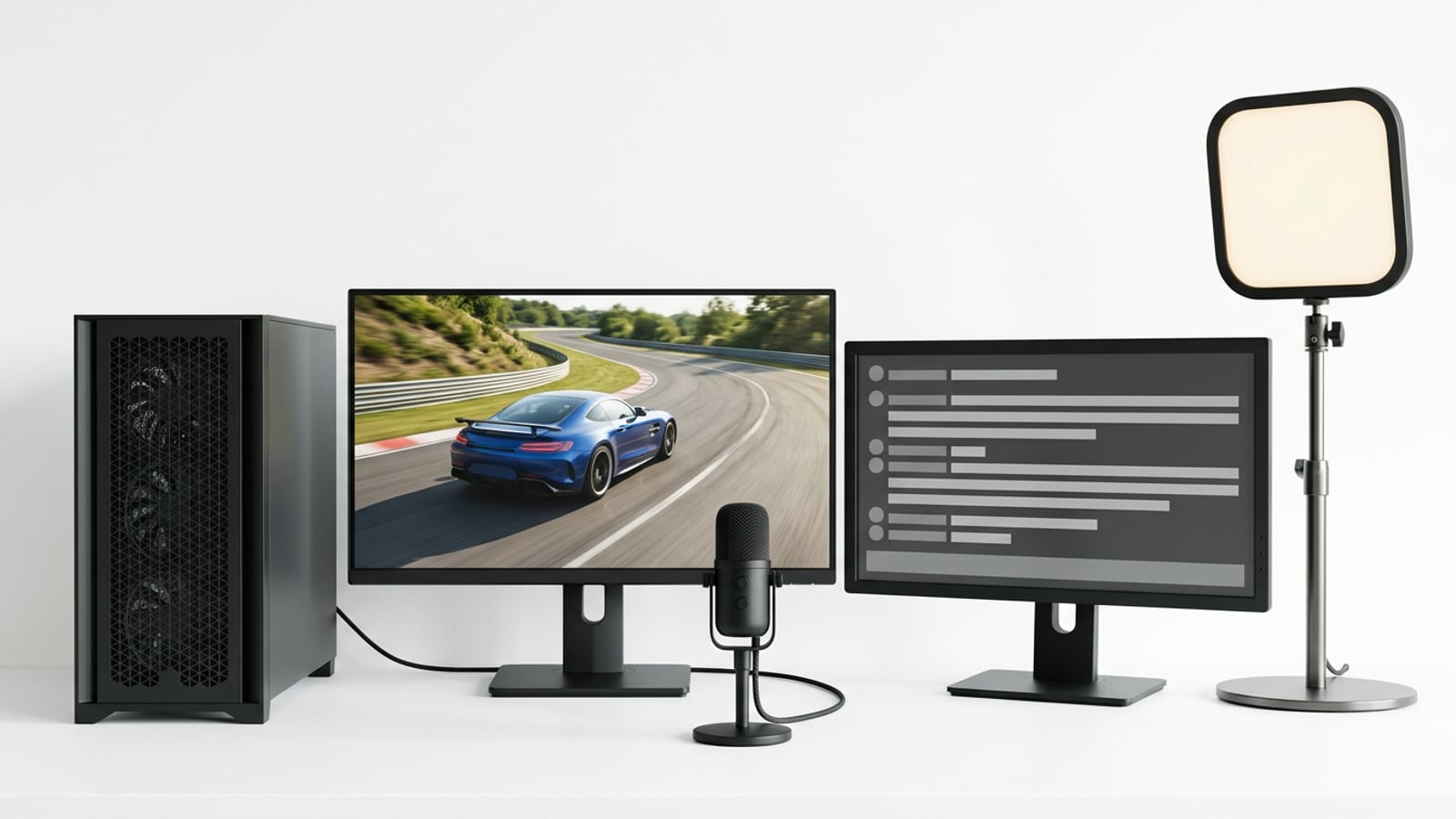
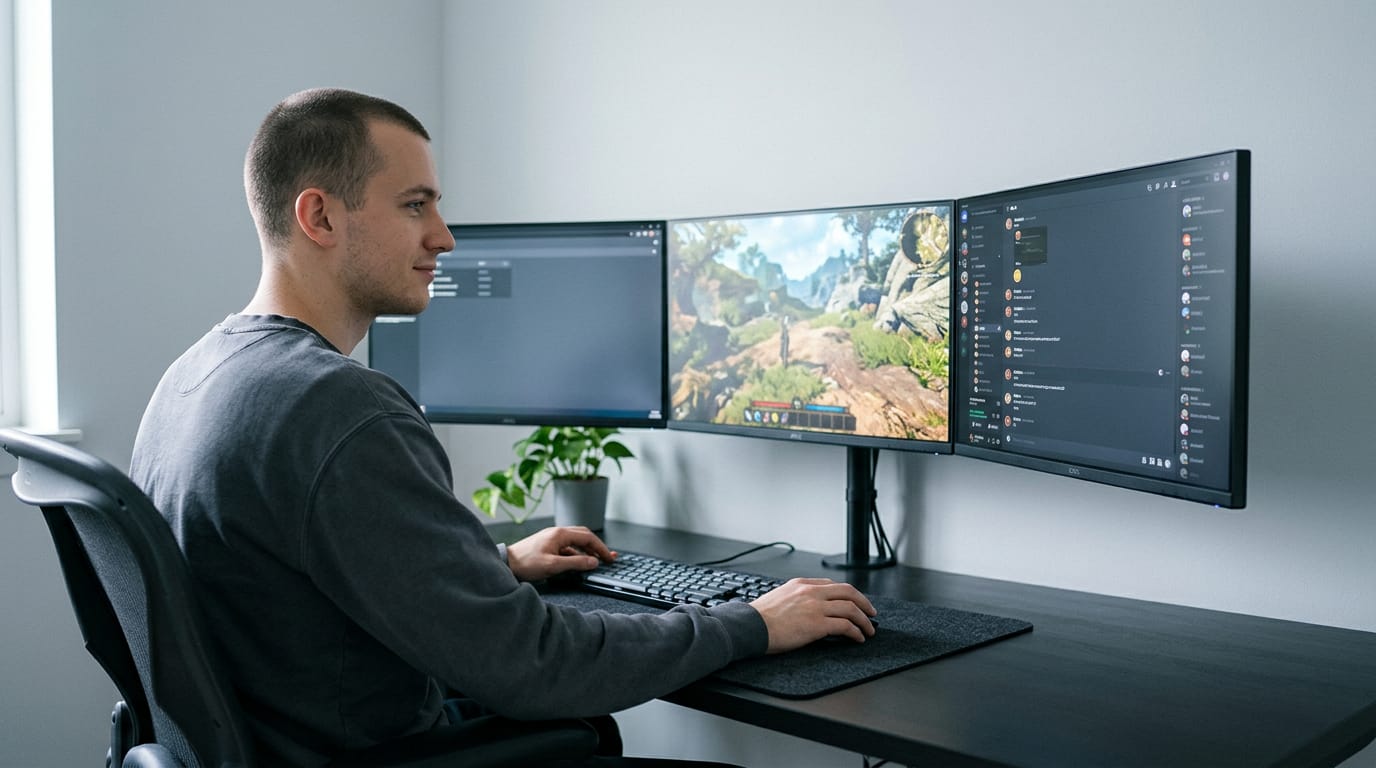
Take a player who streams. Their game runs on the main screen, the dashboard and guide sit on the reference screen, and Discord lives on the communication screen. They can answer chat without leaving the match.
Creative professionals get an expanded canvas: a full-size preview on one screen while the editing tools sit on another.
What Your PC Needs for Three Monitors
A PC can run three monitors, but your graphics card sets the limit. Check its port count and bandwidth (how much picture data it can push at once) before you buy anything else. If one of your screens is a TV, the HDMI PC to TV guide covers connecting it.
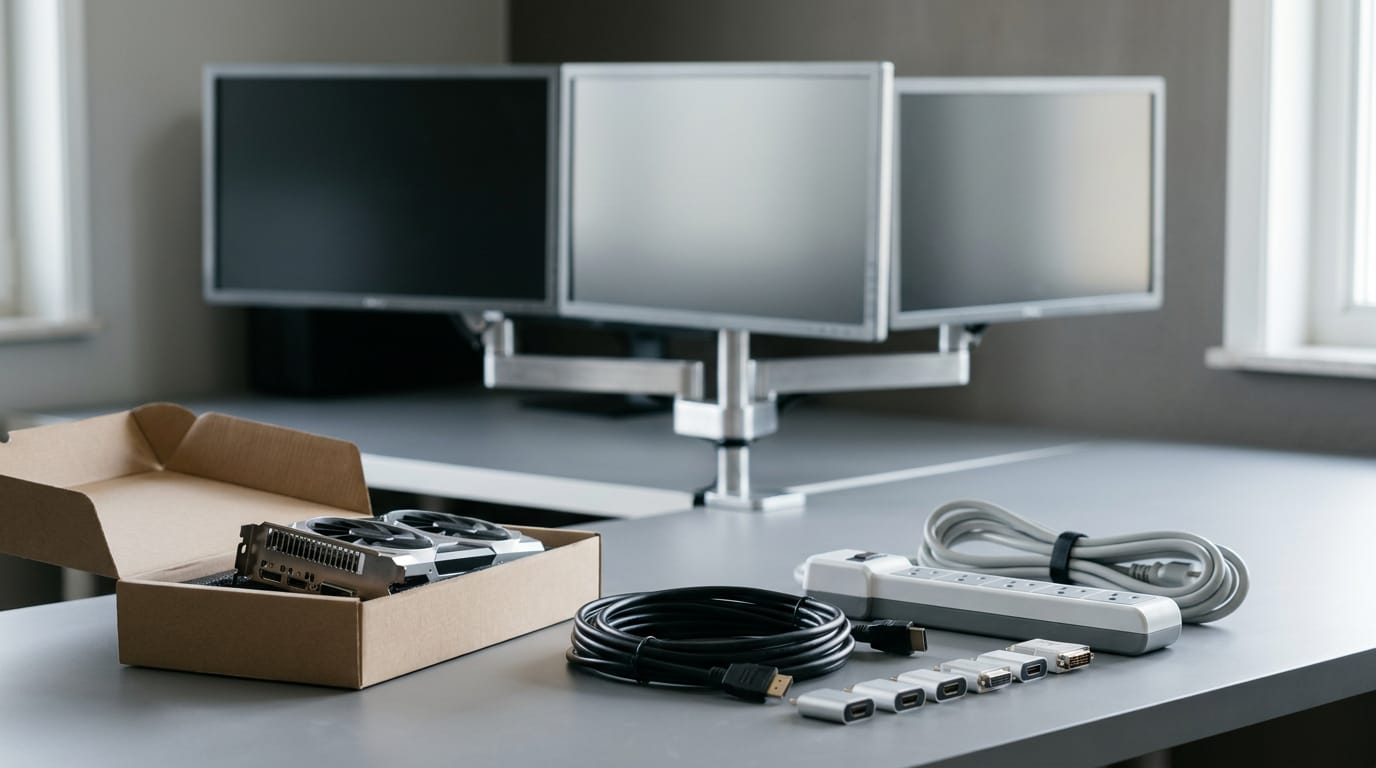
Gear to gather before you start
- Monitors: three compatible screens
- Graphics card: one that supports three displays and has enough ports
- Cables: HDMI (High-Definition Multimedia Interface), DisplayPort, and DVI (Digital Visual Interface)
- Adapters: for any port your monitors and card don’t share
- Mounts: monitor arms or stands that hold all three at one height
- Power: a surge protector power strip for the PC and all three screens
Rather than one fixed price, our 3 Monitor Gaming Setup Guide suggests budgeting in CAD tiers: monitors first, then the stand, cables, and desk space. Upgrade the graphics card only if yours can’t keep up.
Picking monitors that match each other
Matching screens make three panels feel like one display rather than three:
- Resolution: the pixel count. Use the same one (1080p, 1440p, or 4K) on all three.
- Size: keep 24 or 27 inch screens identical, since mixed sizes look uneven.
- Aspect ratio: use the same widescreen shape (16:9) across the set.
- Panel type: IPS (In-Plane Switching) panels have wider viewing angles, while VA (Vertical Alignment) panels offer deeper contrast. Don’t mix them, or colours won’t match.
- Refresh rate: how many times per second the screen updates. 60Hz suits everyday use; 144Hz is smoother for fast games.
- VESA mount compatibility: VESA (Video Electronics Standards Association) is the standard mounting hole pattern, so check it matches your arm.
For gaming, 27 or 32 inch is mostly a desk question. Think of a player on a standard desk: three 27-inch screens fit within easy reach, while 32-inch panels fill more of the view but need more depth. Match the screens first.
Arrange Your Desk and Screens Well
Wondering how to connect 3 monitors together? Start with the layout, because a well-arranged desk is easier on your neck and makes three screens feel like one workspace.
Placing screens for comfort and posture
Plug each screen into its own video port on your graphics card (GPU). In the Windows display settings, confirm all three show up, drag them into the same order as your desk, and pick your primary monitor. If you want to practice with two screens first, a dual monitor setup guide explains each step.
Put the primary monitor centered, with your eyes landing near the top third of the screen, not the bottom edge. Angle the side monitors inward and keep the gaps small and equal.
Then adjust your chair and desk height so your forearms rest level at the keyboard.
Think of a player with the game on the center screen and chat on the right. A quick glance to the side is all it takes to answer a friend.
For gaming, keep the game centered and use the side screens for chat or guides. For streaming, put the game in the center, chat on one side, and OBS (Open Broadcaster Software) on the other.
To get three monitors to work together, match sizes and settings where you can, so windows slide across the edges without looking mismatched.
Small upgrades that improve your workspace
Cable management is the quickest win. Clips and an under-desk tray keep the cables from pulling on your screens or tangling behind the desk.
Adjustable desk lighting helps too. Angle a lamp so it lights your workspace without bouncing glare off all three screens.
An ergonomic chair and keyboard are worth the investment, since you’ll be sitting at this desk for long sessions.
Tools like DisplayFusion or UltraMon give you more control over window placement across all three monitors. Layout first, comfort second.
A three-monitor setup comes down to three things: a graphics card with enough ports, a build that can feed all three screens, and Windows settings that keep each display where you want it. Get those right, and the extra screens won’t feel like a luxury.
Start with the budget you actually have. Sort out the ports first, then the power and desk layout, and the rest falls into place.
The best three-screen setup isn’t the flashiest one. It’s the one that fits your desk, your games, and your budget.
References
- 3 Monitor Gaming Setup Guide: Parts, Mounts and Settings — gamingassociation.ca (2026)
Questions
How much does a good 3-monitor PC setup cost?
A good three-monitor setup can cost roughly C$600 to C$1,500 for three mainstream monitors, a mount, and cables, not including the PC. Higher-resolution or high-refresh gaming screens can push the total above that; prices depend on screen size and specifications.
How to get three monitors to work together?
Connect each monitor to a separate video output on the graphics card, using compatible HDMI or DisplayPort cables or suitable adapters. In Windows, open Display settings, detect the screens if needed, arrange them to match their physical positions, and choose a primary display. Make sure the graphics card supports three displays at your desired resolutions and refresh rates.
How to connect 3 monitors together?
Connect each monitor separately to a video port on the PC’s graphics card; you generally do not connect the monitors to one another. If the ports and monitor inputs do not match, use an appropriate adapter, then arrange and configure the displays in Windows settings.
Can a PC support three monitors?
Yes. A PC can support three monitors if its graphics card supports at least three displays and has enough suitable outputs, or can use compatible adapters. Check the card’s supported resolutions and refresh rates as well as its port count.
Can the RTX 5080 handle 3 monitors?
Yes. The RTX 5080 supports up to four displays, so three monitors are within its display capability. The exact ports depend on the card model, and gaming performance across three screens depends on their combined resolution, refresh rate, and the game.
Is a 27 or 32 better for gaming?
For a standard desk, 27-inch monitors are usually easier to fit and keep within easy viewing distance. 32-inch screens provide a larger view but take more desk depth; for a three-monitor setup, matching screen sizes and specifications helps them feel consistent.
Are there any triple mode monitors?
There is no widely standardized category called “triple mode monitors.” Some monitors offer multiple operating modes, such as different resolution and refresh-rate combinations, but for a three-screen setup you typically use three separate monitors connected to the PC.
Sources
- 3 Monitor Gaming Setup Guide: Parts, Mounts and Settings, gamingassociation.ca,
Free · The Build Sheet
The Build Sheet: three gaming PCs priced at Canadian stores