HDMI PC to TV: The Complete Guide to Connecting
Connect a PC to TV with HDMI for couch gaming. Check ports, get 4K at 120Hz working, and troubleshoot a blank screen with clear, practical steps.

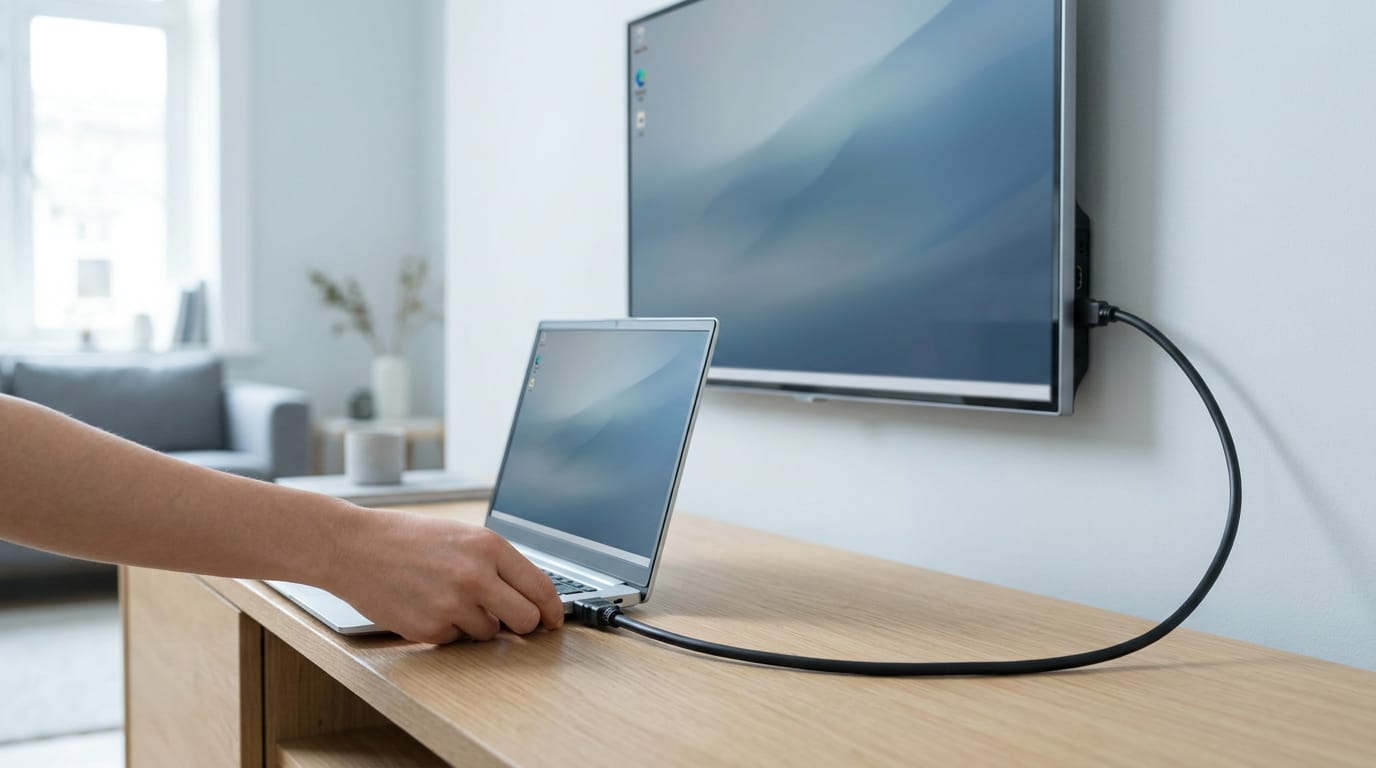
Connecting a PC to a TV with HDMI means using one cable to send both picture and sound to the larger screen. Choose a cable and ports that support your desired resolution and refresh rate, select the matching TV input, and set the PC to the TV’s native resolution; game mode can reduce input delay. With compatible devices and settings, HDMI makes it straightforward to use a TV for gaming, movies, presentations, or extra desktop space.
Picture this: it’s Friday night, your game is loaded on the PC, and you’d rather be on the couch than hunched at the desk. Hooking it up to the TV is easier than most people expect.
The short answer is one HDMI (High-Definition Multimedia Interface) cable, carrying picture and sound from PC to TV together. In this post, we’ll cover choosing cables and ports, connecting step by step, and fixing a blank screen.
We’ll also tackle the gamer side: 4K at 120Hz (120 screen updates per second), TV game mode, and cable prices in Canadian dollars.
Why Use HDMI for PC to TV
If you want your desktop on the big screen, HDMI is usually the first connection to reach for. Here’s what it does and how it compares to older options.
The main features of HDMI
HDMI stands for High-Definition Multimedia Interface, a standard for sending video and audio between devices over one cable. Its core strengths are:
- Digital video and audio. The picture and sound travel together as digital data.
- Single-cable connection. One cable handles the whole job, so there’s less to route behind your TV.
- Standardized ports. HDMI ports follow one common standard, so a cable that fits one device fits the other.
- Usually no drivers needed. Usually you plug in and your PC recognizes the TV without extra software.
Think of a player who wants to run a couch co-op game on the living room TV.
One HDMI cable carries the picture and sound from the PC, so they’re playing in minutes instead of hunting for a second cable behind the entertainment unit. That’s the whole setup.
How HDMI compares to older cables
Here’s how HDMI differs from older cables in three key ways:
- Digital versus analog signals. Older connections carried an analog signal, a continuous wave. HDMI sends a digital signal, which is data the TV reads.
- Separate cables for sound. Older setups often needed a second cable for audio, so you had two connections to get right. HDMI covers picture and sound with one plug.
- Resolution and clarity. Because HDMI is digital, it can carry sharper, higher-resolution pictures than analog connections. For a gamer, that means desktop text and fine detail in games look crisp rather than soft.
Steps to Connect a Computer to TV
Want to skip the cable? Wireless works only if both your PC and TV support it, set up in your display or cast settings.
Picking the right ports and cable
Check the ports on both devices, then choose a compatible HDMI cable. Your computer might offer:
- full-size HDMI
- DisplayPort
- USB-C
A compact PC with a smaller port needs an adapter to HDMI.
Bandwidth separates cables. According to HDMI.org’s look at its official cable certification programs, Ultra High Speed cables are certified through an official program.
Picture a gamer running their PC on the living room TV at 4K and 120Hz. A certified cable means 120Hz shows up in their display settings. Compare prices for certified cables in Canadian dollars first.
Plugging in and choosing the TV input
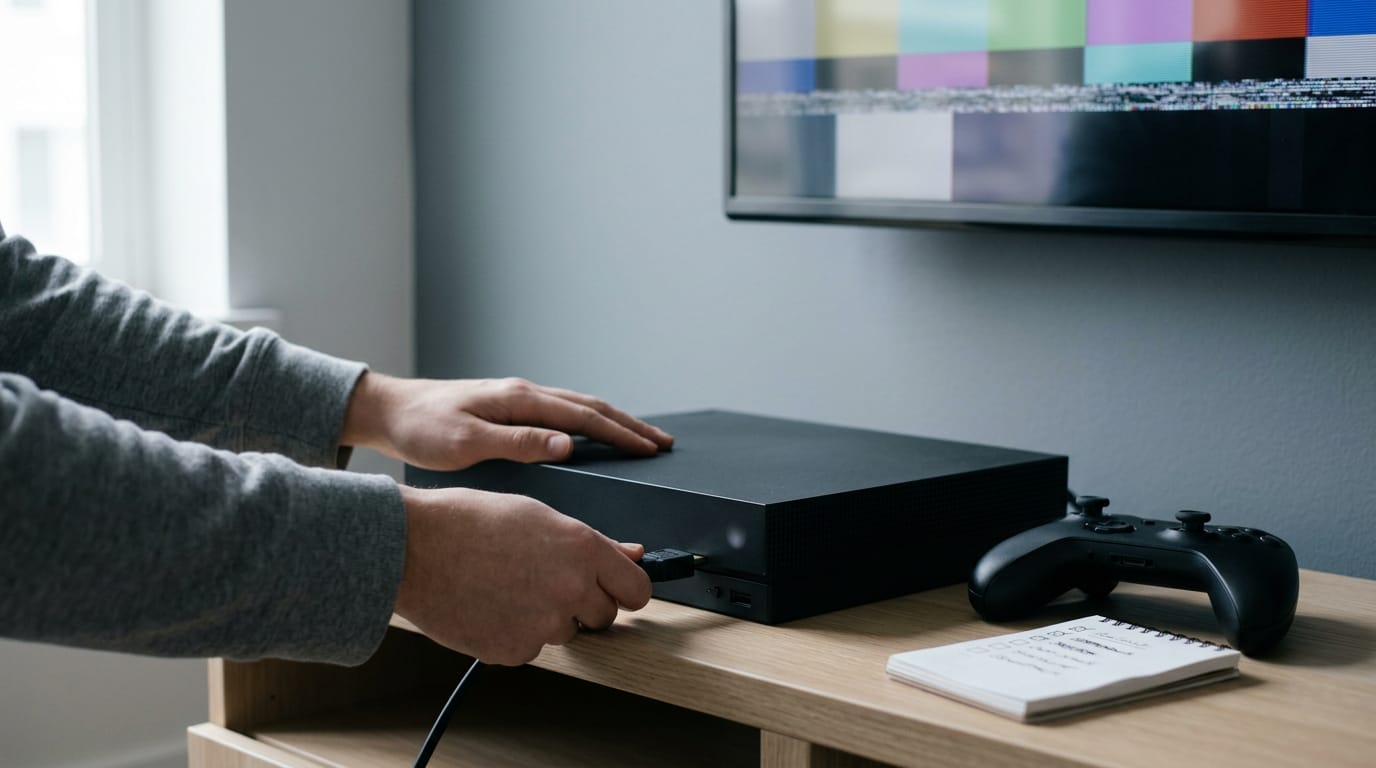
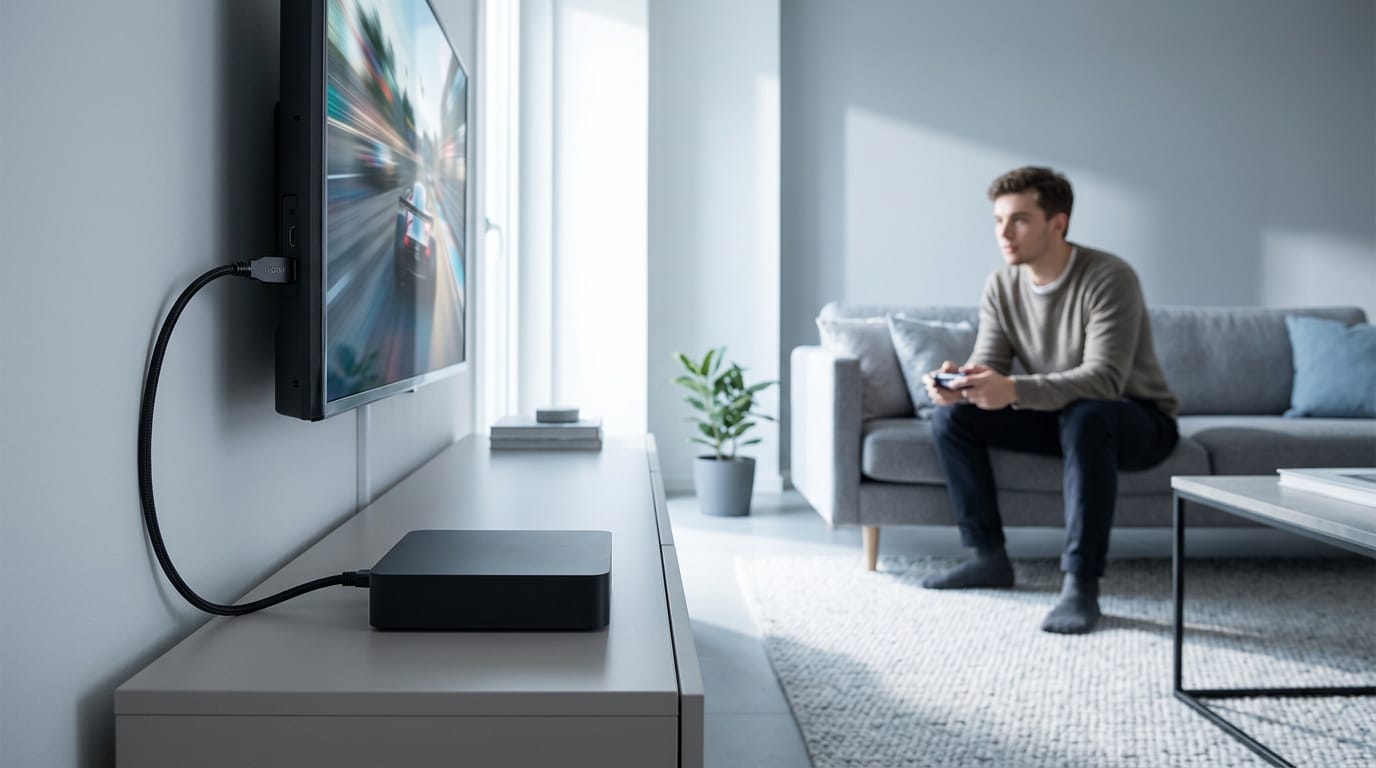
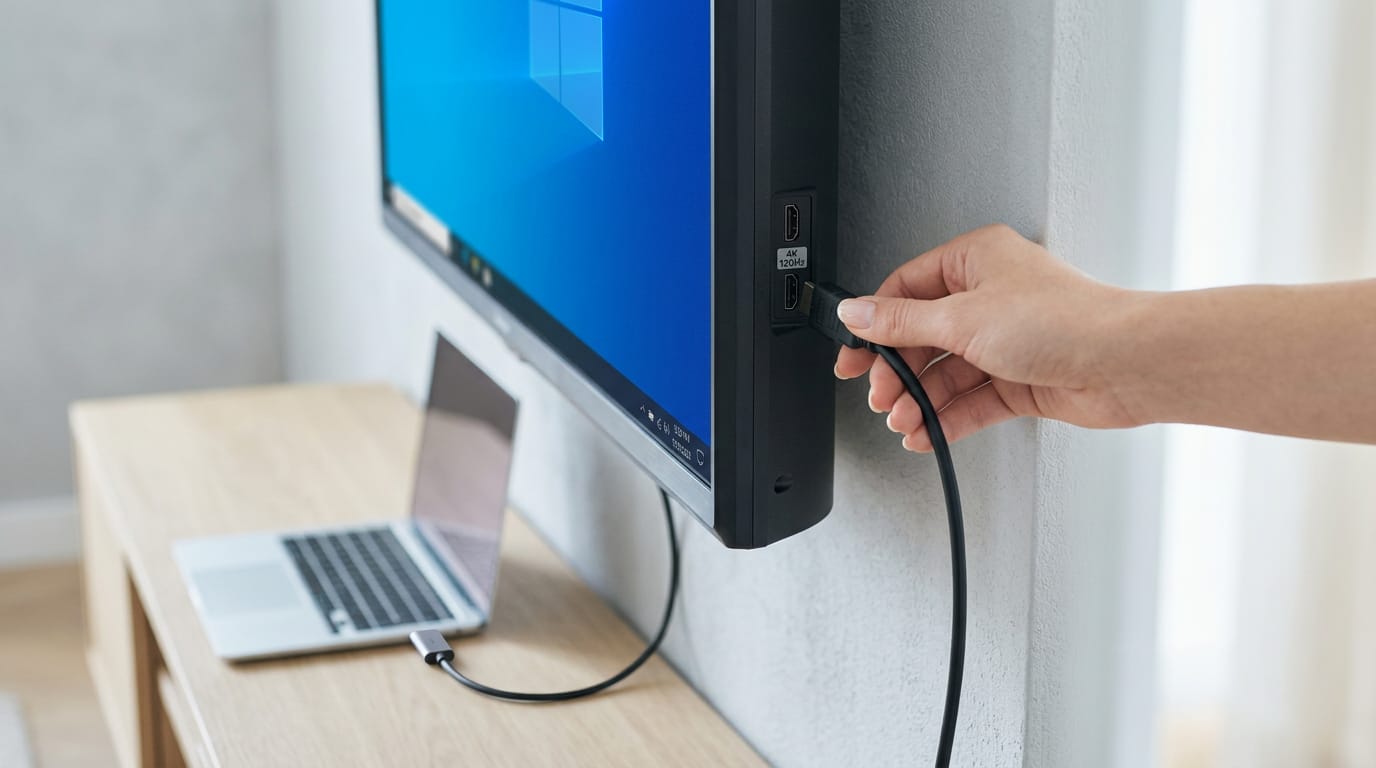
Plug one end into the computer and the other into a TV HDMI port, noting its number. Push both ends in until they sit flush, a classic blank-screen culprit. You can plug in with devices on or off.
If nothing appears, power both off, reseat the cable, and restart.
Select the matching HDMI input on the TV remote. To connect a Sony TV to a laptop, press Input and choose the HDMI number your laptop is plugged into.
Adjusting display and sound settings
Then open your display settings.
- Mirror or extend: mirror shows the same picture on both screens, while extend gives you more desktop space.
- Resolution and scaling: match the TV’s native setting, then adjust scaling if text looks cut off.
- HDMI audio output: in sound settings, pick the TV so audio plays through it.
- Multiple displays: with a monitor connected, pick your main screen in the same menu.
Set it once and you’re done.
How Compatibility Shapes Picture Quality
The real question is less about which cable you bought and more about whether every link can carry the signal, including the HDMI port on your graphics card.
Getting resolution and scaling right
HDMI 2.0 and 2.1 specify different bandwidth, so the HDMI version on each end sets the ceiling.
Kurt Denke, owner of Blue Jeans Cable, points out that certification makes it easy to confirm a cable carries the full 18.0Gbps (gigabits per second) HDMI 2.0a enables.
Scaling happens when your PC’s output doesn’t match the TV’s native resolution, the one its panel is built for. The image gets stretched or shrunk, and text can look soft. Set the PC to the native resolution to avoid that.
TV picture modes matter too. Vivid or dynamic modes can add processing that softens the image. Pick game mode if your TV has one, and you’ll keep that processing to a minimum.
For gaming, aim for 4K at 120Hz with Variable Refresh Rate (VRR), which keeps the screen in step with your graphics card’s frames. The HDMI organization lists 4K at 120Hz and VRR among HDMI’s gaming benefits, so confirm your TV and PC both support them.
Working with several devices and laptops
Most TVs have several HDMI ports, and they aren’t always equal, so check which ones are labelled for 4K at 120Hz. When you switch inputs, use the TV’s input menu to pick the port your PC is on, and rename it PC if your TV allows it.
A laptop’s built-in HDMI port is the simplest link. Think of a player who hooks one to the living room TV and sees fuzzy text. The laptop is likely outputting a resolution the TV doesn’t match, so setting it to the native resolution usually clears it up.
With a USB-C to HDMI adapter, confirm it supports your target refresh rate.
Match every link, and the picture follows.
Fixing HDMI Connection Problems
When your laptop won’t connect over HDMI (High-Definition Multimedia Interface), the fix is usually simple. Here’s where we’d start.
Why isn’t my laptop connecting to TV?
Picture a gamer who plugs their laptop into a friend’s TV for game night and gets a black screen. Sorting out the input gets the game onto the big screen.
- Wrong TV input selected: The TV has to be set to the HDMI port your cable uses. Stay on another input and you’ll see nothing.
- Cable not fully seated: A plug that looks connected but sits loose can drop the signal. Push both ends in firmly.
- Display output settings mismatch: Your laptop may be showing only on its own screen. Choose to extend or duplicate onto the TV in its display settings.
- Laptop not detecting TV after move: Moving the laptop or TV can leave the connection unrecognized. Unplug the cable, reconnect it, and let the laptop search again.
It’s less about a broken cable and more about where the TV is looking. Check the input first.
Quick ways to find the problem
Work through these in order, and we’ll narrow it down fast:
- Test with a different cable: If the picture appears, the old cable was the culprit.
- Try another input port: Move the cable to another HDMI port on the TV to rule out a faulty one.
- Verify the cable on another device: Plug it into a different device. If it fails there too, the cable is the likely culprit.
- Review compatibility and display settings: Make sure the laptop and TV can work together, then recheck the display settings.
Everyday Uses for a PC on TV
Once your PC is connected, the TV becomes more than a bigger monitor. Here’s how it fits into your week.
Enjoying movies, games, and photos
Streaming video on a bigger screen is the easiest win. Start a movie on your PC, and the whole room can watch without crowding around a laptop.
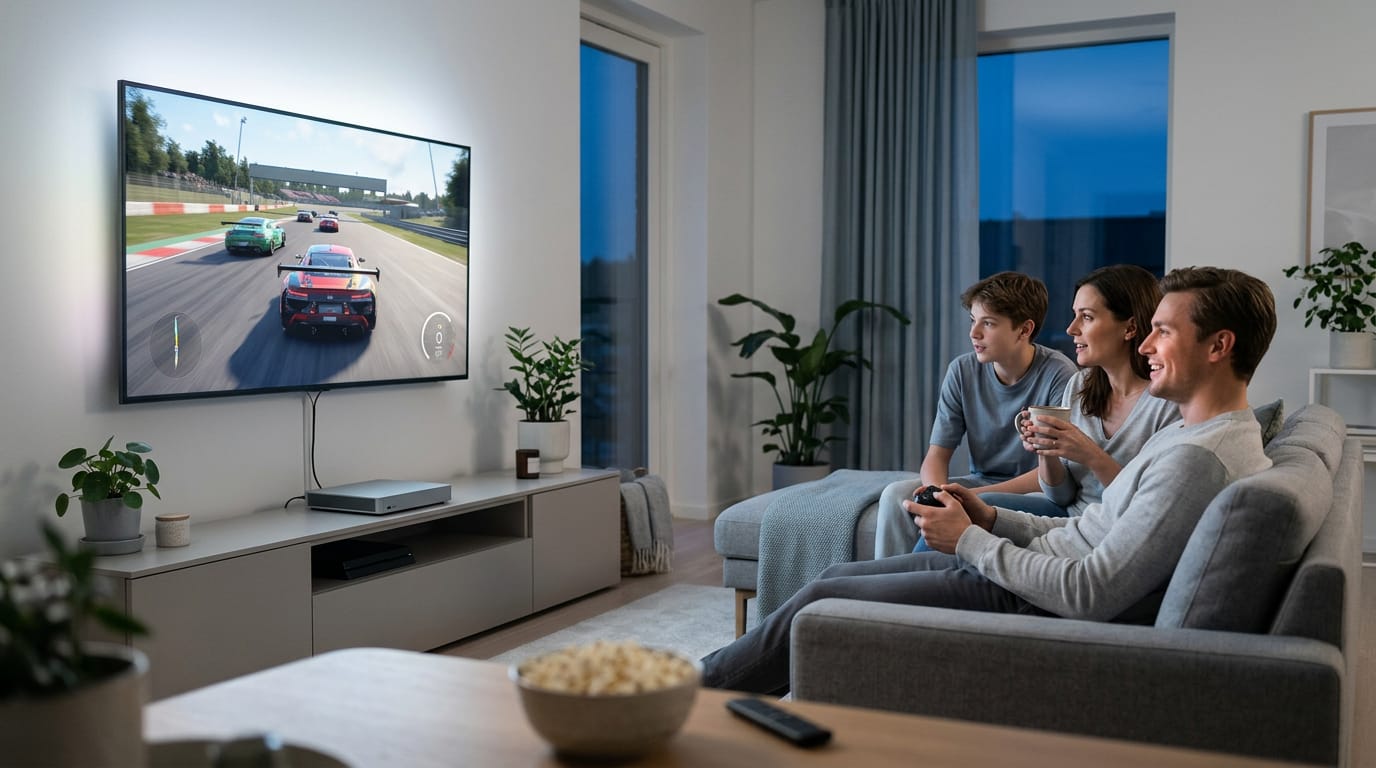
Gaming on TV is a great fit. Think of a player who’d rather game from the couch than hunch over a desk. Connect the PC, grab the controller, and the game fills the big screen. The couch wins.
Reviewing photos and video works well on the big screen, too. Gather everyone around the TV to scroll through a trip’s pictures or check footage at a size you can actually see.
For fast-paced games and mouse work, turn on game mode to cut latency, the short delay between pressing a button or moving your mouse and seeing it on screen.
Find it in your TV’s settings menu, and you’ll notice the difference right away. Less delay, better aim.
Sharing your screen for work and class
Consider a project manager who plugs one HDMI cable into the meeting room’s screen and has slides up before anyone sits down. In a room full of people, the goal is readability rather than spectacle, so keep text large and slides simple.
Teachers can use the same setup to show a worked example or video to the whole class, and students can present projects from their own machines.
Set the TV to extend your desktop, and the big screen can hold a reference page or chat window while you work on your main display. More room, fewer tabs.
Keep a spreadsheet on the TV while you type a report, and the numbers stay visible without flipping windows. Bigger text is also easier to read from across the room.
Weighing the Good and Bad of HDMI
HDMI (High-Definition Multimedia Interface) is the plug most PCs and TVs share, so it’s usually the first cable you reach for. It’s a strong default, but it has limits you should know before you plug in.
What HDMI does well
Here’s where it earns its keep:
- Single cable for audio and video. One cable carries picture and sound, so there’s no separate audio run.
- Straightforward setup. Plug in, pick the TV as your display, and you’re done. Simple, and it works.
- Broad device compatibility. Most PCs, TVs, and consoles have a port, so you’ll usually find a match.
- Reduced cable complexity. Fewer cables mean less clutter and fewer things to go wrong.
Take a player who wants to game from the couch. One cable from the PC to the TV handles sound and picture, so there’s no extra wiring to hide. The payoff is fewer cables, not more gadgets.
Where HDMI falls short
- Cable length sensitivity. Longer runs make the signal more likely to wobble, so a cable that works on the desk may fail across the room.
- Missing full-size ports. Some laptops and small devices only have mini or micro ports, so you may need an adapter.
- Older devices lack new features. An older PC or TV may not support newer HDMI features, so those features simply won’t work.
- Wear from repeated plugging. Every plug-in and pull-out adds wear to the connector.
- Wired only, not wireless. You’re tied to a physical cable, so the PC has to sit within reach of the TV.
Take a builder who moves a desktop between the office and the living room every weekend. Over months, the port loosens and the picture drops mid-match. Check the port before you blame the TV.
Putting a PC on your TV comes down to a few basics: a cable that matches your resolution and refresh rate, the right input selected, and game mode switched on when you play.
Get those right and your living room handles movie nights, game sessions, and everyday work.
You don’t need to be a tech expert to make this work. Choose the right cable, check your settings, and work through the fixes if the screen goes blank. Your couch just got a front-row seat.
References
- Top Three Applications Driving the Need for HDMI® 2.1 … — hdmi.org (2026)
- HDMI Licensing Administrator, Inc. — hdmi.org
- A Look at the Official HDMI® Cable Certification Programs — hdmi.org (2026)
Questions
How do I get my PC to display on my TV?
Connect an HDMI cable from your PC’s HDMI port to an HDMI port on your TV, then use the TV remote to select that port’s input. In your PC’s display settings, choose to duplicate or extend the screen, and select the TV for audio if needed.
How to connect Sony TV to laptop?
Connect the laptop’s HDMI port to an HDMI port on the Sony TV, then press Input on the TV remote and select the matching HDMI number. If the picture does not appear, check that the cable is firmly connected and set the laptop to duplicate or extend its display.
How do I connect my PC to my TV wirelessly?
You can connect wirelessly if both your PC and TV support a compatible screen-casting feature, such as Miracast or Chromecast. Turn on screen mirroring or casting on the TV, then use your PC’s display or cast settings to find and connect to it; the exact steps depend on the devices and network setup.
Why is my TV not receiving any signal?
A TV may show no signal if it is set to the wrong input, the cable is loose or faulty, or the PC is not sending a display signal. Select the HDMI input in use, reseat both ends of the cable, and check the PC’s display settings. Try another cable or TV port to narrow down the cause.
Why isn't my laptop connecting to my TV via HDMI?
Check that the TV is set to the HDMI input where the laptop is connected and firmly reseat both ends of the cable. Then choose duplicate or extend in the laptop’s display settings; if it still does not work, test another HDMI cable or TV port.
Can I connect HDMI to PC?
Yes. Connect an HDMI cable from the PC’s HDMI port to the TV or monitor’s HDMI port, then select the matching input on the display. HDMI carries both video and audio, though the available resolution and refresh rate depend on the capabilities of the PC, display, and cable.
Sources
Free · The Build Sheet
The Build Sheet: three gaming PCs priced at Canadian stores