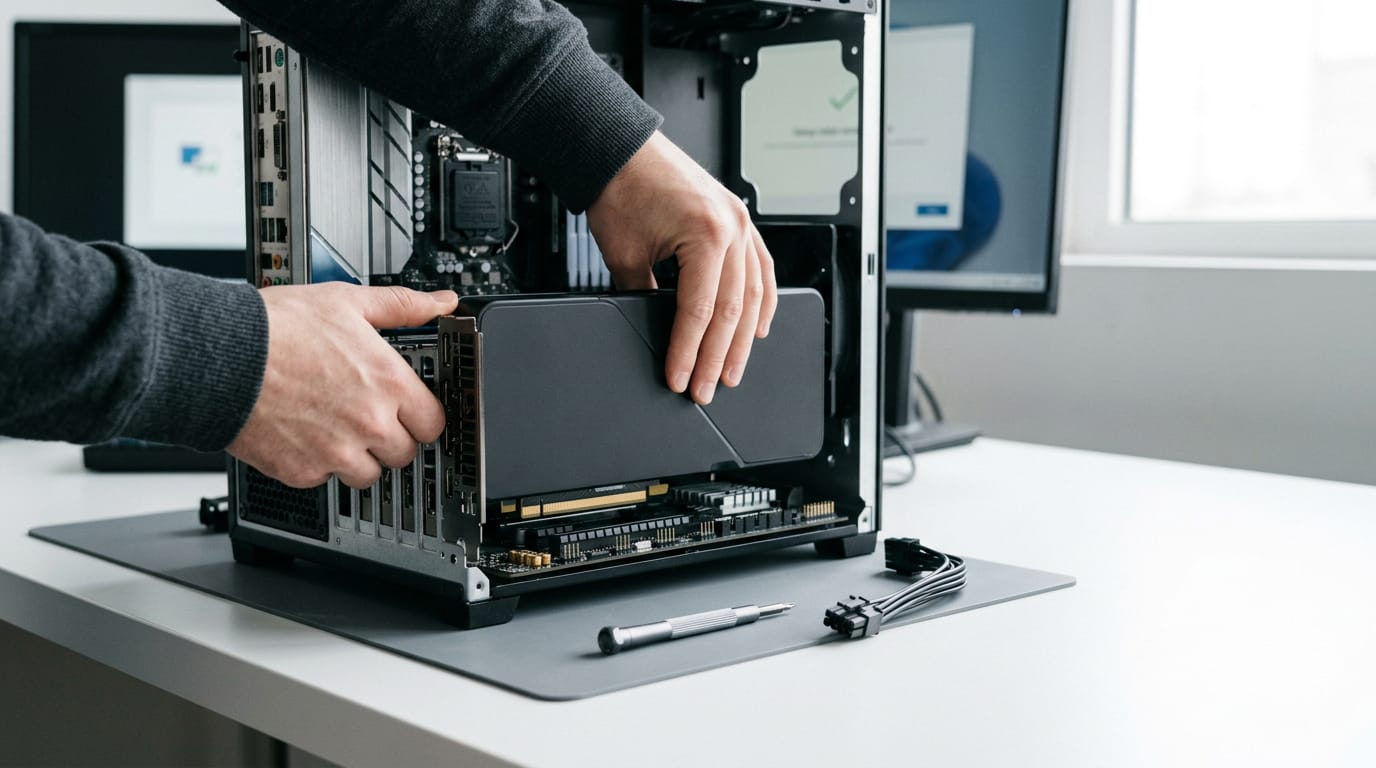
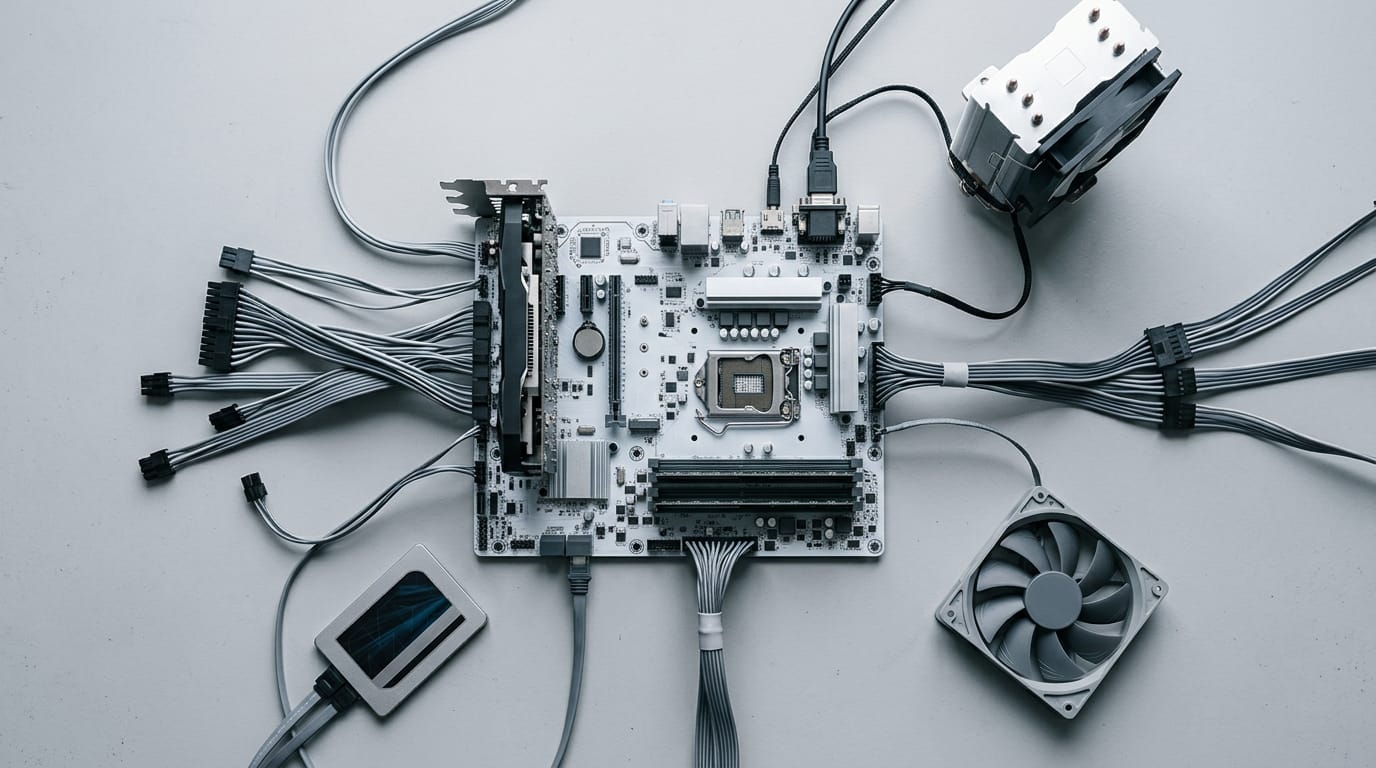
PC Parts Explained: What Each One Does and How They Fit
PC parts make sense when you know each role. Compare categories, check Canadian-dollar value, and use a priced list to buy smart on price and condition.

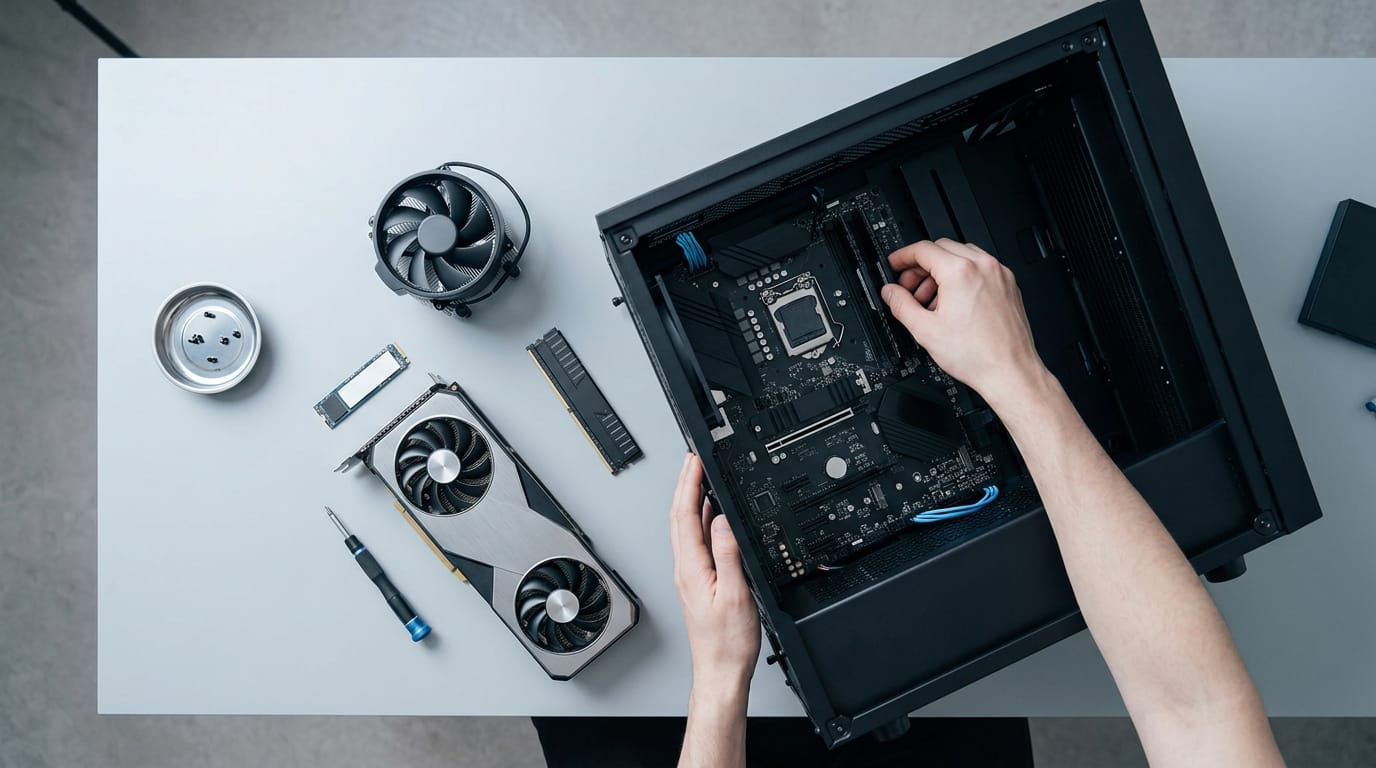
PC parts are the individual components that work together to make a desktop computer, including the processor, graphics card, memory, storage, motherboard, power supply, and case. Choose compatible parts for your intended use, match the graphics card and processor to your games and screen, and compare total cost, condition, warranty, and return options. A clear budget and careful spec checks help you avoid mismatched, unreliable, or unnecessarily expensive components.
Think about a flat-pack bookshelf. The box has everything, but the instructions only make sense once you know what each panel does. Building a PC is similar: the parts come separately, and you need to know their roles first.
A PC is a set of parts with one job each. The processor handles general work, the graphics card draws your games, memory holds what’s in use right now, and storage keeps the rest. The motherboard ties it all together.
We’ll cover each category, show how they fit, and give you Canadian-dollar value guidance with a priced parts list.
Where to Find PC Parts by Category
Ever lost twenty minutes scrolling for one graphics card? We’ll map out how marketplace categories are laid out, so you can get there faster.
Moving through the category menus
Most sites nest their listings in layers. At the top sits a broad category hierarchy that starts with Computers and branches into narrower groups underneath, so each click moves you from general to exact.
Within that structure, the parts and components section holds the building blocks, while data storage, networking, and peripherals and accessories each have their own branches. Consider a gamer with a fixed budget building a 1440p rig.
Instead of scrolling past every laptop and printer, they open parts and components and narrow down to graphics cards. The payoff is a short list of cards that suit a 1440p build, with the budget still in view.
Wide range of computer hardware listings
Once you’re in the right branch, the listings start to look different:
- PC parts and components. The individual pieces you’d assemble yourself, from processor to power supply.
- IT hardware and accessories. Broader gear that supports a setup, not the core parts of a build.
- Complete systems and laptops. Finished machines that work out of the box, so you’re buying a computer, not a shopping list.
- Computer equipment suppliers. The sellers behind each listing. Check them, since the same part can show different prices and details.
Shopping by part keeps your list short, while browsing by system pulls you toward bundles you never planned for. Start narrow, then compare.
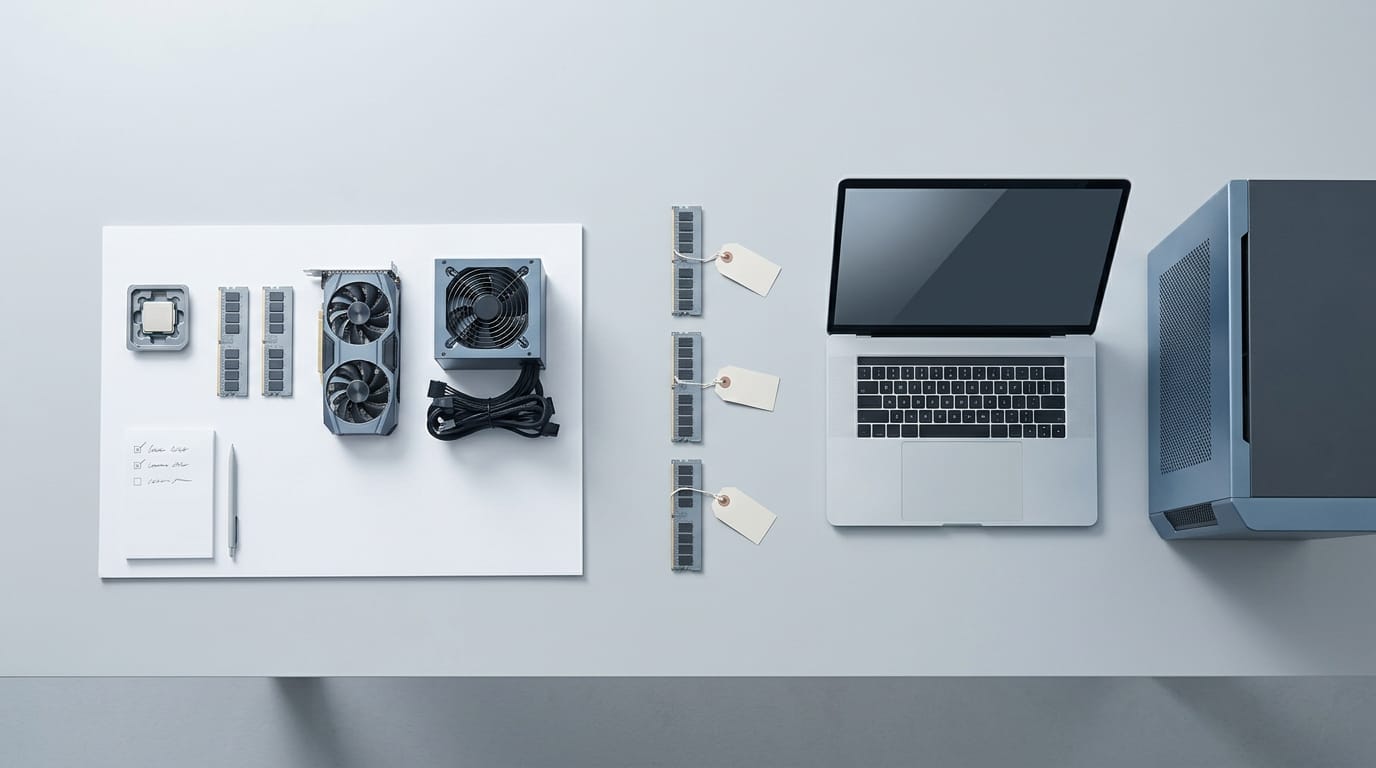
Other Essential PC Components
Get these parts wrong and even a great GPU can go to waste.
Choosing a motherboard and chipset
The motherboard connects every other part and comes in full-size ATX (Advanced Technology eXtended) or compact micro-ATX sizes.
The chipset is the set of chips that decides which features you get, so compare Intel’s Z890, Z790, and B760 with AMD (Advanced Micro Devices) B850 and B650. What a board supports matters more than how it looks on the box.
Pick a WiFi-equipped board only if you won’t run a cable to the router.
Choosing a power supply and backup
A power supply unit (PSU) turns wall power into steady power for your parts. Start with your GPU (graphics processing unit) wattage, add the rest of the build, and leave headroom. Don’t cut it close.
A UPS (uninterruptible power supply) is a battery backup that keeps your PC running through short outages. UPS units are rated in VA (volt-amperes), but match the watt rating to your build. Two types you’ll see:
- Sinewave: a clean power wave, the same shape as wall power.
- AVR (automatic voltage regulation): smooths out small voltage swings.
Picking a case with cooling room
Full tower cases are the big ones, with room for long GPUs and large coolers. A dual-chamber design hides the PSU and drives behind the motherboard tray. For liquid cooling, look for support for two 360mm radiators, which shed heat from the loop. Some builders skip the enclosure and choose an open PC case instead.
Think of a gamer who buys a long GPU, only to find it won’t fit. Checking clearance (the room your GPU and cooler need) on the spec sheet saves a return trip. Measure twice. Once the card fits, installing a graphics card brings its own power and driver steps.
Processors, memory and storage drives
The CPU (central processing unit) runs game logic and background tasks. For gaming, match the CPU to your GPU so neither holds the other back. Intel CPUs must fit your board’s socket (the slot the chip sits in), so confirm that first.
For CPU cooling, air cooling uses a heatsink and fan, while liquid cooling runs a pump and radiator loop.
Your board takes only one DDR (double data rate) memory type, so check the spec sheet before buying DDR3 or DDR4 server memory.
An SSD (solid-state drive) is the fast pick for games, while an HDD (hard disk drive) offers more space for less money. Used or faulty drives can fail without warning, so buy from a seller with a return policy.
Choosing a Graphics Card
Your GPU (graphics processing unit) draws every frame you see, so it has the biggest say in how your games look and run. Which card gives you the most game for your Canadian dollars? Here’s how to sort the names and specs without getting lost.
Graphics cards for gaming
NVIDIA’s RTX 50-series and RTX 40/30-series cards compete with AMD’s Radeon RX line, so compare across brands. Factory overclocked editions run faster out of the box and usually cost more, so ask whether the extra speed is worth it.
DLSS (Deep Learning Super Sampling) is NVIDIA’s upscaling technology, and ray tracing adds realistic light and reflections. Ray tracing is demanding, so check that your games support these features.
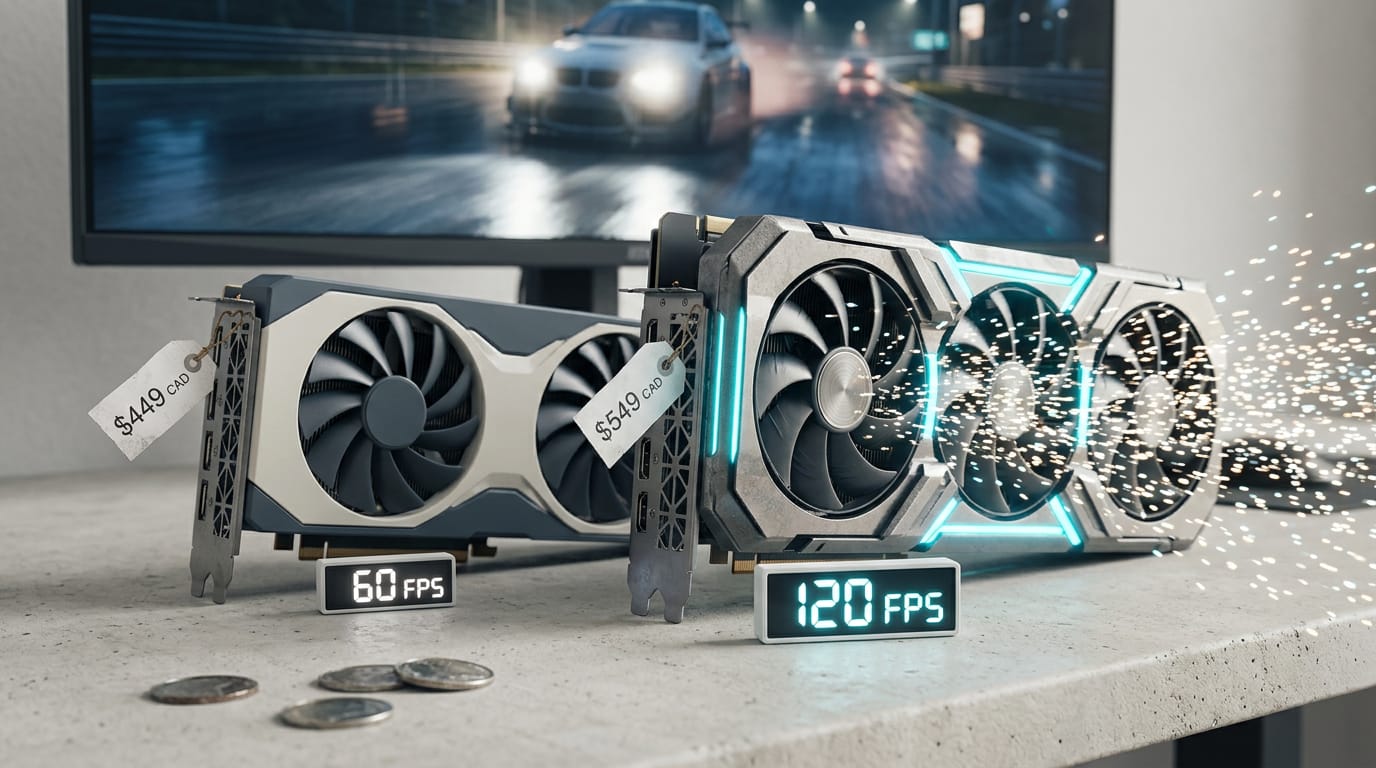
Price per frame is a card’s price in Canadian dollars (CAD) divided by its average frames per second (fps). Think of a player with $500 comparing two cards in one game at 1440p (a 2560x1440 screen).
For that player, the lower cost per frame is the smarter buy. Look at cost per frame rather than sticker price. Your Canadian budget and your screen set the tier. Shop within it.
Accelerators for data centers and AI
These cards are built for servers and AI work, not desktop gaming, so most home builds won’t need them. Still, you’ll see the NVIDIA A100 Tensor Core and Tesla P40 accelerator in listings, so know what they are.
- HBM memory bandwidth: high-bandwidth memory (HBM) moves data to the processor very fast.
- AI and HPC workloads: AI (artificial intelligence) and HPC (high-performance computing) are heavy calculations.
- Multi-instance GPU and NVLink: multi-instance GPU splits one card into isolated pieces, and NVLink links cards quickly.
Mining rigs and multi-GPU setups
Mining cards like the CMP 170HX are built for cryptocurrency mining, so check what a card can do before you buy it to game on. Eight-GPU rig listings are usually mining setups, and their power and heat needs dwarf a typical gaming PC.
Antminer listings are dedicated crypto miners, not graphics cards, so they won’t fit a gaming build.
Using external and older graphics cards
A Thunderbolt external GPU box lets a laptop run a desktop card over a Thunderbolt cable. It’s handy but usually trails an internal card, so check benchmarks first. Older GTX 16-series cards lack ray tracing hardware, so they suit lighter or older games.
Opened-box and used cards can save real money, but ask about the warranty and whether the card was used for mining.
Reading GPU specs and cooling designs
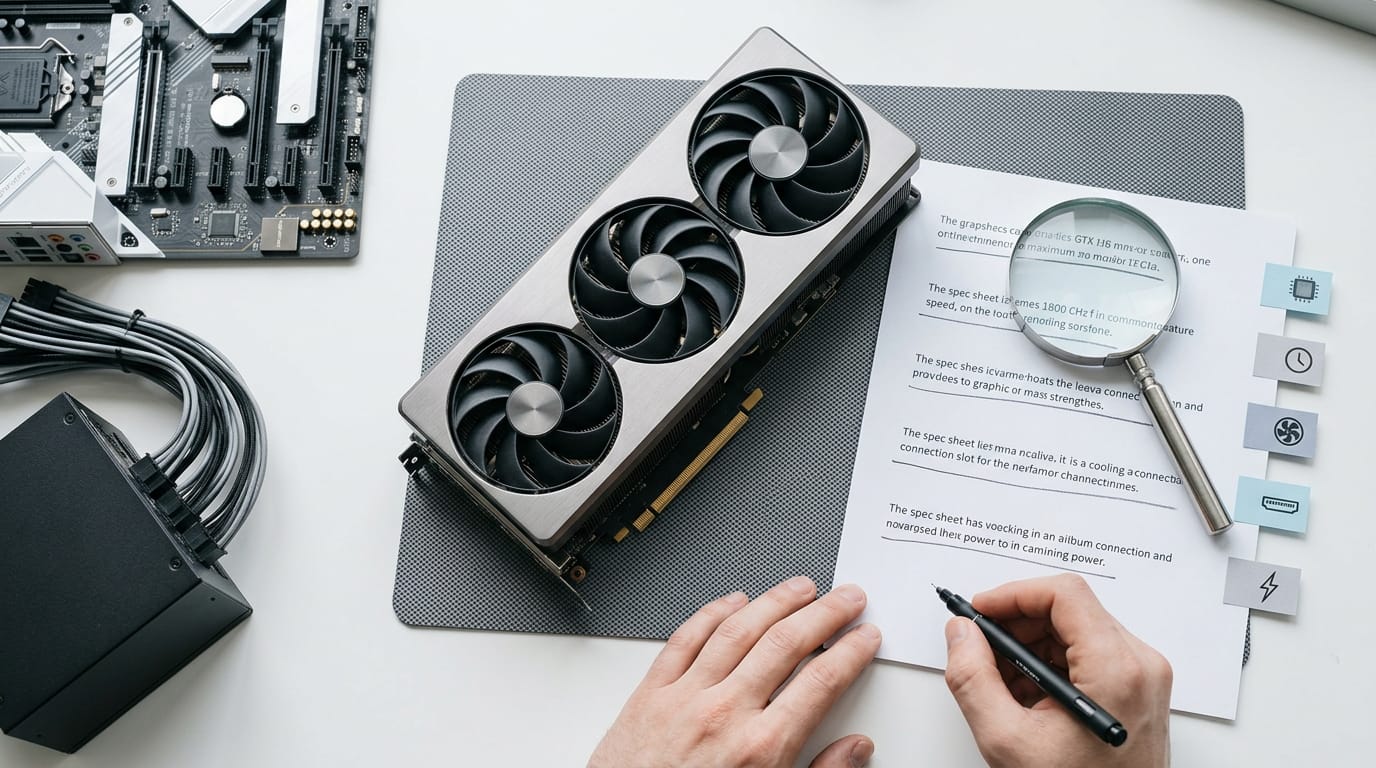
- VRAM size and type: VRAM (video memory) holds textures and frames, so size and type both matter more at higher resolutions.
- Boost and core clocks: core clock is the base speed; boost clock is the higher speed the card reaches under load.
- Multi-fan cooling designs: more fans and bigger heatsinks usually run cooler and quieter, so check reviews for noise.
- PCIe interface: PCIe (PCI Express) is the slot standard linking the card to your motherboard, so confirm your board supports it.
- Power consumption (TDP): TDP (thermal design power) is the rated heat and power draw, which helps you size your power supply.
Buying Smart on Price and Condition
A low price means little if the part is worn, far away, or hard to return, so here’s how we’d judge it.
How to read deals and discounts
Start with the reference price, the crossed-out figure the seller says the item used to cost. A 40% off badge means little if that reference is inflated, so check current listings.
Sort by price, then check condition and shipping before you click. Buy-two deals only help if you truly need two. Judge the total price, not the sticker.
Telling new from used parts
Here’s how the labels compare:
- New: Sealed, usually with the maker’s warranty.
- Used: Someone else has run it, so price it that way.
- Refurbished: Tested and repaired. Check the warranty.
- Opened-box: Returned or unwrapped, often unused. Ask if it was tested.
- Scrap and recycled: Salvaged from old machines. Risky for a card you depend on.
Claims like factory sealed mean little without proof, so ask for a photo of the seal or serial number.
The big risk with a used graphics card (GPU) is mining wear. Crypto mining, running a card around the clock for digital currency, wears down its fans and thermal pads, so ask how it was used.
Shipping, warranty and return policies
Look at where a part ships from, not just what it costs. Prime shipping benefits only apply to qualifying listings, and free shipping often hides its cost in the price, so compare totals.
Overseas parts may only get the maker’s warranty in its home region, so check for a Canadian service centre. Cross-border orders can add customs duties and taxes.
Read the return window, who pays return shipping, and any restocking fee. Buying from a Canadian retailer usually keeps warranty claims and returns simple and local.
Asking sellers for prices and photos
Some listings hide the price. Send a direct message (DM) asking for the final price in Canadian dollars, with shipping.
Ask if it’s still available first. Then request close-ups of labels, connectors, and fans, plus the model number.
Think of the kid upgrading their first PC who spots a used graphics card that looks like a steal. They ask for fan photos and a video, and clear answers keep the build on budget.
Ask first. It costs nothing.
A PC doesn’t have to feel like a puzzle with missing pieces. Once you know what each part does and how it connects to the next, the choices get much simpler.
Keep your games and your Canadian-dollar budget at the center of every pick, and you’ll avoid paying for power you’ll never use.
Know your parts, know your budget, and the right build becomes the obvious one.
Free · The Build Sheet
The Build Sheet: three gaming PCs priced at Canadian stores