How to Reset a PC Step by Step
How to reset a PC safely: choose whether to keep files, prepare before reinstalling Windows, then erase data so it can’t be recovered completely.

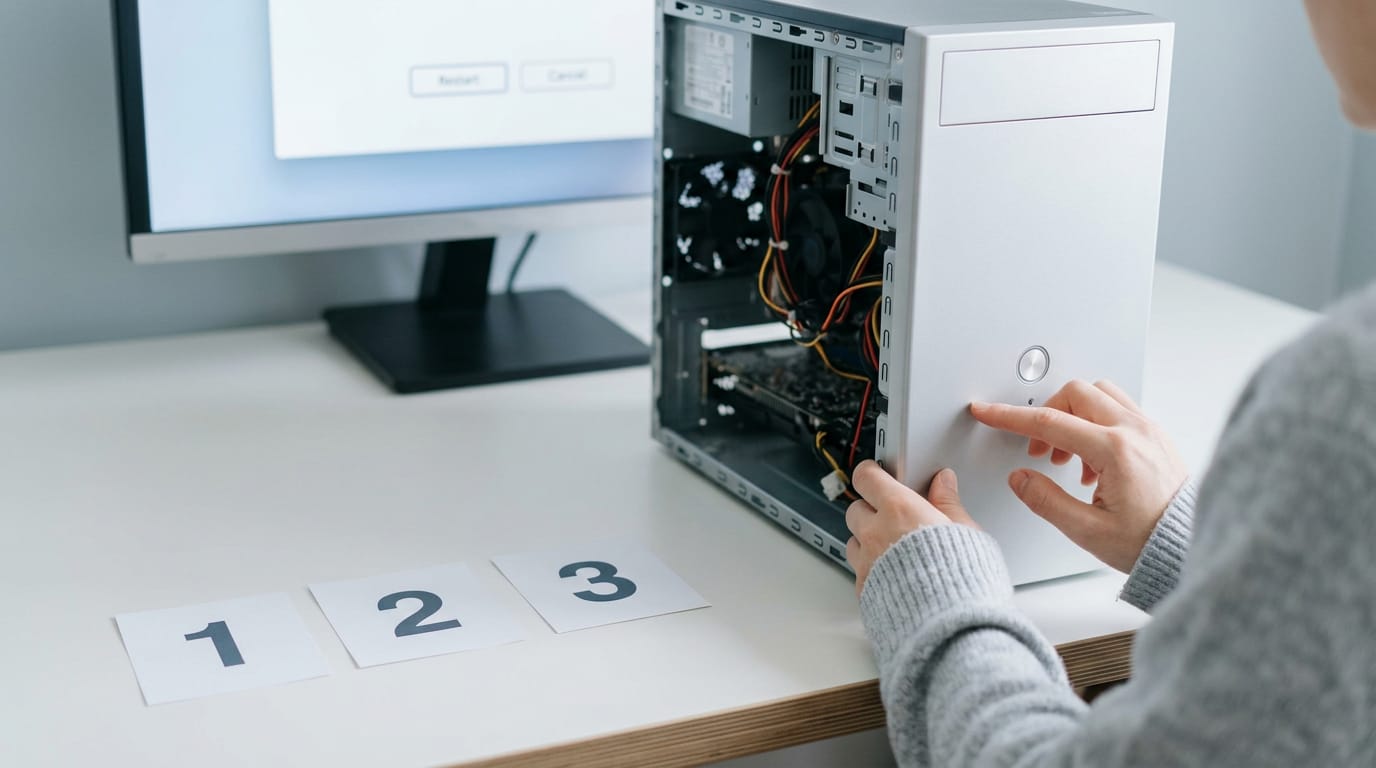
Resetting a PC reinstalls Windows and returns system settings to their defaults, with options to keep personal files or remove everything. Before starting, back up important files and game saves, find any BitLocker recovery key, and choose cloud or local reinstall based on your internet access; keep the PC plugged in and don’t interrupt the process. A reset can fix persistent software problems, while a full wipe is the better choice before giving the PC away.
Think of a PC reset like clearing out a cluttered garage. You keep the building, but everything inside gets a fresh start. When your computer slows to a crawl or crashes on startup, a reset can restore it without buying new hardware.
Put simply, a reset reinstalls your operating system (the core software that runs your PC) and lets you decide whether your personal files stay. For gamers, save files, launchers, and drivers need a plan too.
Here, we’ll cover picking the right option, preparing your machine, and handling what comes after.
How to Reset PC When It’s Needed
A reset wipes the slate, which makes it powerful and a little intimidating. Here’s when it’s the right call and which steps fit your machine.
Why people reset their PC
People reset their PC for a handful of common reasons:
- Reinstalling Windows fresh. A reset gives you a clean copy of Windows without hunting for install media.
- Fixing a slow or unstable PC. Updates, installs, and leftover programs can drag a machine down over time.
- Clearing malware or corrupt drivers. Stubborn infections and broken drivers can survive ordinary cleanup.
- Preparing the PC for a new owner. Wiping your personal data before it changes hands keeps your accounts and files private.
Consider a gamer whose 1080p tower has stuttered for weeks after a string of driver updates. A clean reset gets the system stable again, so they’re back in their game instead of chasing crashes.
Is factory resetting a PC a good idea? Often, yes, once software problems outlast simpler fixes. A factory reset is less about erasing everything and more about getting a stable system back, but it removes your apps and files, so back up first.
Which steps fit your Windows or Mac
The steps in this section focus on Windows 10 and 11. Before you reset, try basic troubleshooting first. A restart, a driver update, or a malware scan can fix many problems without erasing anything. Start small. If the trouble is a PC that randomly freezes, a separate guide covers its causes and fixes.
A player on Windows 11 with a sluggish rig might restart, update the graphics driver, and run a scan first. If the lag persists, that’s when a reset earns its place.
Mac steps differ. Apple’s computers handle resets differently, so use macOS steps if you’re on a Mac.
Get Your PC Ready Before Resetting
Resetting a PC can wipe what’s on it, so a little prep now saves you a lot of regret later. Work through these steps first, and the reset itself becomes the easy part.
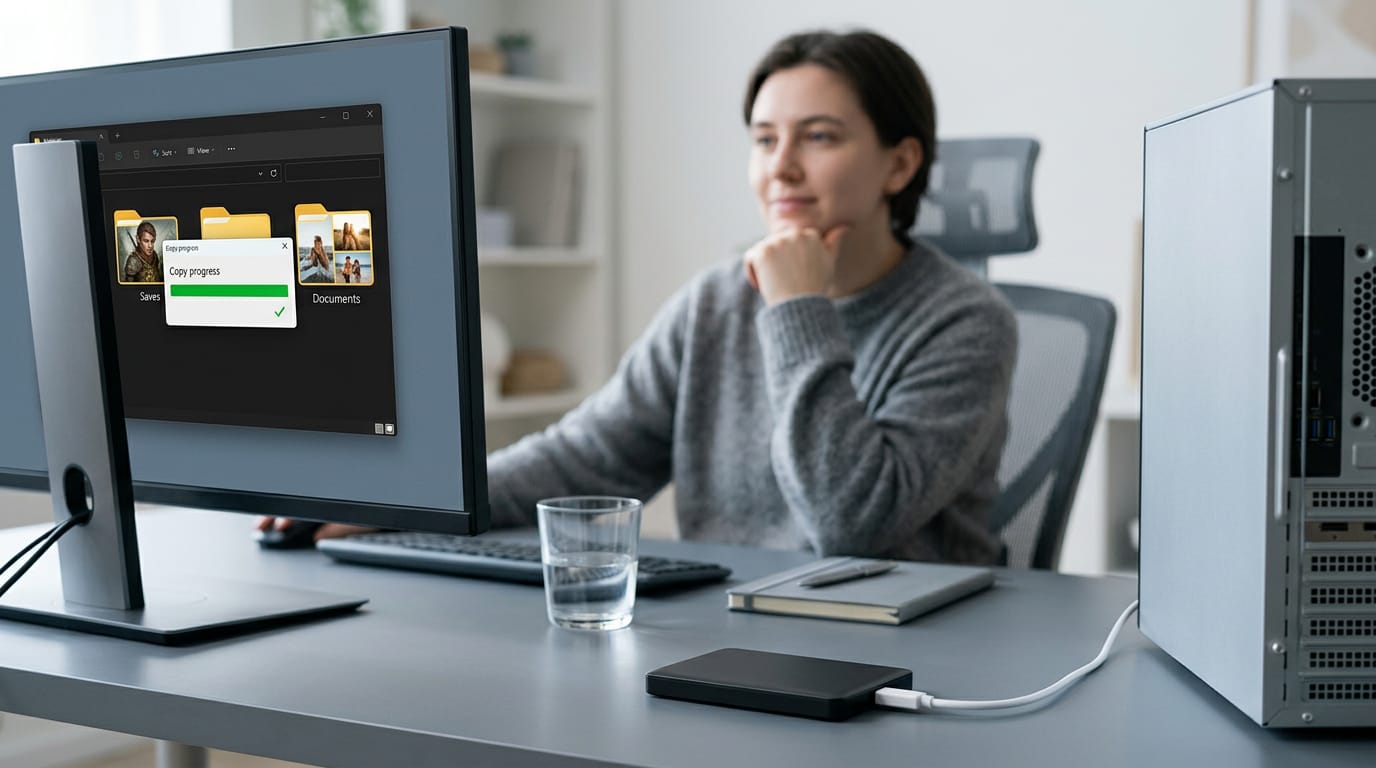
Back up files and game saves first
Copy your files to a second place before you reset, not after you notice something’s missing. Focus on:
- Documents and photos: the files you can’t afford to lose
- OneDrive or an external drive: either one gives you a second copy
- Game saves and configs: your progress and settings, so you can pick up where you left off
Think of a player who has spent months on a single RPG save. Copying it to an external drive means that progress is still there once the reset finishes. Don’t learn this the hard way.
Where to find your BitLocker key
If Device Encryption is turned on, Windows may ask for your BitLocker recovery key, the code that unlocks an encrypted drive, partway through the reset. Locate it before you start so you’re not hunting for it mid-reset.
Plug in and set aside time
Keep your PC plugged in for the whole process, and allow 30 minutes to a few hours, since a reset can take a while. Think of a player who kicks off a reset on a laptop, then heads out with the charger still sitting on the desk.
Plug in first and you won’t have to worry about the battery.
Make a 16 GB recovery USB early
Make a recovery USB drive while everything still works. According to Microsoft’s Q&A walkthrough, you’ll need a USB drive with at least 16 GB of space, so grab a stick that size. Make the drive now, not during a crisis.
Picking the Right Reset Option
Before you start, we’d suggest settling three things: what the reset should keep, where it should pull Windows from, and how far it should go. Get those right and the rest is straightforward.
Keep my files or remove everything
The first choice is how much to keep. Here’s what each option does:
- Keep files, remove apps: Your personal files stay, but installed apps and games get removed.
- Remove everything for selling: Choose this when the PC is leaving your hands.
- Settings reset to defaults: Either way, system settings go back to their defaults.
- Accounts and files deleted: Remove everything also wipes your personal files and accounts.
Think of a gamer selling an older tower to a buddy. Remove everything clears their files and accounts before the handoff, so nothing private comes along for the ride.
Download fresh Windows or reinstall locally
This choice decides where the new copy of Windows comes from. Cloud gets you a fresh copy, while local reuses the one already on your PC.
- Cloud download: Pulls a brand-new copy of Windows from the internet.
- Local reinstall: Uses the Windows files already on your PC, so you don’t need a connection.
- Cloud needs internet and data: A cloud download needs a solid connection and enough data for the whole installer, which matters on a capped mobile plan.
- Cloud fallback if local fails: If the local reinstall fails, fall back to cloud and try again.
When to choose a full wipe
A full wipe is slower, but the data it removes is much harder to recover afterward. Choose it when you’re selling or donating the PC, since you need to be sure nothing private is left behind. If you’re keeping the device, skip it.
You’d only be reinstalling everything you just erased.
What happens to bundled brand apps
Your PC may have come with software from its maker, such as ASUS. Here’s how the reset handles it:
- Restore apps that came with PC: The reset can put back the apps that originally shipped with your machine.
- Say no, and ASUS software is removed: Opt out of restoring them and the ASUS software goes along with the rest.
- View apps that will be removed: Before you confirm, check the list so nothing catches you off guard.
- Some apps need manual reinstall: A few won’t return on their own, so you’ll install those by hand. Check your game launchers first.
Reset blocks going back to Windows 10
If you upgraded from Windows 10 to Windows 11, know this before you reset: the reset blocks going back to Windows 10, so make sure Windows 11 is working for you first. Choose with care.
How to Reset PC Step by Step
Before you reset anything, know which kind you need. A hard reset forces the machine to restart: hold the power button until it shuts off, then press it again.
A factory reset goes further and reinstalls Windows to its original state, which is what the steps below cover.
How do I reinstall Windows 11 on my laptop?
Open Settings > System > Recovery and find the reset option there. On Windows 10, the same path runs through Settings > Update & Security > Recovery. Faster still, search Reset this PC from the Start menu.
Then click Reset PC or Get started, depending on your version. Review the summary, since it shows exactly what’s about to happen, then select Reset.
Think of a gamer whose laptop starts crawling the night before a tournament. Their launcher is ready to sign in and their saves are safe, so the reset becomes a planned fix instead of a crisis. Back up the saves first.
Reset from recovery when Windows won’t boot
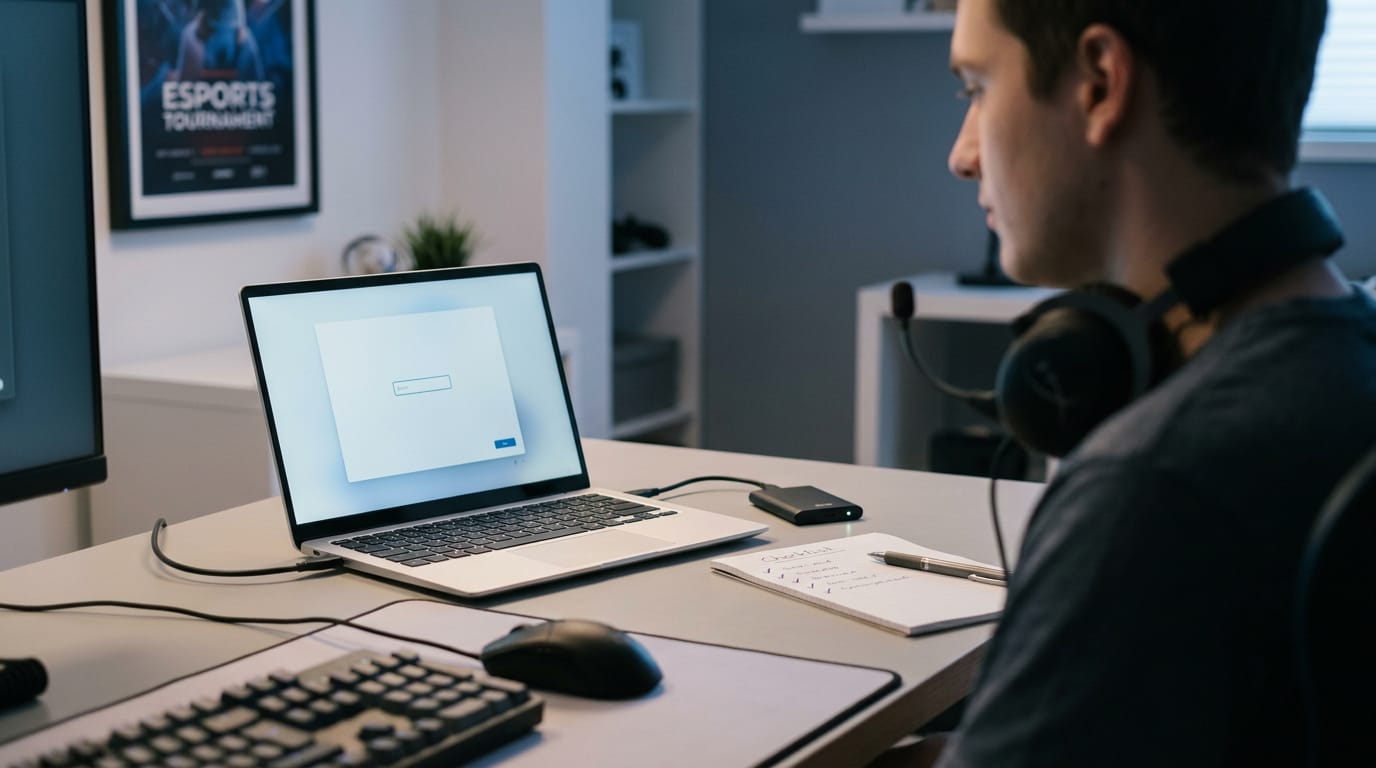
If Windows won’t start, you can’t reach Settings, so go through the Windows Recovery Environment (WinRE), a separate toolkit that loads apart from your normal install. Choose Troubleshoot > Reset this PC, then enter your account password when prompted.
Consider a gamer whose desktop stalls at the logo screen the week a big release drops. Recovery gets them back to their game library without a trip to the repair shop.
Reset with a USB and no internet
No internet on the broken machine? Create the recovery drive on another PC, using a universal serial bus (USB) drive. Plug it in before you start the reset, not after, so the machine has what it needs without going online.
Screenshots and video walkthroughs
Screenshots for each step help you match what’s on your screen, and linked YouTube walkthroughs cover the same path if you’d rather watch. [Add screenshots for each step and YouTube walkthrough links before publishing.]
What Happens While the Reset Runs
Once a reset starts, the hard part is staying out of its way. Here’s what you’ll see, how long it takes, and why we recommend leaving it alone until it finishes.
How long does a PC reset take?
Expect long stretches of black screen. That’s normal, and it doesn’t mean the reset has frozen. Your PC will also restart several times on its own as it moves through each stage, while a progress bar shows how far along it is.
Once the reset is running, you can step away, because nothing needs your input until it’s done.
Drive type changes the timing. A solid-state drive (SSD) usually finishes well ahead of an older hard disk drive (HDD), so the same reset can take noticeably longer on an older machine.
Think of a gamer who starts a reset on a Sunday afternoon, expecting to be back in their game library that night.
The black screen worries them at first, but the PC restarts on its own, the progress bar keeps moving, and they’re back at the login screen before dinner.
Avoid interrupting the reset midway
Interrupting a reset can turn a simple fix into a real problem. Keep these in mind:
- Don’t force a shutdown. Holding down the power button or otherwise forcing a shutdown can stop the process partway through.
- Keep the AC adapter (the power brick that charges a laptop from the wall) connected. If the battery runs out mid-reset, the process can be cut off.
An interrupted reset can fail, and your PC may not boot properly afterward. It’s patience rather than force that gets you a clean result. Just wait.
What to Do Once the Reset Finishes
The next few screens decide how much you’ll have to redo later, so we’d suggest going slowly.
Choose language, region, and network
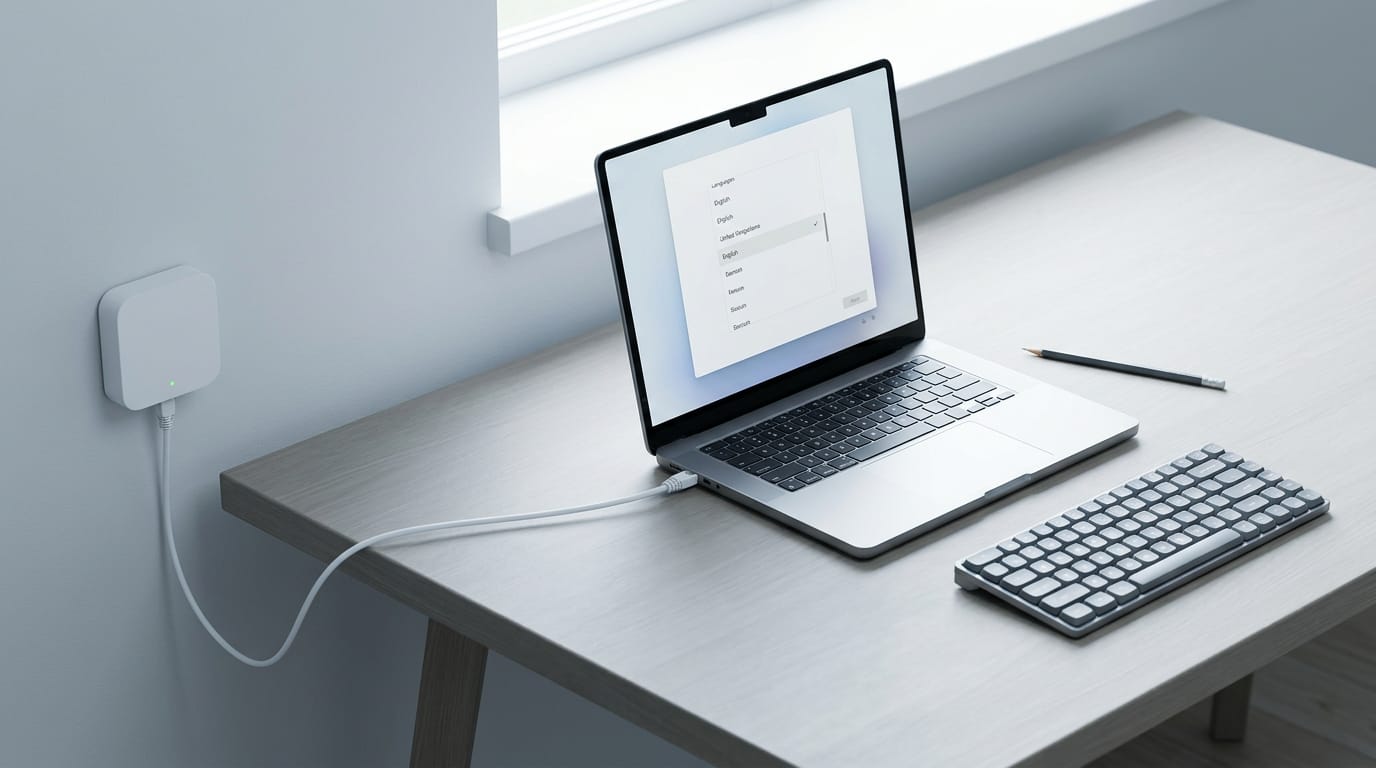
Set your language, keyboard, and region first, picking the layout you actually type on. Then connect to Wi-Fi or plug in a cable, which is steadier for the big downloads ahead.
Which account to sign in with
Use your work or school account, not a personal Microsoft account, on any machine that belongs to an employer or school. It joins the PC to your organization’s policies, so those rules apply from the start.
Restore updates, apps, drivers, and files
Here’s the sequence:
- Updates first. Let Windows finish its updates, and keep the PC plugged in.
- Business apps. Reinstall the ones your job needs and open each to confirm it runs.
- Files. Restore your files from backup, including any game saves you copied out.
- Drivers and activation. Reinstall your drivers, then confirm Windows still shows as activated.
- GPU driver and launchers. Reinstall your GPU driver (the software that lets your graphics card run games), then your game launchers, the apps that manage your library.
Consider a gamer who copied their save folders to an external drive before the reset. Once updates finish, they reinstall the GPU driver and launchers, then copy the saves back before opening a single game.
Their progress is right where they left it. That’s the backup doing its job.
If the reset didn’t work, don’t start over blind. Go back through the list and note which step fails, since that’s where your fix begins.
Wipe Data so It Can’t Be Recovered
Wiping a PC is about destroying what’s left behind, not just hiding it.
Which wipe standards you should follow
A consumer-grade wipe is fine for a gaming PC headed to a family member, but it’s not the last word on a work machine.
When securely erasing a work PC, follow your organization’s IT (information technology) policy.
According to the Guidelines for Media Sanitization from the National Institute of Standards and Technology, organizations should develop local policies that drive risk-based decisions about how media is sanitized or disposed of.
If you’re on an ASUS, check whether its reset tool offers purge or clear levels and pick the one that fits your data.
Also look for IEEE (Institute of Electrical and Electronics Engineers) P2883 compliance so you can check the wipe against a named standard.
Match erase methods to each drive type
An HDD (hard disk drive) stores data on spinning platters, while an SSD (solid-state drive) uses flash memory.
An NVMe (Non-Volatile Memory Express) drive is an SSD that plugs into PCIe (Peripheral Component Interconnect Express) instead of a SATA (Serial ATA) cable. If terms like PCIe and SATA are new, our guide to PC parts explains what each one does.
Here’s which method fits which drive:
- ATA sanitize and Secure Erase: ATA (Advanced Technology Attachment) commands built into SATA drives. Secure Erase wipes the whole drive.
- Cryptographic erase via TCG Opal: TCG (Trusted Computing Group) Opal drives encrypt everything they store, so destroying the encryption key makes that data unreadable.
- NVMe Format command: the built-in erase command for NVMe drives. Confirm your drive supports it first.
Think of a gamer selling a PC with an old SATA SSD and an NVMe boot drive holding their saves and launcher logins. Wipe each drive with its own method, and the buyer can’t pull your saves back off either one.
Right method, nothing left to recover.
A reset isn’t something to dread. Pick the right option, back up your game saves, and make a list of the drivers and launchers you’ll need to reinstall. Check your storage and parts before you start, and the whole process stays calm and predictable.
Don’t skip the prep. It’s the difference between a smooth fresh start and a weekend spent hunting for save files. Prepare first, and the reset becomes the easy part.
References
- Guidelines for Media Sanitization — doi.org (2014)
- [Article] How to make a USB recovery drive in Windows 10 [VIDEO] — learn.microsoft.com (2025)
Questions
How do you do a hard Reset on a computer?
To hard reset a computer, hold down its power button until it shuts off, then press the button again to turn it on. This forces a restart; it is different from a factory reset, which reinstalls Windows and may remove files and apps.
How do I reinstall Windows 11 on my laptop?
On a Windows 11 laptop, open Settings > System > Recovery and select the reset option, or search for “Reset this PC” from the Start menu. Choose whether to keep your files or remove everything, review the summary, then select Reset. Back up important files and game saves first, and keep the laptop plugged in.
How long does a PC Reset take?
A PC reset can take about 30 minutes to a few hours, depending on the computer and reset options. An SSD usually finishes faster than an older hard disk drive. The PC may show a black screen and restart several times, so leave it plugged in and avoid interrupting the process.
Is factory resetting a PC a good idea?
A factory reset is often a good idea when software problems, crashes, or malware persist after simpler troubleshooting. It removes apps and may erase personal files, so back up anything you want to keep before starting. If you’re selling or donating the PC, choose the option that removes everything.
Sources
- Guidelines for Media Sanitization, doi.org,
- [Article] How to make a USB recovery drive in Windows 10 [VIDEO] - Microsoft Q&A, learn.microsoft.com,
Free · The Build Sheet
The Build Sheet: three gaming PCs priced at Canadian stores