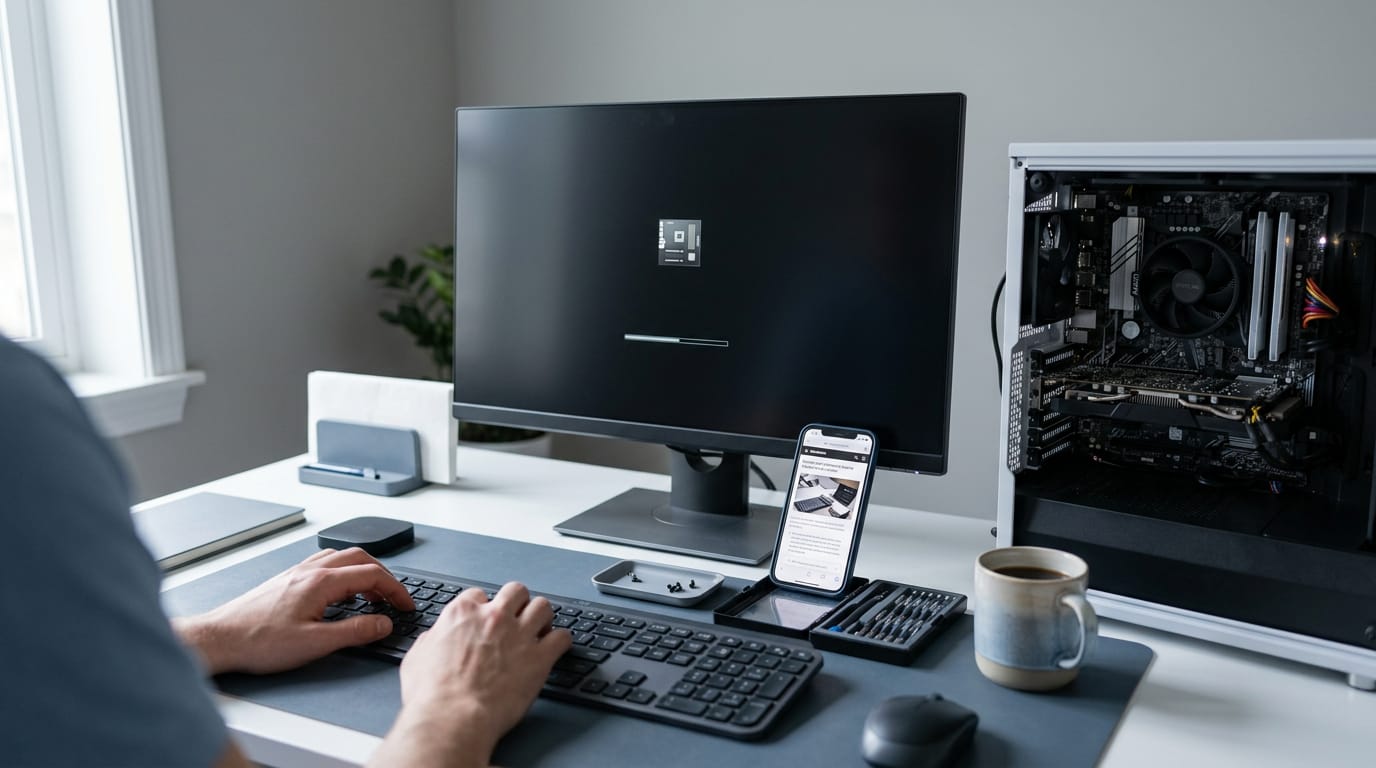
PC Randomly Freezes? Causes and Fixes, Explained
A PC randomly freezes? Start with quick fixes, then check the PSU, GPU, XMP/EXPO memory settings, and heat under load to find the cause without guesswork.

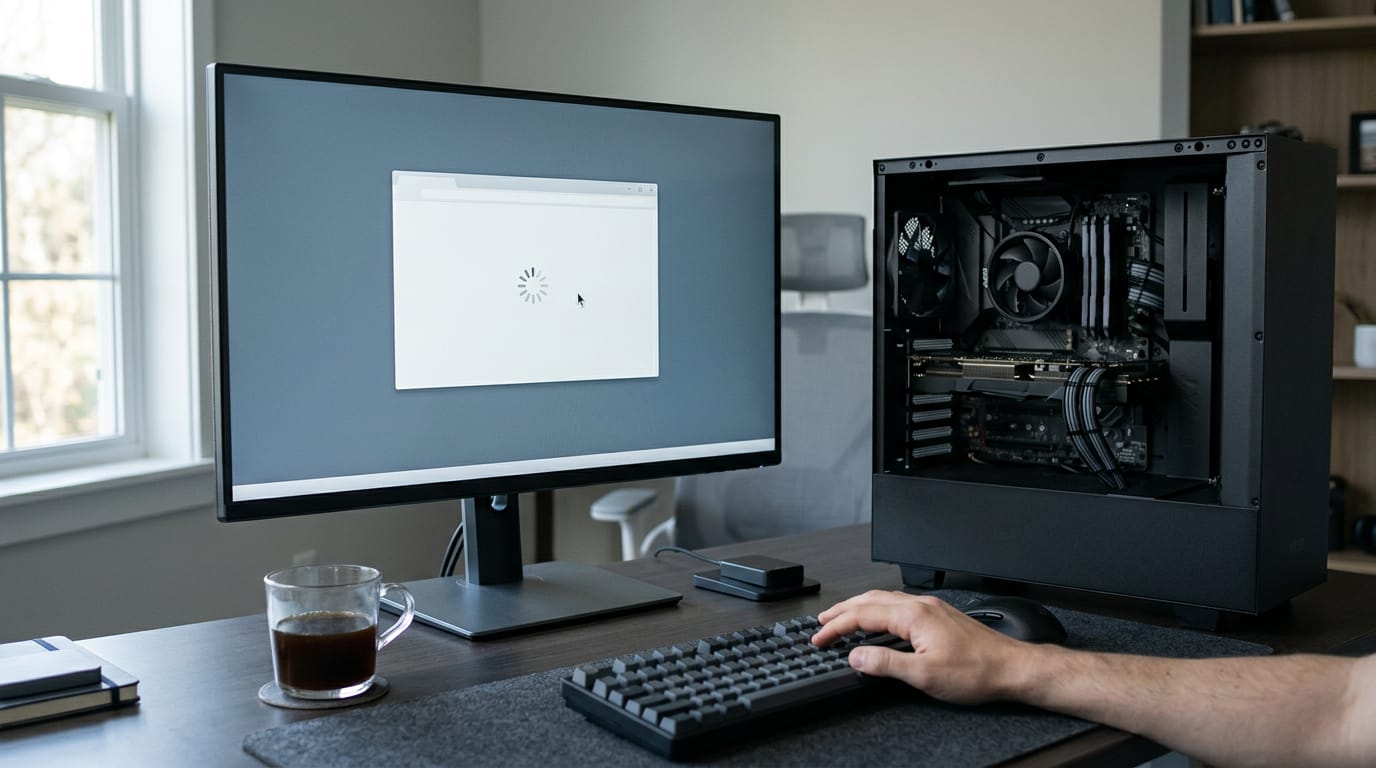
A PC that randomly freezes is a computer that suddenly stops responding, either in one app or across the whole system. Common causes include overloaded memory, overheating, outdated drivers, malware, and failing or underpowered hardware; check the least disruptive fixes first, then test RAM, storage, system files, and temperatures. Closing unneeded programs, keeping the PC cool and updated, and changing one setting at a time can help identify the cause before you spend money on parts or repairs.
Ever been mid-match when the screen locks and nothing responds? It’s a lot like a video call that freezes halfway through your sentence: everything looks fine until it suddenly isn’t.
The good news is that most freezes trace back to a short list of causes you can check in order.
In this post, we’ll start with quick fixes to get you running again, then move into deeper hardware checks.
Along the way, we’ll cover the gamer-specific culprits generic guides skip: the power supply unit (PSU), the graphics processing unit (GPU), memory speed settings (Intel’s XMP and AMD’s EXPO), and heat under load.
Why Your PC Randomly Freezes
A freeze feels random, but it almost always has a trigger. Most come from overload, heat, software, or a failing part.
When too many programs slow things down
- Too many programs open. Dozens of tabs and apps compete for resources.
- Insufficient CPU power. Your central processing unit (CPU) struggles when a game and background tasks run together.
- Insufficient RAM. When random access memory (RAM) fills up, the PC leans on slower storage.
- Startup and background apps. Programs that launch at boot quietly eat resources.
A gamer who closes thirty tabs and a streaming app before queuing frees up memory for the match. That’s a first fix, not a last resort.
Overheating from poor cooling
- Loud fans signal overheating. Fans that roar mid-match mean the cooling is working overtime.
- CPU/GPU throttling. When a processor or graphics processing unit (GPU) runs too hot, it slows down to cool off, which can freeze a game.
- Poor ventilation and dust. A cramped cabinet or a dust-clogged filter blocks airflow.
- Self-preservation shutdown. If temperatures keep climbing, the PC may shut off to protect itself.
A player with a dusty filter freezes mid-fight. Cleaning it is a free test worth trying first.
Old drivers, OS, and software problems
A driver is the small program that lets your operating system (OS) talk to your hardware.
- Outdated or faulty drivers. A graphics driver older than your latest game is a common culprit. Update it before buying parts.
- Outdated operating system. Missing updates leave gaps in how the system handles devices.
- Corrupted system files. Damaged core files can trigger random crashes, so check them first.
- Incompatible old software. Older programs may clash with newer hardware.
How malware makes your PC freeze
Malware is software built to cause trouble.
- Consumes resources. Hidden programs soak up the processor and memory your game needs.
- Corrupts system files. Damaged OS files can lead to freezes and crashes.
- Risky downloads and attachments. Cracked games, sketchy mods, and email attachments are easy ways in.
After a questionable download, run a malware scan first.
How do I tell if hardware is failing?
If you’re asking how to tell if your PC is dying, watch for more frequent freezes, surprise restarts, and general slowdowns. Those signs point to hardware wearing out.
- Failing hard disk drive or solid-state drive. Either one can freeze when you load a game.
- Faulty or damaged RAM. Bad memory causes random crashes.
- Insufficient disk space. A nearly full drive leaves no room to work.
- Faulty external devices. A flaky external device can lock up the PC. Unplug extras to test.
- Mouse or cable problems. A frozen cursor often means a loose cable.
A power supply unit (PSU) that’s underpowered for a new graphics card, or failing, can shut the PC off mid-fight. Check it first.
Quick Fixes When Your PC Freezes
When your PC freezes mid-game, start with the gentlest fix and work up only if the screen stays stuck.
Wait and figure out the freeze type
Don’t reach for the power button yet. A freeze sometimes clears after a short wait. While you wait, check these:
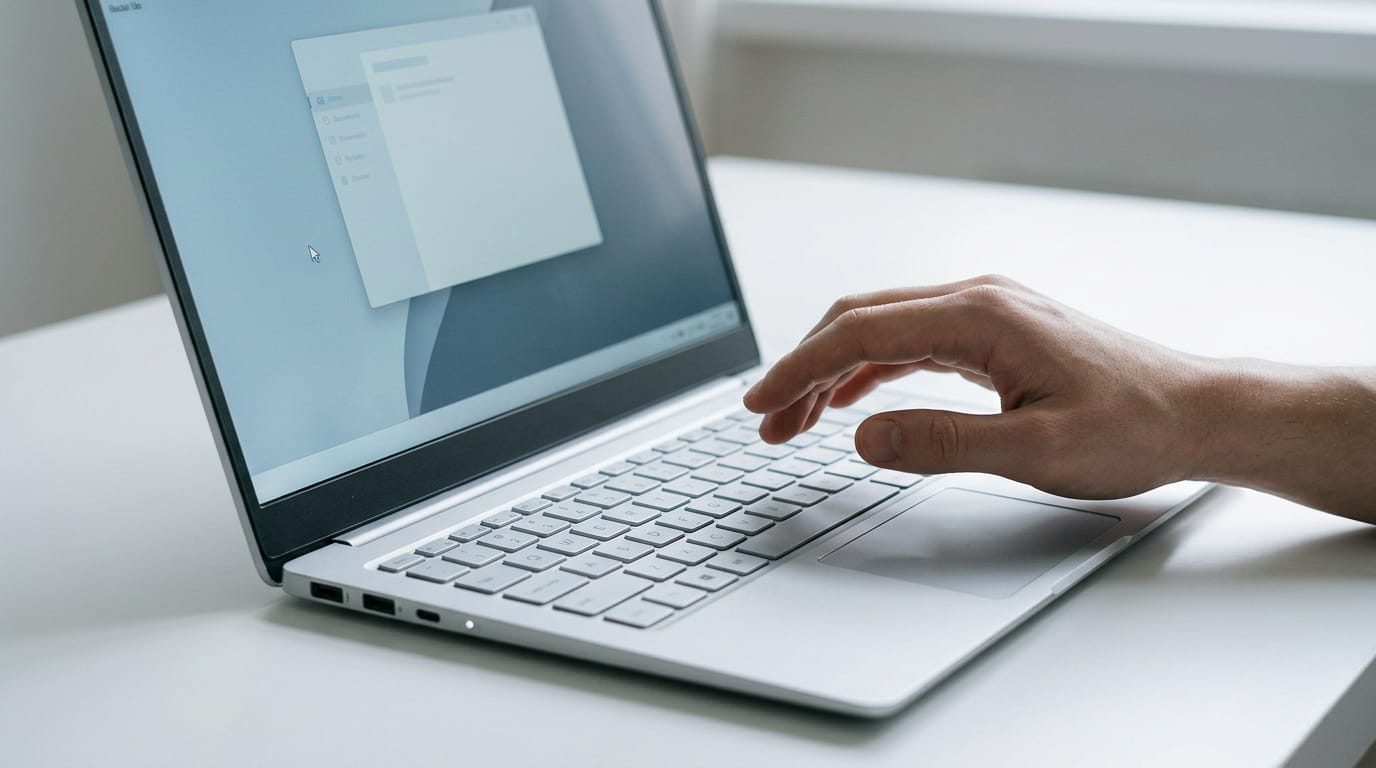
- Check mouse movement. If the cursor still moves, Windows is running and only an app or the screen is stuck.
- Caps Lock light test. Press Caps Lock and watch the keyboard light. If it toggles, the system is still responding.
- Identify the freeze type. A full freeze, where nothing responds, points to the whole system. A single stuck window points to one program.
Shut down programs that stop responding
Start with the program itself: open Task Manager, select the frozen app, and click End task. If the mouse won’t respond, try Ctrl+Alt+Del to reach Task Manager. Alt+F4 closes the active window, so click the frozen window first, then press Alt+F4.
If the desktop is active instead, cancel the shutdown prompt. A frozen browser tab can be closed in your browser’s own task manager.
If the same program locks up every time, quit it and reinstall it. A clean reinstall replaces files that may have gone bad.
Consider a player whose game freezes in every ranked match. Their cursor still moves, so the rest of the PC is fine. They end the game in Task Manager, reinstall it, and get back to ranked without a reboot.
The goal is to close just the frozen program, not the whole machine.
Reset your graphics driver with a shortcut
If the freeze hits the screen itself, press Win+Ctrl+Shift+B. This resets your graphics driver, the software that lets Windows talk to your graphics card (GPU). A quick screen flicker and a beep mean it worked.
If the screen stays frozen, move to the next fix.
Unplug USB drives and other devices
Your peripherals (the gear you plug in) can lock things up too. Unplug USB drives, printers, and other extras to see if the freeze stops, then plug them back in one at a time. If a device’s companion software stalls on a loading screen, see logitech g hub infinite loading for the likely causes.
Also check peripheral compatibility, making sure each device works with your version of Windows. Think of a builder whose PC freezes whenever a USB drive is connected.
One unplug tells them whether the drive is the problem before they spend a dime on a replacement.
Restart it, or force a reboot
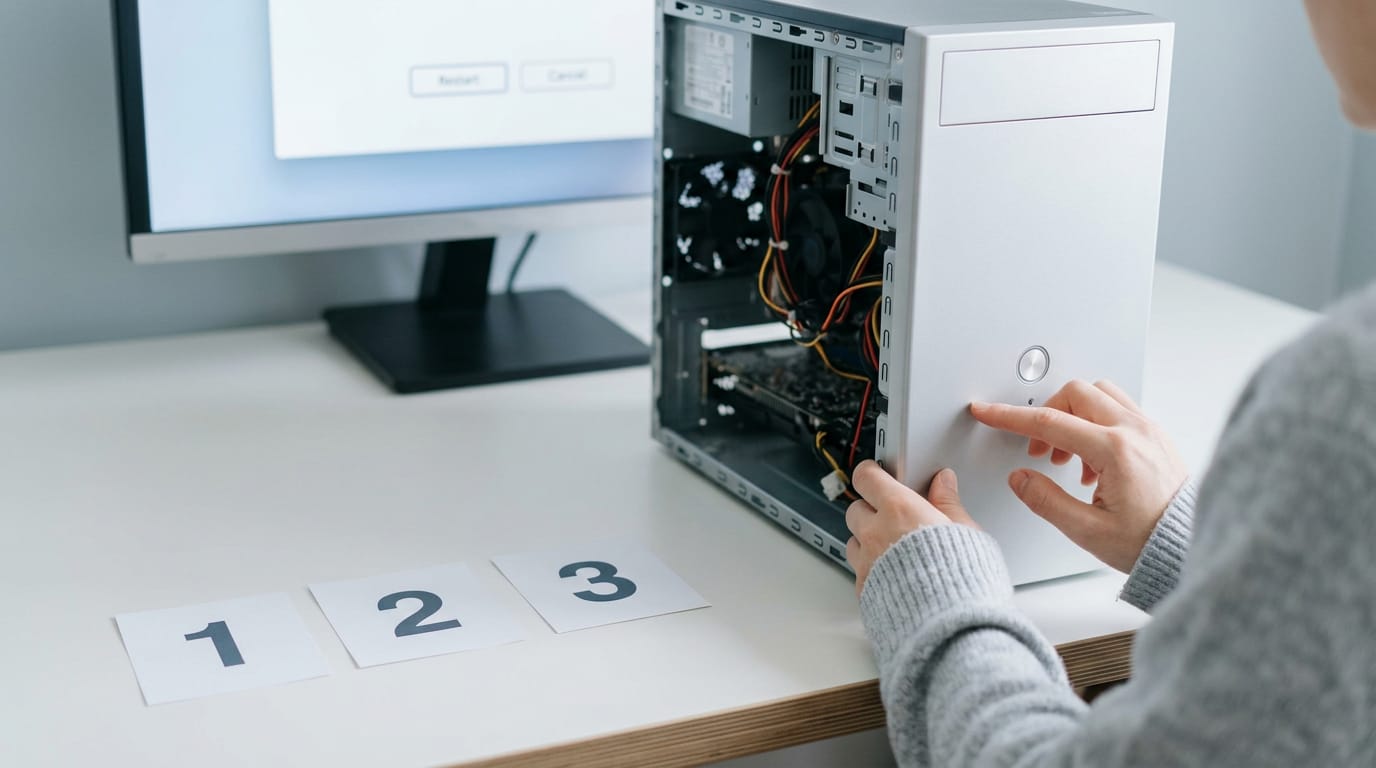
Try a soft restart first: click Start, choose Power, then Restart. If the screen won’t respond, hold the power button for 5-10 seconds to force the PC off, then wait a few seconds before powering it back on.
Use the forced option only when the soft restart fails. Turn on autosave in your game or app so a forced shutdown costs you less progress.
Start in Safe Mode to isolate issues
If freezes keep returning, try Safe Mode. It starts Windows with only the basic drivers and programs, which shows whether software or a driver is behind the problem.
Hold Shift while you select Restart, then open Startup Settings and press F4 for Safe Mode or F5 for Safe Mode with Networking. If the PC stays stable there, software or a driver is the likely culprit.
Safe Mode narrows the field. It doesn’t fix the problem on its own.
Deeper Health Checks and Repairs
If you’re asking how to run a health check on your PC, work through six areas in order:
- drivers
- memory
- drive
- system files
- malware
- logs
Stop as soon as the freezes do.
Update drivers in Device Manager or tools
Drivers let Windows talk to your hardware, so a stale one can cause freezes. Start with Device Manager: right-click Start, expand Display adapters, right-click your graphics card, and choose Update driver.
Third-party driver tools save time, but stick with ones you trust. Update any GPU companion app and the driver together so their versions match.
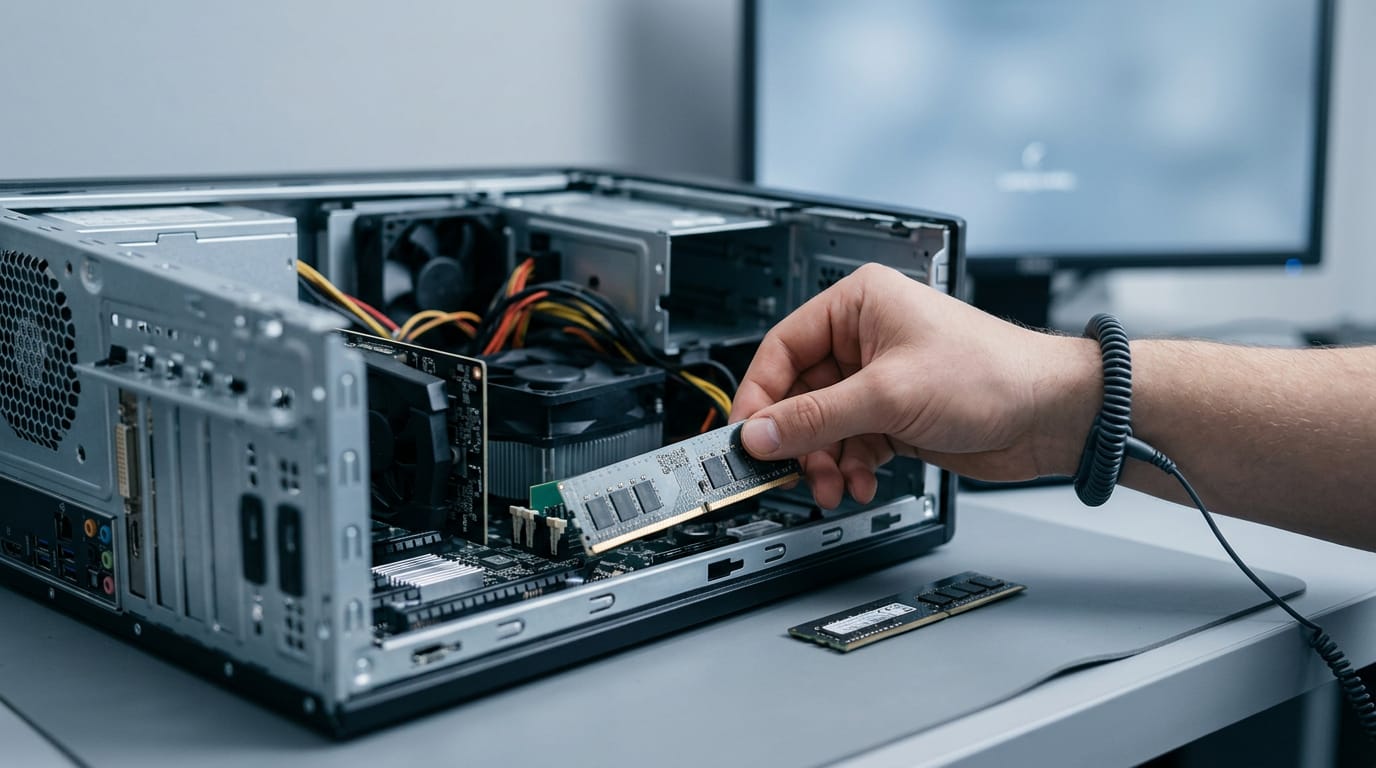
Check your RAM for errors
Bad memory often shows up as random freezes. Search Start for the Windows Memory Diagnostic, choose to restart and check, and let it finish. You can also run mdsched.exe from the Run box (Windows key plus R).
Afterward, check the System log in Event Viewer for memory errors.
Memory settings you changed can cause freezes too. An Extreme Memory Profile (XMP) on Intel or Extended Profiles for Overclocking (EXPO) on AMD runs RAM above its default speed.
If freezes began after you enabled one, disable it in the BIOS (your motherboard’s settings screen) and see whether they stop. A PC that gets stuck on the motherboard screen after a change like that needs its own set of fixes.
Can Windows 11 run on 4GB RAM? Technically, yes, since 4GB is its stated minimum. But that’s a floor, not a comfortable target. With a game open, you’ll feel the squeeze, and more memory may be the fix.
Check if your hard drive is failing
A failing drive can stall Windows while it waits on files. Open Command Prompt as administrator and enter chkdsk C: /f /r to check the drive, fix errors, and look for bad sectors.
Because C: is your system drive, Windows may schedule it for your next restart.
Free diagnostic tools can report drive health early. A clicking sound is a warning, so back up your files first. Then replace the failing drive.
Fix damaged system files with built-in tools
Damaged Windows files can cause freezes that come and go. Run these in Command Prompt as administrator, in order:
- Run DISM (Deployment Image Servicing and Management) with DISM /Online /Cleanup-Image /RestoreHealth.
- Then run sfc /scannow to check system files and replace corrupted ones.
Run a full scan for malware
Malware running in the background can drag a PC down until something stalls. Run a full antivirus scan, not a quick one, and follow its prompts to remove detected threats. Then restart and check whether the freezes continue. If the freezes continue after that, resetting the whole PC is the next step to try.
Read logs and blue screen error codes
The question isn’t whether your PC froze, but when and what it was doing. Open Reliability Monitor from Start to see crashes on a timeline, then match them to your gaming sessions.
If you get a blue screen, write down the stop code, the short error name on the screen.
Heat is a common gamer suspect, so monitor GPU and CPU temps during gameplay. Think of a player whose PC freezes about an hour into every session. They check Reliability Monitor, then watch GPU temps during the next session.
If temps climb right before each freeze, the cooler is the first part to check before buying new parts.
A freeze in the same game at the same spot points toward the graphics card or thermals. Freezes during downloads or idle time lean toward drivers or storage.
Keep Your PC from Freezing Again
Keeping your PC from freezing again is mostly about habits you can control.
Routine upkeep and regular updates
Keep your operating system (the core software that runs your PC) and your drivers (small programs that let each part talk to it) up to date. Outdated graphics drivers can be behind a freeze.
Run regular malware scans with your built-in security software, and free up disk space so your system has room to work.
Then check your startup programs. Picture a player whose PC freezes every evening during the same boss fight. Task Manager shows four launchers and a chat app loading at boot. Disabling the ones they don’t need is a five-minute fix.
Keep the PC cool and clean
Heat is a quiet troublemaker. When your processor or graphics card runs hot during a long session, it may slow itself down to protect the hardware, and that can feel like a freeze.
Give a desktop room to breathe by keeping its vents clear and off the carpet. If you game on a laptop, a laptop cooler (a stand with fans that pulls heat away from the base) can help. Clean dust out of fans and filters regularly.
Build safer habits for everyday use
It’s less about how many programs you own and more about how many are running at once. Close what you aren’t using before you launch a game.
- Install only necessary apps. Every extra install is another background process competing with your game.
- Avoid untrusted downloads. Stick to official sites, since a bad file can bring malware with it.
- Back up regularly. Copy save files and documents to an external drive or cloud storage. A freeze that ends in a reinstall shouldn’t cost you your progress.
Tools to Clean and Tune Your PC
Plenty of tools promise a faster PC, but few of them touch what actually causes a freeze. Here’s a quick sort of what we’d run and what to leave alone.
Third-party cleaners to use or avoid
Most of these utilities fall into a few groups, and each has a specific job:
- Disk cleaners (CCleaner): These clear out temporary files and leftover junk. They free up space, but they won’t stop a freeze in the middle of a match.
- Advanced SystemCare: Bundled suites like this one combine cleaning, tuning, and extras in one download. Only run one if you know what each change does, since a one-click button can touch settings you never meant to change.
- Startup optimizer: This controls which programs launch when Windows boots. Trimming unneeded startup items is a safe, reversible way to get a cleaner start.
- Performance monitor: This shows live readings for temperatures, clock speeds, and usage. It’s a diagnostic tool, not a cleaner, and it’s the one to keep open while you play.
- Driver update tools: These look for newer drivers, the software that lets Windows talk to your graphics card and other parts. Download drivers straight from the manufacturer when you can, so you know they’re built for your hardware.
Skip registry cleaners. The registry is the settings database Windows and your programs read from, so editing it adds risk for little gain. Use a stress test instead.
Take a player whose game freezes every evening during a ranked match. They install a cleaner, hit Clean, and watch the junk total climb, but the freezes keep coming.
A stress test would have asked the right question: does the PC stay stable under full load? That’s the question a freeze is really raising.
Pick tools that diagnose your PC over ones that merely polish it. Freezes need answers.
When to Call a Repair Technician
Some freezes you can fix yourself, and some you can’t. Knowing when to hand the machine to someone else keeps a small problem from turning into a dead PC.
Get a technician for hardware repairs
Once the quick fixes are done, a few signs point to a failing part rather than a setting that’s off. The goal is to find the broken part, not to swap parts until something works. Bring in a pro when you see any of these:
- Suspected hardware failure. A burning smell, a clicking or grinding drive, or a machine that won’t start at all means you should stop troubleshooting and get it looked at. Pushing a failing part harder rarely helps.
- Trusted PC repair shop. Look for a shop with solid reviews from local customers, and ask whether they’ll diagnose the problem before selling you anything. Get the quote in writing before work starts, so the final bill doesn’t surprise you.
- Persistent freezing after troubleshooting. If you’ve updated drivers, reset your settings, and closed background programs, and the freezes keep coming, it’s time to stop guessing.
Consider a gamer whose rig locks up about twenty minutes into every match, even after a clean driver install. Before dropping it off, they write down the game, the time of each freeze, and every change they’ve already tried.
That note lets the technician test the likely suspects instead of the whole machine, which can mean a shorter visit and a smaller bill. A little prep goes a long way.
Random freezes feel mysterious, but they usually have a traceable cause.
Start with the quick fixes, work down to the deeper checks, and don’t skip the gamer-specific suspects like the power supply, the graphics card, memory speed settings, and heat under load. Change one thing at a time so you know what actually helped.
Stability is a habit as much as a setting. Keep an eye on temperatures, keep your drivers current, and you’ll spend more time playing and less time staring at a frozen screen. Your PC doesn’t need to be perfect.
It needs to hold steady through the match that matters.
Questions
How do I tell if my PC is dying?
Watch for freezes becoming more frequent, unexpected restarts, and general slowdowns. Failing storage, damaged RAM, a weak or failing power supply, overheating, or faulty peripherals can all cause trouble; clicking or grinding noises and a burning smell are urgent warning signs.
How do I see what caused my PC to freeze?
Check Reliability Monitor from the Start menu to see crashes and freezes on a timeline, then compare them with what you were doing at the time. Event Viewer can show system or memory errors, and if a blue screen appears, note its stop code. Temperatures during use can also help reveal overheating.
How do I run a health check on my PC?
Check drivers, memory, storage, system files, malware, and crash logs. Use Windows Memory Diagnostic to test RAM, CHKDSK to check the drive, DISM and SFC to repair system files, a full antivirus scan, and Reliability Monitor to review crashes. Work through one check at a time and stop when you find the cause.
Will bad RAM cause a computer to freeze?
Yes. Faulty RAM can cause random freezes and crashes. Run Windows Memory Diagnostic and check Event Viewer for memory errors; if you recently enabled XMP or EXPO, disable it temporarily to see whether stability improves.
My Windows 11 computer randomly freezes. What can I do to fix this?
Start by waiting briefly and checking whether the cursor or Caps Lock light still responds. Close the frozen app in Task Manager, reset the graphics driver with Win+Ctrl+Shift+B, unplug extra USB devices, and restart if needed. If freezes continue, try Safe Mode, update drivers, test RAM and storage, repair system files, scan for malware, and check temperatures and Reliability Monitor.
Can I run Windows 11 on 4GB RAM?
Yes. Windows 11 can run on 4GB of RAM, which is its stated minimum, but that is not a comfortable amount for demanding use. Games and other open programs may run short of memory, so adding RAM can improve the experience.
Free · The Build Sheet
The Build Sheet: three gaming PCs priced at Canadian stores