Define Cores in a CPU: What Each Core Does
Define cores in a CPU: see how cores differ from threads, how they share work, and how many you need for gaming on a Canadian-dollar budget today.

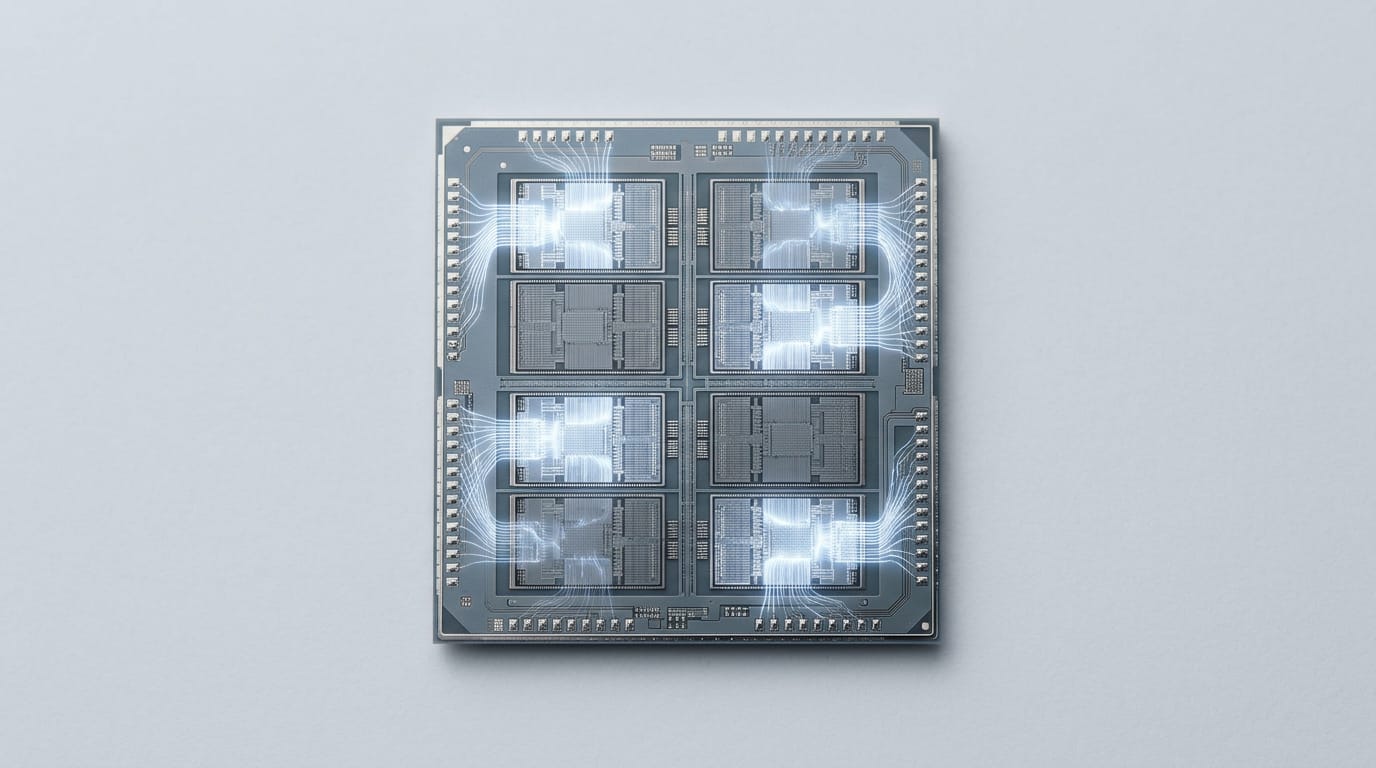
A CPU core is a physical processing unit inside a processor that carries out program instructions, while a thread is a stream of work scheduled onto a core. Multiple cores can handle separate tasks at once, but extra cores do not automatically make one task faster because performance depends on how well work splits, per-core speed, and other hardware. Choose a core count suited to your workload, and for gaming balance it against clock speed, graphics performance, and budget.
Think of a kitchen where one chef cooks every dish alone. Add a second chef and two orders can move at once, but only if the work splits cleanly.
A core works much the same way inside your central processing unit (CPU): it’s the part that carries out instructions, and most chips you’ll shop for today have several working side by side.
That’s the short answer. A core is one independent worker inside the processor. This guide covers what a core is, how it differs from a thread and from the whole chip, and how many cores your gaming budget really needs in Canadian dollars.
Defining Cores in a CPU
Every processor listing mentions cores, but few shoppers know what one actually does. Here’s the plain version.
A core physically runs your program instructions
The central processing unit (CPU) is the chip that runs your games and operating system. Inside it sit one or more cores, each a physical processing unit that executes program instructions step by step.
Every program you open runs its instructions on a core.
A CPU can have one core or many, and each core can carry out instructions on its own. That’s why people sometimes call a core a “CPU on a CPU.” Take a gamer who streams while playing: more cores give the game and the stream room to work side by side.
Simple ways to picture a core
Three comparisons can make this stick:
- Picture a workshop with several benches, each a separate work area where a job gets done. A core is one of those benches.
- Or think of a boat with several engines, where each engine takes its share of the load.
- You’ll often hear the core called the brain of the computer. It’s a handy shortcut, but the processor is the brain, and each core is one part of it.
From single-core chips to multi-core
Early processors had a single core, so they handled only one task at a time, and everything had to take a turn. Single-core chips are now rare.
Multi-core designs let several tasks move forward together, so a modern machine can juggle a game, a browser, and a voice call at once. Less waiting, more playing.
How cores differ from chips and packages
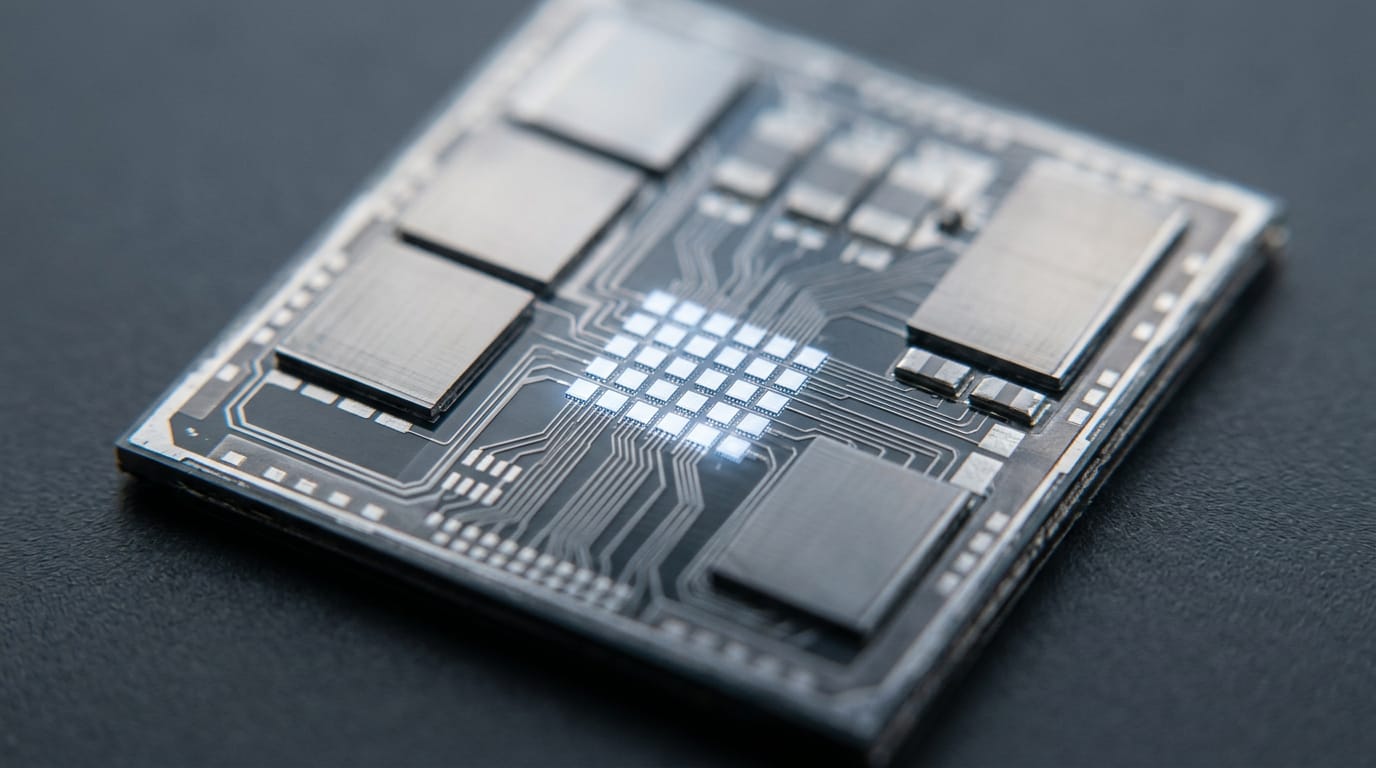
Here’s where the confusion starts. People say “processor” for the chip you can buy, but that chip is built from distinct parts, from the outside in:
- Package: the protective housing you see, with the contacts that connect to the motherboard.
- Die: the flat piece of silicon inside the package that holds the circuitry.
- Core: one processing unit sitting on that die.
So when you shop, don’t rely on the word “processor” alone. Think of a gamer comparing two chips with similar names on a store page.
A quick look at each spec sheet shows which one has the core count they need, so they don’t overpay for the wrong one. Trust the spec sheet, not the name.
How Cores, Threads and Hyper-threading Relate
A core does the work, and a thread is a task it’s handed. Here’s how the pieces fit.
What a software thread actually is
A software thread is one sequence of instructions the operating system (OS) can schedule onto a core. Each program can run several.
A thread is a task, not a piece of hardware, so you can have more threads than cores. Picture a gamer streaming while a game runs: both apps’ threads take turns on the same six cores, and neither usually waits long.
How Hyper-Threading and SMT share one core
Simultaneous multithreading (SMT) lets one physical core run two threads at once. Intel calls its version Hyper-Threading, and AMD calls its version SMT.
The threads share resources like execution units and cache, so you get one physical core with two logical lanes, not two full cores.
The gain depends on the workload. Code that already keeps a core busy sees little lift, while code with frequent waits can gain more. The spec sheet can’t tell you which you’ll get.

Why your OS reports extra logical cores
Six cores with Hyper-Threading or SMT show up as twelve logical cores in your OS. They’re scheduling lanes, not extra physical silicon.
Say a budget builder buys a six-core chip, opens Task Manager, and sees twelve. That’s not a shortchange. Six physical cores do the work, and twelve is how many lanes the OS can use.
Cloud providers use the same idea. A virtual CPU (vCPU) is a share of a host’s processing assigned to your virtual machine, and it may map to a logical core, not a full physical one. Count carefully before comparing plans.
What Happens Inside Each Core
Every core in a central processing unit (CPU) runs the same basic routine.
The parts that make up a core
A core has a few specialized parts:
- Control and scheduling logic: picks which instruction runs next.
- ALU and FPU: the arithmetic logic unit (ALU) handles whole-number math, and the floating-point unit (FPU) handles decimal math.
- Registers: tiny slots holding what the core is using right now.
- Cache: a small, fast memory right beside the core.
Unlike registers, RAM (random access memory) holds what the core might need later.
How L1, L2 and L3 caches are shared
Level 1 (L1) is the smallest and closest to the core, Level 2 (L2) is bigger, and Level 3 (L3) is the largest. L1 and L2 are usually private to each core, while L3 is shared across cores.
According to a research paper on high performance cache replacement, CPU cache size can affect gaming performance, but the effect varies by game and processor.
Picture a player whose city-builder keeps reusing the same data. If that data fits in cache, the core keeps moving; if it spills to RAM, the core waits. Bigger isn’t automatically better. Check how a chip runs the games you play.
Steps a core takes for each instruction
Each instruction moves through three stages:
- Fetch: grab the next instruction.
- Decode: work out what it asks for.
- Execute: carry it out.
That’s simplified: real cores use a pipeline to overlap work, so one instruction can decode while another executes.
When code hits a choice, the core doesn’t know the path yet, so branch prediction makes an educated guess. A wrong guess means throwing that work away.
A cache miss happens when the data isn’t in cache, so the core must wait for it to arrive from RAM.
How Multi-core Chips Run Tasks Together
Your computer rarely runs one thing at a time, and a multi-core chip is built to juggle. Here’s how that work gets shared out.
Spreading tasks across several cores
A multi-core chip has several cores, and each one can work on its own task. A quad-core chip has four, so it can run four tasks at once.
Think of a gamer with a game, a voice chat, a launcher, and several browser tabs open. The operating system can spread those across separate cores, browser tabs included, so the game faces less competition for the chip.
That’s the real payoff: how many tasks can run at once, not just the number on the box.
How your OS divides and switches work
Your operating system (OS) runs the whole machine. It decides which task goes to which core, and it constantly checks what’s ready to run.
It also uses rapid task switching: it swaps a core between tasks many times each second, so a chip with fewer cores than open programs can still keep everything moving.
Why running tasks in parallel has limits
Not every job splits neatly, and some steps have to happen one after another. Three things get in the way:
- Serial steps limit scaling. A chain of one-after-another steps can’t use extra cores, so adding more helps less than you’d hope.
- Tasks must be divisible. A job only spreads across cores if it can be cut into pieces that run independently.
- Shared resources and coordination. Cores share memory and must check in with each other, and that waiting eats into the gain.
Performance and efficient cores compared
Some newer chips mix performance cores for heavy work with efficient cores for lighter background jobs that use less power. That’s called a hybrid design.
Balancing power and performance is the goal, and it’s less about the total count than about where each task lands.
A study titled To Pin or not to Pin: That is the question found that game performance on a hybrid chip can depend on how work is assigned between the two core types.
The study puts it this way: “application characteristics and mapping strategies play a decisive role in overall performance and energy efficiency.”
Picture a player whose game runs its main work on performance cores while a launcher update uses the efficient ones. That’s the kind of placement mapping strategies aim for. Placement matters.
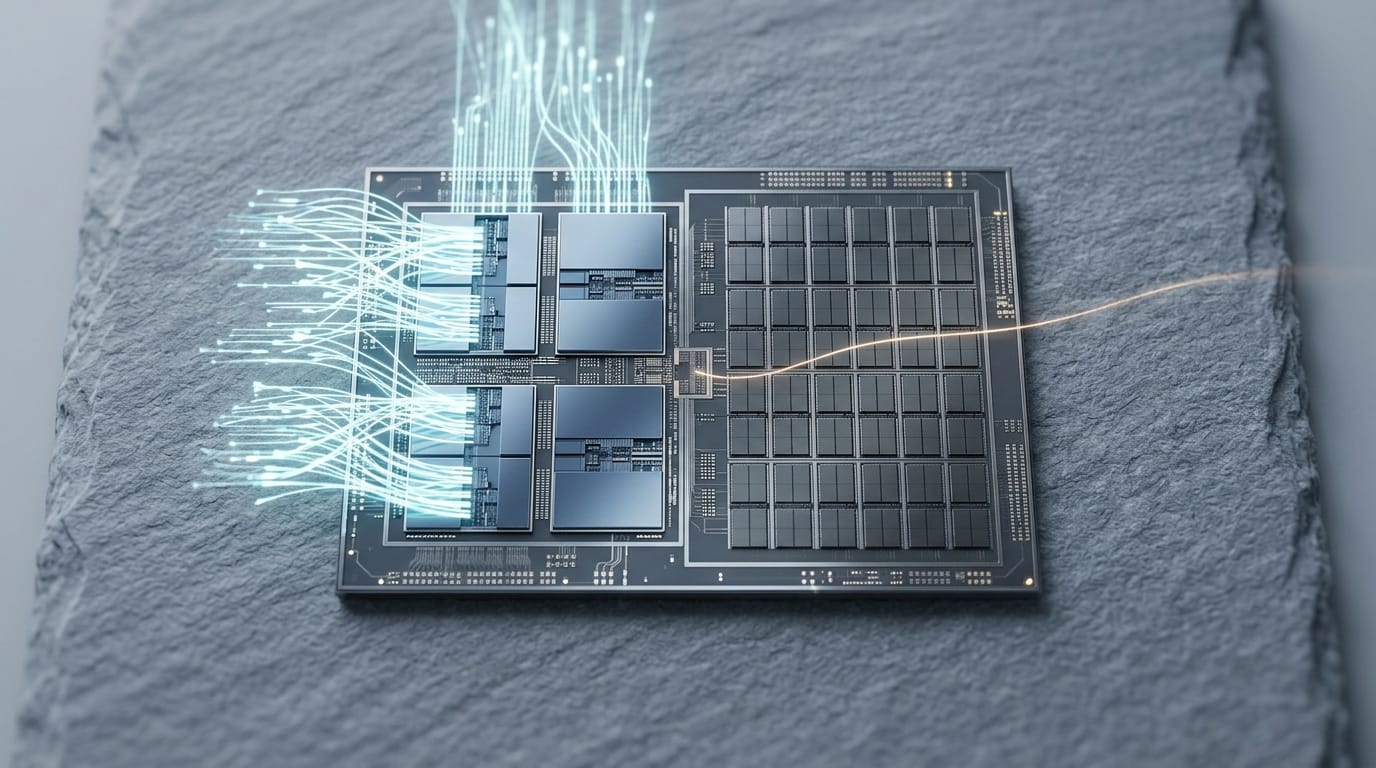
How Core Count Affects Overall Performance
Core count gets top billing on the box, but it’s only one part of the story.
Why extra cores don’t double speed
Twice the cores doesn’t mean twice the speed. A core is one worker inside the central processing unit (CPU), and extra workers only help when the job can be split among them.
More cores let more work happen at once, but they don’t make a single task finish sooner.
If a game’s main loop runs on one busy thread, the other cores sit idle. Other bottlenecks, like a slow graphics card, can cap your frame rate before the processor even gets busy.
How clock speed affects single-thread work
Clock speed is measured in gigahertz (GHz), where one GHz means a billion cycles per second. A higher clock generally finishes a single task sooner, which matters most for light tasks and for the main thread many games depend on.
Chips advertise a boost clock, their top speed in short bursts. The sustained clock is what they hold over a long session. For gaming, sustained speed matters more than peak speed. The headline number is the best case.
Other parts that affect CPU performance
The processor doesn’t work alone. Random access memory (RAM) holds the data your game is actively using, and too little of it slows everything down. Other components have their own jobs, and the PC parts guide shows how they fit together.
- RAM capacity: enough room that the game and background apps stay in memory.
- Memory bandwidth: how fast data reaches the processor once the cores are busy.
- Graphics card and storage: the graphics processing unit (GPU) draws the frames, and a fast drive shortens load times.
Balance matters here too. Every dollar spent on cores is a dollar not spent on the GPU, and at higher resolutions the GPU often sets the pace.
Consider a player who skips the top chip, puts the savings into a stronger card, and gets smoother frame rates at their resolution than a rival with more cores and a weaker one.
How heat and power cap your speed
Heat and power feed each other. Higher clocks push more power through the chip, that power becomes heat, and a hotter chip draws even more power.
When temperatures hit a limit, the chip starts clock throttling, lowering its own speed to protect itself, so your frame rate can sag the longer you play.
Cooling affects sustained speed. A better cooler carries heat away faster, so the chip holds its higher clocks longer. A cooler keeps the chip at the speed it promised.
What dual, quad and octa core mean
The names are simply counts, built from Latin and Greek number prefixes:
- Dual-core: two cores
- Quad-core: four cores
- Hexa-core: six cores
- Octa-core: eight cores
Deca-core means ten, and past that, chips are usually labelled with a plain number, like a 12-core or 16-core. Names don’t rank performance. A newer six-core can outrun an older eight-core, because each core’s design and clock speed count too.
Read the number as a starting point, not a final score.
How Many Cores You Actually Need
Your central processing unit (CPU) runs most of what your computer does, and its cores set how much work it can do at once. More cores isn’t always better, so match the count to your jobs.
Cores for browsing and office work
Browsing, email, and documents are light jobs, and two to four cores handle them without strain. Think of a student buying a laptop for essays and streaming shows. A modest, capable chip leaves more of the budget for a better screen.
Is 8 cores and 16 threads good?
Yes, for most gamers it’s plenty. A thread is a stream of work a core can juggle, so 8 cores and 16 threads means two threads per core.
According to an Estonian study on choosing a desktop processor, the useful number of cores varies by game, and per-core speed matters too.
Its game tests found that cores beyond four added no performance, and clock speed (how fast each core runs) was the main factor in higher frame rates.
Think of a gamer weighing two similarly priced chips: the one with fewer but faster cores usually plays more smoothly. For most games, four to eight cores is the range to aim for.
For a quick gaming value check, divide the core count by the price in Canadian dollars to get cores per Canadian dollar, and a higher number means more cores for your money.
Remember that this ignores speed, so how many cores you get matters less than how fast each one runs.
What CPU has 16 cores and 32 threads?
Some CPUs have 16 cores and 32 threads. One example is AMD’s Ryzen 9 9950X3D2 Dual Edition, which TechPowerUp describes as a 16-core, 32-thread processor built on the Zen 5 microarchitecture (AMD’s core design).
Those chips earn their keep on heavy work like:
- video editing and rendering (building the final video file)
- compiling code
- running virtual machines (software that imitates an extra computer)
Workstations, the high-end desktops built for this work, are where many-core chips make sense, but most gamers won’t need one.
Cores for servers, science and data
Server and data jobs use cores differently:
- Web servers answer many visitors at once.
- Scientific simulations split one huge calculation across cores.
- Databases handle many queries at the same time.
- Machine learning training (teaching a model from data) repeats heavy math across large datasets.
For a home gaming computer, these rarely change the answer.
How to check your core count
On Windows, open Task Manager, click the Performance tab, then select CPU. The Cores figure shows your physical cores, the real hardware, while Logical processors counts each thread as one. Many chips show roughly double the logical count, but not all do.
Model names can look alike yet differ in core count, so check the maker’s spec page for your exact model. Family names aren’t enough.
Getting More from Your CPU
Before you spend anything, fix what’s slowing you down rather than replacing what’s working.
Software and power plan tweaks
Many tips claim you must change the processor count in System Configuration (msconfig) so Windows uses every core. That’s a myth. Microsoft’s Learn Q&A confirms the change isn’t required and warns it won’t improve performance.
A power plan balances speed against energy use, and the High performance plan leans toward speed. Picture a student whose budget PC stutters mid-match. They switch plans, play a few games, and see whether the frame rate steadies.
If it does, they’ve skipped a CPU upgrade.
In the advanced power settings, processor state controls how low and how high Windows lets your CPU run. Leave it alone unless you’re testing a specific problem.
Keeping drivers and Windows updated
Outdated drivers can hold back the parts you already own. Start with Windows Update, which can deliver driver updates, then check the manufacturer’s download page for your graphics card and chipset.
Driver updater tools promise to automate this, but stick with well-known names and read what each one installs.
Hardware upgrades that boost performance
When software fixes run out, these upgrades help most:
- SSD over HDD. A solid-state drive (SSD) loads games and Windows faster than a hard disk drive (HDD).
- More RAM. Random access memory (RAM) holds what’s running right now, so if games stutter with a browser open, more RAM often helps.
- A better GPU. The graphics card (GPU) draws every frame, so a stronger one often gives the biggest frame-rate jump at higher resolutions.
Free first, upgrades second.
A core is one independent worker inside your processor, and knowing how it relates to threads and the chip itself makes any spec sheet easier to read.
More cores only help when your work can be split into pieces, so the right count depends on what you actually run.
For gamers, the goal is a count that fits your games and your budget, not the biggest number on the box. Spend where the performance shows up, and let the rest of your money go toward the parts that matter most.
Buy the cores your games will use, not the ones you’ll never touch.
References
- To Pin or not to Pin: That is the question — doi.org (2025)
- High performance cache replacement using re-reference interval prediction (RRIP) — doi.org (2010)
- Protsessori valimine lauaarvutisse jõudlustestide ja mängude testimise põhjal — hdl.handle.net (2018)
- AMD Announces Ryzen 9 9950X3D2 Dual Edition Desktop Processor with 192 MB L3 Cache — techpowerup.com (2026)
- what does Number of Processors mean in Advanced Options … — learn.microsoft.com (2025)
Questions
How many cores are good in a CPU?
For everyday browsing and office work, two to four cores are usually enough; most gamers should aim for four to eight. More cores help when your tasks can run in parallel, but per-core speed and your workload matter too.
How many threads are on my CPU?
On Windows, open Task Manager, choose Performance, then CPU. The Cores figure shows physical cores, while Logical processors shows the operating system’s available hardware threads; check your exact CPU model on the manufacturer’s specifications page as well.
What's the difference between a core and a CPU?
A CPU is the complete processor chip that runs instructions, while a core is one processing unit inside it. A CPU can contain one or many cores.
What does "core" mean?
A core is a physical processing unit inside a CPU that carries out program instructions. Multiple cores can work on separate tasks at the same time.
Does 4 cores mean 4 CPUs?
No. Four cores means one CPU chip contains four physical processing units, not four separate CPUs.
What does 6 cores and 12 threads mean?
It means the CPU has six physical cores and supports twelve hardware threads, usually through simultaneous multithreading. The two threads on each core share core resources, so they are not equivalent to twelve physical cores.
What CPU has 16 cores and 32 threads?
AMD’s Ryzen 9 9950X3D2 Dual Edition is one example of a CPU with 16 cores and 32 threads. CPUs with that configuration are also suited to demanding work such as rendering, code compilation, and running virtual machines.
Is 8 cores and 16 threads good?
Yes. Eight cores and 16 threads is plenty for most gamers, as well as demanding multitasking. Performance still depends on per-core speed, the games or programs you run, and the rest of your system.
Sources
- AMD Announces Ryzen 9 9950X3D2 Dual Edition Desktop Processor with 192 MB L3 Cache | TechPowerUp, techpowerup.com,
- what does Number of Processors mean in Advanced Options ..., learn.microsoft.com,
- High performance cache replacement using re-reference interval prediction (RRIP), doi.org,
- Protsessori valimine lauaarvutisse jõudlustestide ja mängude testimise põhjal, hdl.handle.net,
- To Pin or not to Pin: That is the question, doi.org,
Free · The Build Sheet
The Build Sheet: three gaming PCs priced at Canadian stores