Computer Stuck on Motherboard Screen: Fixes That Work
A computer stuck on the motherboard screen may have a fixable cause. Follow checks from memory and graphics card to drives, then use Windows recovery tools.

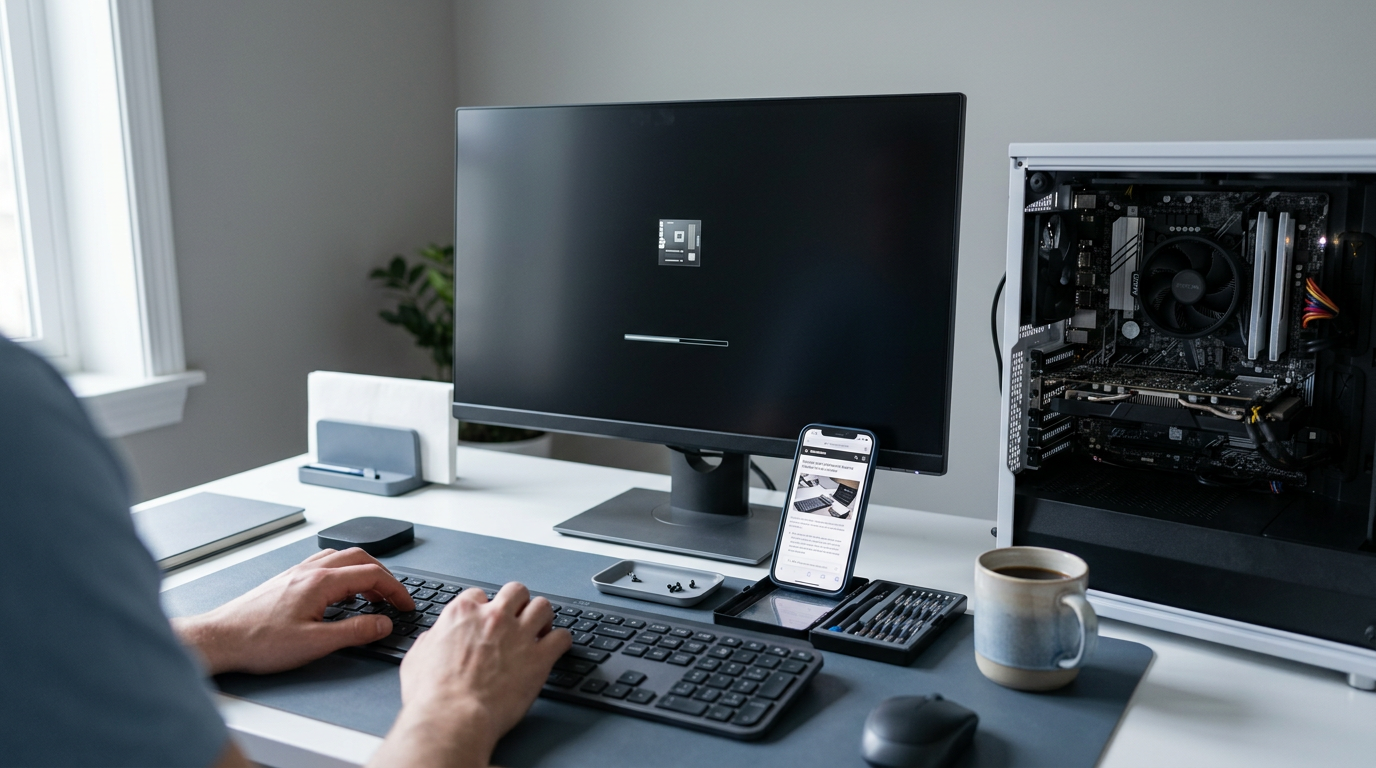
A computer stuck on the motherboard screen has powered on but cannot finish its startup checks or begin loading Windows. The cause may be a boot setting, connected device, loose cable, unstable or failing hardware, or damaged Windows startup files, so start with simple checks, then troubleshoot settings, components, and recovery tools in order. Testing one change at a time helps identify the fault, avoid unnecessary part replacements, and protect your files.
Picture starting your car on a cold morning. The engine turns over and the dashboard lights up, but the car just sits there and won’t go anywhere.
That’s exactly how a PC feels when it freezes on the motherboard logo: the fans spin and the lights glow, yet the screen never moves past that first splash.
The good news is that this usually points to a fixable problem, not a dead machine.
We’ll cover the causes from simplest to hardest, starting with quick checks and moving to the gaming parts that often cause trouble: memory, graphics card, power supply, and drives.
Why Computers Get Stuck on Motherboard Screen
When your PC freezes on the motherboard logo, it’s trying to tell you something. Here’s how to read it.
What the POST screen is telling you
The logo is the power-on self-test (POST) screen or a splash screen, and both come before Windows loads. If Windows’ loading dots never show up, the problem is about reaching Windows, not working inside it.
That narrows it to the BIOS (Basic Input/Output System) or a hardware part the board is checking.
Many boards also show debug LEDs (light-emitting diodes that flag faulty parts) and beep codes, so check your manual for what each one means.
Wrong BIOS settings that block startup
A single BIOS change can keep your PC from reaching Windows:
- Wrong boot order. The board tries a drive with nothing bootable on it.
- Unstable overclock or XMP. XMP (Extreme Memory Profile) and AMD’s EXPO push your RAM (random access memory) past its default speed, and an unstable setting can hang the boot.
- Disabled storage controller. The BIOS can’t see your drive while its controller is off.
- BIOS settings changed. A stray keypress or firmware update can quietly flip options.
Take a gamer who turns on a memory profile for faster frame rates. The next restart hangs on the logo, and turning that profile off is often all it takes.
Loose cables, USB clutter, and failing parts
Loose RAM or cables can stop a boot cold, so reseat your memory sticks and check every connection. USB (Universal Serial Bus) devices can scramble the boot order, so unplug any flash drives you don’t need while you test.
Overheating and damaged parts are trickier. A component running too hot can stall the startup check, and a failing drive or RAM can leave the board stuck while it tries to read a part that’s giving out.
Broken boot files, drivers, and malware
These hit the files Windows needs to start. Corrupt boot files or Boot Configuration Data (BCD) can stop a PC right after the logo, and so can damage to the Master Boot Record (MBR) or GUID Partition Table (GPT).
An interrupted Windows update can leave startup files half-finished, bad drivers can fail during load, and malware or a virus can tamper with boot files. Say a gamer’s PC shuts off mid-update, and every boot hangs on the logo afterward.
Find the broken file, and the logo gives way to Windows.
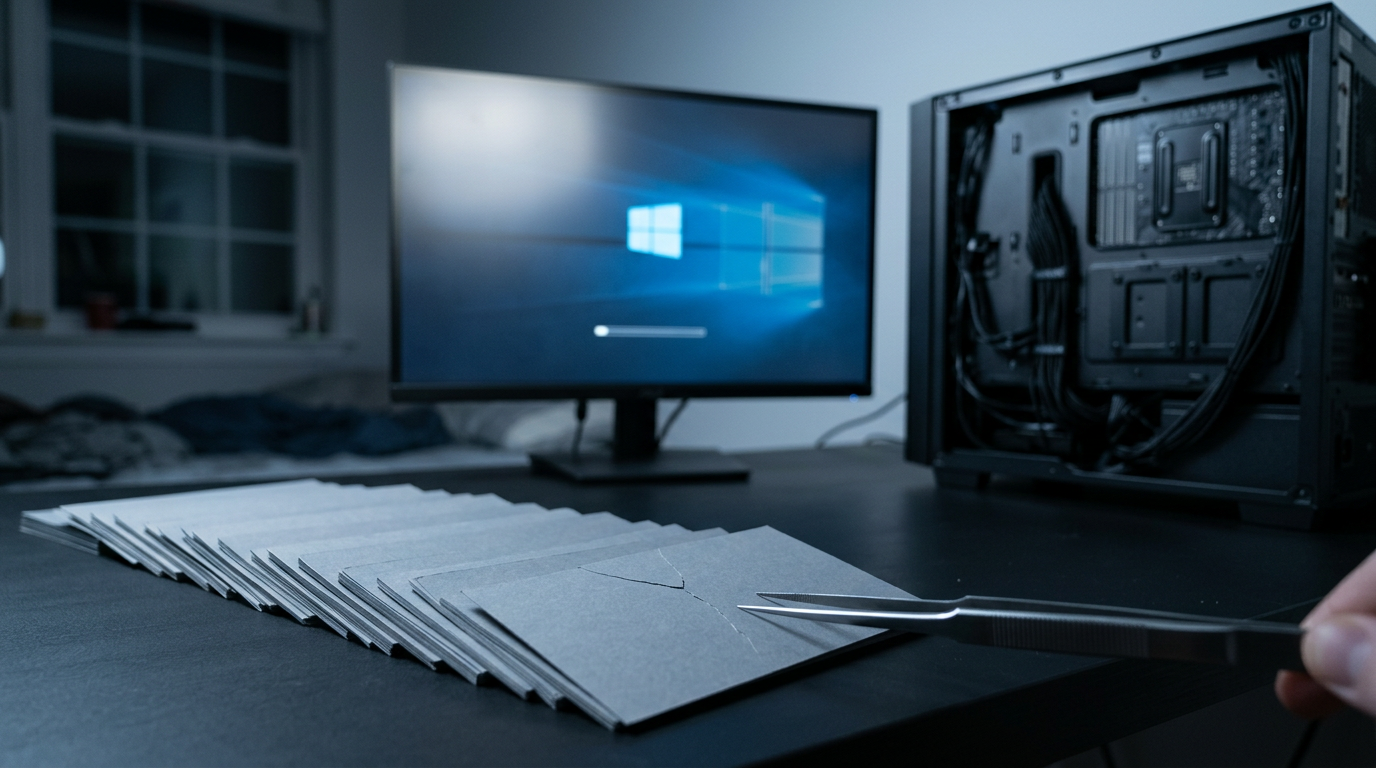
How to Fix a PC Stuck on Loading?
Fixing a PC stuck loading usually comes down to a device in the way or a setting out of sync. Start with the quickest checks and stop as soon as you’re past the logo.
Force a reset and unplug extra devices
- Force shutdown. Hold the power button until the PC turns off, then start it again.
- Unplug non-essential USB (Universal Serial Bus) devices. Keep only your keyboard and mouse connected.
- Reconnect devices one by one. Restart after each. The one that brings the hang back is the culprit.
Picture a gamer who adds a racing wheel and a USB hub, then gets stuck on the logo. Unplugging everything but the keyboard and mouse, then adding devices back one at a time, pins the problem on the hub without touching a single setting.
Reset the BIOS back to defaults
Check the BIOS (Basic Input/Output System, your motherboard’s settings program). Resetting it changes settings, not your files, so your data stays untouched.
- Load optimized defaults. Pick this option in the BIOS menu.
- Turn off overclocking and XMP. XMP (Extreme Memory Profile) pushes memory past its standard speed.
- Re-set the date and time. A reset can wipe the clock.
Once the PC starts normally, turn XMP or EXPO (AMD’s equivalent, Extended Profiles for Overclocking) back on to retest. If the hang returns, leave it off.
Set your Windows drive to boot first
Restart and tap F2 or Del during startup to enter the BIOS. You’ll find the boot order list, so move your Windows drive to the top, then save and exit. The exact key varies by board, so check the prompt on screen.
A failed USB boot causes the hang: if a USB stick sits first in line, the PC keeps trying to start from it and stalls on the logo. Unplug it. Windows goes first.
Hardware Fixes You Can Try
Work from quickest to most involved, and stop once the PC clears the logo. Reaching the logo means it isn’t bricked (permanently dead).
Reseat the RAM, drives, and cables
Start with loose connections:
- Power off, unplug, and touch the metal case to drain static.
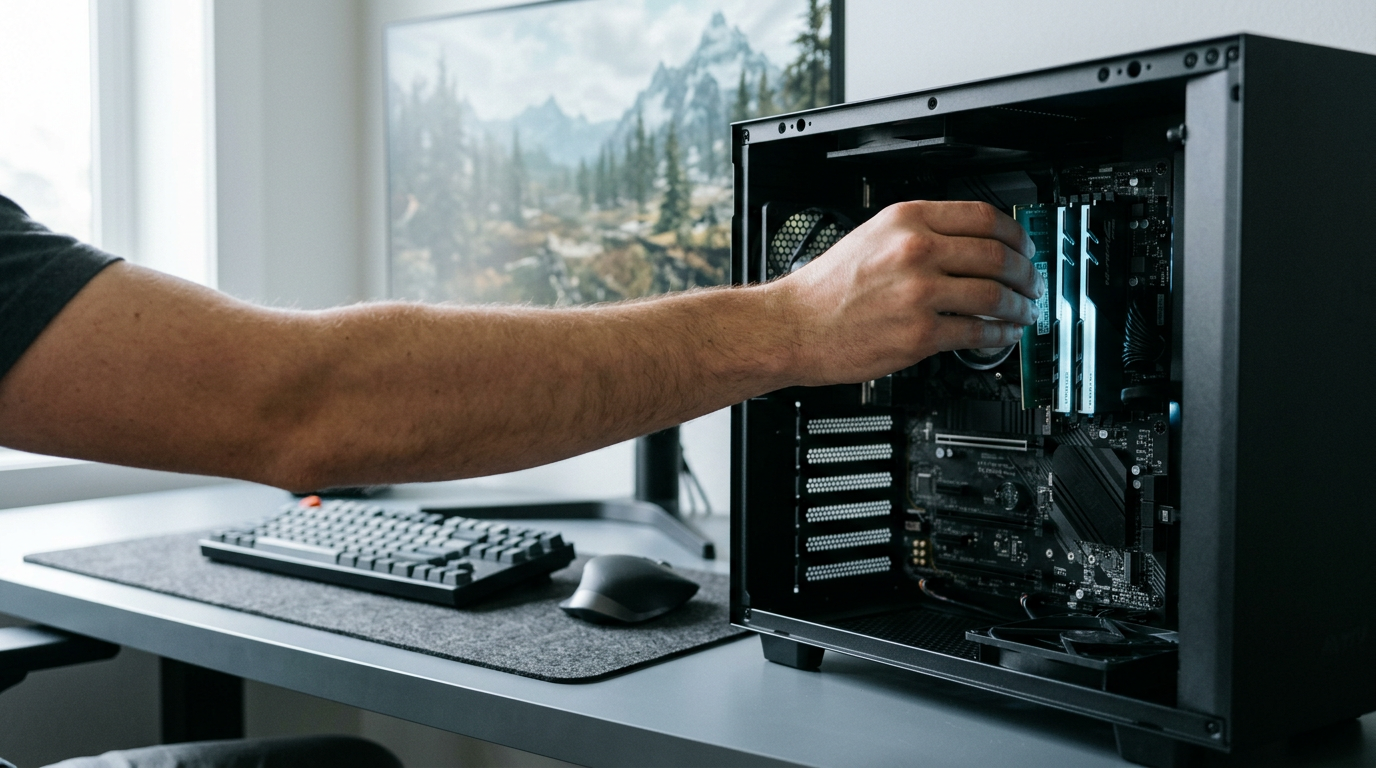
- Reseat each RAM (memory) stick until its clips snap shut.
- Run a minimal-boot test with one stick and no graphics card, using the motherboard’s video port if your processor has one.
- Recheck SATA and NVMe (storage drive) connections.
- Press the GPU (graphics card) firmly into its slot, and reseat the power cables.
A gamer whose build stalls after adding a second stick can test each stick alone and spot the bad one in minutes. Reseating costs nothing, so reseat before you replace.
Clear the CMOS by pulling its battery
If it still hangs, reset the saved settings. The CMOS battery is the small coin cell that keeps your BIOS (startup settings) saved while the PC is off.
- Power off, locate the battery, and remove it for one to five minutes.
- Or, if your board has a CLRTC jumper (pins you move to clear settings), use that instead.
- Reinsert the battery, then reconfigure the BIOS.
You’re resetting settings, not erasing your files.
Can bad RAM cause a PC to freeze?
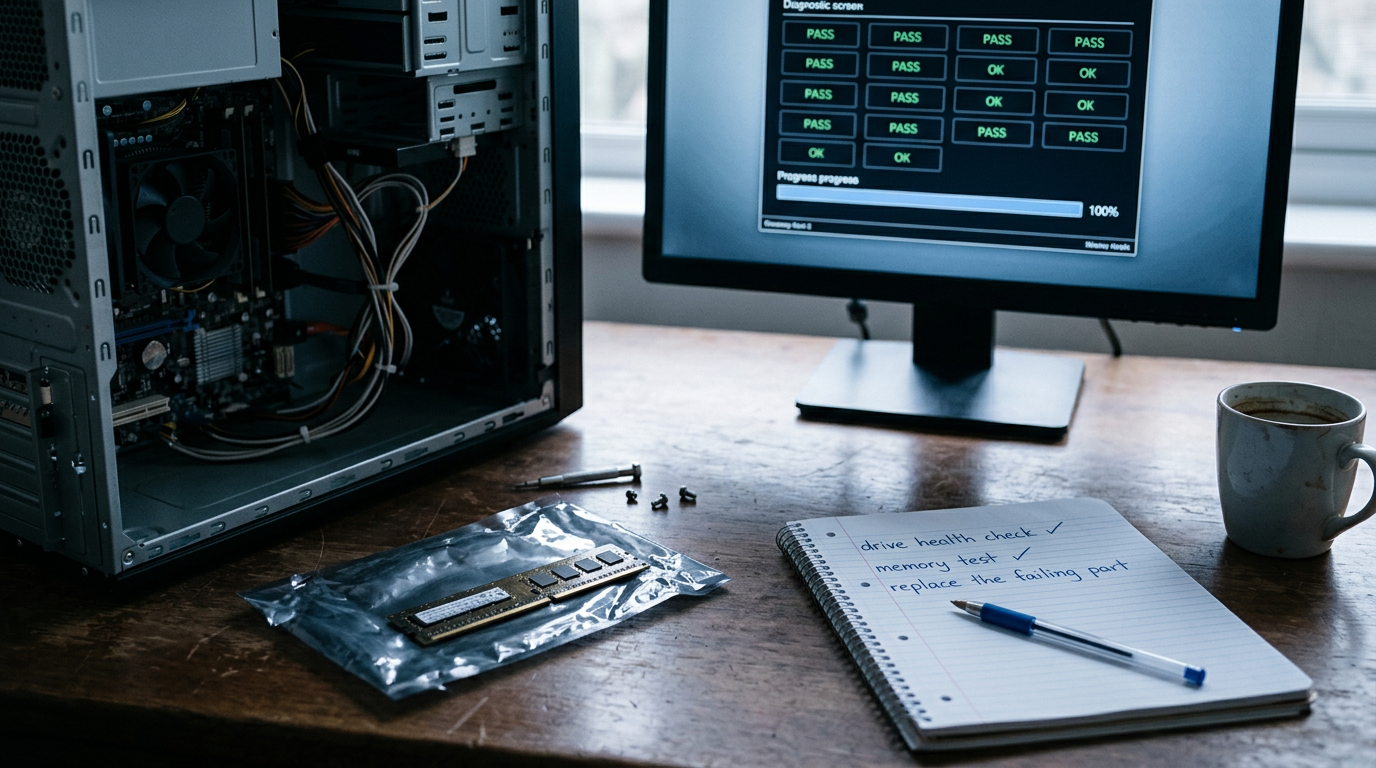
Yes. A failing stick can cause freezes and hangs, logo stalls included. Check drives with your vendor’s SMART tools (built-in health checks), since a bad drive can stall startup too.
For memory, run MemTest86 overnight, and you’ll have a clear answer by morning. Replace only the failing part, or let a service center handle the swap. If the hang survives every step above, the motherboard is the likely suspect.
Repair Windows with Its Recovery Tools
Windows has built-in repair tools, so work through them from gentlest to most drastic.
Getting into Windows Recovery
Windows opens its repair menus when startup fails, so you’ll trigger that on purpose. Power on, then hold the power button to shut down as soon as the Windows logo appears.
Do this three times, and on the third interruption, Automatic Repair should appear.
No luck? Make a USB (Universal Serial Bus) installer on a working PC and boot from it, choosing the repair option instead of installing.
Try Startup Repair and System Restore
Start with Startup Repair under Advanced options. It tries to fix whatever keeps Windows from loading, so let it run first.
Next, try System Restore and pick a restore point (a saved snapshot of system files and settings) from before the issue, not the newest, since that may already hold the bad change. Your personal files stay untouched.
Clean up recent changes in Safe Mode
Boot into Safe Mode from Startup Settings, which loads only basic drivers so you can undo recent changes:
- Roll back drivers. If the hang followed a driver update, use Roll Back Driver in Device Manager.
- Uninstall recent updates. Remove the newest ones through Windows Update history.
- Remove recent programs. Uninstall anything installed just before the problem.
Picture a gamer who updates a graphics driver the night before a ranked match, then finds the PC stuck on the logo. Rolling that driver back gets them into the game without a reinstall. Fix the change, not the whole machine.
Fix problems with chkdsk, bootrec, SFC, DISM
Begin with chkdsk (check disk), which scans your drive for errors. Run chkdsk c: /f from the Command Prompt to fix what it finds.
Next, bootrec (boot record repair) has three switches worth trying:
bootrec /fixmbrrepairs the master boot record (MBR), which tells the PC where to load Windows.bootrec /fixbootwrites a fresh boot sector.bootrec /rebuildbcdrebuilds the boot configuration data.
Here’s the catch: fixmbr only suits drives with the older MBR layout. Many newer PCs use GPT (GUID Partition Table) with EFI (Extensible Firmware Interface) boot, where fixmbr won’t help. Check your layout in Disk Management first.
Finally, run an SFC (System File Checker) scan to swap out corrupted system files. If it can’t fix everything, follow up with a DISM (Deployment Image Servicing and Management) scan.
Reinstall Windows fresh from a USB drive
If nothing above works, a clean install is the last resort. On a working PC, use Microsoft’s Media Creation Tool to build a USB installer, then boot the stuck PC from it and install Windows fresh.
This bypasses corruption, since the new copy doesn’t rely on damaged files.
Back up first, though: a clean install can wipe the drive Windows lives on. If the fresh install also hangs on the logo, that suggests a hardware fault, so check your memory (RAM), drives, and power supply next.
What Other Users Have Reported
Before you change a setting, it helps to know how this hang shows up and what others already tried.
Hangs that come and go before booting
The hang doesn’t always look the same. During the power-on self-test (POST), the stage where your motherboard checks its hardware, reports describe a few patterns:
- Stuck on splash screen: the logo stays up and nothing moves on.
- Boots after 15 minutes: the PC starts eventually, after a wait that makes it look dead.
- Needs multiple reboots: it fails once or twice, then starts normally.
- BIOS keys unresponsive: the key for the BIOS (Basic Input/Output System) does nothing while the logo is up.
The useful question is when it hangs, not just whether it does. Take a gamer who builds a new rig for weekend games with friends. The logo sits for fifteen minutes, the desktop finally appears, and the next morning it happens again.
Writing that pattern down narrows the fixes fast. Waiting it out works once. It doesn’t fix anything.
Fixes people already tried
These range from quick checks to settings changes:
- SFC and DISM scans: SFC (System File Checker) and DISM (Deployment Image Servicing and Management) repair damaged Windows files, but they can’t help if the hang happens before Windows loads.
- BIOS and Windows updates: Updating BIOS firmware or Windows is a natural next step, since either can change how the board starts.
- Unplugged power: Shut down, unplug the power cord, and wait a moment. It costs nothing, so the gamer from earlier should start here.
- CMOS battery not removed: Some attempts never pulled the CMOS (complementary metal-oxide-semiconductor) battery, the small coin cell that stores BIOS settings, so old settings stayed put.
Preventing It and Getting Expert Help
Most of these hangs are avoidable. Here’s what we’d keep in mind before the next one shows up, and when to call in help.
Habits that keep this from happening
- Shut down Windows properly. Use the Start menu instead of the power button, so Windows can close files and settle cleanly.
- Update your BIOS (Basic Input/Output System) from the official site. Download only from your motherboard maker’s support page, and follow its steps exactly.
- Check XMP (Extreme Memory Profile) stability. That setting runs RAM at its rated speed. Picture a gamer who enables it for new RAM, then hangs on the logo screen after a restart. Turning it off tests the cause.
- Make restore points and backups. Set them up before you install drivers or change settings, not after the screen won’t load.
- Check cables when moving PC. Photograph the connections before you lift the case, then confirm every cable is seated firmly afterward.
When to call a professional
Some fixes are worth patience, but others belong with a pro. Think of a gamer who can swap a GPU but freezes at the thought of unplugging the motherboard. Know your limits.
- Uncomfortable opening the case. If you don’t feel steady around the parts, a repair shop can do the hands-on work.
- EFI (Extensible Firmware Interface) partition issues. This small drive section holds the files Windows needs to start. Damage there calls for disk tools that are easy to get wrong.
- Avoid causing further damage. A wrong move can turn a fixable hang into a dead board or lost files. Stop when you’re unsure, because pausing early beats fixing late.
A PC stuck on the motherboard logo can feel like a dead end, but it’s rarely a mystery when you work through the causes in order.
Start with the simplest checks, then move on to the memory, graphics card, power supply, and drives that matter most for gaming.
Resist the urge to replace parts before you’ve tested them. A methodical approach saves you money and gets your rig back to the desk faster than guessing ever will. Work through the list in order, and your games will be running again before you know it.
Questions
How to fix a PC stuck on loading?
Hold the power button to shut the PC down, then restart it with nonessential USB devices unplugged. If it still hangs, reset BIOS settings to defaults, make sure the Windows drive is first in the boot order, and reseat RAM, drive, and power connections. If Windows begins loading but will not start, try Windows Recovery’s Startup Repair or System Restore.
How to tell if a computer is bricked?
A PC that displays a motherboard logo, powers on, or reaches BIOS is not completely bricked. A truly dead system typically shows no signs of power and cannot reach BIOS or display anything, though a failed power supply, motherboard, or other part can mimic that. Check power connections and diagnostic lights or beep codes before concluding the PC is beyond repair.
How do I know if I killed my motherboard?
A motherboard may be faulty if the PC has no display or power despite a known-good outlet, power cable, and power supply, or if its diagnostic lights or beep codes point to the board. A startup hang alone does not prove the motherboard is dead; loose parts, RAM, drives, BIOS settings, and the power supply can cause similar symptoms. Test connections and components before replacing the board, or have a technician diagnose it.
Can bad RAM cause a PC to freeze?
Yes. Faulty or unstable RAM can cause a PC to freeze, fail to start, or hang on the motherboard logo. Reseat the memory and test one stick at a time; a memory test such as MemTest86 can help identify a failing stick.
My Windows 7 computer is stuck on the welcome screen. How can I fix it?
Try starting the computer in Safe Mode, then disconnect unnecessary USB devices and remove recently installed drivers or updates. If Windows still will not load, interrupt startup three times to open Automatic Repair and run Startup Repair or System Restore. Windows 7 is no longer supported, so back up important files and consider upgrading to a supported Windows version.
What to do if PC freezes during factory reset?
Give the reset time to finish, and keep the PC connected to power. If it remains frozen for an unusually long time, force it off by holding the power button, then restart and try Windows Recovery or reinstall Windows from installation media; a reset interrupted midway can leave Windows unable to start. Back up important files when possible, and seek professional help if the PC repeatedly freezes during recovery or shows signs of hardware trouble.
Free · The Build Sheet
The Build Sheet: three gaming PCs priced at Canadian stores