What Is a Motherboard? How It Connects Your Whole PC
What is a motherboard? See how it connects your PC’s parts, read key specs, and choose the board tier your build needs in Canadian dollars.

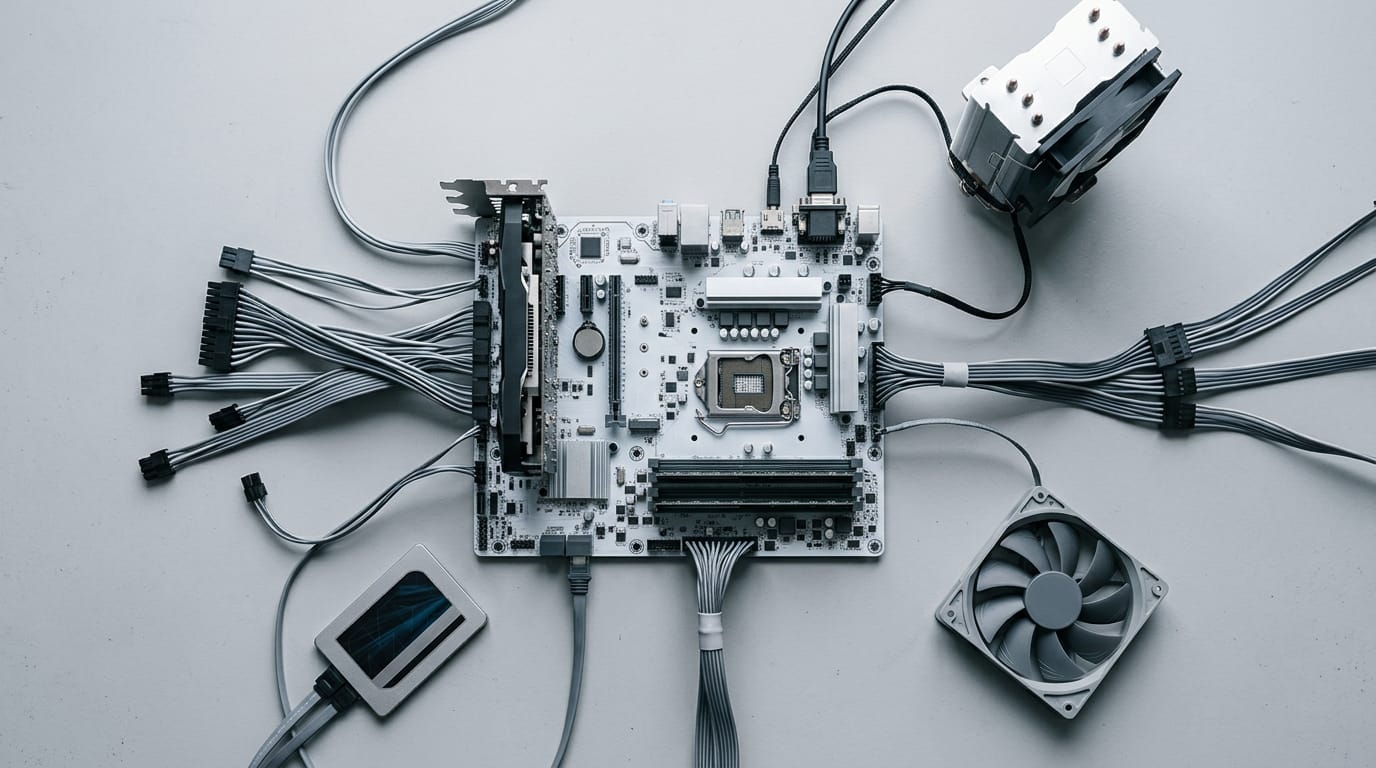
A motherboard is the computer’s main circuit board, connecting and supplying power to the processor, memory, graphics card, storage, and other components. Its socket, chipset, size, slots, and ports determine which parts fit and what you can add, while higher tiers generally provide more features rather than faster gaming. Choose a board that matches your components, case, and actual needs, since the most expensive option is rarely necessary.
Think of a motherboard as the floor plan of your computer. Every room connects to the hallway, and the hallway decides how everyone moves around.
In plain terms, a motherboard is the main circuit board that links your processor, memory, graphics card, and storage so they can work together. Its specs decide what you can install and how smoothly it all runs.
In this post, we’ll cover what each part does and how to read the specs, then show which board tier a gaming build actually needs in Canadian dollars.
What Is a Motherboard and Its Role
Your processor, memory, and graphics card all need a way to talk to each other. That’s the job of the motherboard, the first part we’ll look at before you spend on anything else.
The main circuit board in your case
Picture a player dropping a new graphics card into an older tower. That card has to reach the central processing unit (CPU) and memory, and every link runs through the motherboard.
It’s the main printed circuit board (PCB) in your case and usually the largest board in the chassis. It’s the electrical and physical foundation of your computer, carrying signals and giving each part a fixed place to sit.
Can a computer run without one? Not really. A personal computer (PC) without one has no way to link its parts together, so it can’t run. No board, no computer.
Other names you’ll see for it
You’ll see this board called several things, all pointing to the same part. Mainboard is one, logic board is another, and mobo is the casual shorthand. The term dates back to 1965, and you may also run into IBM planar or Intel baseboard.
In embedded devices, the computers built into other equipment, it’s typically called the mainboard. Whatever the name on the box, it’s the same board.
How it differs from a backplane
A backplane only connects other boards through its sockets. A motherboard hosts the CPU itself, so it’s the base the whole computer is built on.
The jobs it handles inside a PC
Its job isn’t to do each part’s work but to make sure every part can reach the others. It handles five jobs that keep your build running:
- Power distribution. It routes electricity to each component that needs it.
- Component communication. It carries signals between the CPU, memory, graphics card, and storage.
- Data flow management. It keeps information moving between parts in an orderly way.
- Reliability and performance foundation. A sound board gives every other part a stable base to perform on.
- Saves assembly effort. Because the parts share one board, builders have fewer separate connections to make by hand.
Nothing else in your build works without it.
The Parts You’ll Find on the Board
The motherboard is the large circuit board tying a PC together, and knowing its parts makes spec sheets easier to read.
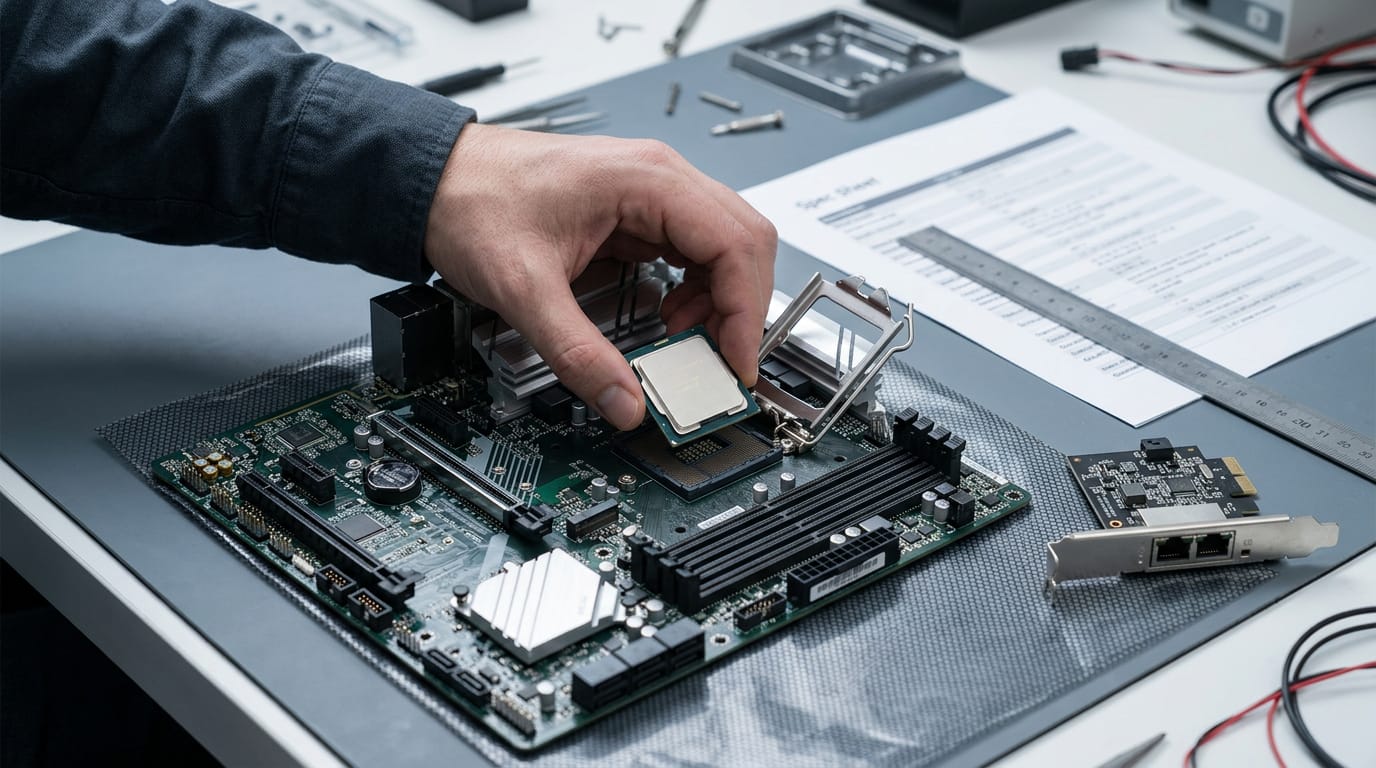
The processor and the socket holding it
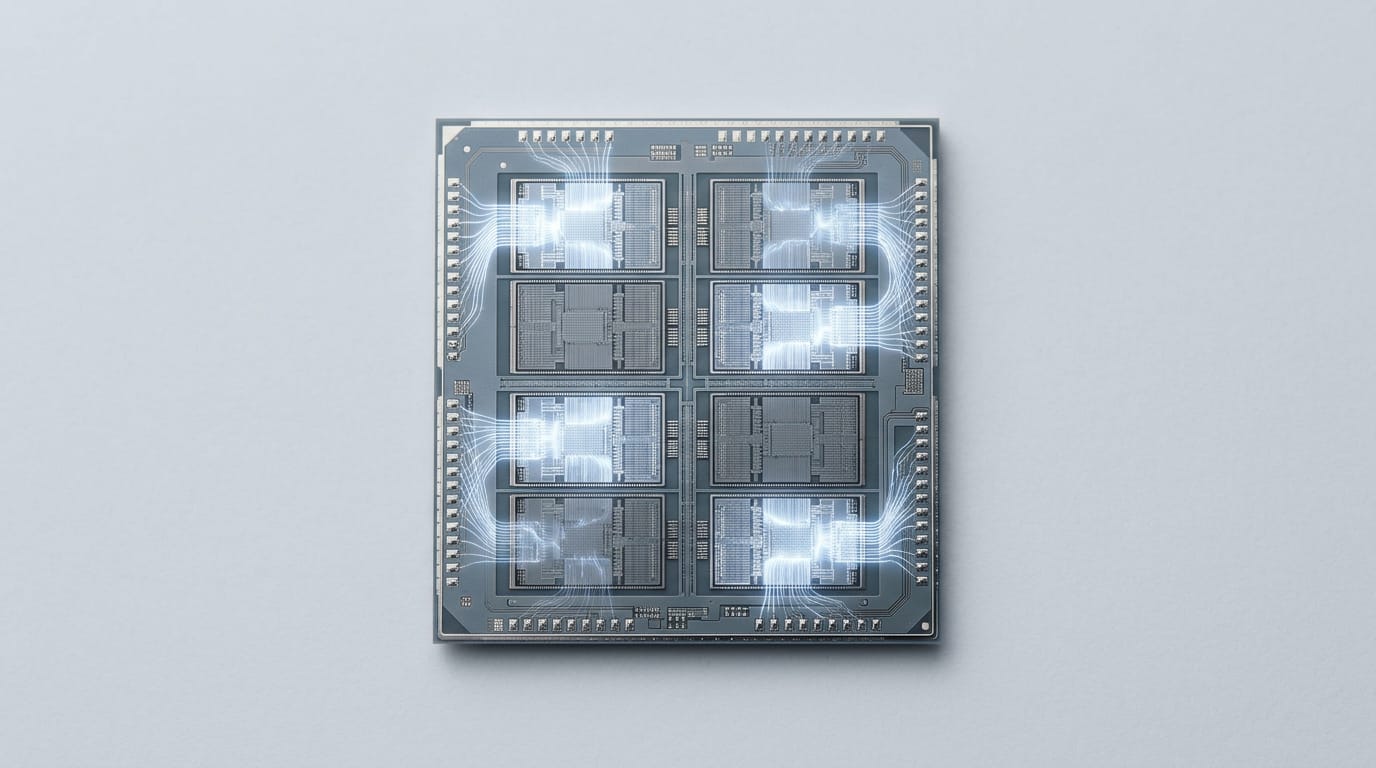
The central processing unit (CPU) is the computer’s brain, and it sits in a socket that links it to the board. The socket decides which processors fit, not how fast they run.
LGA (land grid array) sockets keep the pins on the board, while AM sockets serve AMD (Advanced Micro Devices) chips, so one family won’t fit the other’s processors.
Some processors are soldered straight onto the board in a BGA (ball grid array) design, so they can’t be swapped later. Most have multiple cores, several processing units that work at once.
RAM slots and how memory is arranged
RAM (random access memory) is the computer’s temporary workspace. Sticks go into DIMM (dual inline memory module) slots. Fill the recommended pair of slots and the board can run dual-channel mode, which reads memory over two paths at once.
DDR (double data rate) names the generation, and its notch stops mismatched sticks from fitting. It’s less about how much memory you own and more about where you put it.
A player who adds a second stick beside the first may quietly stay in single-channel mode. Check the manual, match the pair, and you’re done.
How the chipset shapes what you get
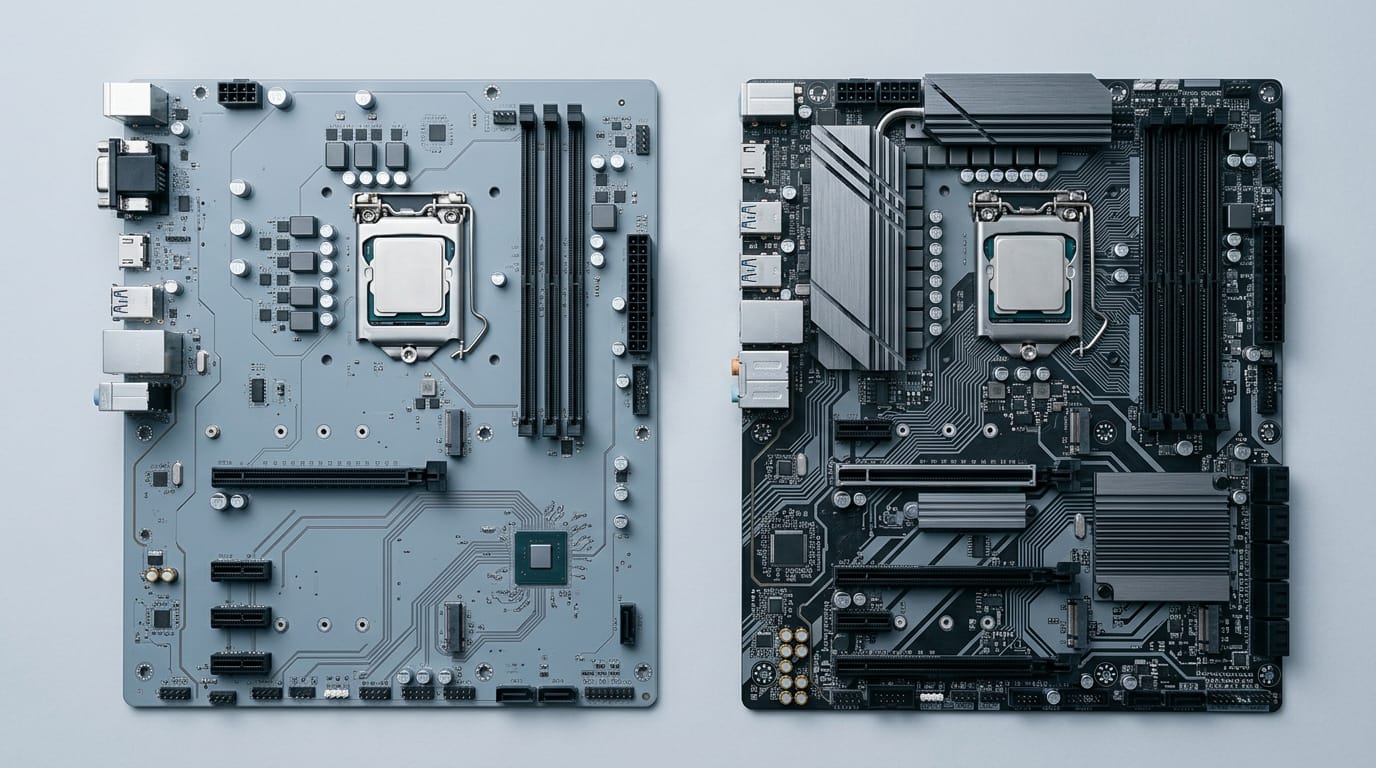
The chipset is the set of controller chips linking the processor to the board’s buses, the data pathways to drives and ports.
Older boards split that work between a northbridge for the fastest links and a southbridge for slower devices, though newer designs fold much of it into the processor. The chipset sets your features and capabilities.
Boards come in performance tiers, and higher tiers buy you more connections, not a faster processor.
Adding graphics, sound and network cards
PCIe (Peripheral Component Interconnect Express) slots take expansion cards. The long x16 slot holds your GPU (graphics processing unit), while shorter x1 slots suit sound and network cards.
Multi-GPU setups, two graphics cards working together through SLI or CrossFire, aren’t needed by most gamers, so skip them.
Legacy PCI (Peripheral Component Interconnect) and AGP (Accelerated Graphics Port) are older designs that only matter for reused parts. For gaming, you’ll mostly use the x16 slot and an M.2 slot, a small socket for a stick-shaped drive.
Connecting hard drives and SSDs
SATA (Serial ATA) ports connect drives with cables. An HDD (hard disk drive) is affordable for bulk storage but slow for games, while an SSD (solid-state drive) loads them much faster.
Many NVMe (Non-Volatile Memory Express) drives plug straight into M.2 slots, though not every M.2 slot supports them. Optical drives also use SATA.
A player building a first gaming PC puts the operating system and favourite games on an NVMe drive, then keeps an older SATA hard drive for screenshots. Games launch faster, and the old drive still earns its keep.
The back ports and smaller connectors
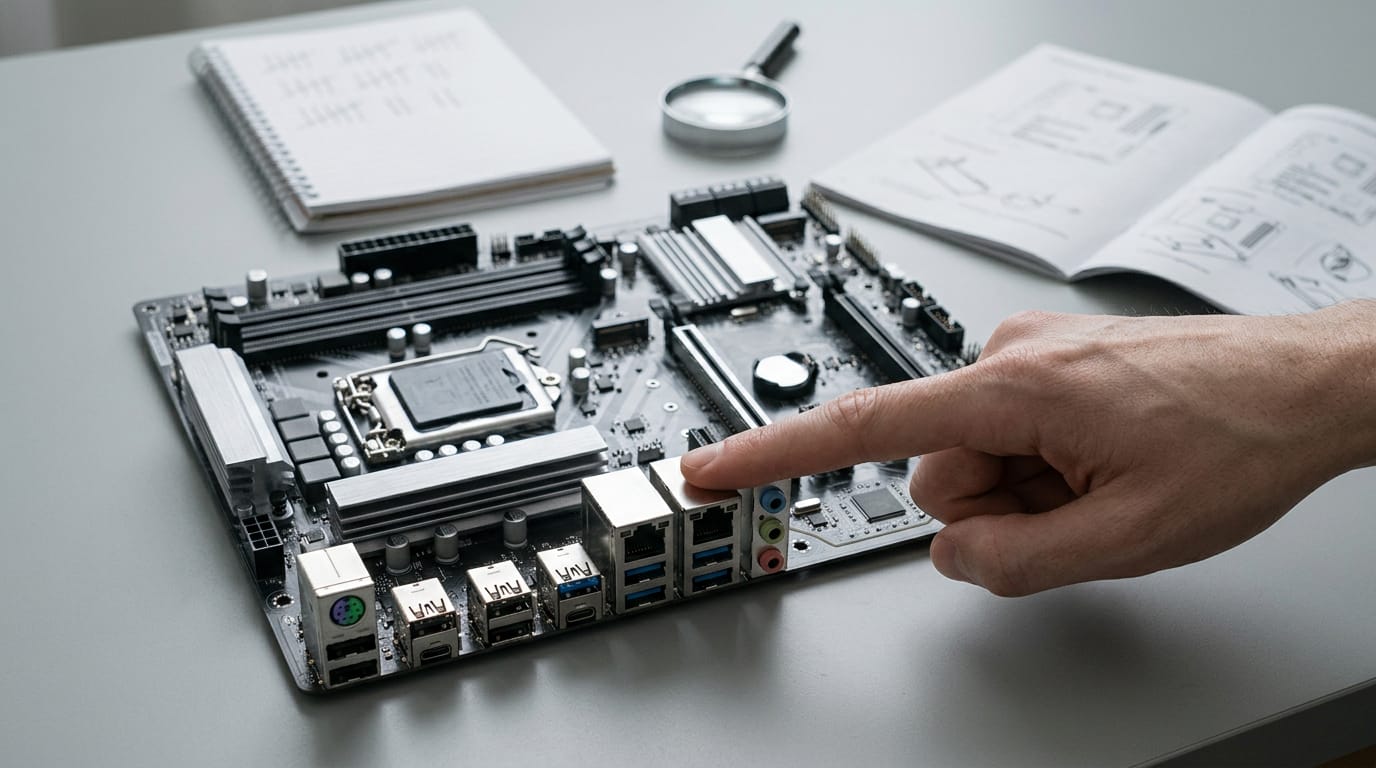
The rear I/O panel (input/output) holds the ports on the back of the case, including USB (Universal Serial Bus) and, on some boards, round PS/2 ports for older keyboards. The number of USB ports on your board matters once you start adding more peripherals.
- Power connectors: a large main plug and a smaller one for the processor.
- Front panel connectors: small header pins for the power and reset buttons and status lights.
- CMOS battery: a coin cell that powers the CMOS (complementary metal-oxide-semiconductor) memory, keeping basic settings when the PC is unplugged.
- Integrated Wi-Fi and Ethernet: many boards include wireless and a wired Ethernet jack, so you may not need an extra card.
How a Motherboard Moves Power and Data
Every part on your board, from the central processing unit (CPU) to random access memory (RAM), needs power and a way to talk to the others.
How power reaches the CPU and RAM
Your power supply feeds the board, but the voltage regulator modules (VRMs) decide how that power reaches each part. Think of a gamer who pushes their processor hard: when the VRMs run hot, the voltage wobbles and the game stutters mid-match.
Boards with stronger VRMs keep that power steady. The VRMs don’t create power. They manage it, stepping it down to safe voltages and routing it to the CPU socket and memory slots. Steady power is the quiet foundation.
How data travels between components
Data moves along buses, shared pathways that link the processor, memory, storage, and expansion slots. For fast traffic, the board uses PCIe (Peripheral Component Interconnect Express) lanes, each a pair of data paths.
Consider a gamer who adds a new graphics card and a fast solid-state drive. On most boards, each gets its own lanes, so the two don’t fight over the same path. The real question is how fast each device moves data, not how many slots it fills.
The chipset handles slower input and output traffic: back-panel ports, storage drives, audio, and much of the networking. It sits between the processor and those devices, so the fast lanes aren’t tied up with every mouse click.
Older boards split the chipset into two chips. The northbridge tied the processor to memory and fast slots, while the southbridge handled slower peripherals.
Much of the northbridge’s job has since moved onto the processor, and today the chipset does the southbridge’s work.
What Happens When You Power On
Hit the power button and a lot happens before anything reaches your screen.
How BIOS and UEFI start your hardware
Your board’s startup code lives in firmware. Older boards run the BIOS (Basic Input/Output System), and newer ones run UEFI (Unified Extensible Firmware Interface), its successor. Either way, the firmware does the same core work:
- Initializes hardware. It wakes up your processor, memory, and storage so they’re ready to go.
- Loads the operating system. Once the hardware checks out, it passes control to the operating system, the software that runs your apps.
This firmware sits in non-volatile memory, a chip that keeps its contents with the power off, so it’s ready the moment you flip the switch. Its settings, like boot order and memory speed, are yours to change.
The firmware cares less about how fast your games run and more about whether your hardware is ready to run them.
Startup self-tests and where settings live
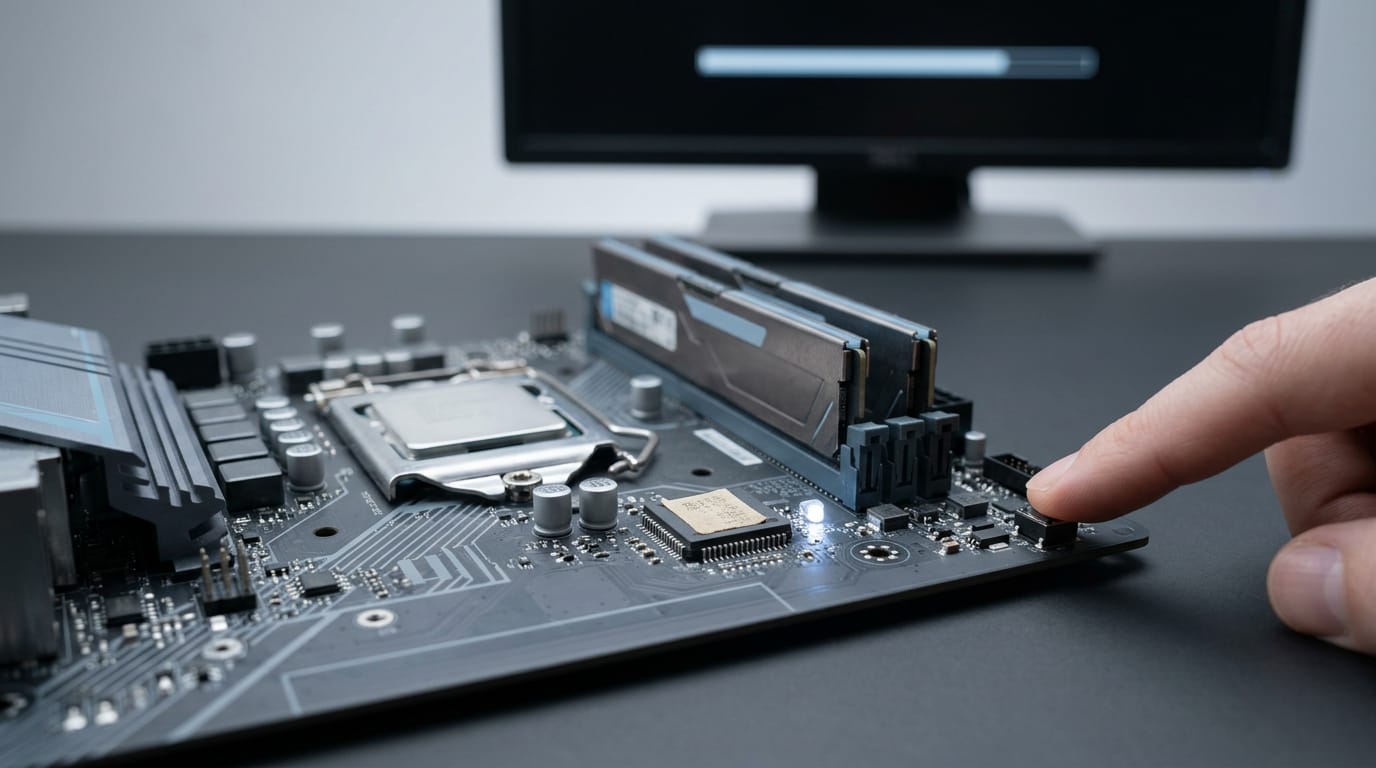
Before handing off, the firmware runs a power-on self-test (POST). It checks each component at boot to confirm it’s there and responding, and if something fails, startup can stop right there.
Where do those settings live? A small memory chip called CMOS (complementary metal-oxide-semiconductor) stores the BIOS settings, so your choices stick between sessions.
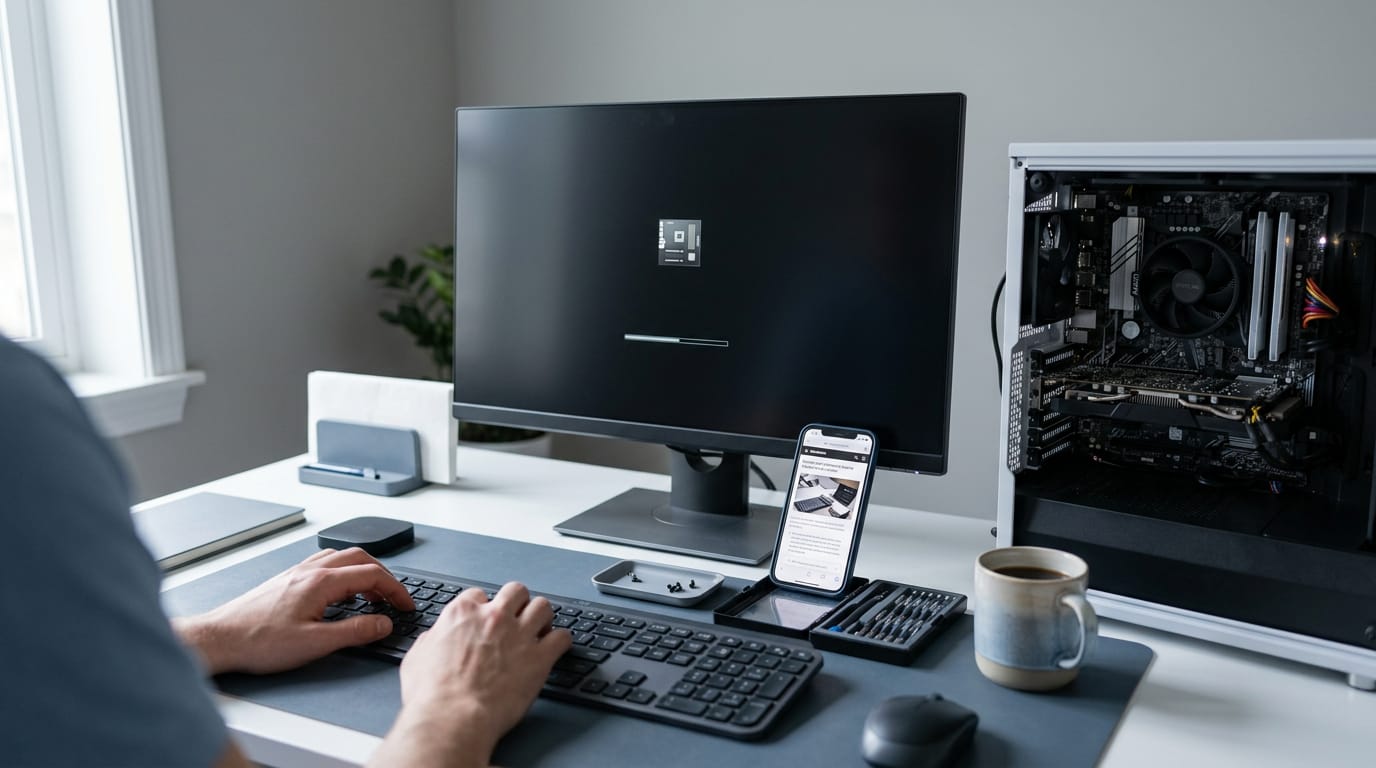
Your board may also have debug LEDs, small status lights (LED is short for light-emitting diode) that show how far startup got. Say you just installed a new graphics card and the screen stays black.
A first-time builder who checks the debug LEDs can see where startup stalled and reseat the right part, instead of tearing the build apart. Knowing where it stopped turns a black screen into a short checklist.
Board Sizes and Styles You Can Buy
Board size sets which case fits and how much room you’ll have to upgrade. Most gaming builds use a common desktop size.
The common sizes for desktop builds
- ATX, the full-size standard most cases are built around.
- microATX, a compact option that still suits most gaming builds.
- Mini-ITX, a small board with room for just one graphics card.
- EATX, a larger board for enthusiasts and servers.
- Size vs. ports, the trade-off to check: bigger means more slots, not more speed.
Picture a first-time builder squeezing a gaming PC under the TV. They pick Mini-ITX, check the ports they need, and end up with a PC that fits.
Older and less common board sizes
- AT, an early full-size layout still found in older cases.
- LPX and NLX, low-profile designs for slim systems.
- BTX and Pico BTX, an airflow-focused layout with a smaller Pico version.
- Flex ATX, a smaller ATX-style board for compact systems.
- Mini-STX, a small form factor for compact, low-power PCs.
Any of these can work, but only if the board fits your case, so measure before you buy. Fit comes first.
Boards built for servers, embedded and laptops
- Server and workstation boards offer more expansion and reliability for heavy workloads.
- Embedded boards sit inside routers, kiosks, and industrial controllers.
- Laptop custom boards are built for one model and won’t fit a desktop case.
Say a player’s laptop feels slow. Its board can’t be swapped, so their real upgrade is a desktop build.
Choosing, Matching and Upgrading a Board
Your board sets the rules, so we’d choose for fit over brand.
Making sure your CPU and parts match
Your socket is the processor (CPU) slot, so it decides which chips fit. Intel and AMD use different sockets, and your chipset (the chips linking CPU and memory) must match too. Hard drives are widely compatible; most fit any board with the right port.
To find your model number, check the board itself or press Windows + R, type msinfo32, and read the BaseBoard Product line.
On a spec sheet, check these four:
- Socket
- Chipset
- Memory limits
- PCI Express (PCIe) slots
Before blaming the board, swap one part at a time, since bad memory can mimic a failing board.
How much to spend on a board
According to Tom’s Hardware, motherboards range from under $100 to well over $1,000. Check the Canadian-dollar price at your store first.
A handy rule is 10 to 15 percent of your total budget. A player with a $1,200 build sets aside $120 to $180 for the board and keeps the rest for the graphics card.
Chipset tier mostly changes features, not frame rates, since your CPU and graphics card drive game performance. For gaming, a mid-range board is often enough.
Upgrades and advanced extras like overclocking
Upgrading your CPU is easiest when the new chip shares your socket. Check the board’s supported CPU list first.
Overclocking means running parts faster than factory settings, which needs a board and cooling that allow it.
RAID (redundant array of independent disks) combines drives for speed or protection, but it isn’t a backup.
ECC memory (error-correcting code memory) fixes certain memory errors, so most gamers can skip it.
Many boards include a network card for internet. If it’s weak, add one later rather than replacing the board. Match first, upgrade later.
Keeping the Board Cool and Reliable
Heat and age wear a board down, and you can manage both. Here’s how to keep yours cool and how to spot a dead one.
Ways to keep heat under control
Heat sinks are metal fins that pull heat off hot parts. Fans push that heat out of the case, and you plug them into fan headers, the small connectors that control fan speed. It’s less about how many fans you have and more about where the air goes.
Water cooling uses a liquid loop, but it adds a pump and tubing to maintain. Fanless designs skip fans, so they’re quiet but rely on good airflow in the case.
How capacitors age and the capacitor plague
Electrolytic capacitors smooth out power on the board and have a limited lifespan that can affect reliability. According to a research paper on high-reliability electrolytic capacitors, they’ve long been a weak link for long-term reliability.
The capacitor plague was a run of bad electrolytic capacitors that bulged and leaked. Higher-end boards often use solid capacitors instead. Look for solid rather than standard capacitors on the spec sheet.
What are the symptoms of a dead motherboard?
Watch for these signs:
- Random crashes: the PC freezes or restarts with no pattern.
- No power: the system won’t turn on.
- Dropping USB connections: Universal Serial Bus (USB) devices disconnect on their own.
Other parts can cause these same symptoms. Say a gamer’s PC shuts off mid-match. Before spending anything, they swap in a known-good stick of random access memory (RAM). If the crashes stop, they just saved a board purchase. Test the cheap parts first.
Here’s the check to run: if the symptoms persist with known-good RAM and a known-good power supply, the board is the likely culprit.
Is it worth replacing a PC motherboard? Before we commit, compare any repair quote with a new board’s price. If the repair costs most of what a new board does, replacing it is usually the smarter move.
How Boards Evolved over the Decades
Today’s board packs a lot onto one piece of hardware, but it didn’t start that way. Knowing how it got here makes its spec sheet easier to read.
Early systems that used card cages
Early computers often spread their work across several boards slid into a card cage, a metal frame of connectors that held each board in place. Some systems split the central processing unit (CPU) across multiple boards in one frame.
The S-100 bus took a similar route, giving every card one shared set of connections, called a bus, so the boards could talk to each other. The idea was less about one perfect board and more about many boards working together. That’s flexible, but bulky.
Early PC boards, from IBM to clones
IBM’s personal computer (PC) built its core around a main board called the planar, the central piece everything else connected to. The Apple II stood out for openness, inviting outside companies to add their own cards.
Clone makers and third-party companies then built their own boards, many aiming to work just like the originals, which gave buyers more choice. Compaq’s non-IBM design showed that a PC didn’t have to follow IBM’s layout to be a PC.
How more features moved onto the board
Designers kept pulling jobs onto the board itself. Super I/O chips combined slower input/output (I/O) functions, such as:
- serial ports
- parallel ports
- floppy drive control
into one chip.
Onboard audio, video, and networking followed the same path. Think of a player in Winnipeg with an old tower and a sound card. Newer boards handle that job, so that cash can go toward a graphics card instead.
Laptops and phones push integration furthest, putting most of the system on one tightly packed board. That saves space but limits upgrades, so what you buy matters more.
Major board makers and market leaders
Intel’s influence was hard to miss in the 1990s, and its chipsets shaped much of what boards could do.
Asus, Gigabyte, and MSI are major motherboard manufacturers, and a study of Taiwan’s PC industry reports that ASUSTek, MSI, and Gigabyte were the largest motherboard makers in the world in 2010. The brand gets you started.
The spec sheet tells you whether the board fits your build.
A motherboard isn’t the flashiest part of a build, but it sets the limits for everything else. Know what each part does and how to read its specs, and you can match a board to your processor and your games.
Shop in Canadian dollars, check the specs against your parts, and buy to the budget you actually have. The best board is the one that fits your build, not the priciest one on the shelf.
References
- Can Electrolytic Capacitors Meet the Demands of High Reliability Applications? — doi.org (2019)
- Taiwan’s PC Industry, 1976–2010: The Evolution of Organizational Capabilities — doi.org (2014)
- How to choose a new motherboard without overpaying — scoping out the features you need, and what you might never use as component costs soar — tomshardware.com (2026)
Questions
What is the motherboard in a computer?
A motherboard is the main circuit board in a computer. It connects and supplies power to components such as the processor, memory, graphics card, and storage so they can communicate and work together.
What are the symptoms of a dead motherboard?
Common symptoms include random crashes or restarts, failure to power on, and USB devices disconnecting unexpectedly. These can also be caused by other faulty parts, so test with known-good RAM and a power supply before concluding the motherboard has failed.
What are the three types of motherboards?
Three common desktop motherboard form factors are ATX, microATX, and Mini-ITX. They differ mainly in size and the number of slots and connections they can accommodate.
How much should a motherboard repair cost?
There is no fixed motherboard repair price; it depends on the fault, model, and repair shop. Compare the repair quote with the cost of a compatible replacement, since replacing the board is usually the better choice if repair costs nearly as much as a new one.
How can I check my PC model number?
In Windows, press Windows + R, type `msinfo32`, and press Enter. Find the BaseBoard Product entry in System Information for the motherboard model; you can also check the board itself for its model number.
What happens if your motherboard is broken?
A broken motherboard may prevent the computer from powering on or completing startup, or cause crashes and devices to disconnect. Since other components can produce similar symptoms, test parts such as RAM and the power supply before replacing the board.
Can a PC work without a motherboard?
No. A PC needs a motherboard to connect its components and route power and data between them, so it cannot operate without one.
Is it worth replacing a PC motherboard?
It can be worth replacing a motherboard if the repair is costly or the board is preventing you from using otherwise suitable parts. Check that a replacement matches your processor socket, chipset, memory, and case, and compare its price with a repair quote and the cost of replacing the PC.
Sources
- How to choose a new motherboard without overpaying — scoping out the features you need, and what you might never use as component costs soar | Tom's Hardware, tomshardware.com,
- Can Electrolytic Capacitors Meet the Demands of High Reliability Applications?, doi.org,
- Taiwan's PC Industry, 1976–2010: The Evolution of Organizational Capabilities, doi.org,
Free · The Build Sheet
The Build Sheet: three gaming PCs priced at Canadian stores