Monitor discoloration explained, from causes to repair
Monitor discoloration often stems from a setting, cable, or driver, not panel failure. Try fixes, then compare repair and replacement costs in Canada.

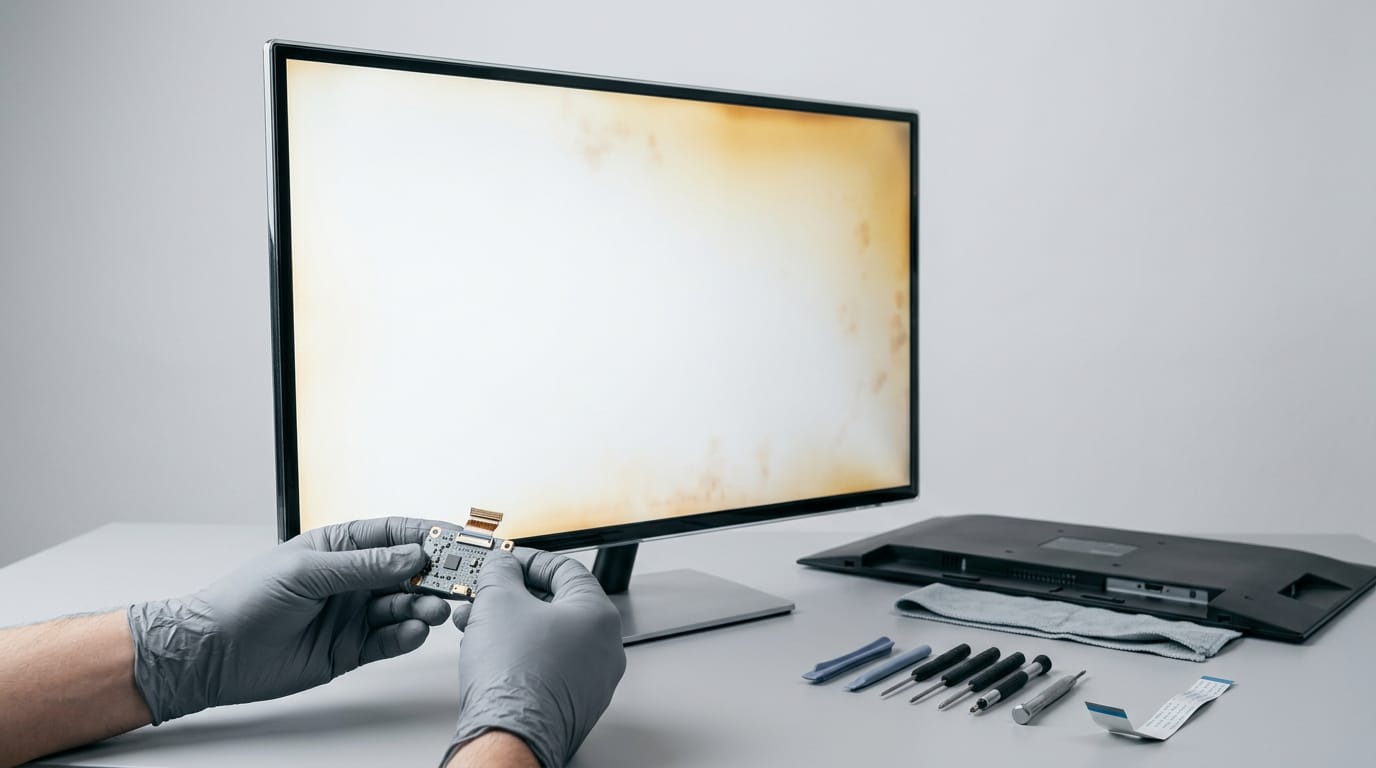
Monitor discoloration is a change in how a screen displays colors, such as yellow-tinted whites, faded colors, dark patches, or shifting hues. Start by resetting picture settings and checking the native resolution, cable connections, graphics drivers, airflow, and nearby sources of interference before suspecting panel wear or damage. If the problem remains after testing the monitor on another device, compare a repair quote with the cost of a similar replacement.
Ever pulled up a photo you took last week and noticed the sky looks off on your screen? Your monitor can do the same thing to a game you’ve played for years, leaving whites tinged yellow or reds looking washed out.
Before you assume the panel is dying, know that most discoloration traces back to a setting, a cable, or a driver.
In this post, we’ll walk through the symptoms, the likely causes, and the fixes you can try yourself. We’ll also cover how to spot real panel wear, and whether a repair or a replacement makes sense for your budget in Canadian dollars.
Spotting Monitor Discoloration and Distortion
Is it a setting, a cable, or the panel? Match the symptom to its likely cause first.
Colors that look washed out or tinted
Washed-out colors look faded. Picture a player whose new monitor makes their game look flat next to their old screen. Check brightness, contrast, and picture mode first.
A color tint leans everything yellow, green, or blue, while skewed saturation makes colors too intense or too dull. Both usually trace back to a picture preset, so reset it before you blame the panel.
Grayscale imbalance means neutral whites and grays pick up a color. If one mode shows it, it’s a setting. If every mode shows it, calibration or the panel may be the cause.
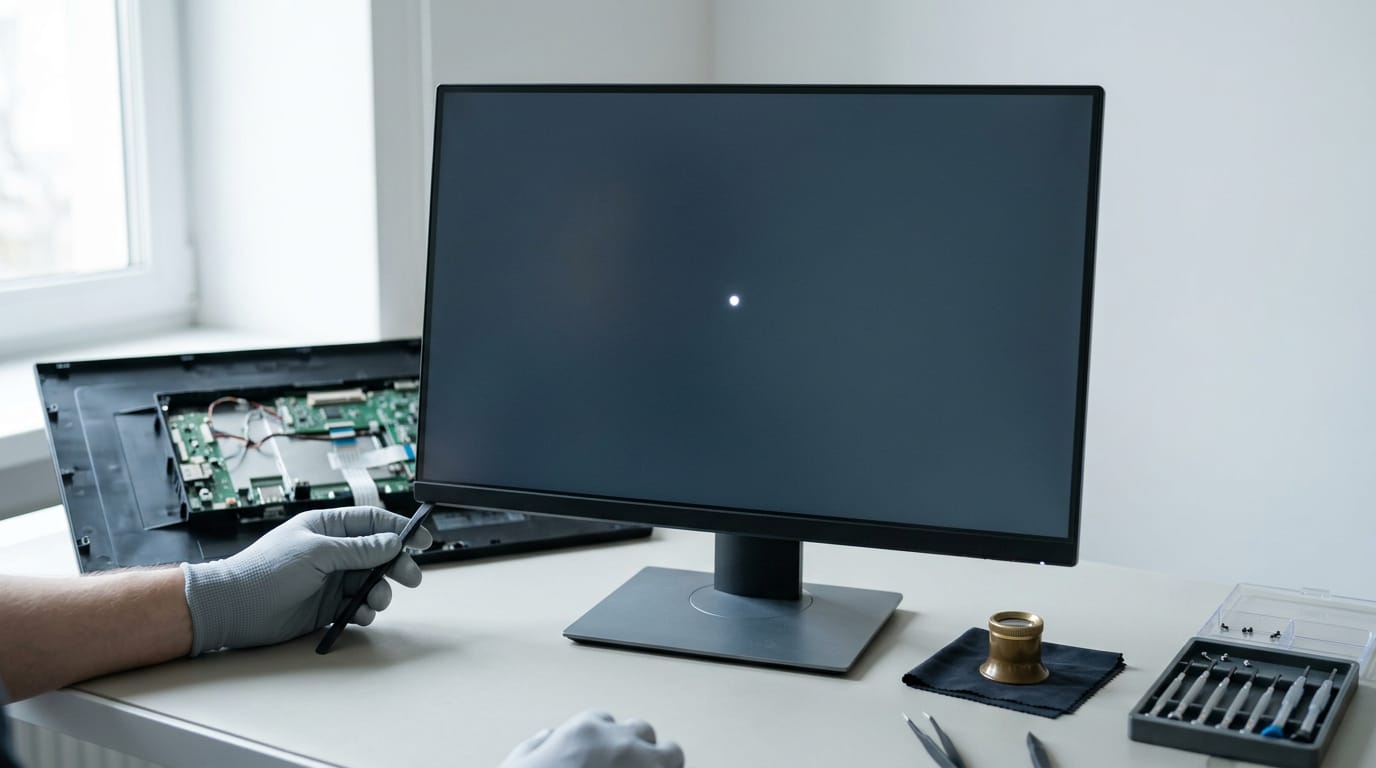
Dark spots or patches are the one symptom that can point to hardware. Check a plain white screen: if the spot stays put, it’s worth a warranty claim. A white spot that stays put on a plain screen calls for a closer look at the panel.
How distortion appears and what causes it
Blurry or fuzzy images often mean you’re off the native resolution, the exact pixel count the panel physically has.
Jagged, pixelated text shows stair-stepped edges, usually from scaling (stretching the image to fit) or an over-sharpened picture.
Consider a player who plugs a new monitor into an old cable and assumes it’s dead. A faulty cord can cause flicker or sparkles, so swap in a cable you know works, and the screen often comes right back.
Outdated or corrupted graphics drivers, the software linking your graphics card to the screen, cause similar trouble. Update them next.
Incorrect resolution makes the picture look stretched, cropped, or soft. Set your computer or console back to native, and the image snaps into focus.
Rule out the cheap fixes first.
Why Is My Monitor Changing Colors Randomly?
Why is your monitor changing colors on its own? Usually it’s the cable and graphics card, a mismatched setting, the screen’s age, its surroundings, or damage. Start with the cheap checks.
Broken parts and loose connections
Your picture starts with the graphics processing unit (GPU), the card inside your computer, and a failing one often causes tints, flicker, or colors that come and go.
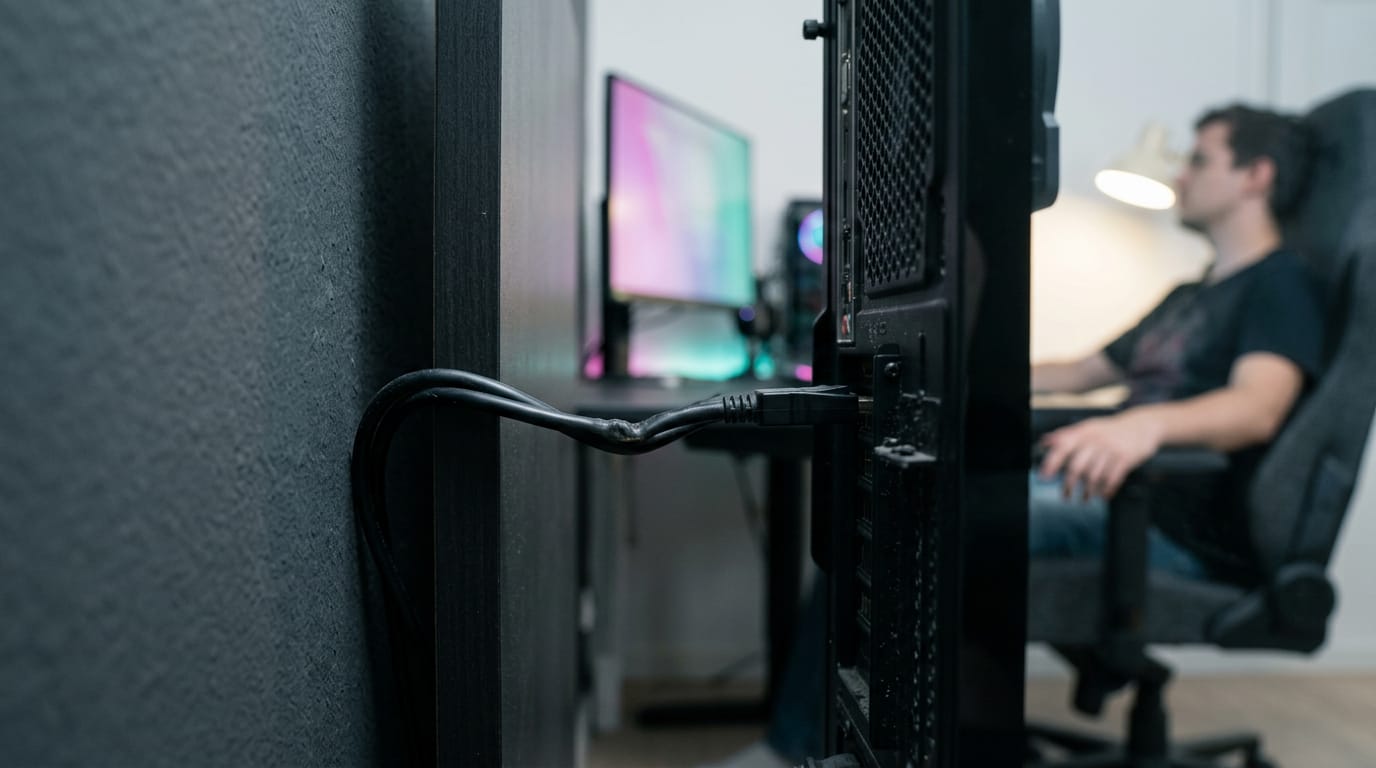
Loose or frayed cables are the next suspect. A pinched or half-seated cable can garble the signal, so reseat both ends and swap in a known-good one if you have it.
Signal transmission interruptions, brief dropouts when the picture doesn’t arrive cleanly, often trace back to that same connection.
Think of a gamer whose colors shift only during long matches, because her cable gets pinched behind the desk every time she leans back. Rerouting it fixes the problem.
Software, drivers, and resolution mistakes
This is often a setting problem, not a part problem. A display driver is the software that tells your GPU how to talk to your screen, and an outdated one can cause odd color. Update it from your GPU maker’s website.
Incompatible graphics drivers, often left over from an old card or a messy update, clash with the new setup. A clean reinstall usually clears that up. Wrong resolution settings leave the image soft and slightly off-color.
Think of a player who swaps in a new monitor but keeps the old resolution selected. Everything looks fuzzy until the setting matches the panel.
How age and backlight wear fade colors
Some change is simply age. Natural color fading is a slow loss of accuracy over years. Backlight deterioration is wear on the light behind the panel, which can dim or tint whites. Long use can also wear the panel in a different way, leaving marks known as monitor pixel burn.
Uneven brightness is the patchy version, with one area dimmer than the rest.
Panel type changes what wear looks like:
- In-plane switching (IPS) glow: a faint haze in dark scenes, seen most from an angle.
- Vertical alignment (VA) panels: color and contrast can shift when you view them off-center.
- Organic light-emitting diode (OLED) burn-in: a static element like a taskbar can leave a ghost image after long use.
Heat, sunlight, humidity, and poor airflow
Overheating can push colors around, especially in a cramped cabinet. Direct sunlight heats the panel and can wash out the picture. Humidity and dust build up over time, and poor ventilation makes all of it worse by trapping heat.
Think of a gamer who sets a monitor by an afternoon window with the computer in a closed cabinet below. Once the sun hits, the colors drift. Moving the desk and clearing the vents costs nothing and steadies the picture.
How nearby magnets and speakers interfere
Speakers contain magnets, and their fields can reach your screen. A large speaker or subwoofer pressed against the monitor can distort the image or cause color blotches.
Unshielded electronics, like a cheap adapter sitting beside the screen, can add interference too. Distance is the easy fix.
Dark edges from panel design or damage
Dark edges are often a design trait, not a fault. Dark corner shadows are dim patches in the corners, while lamp light falloff at the edges means the backlight fades toward the sides.
Drops or heavy objects can damage a panel and leave dark marks, which makes it a repair or replacement question. The bigger the screen, the more these edge effects show.
Ways to Fix Monitor Discoloration
Discoloration often comes down to a setting, a cable, or a driver, and you can check all three without spending a dollar. We’ll start with the free fixes and save the costly ones for last.
Try a simple reset first
This is the quickest check.
- Restart your computer. A fresh boot clears up display glitches that linger after long sessions.
- Power off and cool down. Switch the monitor off completely and let it cool.
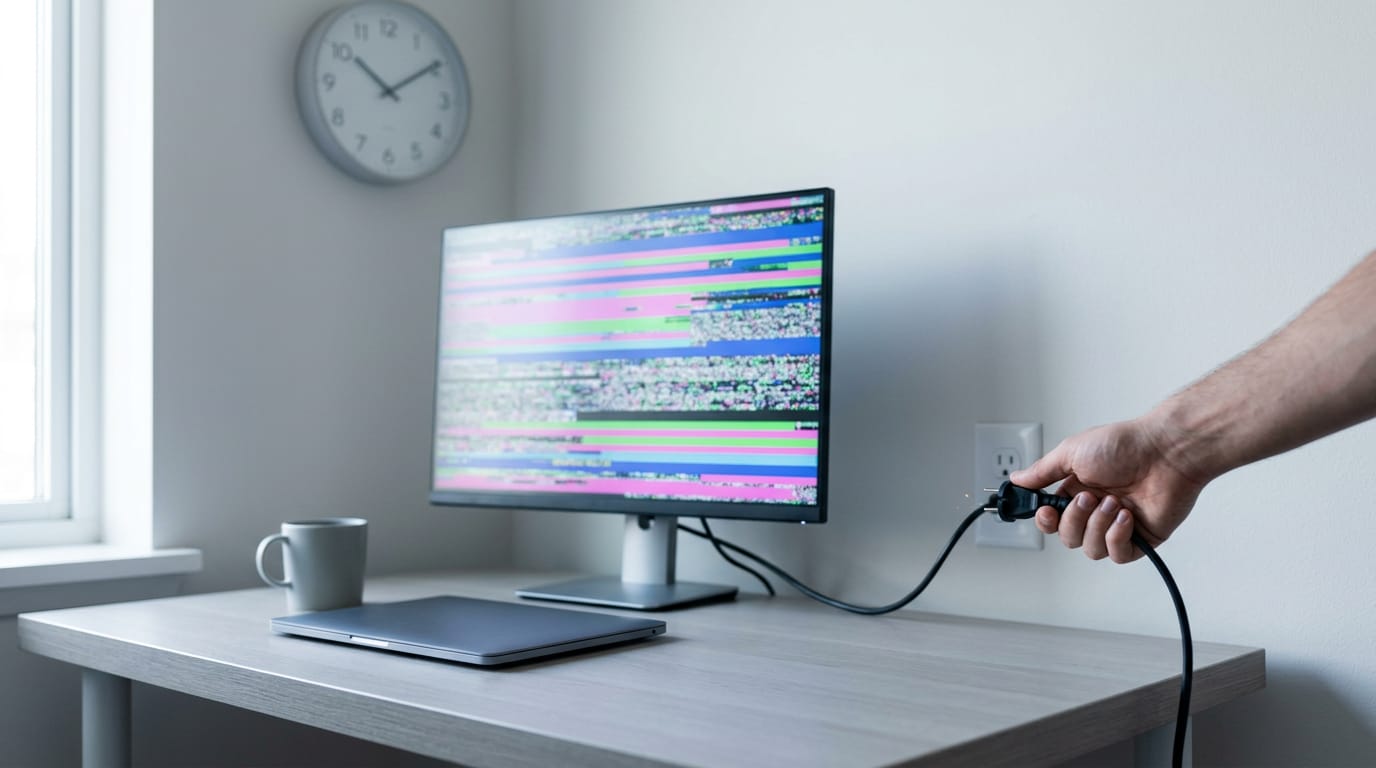
- Unplug for 30 minutes. Unplug the monitor, wait the full half hour, then plug it back in and check the picture.
Keeping your monitor from overheating
Think of a player with a monitor pushed against the wall and a console stacked above it. After long sessions the colors look off, so check airflow first.
- Proper ventilation. Leave open space around the back and sides.
- Avoid heat sources. Keep it out of direct sunlight and away from the console.
- Cooling pads. A pad under the stand adds airflow.
- Monitors with built-in fans. If yours has them, make sure nothing blocks them.
Fresh air costs nothing.
Check cables, ports, and connections
- Inspect and reseat cables. Look for bent pins or frayed ends, then push each connector in firmly.
- Use HDMI or DisplayPort. Use HDMI (High-Definition Multimedia Interface) or DisplayPort rather than an older adapter.
- Try different input ports. Move the cable to another port and test again.
- Remove nearby interference. Move power cables away from the video cable.
- Test with another monitor. Think of a roommate who borrows a second screen. If it shows the same tint, the problem is the PC, not the panel.
Update drivers in Device Manager
Device Manager lists your PC’s hardware, so check drivers there.
- Check for error icons. A yellow warning icon marks a device with a problem.
- Update graphics drivers. Right-click your graphics card under Display adapters and choose to update it.
- Download from the manufacturer. Grab the newest driver from the maker’s website, not only from Windows.
- Replace the Generic PnP monitor driver. PnP (Plug and Play) is the generic label Windows uses. Swap it for the driver matching your exact model under Monitors.
Adjust your monitor’s display settings
Settings are where you’ll get your colors back, so change one thing at a time.
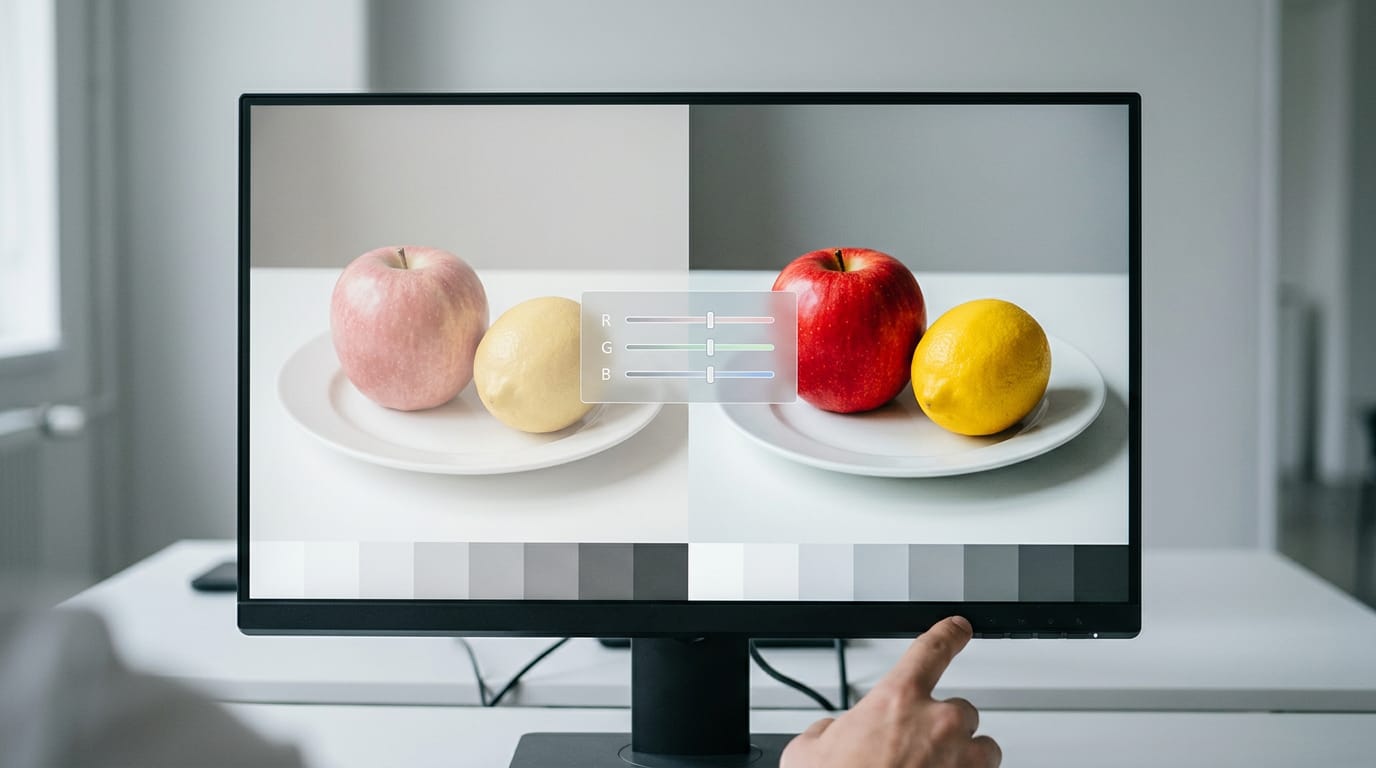
- Reset the OSD to factory. OSD (on-screen display) is the monitor’s menu, and its factory reset is the simplest route back to original color.
- Calibrate RGB levels. RGB (red, green, and blue) sets the balance of the three colors. Adjust each until grays look neutral.
- Adjust brightness and contrast. For washed-out colors, lower brightness and raise contrast a notch at a time.
- Set the native resolution. Use the resolution your monitor is built for so the image stays sharp.
- Adjust the refresh rate. Choose the top value your monitor supports, since a mismatch can make the picture look off.
- Check HDR, GPU color range, and console settings. HDR (high dynamic range) mismatches can make images look dull. A wrong GPU (graphics processing unit) color range can make blacks look gray. Check your console’s display settings too.
Backlight bleed is a glow along the edges of a dark screen that comes from the panel itself. Settings won’t remove it, and dimming may only make it less noticeable. If it still bugs you, that’s a panel-level issue.
Run the built-in Windows troubleshooters
Run these last, since they’re quick to try.
- Hardware and Devices troubleshooter. Scans your connected hardware for problems.
- Video Playback troubleshooter. Checks how video is displayed on your screen.
- Follow onscreen instructions. Accept the fixes that match what you’re seeing.
If the tint survives all of this, the panel is the likely culprit.
When to Get a Monitor Repaired
Not every tint means the panel is done. Here’s how to decide whether a repair is worth chasing.
Getting expert help or a replacement
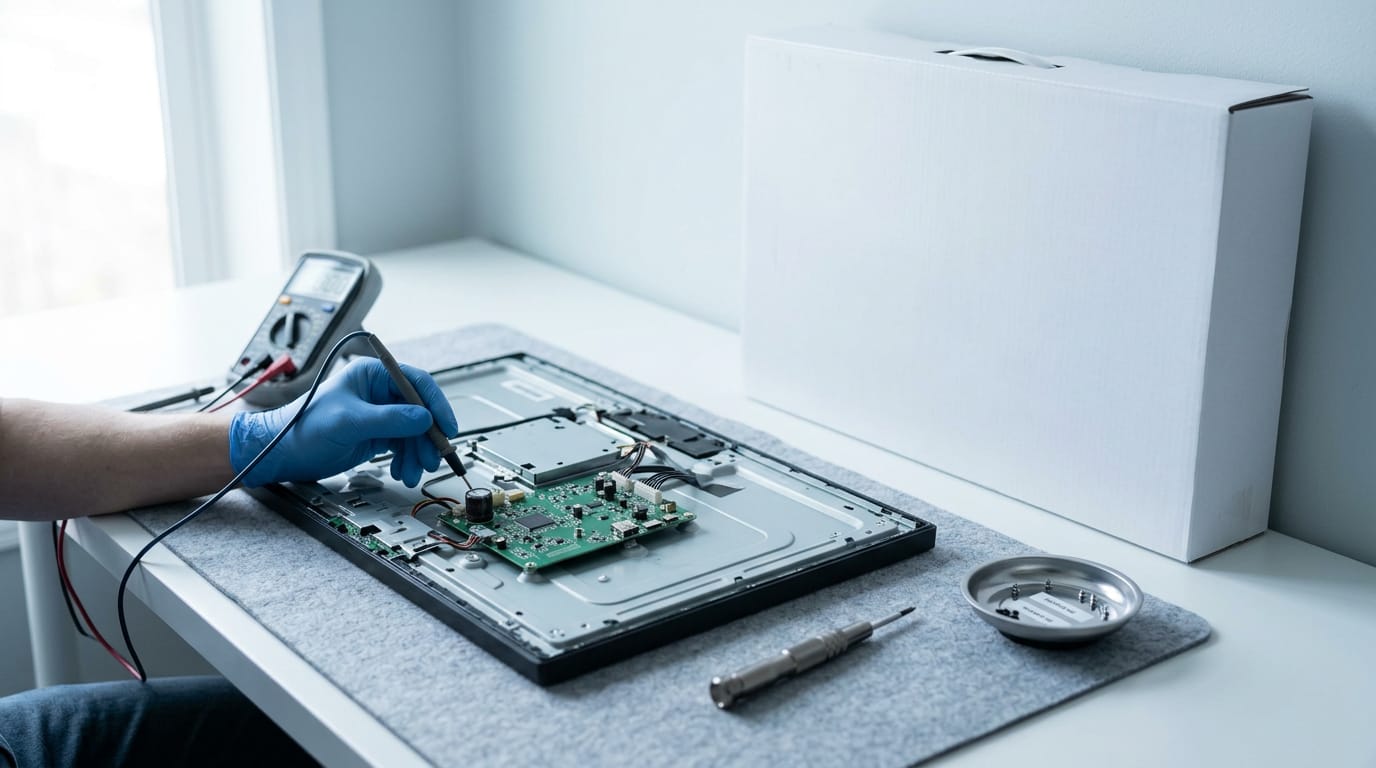
Begin with the cheap checks: swap the cable and test the monitor on another PC. If the problem follows the screen, the panel is the likely culprit.
If you can borrow or swap in a different graphics card, do that too, so you know whether the card or the monitor is at fault before you spend money on either.
Then contact the manufacturer or a technician, starting with its support channels:
- website
- phone
Ask for a return merchandise authorization (RMA), the approval number that starts a repair or return, and have your proof of purchase ready.
Physical damage like a crack or liquid inside is often handled differently from a defect, so say so up front.
Here are the signs of a failing computer monitor to watch for:
- Flickering or lines that come and go
- Dim patches, or a tint that won’t clear after a factory reset
- Discoloration that spreads across the panel
- Stuck or dead pixels that keep multiplying
- A buzzing sound, or a backlight that won’t turn on
The real question is less about whether it can be fixed and more about what it’s worth to you. Compare the repair quote, plus shipping, against a comparable new monitor in Canadian dollars.
If the repair eats most of that price, replacing it usually makes more sense. Get the quote first.
Think of a player whose 1440p monitor keeps a purple wash after a factory reset. They test it on a friend’s PC, the tint persists, and they know the panel is at fault before shipping it off.
Discoloration is rarely as final as it looks. Start with the settings, then check the cable and graphics driver, and only then suspect the panel.
Most discoloration problems get fixed in one sitting, and the stubborn ones give you a clear answer about repair or replacement.
If the screen keeps shifting after every fix, weigh a repair against a comparable replacement in Canadian dollars. A monitor that still serves your games well is worth keeping, but one that keeps drifting is ready to retire.
Work through the steps in order, and your screen will tell you exactly what it needs.
Questions
What are the signs of a failing computer monitor?
Signs of a failing monitor include flickering or intermittent lines, dim patches, discoloration that spreads or remains after a factory reset, and stuck or dead pixels that keep multiplying. A buzzing sound or a backlight that will not turn on can also indicate a hardware problem.
How do I get my screen back to original color?
Open your monitor’s on-screen display (OSD) menu and choose its factory reset option to restore the original picture settings. If the colors still look wrong, check the RGB balance, brightness, contrast, HDR, and your computer’s color-range settings.
How can I fix washed out colors on my monitor?
Check the monitor’s brightness, contrast, and picture mode first, then reset the OSD to factory settings. Also confirm the native resolution and HDR and GPU color-range settings, and try a known-good cable if the picture remains faded.
How to fix screen bleeding on monitor?
Backlight bleed is glow along the edges of a dark screen caused by the panel itself, so settings cannot eliminate it. You can dim the screen to make it less noticeable, but persistent or bothersome bleed may require panel repair or replacement.
Why is my monitor changing colors randomly?
Random color changes are often caused by a loose or damaged cable, a graphics driver or display setting, or a failing GPU. Heat, sunlight, age-related backlight wear, nearby magnets, and panel damage can also affect color; reseat or replace the cable and check the settings and ventilation first.
Why is my monitor flashing black screen on and off?
A monitor that flashes black may be losing its video signal because of a loose or faulty cable, a bad port, or a graphics driver or GPU problem. Reseat the cable, test another cable or port, and update the graphics driver; if possible, test the monitor on another computer to isolate the cause.
Why does my monitor screen look weird?
A monitor can look weird because of an incorrect resolution or picture setting, a faulty cable, outdated graphics drivers, or interference. Set the native resolution, reset the monitor’s picture settings, and check the cable and driver; persistent dark spots, spreading discoloration, or damage may point to a panel problem.
What does "display distorted" mean?
“Display distorted” means the image does not appear as intended, such as looking blurry, stretched, pixelated, tinted, flickering, or marked by lines or patches. Common causes include incorrect resolution or scaling, picture settings, a faulty cable, graphics drivers, or panel damage.
Free · The Build Sheet
The Build Sheet: three gaming PCs priced at Canadian stores