How Many USB Ports Does My Motherboard Have? Full Guide
How many USB ports does my motherboard have? Count rear-panel ports and board headers, then check specs and Windows to see how many case sockets you can use.

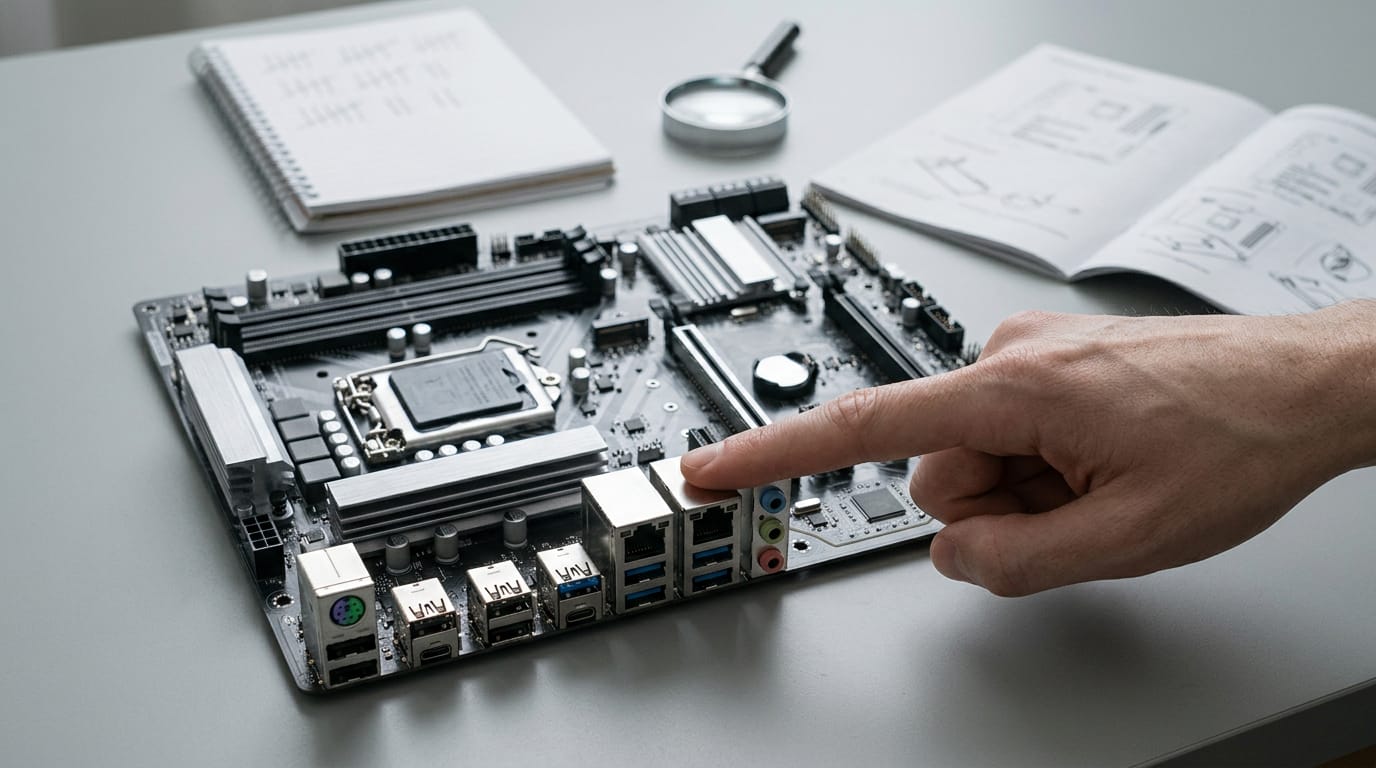
A motherboard’s USB port count varies by model and includes rear-panel ports plus ports connected through internal headers to the case. Count the rear ports and case ports, check the board’s manual or specifications for the total and port types, and use Windows Device Manager to help identify ports or controllers that are not working. This lets you see what is available, connect devices to suitable ports, and decide whether you need a hub or expansion card.
Think of your motherboard as the power strip inside your PC. Every keyboard, mouse, and headset has to plug in somewhere, and running out of sockets is the kind of problem you only notice mid-game.
Your USB count comes from two places: the ports on the back panel and the USB headers on the board, which are rows of pins that feed extra ports to your case.
In this post, we’ll show you how to count both, check the spec sheet, and confirm what Windows sees, so you know what’s free before you buy a hub.
How Many USB Ports Does My Motherboard Have?
How many USB (Universal Serial Bus) ports does a motherboard have? There’s no single answer, since counts vary by model, so count your own board or check its spec sheet.
Count ports on the case and board
Start outside the case by counting the front and top ports, then the rear. Front and top ports usually connect through headers, the pin sets on the motherboard that link to your case’s cables.
The rear ports form the rear I/O cluster, built into the board itself. Count only the USB-labelled ones, since the rest may be audio or network jacks.
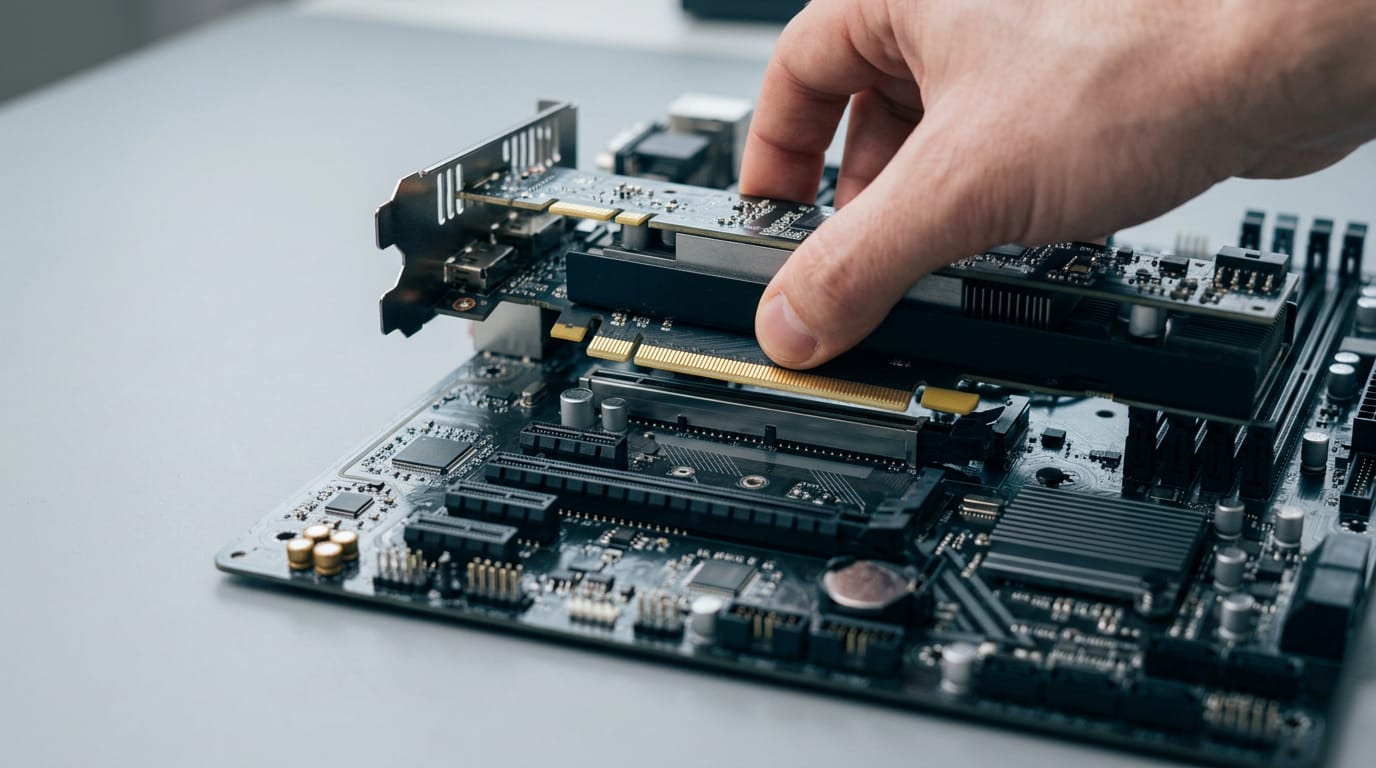
What matters is where each port sits, not just how many. Picture a player whose headset dongle, keyboard, mouse, and controller all need a port. If the rear cluster has only two USB ports, they’ll run out of room, so count before you buy. A PCI Express slot is one place to look for more ports if the rear cluster runs short.
Count the board before installing it in the case, while each header is easy to reach.
Before buying, check the spec sheet and manual for USB counts. Totals generally climb through the board tiers, so compare within your tier.
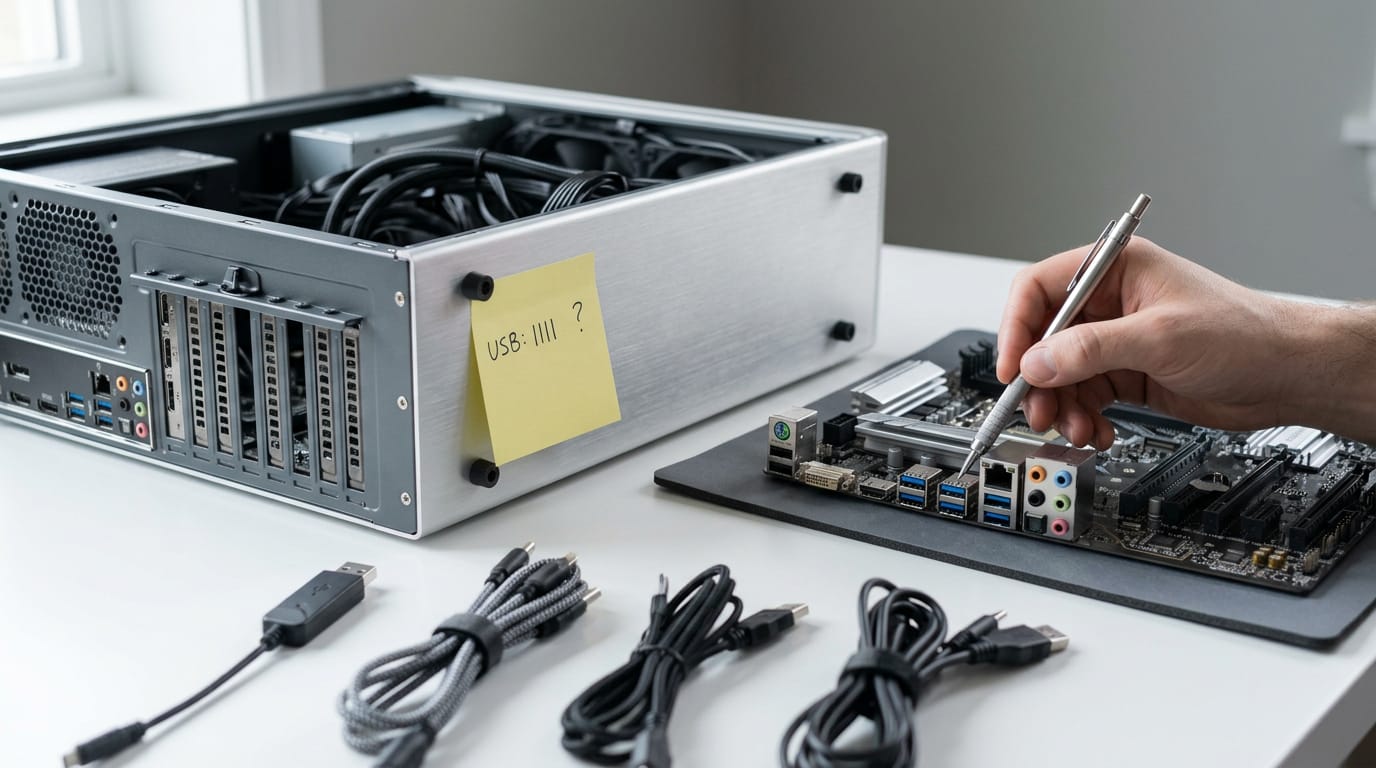
Telling the port types apart
Most USB ports you’ll use are Type A, the familiar flat, rectangular plug and socket.
Many boards colour-code ports to hint at speed, but it’s only a clue. Check the labels before you trust it.
Type B and Type C are separate connectors. Type B is the squarish plug mostly found on printers, and USB-C (Type C) is the small, reversible oval.
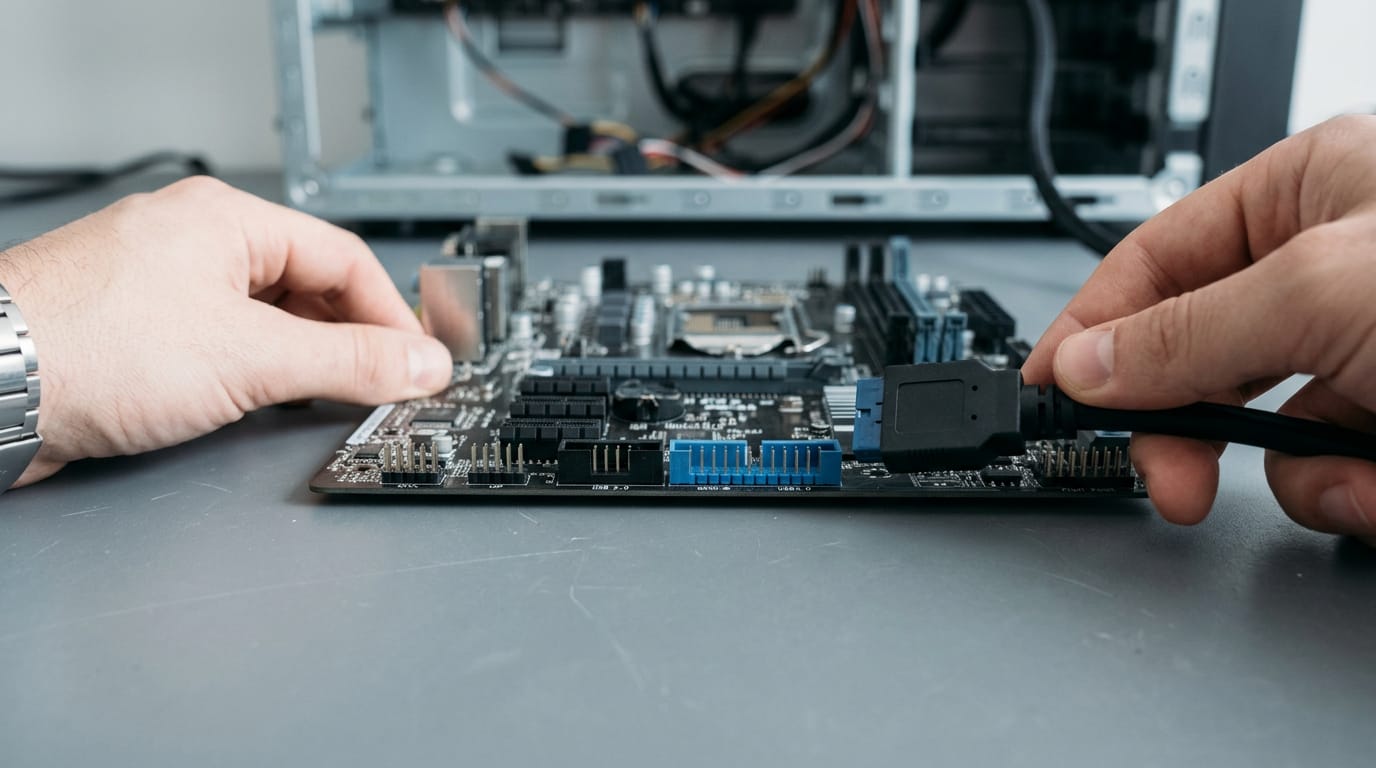
USB 3.0 headers are shaped and pinned differently from 2.0 headers, so a cable meant for one won’t fit the other. Match the cable, and it just works.
Why Board and Case Ports Differ
Your case and your motherboard rarely show the same number of ports, and that gap catches plenty of builders off guard. The good news is that the missing ones are easy to find once you know where to look.
Why your case has fewer ports
Your motherboard has Universal Serial Bus (USB) ports built into its rear panel, so anything you plug into the back works straight away. The front ports on your case are a different story.
They connect to the board through headers, which are small pin blocks sitting on the board itself. Not every port on the board is routed to the case, so you can end up with more ports than your front panel ever shows.
Think of a gamer who buys a new case, plugs a headset into the front port, and hears nothing. The cable was never connected to the board, so that port is just sitting there. The fix usually takes only a few minutes.
Hooking up the front panel headers
Look along the bottom edge of your board for the USB headers. Each one is a row of pins that the case cable plugs onto. Counting them is the quickest way to find hidden ports, since each header you spot is a port your case may not be using yet.
Match the cable to the header’s version, not just whichever header happens to be free. A USB 2.0 cable goes on a 2.0 header, and a 3.0 cable goes on a 3.0 header. Check both before you push the plug in.
Leave a cable off, and that front port may stay inactive. Plug it in, and it’s ready to go.
Check Your Specs and Software
Before you count anything, you need to know exactly which board you have. Two quick checks, one on paper and one in Windows, confirm what’s there and what’s working.
Look up your board’s specs
Start with the model number, the exact name of your board:
- Find it on the box or printed on the board itself.
- Search that model on the store or manufacturer page and open the specs.
- Check the physical manual, which lists the ports too.
Think of a gamer who wants a headset, a wireless receiver, and a controller without buying a hub. The spec sheet shows how many ports the board has, so they know if a hub is needed before spending a dollar.
The spec sheet tells you what the board has. It doesn’t tell you what’s working right now, and that’s where Windows comes in.
Checking ports in Windows Device Manager
Open Device Manager from Settings, then expand the USB (Universal Serial Bus) controllers list. You’ll see entries like root hub and composite device.
A root hub is the built-in connection point a controller uses to feed its ports, while a composite device is one gadget, like a webcam with a mic, presenting several functions at once.
This view helps you diagnose nonworking ports. If a device doesn’t appear in one particular port, check whether that controller’s entry looks normal. USB tree viewer tools give a clearer picture by mapping each controller and the devices hanging off it.
Now you know what’s there and what’s working.

Port Generations and Everyday Use
Universal Serial Bus (USB) ports come in several generations, and each one suits different gear.
What’s the difference between USB 2 and 3?
Your board mixes 2.0, 3.2 Gen 1, and 3.2 Gen 2 ports. Note that USB 3.0 is now called 3.2 Gen 1, so they’re the same port.
The speed gap is real. According to the USBee research paper, USB 2.0 runs at 480 Mbits/s, while USB 3.0 reaches up to 5Gbits/s. Treat those as a ceiling, not a guarantee.
USB4 and Thunderbolt add more confusion, so check the spec sheet instead of the port’s look.
Whether people actually fill every port
You’ll often struggle to fill every port. Think of a gamer with a mouse, keyboard, webcam, headset, and game drive. The keyboard and mouse take the rear 2.0 ports, and the drive takes a fast one. Everything fits without a hub.
The split usually looks like this:
- Keyboard and mouse: 2.0 rear ports.
- Storage and charging: your fastest ports.
- DACs (digital-to-analog converters), webcams, headsets, and docks: whatever’s left.
- Monitor hubs: some monitors have a built-in hub that frees a port or two.
So what’s the best USB port for gaming? There’s no single winner. A 2.0 port handles a keyboard and mouse, while a USB 3.x port suits a game drive.
Running short? A USB hub adds ports, and a PCIe (PCI Express) card adds a whole set.
How USB controllers affect your ports
Many boards have several USB controllers (chips that manage groups of ports), which helps compatibility. Some devices work on only one. Picture a gamer whose wireless receiver goes dead on a front port.
Moving it to a rear port, which may use another controller, is the first fix.
Counting your motherboard’s USB ports comes down to three checks: the back panel, the headers on the board, and what Windows reports. Once you have those numbers, you can spot which ports are free and which need a hub.
Put your fastest devices on the newest ports and save the rest for mice and keyboards. When you shop for a board, count what you use today and leave room for a few more.
The right board keeps your desk clean and your games running, not your cables tangled.
References
- USBee: Air-gap covert-channel via electromagnetic emission from USB — doi.org (2016)
Questions
What is the difference between USB 2 and USB 3?
USB 2.0 has a maximum data rate of 480 Mbit/s, while USB 3.0, now called USB 3.2 Gen 1, reaches up to 5 Gbit/s. Actual speeds depend on the devices and connection, and the connector’s shape alone does not identify its generation.
What is the best USB port for gaming?
There is no single best USB port for gaming. A USB 2.0 port is suitable for a keyboard or mouse, while a USB 3.x port is a better choice for a game drive or other high-speed device.
What are USB headers on a motherboard used for?
USB headers are pin connectors on the motherboard that connect to cables from the case’s front or top USB ports. They let those case ports work, and unused headers may provide connections for additional ports.
How do I know if I have USB A or USB-C?
USB Type-A is the familiar flat, rectangular connector. USB-C is smaller, oval-shaped, and reversible; the connector’s shape identifies its type, not its speed.
How many USB ports does a motherboard have?
There is no fixed number of USB ports on a motherboard; it varies by model. Count the rear-panel ports and the case’s front or top ports, and check the motherboard’s specifications and headers to understand the available connections.
How do I check what USB ports I have?
Find your motherboard’s model number and check its manufacturer’s specifications or manual for its port types and counts. To see USB devices and controllers recognized by Windows, open Device Manager and expand “USB (Universal Serial Bus) controllers”; a USB tree viewer can show how devices connect to each controller.
Sources
Free · The Build Sheet
The Build Sheet: three gaming PCs priced at Canadian stores