Vertical Stripes on Monitor Screens: Causes and Fixes
Vertical stripes on monitor can point to a cable, setting, or failing panel. Use stripe patterns to test fixes in order and choose repair or replacement.

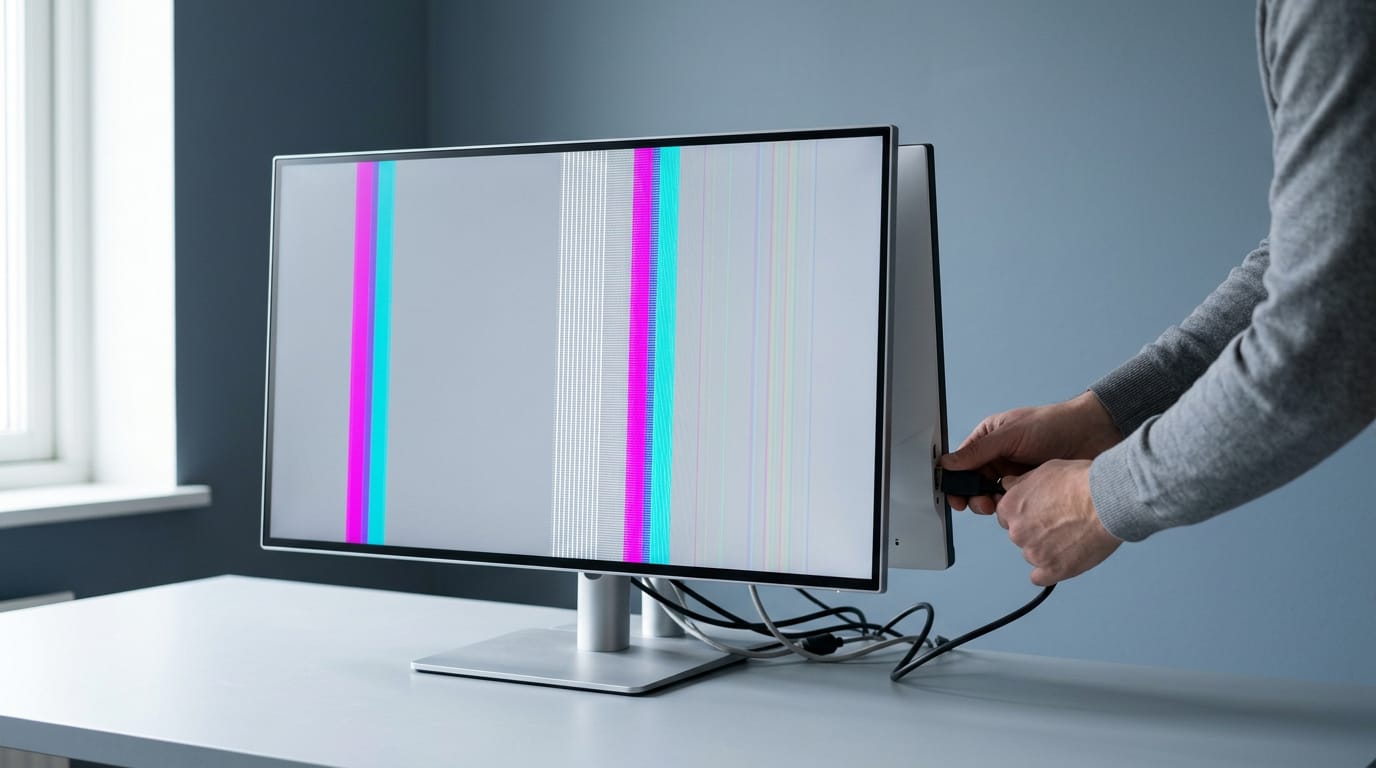
Vertical stripes on a monitor are lines running from top to bottom that can come from a loose or faulty cable, unsupported display settings, weak power, a graphics card, or a failing screen. Check the on-screen menu, reseat or swap the cable and port, verify refresh rate and resolution, and test another device, changing one thing at a time. If stripes persist with no video cable connected or across multiple sources, check the warranty and compare repair costs with a suitable replacement before spending.
You’re mid-match when thin vertical lines start running down the screen, like someone dragged a comb through the picture. It’s distracting, and it’s natural to wonder whether you’ve just bought a dud.
The good news is that the pattern of the stripes and when they show up point to the likely cause.
This guide works from the cheapest fix to repair or replace. You’ll learn how to read the stripes, try the simple checks first, and weigh a Canadian-priced replacement only when you actually need one.
Diagnosing Vertical Stripes by Pattern and Timing
Vertical stripes run top to bottom, while horizontal lines run side to side, so direction is your first clue.
Test each part to find the fault
Open the on-screen menu (the monitor’s own settings) and see if the stripes appear there. Next, disconnect the video cable. Lines that persist with nothing feeding the monitor mean the monitor is at fault. Test on another device, like a laptop or console.
If the lines come along, you’ve confirmed it. To fix horizontal lines on the display, try a cable or port swap first, since it’s the cheapest move. Save the big decision for last.
Stripes that come and go with triggers
If stripes only show in fullscreen games, note the game and its settings. Stripes that worsen with heat, heavy load, or power changes suggest strain as the system works harder.
A warm-up effect means stripes that appear as the monitor heats up and fade once it settles. If they only show with a second display active, unplug that display and retest.
What causes colored horizontal lines on my monitor?
Colored or red lines follow these same causes.
- Menu lines suggest panel. Lines visible in the on-screen menu point to the panel, the layer that draws the image.
- High refresh only suggests bandwidth. Lines that appear only at a high refresh rate (how often the screen redraws) may mean the connection lacks bandwidth, the data it can carry each second.
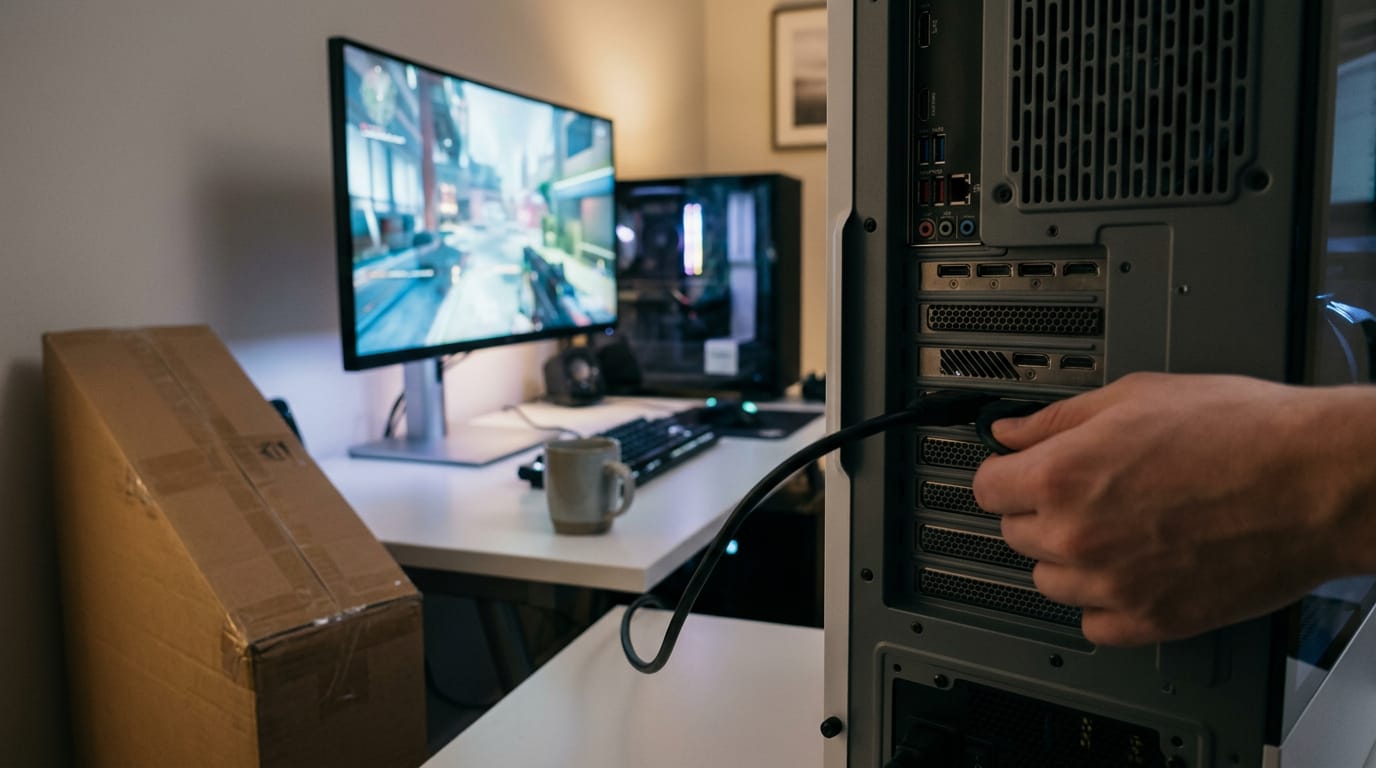
- Port swap fixes cable path. Picture a gamer who only sees stripes in late-night fullscreen matches. They move the video cable to another port, the lines vanish, and the monitor they were ready to replace keeps working. The fault sat in the cable path, not the monitor.
Work Through These Fixes in Order
Vertical stripes usually come down to a few simple suspects, so check the cheapest ones first and only move on when each is ruled out. Cheap first, costly last.
Check menu, cable, port, and refresh rate
Think of a gamer whose monitor starts showing stripes right after a new graphics card goes in. They borrow a laptop and find it shows the same stripes.
That one test points at the screen, so they can price a replacement instead of buying another graphics card.
You’ll work through these in order and stop as soon as the stripes go away:
-
Menu, cable, port, refresh. Open your monitor’s on-screen menu and your PC’s display settings, and confirm the refresh rate (how many times per second the screen redraws, measured in hertz) matches what the monitor supports. Swap in a cable you know works, then try another port. A loose or damaged cable is the quickest thing to rule out, and it’s easy to check.
-
Add external power. Plug the monitor’s power adapter straight into a wall outlet, not a shared power strip. If it runs through a dock or adapter with its own power brick, connect that too.
-
Test second device. Connect a different laptop, PC, or console to the same monitor. Stripes on every source mean the fault is in the monitor rather than your computer. Stripes that vanish point back to the original device.
-
Then repair or replace. If the stripes survive every step, it’s likely a fault inside the screen. Check your warranty, then weigh any repair quote against a comparable new monitor from a Canadian retailer.
When Cables and Ports Cause Trouble
Before you blame the screen, check the cable. If your laptop has red lines, the internal display cable running through the hinge is the likely culprit.
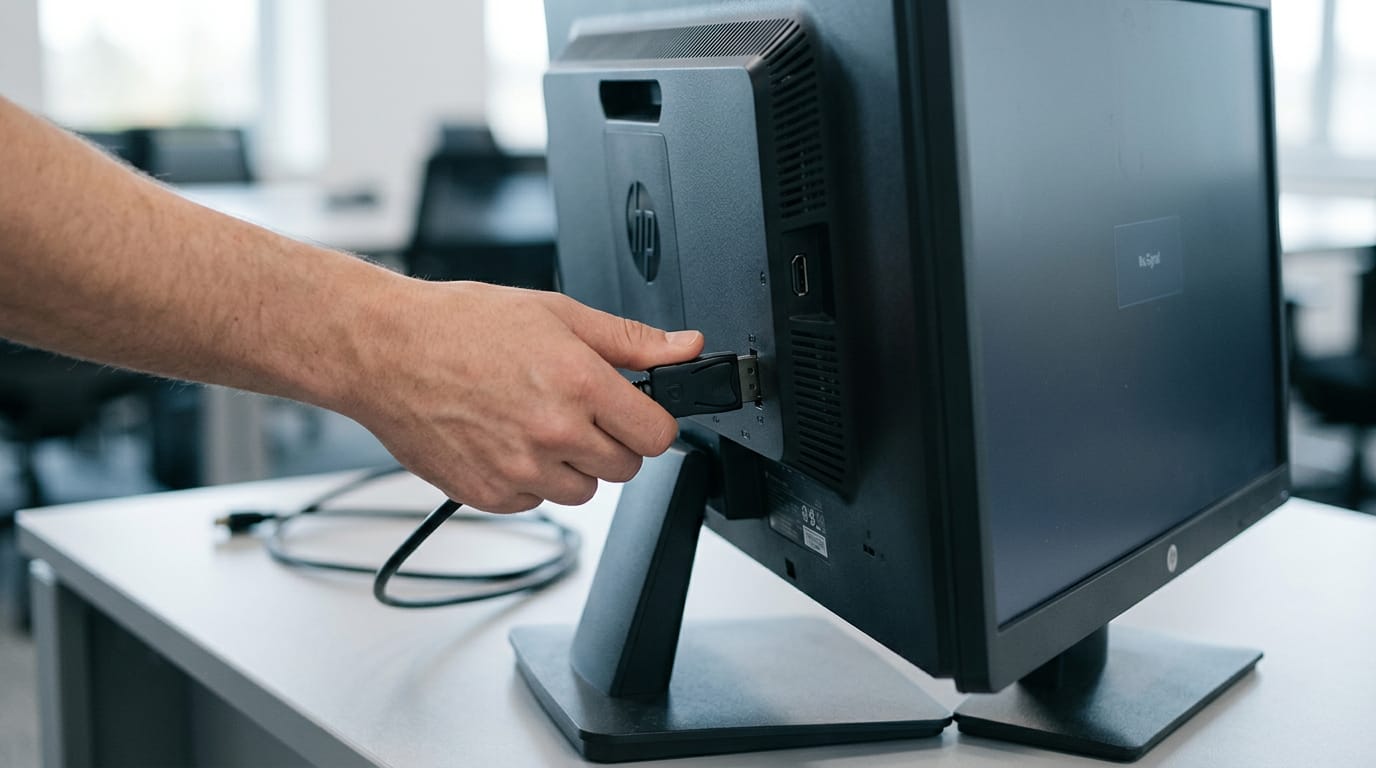
Reseat, swap, and simplify your connection
Start with the cheapest fix:
- Reseat both cable ends. Push each end in firmly.
- Check bent connectors. Bent pins can mimic a bad cable.
- Try a different port to isolate the fault.
- Use a known-good cable. Swap in one that’s already worked.
- Remove adapters and extensions. Each is another weak link.
Think of a gamer whose desk bumps loosen the cable: reseating it fixes the lines and saves a repair call. For a TV, run the same steps, then get a repair quote if lines persist on every input.
How digital and analog signals travel
Older analog connections carry the picture as a continuous wave. Nearby cables and electrical noise can slip in and show up as lines.
Digital connections like HDMI (High-Definition Multimedia Interface) send data instead. Each adapter in a chain is another chance for lines. If your gear has both ports, try DisplayPort in place of HDMI.
It’s less about which cable you own and more about how the signal travels.
Getting enough power to a portable monitor
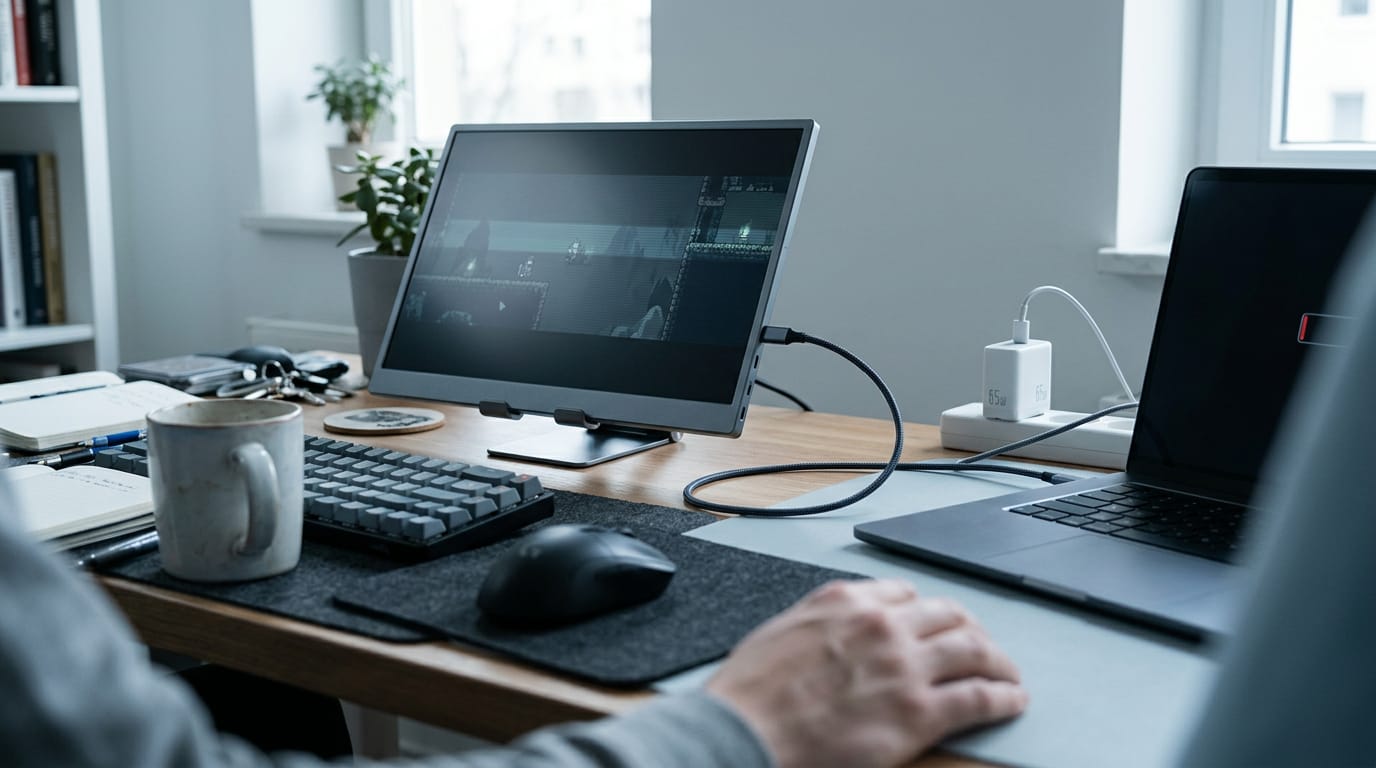
A portable monitor often shares one USB-C cable (the reversible plug) for picture and power, so it must carry video, not just charge. Weak bus power (power drawn through the cable) causes flicker.
Many portable monitors need 30 to 60 watts, more than some laptop ports supply.
Consider a gamer at a friend’s place whose screen flickers when the battery dips. A wall charger rated for that wattage steadies it. Flicker usually points to power, not the picture.
Adjusting Refresh Rate and Resolution
Stripes that appear only at higher refresh rates often point to a cable or mode mismatch, not a failed panel. Start with the free checks before you spend anything.
High refresh rates can expose weak links
- Stable at 60 Hz only. If stripes vanish at 60 Hz and return above it, the panel is probably fine.
- Test 144/165 Hz. Step up to your monitor’s rated rate and note where stripes start.
- Bandwidth or cable limits. A cable or port too weak for high refresh will show artifacts. Try a cable rated for the job.
- Lowering is diagnostic, not fix. Dropping the refresh rate is a test, not a repair, and it doesn’t remove the limit.
- Console on TV: HDMI mode. Set the console’s output and the TV’s HDMI input to the highest mode each supports.
A player with a 1440p 165 Hz monitor sees stripes only at 165 Hz. Dropping to 60 Hz clears them, so the cable becomes the first suspect.
Pick a display mode that stays stable
- Use recommended resolution. Run the resolution your monitor lists as recommended, usually its native resolution.
- Test native, then lower refresh. Set native resolution first, then lower refresh to see if stripes clear.
- Unsupported combos cause flicker. A pairing the monitor doesn’t support can show up as flicker or stripes. Check the combination, not one setting.
- Multi-monitor timing differences. Two screens at different rates can drift out of sync. Test each one alone first.
- Driver and GPU settings reset. A driver update can quietly revert your custom refresh rate, so recheck it after every update.
Change one thing at a time so you’ll know what worked.
When the Monitor Itself Is Failing
Stripes that show up with nothing else attached often point at the screen, and a few quick checks will confirm whether it’s the culprit.
What are the signs of a failing monitor?
The main signs of a failing computer monitor are:
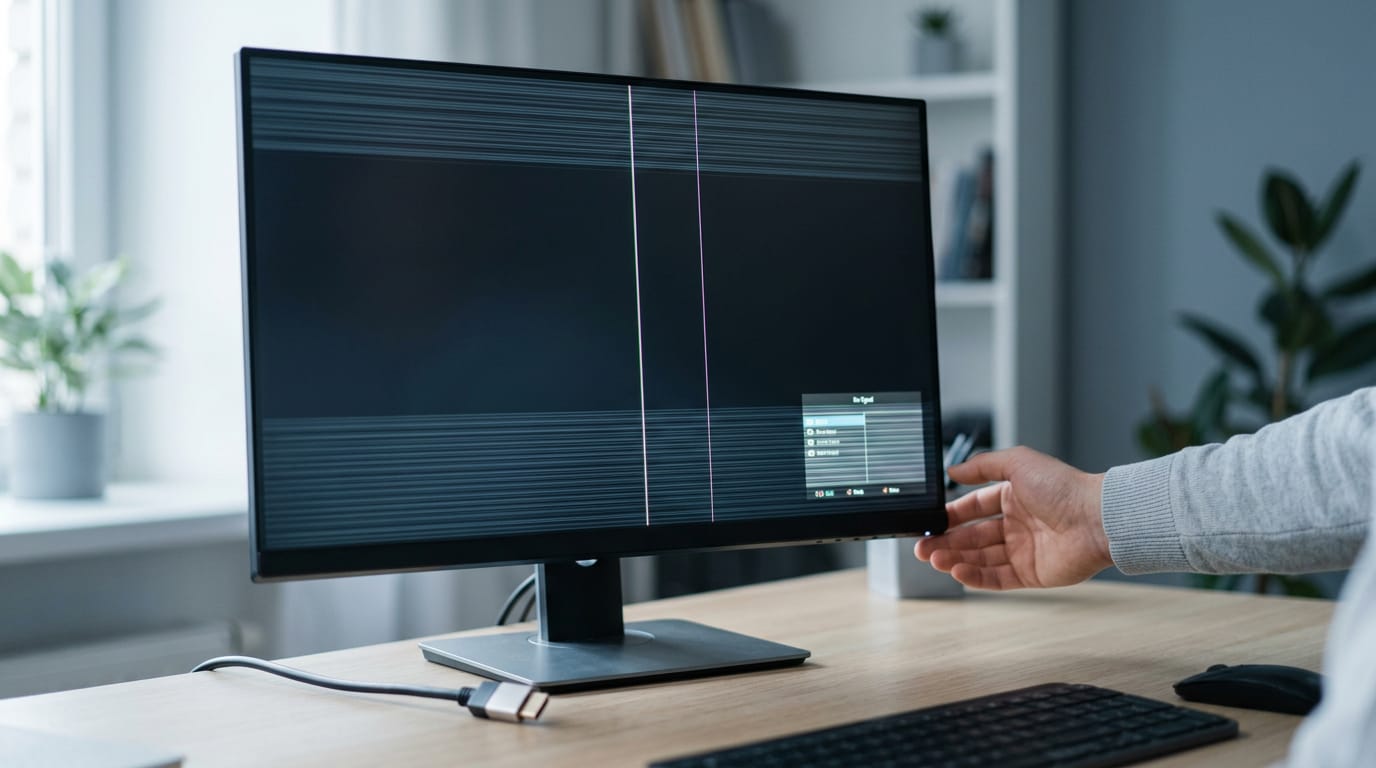
- Lines in the on-screen menu. If the menu shows stripes, the fault is inside the monitor.
- Lines with no signal. If lines persist after you unplug the video cable, your computer isn’t the cause.
- Power-on delays. A slow picture or lines that fade after startup can be an early warning.
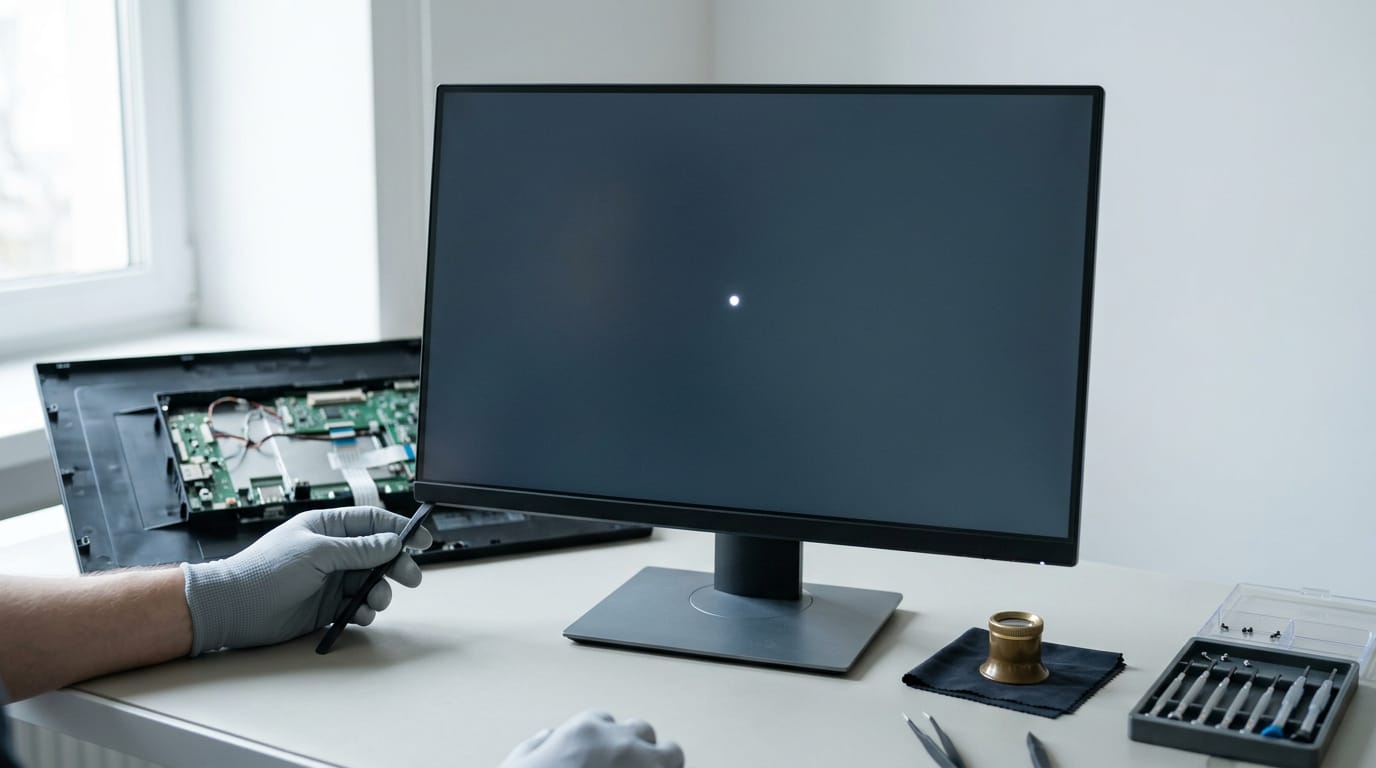
- Panel, timing board, or ribbon issues. The timing board tells the screen how to refresh its image, and a thin ribbon cable carries those signals to the panel. Loose or failing parts here often cause lines that stay put or drift.
Other signs, like flickering, a patchy backlight, or buzzing, usually come from those same internal parts.
For example, a gamer who sees a line only when the menu opens knows the fault is in the monitor, not their graphics card.
Whether the graphics card is the culprit
Stripes can come from a faulty graphics card too. The real question is where they start, not whether they’re there.
- Test another monitor. Plug your graphics card into a different screen. Stripes there point to the card; a clean screen points back to the first monitor.
- Swap the cable path. Try another video cable (the plug running from card to screen) or a different port. A bad cable can mimic a failing monitor.
- One monitor only suggests the display. If only one screen shows stripes, that display is the likely problem, since a faulty card usually hits every screen it drives.
Test first, buy second.
Deciding Whether to Repair or Replace
Before you spend a dollar, find out whether your monitor is worth saving.
When fixing your old monitor makes sense
A cable or settings fix is cheap, so start there: check the cable and display settings before you blame the panel. Reseat the cable, try a known-good one, and confirm your resolution and refresh rate.
A failing ribbon cable (the thin flat strip that links the panel to the board) can be hard to source, and a repair often costs more than the monitor is worth. In that case, a full screen replacement is the smarter move.
Check your warranty status first, since a covered repair may cost you nothing.
Think of a gamer whose monitor starts striping after a move. She reseats the cable, the stripes vanish, and she skips the repair bill. Nothing to buy.
Shopping for a replacement that fits
Match the replacement to your setup first:
- Native digital connection. Use a digital input your graphics card or console supports, running at native resolution.
- No converters. Skip adapters, since each one is another thing that can fail.
- Warranty matching usage. Nightly gaming calls for more warranty coverage than light office work.
- Portable power specs. If it’s portable, confirm its power requirements before you buy.
For Canadian-priced picks, shortlist monitors that pass those checks, then compare the final Canadian-dollar total at checkout. Fit comes before price: a bargain that won’t connect is no bargain.
Think of a player whose console has only a High-Definition Multimedia Interface (HDMI) port. She filters out any monitor without one before sorting by price.
Vertical stripes are rarely a mystery once you know how to read them. Start with the cheapest fix, check the cable and settings before you blame the panel, and let the pattern and timing guide each step.
If the monitor really is failing, you’ll be ready to weigh repair against replacement with real prices in hand, not guesses.
Fix the cheap things first, and spend only what the screen truly needs.
Questions
What are the signs of a failing computer monitor?
Common signs include lines visible in the monitor’s on-screen menu or persisting after you unplug the video cable. A slow picture on startup, flickering, patchy backlighting, or buzzing can also indicate an internal panel, timing-board, or ribbon-cable problem.
How to fix screen has vertical lines?
First check that the video cable is firmly connected, then try a known-good cable and another port. Confirm the display is using a supported resolution and refresh rate, and test the monitor with another device. If the lines remain in the on-screen menu or with the video cable disconnected, the fault is likely inside the display and may need repair or replacement.
How to get rid of a vertical line on a computer monitor?
Reseat the video cable at both ends, swap it for a known-good cable, and try another port. Check that the refresh rate and resolution are supported, especially if the line appears only at a high refresh rate. Test another device; if the line persists with no video source or appears in the monitor’s menu, check the warranty and seek repair advice.
How to fix horizontal lines on display?
Reseat or replace the video cable, try a different port, and remove any adapters or extensions. If the lines appear only at a high refresh rate, lower the rate temporarily to test whether the connection or display mode is the cause. Testing another device can help determine whether the problem is the monitor or the original computer.
How to fix a broken TV screen with lines?
Reseat the TV’s video cable, try a known-good cable and another input, and remove adapters or extensions. Test a different device on the TV, and check that the console and TV use a supported HDMI mode. If lines persist across inputs and devices, get a repair quote; a persistent fault may be inside the TV screen.
How to fix vertical lines on display?
Check the cable connections first, then try a known-good cable and another port. Confirm that the display’s resolution and refresh rate are supported, and test it with a second device. Lines that remain in the on-screen menu or with the video cable disconnected suggest an internal display fault.
Why does my laptop screen have red lines?
Red lines can result from a loose or damaged cable, a display connection issue, or a fault inside the screen. On a laptop, the internal display cable that runs through the hinge is a likely suspect, especially if the lines change when the lid moves. Connect an external monitor to help distinguish a laptop-screen problem from a graphics-card issue.
Why are there horizontal lines flickering on my monitor?
Horizontal lines that flicker can be caused by a loose or damaged cable, a weak port or adapter, insufficient power, or an unsupported refresh-rate and resolution combination. Reseat the cable, test another port and a known-good cable, and check whether the lines persist with another device. If they remain in the monitor’s menu or without a video cable connected, the display itself may be at fault.
Free · The Build Sheet
The Build Sheet: three gaming PCs priced at Canadian stores