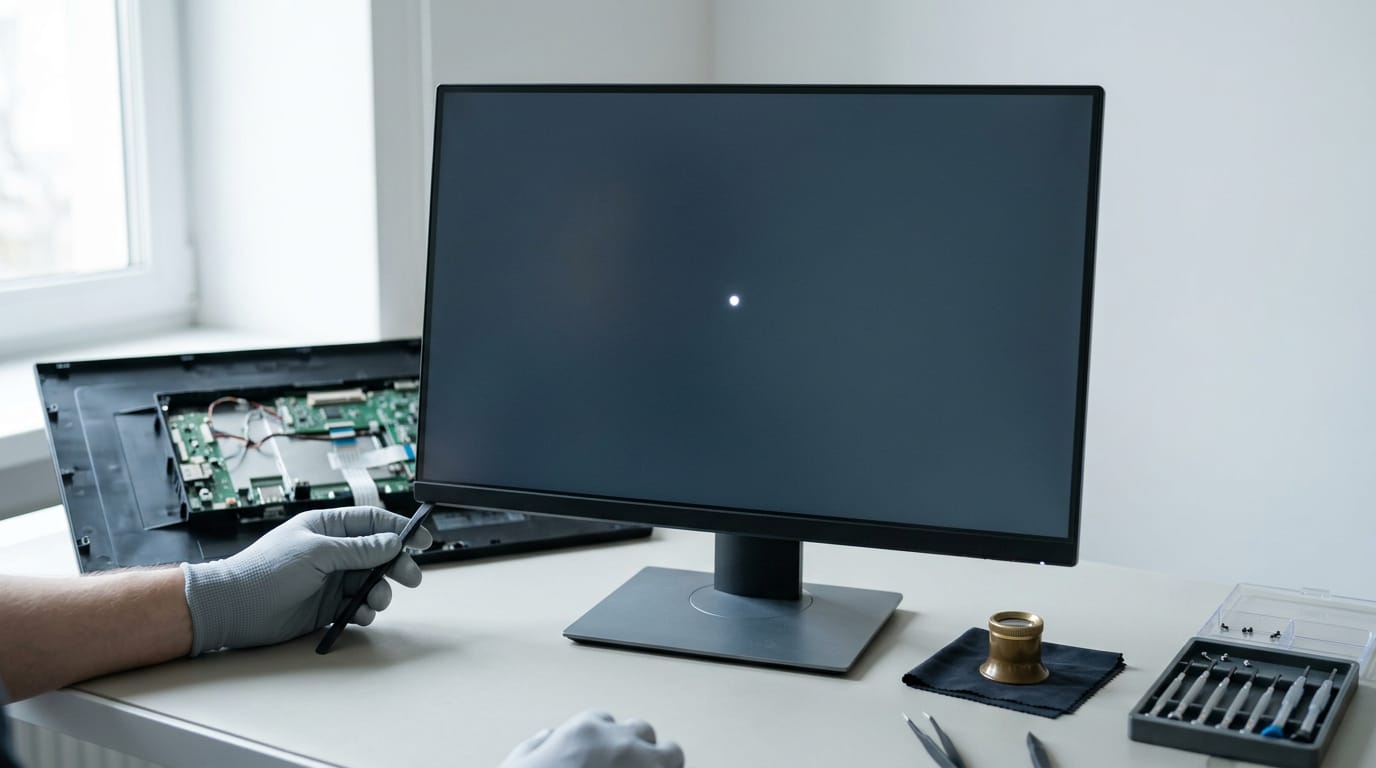
Damaged Monitor Fixes: Diagnose, Repair, or Replace
A damaged monitor can flicker, darken at a corner, or wash out colours. Diagnose the fault, weigh repair against replacement, and compare Canadian prices.

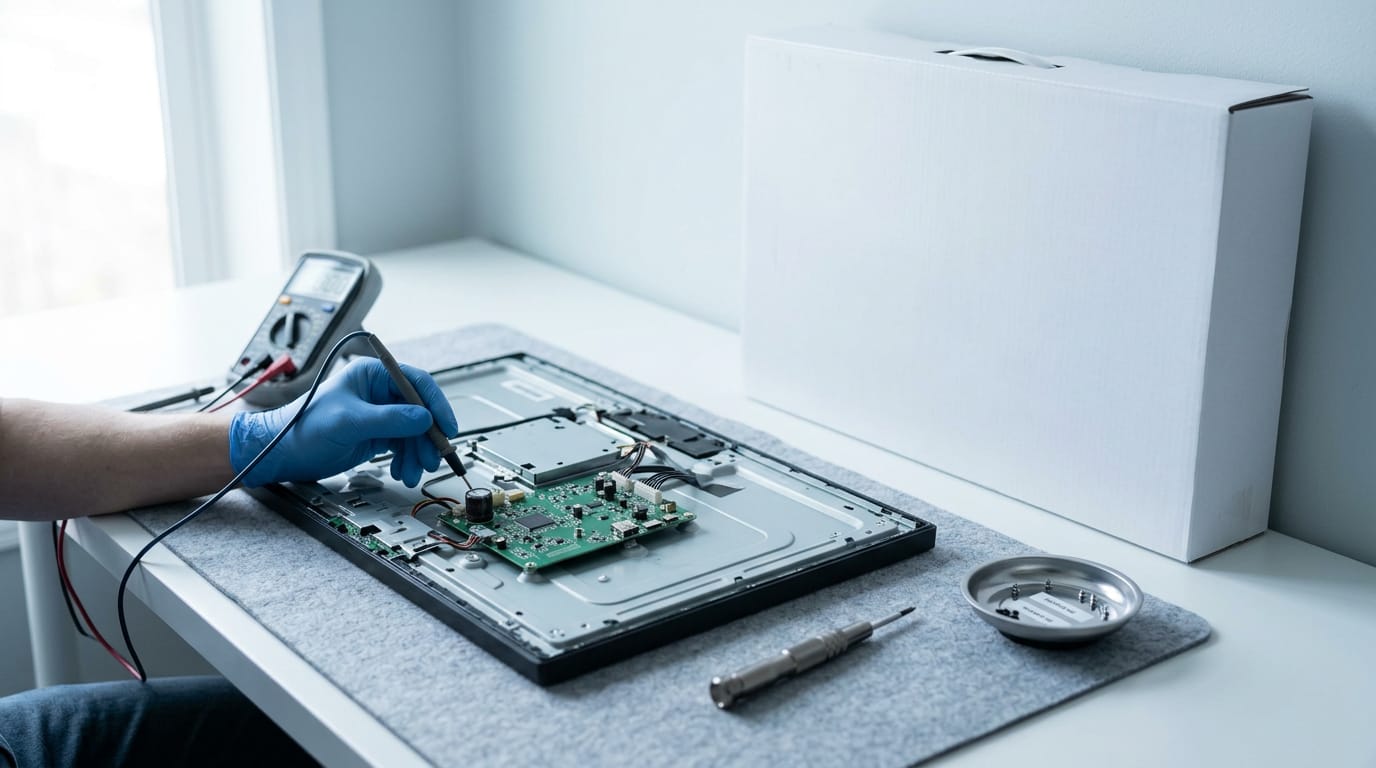
A damaged monitor is a screen with a fault that can affect its picture, power, backlight, connections, or controls, even when the case looks intact. Check symptoms methodically, rule out cables and computer issues, review the warranty, and compare a repair quote with replacement cost before deciding; unplug the monitor and leave high-voltage work or cracked panels to a professional. The right choice depends on the failed part, the price, and your repair skills, helping you avoid unnecessary spending and unsafe fixes.
Your screen starts flickering, a corner goes dark, or colours look washed out, and suddenly you’re wondering if the monitor is done for.
It’s a lot like a check-engine light in a car: the symptom is telling you something, and you just need to learn how to read it.
In this guide, we’ll walk through diagnosing what failed, weighing repair against replacement, staying safe before you open anything up, and knowing when a pro is worth calling.
We’ll also show replacement prices in Canadian dollars, so you can decide quickly what to buy.
Figuring Out How a Damaged Monitor Failed
Before you spend a dollar on a fix, find out what actually broke.
Signs the screen itself is broken
A black or pixelated screen after a drop points to the display taking the hit. Look for spiderweb cracks or black splotches.
The case matters less than what the screen does: a monitor can show no visible exterior cracks yet still have a broken LCD (liquid crystal display) panel.
Think of a gamer whose monitor took a tumble: the frame looks fine, but the corner flickers black, so skip the cable hunt.
Spotting power and backlight trouble
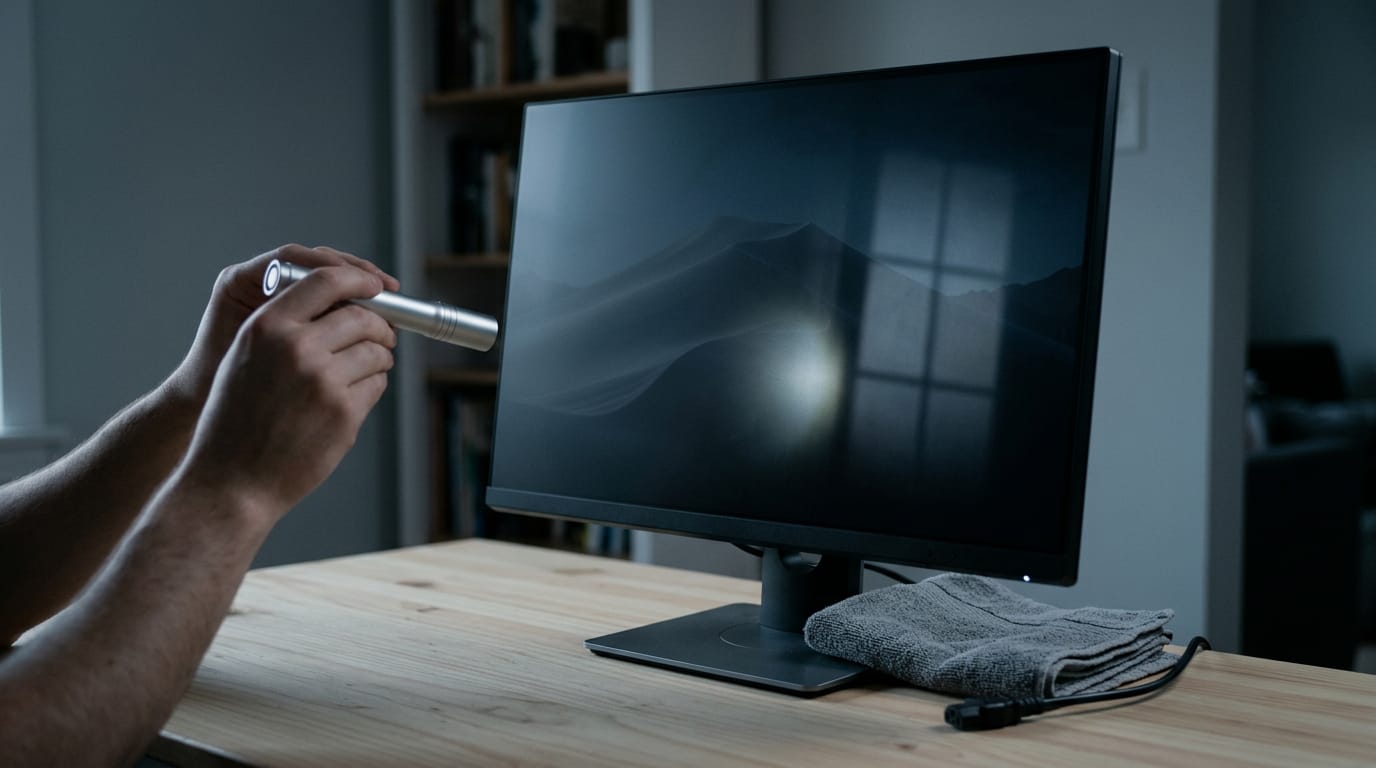
Start with the power indicator light. If it’s off, check the outlet and power cable. If it’s on but the screen stays dark, the backlight (the light behind the panel) may have failed.
For a flashlight test, shine one at a slight angle on the screen in a dim room. If you can faintly see the image, the backlight is the likely culprit. Humming, lines, or multiple images are clues too.
If water got in, unplug the monitor and don’t power it on until it’s fully dry. Let it air dry, skipping the hair dryer. Drying time depends on how much got in, so don’t rush it.
Whether a water-damaged screen can be fixed depends on what the water reached. If the picture returns, you’re in good shape. If not, you’ll weigh repair against replacement.
Odd picture glitches and signal problems
A stuck pixel stays lit in one color, while a dead pixel stays black. Jumbled colored squares can point to the connection between computer and screen rather than the panel. Check faulty buttons and input cables next, then test with another computer.
If the monitor works there, the problem is likely your machine, so check the graphics card and its drivers, the software that runs it.
Choosing Between Fixing It and Replacing It
Before you spend a dollar, check whether a fix is worth it.
Check your warranty before anything else
If the monitor is under warranty, the repair may be free. A do-it-yourself (DIY) attempt may void that, so hold off on opening it.
How much does a repair actually cost?
Repair prices hinge on the fault, so get a quote before you commit. According to The Psychology of Dynamic Product Maintenance, as goods age, replacing them becomes more worthwhile than repairing, so older monitors may favor replacement.
We don’t have a verified lifespan figure, so age is your best clue.
Consumer Perceptions of the Right to Repair notes that people weighing a repair against a replacement are understandably sensitive to the cost gap. If the quote nears a new monitor’s price, replacing is the smarter buy. Quote first, buy second.
If it won’t power on, quote the power supply first, since it’s a costly component. A cracked liquid crystal display (LCD) panel is replaced, not repaired.
Say a gamer’s monitor cracks and the panel quote nears a new monitor’s price. They sell the dead unit for parts and put that money toward a new one. If nobody wants a dead unit, check your city’s electronics disposal rules.
Set a ceiling for a replacement gaming monitor in Canadian dollars (CAD) before you shop, since we don’t have verified prices here.
Swapping out the LCD panel
Swapping the panel is the DIY route, so try it only after the quotes make sense:
- Find the panel label on the back of the monitor.
- Search the maker and the panel number online.
- Order the replacement panel from the manufacturer.
- Hire a professional to install it if you’d rather not do the work yourself.
Match the panel number exactly, or you’ll waste an order.
Staying Safe Before You Start
Opening a monitor can turn a fixable problem into an expensive one. A few minutes of prep protects you and the panel, so let’s get set up first.
Avoiding shocks and static damage
Monitors hold capacitors that can keep a lethal charge long after the screen goes dark, so a dead display isn’t a safe one. Be honest about your skill level: if board-level work feels like a stretch, call a pro. No shame in that.
Static is the other threat. Set up an anti-static workspace, because electrostatic discharge (ESD) can quietly fry circuits. A basic ESD control guide from the ESD Association is blunt: grounding is especially important for effective ESD control.
Ground yourself, wear rubber gloves, and keep humidity between 35 and 50 percent.
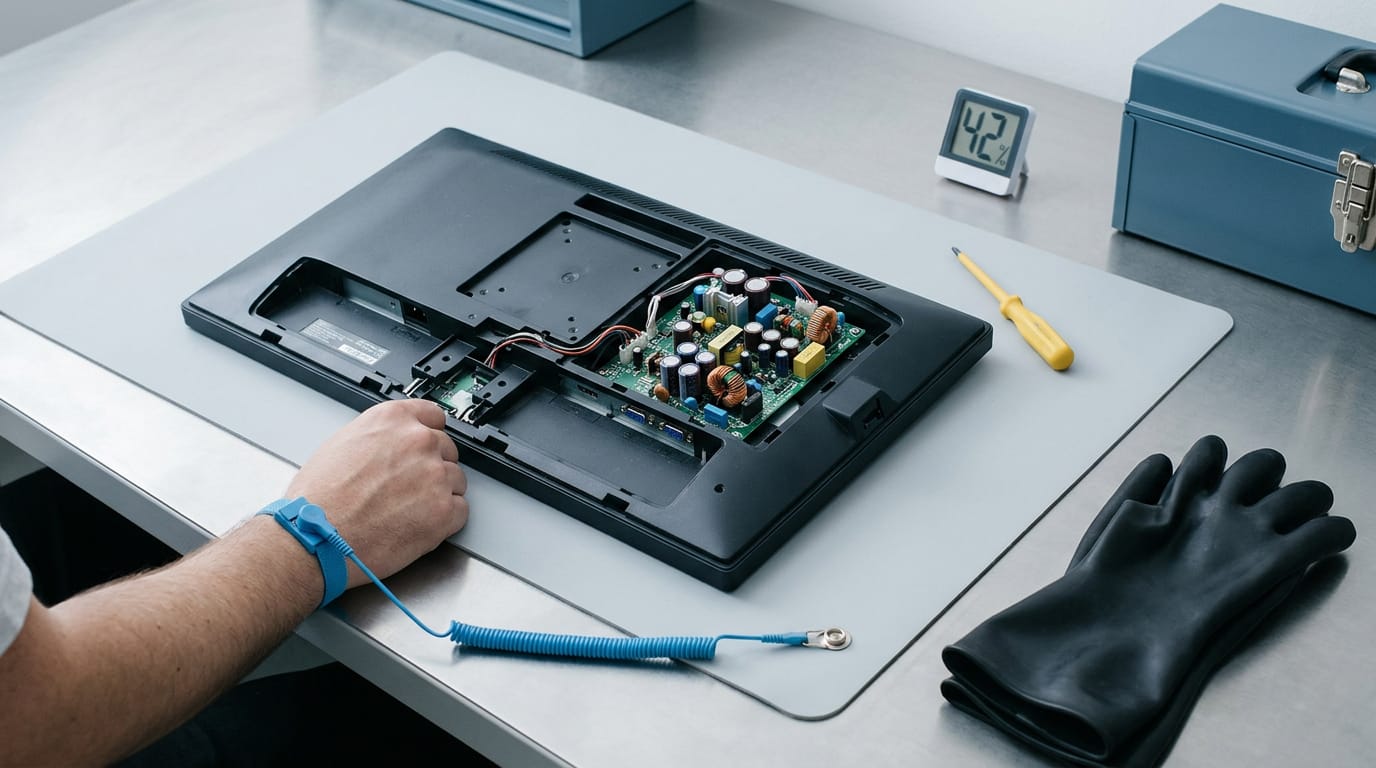
Taking the monitor apart in order
Start by unplugging the monitor from the wall, and remove its battery if it has one. Switching it off isn’t the same as being unplugged, so don’t skip this. Work through the teardown in order:
- Label screws and containers. Put each group of screws in its own labeled cup or bag.
- Photograph before disconnecting. Snap every cable and connector first.
- Pull ribbon cables straight out. Don’t wiggle or tug them at an angle.
Picture a gamer swapping a cable inside a 1440p monitor. Their photo, taken before the first connector came out, turns putting everything back together into matching a picture instead of guessing.
Fixing a Damaged Monitor Yourself
Some fixes are simple, while others involve dangerous voltage, so we’ll flag each risk as we go.
Dealing with stuck pixels and scratches
Say you’re a gamer who spots a stuck pixel mid-match. Gentle rubbing with a damp cloth, using light pressure only, may free it and save you a trip to the repair shop. Pixel repair software or hardware can help too.
For light scuffs, try an eraser first, and move to an LCD scratch repair kit for deeper marks.
Swapping out failing capacitors
The power supply board holds the capacitors, and large ones can hold a charge even after you unplug the monitor.
- Unplug the monitor and ease the case open with a plastic putty knife.
- Locate the power supply board, the one wired to the power jack.
- Discharge the large capacitors with a resistor before you touch anything.
- Look for bulging tops or leaking residue, not just a dusty board.
- Desolder the failing part and solder in a replacement with the same rating.
Soldering is unforgiving, so if you haven’t done it before, a repair shop is the safer call.
Installing a new backlight
Some monitors use CCFL (cold cathode fluorescent lamp) tubes for their backlight, the light source behind the display. Find the backlight, then look up your monitor’s exact model number before you buy.
A near match may not fit, so buy the exact part or don’t buy at all.
CCFL tubes contain mercury, so take a broken one to a hazardous waste or e-waste drop-off, never the household bin. If the screen is dim or flickering, check the inverter board too, since it powers the tubes.
Other parts that can fail
- AV board damage: a failing AV board, the part that processes incoming video, can leave the picture garbled or missing.
- Faulty control buttons: if the menu buttons stop responding, the buttons themselves may need replacing.
- Damaged input cables: test with a cable you know works, since it’s the quickest thing to rule out.
- Blown fuse caution: a blown fuse often signals a fault elsewhere, so never swap in a higher-rated one.
Start with the cable, and you might skip the board altogether.
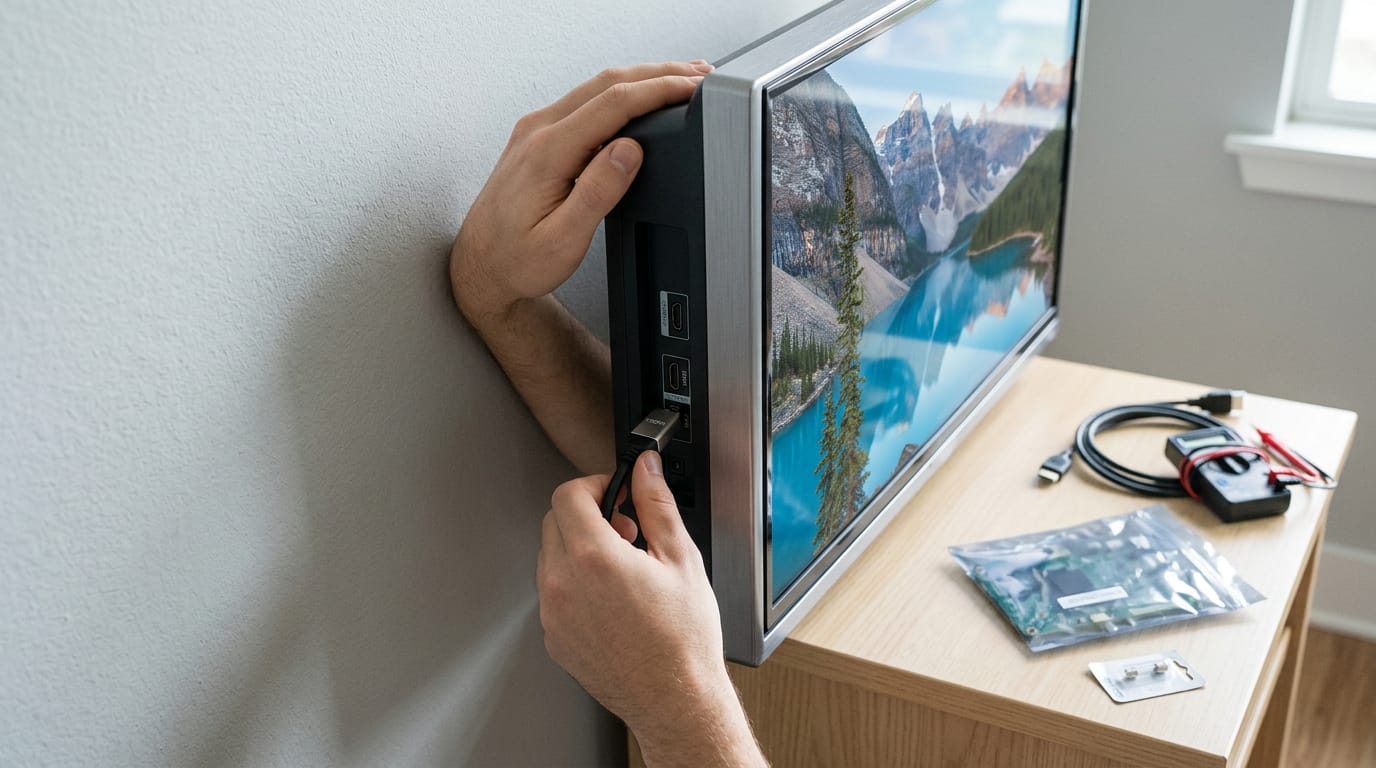
Getting a Pro to Repair It
Some monitor fixes make reasonable weekend projects, and others don’t. Here’s how to tell the difference, and what a repair service offers once you decide to call one.
When a pro is the safer bet
The question isn’t whether you can open the case. It’s whether you should. Some jobs are best left to a technician:
- High-voltage power supply work. This is a job for someone trained to handle it safely.
- Inexperienced with electronics. One wrong move on a circuit board can turn a fixable monitor into a dead one.
- Panel installation. The panel produces the picture, and swapping it takes careful handling and alignment.
- Cracked screens. These are best left to experts, so don’t try to pry the glass off yourself.
Calling in a pro is part of a good repair. Know your limits.
What repair services actually offer
Repair shops come with a few perks that make the call easier:
- Free diagnostics and estimates. You learn the problem and the cost before you commit.
- Same-day repairs. Some services turn a monitor around the same day, which matters when it’s your only screen.
- Low price guarantee. Some services offer one, so ask what it covers before you book.
- 1-year limited warranty. It only covers what its terms list, so read them before you pay.
- Store and mobile repair. Some take your monitor in at a store, while others send a technician to you. Pick whichever saves you the most trips.
Think of a player whose monitor goes dark an hour before a ranked match. A same-day repair gets them back on their main screen that evening, and the free estimate tells them whether it’s worth fixing before they pay a cent.
A damaged monitor doesn’t have to derail your gaming. Read the symptoms, be honest about whether a repair makes sense, and compare the cost to a replacement. Simple, safe fixes are yours to try, and bigger problems belong with a pro or a new screen.
Whichever path you choose, let the Canadian-dollar prices guide you. Know what each option costs before you commit, and you’ll spend less time second-guessing. The best fix gets you gaming again without overspending.
References
- The Psychology of Dynamic Product Maintenance — repository.upenn.edu (2004)
- Consumer Perceptions of the Right to Repair — doi.org (2020)
- Part 3: Basic ESD Control Procedures and Materials — esda.org
Questions
What is the lifespan of a monitor?
A monitor’s lifespan varies by model, use, and component quality, so there is no single reliable figure. Age is a useful clue when deciding whether to repair it or replace it.
How do you know if your monitor is damaged?
Signs of damage include a cracked or pixelated display, black areas, flickering, washed-out colours, lines, humming, or a dark screen. If the power light is on, shine a flashlight at an angle in a dim room: a faint image can indicate a failed backlight.
How much does it cost to fix a damaged computer screen?
The cost depends on the fault, monitor model, and parts needed, so get a repair quote before committing. If the quote approaches the cost of a new monitor, replacement is usually the better value.
How to get water damage out of computer screen?
Unplug the monitor and leave it off while it air-dries; do not use a hair dryer or try powering it on before it is fully dry. Drying time depends on how much water entered, and a technician can assess damage if the picture does not return.
How long does it take for water to dry out of a computer?
There is no fixed drying time because it depends on how much water entered and where it reached. Keep the computer unplugged and switched off until it is completely dry, and have it inspected if water reached internal components or it does not work afterward.
How much would it cost to fix a broken monitor?
The price depends on the cause of the damage and the cost of replacement parts. Ask for a quote first, and compare it with the price of a new monitor; a cracked LCD panel is replaced rather than repaired.
Is it worth fixing a computer screen?
It can be worth fixing a monitor when the repair is affordable, particularly if it is under warranty. If the repair quote nears the cost of a replacement, or the monitor is older, replacing it is generally the smarter choice.
Can a water damage screen be fixed?
Sometimes. Whether water damage can be fixed depends on what the water reached; unplug the monitor, let it air-dry fully, and do not power it on while wet. If the picture does not return afterward, have it assessed and compare the repair cost with replacement.
Sources
- Part 3: Basic ESD Control Procedures and Materials, esda.org
- The Psychology of Dynamic Product Maintenance, repository.upenn.edu,
- Consumer Perceptions of the Right to Repair, doi.org,
Free · The Build Sheet
The Build Sheet: three gaming PCs priced at Canadian stores