HP Monitor Video Cable Check: Fixing No Signal Errors
Check your HP monitor's video cable to fix a No Signal screen, then compare cable types and versions for the resolution and refresh rate you need.

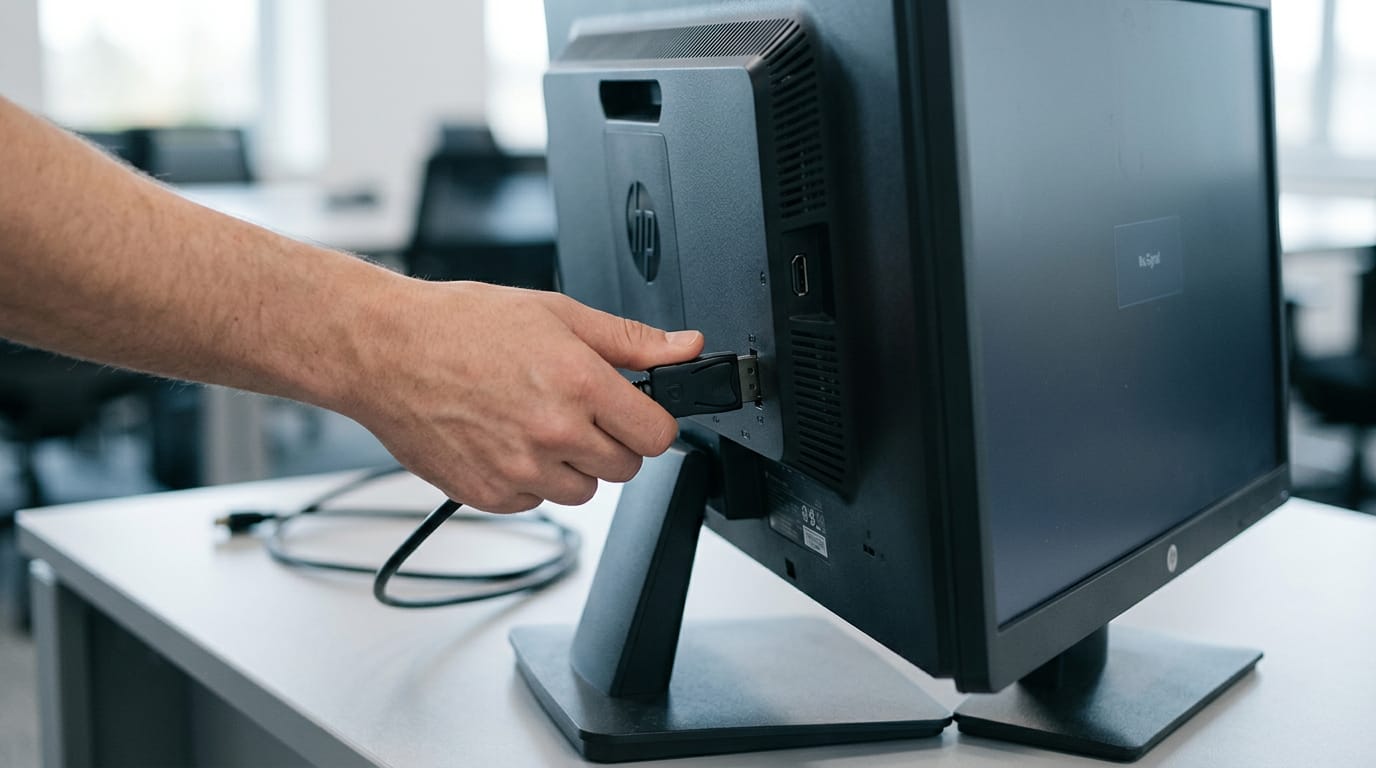
An HP monitor video cable carries the picture from your computer to the screen, and a loose, damaged, or mismatched cable can cause a “No Signal” message or limit image quality. Check both connections and the monitor’s selected input first, then test another port or cable one change at a time; make sure the cable, computer port, and monitor all support your desired resolution and refresh rate. These checks can resolve common display problems before you replace hardware or buy a cable that cannot deliver the performance your setup supports.
Picture this: you sit down, press the power button, and your HP monitor greets you with a flat ‘No Signal’ message. Your PC is humming, but the screen stays dark.
Before you blame your graphics card, check the cable, since it’s often the culprit. In this guide, we’ll walk through how to check your HP monitor’s video cable and work through no-signal errors step by step.
We’ll also help you pick cables that handle a fast refresh rate (how many times per second the screen redraws the image) and high resolution, with gamer-focused picks priced in Canadian dollars.
Video Cable Basics for Your HP Monitor
Before you troubleshoot a no-signal error, know what your cable can actually carry. Here’s how cable types differ and how connectors got here.
What sets different cable types apart
- Maximum resolution support: A cable caps how many pixels it can send, so a weak one holds back a sharp screen.
- Refresh rate capabilities: Refresh rate, measured in hertz (Hz), is how often the screen redraws. A cable that can’t keep up will limit it.
- Additional feature sets: Some cables add extras like audio, so check before you assume.
- Backward compatibility: A newer cable fits an older port but performs only as well as the slowest link.
- Future expansion potential: Spare headroom can carry you through your next monitor or graphics card upgrade.
Consider a player who puts a new high-refresh monitor on an older desktop. The cable fits, but the older port caps the picture, so the extra speed goes unused. Check what a cable can carry, not just whether it fits. Same plug, different ceiling.
How monitor connections evolved over time
- Analog era (1980s-1990s): Early monitors used analog cables like VGA (Video Graphics Array), fine for their day but not for sharper screens.
- Digital transition with DVI: DVI (Digital Visual Interface) carried the picture as digital data, a cleaner path from computer to screen.
- Early HDMI adoption: HDMI (High-Definition Multimedia Interface) put video and audio in one cable, though early versions had real limits.
- Modern high-bandwidth multi-purpose cables: Today’s cables carry more data, support higher resolutions and refresh rates, and often handle several jobs at once.
Check your monitor’s ports to see which generation you’re working with.
The Main Monitor Cable Types and Versions
Your monitor can only show what its cable carries, so the version matters as much as the plug. Here’s what we’ll compare.
What each HDMI version actually supports
HDMI (High-Definition Multimedia Interface) is on nearly every TV and monitor, but the version matters more than the plug. HDMI 1.4 caps resolution and refresh rate below HDMI 2.0, while HDMI 2.1 raises both with more bandwidth (data per second).
The newer features, variable refresh rate (VRR) and dynamic HDR (high dynamic range), mostly sit on HDMI 2.1.
ARC (Audio Return Channel) and eARC (enhanced ARC) send sound back to a soundbar over the same cable. HDMI plugs come in three types:
- Type A is full-size
- Type C is mini
- Type D is micro
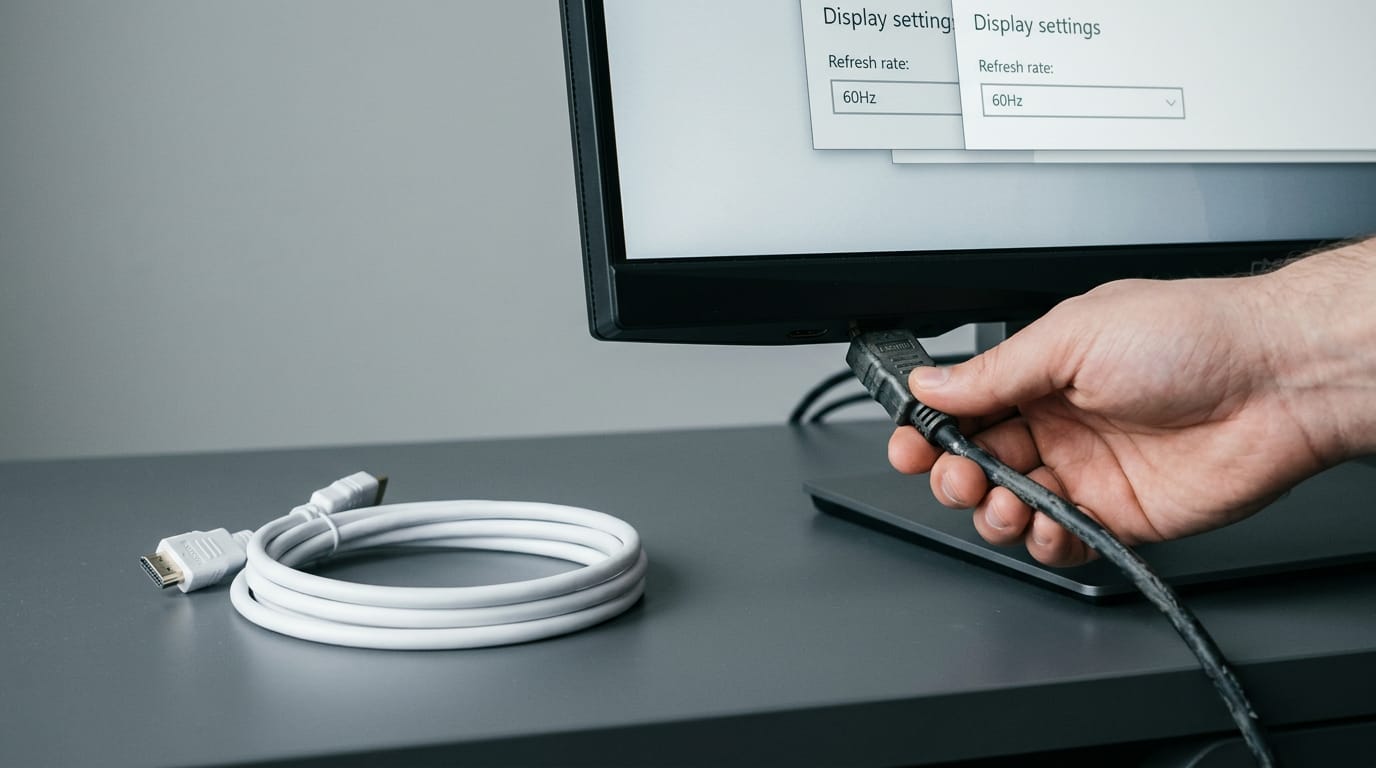
Take a player who plugs in an old spare cable and sees 60Hz on a new 1440p monitor. Swapping in a cable rated for the monitor’s version is the fix.
How DisplayPort versions and features differ
DisplayPort is a strong pick for gaming monitors. Versions 1.2, 1.4, and 2.0 each add bandwidth for higher resolutions and refresh rates. It also offers daisy-chaining, which links several monitors from one port through multi-stream transport (MST).
VRR works too, but only when the monitor and graphics card both support it. Some plugs have an optional locking tab that keeps them seated.
Using USB-C to carry video and power
USB-C (Universal Serial Bus Type-C) is a connector shape, and the spec behind the port decides what it can do. Alt Mode lets that port carry a DisplayPort or HDMI signal through the same connector.
According to Tom’s Hardware, USB-C power delivery can provide up to 100W under the 2.0 and 3.0 specs, and the 3.1 spec raises that to 240W. Data and video can run at once, with the port’s USB 3.2 tier setting data speed.
Say you’re a gamer who wants one cable to run a monitor and charge your laptop. Check the port’s specs for Alt Mode and enough power before you buy.
Thunderbolt 3 versus 4 at a glance
Thunderbolt uses the USB-C shape with more capability. Here’s what Thunderbolt 3 and 4 share:
- Bandwidth: both run at 40 Gbps (gigabits per second).
- Displays: both can drive two 4K displays at once, according to the Thunderbolt Technology Community.
- Power and data: both carry power delivery and PCIe (PCI Express) data.
Thunderbolt 4 is the stricter standard, so a Thunderbolt 4 port is the safer bet for a dock.
Older VGA and DVI connections explained
VGA (Video Graphics Array) is analog, so it’s prone to signal degradation on longer runs. It tops out at 1920x1080 and carries no audio. DVI (Digital Visual Interface) comes in three variants:
- DVI-D is digital only
- DVI-A is analog only
- DVI-I carries both
DVI reaches 2560x1600, but like VGA it carries no audio.
For gaming, stick with HDMI or DisplayPort. VGA and DVI are for old machines with no other choice. Newer ports win.
How the Cables Compare on Specs
Each video cable on your monitor carries a different amount of data, and that caps the resolution and refresh rate you can reach.
Resolution, refresh, and HDR limits per cable
DisplayPort 1.4 has the clearest verified numbers. Using Display Stream Compression (DSC), a method that squeezes video data to fit the connection, it can reach 8K at 60Hz or 4K at 120Hz, according to Legault’s 2017 article in Information Display.
Both settings include 10-bit color and High Dynamic Range (HDR), which means brighter highlights and deeper contrast.
Picture a player with a 4K monitor who wants 120Hz, or 120 image updates per second, for fast shooters. DisplayPort 1.4 covers that with DSC, so look for a DisplayPort 1.4 port first.
For HDMI (High-Definition Multimedia Interface) 2.1 and Thunderbolt 4, we don’t have verified resolution, refresh, or HDR figures, so check the monitor’s spec sheet before you buy.
How much data each cable can carry
Bandwidth is how much data a cable can move each second, measured in gigabits per second (Gbps). According to CinemaConfig’s HDMI 2.1 reference, HDMI 2.1 reaches 48 Gbps, split across four data channels of 12 Gbps each.
DisplayPort 1.4 comes in at 32.4 Gbps, and Thunderbolt 4 at 40 Gbps.
On paper, DisplayPort 1.4 carries less data than HDMI 2.1, yet with DSC it still drives 4K at 120Hz. Bandwidth tells you what a cable can carry, not what you’ll see. Raw speed is only half the story.
Legacy DVI (Digital Visual Interface) and VGA (Video Graphics Array) are older standards. We haven’t verified their bandwidth, so we won’t guess at numbers. Treat either as a fallback, not a gaming pick.
Choosing the Right Cable for Your Needs
Cables look alike, but they don’t all carry the same signal.
Cables that suit a gaming setup
Your cable must keep up with your resolution and your refresh rate (how often the screen redraws, measured in hertz or Hz). Lower resolutions ask much less of a cable than 4K at high refresh.
Think of a player whose 4K monitor rated for 120Hz runs at a slower refresh on an older port. Running 4K at 120Hz needs HDMI (High-Definition Multimedia Interface) 2.1 or DisplayPort (DP) 1.4, so match the cable and port.
Variable refresh rate (VRR) syncs the monitor to your GPU (graphics card) to cut screen tearing. Low latency means less input delay, and HDR (high dynamic range) adds brighter highlights.
Match the cable to your GPU port and Hz. Your card’s port, the cable, and the monitor all need to line up. Miss one and you’re capped.
What pro work demands from your cables
- Color accuracy and calibration. The cable must carry the full color signal your monitor supports, or a calibrated screen can still look off.
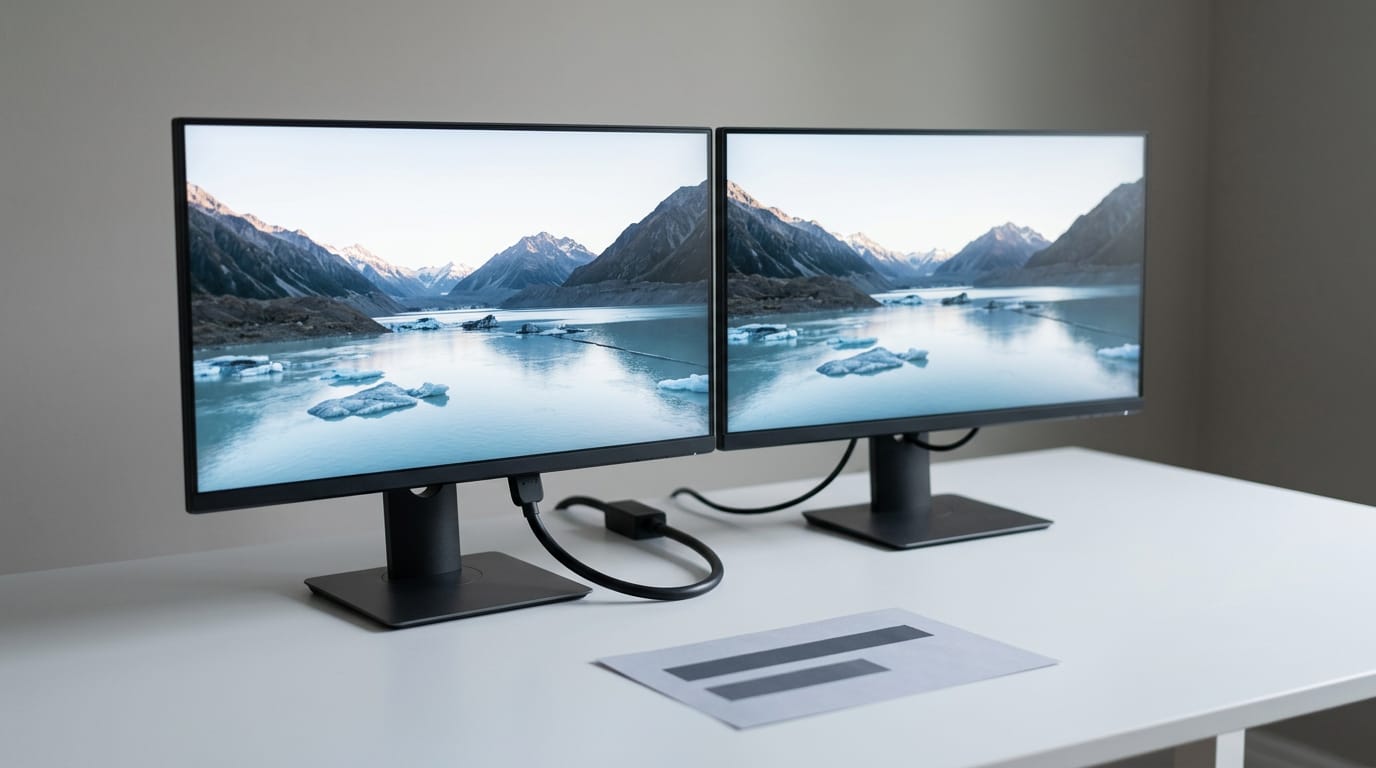
- Multi-monitor support. Each display needs a port and a cable rated for its resolution and refresh.
- Power delivery. A USB Type-C port (the reversible plug) can carry video and laptop charging on one cable, if the cable is rated for the wattage.
- Cable management. Consider a designer with two monitors on one docking station. Labeled cables and Velcro ties mean one unplug frees the desk.
Cables for a home theater setup
For surround sound, eARC (enhanced Audio Return Channel) sends richer audio to a soundbar over one HDMI cable, if the port and cable both support it.
HDR works the same way: the TV, source, and cable all need to handle it.
Take a family whose 4K TV also runs a game console. One older link caps the picture, so match resolution and refresh across all three.
Smart Habits for Buying and Keeping Cables
Nobody thinks about cables until the screen goes dark. Here’s how to pick a good one and keep it working.
How do you know if an HDMI cable is good?
Telling a good HDMI cable (High-Definition Multimedia Interface) from a weak one takes four checks:
- Needs now and later. It’s less about how much it costs and more about what it has to carry. A player with a 1440p monitor and a high refresh rate (how often the picture updates) needs a cable that carries the full signal.
- Budget. A higher price doesn’t guarantee a better picture, but an unmarked bargain cable is a gamble. Set a number and shop within it.
- Certification. Look for logos on the packaging. They show the cable was checked against a standard, not just the seller’s word.
- Brand reputation and warranty. A company that stands behind its product with a clear warranty is a safer bet.
Check all four, then buy once.
Keeping cables clean, intact, and well stored
Most cable problems are physical.
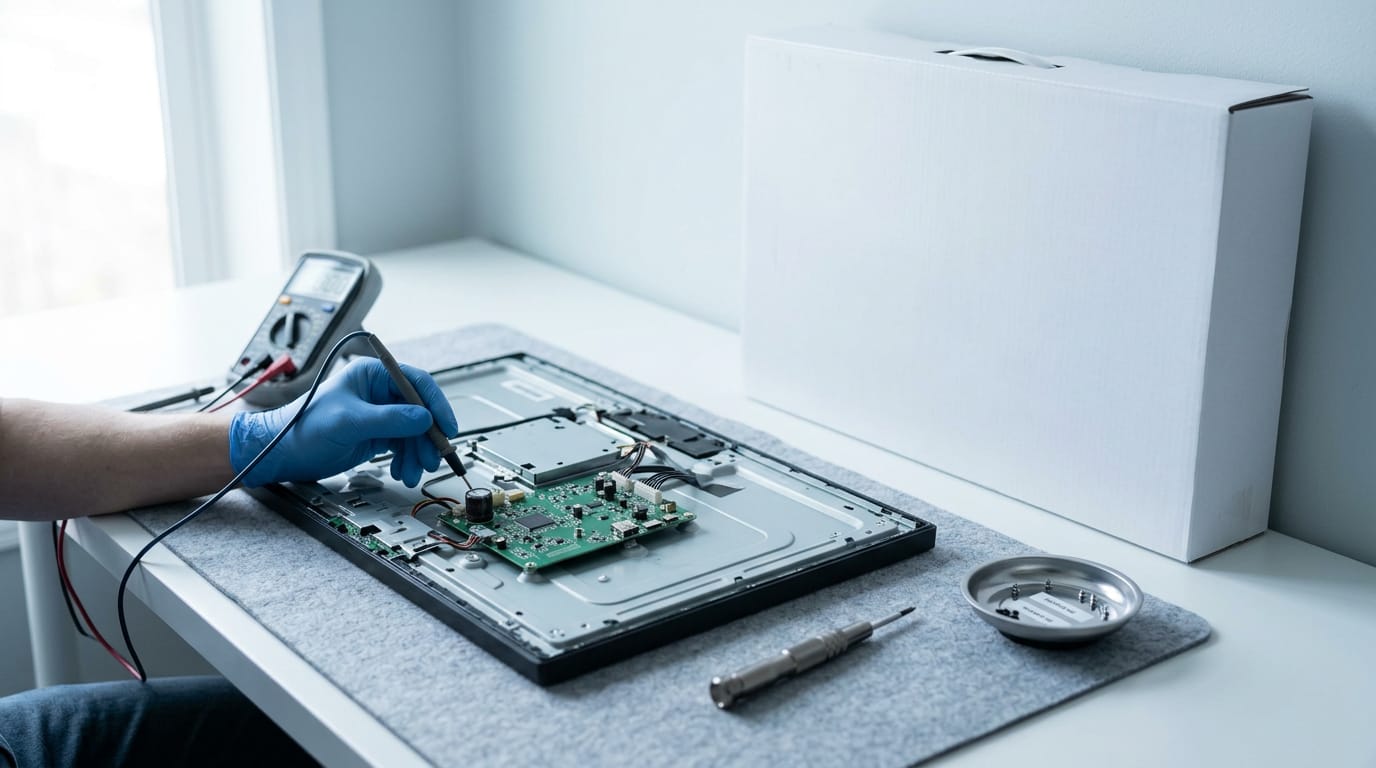
Start with clean connections: check both ends for dust or debris before you plug in. Run your fingers along the cable for kinks, bent pins, or a cracked housing. Damage can cause no-signal errors, so swap a damaged cable out. If a new cable still shows no signal, the damaged monitor itself may be the problem.
Coil the cable in loose loops instead of tight kinks, and keep it clear of chairs and desk legs. Picture a gamer rolling their chair over the cable each night until the picture flickers. A little slack behind the desk prevents that.
Strain relief is the flexible collar where the cable meets the plug. Grip the connector, not the wire, when you unplug.
Installing and Troubleshooting Your HP Monitor Cable
Start with the simplest checks.
Setting up the connection the right way
- Verify connector orientation: flip the plug if it resists; most fit one way.
- Secure connection, avoid strain: leave slack so the cable isn’t pulling on the port.
- Maintain bend radius: keep curves gentle; every cable has a minimum safe bend radius.
- Update graphics drivers: install the latest driver for your GPU (graphics processing unit).
- Configure display settings: confirm Windows detects the monitor and sets it as main.
Fixing no signal and poor image quality
If you see “monitor cable not connected,” the monitor isn’t receiving a signal on its current input.
Picture a gamer facing a black screen before a ranked match. The cable was fine; one input change got them into the lobby. Check the input first.
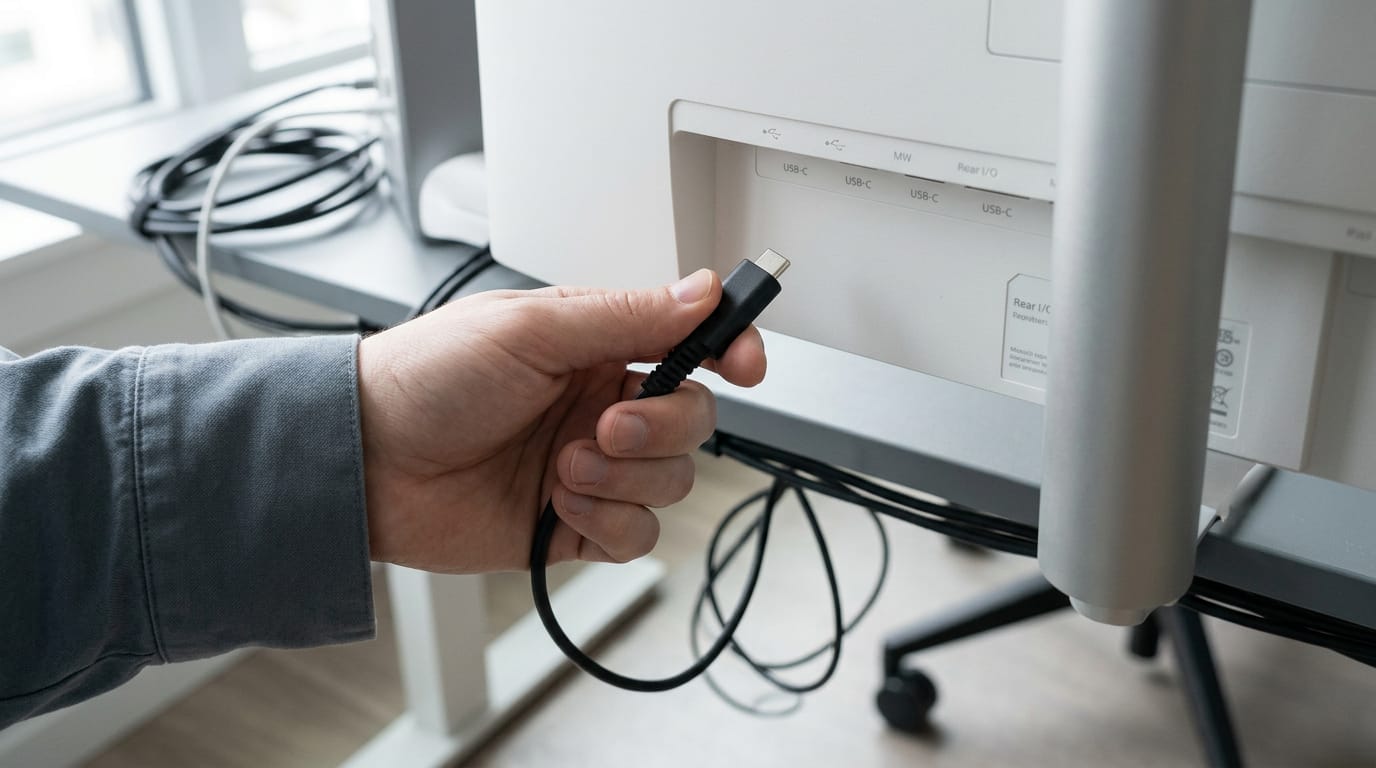
- Check cable connection: reseat both ends, then inspect the signal cable for bent pins or a frayed jacket.
- Verify input source: check the video source by confirming the monitor’s input matches your port, like HDMI (High-Definition Multimedia Interface) or DisplayPort.
- Test alternate ports: try another port, and on an HP laptop, switch on HDMI output in Windows settings.
- Check cable length and interference: long cables near power cords can cause flicker.
- Verify resolution settings: match Windows to the recommended resolution.
- Swap-test cable, port, and monitor: change one thing at a time, not everything at once.
When HDR or refresh rate misbehaves
- Enable HDR (High Dynamic Range) in Windows: switch it on in display settings and on the monitor.
- Confirm cable bandwidth: check the cable can carry your target refresh rate (redraws per second) and resolution.
- Check monitor and GPU support: find your HP monitor model on its label, then confirm both support the mode.
- Update display settings: set refresh rate to your monitor’s maximum.
Where Monitor Cables Are Headed Next
The cable behind your monitor is changing, and the newer standards matter most once you’re chasing high refresh rates. Here’s what’s coming and what it means when you’re shopping for a gaming setup.
Newer standards and what they add
Newer versions, DisplayPort 2.1 and HDMI 2.1a (HDMI is short for High-Definition Multimedia Interface), move more data per second than older cables. That extra room is what lets a monitor run higher refresh rates and resolutions.
USB4 (Universal Serial Bus, version 4) and Thunderbolt 5 go further by sending video, data, and power through one port. USB4 v2.0 is the newer revision of that standard, so check the version on the box rather than trusting the port shape.
The big shift is about capacity rather than shape. A cable can look identical to the one you already own and still carry more picture data if it’s built to a newer standard.
Consider a player who just bought a high-refresh 1440p monitor and a laptop they use for both work and games. If both ends support a newer port, one cable can send the picture and charge the laptop, so the desk stays clean.
Check both ends before you buy, because one older port will hold the whole setup back.
Wireless, single-cable, and smarter cable designs
- Single-cable solutions combine video, data, and charging so your desk runs on fewer wires.
- Wireless displays cut the cord entirely, but they usually add some delay and compression, so a wired connection stays the dependable pick for fast gaming.
- Improved materials and smart cables help a signal stay clean, and some newer cables include a small chip that reports what they can handle.
Cables are getting smarter, but matching one to your monitor still comes first.
A dark screen is frustrating, but it’s rarely a dead end. Check the cable, confirm the connection and input, and work through the steps one at a time. That’s usually faster than guessing at parts.
When you buy a new cable, match it to the games you play, with the refresh rate and resolution your setup can actually deliver, at a price that fits your Canadian budget.
Check the cable before you chase new parts, and get back to the game you were waiting to play.
References
- Create Higher Resolution Displays with the VESA DSC Standard - Legault - 2017 - Information Display — sid.onlinelibrary.wiley.com (2017)
- The USB Power Delivery (PD) Specification — tomshardware.com (2025)
- HDMI 2.1 (HDMI Specification Version 2.1) — cinemaconfig.com (2026)
- Thunderbolt 3 Dual 4K Video Docking Station with Power — thunderbolttechnology.net
Questions
How to check HP monitor model?
Check the label on the back or underside of the HP monitor for its model number. You can also open the monitor’s on-screen menu and look under Information, or check the model listed in Windows display settings or HP Support Assistant.
How do I enable HDMI on my HP laptop?
Connect the laptop to the display with an HDMI cable, then use the monitor’s input/source button to select the matching HDMI port. In Windows, press Windows+P and choose Duplicate or Extend; if needed, open Settings > System > Display and select Detect.
How do I check the video source?
Use the monitor’s input or source menu to see which connection it is set to, such as HDMI or DisplayPort. Select the input that matches the port and cable connected to your computer.
How can I check the signal cable on my PC screen?
Check that the cable is firmly seated at both the computer and monitor, and confirm the monitor is set to the matching input. Inspect the cable and connectors for fraying, bent pins, or other damage, then try another port or a known-good cable.
How do you know if an HDMI cable is good?
Choose a cable certified for the HDMI bandwidth and resolution and refresh rate your devices require. Check its packaging for certification, and test it with your equipment; flickering, dropouts, or no picture can indicate a cable or connection problem.
Why is my monitor saying no signal when the HDMI is plugged in?
The monitor may be set to the wrong input, the cable may be loose or damaged, or the computer may not be sending video through that port. Select the correct monitor input, reseat both cable ends, and test another port or cable; also confirm the computer’s display settings and graphics drivers.
What does the "monitor cable not connected" error mean and how can I fix it?
It means the monitor is not receiving a video signal through the input it is currently using. Check that both ends of the cable are connected, inspect for damage, select the matching input, and try another port or cable; confirm the computer is outputting to the display.
Are HP monitors good quality?
HP monitors range from basic office displays to higher-end models designed for gaming and professional work, so quality depends on the specific model. Compare resolution, refresh rate, color performance, connectivity, warranty, and reviews against your needs and budget.
Sources
- The USB Power Delivery (PD) Specification, tomshardware.com,
- Thunderbolt 3 Dual 4K Video Docking Station with Power | Thunderbolt Technology Community, thunderbolttechnology.net
- HDMI 2.1 (HDMI Specification Version 2.1) | CinemaConfig, cinemaconfig.com,
- Create Higher Resolution Displays with the VESA DSC Standard - Legault - 2017 - Information Display - Wiley Online Library, sid.onlinelibrary.wiley.com,
Free · The Build Sheet
The Build Sheet: three gaming PCs priced at Canadian stores