Xbox One Overheating Message Explained, Plus How to Fix It
An Xbox One overheating message can signal blocked vents, poor airflow, or accessory trouble. Follow fixes in order and check Canadian repair options.

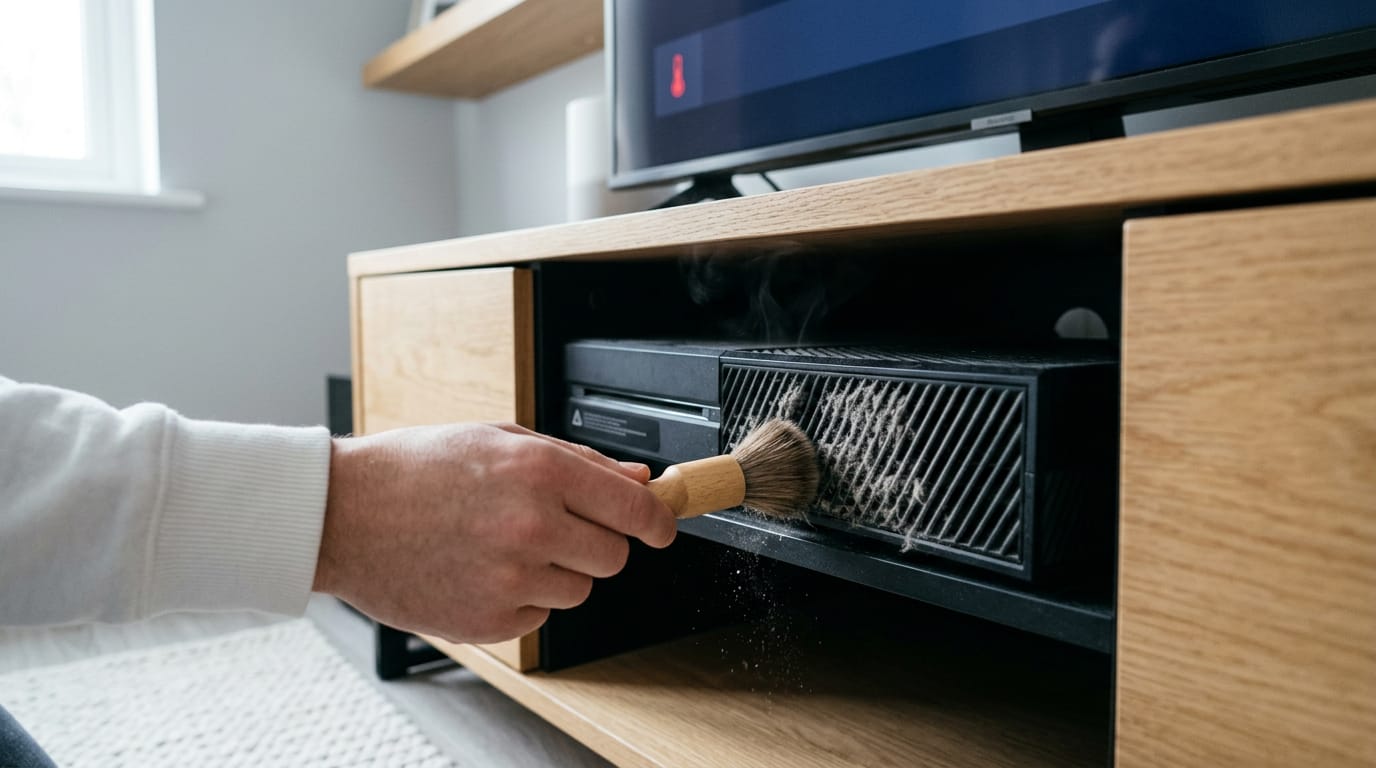
An Xbox One overheating message means the console’s internal temperature is too high, and it may shut down to protect its components. Let it cool, then improve airflow by moving it out of enclosed spaces, clearing dusty vents, closing unused apps, taking breaks, and testing the console without accessories. If it still overheats, check the fan and other hardware, and review warranty coverage before opening or repairing it.
Think of your Xbox One like a kitchen with the range hood off: heat has nowhere to go. When an overheating message pops up, that’s what’s happening inside the case.
The overheating message means the internal temperature has climbed past a safe level, and the console may shut down to protect its parts. Most of the time the cause is simple: blocked vents, a dusty fan, or poor airflow.
We’ll walk through the fixes in order, plus Canadian tips on warranty, repair options, and where to buy parts.
Responding to an Xbox One Overheating Message
The overheating message means the console’s internal temperature has climbed too high, so it warns you and may shut down to protect the parts inside.
If it keeps happening, the usual culprits are several apps running at once, marathon sessions, and a console with no room for air. Here’s the order we’d work through it.
Let the console cool and restart
Restarting clears the warning, but closing extra apps helps keep it from returning. Work through these steps:
- Check save sync before power-off. Confirm your progress has uploaded.
- Power off and unplug. Cut power fully so the console can reset.
- Allow time to cool. Let the case cool down completely before you touch anything else.
- Fully restart console. Plug it back in and power on from a full cold start.
- Close multiple running apps. Quit anything you’re not using, since every open app adds heat.
Give yourself breaks from long sessions
Picture a player who spends an evening in one long session, then flips to a streaming app with the console tucked into a cabinet. All that heat has nowhere to go.
Shorter blocks give the console a real chance to recover: avoid extended play sessions, and turn it off during breaks. Then wait about an hour before your next session. That downtime does the heavy lifting.
What Microsoft support advised
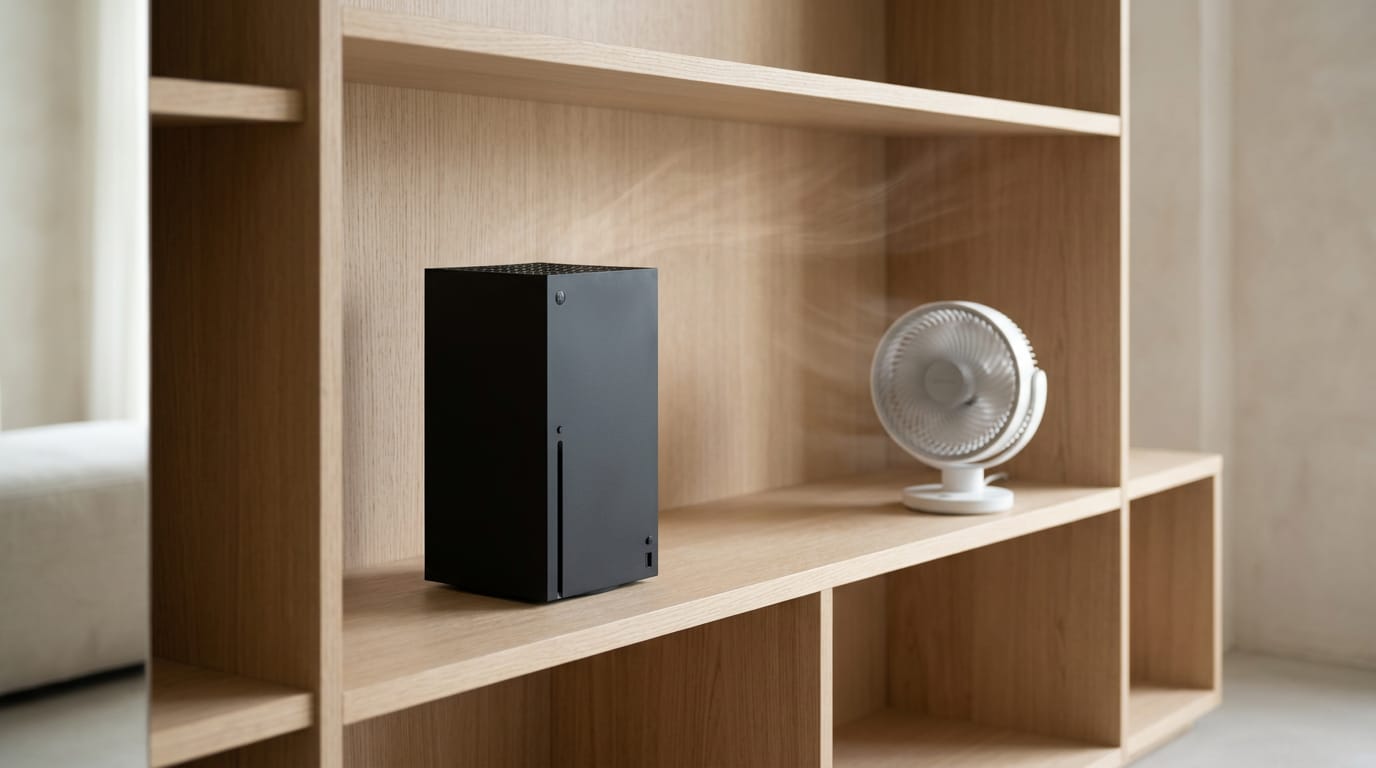
If the steps above don’t clear the warning, contact Microsoft support. They advised using open space around the console and adding a fan nearby. Both target airflow: clear space lets hot air escape, and a nearby fan moves it along.
Where to Place Your Console
Before you reach for cleaning tools, check where the console sits.
Leave room for air to flow
Give your Xbox One room to breathe. According to Engadget’s piece on cabinet placement, Microsoft proposes 4 to 6 inches (up to 15 centimeters) of clearance on all sides.
- Clearance on all sides. Keep that 4 to 6 inches open around the console, not just behind it.
- Skip cabinets and enclosed spaces. A console boxed in a closed cabinet has nowhere to send its heat.
- Pick a well-ventilated area. Open air beats a stuffy corner.
Take a player who slides their console into a closed TV cabinet to hide the cables. Pulling it out into the open costs nothing and gives the fan room to work.
Wondering if vertical or horizontal is better? The clearance rule is the same either way. It’s less about which way it stands and more about how much open air it gets.
What temperature is too hot for Xbox?
Heat is the other half of the picture. The ambient temperature (the temperature of the air around the console) should stay within an ideal range of 5 to 35°C, so anything above 35°C takes you outside it.
- Keep it away from heat sources. Radiators, space heaters, and direct sunlight all warm the air around the console.
- Keep the temperature stable. A steady room beats one that swings all day.
- Watch hot climates. In a hot climate the problem gets worse, so placement matters even more.
Get the space and the temperature right, and you’ve covered the basics.
Keeping Dust Out of Vents and Fans
Dust is one of the most common reasons a console runs hot, and it’s a fix you can do yourself. Start on the outside, and only open the console if you need to.
Clean the outside vents regularly
Check the vents every time you tidy up around the console, because dust collects there first. When you spot buildup, reach for these:
- Compressed air or a dust blower. Short bursts work better than one long, close blast.
- Microfiber cloth. Wipe the outside of the case to catch whatever the air loosened.
The goal is to remove dust, not just move it deeper inside.
Cleaning dust from inside the console
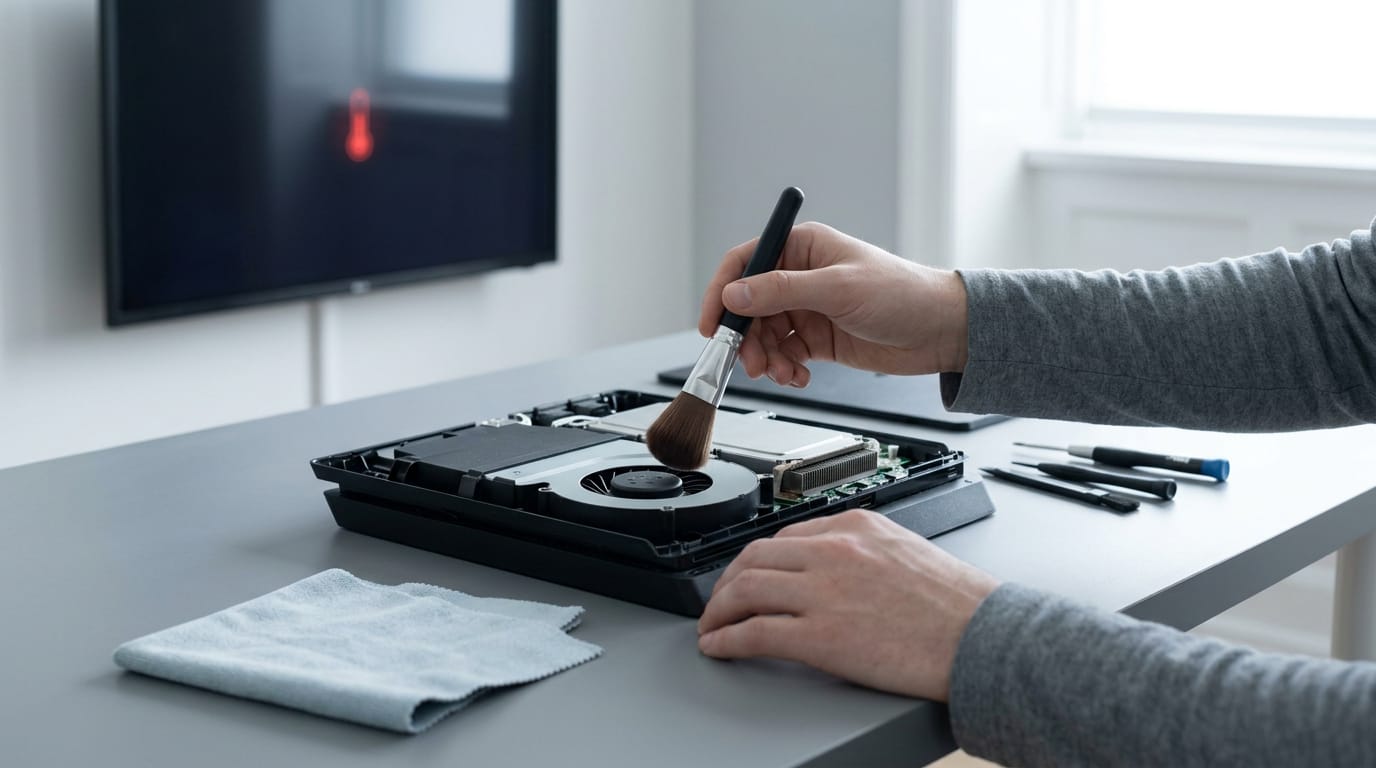
If the outside is clean and the console still runs hot, it’s time to open it up. Work slowly on a flat surface, with the console unplugged and fully cooled, and check the fan:
- Fan spinning freely. Turn the fan by hand. It should move smoothly and quietly. If it feels gritty, catches, or won’t turn, it needs attention.
- Fan free of debris. Look for dust clumps or lint wrapped around the blades, and clear them with a blower or soft brush.
Think of a player who cleans everything, plugs back in, and sees the overheating message return within minutes. When dust removal didn’t fix the issue, cleaning again won’t help. It’s time to look beyond the vents.
Fan noise and sudden shutdowns
A fan that gets louder during a long session of a demanding game is the console working harder to push out heat. If the fan throttles up, spinning faster to pull heat away, and the console still shuts down, that’s a warning, not a random glitch.
Let it cool. Don’t keep restarting it and hoping.
Accessories That Could Be Causing Trouble
Sometimes the heat isn’t coming from the console at all. Extra gear plugged into it can be the culprit, and it’s one of the quickest things to rule out.
How third-party gear can cause heat
Not every accessory is built to the same standard, so third-party gear (anything not made by Microsoft) deserves a second look. Watch for two problems:
- Poor power or cooling delivery. A cheap accessory that doesn’t deliver power or cooling the way it should can leave the console working harder than it needs to.
- Third-party fans misdirect airflow. A fan that blows the wrong way, or sits against a vent, can push warm air back toward the console instead of away from it.
Unplug gear, then add it back slowly
Think of a player who added a cheap cooling fan and a no-name charging dock, then started seeing the overheating message during long matches. Instead of guessing which one is at fault, they strip the setup back to the console alone.
The goal is to find the culprit, not to replace everything you own.
Here’s how to run the test:
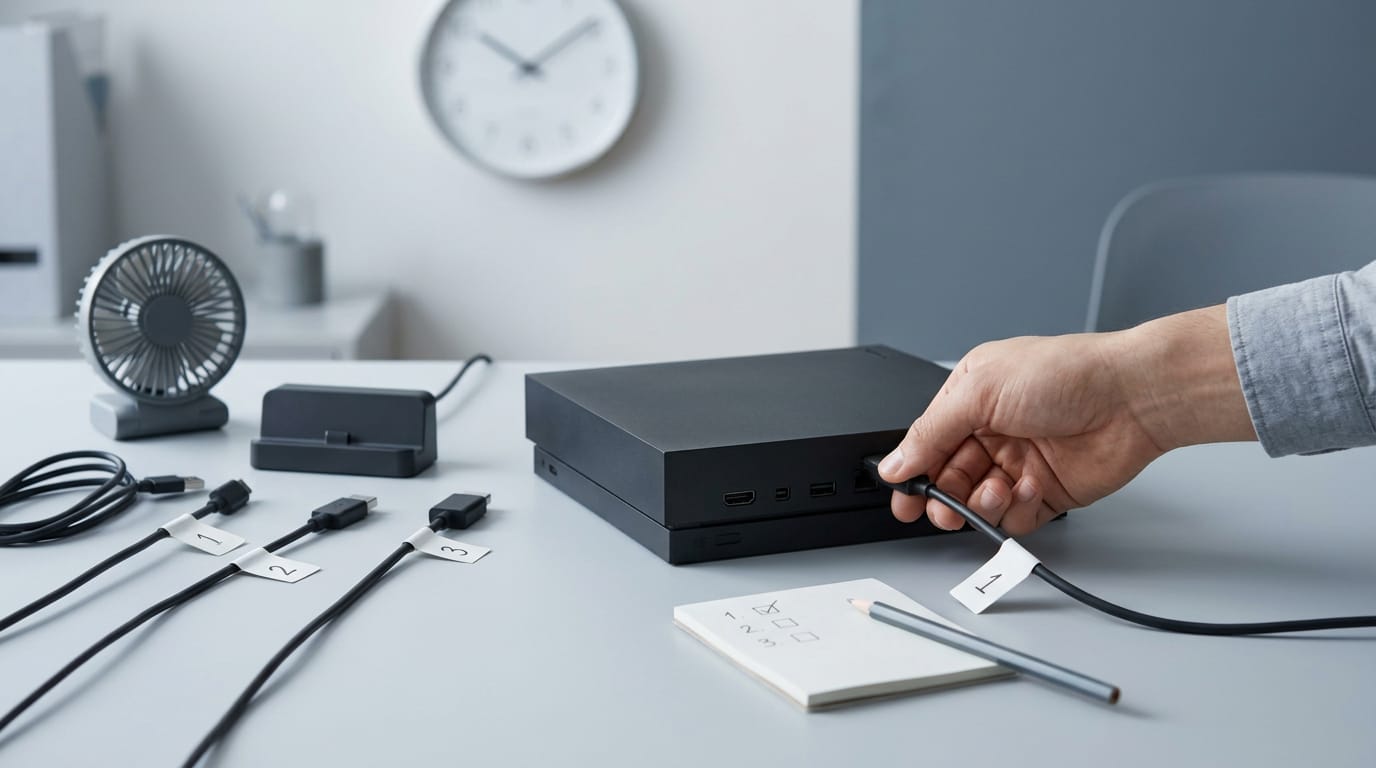
- Remove all connected accessories. Unplug every cable and device, including fans, external drives, and chargers.
- Reconnect one at a time. Add one piece, then use the console for a while. If the message returns, the last thing you plugged in is your suspect.
Slow beats guessing.
Fixing the Hardware Inside Your Console
Wondering how to tell if your Xbox One is dying? Look for a roaring fan, mid-match shutdowns, and a case that stays hot. Work through the hardware in this order.
Check the fan and swap it out
Start with the fan, which moves heat out of the box. Unplug the console before you check for dust, damage, or a warped blade. Then confirm the fan is connected and powered, since a loose cable can sound like a dead fan.
If the fan stays silent or looks damaged, replace it.
Think of a teen in Winnipeg whose console shuts off mid-match every evening. They find the fan cable partly out of its socket, press it home, and the shutdowns stop.
Clean the heatsink and refresh thermal paste
The heatsink is the block of metal fins that pulls heat off the chip, so clear dust from them with short bursts of compressed air. Next, replace the aging thermal paste (also called thermal compound) between the chip and heatsink.
The goal is even contact, not more paste. Too much paste spills onto nearby components, so use a small amount. If that doesn’t help, clean both surfaces and reapply.
Look for burn marks on the board
With the console open and unplugged, check the board under good light. Look for dark scorch marks, discoloured spots, or a burnt smell. Also check for swollen or leaking capacitors (small power-storing parts) and anything cracked or blackened.
If you find burns, the affected board likely needs replacing, not patching.
When DIY repair stops making sense
Repair quotes can be a real barrier. If the message returns after a fan swap and a clean, home fixes have only gone so far. Modifying the case for airflow is possible but hard to undo, so weigh it against repair first.
If a repair eats most of a replacement’s cost, replacing the console is the smarter buy. Know when to stop.
First, check whether your console is still under warranty. Look up Canadian warranty and repair options on Microsoft’s support site and with the retailer you bought from. Opening the case may affect your warranty, so confirm that first.
Buy parts from reputable Canadian retailers that match your exact model.
Work through the fixes in order and many overheating problems clear up without a repair bill. Let the console cool, clear the vents, and check accessories for extra heat.
Before you open the case, check your warranty so a self-repair doesn’t put coverage at risk. If you need parts, buy from a reputable Canadian retailer and compare total cost in Canadian dollars.
Give your console room to breathe, and it’ll keep your games running when it matters most.
References
- Think Twice Before Putting Your Gaming Console Inside A Cabinet — engadget.com (2026)
Questions
What is the Xbox screen of death?
The Xbox screen of death is an informal name for a serious display or startup failure, often a blank or frozen screen that keeps the console from loading normally. It can result from a software glitch, a failed update, or a hardware problem.
How to tell if your Xbox One is dying?
Frequent shutdowns during games, persistent overheating, a fan that runs loudly or stops working, and repeated startup or display problems can indicate trouble. First rule out blocked vents, dust, poor airflow, and loose connections; if the symptoms continue, the console may need repair.
Why is my Xbox One constantly overheating?
The most common causes are blocked vents, dust in the fan or heatsink, and too little room for hot air to escape. Long sessions, several running apps, a hot room, or an accessory that blocks or misdirects airflow can also contribute.
Why did my Xbox start overheating?
A sudden change in placement, room temperature, or connected accessories can reduce airflow or add heat. Dust buildup, a fan problem, or a long gaming session can also make overheating start or become noticeable.
Is it better to have your Xbox vertical or horizontal?
Either orientation is fine if the console has enough open space for airflow and its vents are not blocked. Keep about 4 to 6 inches of clearance around it, and avoid enclosed cabinets.
What temperature is too hot for Xbox?
Keep the air around an Xbox One within its ideal ambient range of 5 to 35°C; temperatures above 35°C are outside that range. The console may overheat at lower room temperatures if its vents are blocked or its cooling system is faulty.
Does Xbox exist anymore?
Yes. Xbox is still Microsoft's gaming brand, with current consoles including the Xbox Series X and Series S, as well as Xbox games and services.
Can you still get Xbox Live for $60 a year?
Xbox Live Gold no longer exists under that name; its console multiplayer benefits became part of Xbox Game Pass Core. The US annual Core price is now generally higher than $60, though prices and availability can vary by country and retailer.
Sources
Free · The Build Sheet
The Build Sheet: three gaming PCs priced at Canadian stores