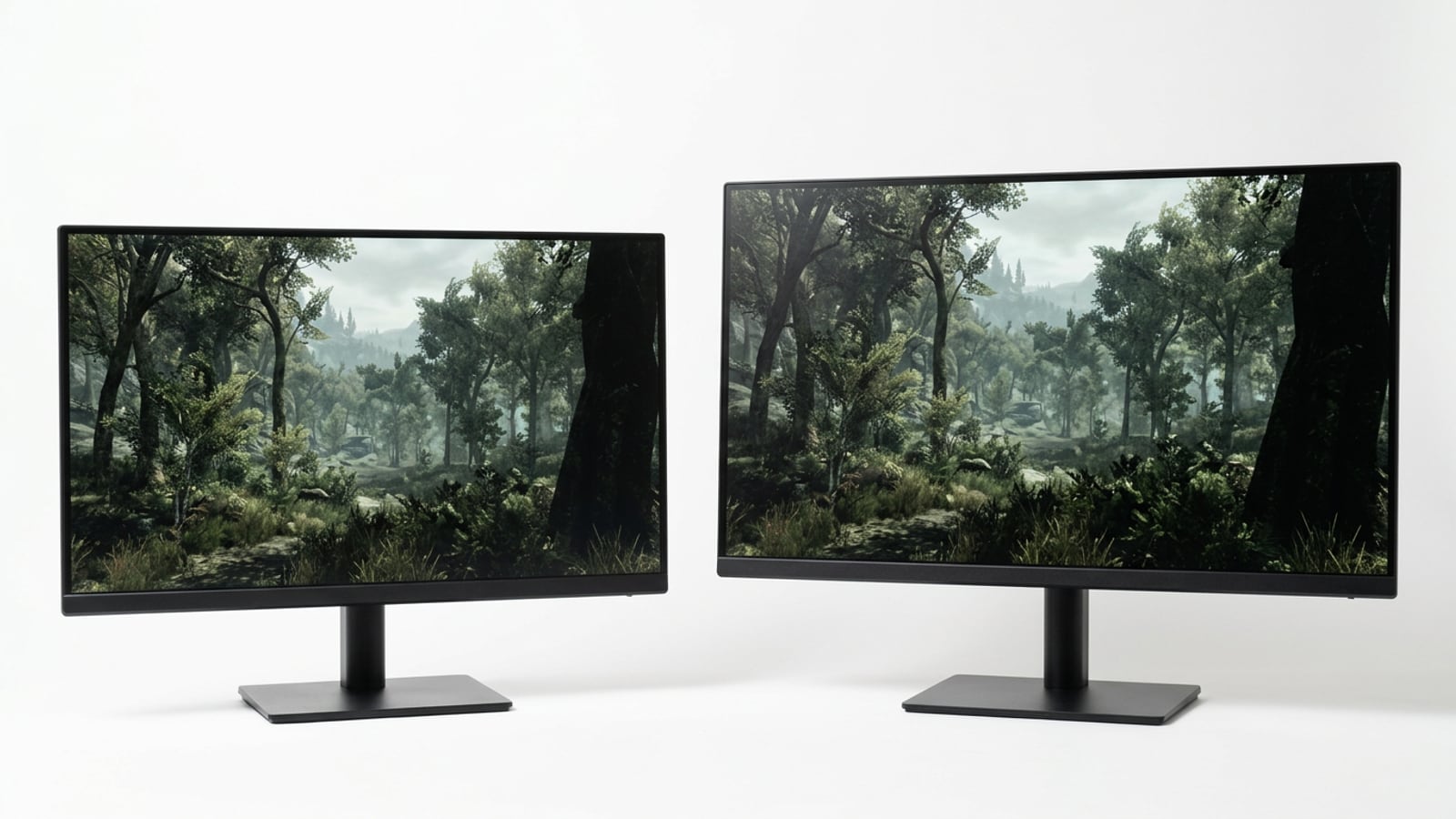
Shadow on Monitor Screen: Causes and Fixes Explained
A shadow on monitor screen can come from the panel, cable, settings, or room light. Diagnose dark patches step by step and choose the right fix.

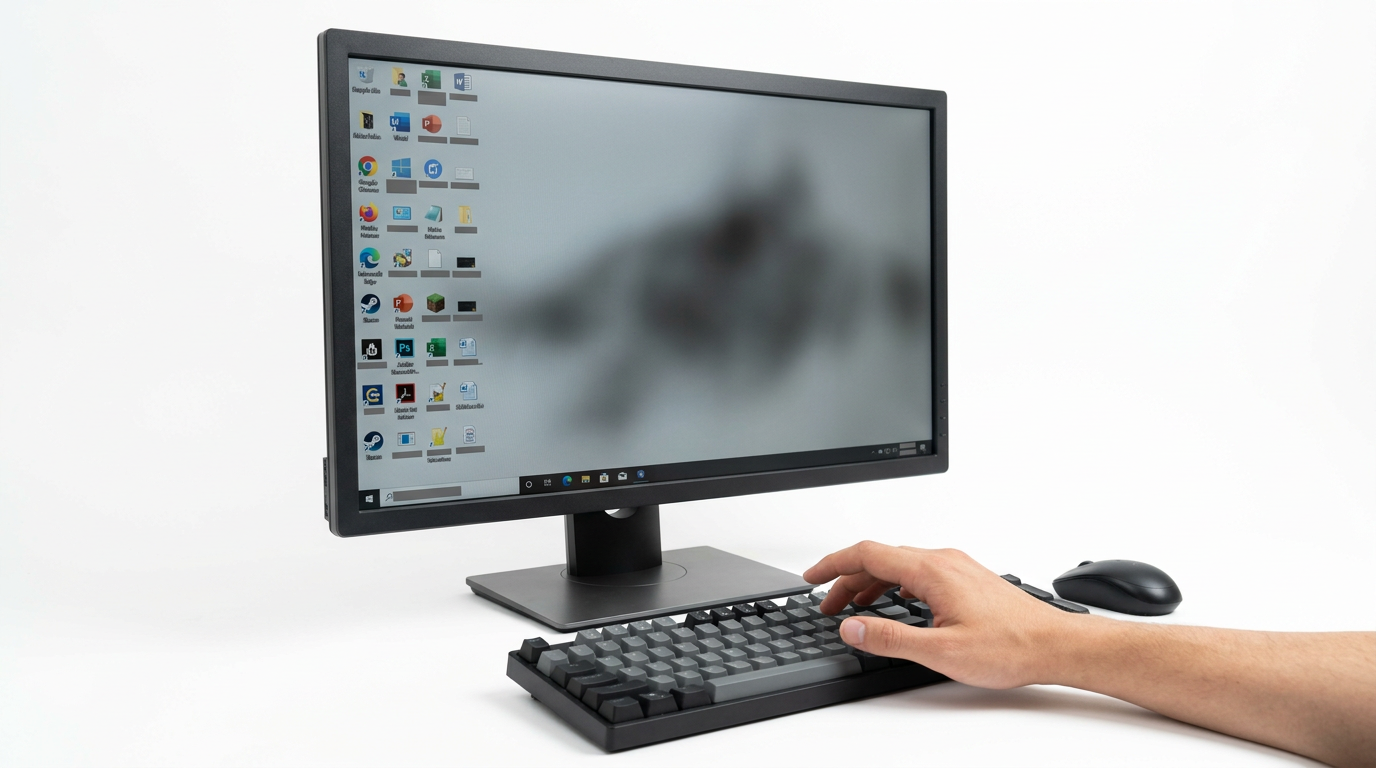
A shadow on a monitor screen is a dark patch, uneven dimming, or faint outline that can come from the display panel, its cable or signal, picture settings, or room lighting. Check connections and settings, compare another device, and reduce glare before assuming the monitor is damaged; a patch that stays in the same place across inputs may indicate a panel or backlight fault. Testing in this order can reveal simple fixes before you spend money on repairs or replacement.
Think of a monitor shadow like a smudge on a car windshield. Is the dirt on the glass, or is it sun glaring off the outside? You only find out by looking from a few angles.
A monitor shadow is any dark patch, uneven dimming, or faint outline on your display, often in a corner or along an edge. It can come from the panel, the cable, a setting, or the room’s light.
We’ll walk through each cause, a step-by-step diagnosis, and the fix that goes with it.
We’ll also cover dark scenes, ghosting, and console TV setups.
Causes of a Shadow on Monitor Screen
A shadow usually traces back to the panel, the signal, your settings, or the room.
Failing hardware and backlight issues
A dark spot that stays put usually comes from the panel itself: a dead pixel is a single dot that won’t light, and a pressure mark is a darker patch left by pressing on the screen.
- Backlight bleed at edges. Light leaks in around the frame, mostly in dark scenes. Clouding is a uniformity problem: brightness is uneven across the whole panel.
- Aging backlight tubes. Older monitors use a cold cathode fluorescent lamp (CCFL) backlight, which can dim unevenly with age.
- Loose or damaged cables. Wiggle both ends. A shadow that flickers or shifts points here.
- Oxidized ports. Corroded contacts disrupt the signal, so clean the port and plug first.
- T-Con or panel failure. The timing controller (T-Con) drives the panel. A dark area that never moves points here.
When cables and signals interfere
Signal degradation weakens the picture between your PC and screen, leaving dark patches. Low-quality VGA (video graphics array) cables, docks, splitters, and long cable runs can all add to that, so keep cables short and direct.
Display settings and outdated software
A brightness/contrast imbalance buries dark detail, and high gamma (how mid and dark tones are mapped) darkens greys and blacks into shadow.
Outdated graphics drivers can distort the picture, and dynamic contrast or eco modes shift brightness on their own. Update the drivers, switch those modes off, and compare.
It’s less about the panel failing and more about it being told to show dark tones the wrong way.
Ghosting is a faint trail behind moving objects, while a static shadow stays put. Trails usually trace back to response speed, so check the response time or overdrive setting in your menu.
How room light creates glare
Window light reflections wash out dark areas, and sunlight reduces contrast so blacks look grey. A raised black floor lifts the darkest tones, and a monitor tilted toward a lamp adds glare, so placement matters.
Consider a player facing a bright window at night who sees a greyish haze in dark scenes. Closing the blinds and angling the panel away from the glass clears it, so they skip buying a new monitor. Sometimes the fix costs nothing.
How Do I Remove a Dark Shadow?
A dark shadow can come from your cables, settings, drivers, room light, or the panel itself. Start with the free fixes.
Check cables and connections
Take a player whose dark patch appears only through a dock. Plugging straight in makes it vanish, so they replace the dock, not the monitor.
- Bypass docks and splitters: connect straight to the graphics card (GPU) or TV.
- Reseat connectors: unplug both ends, then firmly plug them back in.
- Swap cables: try a known-good cable of the same type.
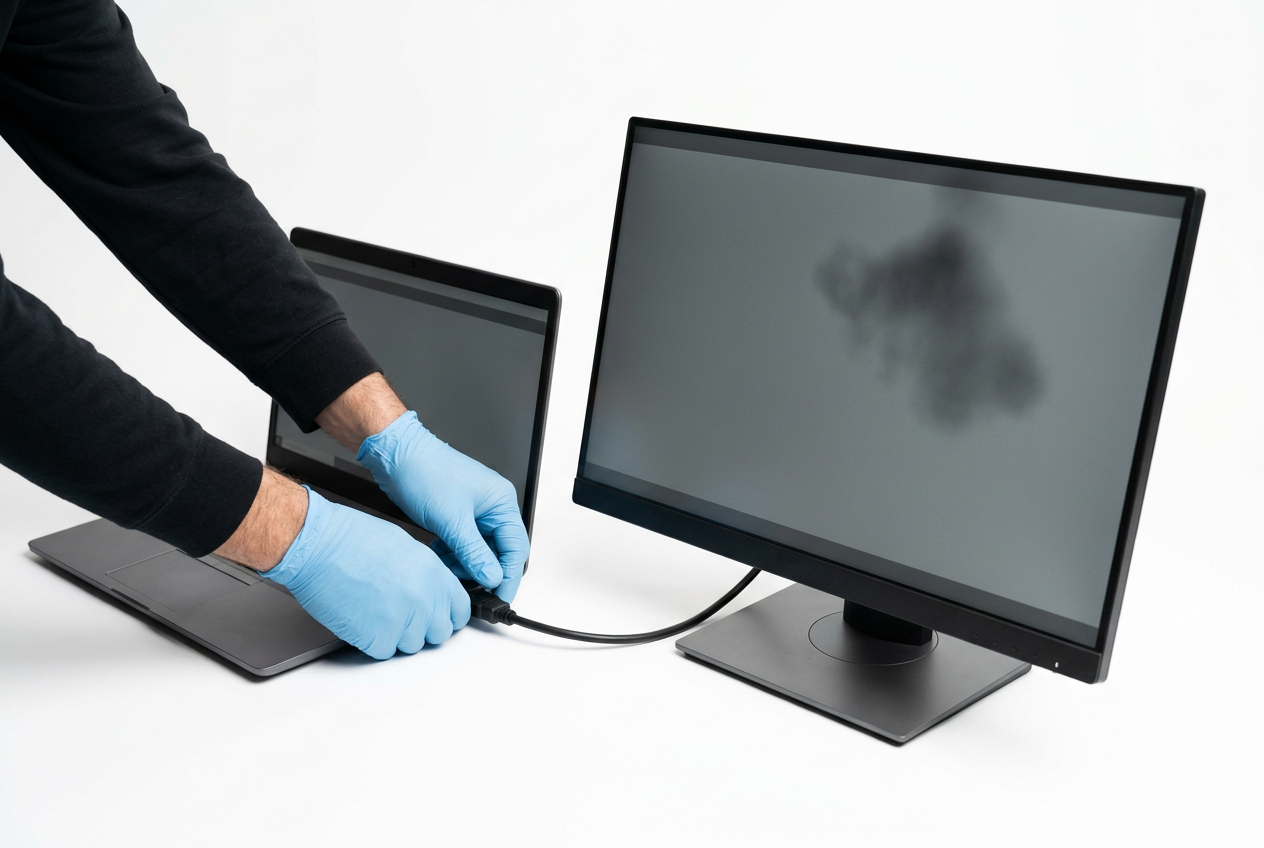
- Cross-test another device: connect a laptop or console. If the shadow follows the monitor, suspect the panel.
- Use HDMI or DP: HDMI (High-Definition Multimedia Interface) and DisplayPort (DP) are the usual pair, so pick the one both devices support.
Reset and adjust your monitor settings
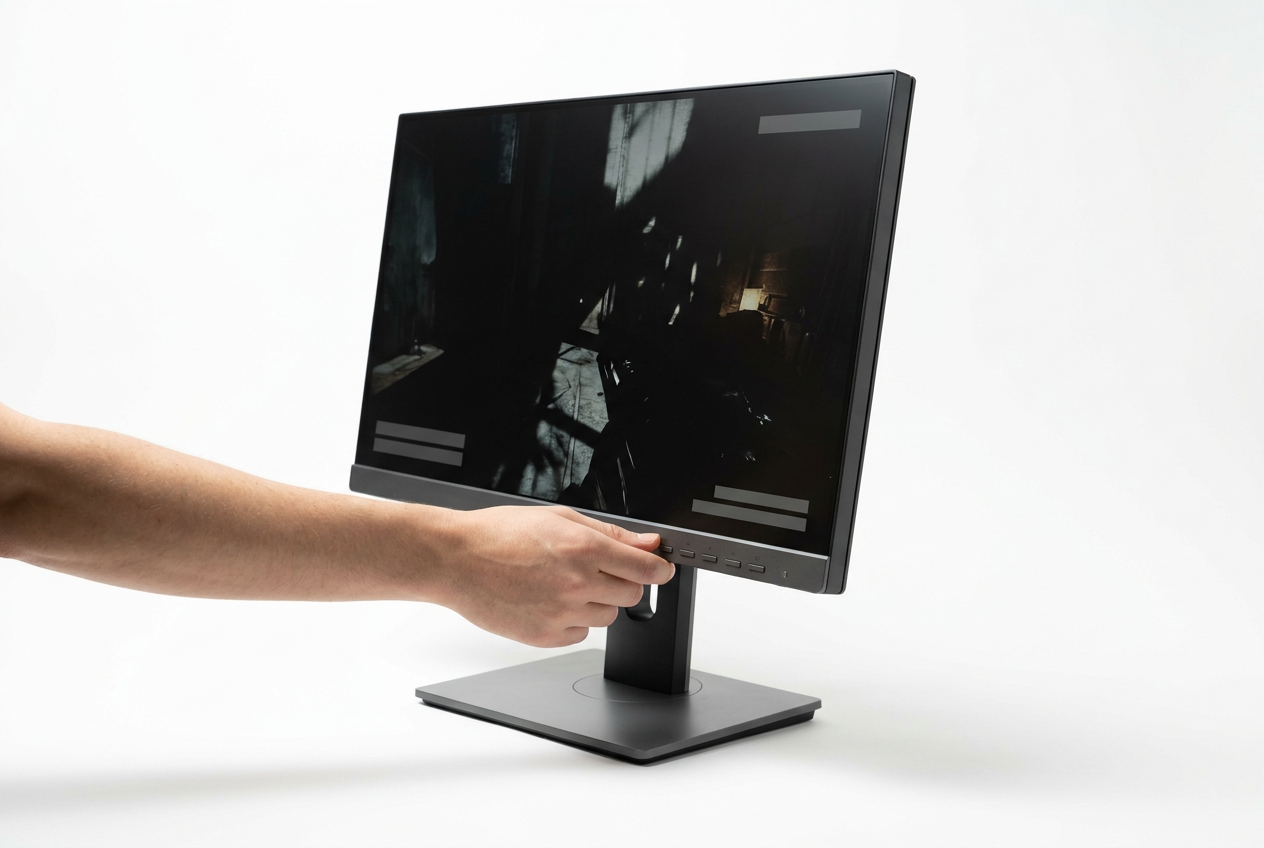
- Factory reset: in the on-screen display (OSD) menu, choose factory reset.
- Memory Recall: restores a saved picture profile, if your monitor has one.
- Native resolution: use the panel’s full pixel count, or the image may scale and show dark borders.
- Refresh rate matching: match the rate your monitor is rated for, or you may see flicker.
- Disable enhancement modes: turn off dynamic contrast and similar presets, which can crush or lift dark areas.
- Shadow Boost / Black Equalizer: should you turn on Shadow Boost? Usually leave it off. Use it only to peek into dark scenes, since it lifts blacks rather than fixing them.
Update drivers and graphics settings
- Update drivers: install the newest NVIDIA or Advanced Micro Devices (AMD) graphics driver.
- G-SYNC dynamic refresh: NVIDIA’s adaptive refresh feature. Compare a dark scene with it on and off.
- Unify multi-monitor color: match brightness and color across screens so one panel doesn’t look shadowed.
- Console HDR and TV game mode: set the console’s high dynamic range (HDR) to match the TV.
For a dark shadow on a TV screen, switch to game mode, turn off dynamic contrast or auto-brightness, and recheck the same scene.
Tune brightness and calibrate your display
- Calibrate in normal lighting: calibrate under your usual room light. The study Effect of Room Illuminance on Monitor Black Level Luminance and Monitor Calibration explains that an observer loses contrast in brighter rooms as black level rises.
- Brightness doesn’t fix blacks: turning it up won’t correct poor black levels.
- Black/white test patterns: show full-screen black and white to spot crushed or washed-out detail.
- Target 80 to 120 cd/m²: candelas per square metre (cd/m²) is the unit for screen brightness, so aim in that range.
- Hardware calibrators (SpyderX): a device like the SpyderX measures the screen and sets the picture for you.
How to tell a real panel defect
Only a shadow that survives those checks points to the panel. Then it’s a warranty call.
- 20 to 30 minute warm-up: let the screen run that long before judging.
- Full-screen gray, black, and white tests: a defect that shows on all three points to the panel.
- Fixed patch persists across inputs: if the same spot stays put when you switch between HDMI and DP, suspect the panel.
- Built-in diagnostic mode: run the monitor’s self-test, if it has one.
- Power adapter voltage check: confirm the adapter’s voltage matches the label on the monitor.
Set up Your Room to Control Light
Before you touch a setting, look at where the light falls in your room.
Window light versus overhead light
Window light and overhead light behave very differently. A window behind you reflects onto the screen. A window behind the monitor makes the display look dim, so you’re tempted to crank the brightness.
Overhead light is more diffuse, spreading evenly across the room, while a side window leaves uneven patches.
Placing your monitor for comfort
Placement is less about how much light you have and more about where it lands on the glass.
A workstation self-evaluation guide notes that setting the display perpendicular to windows or other bright light sources reduces the likelihood of glare. Then check these:
- Sit 3 feet from the window glass.
- Keep your viewing distance at 20 to 30 inches.
- Place the top of the screen at eye level.
- Tilt the top away from the light.
Cutting glare across the room
Next, tackle the light from the rest of the room:
- Blinds and curtains: ICW’s Visual Fatigue meeting kit suggests using blinds or coverings to manage window glare if your area has them.
- Anti-glare filters: A screen cover that softens reflections.
- Indirect lamps: Bounce light off a wall rather than aiming it at the screen.
- Ambient light: The overall light in the room. Aim for 70 to 150 lux, a standard unit for how much light falls on a surface.
- Bias lighting: A soft strip of light behind the monitor that eases the contrast with a dark wall.
Quick tests for screen reflections
Three quick checks show which fix you need:
- Black image test: Display a full black screen and look for bright spots or reflected shapes.
- Hand-shield test: Hold your hand above the top edge of the screen to block overhead light. If the reflection vanishes, overhead light is the culprit.
- Test at worst time of day: Check when glare is strongest for you, such as late afternoon sun or evening lamps.
Take a player whose desk faces a sunny west window. In late afternoon, the black image test shows a bright band across the screen. Turning the desk so the monitor sits perpendicular to the glass makes the band vanish.
Their dark scenes stop washing out, and no setting changed.
Angle first. Gear later.
When to Get Professional Help
Most shadows are fixable at home, but a few point to a failing part inside the monitor, so here’s how we’d tell them apart.
Repairs and when to escalate
Start by testing the graphics card externally: plug the monitor into a different computer or laptop, and try another cable. If the shadow follows the screen, the monitor is the problem.
If it vanishes, your graphics processing unit (GPU) or cable was the culprit. The question isn’t how dark the shadow looks but where it lives.
Consider a gamer in Winnipeg whose monitor shows a dim corner during dark scenes. They try it on their laptop, and the corner shows up there too. That spares them a pointless GPU swap.
Match the symptom to the part:
- Backlight module: The backlight is the light source behind the screen. A dim patch that stays put no matter what’s on display usually means it needs replacing, which is a technician’s job.
- Panel or T-Con failure: The T-Con (timing controller, the small board that tells the panel what to draw) can cause flickering, lines, or bands. Clouding that spreads across the panel points to the panel itself.
- Warranty panel replacement: Some warranties cover a panel replacement, so check your coverage before you pay anyone.
- Contact manufacturer support: Have your model number, serial number, a photo or short video, and a list of what you’ve tried.
- Canadian warranty and dead-pixel policy: Coverage comes from the manufacturer and the retailer, so check the policy for Canada rather than trusting the box. Dead-pixel rules differ between brands, so read the fine print before you assume a spot is covered.
Don’t guess. Test first, then call.
Picking the Right Panel Type
The panel is the part of the monitor that makes the picture, so choose it before you chase any other spec.
How IPS and VA compare on contrast
In-Plane Switching (IPS) and Vertical Alignment (VA) are the two panel types you’ll see most. According to the P-13 paper on In-Plane Switching picture quality, VA generally has better contrast ratio performance than IPS.
| Panel | Typical contrast | Best for |
|---|---|---|
| IPS | 700 to 1,500:1 | Esports and fast motion |
| VA | 2,500 to 6,000:1 | Dark scenes |
Think of a player who games in both fast shooters and night-time horror. IPS favors motion, VA favors depth, so the genre you play most decides the winner.
Matte versus glossy screen coatings
A glossy coating keeps images clean, but it throws sharp reflections of lamps and windows back at you. A matte coating turns those into a soft haze instead. Glare persists either way, so the coating is only part of the fix.
Think of a player with a window behind the screen. Matte helps with the reflection, but moving the desk out of the window’s line is the bigger fix.
What to look for before buying
- Practical over peak contrast: pick the contrast you’ll see in your room, not the highest number on the box.
- Local dimming: a feature that dims the backlight in dark zones so shadows look deeper.
- Adjustable stand or monitor arm: lets you tilt and swivel the screen away from windows and lamps.
- Ultrawide side-light sensitivity: ultrawide screens react more to light from the sides, so check where your windows sit first.
Your room is part of the spec sheet.
Accessories that help with glare
If your room is bright and the desk can’t move, these help:
- Visors: hoods that block light from above and the sides.
- Anti-glare filters: films that soften reflections on the screen.
- Circular polarizers: filters that cut down some reflected light.
- Blackout curtains: block daylight at the window before it reaches the screen.
Upkeep, Prevention, and Special Cases
Most shadows build up slowly, so routine checks and smart settings go a long way.
Routine cleaning and monthly checks
Start with a dry microfiber cloth to lift dust without scratching the panel. For smudges, dampen it with isopropyl alcohol, never spraying the screen directly. Dust the rear vents with compressed air, too.
Once a month, display a solid white, gray, and black screen, and look for patches or dim corners. Catching them early saves a frustrating session later.
Habits that protect your display
Turn off adaptive brightness (automatic brightness changes) if your screen keeps dimming mid-scene. Disable the ambient light sensor (a sensor that reads your room’s light) if it fights your settings.
On an OLED (organic light-emitting diode) panel, match the SDR (standard dynamic range) or HDR (high dynamic range) mode to the content in front of you, not to habit.
Balancing shadow detail and washout in games
- Overdrive speeds up pixel color changes, but too much leaves bright trails behind fast objects.
- Motion blur smears movement on purpose, so turn it off if you want sharper motion.
- Adjust response time settings together with overdrive, one step at a time.
An ICC profile (International Color Consortium profile, a file describing how your screen shows color) matters for photo and design work. If you mostly game, skip it.
Dark-scene gaming: shadow detail vs washout
Here’s the trade-off: raising brightness or gamma (how quickly midtones and shadows ramp up) reveals hidden detail, but push too far and blacks turn gray.
Think of a player in a horror game who cranks brightness to spot the hallway, then loses the contrast that makes the flashlight pop. Nudge settings in small steps and chase detail rather than brightness. Dark is supposed to look dark.
Most monitor shadows come down to four culprits: the hardware, the signal, your settings, or the light in your room. Work through them in order, starting with the free checks, and you’ll usually find the cause before you spend a dollar.
If the shadow survives every step, the panel itself may be the problem, and that’s the point to call in help rather than keep guessing.
A clear screen is the goal, and a little patience gets you there.
References
- P‐13: Picture Quality of In‐Plane Switching Liquid Crystal Displays with Deep Black — doi.org (2023)
- Effect of Room Illuminance on Monitor Black Level Luminance and Monitor Calibration — pmc.ncbi.nlm.nih.gov (2003)
- Visual Fatigue: Lighting, Glare and Worker Performance Meeting Kit — icwgroup.safetynow.com
- YOUR COMPUTER WORKSTATION AND YOUR OFFICE … — eloncdn.blob.core.windows.net
Questions
How to remove dark shadow on TV screen?
Try the free checks first: reseat or replace the cable, bypass docks or splitters, and connect the TV to another device. Reset picture settings, turn off dynamic contrast and auto-brightness, and use Game Mode; also check for glare from windows or lamps. If the same dark patch stays in place across inputs and devices, the panel or backlight may need professional repair.
Why do I see ghosting on my monitor?
Ghosting is usually a faint trail behind moving objects caused by pixel response settings. Adjust the monitor’s response-time or overdrive setting one step at a time; too much overdrive can create bright trails. Motion blur can also make movement look smeared, so try turning it off.
Why does my monitor have a dark spot?
A dark spot that remains in the same place often indicates a panel issue, such as a dead pixel, pressure mark, backlight problem, or panel failure. Test the monitor with full-screen gray, black, and white images, then try another cable and device. If the spot persists across inputs, contact the manufacturer or a repair technician.
Should I turn on Shadow Boost on my monitor?
Usually, leave Shadow Boost off because it lifts black levels and can make dark scenes look gray rather than fixing a display problem. Turn it on temporarily if you need to see details in a particularly dark game scene, then adjust it sparingly to avoid washing out the image.
Sources
- P‐13: Picture Quality of In‐Plane Switching Liquid Crystal Displays with Deep Black, doi.org,
- Visual Fatigue: Lighting, Glare and Worker Performance Meeting Kit – ICW, icwgroup.safetynow.com
- Effect of Room Illuminance on Monitor Black Level Luminance and Monitor Calibration, pmc.ncbi.nlm.nih.gov,
- YOUR COMPUTER WORKSTATION AND YOUR OFFICE ..., eloncdn.blob.core.windows.net
Free · The Build Sheet
The Build Sheet: three gaming PCs priced at Canadian stores