White Spot on a Monitor: Causes, Fixes, and Repair
White spots on a monitor can have traceable causes. Learn to tell a fixable patch from a failing panel and which fixes to try before replacing it.

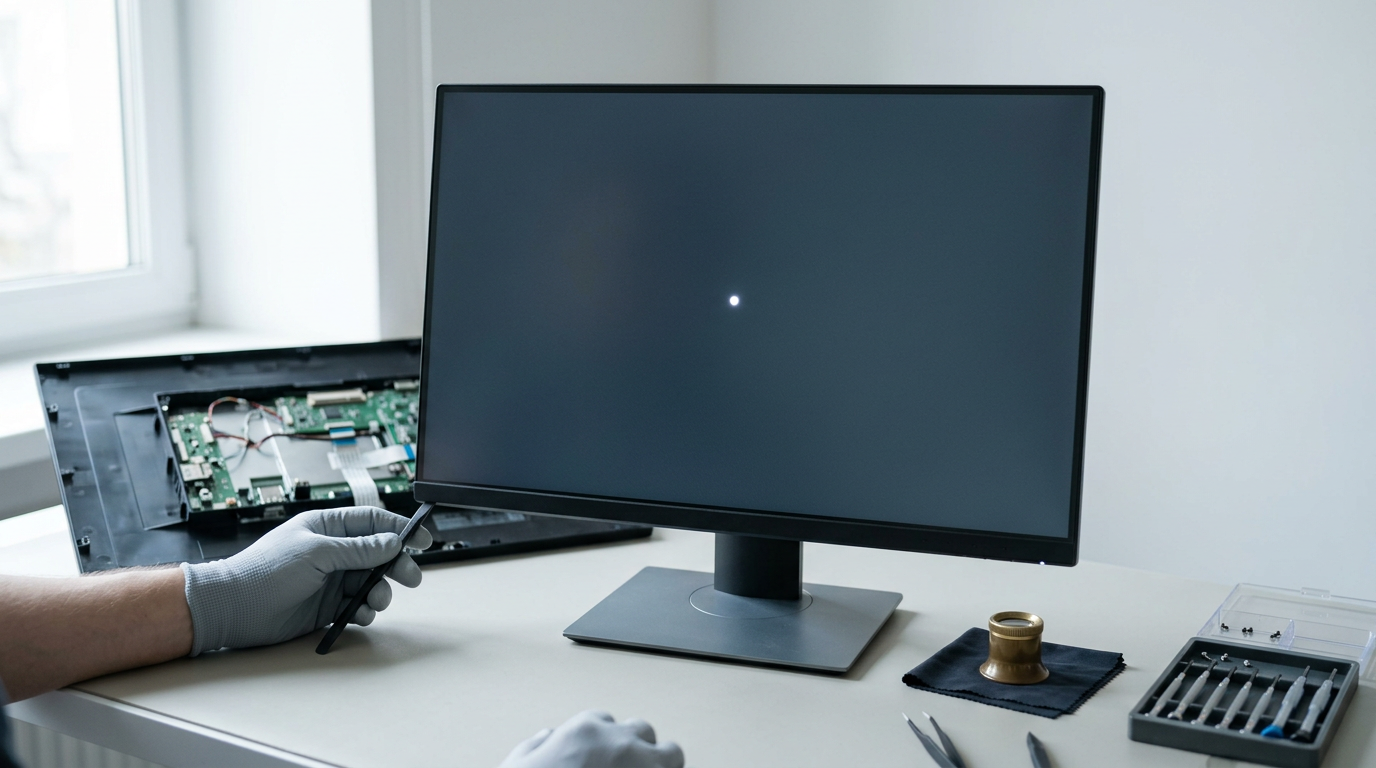
A white spot on a monitor is a bright patch or dot that stands out on the screen, often because of pressure damage, shifted LCD layers, uneven backlighting, trapped dust, or wear. Check whether it moves, clean gently, test display settings, and watch for spreading, flickering, or persistent dimming; avoid pressing the spot or opening the device. If simple fixes fail, check warranty terms and compare repair costs with replacement before deciding.
Think about the last time a crumb caught your eye on a freshly wiped window. Once you spotted it, you couldn’t stop noticing it.
A white spot on a monitor works the same way: a bright patch that jumps out, especially on dark scenes, and makes you wonder if your screen is on its way out.
Many spots have a traceable cause, so you can often narrow things down before spending a dime. Here, we’ll cover what causes them, how to tell a fixable problem from a failing panel, and which fixes to try first.
We’ll close with a Canadian buyer’s view on repairing versus replacing, and what your warranty is likely to cover.
Causes of a White Spot Monitor Problem
A white spot usually has one of a few causes, and knowing which one tells you what to do next. Here’s what sits behind it, and we’ll walk through each one.
Damage from pressure and impacts
Physical force is the most obvious culprit. Consider a gamer who jams a closed laptop into a packed backpack with a textbook on top. That force can shift the layers inside the LCD (liquid crystal display):
- Pressing on the screen: a firm finger or stylus can shift the layers.
- Drops and impacts: even a short fall can disturb the panel.
- Heavy items on a closed laptop: weight on the lid reaches the panel below.
- LCD layers shifting: the image can break up where the layers moved.
How backlight and heat cause spots
The backlight is the light behind the panel, and a thin sheet called the diffuser spreads that light evenly. If either one shifts, light bunches up unevenly and shows up as a glowing area.
Heat is a suspect, not a verdict. Picture a streamer whose monitor sits beside a computer’s fan vent. If a glow shows up near the bezel (the frame around the screen), that heat is worth ruling out.
Dust and particles stuck inside
Particles get trapped in three common ways:
- Particles between screen layers: debris can get stuck where a cloth can’t reach.
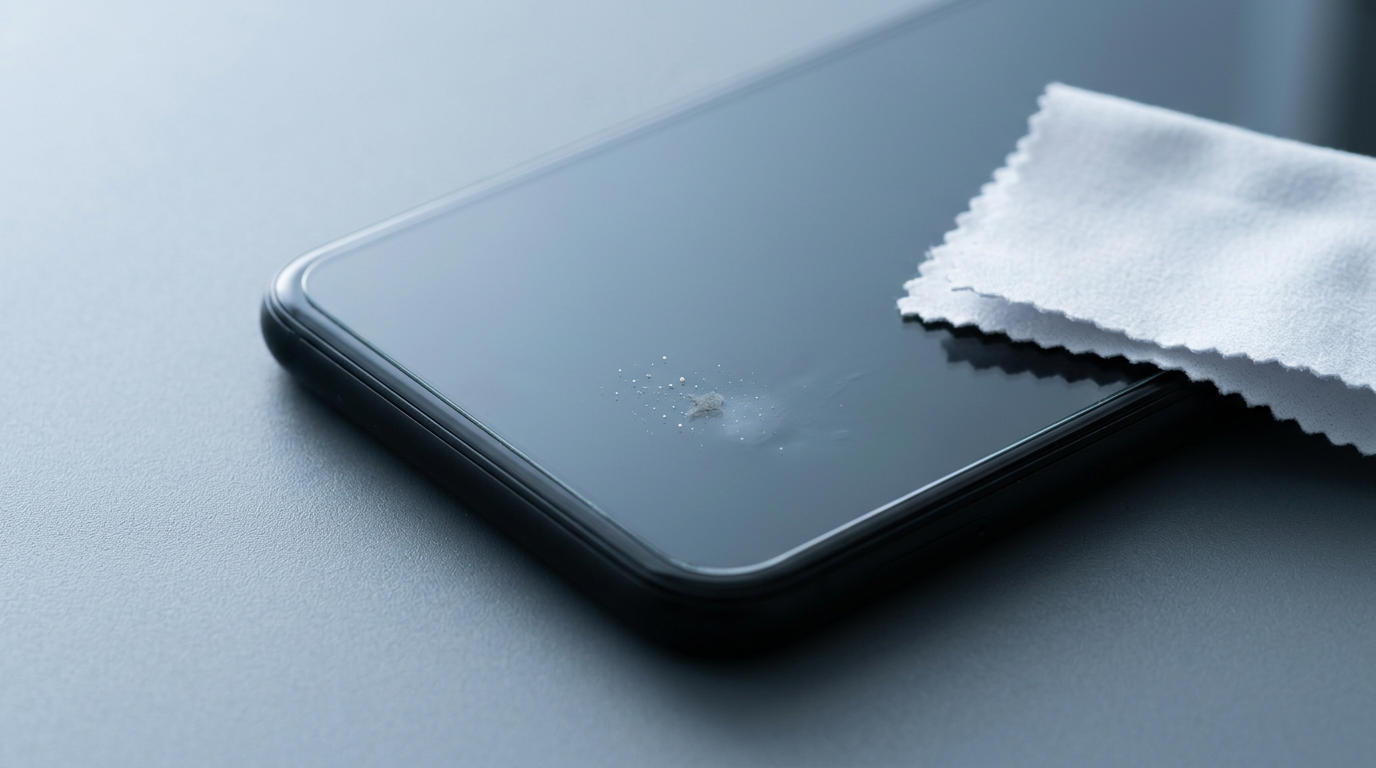
- Dust under screen protectors: a film can trap dust beneath it.
- Blocked or reflected light: a particle in the light path can block or bounce light.
If a spot appears under a protector, check the film first, since trapped dust can’t be wiped from the outside.
Factory flaws and wear over time
Wear builds gradually, but a flaw can show up right after purchase.
- Uneven layers or loose components: light may not spread evenly.
- Weakening glue between layers: the adhesive holding the panel together can lose its grip.
- Fading backlight: an aging light source can dim unevenly, so one area stands out.
- Water damage speeds wear: moisture can speed breakdown inside the panel.
- Spot appearing soon after purchase: an early spot suggests a factory flaw.
Timing is a clue. If it shows up right after unboxing, report it early.
How to Tell If My Monitor Is Dying?
Is that spot a failing screen or a fixable glitch?
Telling hardware from software problems
Does the spot move or stay put? A shifting spot points to software, while a fixed one points to the panel.
Next, adjust brightness. If the spot fades as the backlight (the light behind the panel) dims, lighting is the cause.
Reboot and update your graphics driver. A white border often points to a resolution or scaling mismatch, so set your display to its native resolution (its true pixel count) and check scaling.
Photograph the spot on a plain background before you contact support, then run solid-colour fullscreen images to see which colours reveal it.
Separating dust from hardware damage
Try the gentle cleaning test. Power off, wipe with a soft cloth, and if the spot vanishes, it’s dust.
Dust spots may shift when you tilt the screen, but hardware spots stay fixed.
Why is there a yellow spot on my laptop screen? A single dot often means pressure damage or a failing backlight, while a yellow tint is usually a colour setting you can reset.
How can you tell if your monitor is dying? Look for these signs:
- Spots that keep spreading
- Flickering or lines across the image
- Dimming that brightness can’t fix
When the spot is easiest to see
A white spot shows mainly on bright colours and hides on dark ones. A stuck pixel is a single dot locked on one colour, and mura is a cloudy brightness patch.
For example, a gamer who only sees a faint patch on bright loading screens can clean the screen and retest before paying for a repair.
A spot under the taskbar is easy to miss, so auto-hide the taskbar. Test first, pay later.
Fixing a White Spot on Your Screen
Work through the easy fixes first, and stop as soon as one clears the spot.
How to remove white dot from screen?
Treat the spot as dust until you’ve ruled that out, and as damage only after. Dust wipes away, but a dead pixel (a stuck point that ignores the picture) usually needs repair. Start with these:
- Reboot the laptop. A full restart clears temporary glitches. If the spot survives, the cause is more likely hardware.
- Update display drivers. Drivers control how the screen gets its picture. Install the latest version from the manufacturer.
- Clean with a microfiber cloth. Wipe gently with a dry cloth. Dust and smudges often look like a spot.
- Check under the screen protector. Look for a trapped speck or bubble, and smooth the film back down.
- Reset display settings. Return brightness, color, and resolution to their defaults, since a custom profile can exaggerate a mark.
Think of a student whose laptop picked up a bright dot after a bag got squeezed shut. A quick wipe and a restart may clear it, and they skip the repair shop.

Pro repair and what your warranty covers
If home fixes fail, a technician can open the device to inspect the panel, and screen replacement may be needed.
Check your warranty first. For Canadian buyers, the manufacturer’s or retailer’s written warranty decides what’s covered, and dead-pixel policies vary by brand, so read the terms for your exact model.
Some shops offer free diagnostics, so ask before you drop off the device.
Back up your files first, since repairs don’t always go as planned.
Here’s the buyer’s rule of thumb: if a repair quote nears a comparable replacement’s price, replacing is the smarter buy.
Fixes that skip opening the laptop
The steps above work from the outside, so they’re your non-invasive fix. If they don’t work, leave the case closed unless you’re trained, since one slip can make things worse.
Mistakes that can make it worse
- Pressing or poking the spot. Pushing on the panel can cause further damage.
- Harsh chemicals and abrasives. They can damage the screen’s coating and leave permanent marks.
- Opening the laptop untrained. A loose screw or pinched cable can turn one spot into a dead display.
- Voiding warranty. Opening the device yourself can void your coverage.
Gentle wins here.
Stopping White Spots Before They Start
Most screen trouble is avoidable, and the fixes are mostly habits. Here’s how to handle your laptop, clean the display, and store it so the panel stays clear from day one.
Handle your laptop with care
Carrying and closing are where a lot of screens take their hits, so start there:
- Carry with two hands. Support the base with one hand and the lid with the other.
- Close the lid softly. Lower it slowly instead of letting it drop shut.
- Keep objects off the closed laptop. Pens, chargers, and papers don’t belong on top.
- Use a padded laptop bag. Padding helps soak up bumps on the way to and from wherever you game.
Think of a player who hauls a gaming laptop to a friend’s place every weekend. Two hands on the way out, a soft close, and nothing stacked on top mean the screen is still spotless when the next game night starts.
It’s the habit you repeat that protects the screen, not one careful trip.
Cleaning the screen the safe way
Clean gently and with the right materials, using these four rules:
- Use a microfiber cloth only. Paper towels and tissues are out.
- Put the cleaner on the cloth, not the screen. Dampen the cloth lightly, then wipe.
- Avoid alcohol and ammonia. Choose a cleaner made for screens instead.
- Never press hard. Wipe in light, even strokes.
The goal is a clean screen, not a harder scrub. If a smudge is stubborn, a light second pass beats more force. Light touch wins.
Using a screen protector wisely
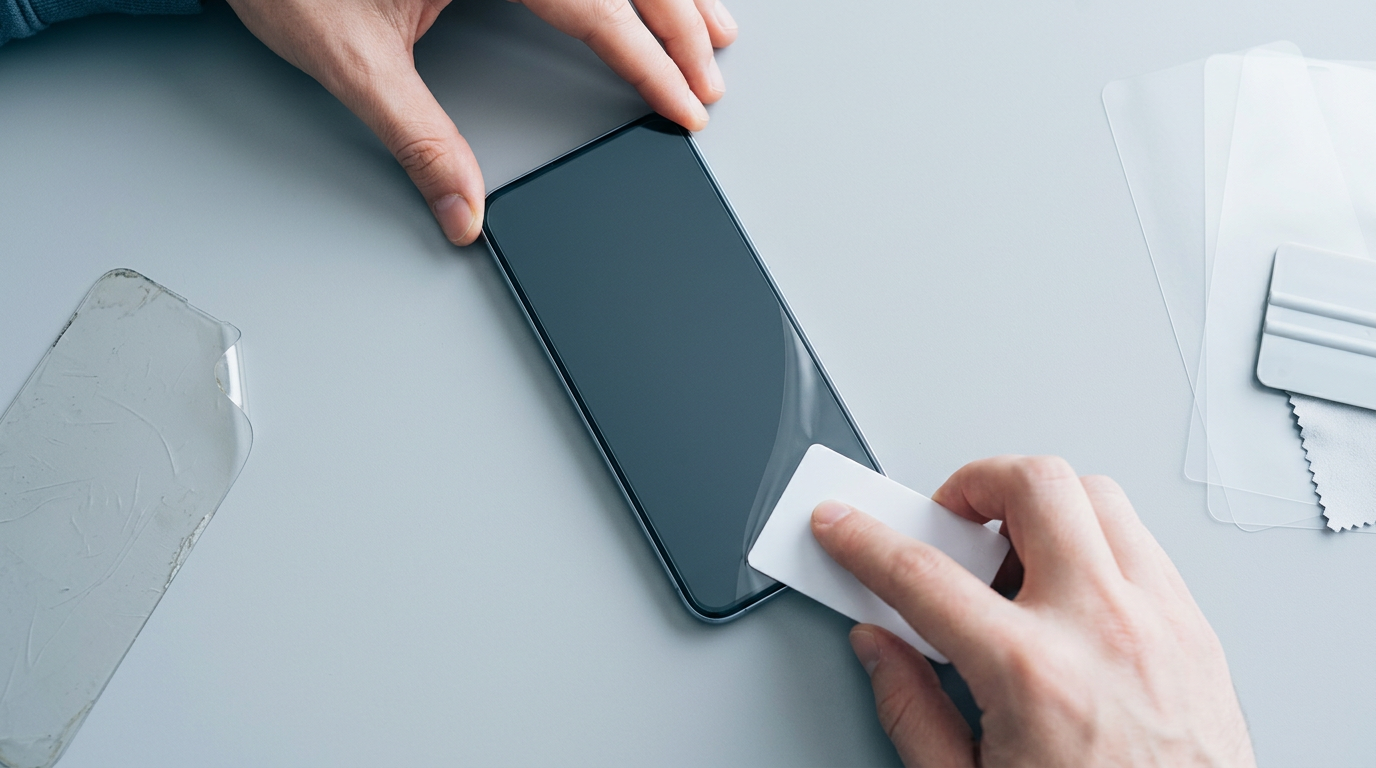
A screen protector is a thin film that sits over the display and guards against dust and scratches. It only helps if you use it well:
- Guard against dust and scratches. Pick a protector sized for your exact screen.
- Avoid trapped bubbles. Apply it slowly and press out air as you go.
- Replace when worn. Once the film looks scuffed or peeling, swap in a fresh one.
Storing safely and checking it weekly
Where the laptop sits matters as much as how you carry it. Keep it somewhere cool and dry, away from heat and direct sunlight, like a closet shelf rather than a sunny windowsill. Make it a routine, not a rescue.
- Do a weekly screen check. Look in good light for new marks, spots, or pressure points.
- Check the hinges and edges. Catch loose hinges or chipped edges before they get worse.
A few minutes a week is all it takes to catch trouble early.
Common Questions and Worries About Spots
That white spot on your screen is worrying, but most common questions have clear answers. Here’s what to know before you panic or spend money.
Whether it’s safe to keep using
A small spot usually isn’t harmful right away, so you can keep using your device while you watch it. The real question is whether it stays small or spreads, since spots can grow over time.
Think of a player who notices a small dot in the corner of their monitor during a late-night match. They keep gaming, check it weekly, and only look at repair options once it visibly grows.
Stable means keep monitoring. Worse means it’s time to get it fixed.
Whether updates or protectors actually help
Updates are a good habit, but they rarely fix spots that come from the hardware itself. Screen protectors don’t stop pressure spots either.
Picture a roommate who spends an evening installing updates and tweaking settings, only to find the same mark the next morning. A quick check of whether the spot is growing would have told them more.
Spots on a well-kept new device
A spot can show up even when you’ve looked after your device carefully, including on a machine only a few months old. Consider a parent who bought a laptop for their kid’s homework and notices a mark three months later.
They start blaming themselves, but sometimes the cause simply isn’t clear. Knowing it’s not their fault lets them focus on the next step instead of second-guessing every habit.
A white spot doesn’t automatically mean you need a new monitor. Figure out the cause, try the simple fixes, and watch whether the spot changes over time.
If it sticks around, weigh the repair cost against replacing, and check your warranty before you spend a dollar.
The right call comes down to your budget and how much the spot bugs you in the games you actually play. Your screen should work for you, not the other way around.
Questions
What are the white spots on my laptop screen?
White spots are often caused by pressure or impact shifting the LCD layers, a displaced backlight diffuser, or dust trapped beneath the screen surface or protector. A fixed bright patch that remains after gentle cleaning is more likely a panel or backlight issue than surface dirt.
How to clean spots off a monitor?
Turn off the monitor and gently wipe it with a clean, dry microfiber cloth. For stubborn smudges, lightly dampen the cloth with a screen-safe cleaner, never spray liquid directly onto the display, and avoid pressure, paper towels, alcohol, and ammonia.
How can I tell if my monitor is dying?
Warning signs include spots that spread, persistent flickering or lines, and dimming that brightness adjustments cannot correct. A fixed spot is more likely a hardware issue, while a mark that moves or disappears after cleaning or a restart may be dust or a software glitch.
How to fix white border on monitor?
A white border can result from an incorrect resolution or scaling setting. Set the display to its native resolution, check scaling, and restart the computer; if the border remains, test another cable or display to help identify a hardware problem.
How to get rid of yellow dot on HP laptop?
First check whether the yellow dot is on the screen protector or surface and gently clean it with a microfiber cloth. A single dot that stays fixed may indicate pressure damage or a failing backlight; avoid pressing it, and contact HP support or a repair technician if it persists, especially if the device is under warranty.
Why is my display yellowish?
A yellowish display is often caused by a colour setting such as Night Light, a blue-light filter, or a colour profile. Turn those settings off or reset the display’s colour settings; if the tint remains across different settings, the screen or backlight may need inspection.
Why is there a yellow border around my monitor screen?
A yellow border can be caused by uneven backlighting or panel wear, particularly if it stays in the same place at different settings. Check colour and display settings first, then test the monitor with another device; a persistent border may require repair or replacement.
Why is there a yellow spot on my laptop screen?
A fixed yellow spot can indicate pressure damage or a failing backlight, while an overall yellow tint is more often caused by colour settings. Gently clean the surface and reset colour settings; if the spot remains fixed or spreads, have the screen inspected and check your warranty.
Free · The Build Sheet
The Build Sheet: three gaming PCs priced at Canadian stores