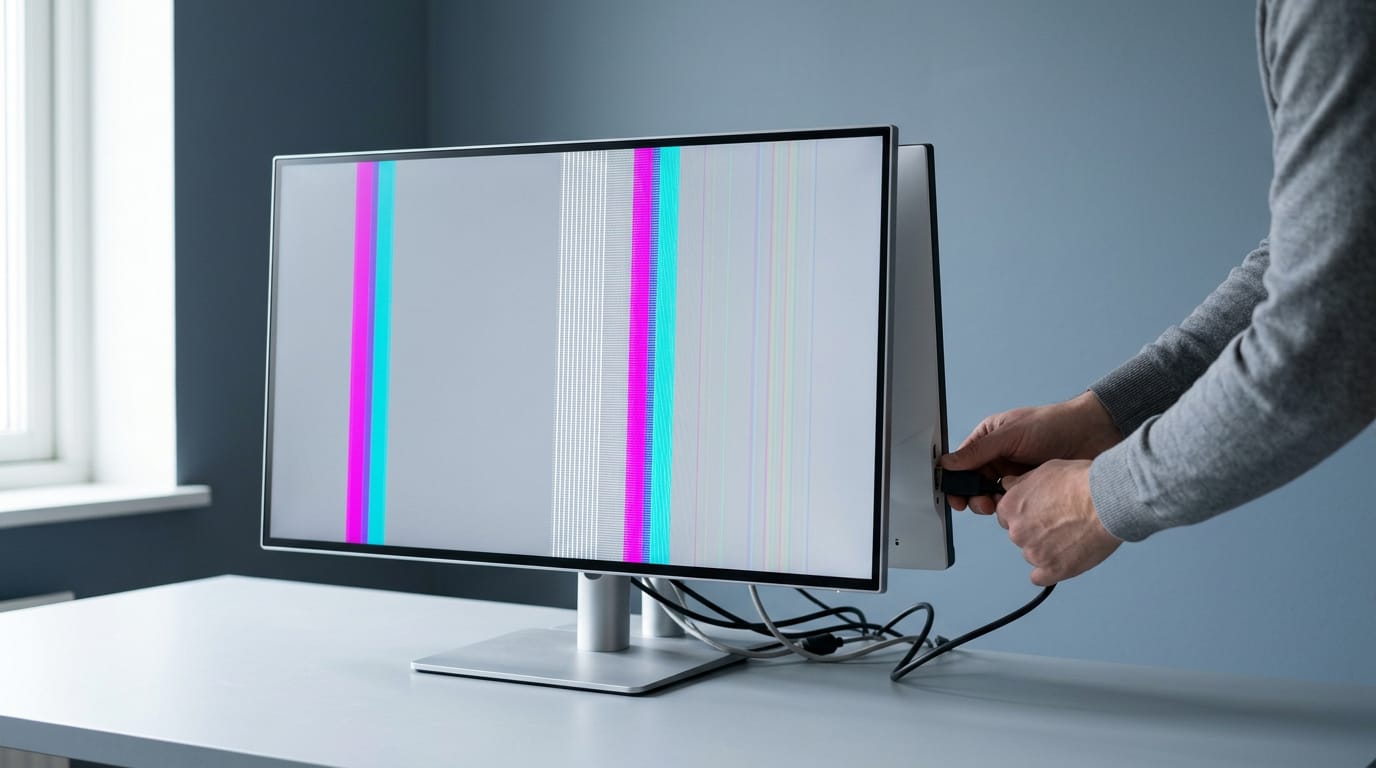
Vertical Line Monitor Fixes You Can Try at Home
A vertical line on your monitor may come from a loose cable or panel; run quick checks, try home fixes, and check Canadian warranty steps now.

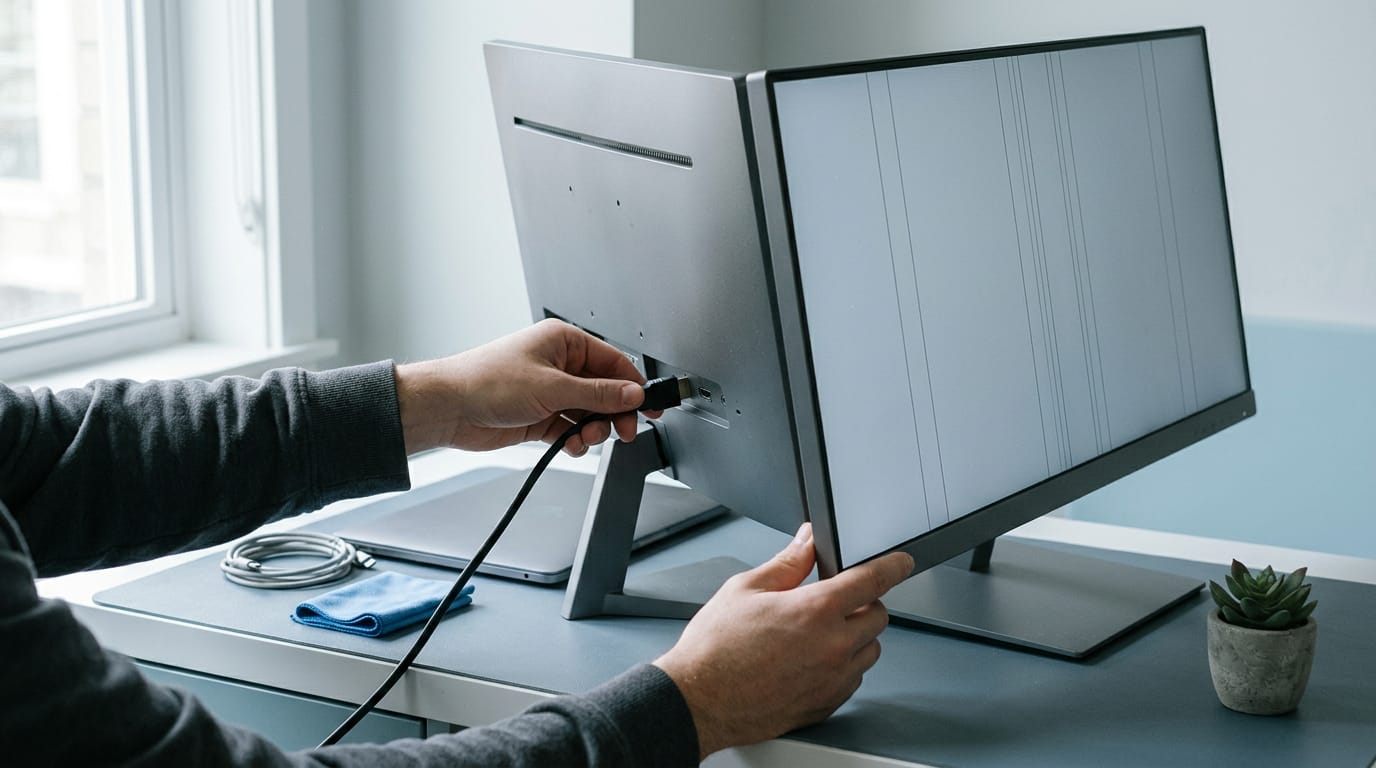
A vertical line on a monitor is a stripe running from the top of the screen to the bottom, caused by anything from a loose or faulty cable to a display setting, graphics driver, or damaged panel. Connect the monitor directly to the graphics card, reset settings, test a lower refresh rate, update drivers, and try another cable or computer to find what the line follows. If it remains on different computers, contact the manufacturer and check warranty or retailer return options before paying for a repair or replacement.
You’re deep into a match when a thin line cuts straight down the middle of your screen. Like a scratch on a windshield, it sits right in your sightline, and once you spot it, it’s all you notice.
A vertical line is a stripe that runs top to bottom on your monitor, and it can come from a loose cable or from the panel itself.
Figuring out which one you’re dealing with is the first step, and you don’t need to be a technician to do it.
In this guide, we’ll cover quick checks, fixes you can try at home, customer support, and when repair beats replacement, with Canadian warranty and return steps along the way.
Quick Checks for a Vertical Line Monitor
Did your screen suddenly grow vertical lines? Run these quick checks before you write off the panel.
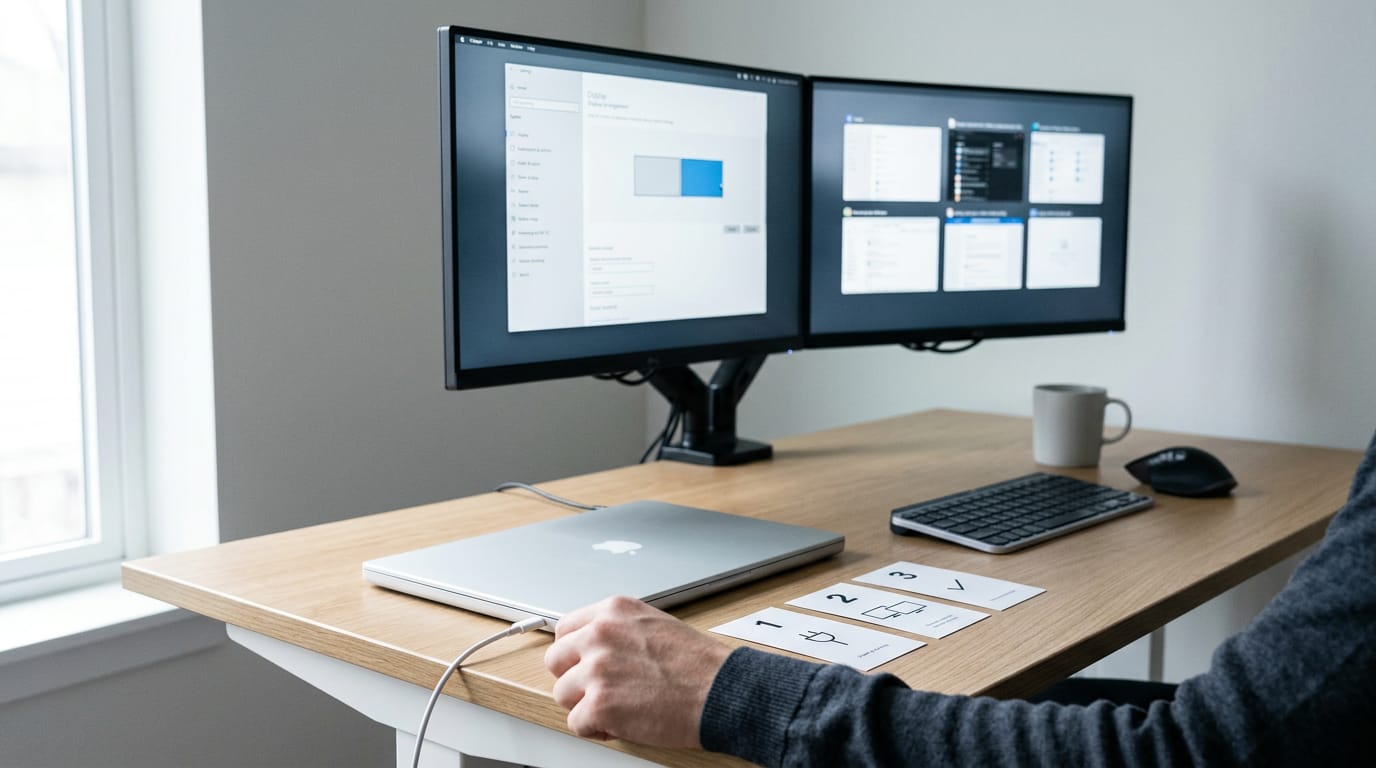
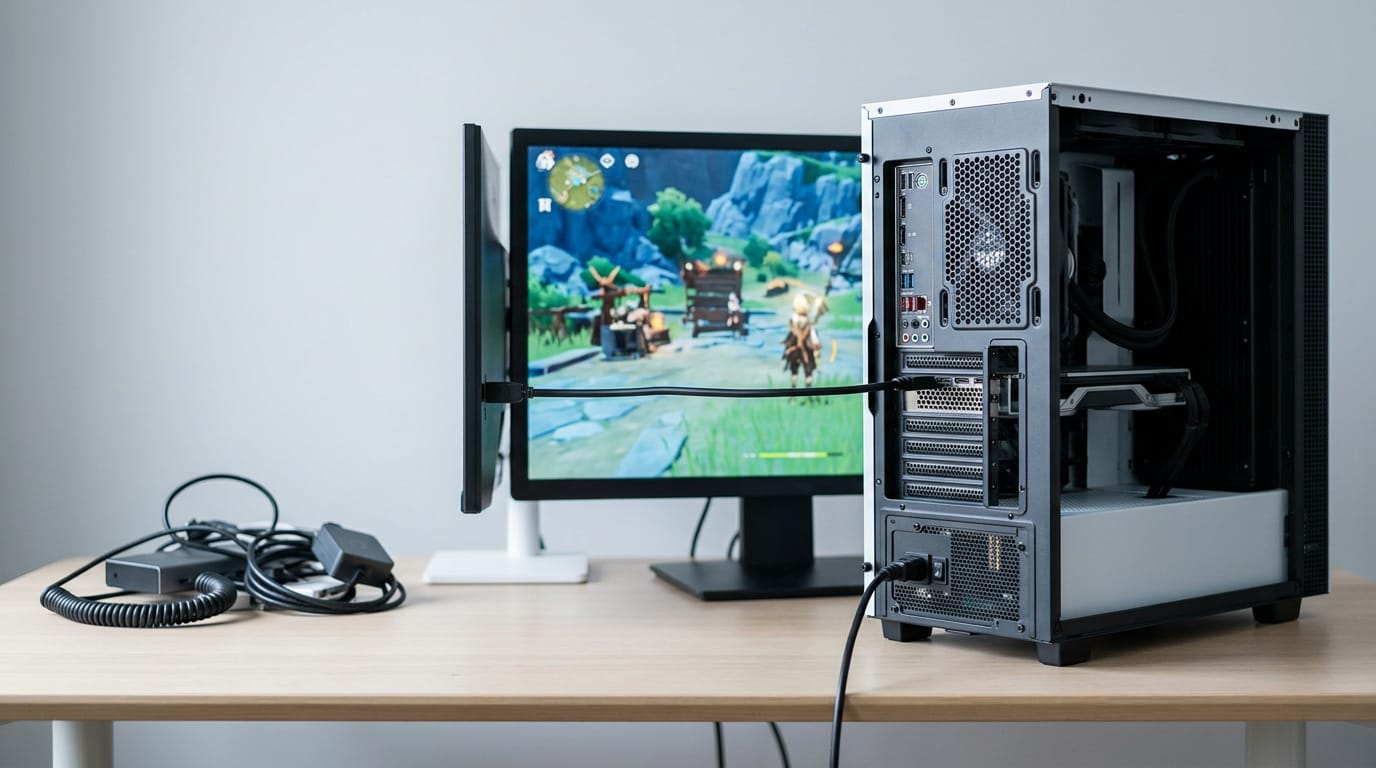
Connect directly to your video card
Your video card (also called a graphics card) sends the picture to your monitor, and every extra part between the two is another link that can go wrong.
Think of a gamer who plugged a new dock into their desk on Friday and woke up Saturday to lines down the screen. The first test is to take the dock out of the picture. Work through these checks:
- Avoid extension cables. Stretching the signal with one adds another connection to check.
- Skip adapters and docking stations. Each one sits in the path, so each one is a suspect.
- Connect directly to your video card. Plug the monitor cable straight into the card itself.
It’s less about the number of parts you own and more about how directly the signal travels. Keep it simple.
Which monitors and refresh rates this covers
These checks apply to all Philips monitors, including Evnia models. The lines are tied to your refresh rate, the number of times per second your screen redraws the image (measured in hertz, or Hz).
They appear above 60 Hz, so a faster refresh rate is where to look.
So why did your screen suddenly have lines? Look at what changed. If they started right after you added an adapter or dock, switched in an extension cable, or raised your refresh rate above 60 Hz, that change is your first suspect, not the panel.
How to Fix Vertical Lines on Screen?
Vertical white lines usually trace back to a setting, a driver, a cable, or the panel itself. Work through them in that order, cheapest first.
Try resetting and adjusting monitor settings
Start with the on-screen display (OSD), the menu you open with your monitor’s buttons. Look for a reset option, restore the factory defaults, and see if the lines persist.
Next, check any adaptive sync setting, like G-Sync or FreeSync. These match the refresh rate (how many times a second the screen redraws) to your graphics card. Toggle it off, then on, and watch the lines.
Then test at a lower refresh rate. Picture a player who only sees lines in fast matches. They drop the rate a notch and play a round. If the lines vanish, you’ve got a useful clue.
Update your graphics drivers
Make sure your graphics card (GPU) runs the latest drivers, the software that lets your computer talk to it. Install them from the card maker’s site, then restart and retest.
Tell a bad cable from a failing panel
First, swap in a different input cable, ideally a spare you know works. If the lines clear, the old cable was the problem. Cheap to test, so do it first.
Next, plug the monitor into a different computer. If the lines show up there too, the screen is the likely suspect. If not, the trouble lies with your original computer or its setup.
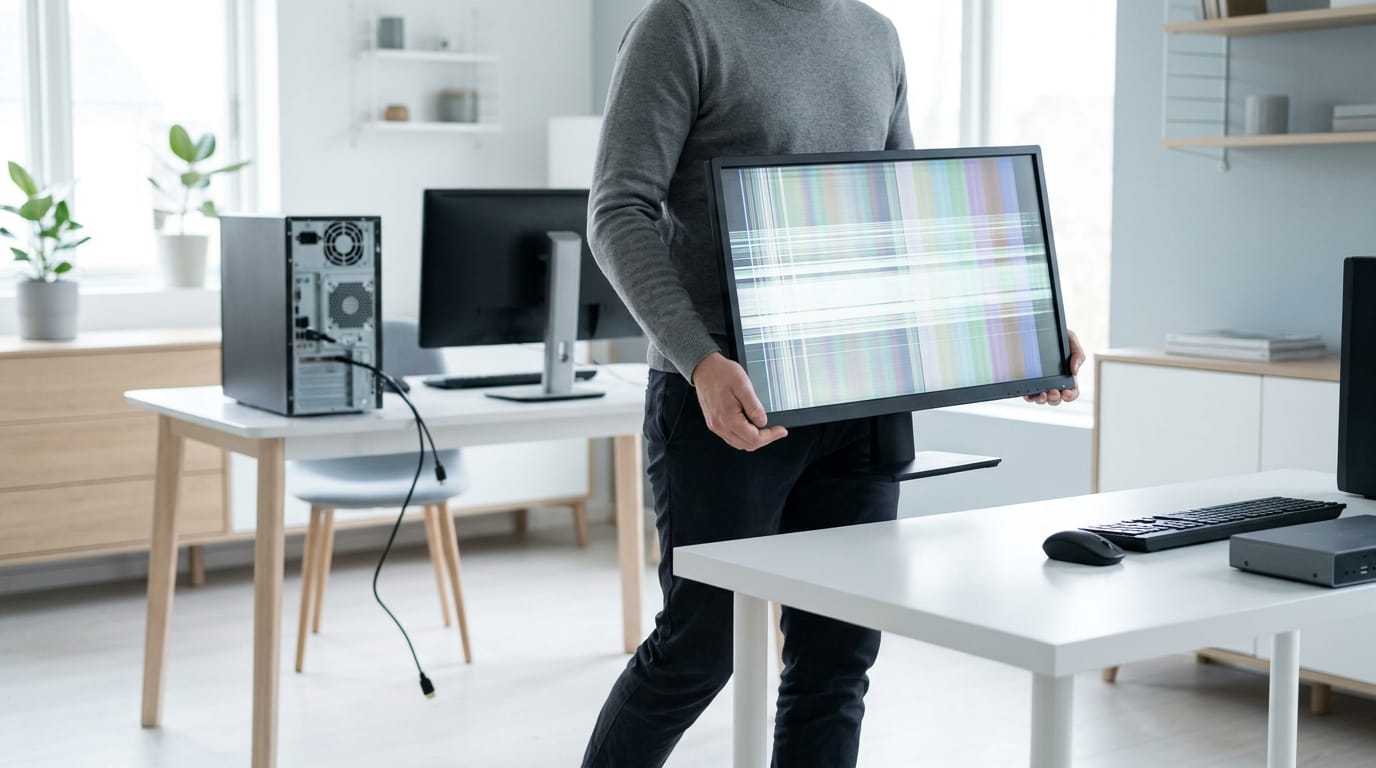
So which is it? A cable fault clears up once you replace the cable. A panel failure means the screen itself is damaged, so the lines follow the monitor to any computer. It’s less about whether lines appear and more about what they follow.
Getting Help from Customer Support
If the fixes in this guide didn’t clear the line, it’s time to call the people who made the monitor, and you want to be ready when they pick up. Preparation makes that call short.
Use Consumer Care if the fixes fail
Save support for after the fixes fail, so the agent knows what you’ve already ruled out.
- Confirm the line stays after the fixes above.
- Click the Contact Consumer Care button on the manufacturer’s support page.
Once connected, ask whether the monitor is still under warranty. If it is, ask whether the company will repair or replace it. If it isn’t, compare any repair quote with the price of a new monitor first.
If you bought from a retailer, check its return window before you wait on a fix. A Saving Optimizer guide to Canadian electronics return policies lays out published return windows, but each retailer’s own return policy sets the actual deadline.
What details to have ready
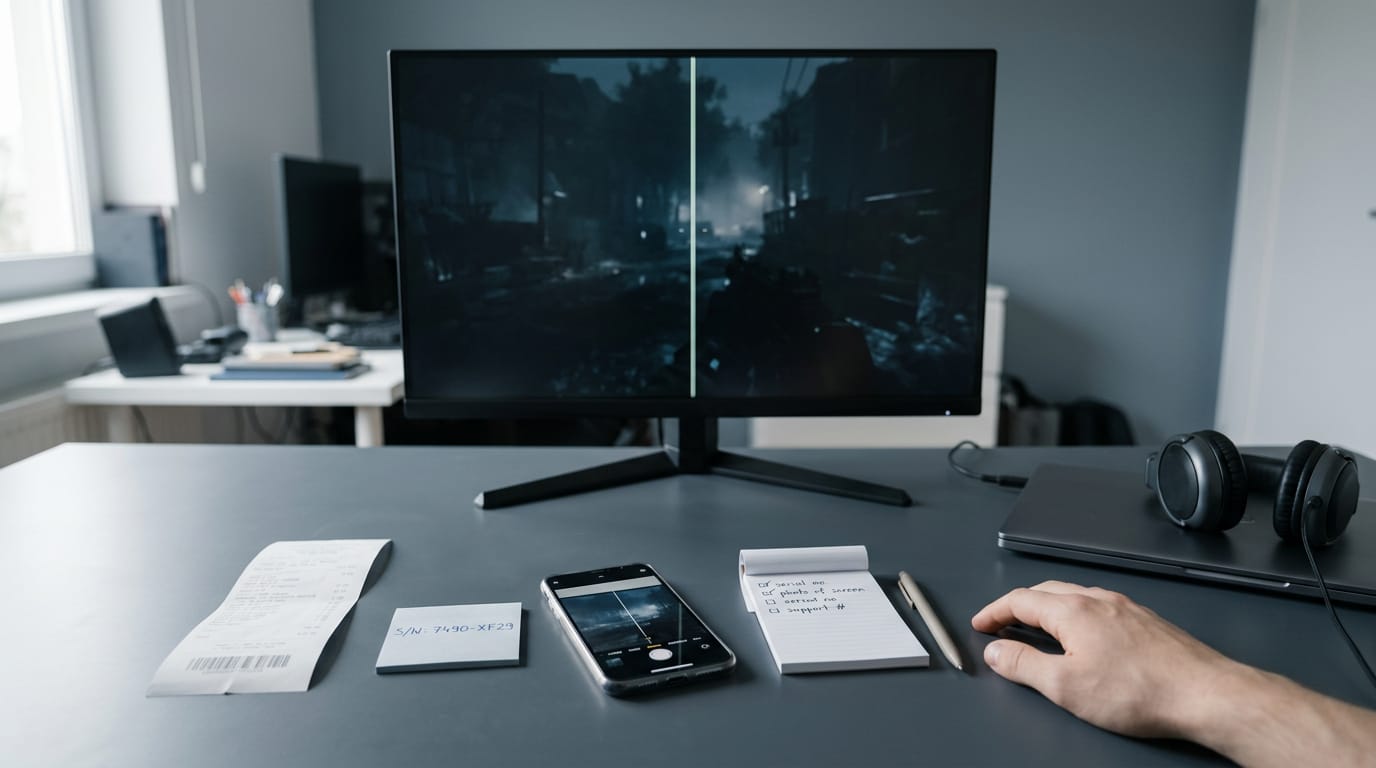
Have these in front of you before you contact support, so the agent can start on your case right away:
- Contact details: your email, phone number, and mailing address
- Purchase date: from your receipt or order confirmation
- Monitor serial number: copied exactly as printed on the unit
- Connected device and graphics card model: your PC or console, plus the exact graphics card model
- Photo of the issue: a clear picture of the vertical line on screen
Think of a gamer whose 1440p monitor shows a vertical line mid-match. With the purchase date, serial number, and photo ready, they can answer the agent’s questions in one pass and choose between repair and return without guessing.
Related Guides and Articles
Some display problems start in software rather than the panel, so rule out these settings and driver checks before you spend money.
Articles on drivers, sync, and display settings
Start with your monitor’s model and serial number. They’re usually printed on a label on the back of the panel, and you’ll need them for warranty claims and to find the right support page.
Next, check adaptive sync. G-Sync (NVIDIA’s) and FreeSync (AMD’s) match your monitor’s refresh rate (how many times per second the screen redraws, measured in hertz) to the frames your graphics card produces, which smooths out tearing and stutter.
Confirm your card and monitor both support the one you want.
Keep your graphics driver current, and download it from your card maker’s own site rather than a third-party tool. To update it through Windows:
- Open Device Manager and expand Display adapters.
- Right-click your graphics card and choose Update driver.
- Choose Search automatically for drivers.
Windows can’t always find newer drivers, so check the card maker’s site too.
Last, set the native resolution (the panel’s built-in pixel count) and refresh rate in Windows display settings. Match the panel’s values, not the biggest numbers on the list. This is also where you rotate the screen to portrait.
Think of a builder who turns a 27-inch panel to portrait for code and chat, then back to landscape for a 1440p game. Rotation takes seconds.
Portrait suits documents, code, and chat, so use it for side tasks and keep landscape for most games.
Whether the fix is a loose cable or a new panel, the goal stays the same: a clear screen that keeps your attention on the game. Run the quick checks first, then bring your details to support before you decide.
If the warranty covers the problem, that’s the easiest path, and if it doesn’t, a replacement may be the smarter buy.
Your games deserve a screen you can see clearly, and now you know how to get one.
References
- Where to Buy Electronics in Canada: Return, Price-Match and Warranty Policies Compared — savingoptimizer.com (2026)
Questions
How to best use a vertical monitor?
Use portrait orientation for documents, code, chat, and other tasks that benefit from seeing more content vertically. Keep landscape orientation for most games, and switch between orientations in your computer’s display settings when needed.
How to solve for a vertical line?
For a vertical line in algebra, use the equation x = a, where a is the line’s fixed horizontal coordinate. For example, a vertical line passing through x = 3 is written x = 3; its slope is undefined.
Why did my screen suddenly have lines?
Sudden screen lines can result from a loose or faulty cable, an adapter or docking station, a graphics driver or display setting, or a failing monitor panel. If they began after you changed a connection or raised the refresh rate above 60 Hz, test that change first by connecting directly to the video card and lowering the refresh rate.
What causes vertical white lines on my monitor screen?
Vertical white lines can be caused by a bad cable or connection, a display setting or graphics driver issue, or damage to the monitor panel. Try a known-good cable and connect the monitor to another computer; if the lines remain, the panel is a likely cause.
Sources
Free · The Build Sheet
The Build Sheet: three gaming PCs priced at Canadian stores