Bug in Your Monitor: Causes, Fixes, and When to Act
A bug in your monitor may be an insect, stuck pixel, or panel defect. Identify it, remove it safely without screen damage, and know when to call a pro.

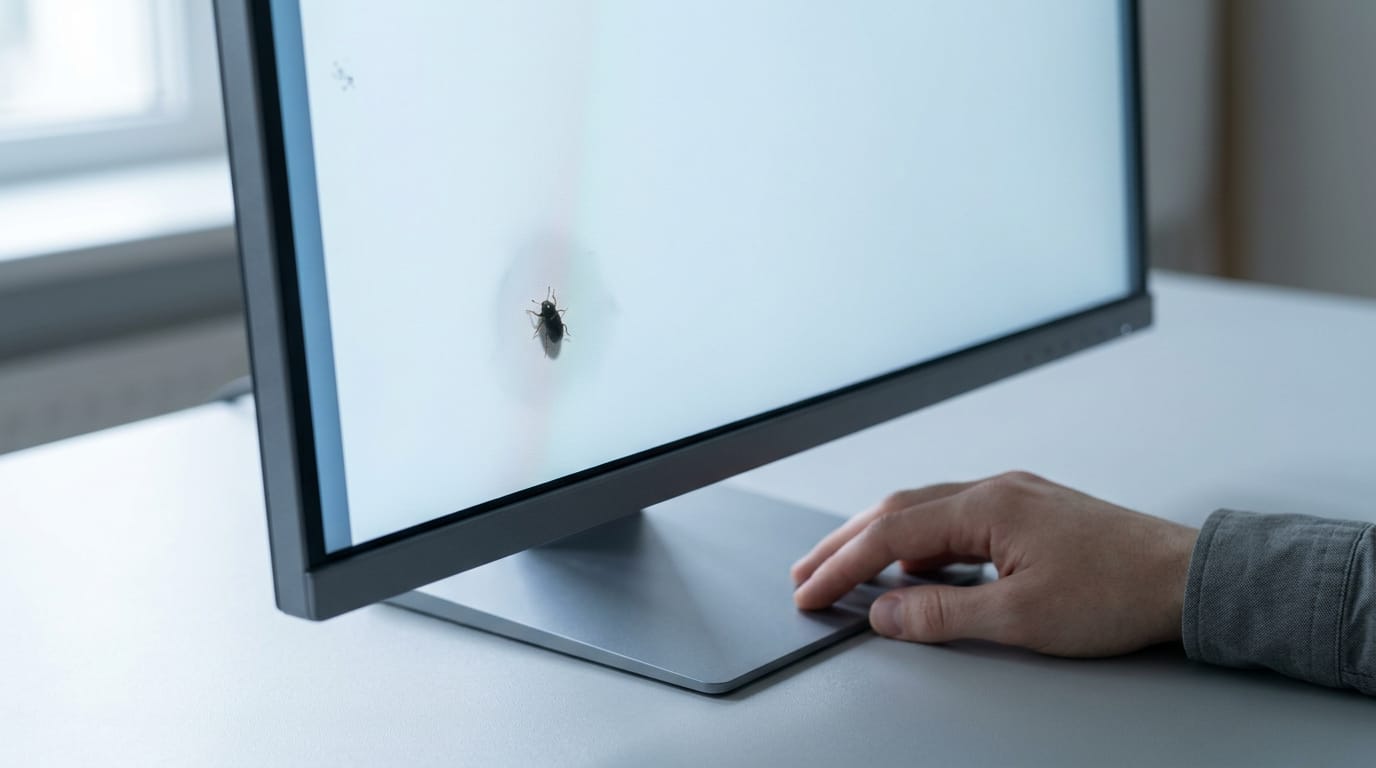
A bug in a monitor can mean an insect trapped behind the screen, a stuck or dead pixel, or another panel defect. If the speck moves, it is likely an insect; if it stays fixed after a gentle wipe, it may be a pixel problem, so avoid pressing on the screen or opening the casing. Try only gentle removal, check your warranty, and call a technician for a bug behind the panel or signs of electrical trouble.
Spot a tiny dark speck drifting across your screen mid-match? It’s easy to assume a bug crawled in, but that’s only one possibility.
A bug in your monitor usually means one of three things: an insect trapped inside the casing, a stuck or dead pixel, or a panel defect. Each needs a different fix, and knowing which one you’re dealing with saves you time and money.
Here’s how to tell them apart, how to remove a bug safely without damaging the screen, and which gamer-specific checks help you decide between a repair, a warranty claim, or a new panel.
What a Bug in Your Monitor Is
A bug inside a monitor is usually a real insect trapped behind the glass, not a software error.
Telling real insects from screen glitches
Picture a gamer with a new 1440p monitor who spots a dark speck drifting across the map mid-match. Check whether it moves or stays still. A speck that moves is almost certainly a bug.
One that stays put is more likely a stuck pixel (a dot locked on one color) or a dead pixel (a black dot that never lights up), both panel defects. Faint trails or residue around the spot point to a bug, since a pixel defect leaves nothing behind.
It’s distracting, and perplexing until it moves.
Which kinds of bugs get inside
Gnats and ants slip through tight gaps, while crickets and cockroaches need a wider opening. Spiders need a larger gap, but springtails are tiny enough to fit through small ones too.
Dust mites are often misidentified: they’re too small to see one at a time, so a visible speck is usually dust or lint, not a mite.
Where the bugs sneak in
Bugs can slip between the display layers, where they’re hard to reach. Check the bezel (the plastic frame around the screen) and the vent openings on the back, since those are the most visible gaps.
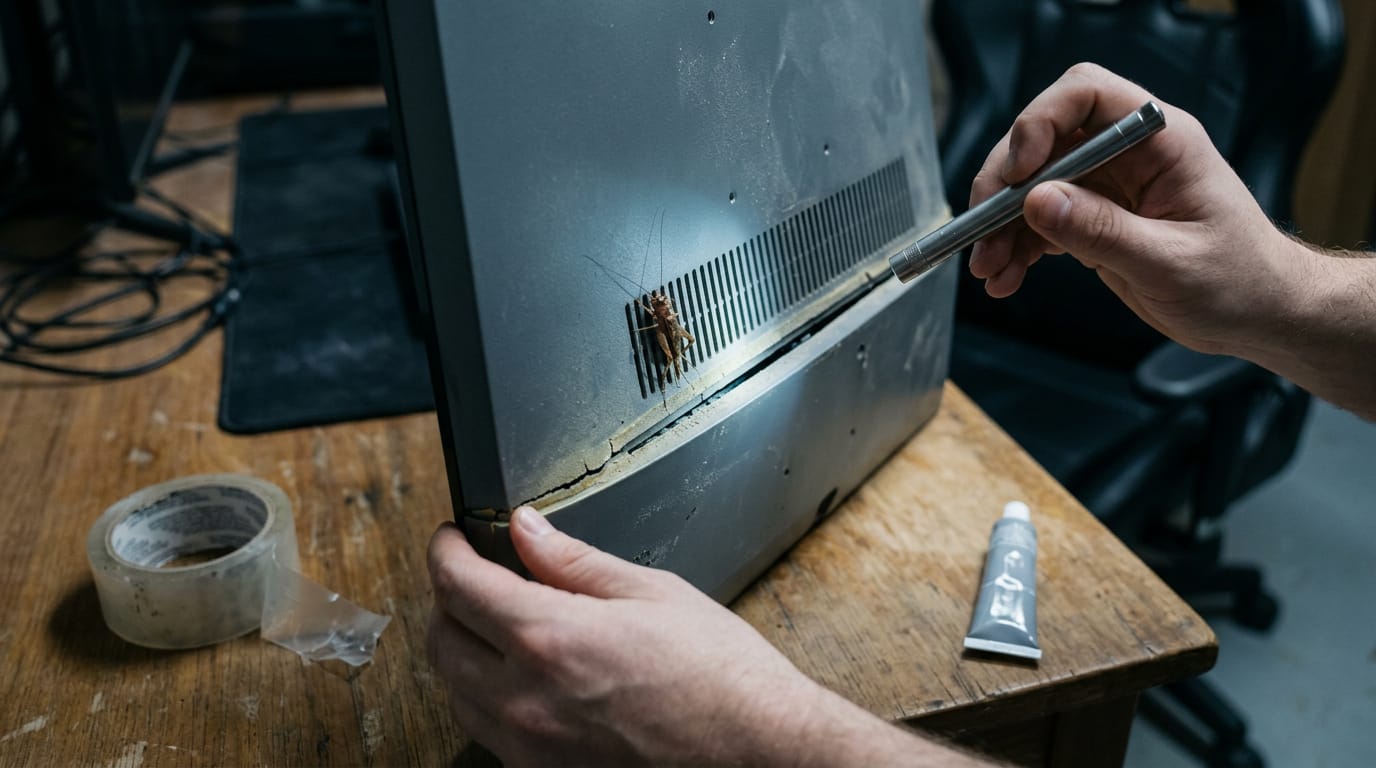
Older monitors with worn seals or cracked plastic let bugs in more easily, and unsealed ports on the back or side are another path. Think of a player with an older 1080p monitor in a basement gaming corner, where a cricket came through an open vent.
Sealing that vent keeps the next one out, and the monitor stays on the desk instead of going back to the store. Find the entry point, and you’re halfway to a fix.
Why Bugs Are Drawn to Screens
A bug on your screen rarely shows up by chance. Monitors give off heat, collect crumbs and dust, and sit in rooms where insects can wander in.
The heat that draws insects in
Your monitor’s backlight, the light behind the panel, gives off steady heat, and so does the processor in your PC. Warmth attracts insects, so the back of your screen becomes a magnet.
It isn’t the glass that draws them so much as the warmth coming off it. Heat is the hook.
Take a gamer who plays late with the window cracked open. The screen stays warm for hours, and that warm spot pulls in a stray fly a cooler desk would have ignored.
Crumbs and dust they feed on
Snacks eaten at the setup leave crumbs on the desk and the monitor stand, and those give bugs an easy meal. It’s less about one stray crumb and more about what builds up between cleanings.
Dust accumulation becomes a food source of its own, so a screen that rarely gets wiped keeps inviting visitors.
Room conditions that draw them in
Several room conditions make the problem worse:
- Open windows and outdoor use: A monitor by an open window, or a session out on the balcony, gives insects a direct route in.
- High humidity: Damp air makes a room more inviting to bugs, so a humid space draws more of them.
- Static electricity: Static charge pulls dust and particles toward the screen, so the surface gets dirtier than you’d expect.
- Seasonal transitions: As the weather shifts and windows get opened or closed, new routes indoors appear.
Spot these triggers early, and the cleanup gets much simpler.
How to Get Rid of the Bug
Most bugs in a monitor are trapped between the panel’s layers, behind the front glass, so a cloth won’t reach them. Start gently and move down the list only if the bug stays put.
Safe ways to remove the bug
Power off the monitor and let it cool for a few minutes first. Then try these, gentlest first:
- Gentle tapping: Lay the screen face down on a soft towel and tap the back lightly with your fingertips.
- Compressed air near the edges: Hold the can upright and aim short bursts at the bezel, not the center of the screen.
- Microfiber coaxing: Wrap a dry microfiber cloth around your fingertip and nudge the bug toward an edge.
The goal is to loosen the bug, not push it deeper. If you feel resistance, don’t force it. Stop right there.
When it’s safe to leave it
If the bug sits in a corner, away from where you look during a match, you can usually leave it. Take a player who spots a dark speck near the top corner of their 1440p monitor.
They keep gaming and skip the hassle of a warranty claim, since the bug may fall out or decompose on its own. Sometimes waiting is the fix. If it creeps into the play area, switch to the methods above.
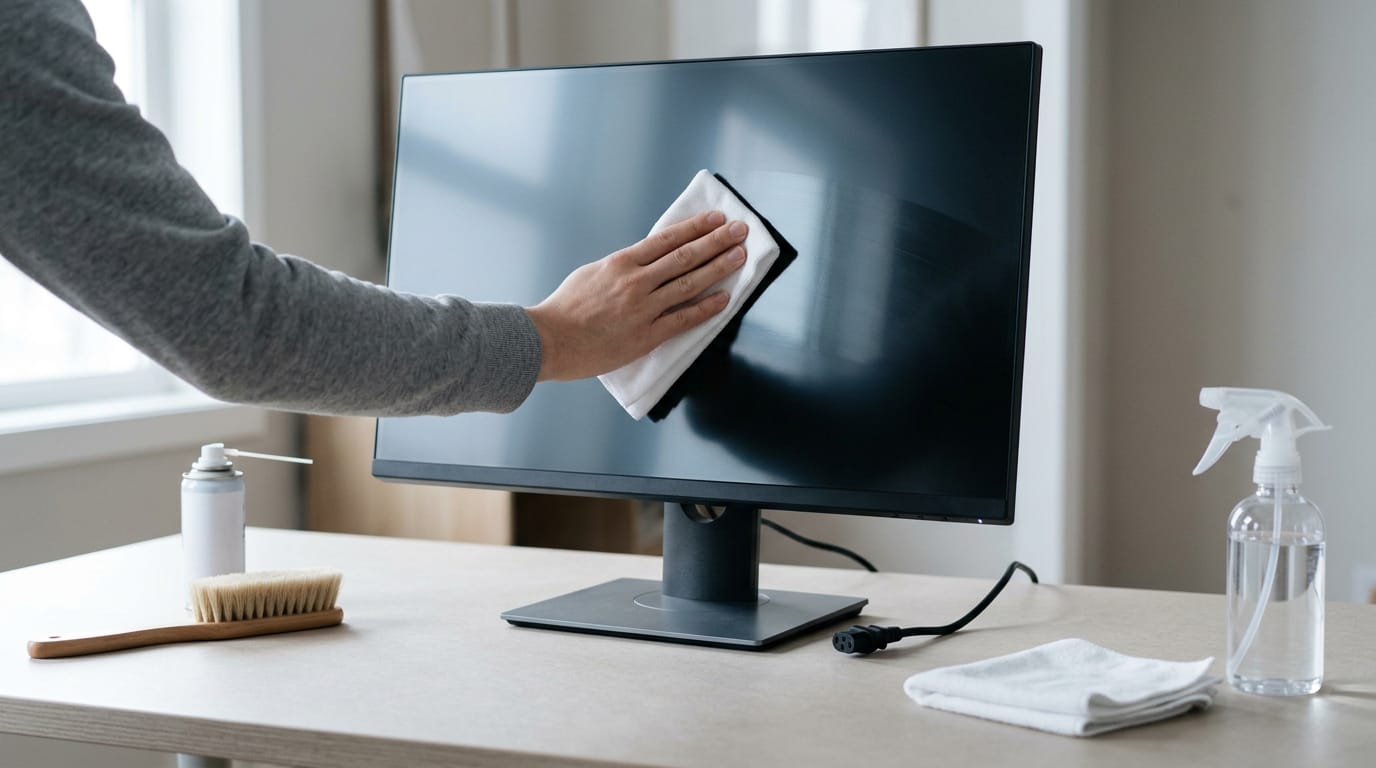
Cleaning the screen step by step
If dust or residue is left behind, clean the screen in this order:
- Unplug the monitor. Do this before any cloth touches the glass.
- Brush or blow off debris. Use a soft brush or short bursts of compressed air.
- Dampen the cloth, not the screen. Use a microfiber cloth lightly dampened with distilled water and a little isopropyl alcohol.
- Wipe with microfiber. Use light strokes, then finish with a dry cloth.
Things You Should Never Do
Monitors look sturdy, but the panel is one of the most delicate parts of your setup, and a few common habits can turn a small bug into a lasting problem. Here’s what to avoid before you clean anything.
Can I use alcohol wipes on my monitor?
Short answer: it’s a risky choice. Some screen coatings can be damaged by alcohol, so check your manual or the manufacturer’s cleaning guidance first. A soft, dry microfiber cloth is the safer default, and the goal is to gently wipe, not scrub.
Keep these rules in mind every time you clean:
- Don’t press or squeeze hard. Pressure on the panel can damage the pixels underneath, so let the cloth do the work.
- Risk of dead pixels. Damage from pressure can leave a dead pixel behind, and wiping can’t undo it.
- Don’t open the housing. Inside are parts meant for trained technicians, not a quick fix at your desk.
- Don’t spray liquids. Spray drifts into vents and edges, so keep liquid away from the screen entirely.
- Warranty voiding. Opening the housing or damaging the panel can void your warranty, so read your terms before attempting any repair.
Think of a gamer who spots a bug on the panel right before a ranked match and grabs the nearest alcohol wipe.
One firm press later, the bug is gone, but a stuck pixel has taken its place, right in the middle of the screen they stare at every session. Gentle beats fast.
How to Keep Bugs Away
Most bug problems come down to what’s near your setup and how easily pests can reach it. Here’s how to make your gaming space less inviting, which is about prevention rather than cleanup.
Keeping your desk clean and crumb-free
Crumbs are a big draw. Picture a gamer who snacks through late-night ranked matches with a 27-inch monitor on the desk: a few chips wedged in the keyboard gap are an open invitation. A few habits fix that:
- Remove crumbs and dust as soon as you spot them, especially around the keyboard and desk edges.
- Avoid eating near your computer. Snack in the kitchen or on the couch instead.
- Clear food packaging and clutter so there’s nothing sitting out to attract bugs.
- Vacuum regularly, including under the desk and behind the tower, where crumbs collect unseen.

Sealing up gaps and covering the screen
Pests need a way in, so close it off. Seal windows, doors, and vents in the room, and seal any casing gaps on the monitor and PC where small bugs could sneak inside. Then protect the panel itself:
- Cover the monitor when it’s unused. A simple dust cover keeps the screen clear when the setup sits idle.
- Run a dehumidifier in damp rooms. Less moisture makes the space less inviting to bugs.
- Cover the monitor when you’re away. Consider a parent who leaves the family setup alone for two weeks: a cover on the screen and the windows shut means it’s clean when they return. Cover it and forget it.
When to Call a Pro or Buy New
Some bugs need a pro, and some spots on your screen are less serious than they look. Here’s how to tell which is which.
When a technician should step in
Removing a bug from the outside of the screen is usually a job you can handle yourself. If it’s trapped behind the panel, a technician can open the monitor and remove it safely.
Check coverage first, since a warranty or insurance policy may pay for that visit.
For severe cases, where bugs turn up all over the room, call pest control to tackle the source.
Call a technician right away if you notice:
- Strange noises. Buzzing, clicking, or rattling.
- A burning smell. Unplug the monitor and stop using it.
- No power. A screen that won’t turn on needs a pro.
Should I worry about dead pixels?
A smudge sits on the glass, but a dead pixel lives inside the panel. A stuck pixel is similar, but it stays lit in one color instead of going dark. Wipe the screen gently: smudges come off, while lines and dead pixels stay put. Lines that survive wiping are not smudges, so check for vertical stripes on monitor screens next.
Bugs trapped behind the panel can distort the picture, and pressing on the screen to dislodge one can cause lasting damage. Don’t press, pry, or squeeze.
Think of a gamer who spots a dark dot during a ranked match. They wipe the screen, see the dot doesn’t budge, and check the warranty before touching anything. That step may turn a risky home repair into a covered one.
So should you worry? Usually only when the dot sits where your eyes land during fast fights. Dead pixel policies vary, so read the wording. Check first, then decide.
Most monitor problems come down to a careful look. Once you know whether you’re dealing with an insect, a stuck pixel, or a panel defect, the next step is usually clear.
Handle the screen gently, and weigh warranty coverage against your Canadian budget before you spend on a replacement.
Take your time, check carefully, and get back to the game you love on a screen you can trust.
Questions
How to get a bug out of a monitor?
Turn off the monitor, unplug it, and let it cool. Try laying it face down on a soft towel and gently tapping the back, or aim short bursts of compressed air at the bezel, not the screen’s center. Don’t press, pry, or open the housing; if the insect remains trapped behind the panel, contact a technician and check your warranty.
Should I worry about dead pixels on my monitor?
A dead pixel is usually not a serious safety issue, but it can be distracting, especially if it is in the area you focus on while gaming or working. Check whether the dot stays in place after gently wiping the screen, then review your warranty, since policies vary. Avoid pressing on the panel, which can cause damage.
Can I use alcohol wipes on a PC monitor?
Alcohol wipes are risky because alcohol can damage some screen coatings. Check the manufacturer’s cleaning instructions first; a dry, soft microfiber cloth is the safer default. If cleaning guidance allows a liquid, dampen the cloth lightly rather than spraying or applying liquid directly to the monitor.
Free · The Build Sheet
The Build Sheet: three gaming PCs priced at Canadian stores