Xbox Refund Guide for Games, Consoles, and Subscriptions
Xbox refund rules cover digital games, subscriptions, and hardware. Follow the request steps, track your refund status, and appeal if Xbox denies your claim.

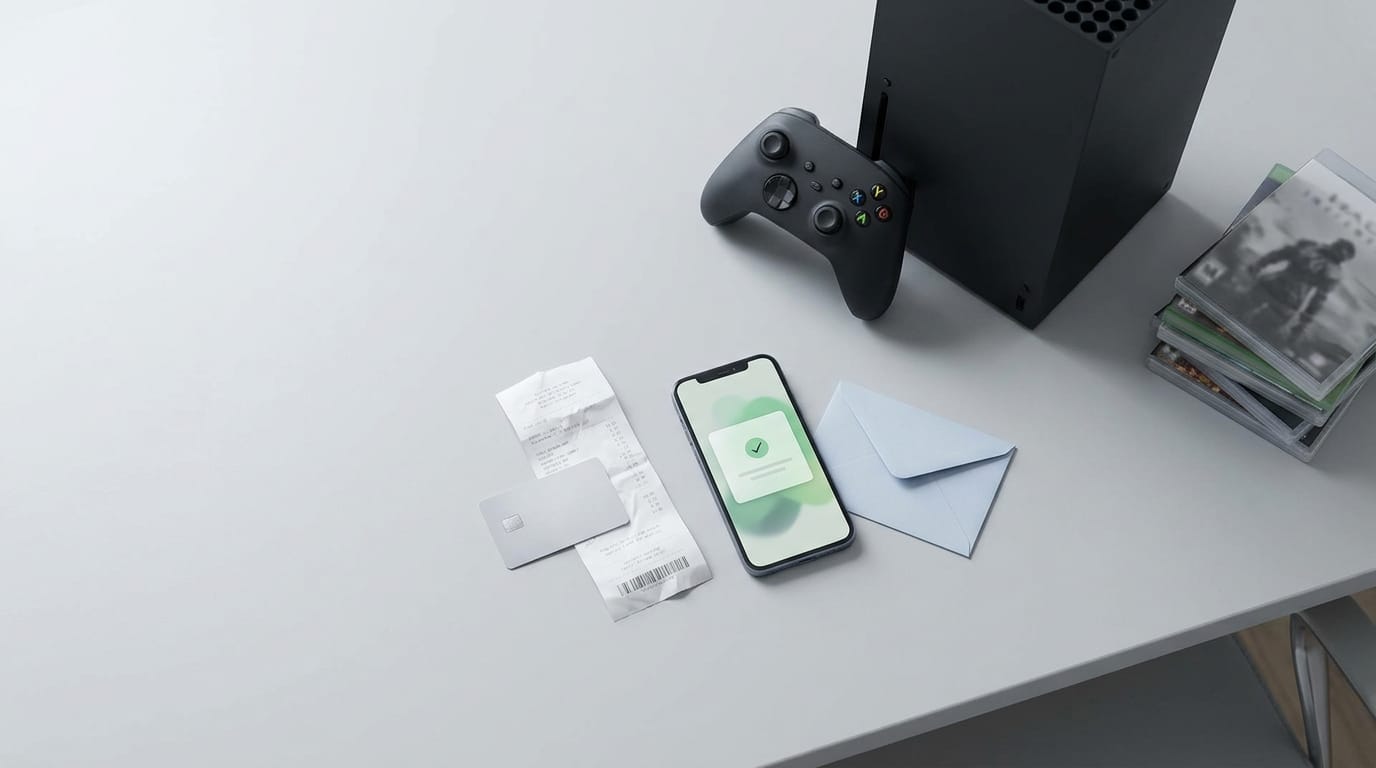
An Xbox refund is a request to get money back for a digital purchase, subscription, or physical device, and each type follows a different process. Digital game requests are generally most promising when made within 14 days and under two hours of play; subscriptions must be canceled before renewal to stop future charges, while hardware returns start in order history. Check your request status, contact support if denied, and back up saves and reset a console before shipping it.
Think about a sweater that doesn’t fit. Getting your money back is easy when you kept the receipt and the tags are still on. Xbox refunds can feel similar, except the purchase might be a digital game, a console, or a subscription you forgot about.
In this guide, we’ll explain how refunds work for games, hardware, and subscriptions, what to do if a request gets denied, and how Canadian retailers handle returns. We’ll also cover the steps to take first, like saving your data and wiping the console.
Xbox Refund Rules for Games and Apps
Xbox refunds come down to a clock, a playtime limit, and a short list of exclusions. Here’s how each one works, so you know where you stand before you request anything.
Time limits and playtime cutoffs
A Microsoft Q&A thread on returning digital purchases says refund requests are usually reviewed within 14 days of purchase and fewer than two hours of play.
That’s why the playtime cutoff matters as much as the calendar, so run through this checklist first:
- Wait one day first before you start a request.
- Launch the game at least once before you ask.
- Check your playtime before you decide to refund.
Take a parent who finds a game charged to the family account after their kid’s weekend binge. The clock started on the purchase date, not the day they noticed, so checking the playtime and acting fast is the move.
The same starting point works for pre-orders and accidental purchases.
What you can’t get refunded
A refund hinges on what you bought, not how you feel about it. Some purchases are off the table:
- DLC, season passes, and add-ons
- Single items pulled from a bundle
- Gift cards, clearance items, and customized items
- Purchases made at other stores
When your money comes back
Once you submit, Engadget’s guide to requesting an Xbox refund notes that Microsoft says the request itself can take up to 72 hours to process. After that, the money can take up to 7 days to arrive, and it goes back to your original payment method.
Shipping charges may be deducted from the total. Plan for a week, not a day.
Asking for a Digital Refund Step by Step
Digital refunds run through your Microsoft account, not the Store app, so the path looks a little different from a store return. Here’s the process, plus what to do if a request gets turned down.
Start from your Microsoft order history
The Store app can’t initiate refunds, so skip the hunt for a button there. Consider a gamer who bought the wrong game by mistake and wants the money back before playing it. They can start the request on their own in three steps:
- Go to the billing and orders page and find the purchase.
- Click Request a refund.
- Enter a reason and submit.
Ways to get your request approved
Not every request lands the same way. A yellow icon means approval is uncertain, so it’s not a final answer either way. The comment box is your best tool.
Add an explanatory comment that says what happened, because a clear story gives the reviewer more to work with. A reason tells the reviewer what went wrong, not just that you want your money back.
If the request is denied, your next step is to contact support. Keep your order details handy so the conversation starts on the right purchase. Denied doesn’t mean done.

How the new policy stacks up elsewhere
- Self-service policy. The new policy lets you start the refund yourself from your own account, so you don’t need anyone to open the case for you.
- Similar to Steam’s policy. If you’ve used Steam’s refund process, this one will feel familiar, since you’re the one who starts it.
- Better than Google Play and PlayStation. Compared with those two, the Xbox route stands out for players who want to handle the request themselves.
Check Where Your Refund Stands
Before you contact anyone or start a new purchase, see where your request actually stands. A quick check tells you whether to wait, follow up, or move on.
Where to see your request status
Follow this path to find your refund details:
- Open the order history page, where your past purchases are listed.
- Find the order and look for the Refund Status or Return Status option.
- Know that hardware and games have separate pages, so open the one that matches what you bought.
Consider a gamer who buys a new console and a game in the same week, then returns only the game. Their game refund lives on the games page, so the console page is the wrong place to look. Two pages, two answers.
They check which page to open before they refresh the one they’re already on.
Save a screenshot of each status you see, so you have a record if it changes later. That habit takes ten seconds and saves a lot of guessing.
Canceling Subscriptions and Prorated Refunds
Canceling is quick once you know where the controls are, but timing matters. Here’s how we’d stop future charges, and what to expect if you want money back for time you didn’t use.
Cancel your Xbox subscription before renewal
Start on the All subscriptions page in your Microsoft account, where you’ll find your plans listed. Then:
- Select Manage next to the plan you want to stop.
- Select Cancel subscription and follow the prompts.
The setting that matters most is recurring billing. Turn it off, and the plan is canceled; leave it on, and it keeps renewing.
If the plan is Game Pass, cancel before your renewal date, because a missed deadline means one more charge. Check the date first. Consider a parent who bought Game Pass for a teen’s birthday.
They cancel a few days before renewal, and the family card never sees the next charge.

Microsoft 365 prorated refunds by region
If you also pay for Microsoft 365, the refund side works differently. A prorated refund returns only the unused part of your plan, and how much you get back depends on your location.
You have two ways to start:
- Cancel it yourself through your account.
- Ask an advocate to handle the cancellation for you.
Need a person on the line? Use live chat or request a callback.
Think of a student who joined Microsoft 365 for school projects and wants out mid-term. Live chat can confirm what their location allows, so they know what to expect before they finish canceling.
Sending Back Physical Xbox Hardware
If a controller, an Xbox console, or a Surface isn’t working out, you can send it back. The process is straightforward, but the order matters, especially when your console holds saves you care about.
Packing up and sending hardware back
Controllers, Xbox consoles, and Surface devices are all eligible, so confirm your hardware falls into one of those groups. Then work through these steps:
- Open your order history and request a return for the item.
- Enter a reason for the return and start it.
- Use the prepaid shipping label provided to send the hardware back.
Do the prep before anything goes in the box. Back up your saves, then run a factory reset so your personal data doesn’t leave with the console. Picture a gamer sending back an Xbox with two years of saves on it.
They back up those saves first, then reset, and the console ships with nothing of theirs left on it. Reverse that order and those saves are gone for good.
Bought from a retailer instead of directly? Check that store’s policy before you start, since its rules may differ from the steps above.
Getting your money back on Xbox comes down to knowing whether you’re returning a game, hardware, or a subscription. Each follows its own path, and a denied request isn’t always the final word.
Before you send anything back, save your data and wipe the console. Keep records of each step so you can check where things stand if you need to follow up.
A few careful steps now can save you a lot of hassle later.
References
- How to return a digital purchase — learn.microsoft.com
- How to return a digital purchase — learn.microsoft.com (2025)
- How To Request An Xbox Refund — engadget.com (2026)
Sources
- How to return a digital purchase - Microsoft Q&A, learn.microsoft.com
- How to return a digital purchase - Microsoft Q&A, learn.microsoft.com,
- How To Request An Xbox Refund, engadget.com,
Free · The Build Sheet
The Build Sheet: three gaming PCs priced at Canadian stores