Where to Find Your Dell Monitor Model Number
Find your Dell monitor model number on its label, in the on-screen menu, or through Dell Support, then check refresh rate and panel type before buying.

A Dell monitor’s model number identifies its product line, while the service tag and serial number identify an individual unit. Find the model number on the label on the back, on a card on some older models, or in the on-screen menu; Dell Support and Windows Device Manager can also help identify the display. Use the model number to check the exact specs, drivers, manual, and support options, and keep a photo of the label for later.
Ever crouched behind a fridge with a flashlight, hunting for a tiny serial number? Monitors can be just as fiddly. Your Dell monitor carries a few identifiers, and knowing which one you need saves time when you’re checking warranty or looking up drivers.
The short answer: the model number is printed on the label on the monitor, and you can also find it in the on-screen menu or on Dell Support.
Once you have it, you can check the specs that matter for gaming, like refresh rate and panel type, before you spend a dollar.
Where to Find Dell Monitor Model Number
Your Dell monitor carries a few identifiers, each answering a different question. Know which one you’re holding before you check a spec or file a warranty claim, and we’ll show you where each one lives.
What each Dell identifier actually tells you
The service tag is the code Dell uses to pull up a product’s records, printed on the label. Some Dell products also list an Express Service Code, a shorter number that helps route support calls.
For a Dell laptop, check its label first; that’s where the code sits.
The serial number identifies one specific unit. Picture a gamer who bought a 165Hz monitor secondhand and wants to confirm it’s the exact unit they think it is.
It’s a string of characters on the label, so copy it exactly as printed, and don’t assume it leads to the service tag.
The model number is your fallback. It names the product line, not the unit, and it unlocks the specs you need, like refresh rate (how many times per second the screen updates) and panel type (the screen technology inside).
Some Dell products have no service tag, so the model number may be all you have.
Where Dell lookup tools fall short
A service tag lookup tends to return PCs, so a monitor’s tag can leave you staring at the wrong product. Serial numbers don’t link back to service tags, so a serial lookup won’t always find your monitor.
Monitors bought in batches through a reseller may never be recorded in Dell’s system, and some regional sales may not appear at all. Trust the label over the lookup tool.
Locating the Numbers Printed on Your Monitor
Your Dell monitor prints its model number, serial number, and service tag (Dell’s unique ID for your unit), and the back label is the place to start. If it’s out of reach, check the on-screen menu or open Windows Device Manager and expand Monitors.
Check the label on the back panel
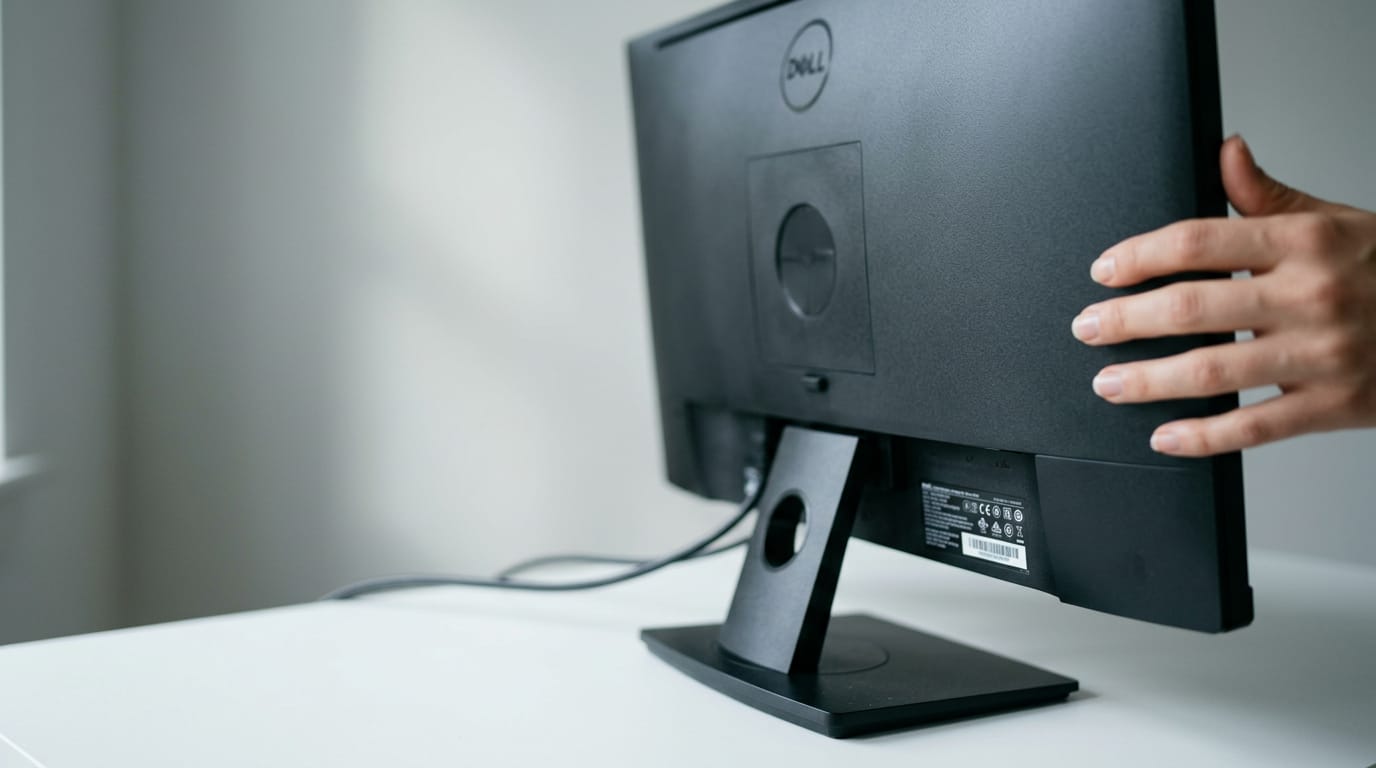
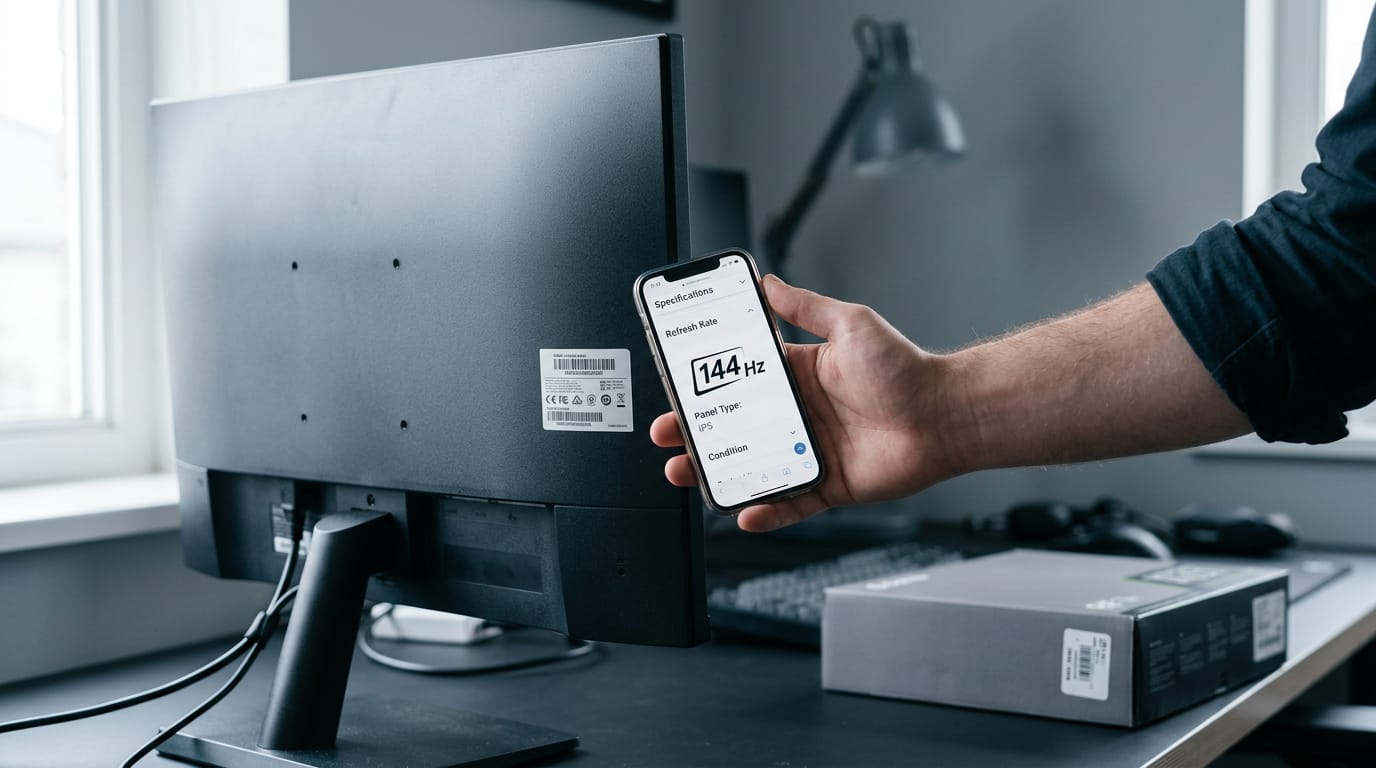
Turn the monitor around, and you’ll find the label on the back panel. It also lists the serial number and service tag. The model number identifies the kind of monitor, while the service tag points to your specific unit.
Where the label sits depends on your model, so scan the whole back. The label holds regulatory information too, for compliance questions.
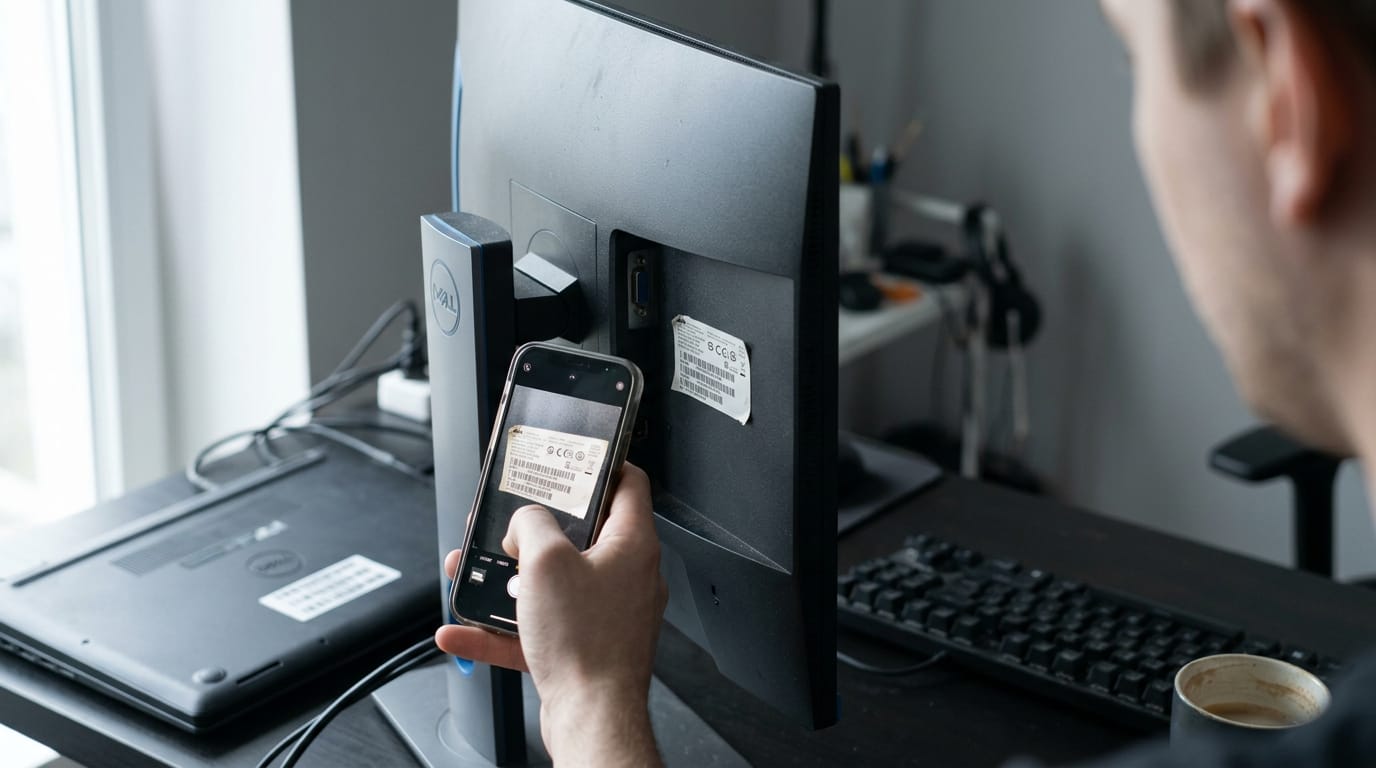
Photograph that label before you wall-mount the monitor, because the back gets much harder to read once it’s on the wall. Take the picture first.
Older models keep labels on a card
Some older models skip external stickers entirely, so don’t bother hunting the casing for one. Look for a card tucked on the left side of the monitor, above the Universal Serial Bus (USB) ports.
The model number is printed on the card’s front, and the regulatory info is on the back.
Check the manual for your model
Manuals are model-specific, so check that the number in your manual matches your label before following any setup steps. Lost the manual? You’ll find a new copy on Dell Support using that number.
Say you’re a gamer who inherited a Dell monitor and want to know if it runs at 144Hz before buying a new graphics card.
The model number lets you check the refresh rate and panel type (the screen technology inside) before you spend a dollar on the upgrade.
How Can I Identify My Dell Device?
Not sure what Dell you’re holding? You can identify any Dell device, from a monitor to a server, by searching Dell Support with your model number or service tag. Search is the fastest route, and the guides below help with other product types.
Search Dell Support by model or tag
Your model number tells you what the device is, while your service tag tells you which one it is. Either one works in the search.
- Enter the identifier. Type your model number or service tag into the search box.
- Auto-detect this PC. If you’re on the Dell computer itself, let the site detect it for you.
- Choose from all products. If you’d rather browse, pick your device from the full product list.
- No-match error. If you get a no-match error message, check the identifier for typos or try one of the other options above.
Think of a gamer whose 1440p monitor label has worn smooth on the back. She types the service tag into Dell Support, pulls up the exact model, and looks up its refresh rate and panel type before ordering a matching second screen. That’s the whole search.
Finding guides for other Dell devices
Not every Dell is a monitor, so here’s where to look for the rest:
- Laptops and desktops. Use the guide for your machine to find its identifier.
- Docks and tablets. Each type has its own finding guide, so pick the one that matches your device.
- Servers, storage, and networking. These products have their own identification guides.
- Products without tags. If your device doesn’t have a service tag, look for the video guides on the support page.
Once you have the identifier, you’re ready to check the specs that matter for your games.
What to Do After Identifying Your Monitor
With the model number in hand, a few quick checks cover your warranty, software, and resale value. Do them while the number is fresh.
Check coverage and manage your warranty
Checking is less about whether you’re protected and more about when you find out.
- Support status: Enter your service tag on Dell Support to see what’s covered and for how long.
- Renew or extend coverage: Picture a gamer whose monitor starts flickering just before its warranty expires. Acting early means extending coverage rather than paying for a repair.
- Transfer ownership: If you bought it secondhand or are passing it along, check whether coverage can move to the new owner.
- Out-of-warranty offers: If coverage has lapsed, check for any offers before assuming the cost falls entirely on you.

Get drivers, manuals and forum help
- Driver downloads: Choose the entry that matches your exact model number, not the closest series name.
- Manuals and articles: The manual covers setup and the on-screen menu, and support articles answer common questions.
- Community forum: Other owners share their experiences there, so a quick search may answer your question.
- Monitor support site: Search by model number, then look up the refresh rate (how many times a second the screen updates) and panel type (the display technology inside). Picture a gamer whose new monitor feels stuck at 60 updates per second instead of the 165 they expected. Checking its spec sheet shows whether the panel can go higher or whether a setting is the culprit.
Before you sell or upgrade, note the model number, service tag, and serial number, and photograph the label. Write it down before the monitor leaves your desk.
Once you’ve got the model number, the hard part is over. Look up the specs, check the refresh rate and panel type against the games you actually play, and compare that to what you’re paying.
The service tag and serial number stay handy for support, but the model number tells you what the screen can really do.
A few minutes with that label now saves you guesswork later. Keep the numbers written down somewhere safe, and you’ll be ready for your next upgrade or repair.
Questions
How can I find out what model my laptop is?
On a Windows laptop, open Settings, select System, then About to see the device model or model information. You can also check the label on the laptop or enter its service tag on Dell Support to identify it.
How can I identify my Dell device?
Find the model number or service tag on the device label, then enter either one on Dell Support. If you’re using the Dell computer, you can also choose the site’s automatic PC detection option.
Where can I find the Express Service Code on my Dell laptop?
Look for the service tag on the label on the underside or back of the laptop. The Express Service Code, when provided, is usually printed on the same label; it is a shorter number used to route support calls.
What do Dell serial numbers look like?
Dell serial numbers are alphanumeric strings printed on the device label. Their format can vary, so copy the characters exactly as shown and don’t assume the serial number is the same as the service tag.
Free · The Build Sheet
The Build Sheet: three gaming PCs priced at Canadian stores