What Is My Monitor Resolution? The Complete Guide
What is my monitor resolution? Check it on Windows, Mac, or phone, use online detection tools, and fix blurry text with the panel’s native setting.

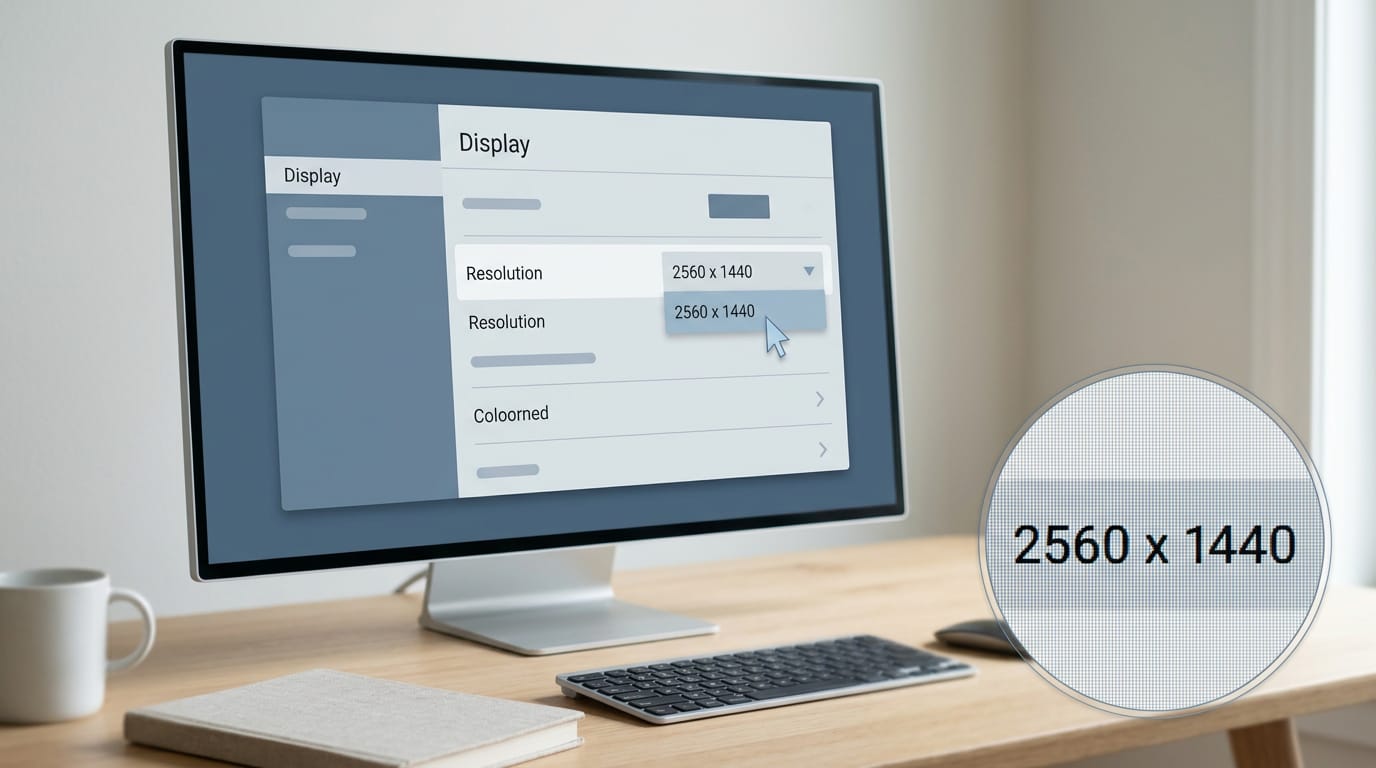
Your monitor resolution is the number of pixels displayed across and down, such as 1920 × 1080, and it describes image detail rather than physical screen size. Check the active resolution in your device’s display settings, and use the monitor’s native resolution for the sharpest picture; scaling, browser zoom, and game settings can make other numbers look different. Matching resolution to your screen and graphics card helps keep text clear and games running smoothly.
Picture your screen as a sheet of graph paper with every square filled in with color. Each square is a pixel, and your monitor resolution is simply how many of them fit across and down, like 1920 x 1080.
Here’s the short answer: it’s the grid your screen is set to show, and the best setting is usually its native resolution, the exact grid the panel was built with.
In this post, we’ll walk through checking it on Windows, Mac, and phones, fixing blurry text, and matching resolution to your games without overspending.
Understanding What My Monitor Resolution Is
Your monitor’s resolution is the number of pixels it can show, written as width by height. Here’s what that means for sharpness and size.
How pixel count shapes image detail
A pixel is one tiny dot of light, and your screen is a grid of them. A 1920x1080 monitor has 1,920 across and 1,080 down. Packing more of them into each inch (your pixel density) gives finer lines and smoother text.
More pixels mean more detail, not bigger images.
Matching resolution to your screen size
Bigger screens need higher resolution. Stretch a 1920x1080 picture across a much larger panel and the pixels start to show. Screen size is the diagonal, measured corner to corner in inches, while resolution counts pixels.
So no, 1920x1080 isn’t a screen size; it’s a resolution. Physical size needs DPI (dots per inch): the same grid is denser on a 24-inch screen than on a 32-inch one. Resolution matters when you’re buying, so check the spec sheet.
For a 24-inch monitor, 1920x1080 is the usual match. A good screen resolution is the native resolution your panel was built for, matched to its size.
Screen shapes like 16:9 and 4:3
Resolution also has a shape, the aspect ratio (width compared to height). Most modern monitors use 16:9 widescreen, the shape of 1920x1080 and 2560x1440. Some use 16:10, a little taller, and older screens use 4:3, which is boxier.
Your display calculates this automatically from the resolution, so you don’t set it yourself.
Look up common resolution names and sizes
These names map to the pixel counts we covered above:
- HD (high definition): 1280x720
- Full HD: 1920x1080, also called 1080p
- QHD (quad HD): 2560x1440, four times the pixels of HD
- 4K: 3840x2160, roughly 4,000 pixels across
- Ultrawide QHD: keeps QHD’s 1440-pixel height but adds width
Phones, tablets, and MacBooks work the same way, so check their display settings for exact pixel counts.
Each step up adds GPU load. Your graphics card (GPU), short for graphics processing unit, draws more pixels every frame, so 4K asks the most, then 1440p, then 1080p.
Think of a player who moves from 1080p to 1440p for sharper detail in their favourite shooter: their GPU now draws about 78 percent more pixels, so they check it can still hold a smooth frame rate before buying.
Check Your Resolution on Windows
Windows shows your resolution in a few places, and they don’t always tell the same story. Start with Settings, then use the other tools when you need more detail.
Open Windows Display settings
The fastest route starts on your desktop. Right-click an empty spot and select Display settings. You can also get there in either of these ways:
- Go to Settings > System > Display.
- Press Windows + I, then choose System and Display.
Find the Display resolution dropdown and read the number. For example, 1920 × 1080 means your desktop is 1920 pixels wide and 1080 pixels tall. Think of a player who just unboxed a new monitor and wants to confirm it’s set up before launching a game.
One look at that dropdown answers the question, and if the number is lower than expected, you know exactly what to change before blaming the game.
Compare desktop and active signal resolution
Two numbers can tell different stories here. The dropdown reflects what you chose, which is the desktop resolution Windows is drawing.
The active signal resolution reflects what your monitor is receiving through its cable, and you’ll find it on the advanced display info page, reached from the same Display page.
When the two match, you’re getting the setup you picked. When they differ, your picture is being scaled, and that’s worth knowing before you judge how sharp it looks.
The same page also shows your refresh rate, the number of times per second the screen redraws the image, and it lists each connected display, which helps if you run more than one monitor.
Use DxDiag to read your display mode
Press Windows + R, type dxdiag, and hit Enter to open the DirectX Diagnostic Tool (DxDiag), a report tool built into Windows. Then:
- Open the Display tab.
- Find the Current Display Mode section.
- Read the resolution and refresh rate listed there.
It’s a quick second opinion, and it puts both numbers in one place.
Check with WMIC in Command Prompt
Open Command Prompt and run the WMIC VideoController command. WMIC stands for Windows Management Instrumentation Command-line, a built-in tool for querying system details.
It may be unavailable on newer Windows versions, so if it won’t run on your machine, you haven’t done anything wrong. Settings is the more reliable choice, so treat this one as a backup.
Change or Fix Your Screen Resolution
Changing your resolution takes just a few clicks in Windows.
How to get 1920x1080 resolution?
Think of a player who just hooked up a new 1080p monitor (1920 x 1080 pixels) and everything looks fuzzy. Here’s the fix:
- Right-click your desktop and open Display settings.
- Open the Display resolution dropdown.
- Select 1920 x 1080. The text should sharpen before you launch a game.
Not sure which to pick? Choose the option marked Recommended, the setting Windows suggests for your display. If 1920 x 1080 is missing from the list, check the cable first, then update the graphics driver, the software that runs your graphics card.
Why your numbers don’t match the specs
Your monitor doesn’t change, but the numbers you see can. Here’s what’s behind the mismatch:
- Display scaling. It makes text, apps, and icons bigger or smaller without changing your resolution.
- Browser zoom level. Zooming a page in or out changes what fits on screen, so a site can look different without changing your display.
- Windowed versus fullscreen mode. A windowed game sits inside your desktop, while fullscreen takes over the whole screen.
- Native vs. scaled resolution. Your native resolution is the pixel count your monitor physically has, not whatever number is active. A scaled setting stretches or shrinks the picture to fit, which can look softer.
- In-game resolution vs. desktop resolution. Games keep their own setting, separate from Windows, so the numbers can disagree. Check both before you blame your monitor.
Online Tools That Detect Your Resolution
Want the answer without digging through settings? Online tools can read much of your screen’s details straight from the browser.
Let your browser detect the resolution
Most of these tools show your resolution as soon as the page loads, with nothing to click. The number reflects the space the browser draws into, not the panel’s physical pixels.
Your native resolution is the panel’s true pixel count, and scaling can make the two differ.
The tool also reports your viewport, the visible area of the browser window, and your device pixel ratio, which compares physical pixels to the units web pages use. A ratio above 1 usually means scaling or a high-density screen is in play.
You’ll also see color depth, a rough guide to how many shades the screen can show. Orientation shows landscape or portrait, and touch support shows whether the device takes touch input.
Many tools also compare these numbers against known devices and suggest a closest device match. Say a player buys a used monitor and wants to confirm it’s the model on the listing.
The reported width is smaller than expected, pointing them to scaling in Windows display settings. Now they can skip chasing a driver problem. Treat each readout as a clue, not a verdict.
Extra features these tools offer
These sites often bundle extra checks:
- Display quality tests. Full-screen patterns and color swatches for judging sharpness, brightness, and evenness.
- Dead pixel checks. Solid-color screens that reveal stuck or dead pixels.
- Exportable display report. A summary you can save or share.
- Viewport resize tester. Drag the window wider or narrower to see how a page responds.
- CSS breakpoint status. CSS is the styling language behind page layouts, and this shows which breakpoint (the width where a site switches layouts) is active.
Check Resolution on a Mac or Phone
Macs and phones both keep your display resolution in their settings, so you won’t need to dig far. Here’s where we’d look on each.
Find it under Mac System Settings
- Click the Apple menu and choose System Settings.
- Select the Displays section.
- Find the Resolution option.
Look at the setting that’s selected, not the list of options you could pick. That’s the resolution your screen is running at right now.
Think of a player who just set up a Mac for gaming and wants to know whether their monitor is really running at its full resolution.
One look at the Resolution option answers that before they spend money chasing a fix for a blurry picture. That’s the whole check.
Check resolution in phone settings
- Open Settings on your iPhone (iOS is Apple’s phone software) or your Android phone.
- Go to About Phone, then tap Display or Screen.
Menu names shift a little between software versions, so if a label looks different, scan for the closest match.
Now you know where to find your resolution, how to set it to native, and how to fix things when the screen looks soft. Check it once, then let it guide your next upgrade.
The best screen runs your games smoothly at the budget you actually have, not the one with the biggest number on the box. Match the resolution to your card, and your money goes where it counts.
Set it right once, and every game you play looks better for it.
Questions
What is a good screen resolution?
A good screen resolution is usually your monitor’s native resolution, the pixel grid its panel was built to display. Choose one that suits the screen size and your computer’s graphics capability.
How to get 1920x1080 resolution?
On Windows, right-click the desktop, open Display settings, and select 1920 × 1080 from the Display resolution menu. If it is missing, check the cable connection and update your graphics driver; choosing the Recommended setting is a good fallback.
How do I know if my monitor is 1080p or 4K?
Check your display’s resolution in its settings or system display information: 1920 × 1080 is Full HD (1080p), while 3840 × 2160 is 4K. You can also check the monitor’s specifications, since a selected or browser-reported resolution may differ from the panel’s native resolution.
What resolution should a 24 inch monitor be?
For a 24-inch monitor, 1920 × 1080 is a common match. The best choice is the monitor’s native resolution, which tends to give the sharpest image on that display.
What screen resolution is 2560x1440?
2560 × 1440 is QHD, also called 1440p. It has four times as many pixels as 1280 × 720 HD and uses a 16:9 aspect ratio.
Is 1920x1080 a screen size?
No. 1920 × 1080 is a resolution, meaning the number of pixels across and down; screen size is measured diagonally in inches.
Does a higher resolution mean better quality?
A higher resolution can show more detail and finer-looking text, especially when the screen size is suitable for it. It does not automatically mean a better overall experience, since native resolution, pixel density, and the graphics card’s ability to run it also matter.
Free · The Build Sheet
The Build Sheet: three gaming PCs priced at Canadian stores