MacBook Monitor Problem: Causes and Fixes
A MacBook monitor problem can leave a blank or flickering screen. Match symptoms to cable, settings, software, or hardware fixes before paying for repair.


A MacBook monitor problem is an issue with the built-in display or an external screen, such as a blank, flickering, distorted, or unrecognized picture. Start by checking cable seating, adapter and port compatibility, power, supported display limits, and macOS display settings; then restart, update software, or try Safe Mode before suspecting hardware. If simple checks do not restore the picture, a technician can diagnose the fault and quote a repair, helping you avoid replacing parts unnecessarily.
Your MacBook worked fine yesterday, and today the external monitor is blank, flickering, or stuck at the wrong resolution.
It’s a lot like a TV remote that suddenly stops working: the batteries, the TV, or the remote itself could be to blame, and guessing wastes your evening.
Most MacBook monitor problems fall into a few patterns, so you can narrow things down before spending a dime.
We’ll sort symptoms to fixes and repair routes, then cover what gamers need: matching cables, plus refresh rate and resolution settings for a monitor on a Canadian budget.
What a MacBook Monitor Problem Looks Like
Is the trouble on the built-in screen or the external monitor? The answer shapes every fix we cover next.
Problems with the built-in screen
- Flickering screen: the picture pulses or shimmers.
- Black screen: nothing appears.
- Strange lines: streaks or bars cross the image.
- Dim or won’t turn on: the picture is faint, or the screen stays off.
- Dark at certain lid angle: the display darkens at some lid positions.
Black screen: step-by-step fixes. If your MacBook Pro screen is black, work through these in order:
- Press the brightness keys, since the screen may just be dimmed.
- Plug in the power adapter, then restart the Mac.
- Connect an external monitor. If it works, the built-in screen is the likely culprit.
- If the built-in screen stays black, that’s a job for a repair shop.
Display glitching causes and fixes. Glitching usually traces to software, settings, or hardware. Install any pending macOS updates, then restart. Start there. If lines, flicker, or lid-angle darkening persist, see a repair shop.
Why isn’t my Mac recognizing my monitor?
Usually a cable, adapter, or setting is to blame, not the monitor itself.
- Monitor not detected: your Mac doesn’t list it. Check the cable and port first.
- No signal message: the cable connects but no picture arrives. Check the input setting.
- Refresh rate causes blackout: the screen redraws a set number of times per second, measured in hertz (Hz). An unsupported setting can blank it.
- Clamshell mode failing: clamshell mode runs an external monitor with the lid shut, and it usually needs power and the display connected first.
- Mac not recognizing monitor causes: a loose cable, faulty adapter, or port that can’t drive the display.
- Match monitor refresh rate to Mac: in Display settings, pick a rate both devices support.
Think of a gamer whose new monitor goes blank after they plug it in. Matching the refresh rate brings the picture back, and they’re gaming again that night.
Start with Cables and Connections
Most MacBook screen problems trace back to a loose cable, a weak adapter, or a Mac that hasn’t reset. Check those first.
Check cables, power and adapters
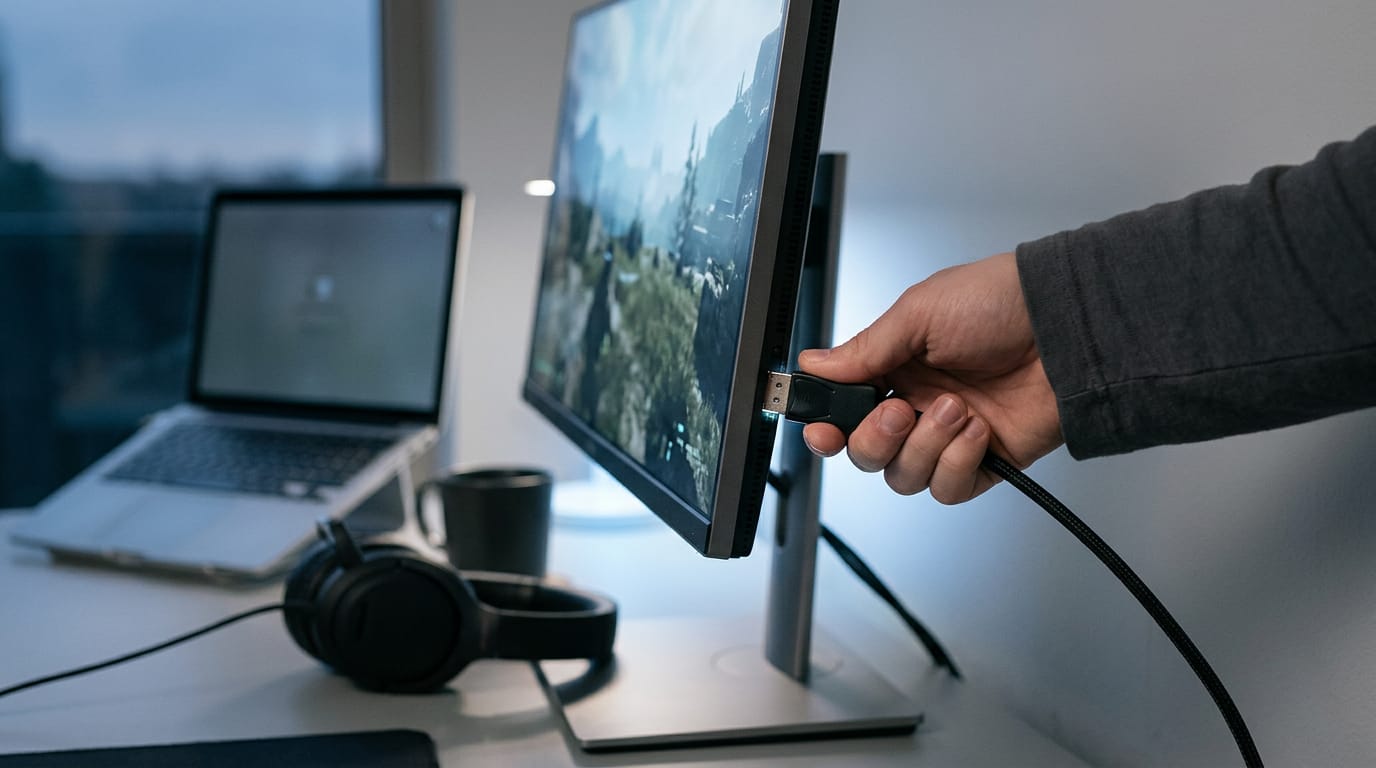
Push every connector in firmly at both ends. Picture a gamer who plugs in a new 4K monitor, gets nothing for an hour, then discovers the cable hadn’t fully seated. One firm push later, the desktop is back.
Keep your MacBook plugged into power while you test. If the screen stays dark, unplug the cable, wait 30 seconds, and reconnect it. Then confirm any adapter or dock is built to send video, since a hub that only charges won’t show a picture.
Port labels matter. USB-C (the Universal Serial Bus connector) describes the plug’s shape, while Thunderbolt describes what the port can carry, so a USB-C plug isn’t automatically a video port.
Check the labels on your Mac and adapter: a cable that fits isn’t the same as one that works.
Finally, check bandwidth, the amount of data a connection carries each second. A 4K screen at a high refresh rate, meaning how often the image redraws, needs more bandwidth than a standard full HD display.
If the link falls short, expect a stuttering picture or none at all. Drop the resolution or refresh rate to test it, then raise it again.
How many displays your Mac supports
Every Mac can drive only so many external displays, depending on its model and video specs. Consider a player who adds a second monitor for chat and finds it dark.
- Check supported display count: Find your model’s limit in its official specifications before you buy another screen.
- Review Mac video specs: Confirm which resolutions and refresh rates are listed, and whether they apply to one display or several.
A dark extra screen often means you’ve hit a limit, not a fault.
Power cycling and restarting your Mac
Try these in turn until the picture returns:
- Simple restart: Restart your Mac and check whether the picture comes back.
- Restart with display connected: Keep the monitor plugged in and powered on, then restart.
- Power off everything fully: Shut down the Mac, switch off the monitor, and disconnect both from power for a moment.
- Sleep then wake: Put the Mac to sleep, wake it, and see if the monitor recovers.
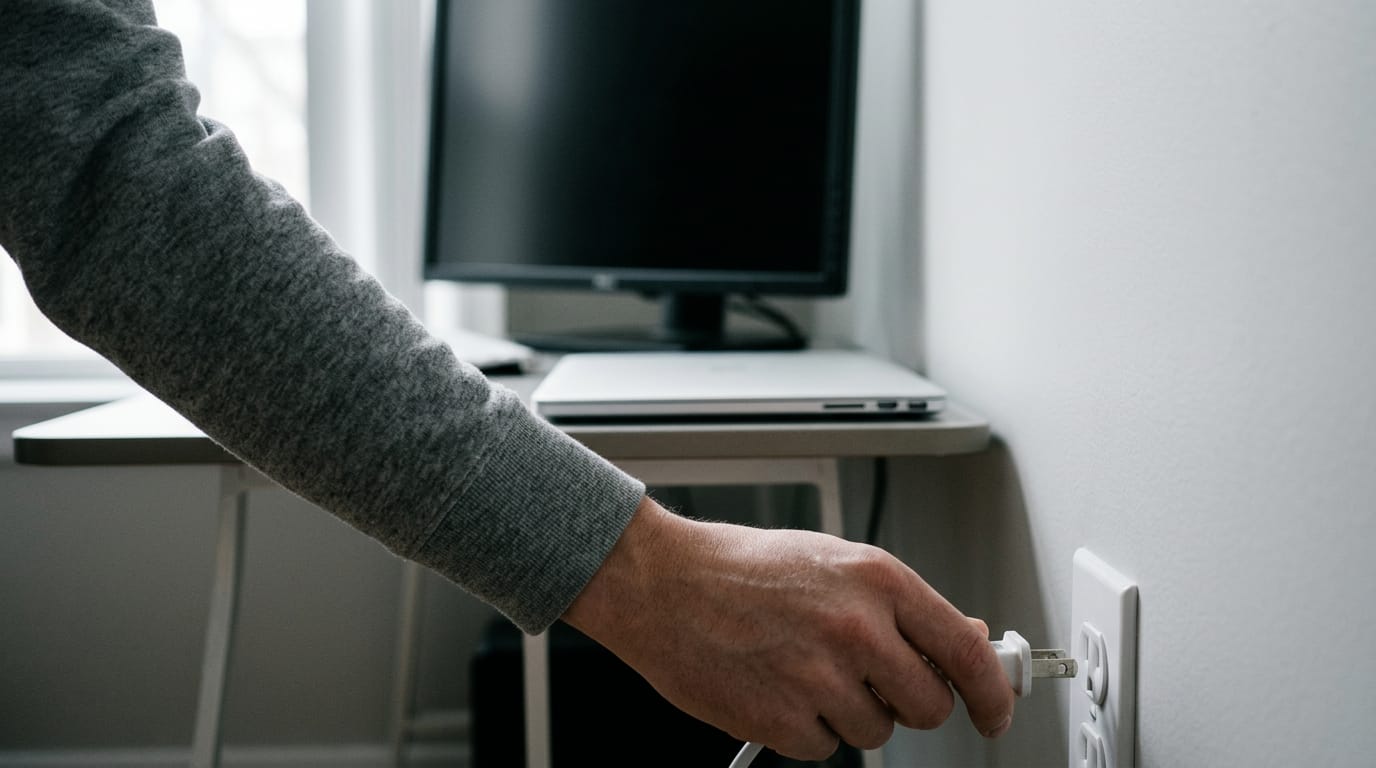
Unplug accessories and exit stuck mode
Unplug everything except the monitor cable: keyboards, hubs, docks, drives, and anything else on your ports. Then add devices back one at a time to find the culprit.
If your Mac seems stuck in external mode and won’t show its own screen, disconnect the monitor, restart, and reconnect once it’s fully up. Cables first, every time.
Settings and Software Fixes to Try
Before you buy a new cable or monitor, rule out your Mac’s own settings. These fixes are free and quick, so start here.
Adjust your display settings
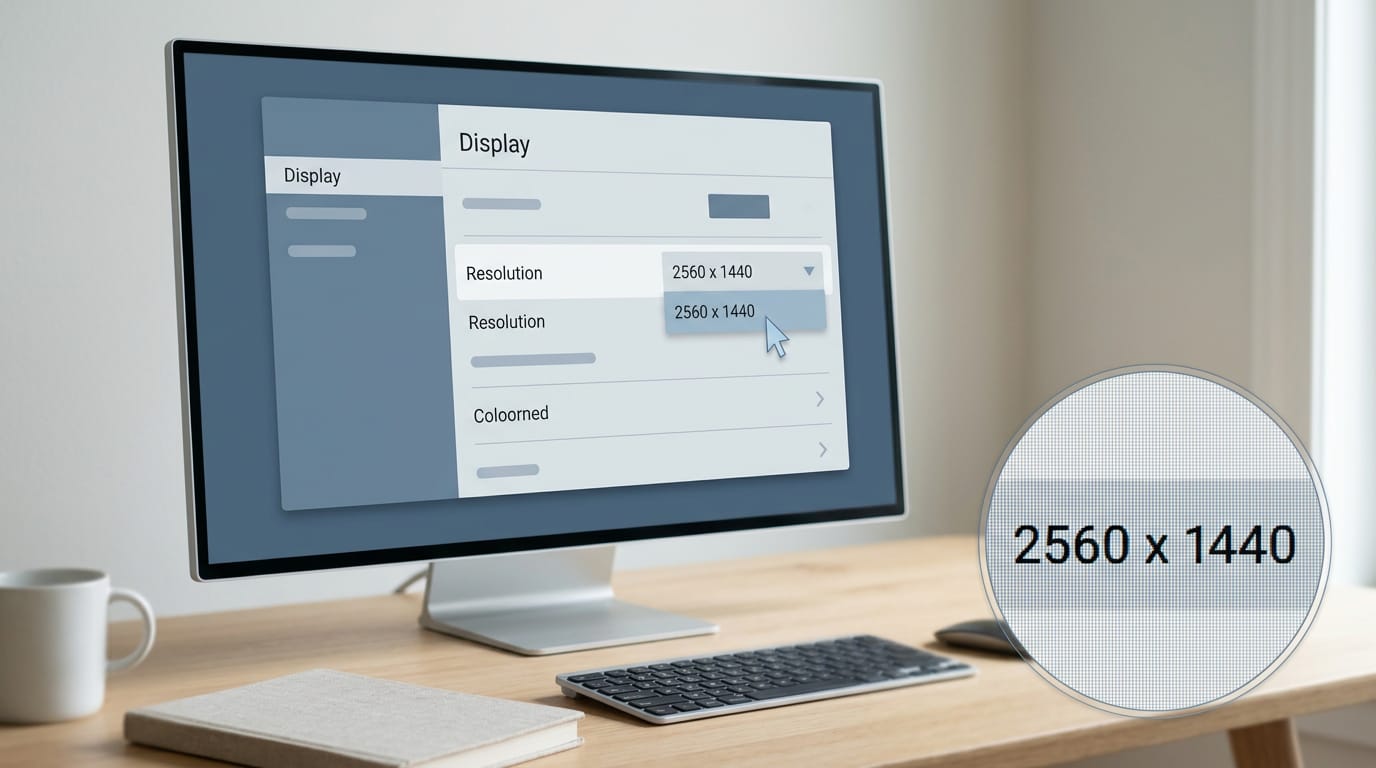
Start under Displays in System Settings. Holding the Option key reveals a Detect Displays button that asks your Mac to look for a missed monitor.
- Try different resolutions. A setting that’s too high can leave the image blurry or blank, so step down and back up.
- Show the thumbnails resolution list. Compare previews there before you commit.
- Disable auto brightness. If the picture keeps shifting, turn it off and set brightness yourself.
Picture a gamer who connects a monitor to a MacBook and gets a stretched, soft image. A lower resolution may fix it in a few minutes, and that costs nothing.
Reset SMC and NVRAM settings
If that fails, reset the low-level layer. The System Management Controller (SMC) manages power and some hardware behaviour, while nonvolatile random-access memory (NVRAM) stores startup settings. On an Intel-based MacBook, the NVRAM reset goes like this:
- Shut down completely.
- Power on and hold Option, Command, P, and R together.
- Release them once the Mac restarts.
SMC steps and NVRAM handling vary by chip, so check Apple’s support page for your model before you hold any keys. Treat this as a second step, not a first. It clears stored settings but can’t fix a failing cable.
Try Safe Mode and install updates
Safe Mode starts your Mac with only the essentials, turning off third-party drivers. Shut down, power on, and hold Shift until the login window appears.
If the monitor works there but not normally, a third-party driver or app is the likely cause. Finally, install pending macOS updates through Software Update. They can fix display bugs, so don’t skip them.
When Hardware Is the Real Problem
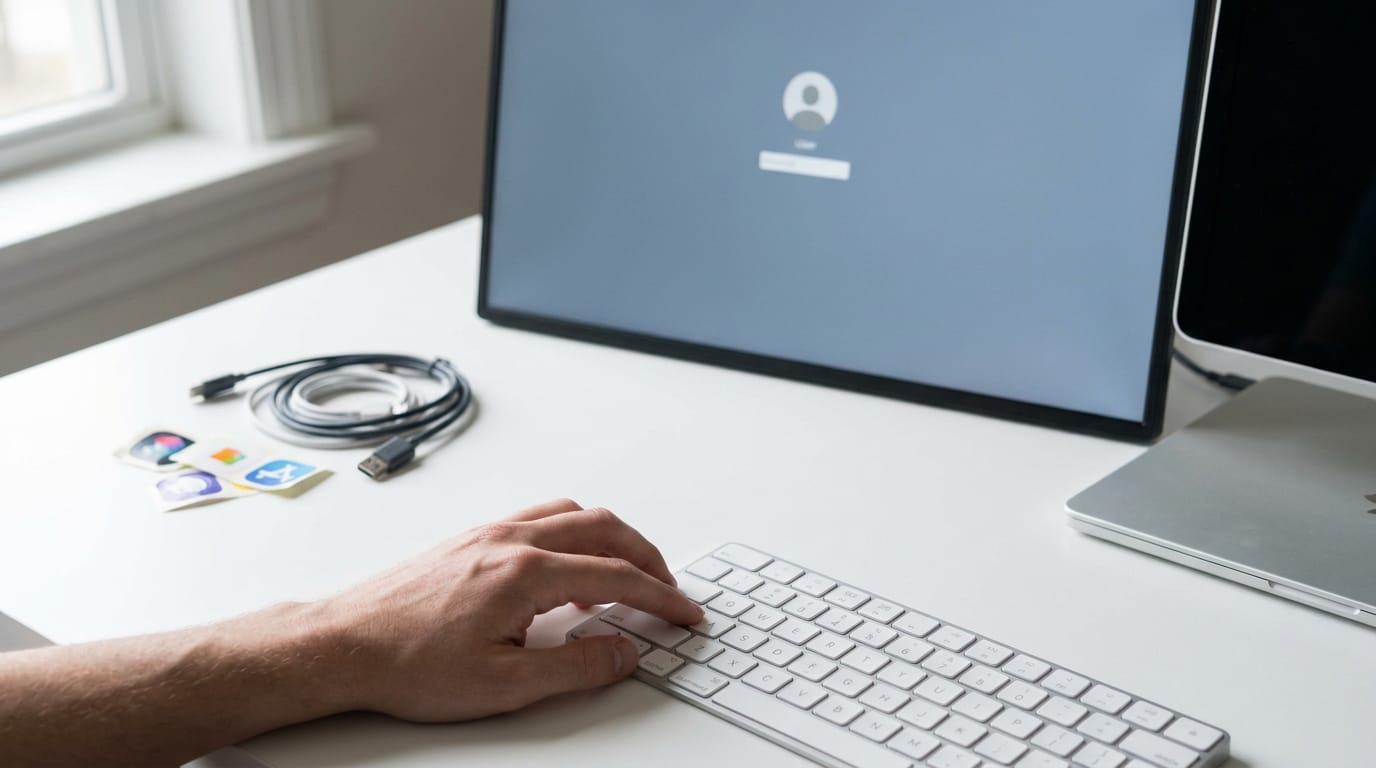
Before you blame your settings, check whether the MacBook itself is failing. Here’s what usually causes a screen to fail, and where we’d send you for the fix.
Known hardware faults behind screen failures
Four hardware faults can cause screen failures:
- Flexgate backlight issue. A known fault in which the backlight that lights the screen stops working properly, leaving the display dim or flickering.
- Faulty display cable. The cable linking the screen to the logic board (the main circuit board) can wear or fail, causing flicker, lines, or a blank panel.
- Graphics chip failure. If the graphics chip on the logic board fails, you may see distorted images or no picture at all.
- Damaged screen panel. Cracks or internal damage to the panel mean the screen itself needs replacing.
The goal is to match the symptom to the fault, not to swap parts until something works. Think of a gamer who plugs a MacBook into an external monitor for a late-night ranked session, and the built-in screen starts flickering.
Before they write off the laptop, they test the external display, a free check that can narrow down where the fault lives.
Getting professional repair help
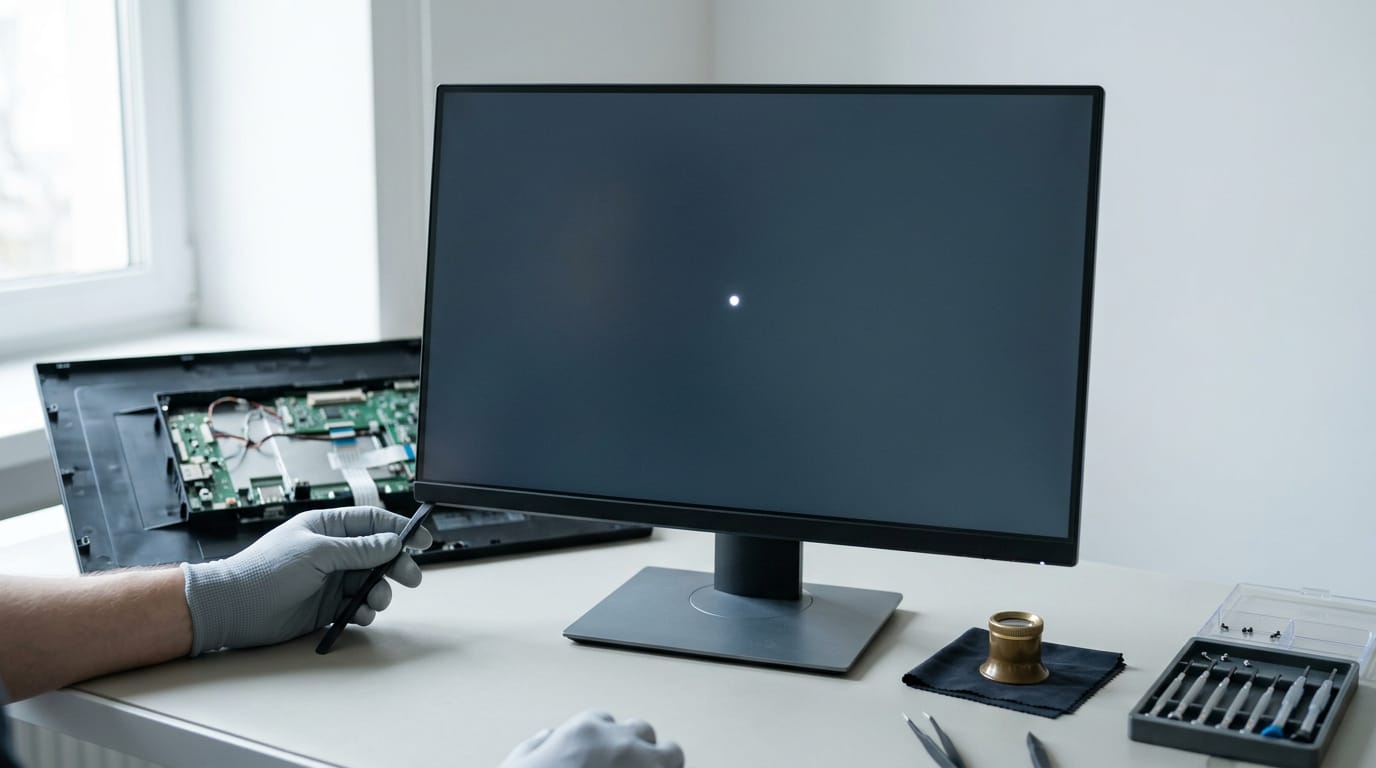
Visit an Apple Store, where a technician can look at the machine in person.
Certified repair diagnosis means a qualified technician confirms the fault before any part is ordered. Insist on it, so you don’t pay for a new screen when the real problem is the graphics chip. Diagnosis first.
How much does it cost to fix a MacBook screen? It depends on your model and the damage, so there’s no single number to plan around. Ask for a written quote once the diagnosis is done.
Repair vs replace comes down to that quote. If the fix eats most of what the laptop is worth to you, replacing it may make more sense. If the rest of the machine runs well, fix the part that failed.
Most monitor trouble comes down to a few suspects: the cable, the settings, or the hardware itself. Start with the quick, easy checks, move to a repair route only when those come up empty, and you’ll save both time and money.
For gamers, the same logic applies: pick a cable that matches your monitor and your Mac, then set the refresh rate and resolution you can actually run well.
The screen doesn’t need to be perfect. It needs to show your work and your games clearly, at a price you can live with.
Questions
How much does it cost to fix a MacBook screen?
There’s no single price to fix a MacBook screen. The cost depends on your MacBook model and the damage, so get a diagnosis and a written quote before approving a repair.
Why isn't my Mac recognizing my monitor?
A loose or faulty cable, an unsuitable adapter, or an unsupported port or display setting can keep your Mac from recognizing a monitor. Check the cable and port, confirm the adapter supports video, and use Displays in System Settings to detect the display and choose a resolution or refresh rate both devices support.
Why is my MacBook display glitching?
MacBook display glitching can result from software, settings, or hardware problems. Install pending macOS updates and restart; if lines or flickering continue, or the display darkens when you move the lid, have a repair shop check it.
My MacBook Pro screen is black. What can I do to fix it?
Press the brightness keys, connect the power adapter, and restart your Mac. Then connect an external monitor: if it works, the built-in display is likely the problem. If the built-in screen remains black, take the MacBook to a repair shop.
Free · The Build Sheet
The Build Sheet: three gaming PCs priced at Canadian stores