Monitor scaling explained and how to set it in Windows
Monitor scaling sets the size of text, icons, and windows. Adjust it in Windows and tailor custom scaling across multiple monitors for clearer viewing.

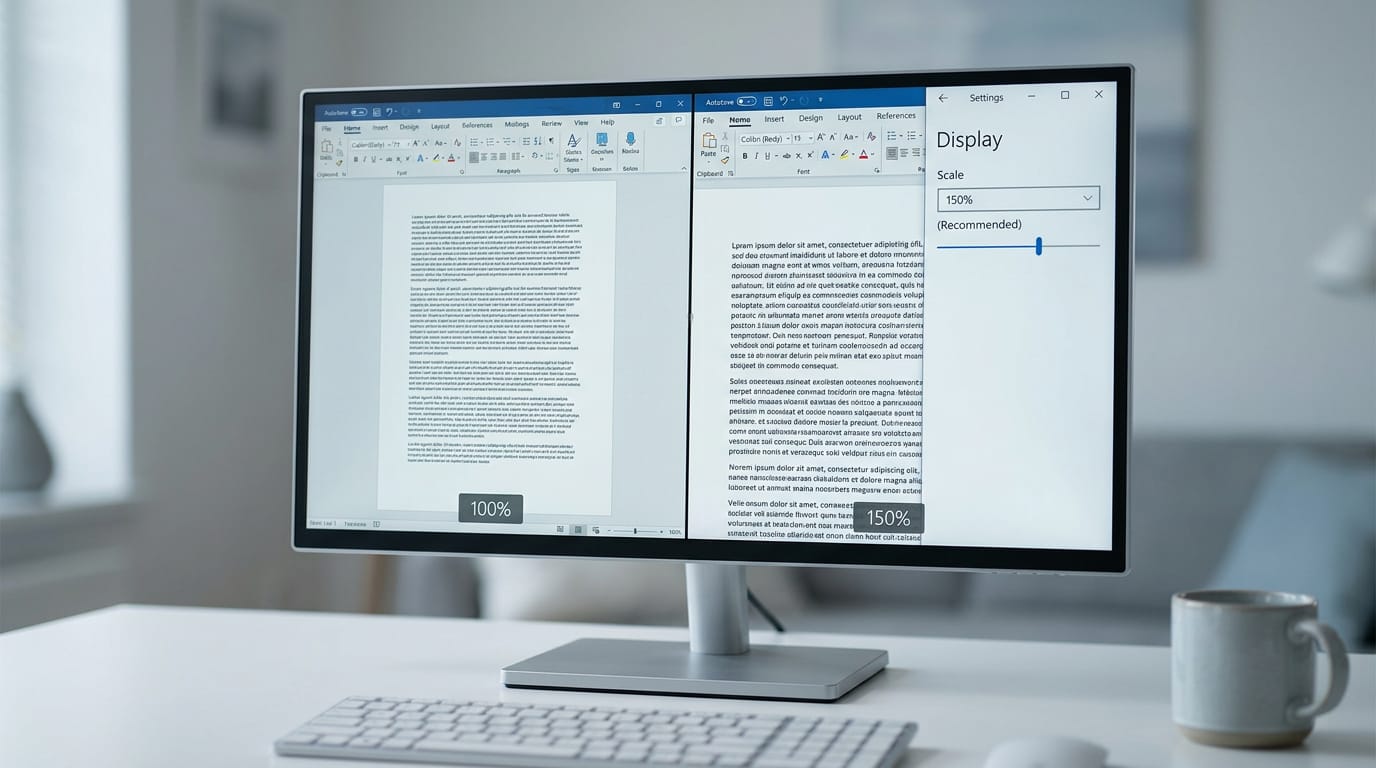
Monitor scaling changes the displayed size of text, icons, and windows without changing a monitor’s native pixel count. Choose a Windows scale that makes the desktop comfortable to read, set each monitor separately when using presets, and use a lower resolution only if scaling does not solve the problem; GPU or monitor scaling matters mainly when games run below native resolution. The best setup balances readability and sharpness with a screen size and resolution your graphics card can handle.
Ever bumped up the text on your phone because a menu was too small to read? Monitor scaling does that job on your PC, controlling how big windows, icons, and text look.
Get it wrong and a sharp screen can still look cramped or oversized. The right setting depends on the screen’s size, its resolution, and how far you sit from it.
We’ll explain what scaling is, show you how to change it in Windows, compare it with GPU (graphics card) scaling, and help you pick a size, resolution, and scale for a Canadian budget.
Why Monitor Scaling Matters for Your Display
Scaling controls how big text and icons look on your screen.
Why high-res screens make things tiny
A high default resolution packs more pixels into the same space, so everything looks small. At 100%, a 4K monitor is sharp but tiny; scaling enlarges elements.
Are 4K monitors still 1920x1080 dimensionally? No. Its 3840x2160 grid is double 1080p in each direction, four times the pixels, so a 4K panel of the same size needs more scaling.
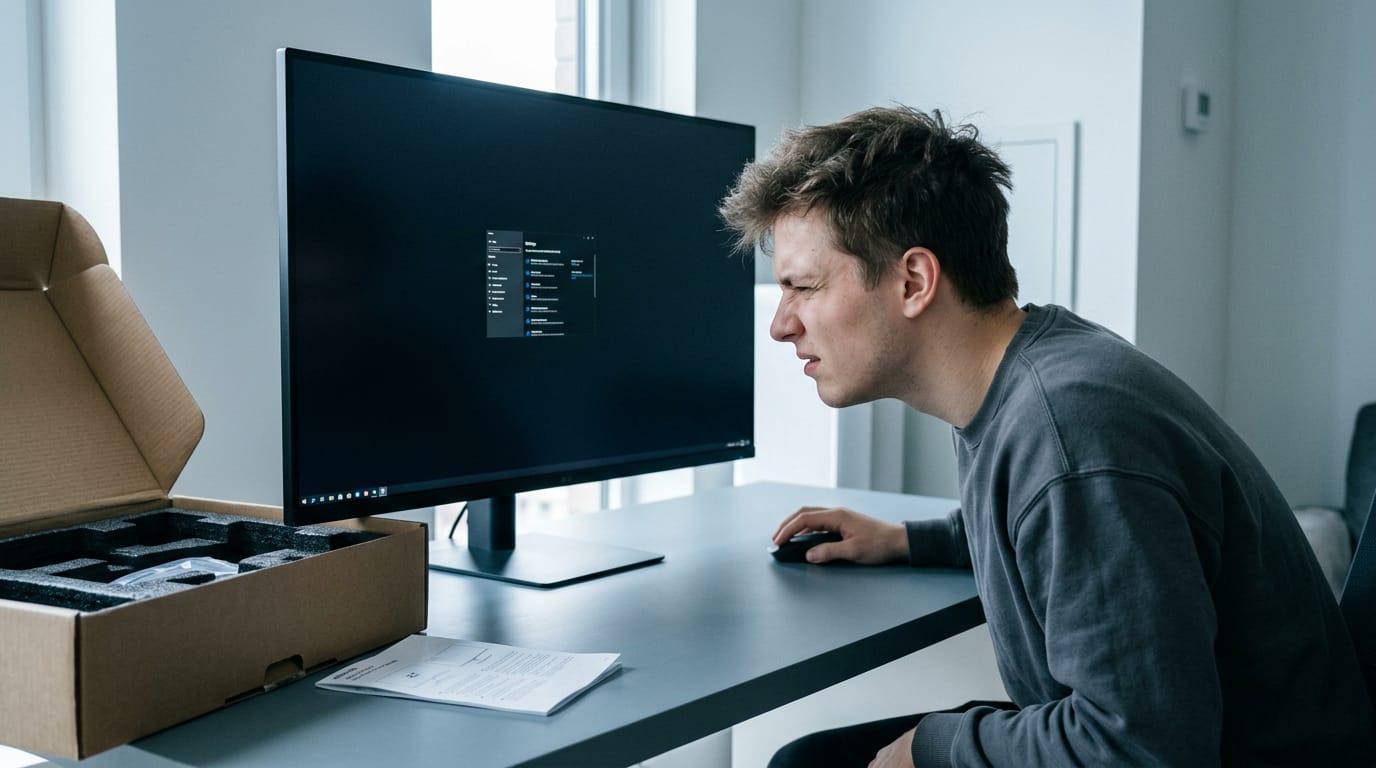
Think of a player who unboxes a new 4K monitor and spends an hour squinting at Windows menus. A bump to 150% fixes that.
How scaling and resolution affect sharpness
Scaling doesn’t remove detail from your native resolution (the panel’s real pixel count). It changes how large that detail is drawn, so 100% is crisp but small. Windows’ ‘Recommended’ value is a fine start.
150% is often said to look like 1080p, but on 4K it’s closer to 1440p. The goal is to be readable rather than merely sharp.
Games ignore desktop scaling, so run them at native resolution for a sharp picture. Consider a player who keeps Windows at 150% but plays at native: readable desktop, sharp game.
GPU (graphics processing unit) scaling means your graphics card stretches a lower resolution, while monitor scaling means the display does it. Both matter only when a game runs below native. Should you use either? Only then.
When apps look broken at higher scaling
Some older apps weren’t built for scaling above 100%, and their interface can distort. Labels and text fields get cut off, and buttons and icons come out of proportion.
Picture a player whose older launcher hides its login button at 150%. If an app keeps misbehaving, it may need 100% scaling, so test that before blaming your monitor.
How Do I Change Scaling in Windows?
Text that looks too small or too big is usually a scaling problem, and Windows fixes it in a few clicks. Here’s how, plus a fallback if it still looks off.
Set monitor scaling from Display Settings
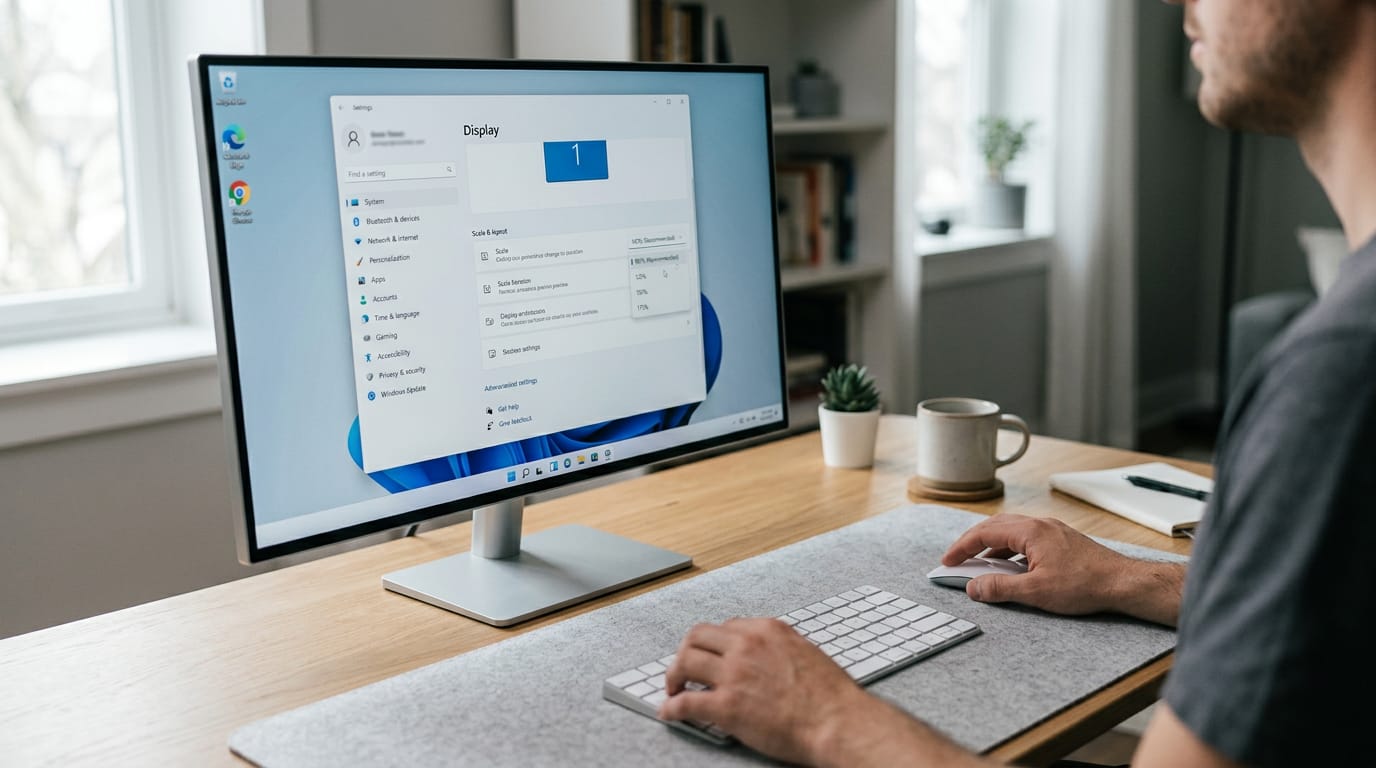
Right-click an empty spot on your desktop and choose Display Settings. On Windows 10, you’ll also find the same page through Settings, then System, then Display.
Open the Display Scale dropdown, select 100%, then close the dialog and restart or log out so the change takes hold.
Pick from built-in scale presets
Treat 100% as your baseline. From there, the dropdown offers presets from 125% up to 225%, and each one applies to its monitor correctly, so a second screen can run at its own size.
Think of a player who just set up a 21-inch monitor and finds the desktop icons and game menus tiny. One preset up, and the menus are readable again. Stop at the first size that feels right.
If an older game looks fuzzy after you raise the scale, check Windows’ setting that tries to fix blurry apps.
Try a different resolution as a fallback
Scaling changes how big things look, while resolution changes how many pixels your games draw. If text is still too small, try a lower resolution. Options vary by screen, so don’t stop at the first one; try several and keep the sharpest.
For a 21-inch monitor, start with 1920x1080.
On Windows 11, the active signal mode is the resolution and refresh rate your monitor is receiving. To change it, open System, then Display, and pick a new resolution from the Display resolution dropdown.
Custom Scaling with Multiple Monitors
If your screens don’t match, you don’t have to settle for one size across both. Windows can scale each display on its own, but custom values come with a catch worth knowing.
Give each monitor its own scale
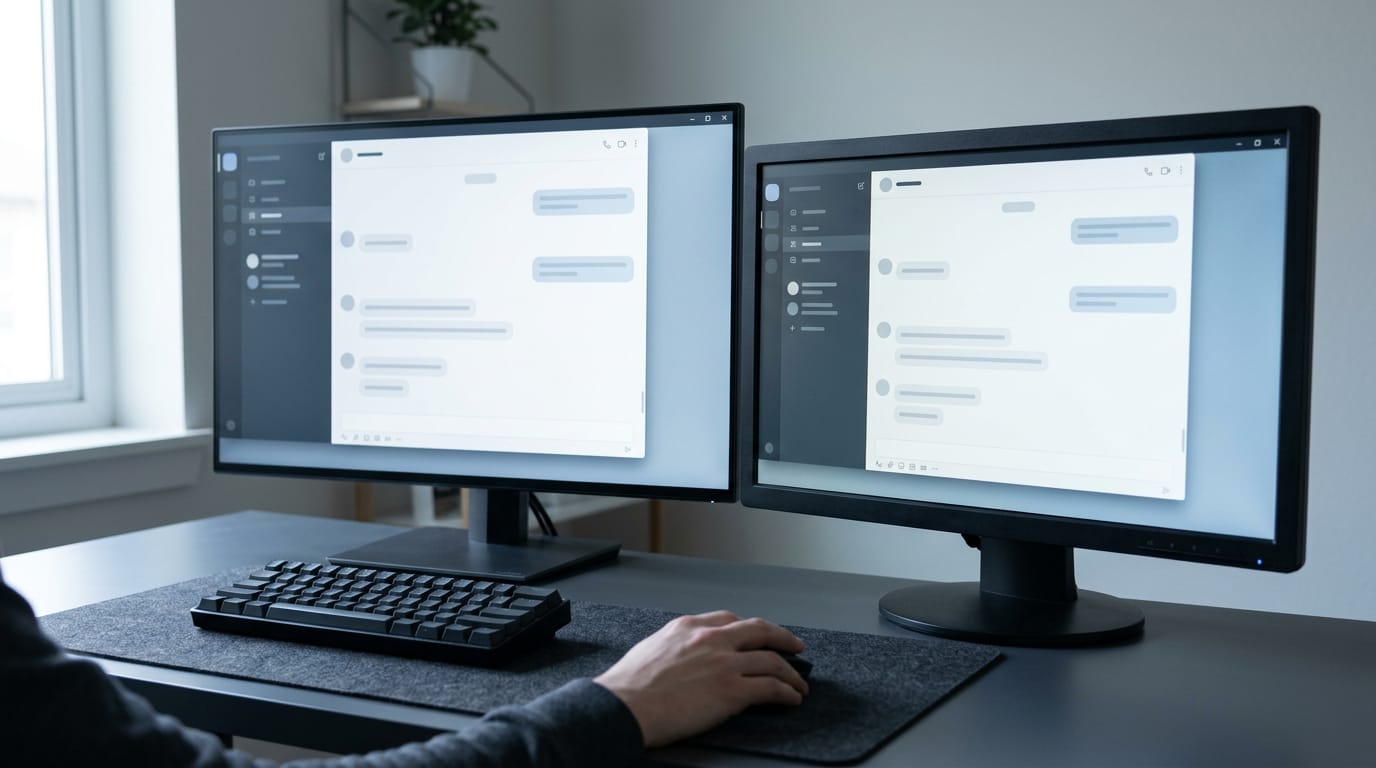
Windows lets you set per-monitor scaling from the preset steps, so each screen gets the size that suits it. Think of a gamer with a 1440p main monitor and an older 1080p panel beside it.
Set the main screen to its sharp, comfortable scale, then give the 1080p screen its own setting so the chat window isn’t oversized on one side and tiny on the other.
That same logic covers the other setups:
- Mixed resolutions: a 1440p screen and a 1080p screen may not need the same scale.
- Two 4K monitors at different scales: each one can be set on its own, so one doesn’t dictate the other.
- Mixed-monitor setups: pick the scale per screen, not one for the whole desk.
Where custom scaling falls short
Presets work per monitor, but a custom value applies to every screen at once. That’s the big limit. The preset steps don’t always land where you want, though. If you’re after a value between them, a custom setting like 120% or 155% can fill the gap.
Just know it sets every display to that same number, so a value that suits your main monitor may leave the other one looking off. That’s the trade-off.
Monitor scaling comes down to matching the size of what’s on screen to the size of the screen itself. Set it in Windows, and if your graphics card offers its own scaling, know when to use that instead.
For a budget build, choose the size and resolution your graphics card can run smoothly, then tune scaling so text stays easy to read. You don’t need the biggest panel on the shelf to get a sharp, comfortable desktop.
Get the scale right once, and your screen does its job quietly every single day.
Questions
How do I change the active signal mode in Windows 11?
In Windows 11, open Settings, select System, then Display, and choose a resolution from the Display resolution dropdown. The active signal mode is the resolution and refresh rate being sent to your monitor; to change the refresh rate, open Advanced display and select a rate under Choose a refresh rate.
How do I change the Display settings in Windows 10?
In Windows 10, right-click an empty area of the desktop and select Display settings, or go to Settings > System > Display. From there, adjust options such as Scale and layout or Display resolution for the selected monitor.
Are 4K monitors still 1920x1080 dimensionally?
No. A 4K monitor has a 3840 × 2160 pixel grid, which is twice as wide and twice as tall as 1920 × 1080, for four times the total pixels. Its physical dimensions depend on the monitor’s screen size, not its resolution.
Should I use GPU or monitor scaling?
For ordinary desktop use, you generally do not need either GPU or monitor scaling. If a game runs below the monitor’s native resolution, GPU scaling has the graphics card enlarge the image, while monitor scaling has the display do it; choose whichever looks better and works reliably with your setup. Using the native resolution avoids this scaling and usually gives the sharpest image.
Free · The Build Sheet
The Build Sheet: three gaming PCs priced at Canadian stores