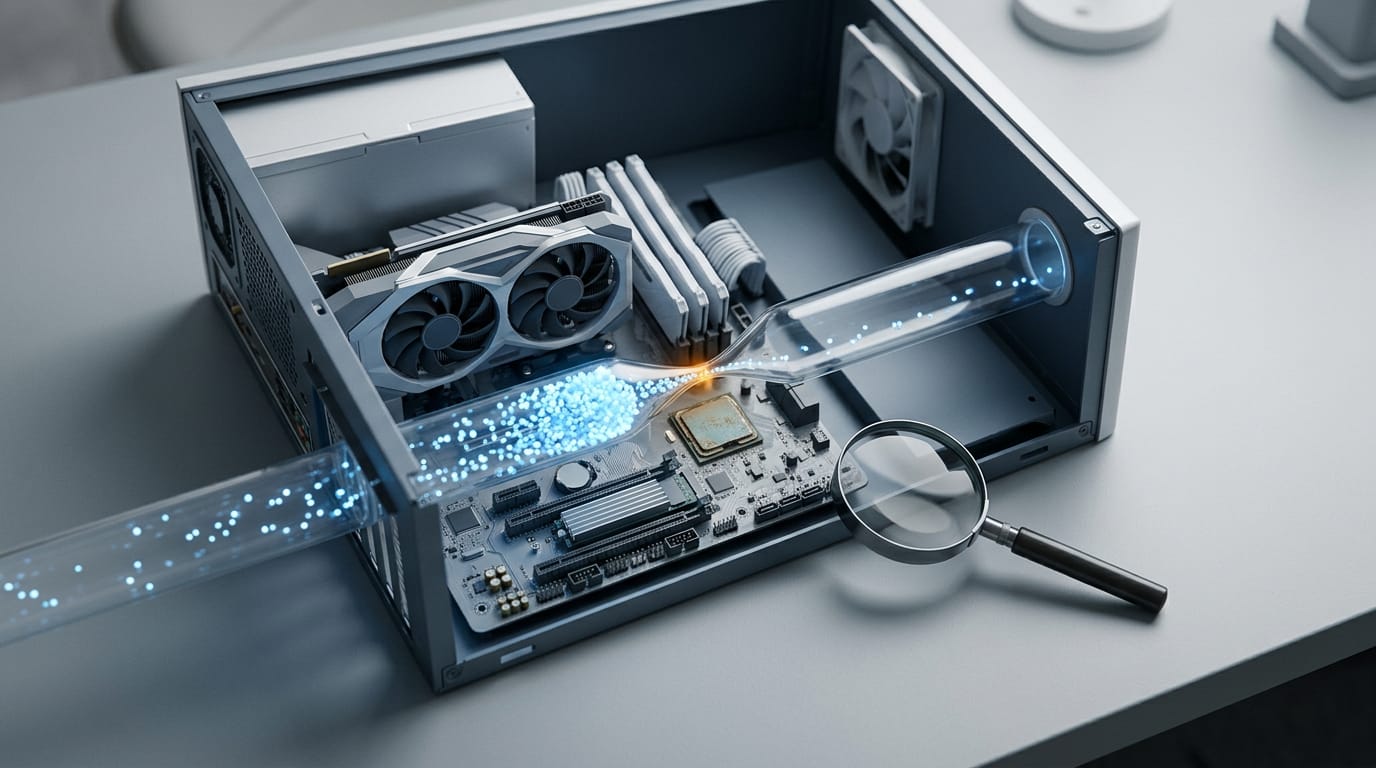
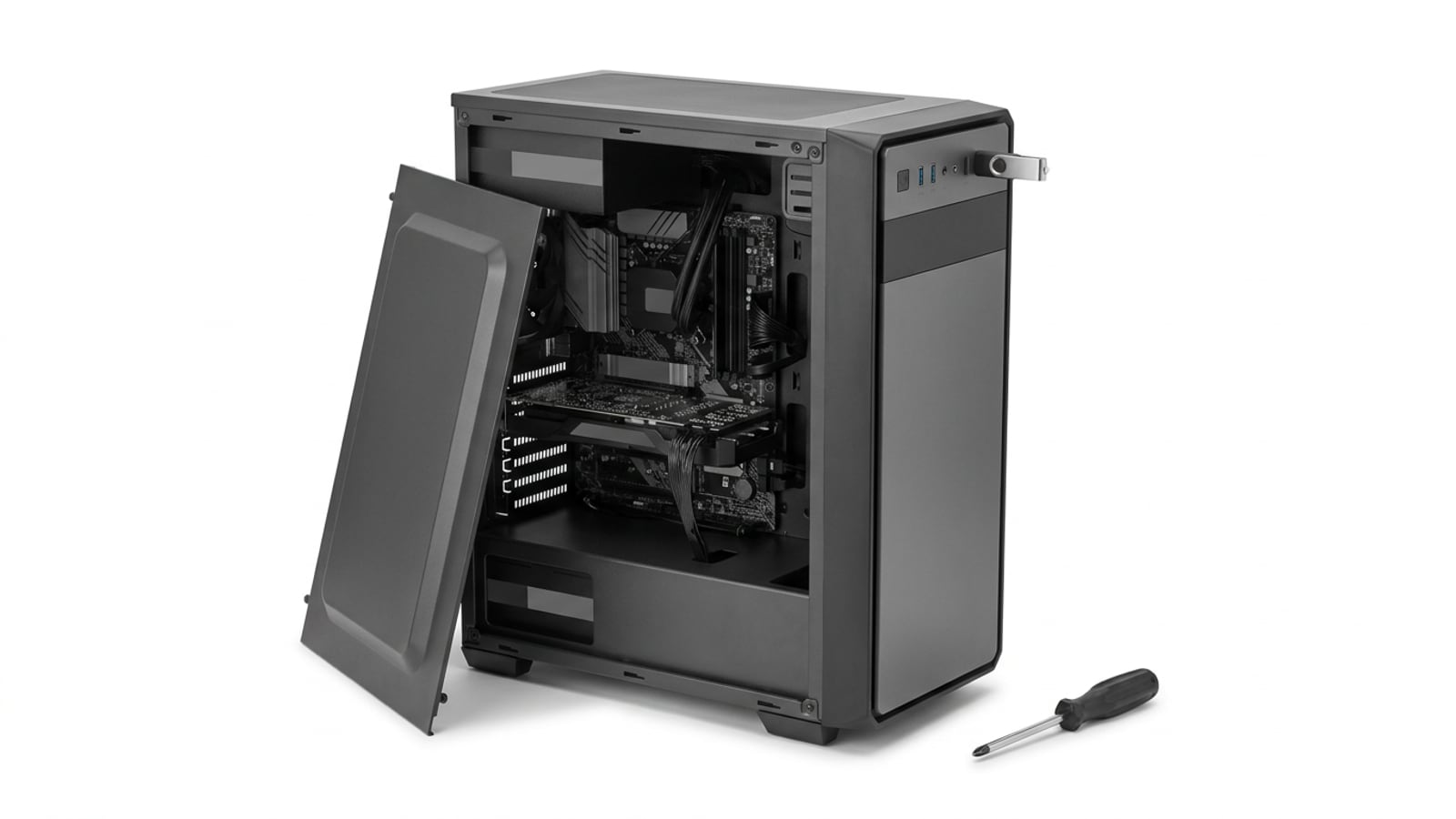
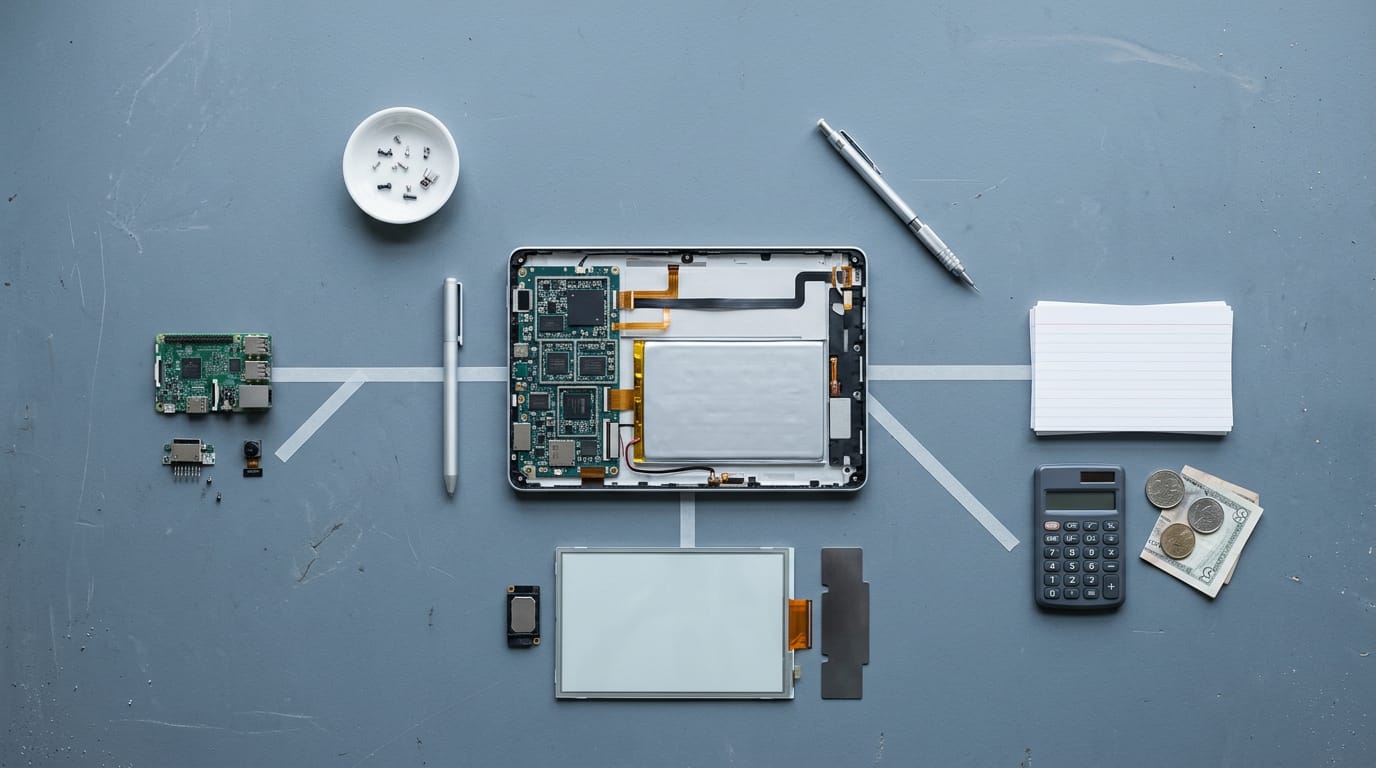
How Old Is My PC? Find the Real Age and What It Means
How old is my PC? Find the build date, learn which dates to trust, and see what its age means for software support and how long it can work well.


Your PC’s age is the period since its core hardware was made, which you can estimate from its BIOS, serial number, motherboard, CPU, or Windows system details. Compare at least two clues, and when dates conflict, use the newest core part’s date rather than averaging; then check manufacturer and Windows support for your exact model. In practice, performance and support matter more than age alone, so upgrade the part that limits your needs or replace the PC if repairs approach the cost of a new one.
Ever dug through an old receipt to figure out when you bought something? Your PC works the same way: a few clues reveal its real age, and that age shapes what it can still do.
Knowing it helps you decide what support to expect and which part to upgrade first.
Here’s what we’ll cover: where to find the build date, which date to trust, and what that age means for updates. Then we’ll run a gamer’s check on whether your rig still plays well and what to upgrade first on a Canadian budget.
How Old Is My PC? Find Out
A real date comes first, so here are four ways to find one:
Read the date in your BIOS
Your basic input/output system (BIOS) is the firmware that starts your PC before Windows loads, and its settings screen shows a version date.
Firmware tables may carry dates too, and some systems store a manufacturing date there, which comes closest to a build date.
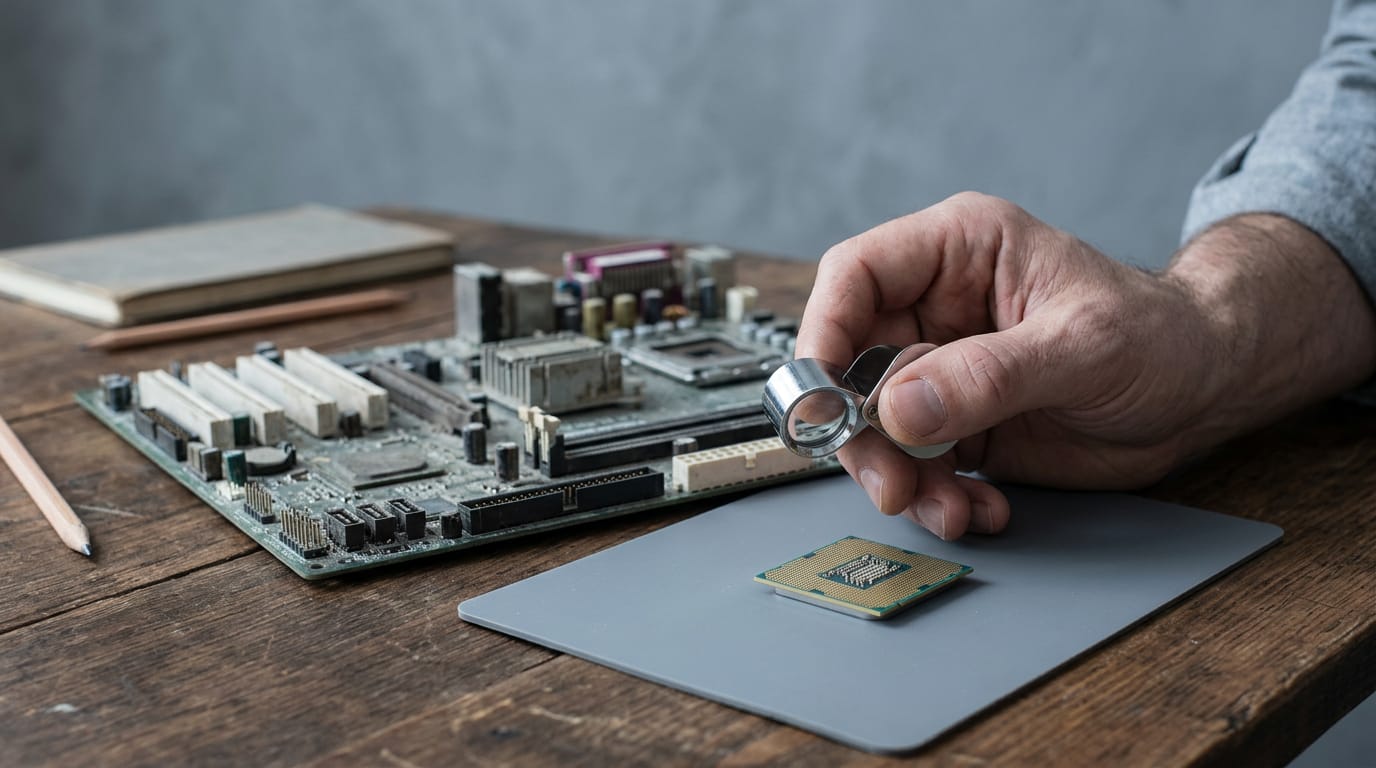
Your chipset (the chips that tie the motherboard together) sets a baseline as well: a PC can’t be older than its motherboard, so the board’s release date is the earliest possible year.
Think of a player who inherited a desktop with no receipt. The BIOS date and the board’s age give them a window they can trust, enough to judge whether an upgrade is worth it.
Look up your serial number online
Most branded PCs and laptops carry a serial number. Enter it on the manufacturer’s support site to get an approximate manufacturing date, best read as a range. If you registered the product or kept the receipt, you also have a purchase date.
The manufacturing date shows when the machine was made, while your purchase date shows when you bought it.
For a laptop, this answers “What year is this laptop from?” Read the serial off the sticker on the underside and look it up.
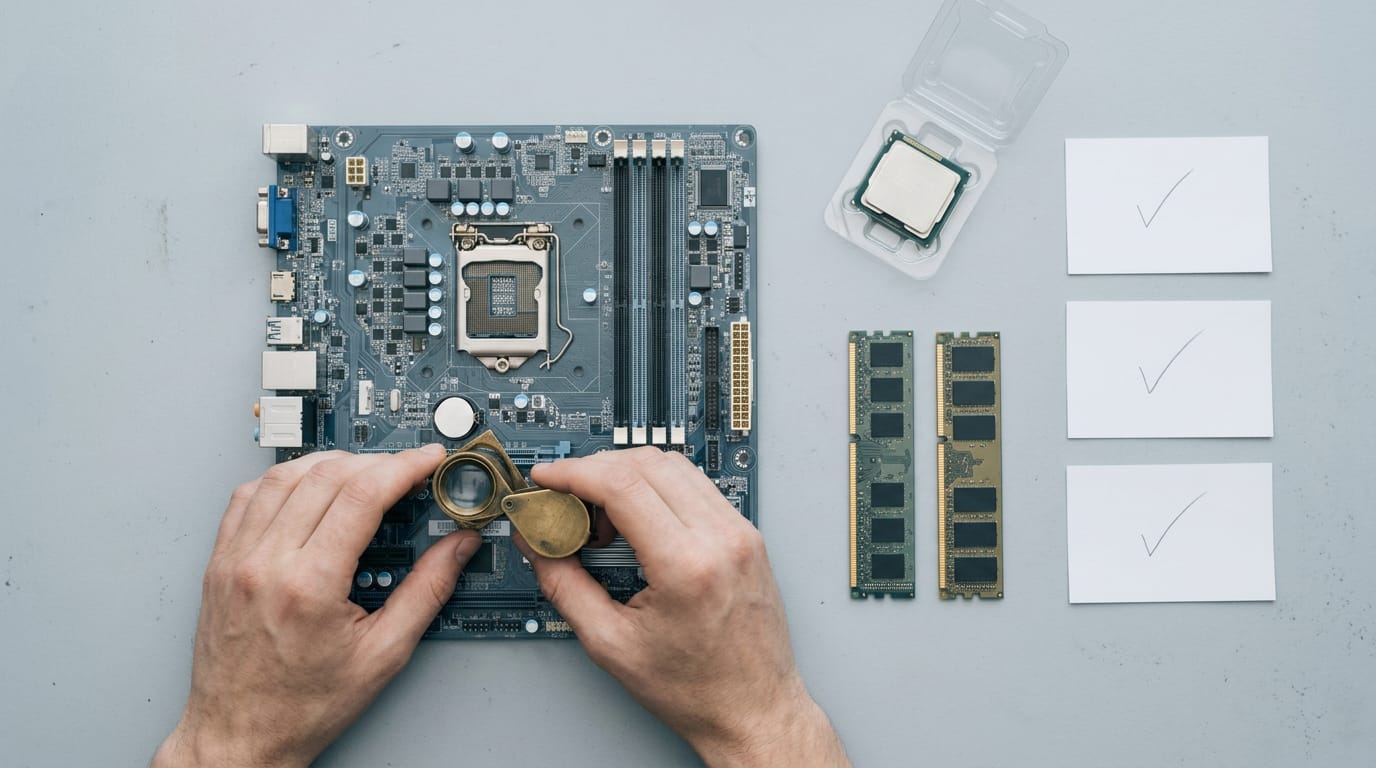
What your parts reveal about age
Even without a serial number, your hardware leaves clues:
- Motherboard date: The board may have a date printed right on it.
- CPU generation: Your central processing unit (CPU) model carries a generation number, and each generation arrived in a later year.
- Memory type and speed: Double data rate (DDR) memory comes in generations, such as DDR3, DDR4, and DDR5. Older types point to older builds, and faster speeds suggest newer hardware.
Upgrades can muddy the picture, so read these clues together, not one at a time.
Use the command prompt to check
The Command Prompt is a text tool built into Windows. Search for “cmd” in the Start menu and run the built-in command for your system details. It’s simple and accurate, with no screwdriver needed.
Use any two methods and compare the dates. When they agree, you’ve got your answer.
How Accurate the Dates Really Are
The date on a sticker is rarely one clean answer, so it’s worth knowing why the dates differ.
Where the dates can drift apart
A motherboard’s manufacture date is usually close to when it was built, but several things can pull the age on paper away from the hardware in your case:
- Gap before first use. A part can sit on a warehouse shelf before anyone installs it.
- Later warranty start. Warranty clocks often begin at the first customer purchase, not at manufacture.
- Supply chain substitutions. Parts can be swapped partway through a production run, so one model name may cover different components.
Say a player finds an old board in a box in the basement. Its printed date shows when it was made, not when it first ran a game, so treat that sticker as a starting point.
Go with the newest part’s date
When the dates disagree, use the youngest date among your motherboard and CPU. A system can’t be older than its newest core part, so that date is your most realistic starting point.
Next, we’ll cross-validate the CPU and chipset dates. A chipset is built for particular processor generations, so when both dates agree, you can trust them. If they clash, the youngest part still wins.
Take a builder who sees an older-looking board with a newer processor. Rather than guessing, they check the chipset against the CPU, and that match shows how old the system really is before they plan an upgrade.
Don’t average the dates. Averaging lands on a day that matches neither part, so trust the newest date, not the average. Pick one and move on.
How Long Makers and Software Support PCs
Two clocks decide how long your PC stays supported: the one your hardware maker keeps and the one Microsoft keeps.
How long driver updates keep coming
Driver updates are the small programs that let your parts talk to Windows, and your hardware maker decides how long they keep coming.
HP separates its business PCs from its consumer lines, and the split is real: business machines typically get about 5 to 8 years of driver updates, while consumer lines get about 3.
It’s less about when you bought a PC and more about which line it belongs to.
Product lines sold for years can also have support that runs past the date on your receipt. Look up your exact model rather than guessing.
Can I keep Windows 10 forever?
Short answer: you can keep running it, but that’s not the same as keeping it safe. Windows 10 support ran through 2025, and according to Microsoft’s own support notice, it has ended on October 14, 2025. That means no new security fixes.
Before you go further, check whether your PC needs a firmware update before a feature update will install. Windows 11 is the obvious next step, but it brings concerns of its own, and an older PC may not qualify for it.
Take a gamer with a five-year-old tower who changes nothing. Their favourite games still launch, but every security flaw found after October 14, 2025 stays open. Stay put and the risk only grows.
Planning the switch now beats a rushed purchase after something breaks.
How Long Older PCs Keep Working Well
There’s no official age when a computer counts as old. What matters is whether its parts can still keep up with what you run. So the next question for many gamers is how long a gaming PC should last.
Is a 10-year-old PC still good?
It depends on the job. A nine-year-old PC still works fine for general internet use like browsing, email, and streaming, and a fast boot time usually comes from a solid-state drive (SSD).
Most PCs from seven to ten years old handle that too, but gaming is where they start to show their age.
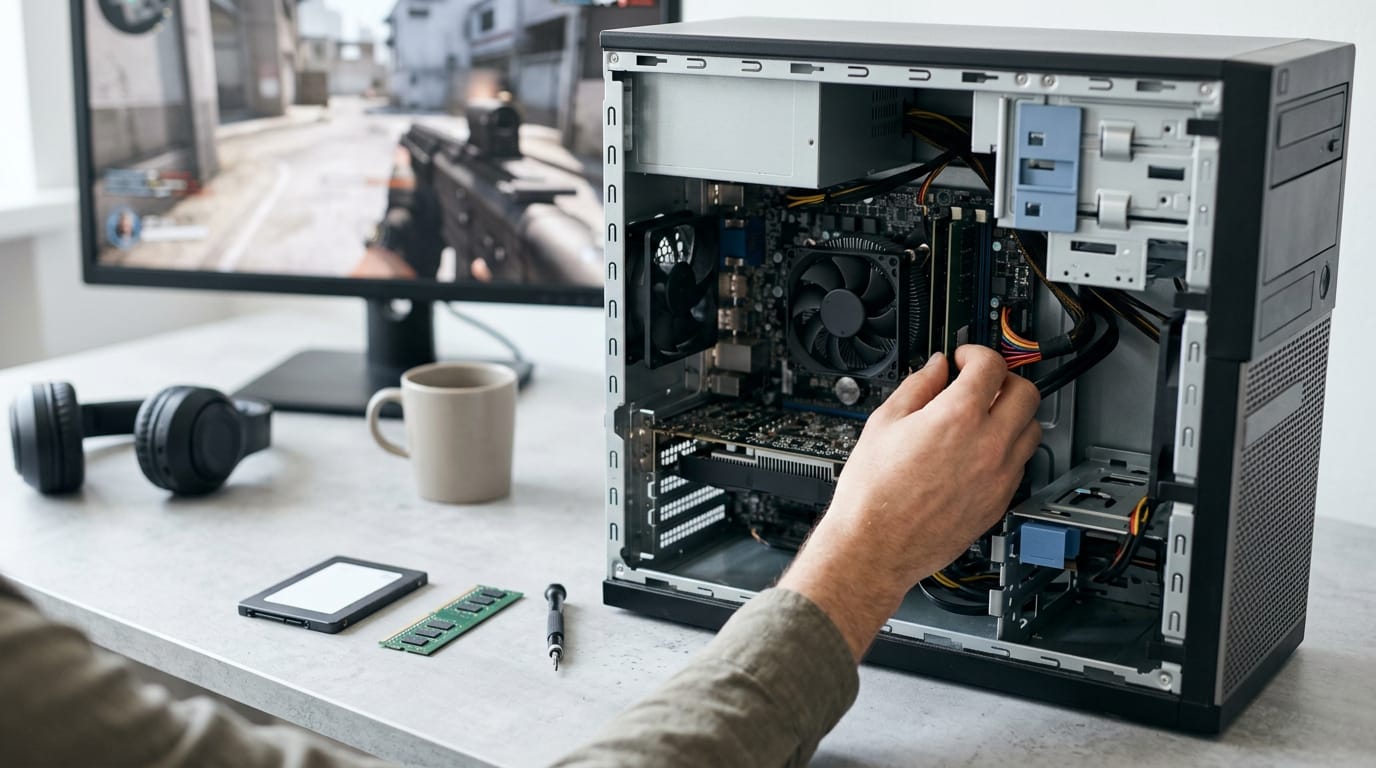
Take a gamer whose eight-year-old desktop runs smoothly but stutters in a new shooter. An SSD and more memory often cost far less than a new machine and may help that game run well again.
When upgrading is worth the cost
Worth depends on usage. Many players aim for an Intel Core i5, 16GB of memory (RAM), and an SSD as a baseline, but if you mostly browse and stream, you may never need more.
For 4K, the ultra-high-definition resolution, the graphics card (GPU) matters most.
Windows 11 adds one more rule. A Digital Trends report says Microsoft has reaffirmed its decision not to relax Windows 11’s strict hardware requirements, so check that your PC meets them first.
Compare the upgrade cost in Canadian dollars with a new machine. If the parts add up to most of that price, replacing the PC usually makes more sense. Newer games can push older graphics cards hard, so check their listed requirements against yours.
Performance tells you more than age does, so run a benchmark test and compare the scores with the games you play. Then start with the cheapest upgrades:
- Storage first. Add an SSD, often the biggest change for the least money.
- Memory next. Add more RAM if your games or apps run short.
- Graphics last. A new card is the costliest step, and the one that matters most for 4K.
Your PC’s age comes down to a few clues: the build date, the components inside, and what the makers still support. Trust the date you can confirm, and remember that the number on paper doesn’t always match how a machine plays.
If your rig still runs the games you love at the settings you want, you may not need to spend a thing yet. When it doesn’t, start with the one upgrade that helps your games most, and keep it within your budget.
Age is just a number. How well it runs your games is the one that counts.
References
- October 14, 2025—KB5066791 (OS Builds 19044.6456 and 19045.6456) — support.microsoft.com (2025)
- Microsoft won’t back down on Windows 11’s biggest hurdle — digitaltrends.com
Questions
How old is a Windows 10 PC?
Windows 10 was released in 2015, so the operating system is about 10 years old as of 2025. A particular PC running Windows 10 may be newer or older; check its serial number, BIOS or motherboard date, and processor generation to estimate its age.
How old is considered old for a computer?
There is no official age at which a computer is considered old. Its age matters less than whether it can handle your apps and tasks, though PCs around seven to ten years old may struggle more with newer games.
What year is this laptop from?
You can find a laptop’s approximate manufacturing year by entering its serial number on the manufacturer’s support site. The serial number is often on a sticker on the underside; BIOS, motherboard, and processor dates can also help confirm the estimate.
Is a 10 year old computer still good?
Yes, a 10-year-old computer can still be good for everyday tasks such as browsing, email, and streaming, depending on its condition and specifications. Newer games and demanding apps are more likely to expose its limits, and it may no longer receive security or driver updates.
Is my PC out of date?
Your PC may be out of date if it cannot run the software or games you need, lacks current security support, or no longer receives driver updates. Check its hardware specifications and support status, then judge its performance for your actual tasks rather than by age alone.
Is it cheaper to build or buy a PC?
Neither option is always cheaper. A prebuilt PC can cost less because manufacturers buy parts in bulk, while building one yourself can offer better control over components and future upgrades; compare the price of equivalent parts and systems before deciding.
Can I keep Windows 10 forever?
You can keep using Windows 10, but Microsoft support ended on October 14, 2025, so it no longer receives regular security fixes. Continuing to use it can leave the PC exposed to newly discovered security flaws.
Is Windows 11 better than Windows 10?
Windows 11 is newer and continues to receive support, but it has strict hardware requirements that some older PCs do not meet. Windows 10 may work better on an older compatible setup, but its support has ended, so the better choice depends on hardware compatibility and security needs.
Sources
- October 14, 2025—KB5066791 (OS Builds 19044.6456 and 19045.6456) | Microsoft Support, support.microsoft.com,
- Microsoft won't back down on Windows 11's biggest hurdle - Digital Trends, digitaltrends.com
Free · The Build Sheet
The Build Sheet: three gaming PCs priced at Canadian stores