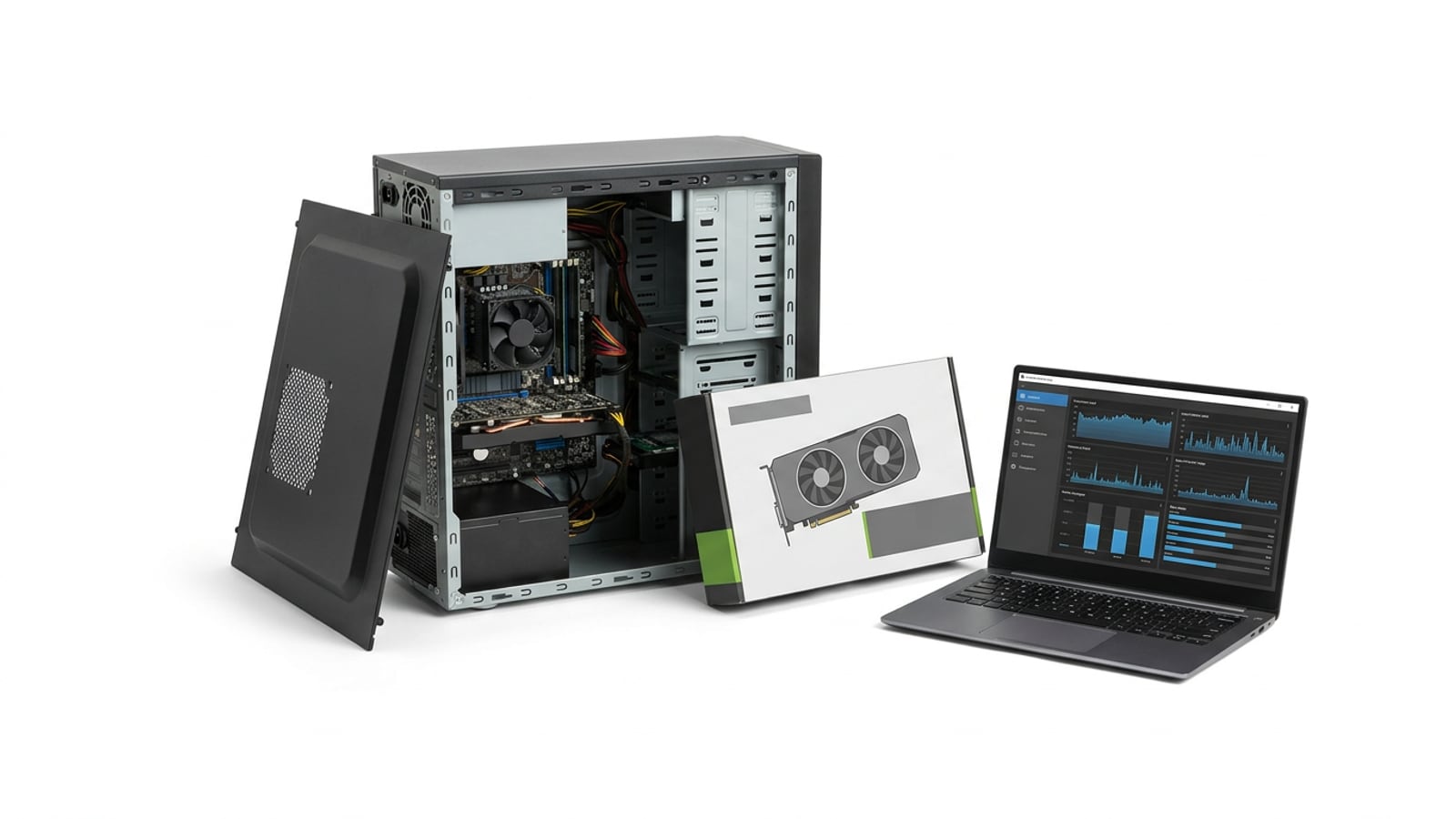
What Should I Upgrade on My PC First? Find the Bottleneck
What should I upgrade on my PC? Find the bottleneck first, compare part costs in Canadian dollars, and know when a new build makes more sense.

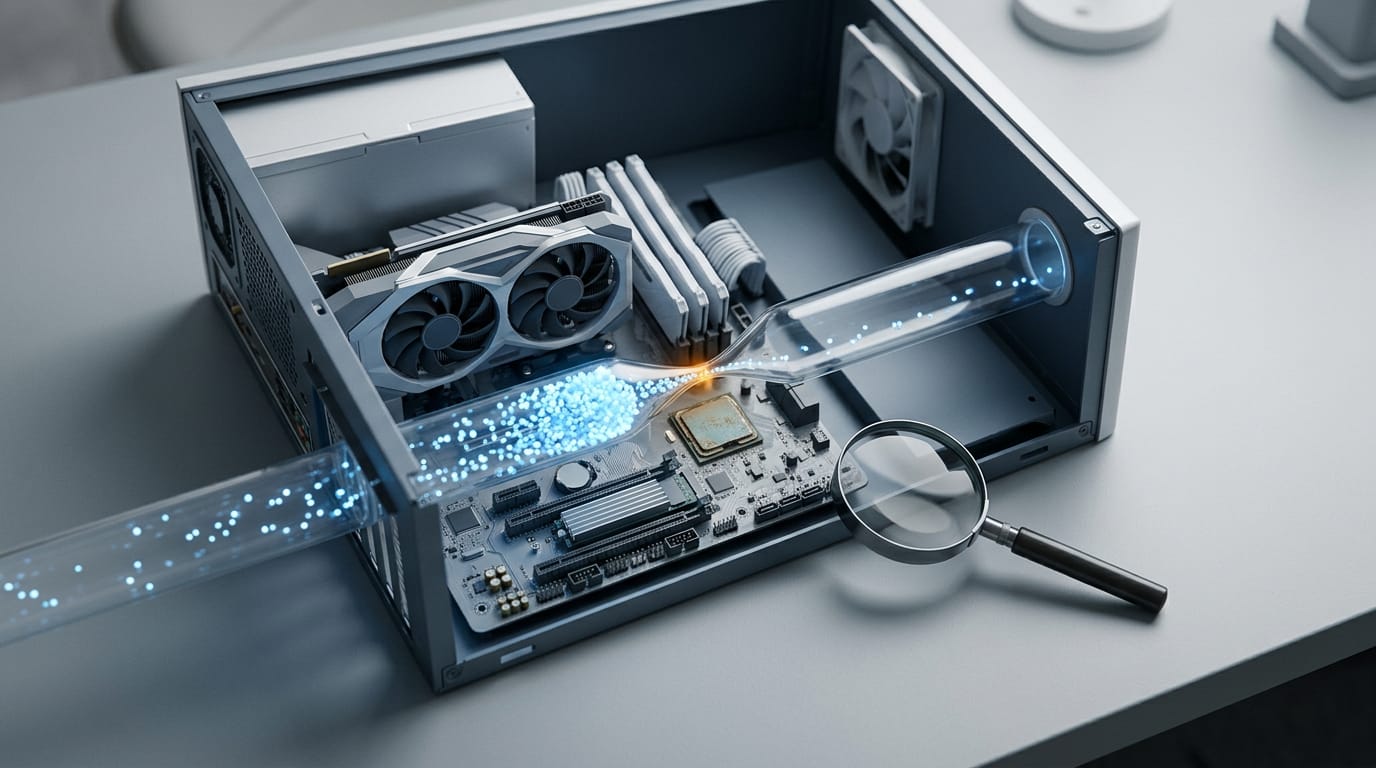
Choosing what to upgrade on your PC means finding the component that is actually limiting performance, rather than replacing the newest or flashiest part. Check FPS and component usage, then match RAM, storage, graphics, processor, and power supply to your needs and verify compatibility before buying. Spend where it fixes a real problem, and consider a new computer when repairs approach the cost of starting fresh.
When your game starts stuttering mid-match, the urge is to buy the biggest part you can afford. When a car sputters, mechanics check the battery before they touch the engine. It’s the same with your PC.
Your computer is a team of parts, and the slowest one sets the pace.
We’ll find the bottleneck first, then work through memory, storage, graphics card, processor, and power supply in priority order, with prices in Canadian dollars and a clear point where a new build beats patching the old one.
Deciding What to Upgrade on Your PC
Find the part that’s actually holding you back, not the one that’s newest. Here’s how to pin it down.
Find out what’s really slowing you down
Start by confirming the problem is hardware. A stutter caused by a background program or an old driver won’t improve with a new part.
Next, decide whether to upgrade or buy new. Swapping one part works when the rest of the machine still does its job. If most parts are old, buy new.
Is a 7-year-old computer too old? Not automatically. Age matters less than whether its processor and graphics card still hit your target frame rate. Once fixes cost close to a new machine, it’s time to buy.
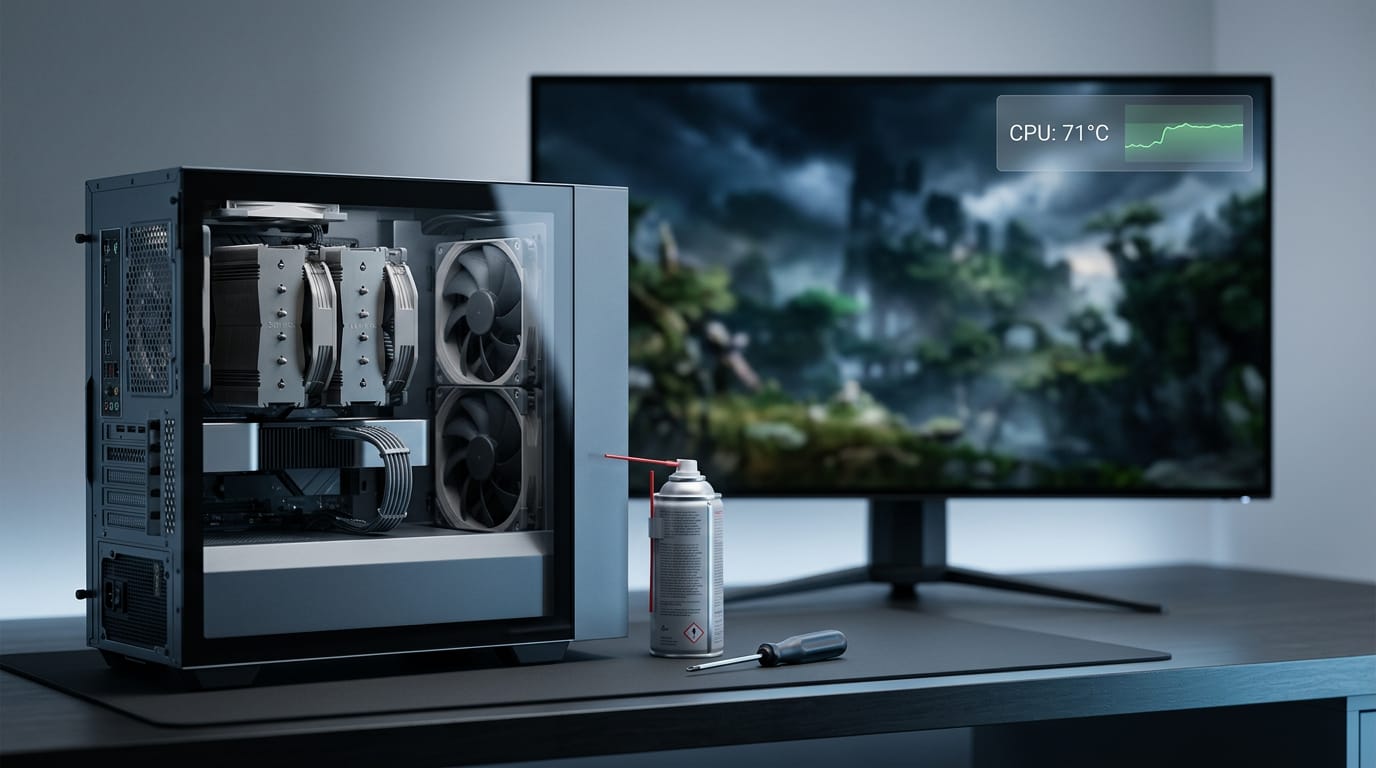
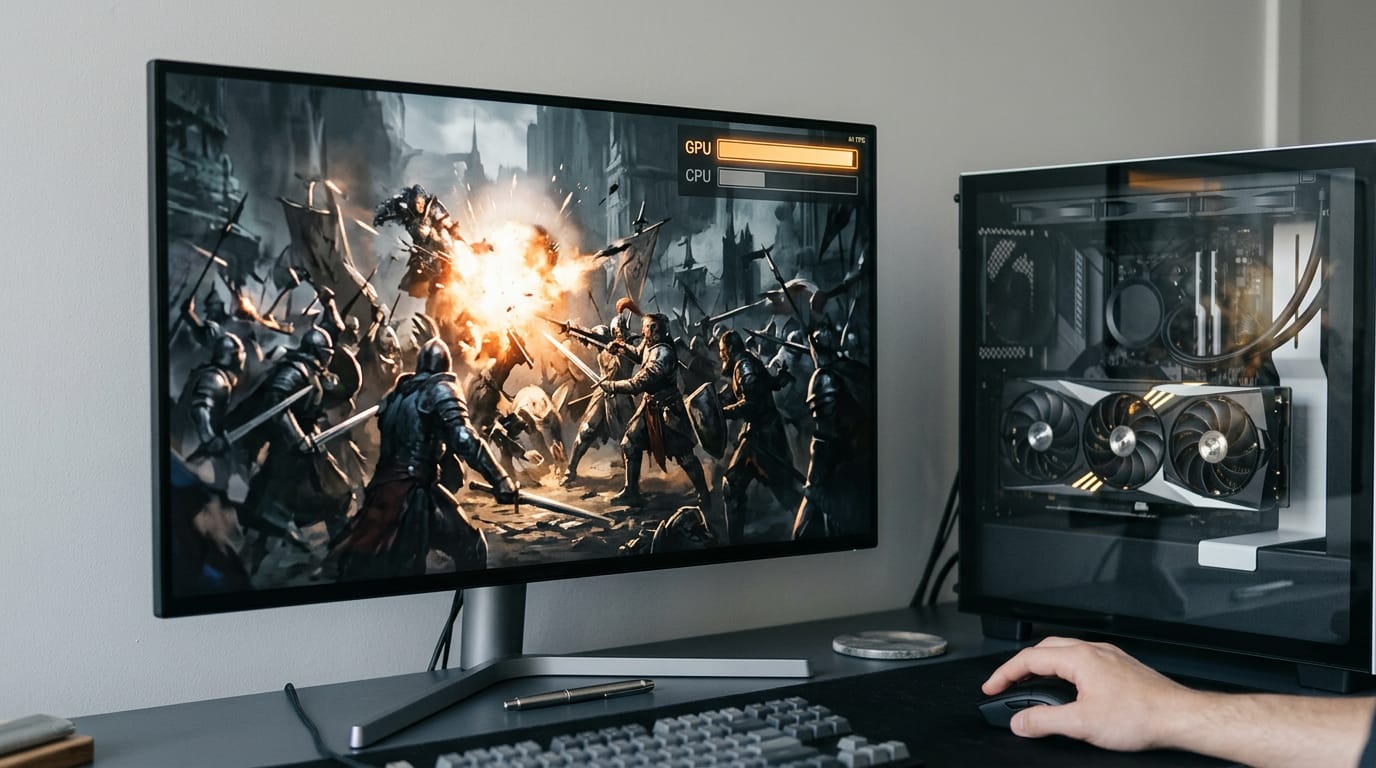
Check in-game frames per second (FPS) and watch how hard your processor and graphics card work. If the graphics card is maxed while the processor has room, it’s your bottleneck, the part capping everything else.
Take a player whose game only stutters when a big fight starts. Their FPS drops, and usage shows the graphics card maxed, so the upgrade money goes there, not to a new processor.
Check compatibility and work safely
To find out what’s in your PC, open your operating system’s system information screen. It lists your processor, your memory, and your graphics card.
Then check compatibility before you buy:
- Fits your motherboard (the main board)
- Has enough power from your power supply
- Has room in your case
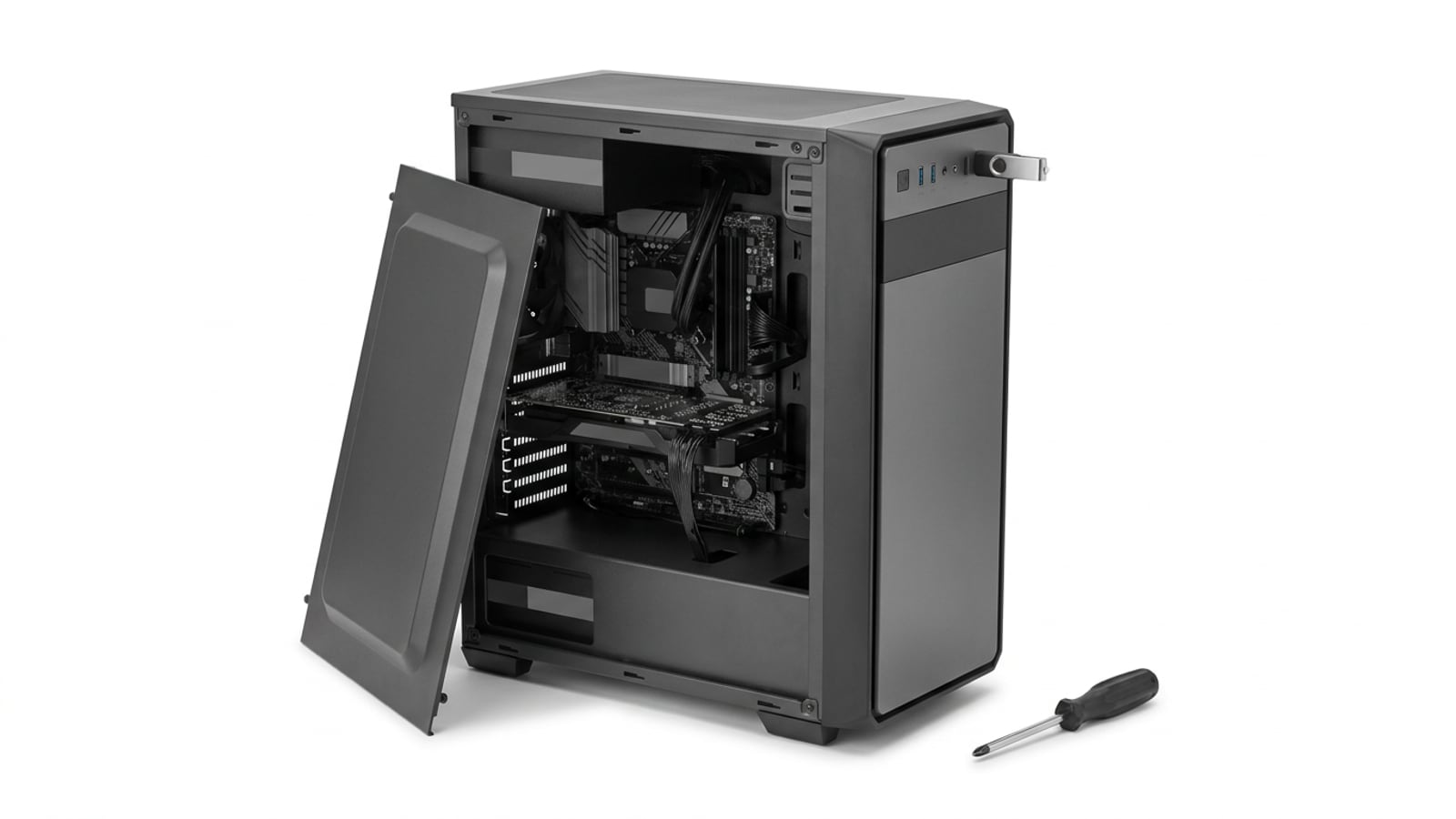
When you open the case, shut down and unplug the PC, and touch bare metal to drain static first. Photograph the cables before you disconnect anything.
Copy anything important to an external drive or cloud storage. Back up first, every time.
Which PC Parts Should You Upgrade?
Upgrades speed up your PC only when they fix the part that’s actually slow, so start by finding the bottleneck, the component holding the rest back. Then match your processor (CPU), graphics card (GPU), and memory (RAM) so none sits idle.
Start with RAM and storage, then the GPU and CPU, and check your power supply (PSU) along the way.
Swapping in a bigger or faster drive
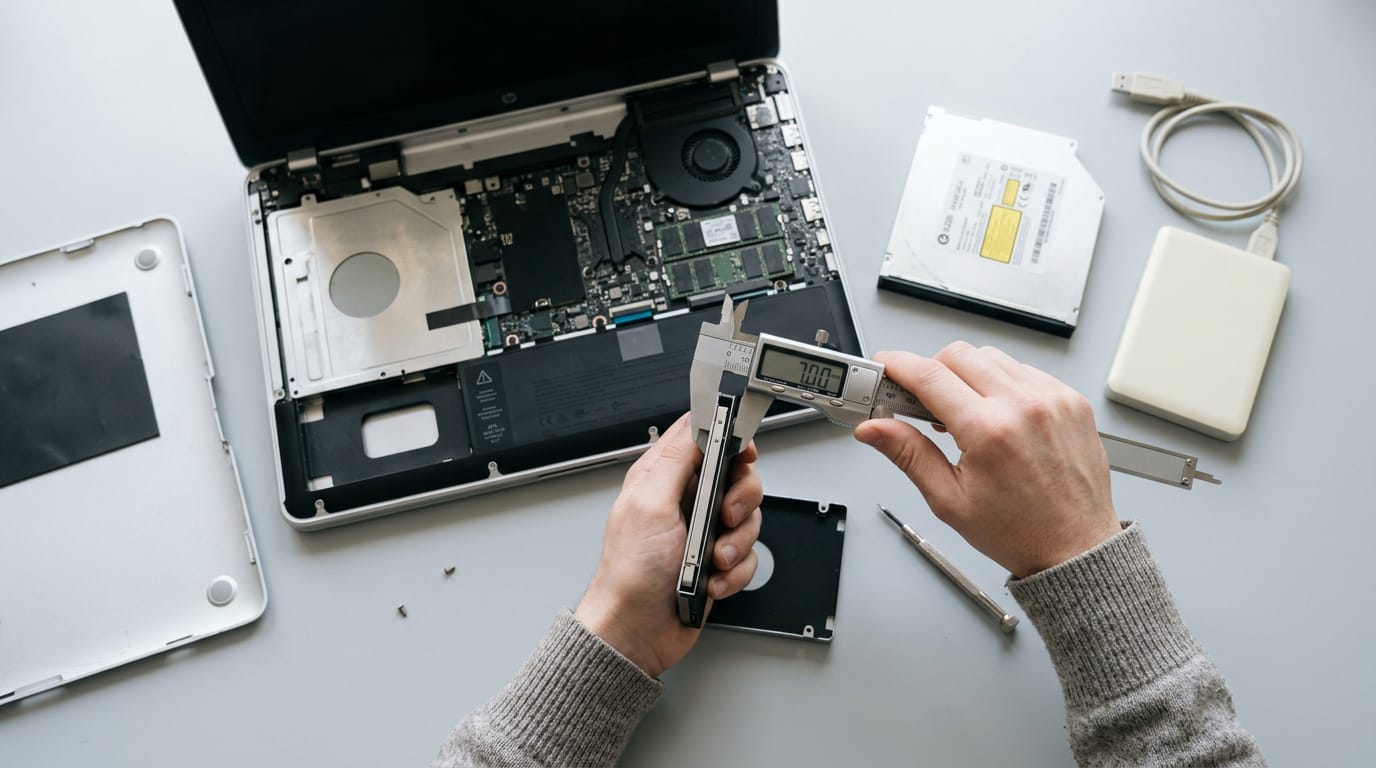
A larger hard drive adds room, but a solid-state drive (SSD) is faster. Before you buy a 2.5-inch drive, check its height against your bay, and copy your files to the new drive first.
Some laptops can use an SSD in the optical-drive bay as extra storage, as a cqvip article on the optical-drive bay describes, so if you rarely use the disc drive, that bay is worth a look. Treat the claimed 8 to 10 times speed boost as a best case.
Adding more RAM for multitasking
If your PC stutters with a game, a voice chat, and a browser open together, RAM may be the bottleneck. Adding RAM is an easy internal upgrade, and if every slot is full, larger-capacity chips are the way to add more.
More RAM means running more things at once, not making any single app faster. Think of a player streaming a game while chatting and running a browser full of guides: everything stutters at once.
Some laptops have a user-accessible bay for memory, so check the manual before you buy.
Harder CPU swap that lifts framerate
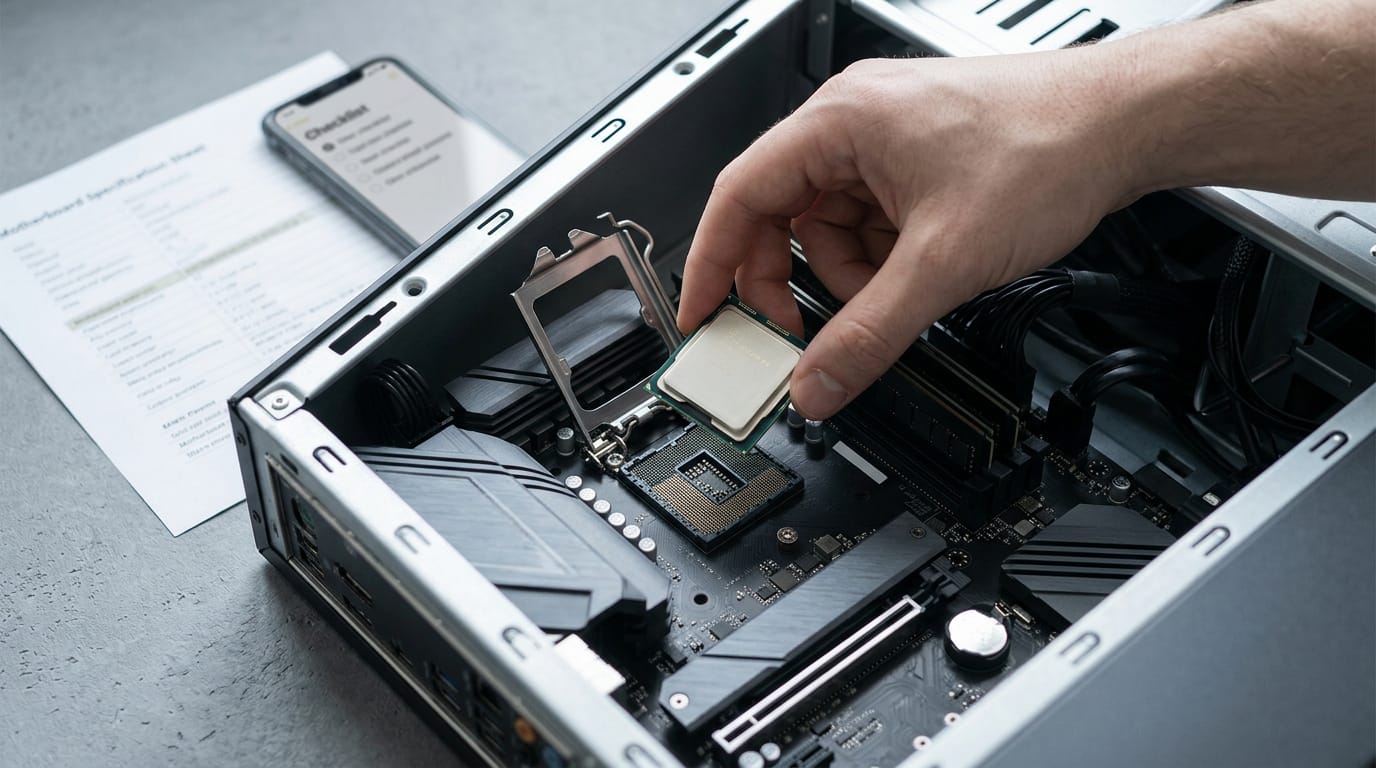
The CPU is the most difficult part to replace, so plan ahead. A faster one lifts your framerate, or frames per second (fps), when the processor, not the graphics card, is what’s holding a game back.
Confirm the new chip fits your motherboard before you commit.
Graphics card upgrades and what they need
Laptops with integrated graphics (the GPU built into the processor) often can’t take a new card, so you may need a whole new laptop. On a desktop, check your PSU and case clearance first, since a bigger card may need more power or more room.
For the best value per Canadian dollar, buy the strongest card your PSU, case, and CPU can support. Think of a gamer with a dated processor who adds a new card: the card waits, and the framerate barely moves.
Pick the card that fits your PC and budget, not the one that tops the chart.
Replacing a worn battery with an original
Battery capacity starts to fall after the first year, so an older laptop may die sooner.
According to a paper on developing an informative lithium-ion battery datasheet, a battery’s maximum charge drops with use and with time, a decline known as capacity fade. A higher-capacity replacement may be worth considering, but buy an original unit.
Think of a student whose laptop dies mid-lecture: a fresh original battery can fix that without buying a new machine.
The smartest upgrade starts with finding out what’s actually slowing you down. Once you know, work through the parts in order, and let the bottleneck guide your spending instead of the flashiest spec on the shelf.
Your budget goes furthest when every dollar fixes a real problem. And once repairs start costing close to a new build, starting fresh is the smarter call.
The best upgrade is the one that fixes the problem you actually have, not the one that just looks good on a spec sheet.
References
- Development of an Informative Lithium-Ion Battery Datasheet — mdpi.com (2021)
- 挤占光驱位,本本“肚量”大提升 — cqvip.com (2010)
Questions
What parts of a PC should you upgrade?
Upgrade the component that is actually limiting performance, rather than choosing the newest or most expensive part. Common upgrades include RAM for multitasking, an SSD for faster storage, a graphics card for gaming when it is the bottleneck, and a CPU when the processor is holding performance back; check compatibility and the power supply before buying.
Is a 7 year old computer too old?
No. A seven-year-old computer can still be useful if its processor and graphics card meet your needs, and age alone does not determine whether it should be replaced. Upgrade it if one part is holding you back, but consider a new computer when several parts are outdated or repair costs approach the price of a new one.
Is a $2000 PC worth it?
A $2,000 PC can be worth it if its performance and features match your needs and budget, but price alone does not guarantee good value. Choose components that suit your workload, and avoid paying for parts your system or use case cannot benefit from.
What upgrades will make my PC faster?
First identify what is slowing the PC down, since an upgrade only helps when it addresses the bottleneck. An SSD can improve storage responsiveness, more RAM can help when multitasking causes stutters, and a stronger GPU or CPU can improve gaming performance when that component is limiting it. Check compatibility and power requirements before upgrading.
Sources
- 挤占光驱位,本本“肚量”大提升, cqvip.com,
- Development of an Informative Lithium-Ion Battery Datasheet, mdpi.com,
Free · The Build Sheet
The Build Sheet: three gaming PCs priced at Canadian stores