How to Split Screen in PC on Windows 10 and 11
See how to split screen on a PC with Snap in Windows 10 or 11, and use other window layouts to keep bills, spreadsheets, and chat in view.

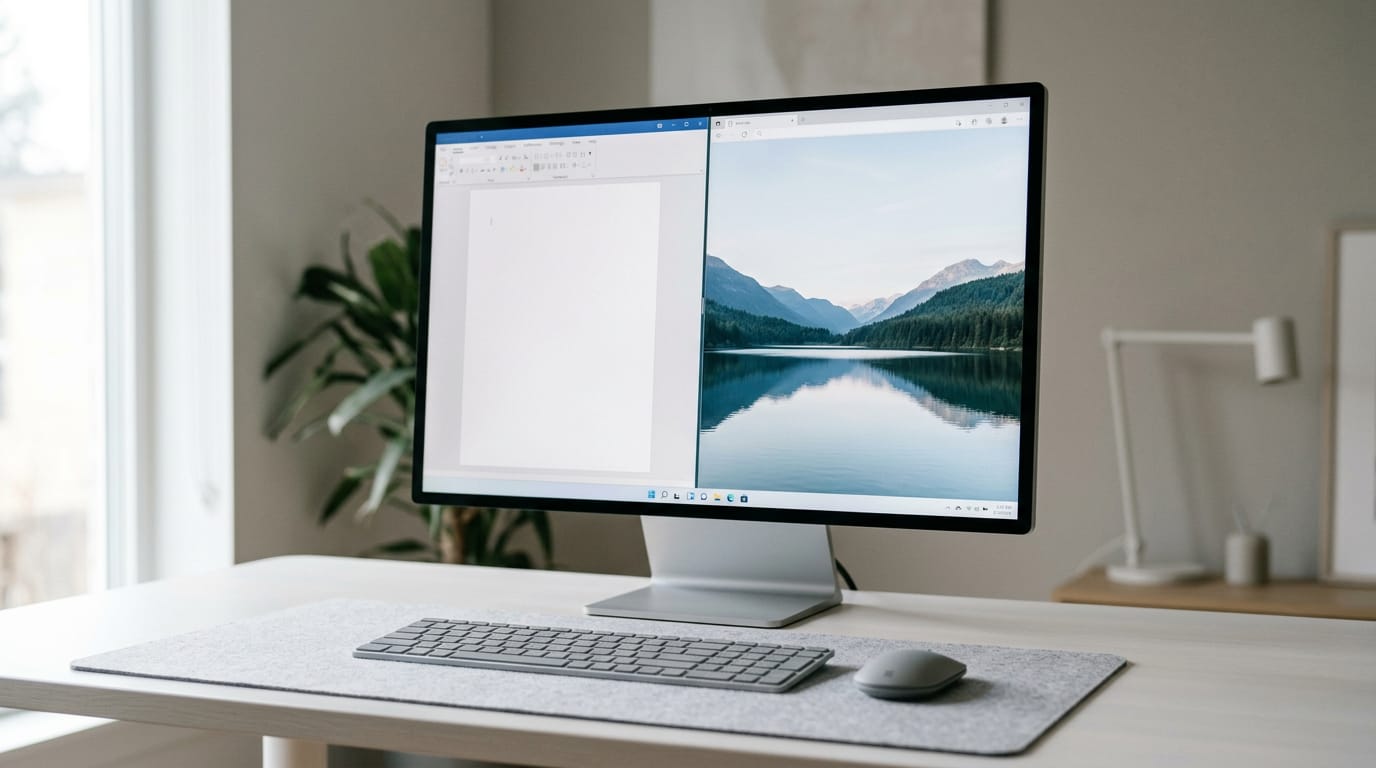
Splitting a PC screen means arranging two or more windows side by side so you can use them at the same time. In Windows, drag windows to an edge or use Windows + Left or Right arrow to snap them, choose a Windows 11 Snap Layout for more apps, or use virtual desktops and a second monitor to keep workspaces separate. The right setup reduces switching between windows and keeps useful apps visible while you work or play.
Picture your home office desk: bills on the left, spreadsheet on the right, coffee in the middle. You can see everything at once without digging through piles.
That’s the idea behind split screen, running two or more windows side by side so you can keep an eye on each one.
Your PC can do this too, and Windows offers several ways to get there. We’ll cover every option for Windows 10 and 11, plus the gamer angle: keeping a game on one screen while you work or chat on the other.
Split Screen in PC with Snap
Snap is Windows’ built-in way to split your screen, on one monitor or several.
Snap windows by dragging them
Dragging is the simplest starting point:
- Drag a window by its title bar.
- Drop it at the far left or right edge of the screen.
- Click the second app you want, and it fills the empty half.
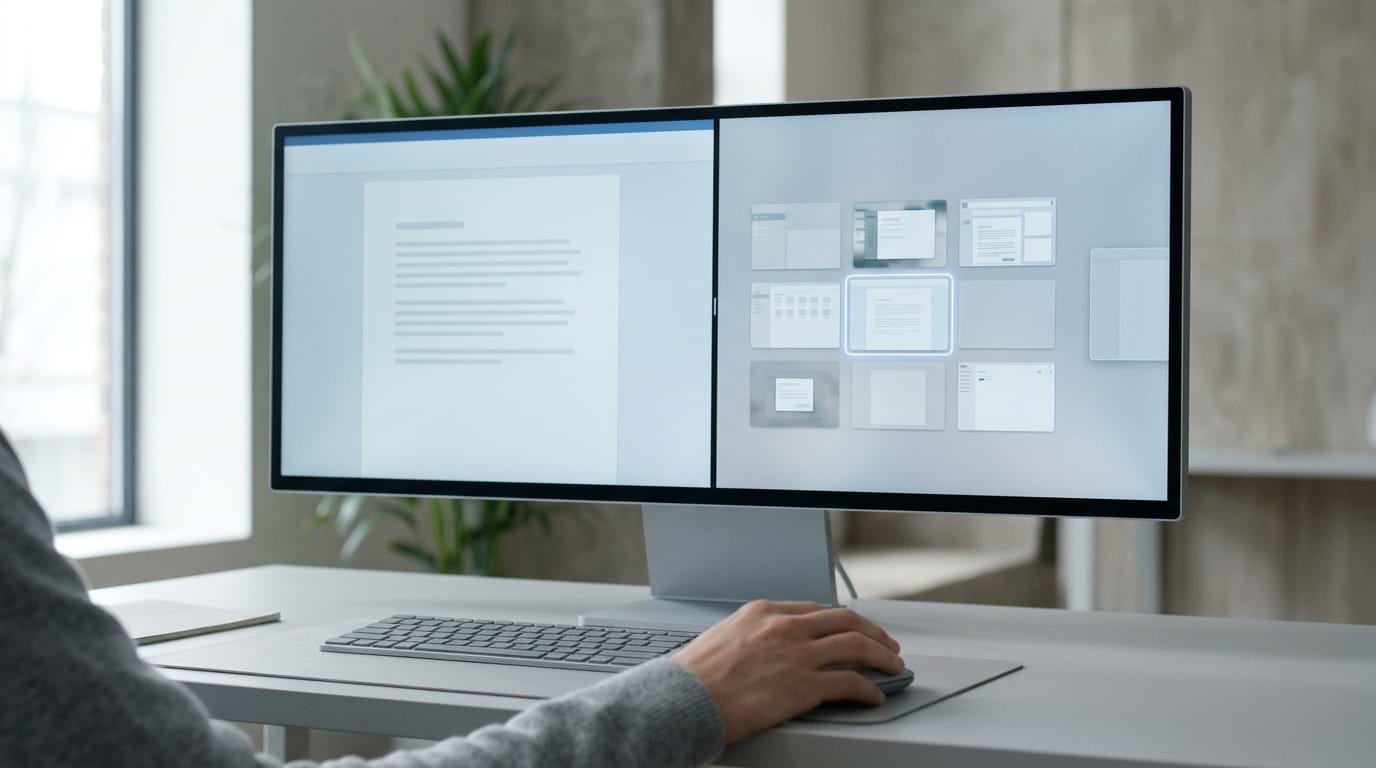
That’s how you split one monitor into two screens, with no extra hardware. The second click is Snap Assist, which shows your other open windows so you can pick one.
If nothing happens at the edge, make sure Snap is turned on in your system’s multitasking settings.
Snap windows faster with the keyboard
Keyboard snapping is less about fine-tuning and more about getting there fast. Press Windows + Left arrow to send the active window to the left half, or Windows + Right arrow for the right. Then choose a window for the other half.
It’s faster than manually resizing. Two keys and a click. That’s it.
Windows 11 Snap Layouts for more apps
Two halves aren’t always enough. Hover over the Maximize button on any window, and Windows offers alternative split configurations. Layouts can fit three to four apps side by side, which is handy on larger monitors with room to spare. To see whether your machine has the capacity for that many windows, check your PC specifications.
Think of a player who wants a guide open beside the game. They hover over Maximize, pick a layout that fits both, and never have to alt-tab away from the match.
To play two games at once on PC, set both to windowed or borderless mode first. Then snap each one to its own part of the screen.
Other Ways to Spread Work Across Screens
Got a second screen that’s half idle? Here’s how we’ll put it to work.
Move windows between monitors
Press Windows + Shift + Left or Right arrow to send the active window to the monitor on that side. It’s the quickest way to move a window between monitors.
If the second monitor shows nothing, check that it’s powered on, the cable is seated at both ends, and it’s set to the right input. Then open Display settings so Windows can look for it. If the picture appears with a green tint instead, look into why your PC screen turns green.
Two monitors can’t share one HDMI (High-Definition Multimedia Interface) port, since each port drives a single screen. You’ll need a second output on your graphics card or motherboard, or a hub that adds one.
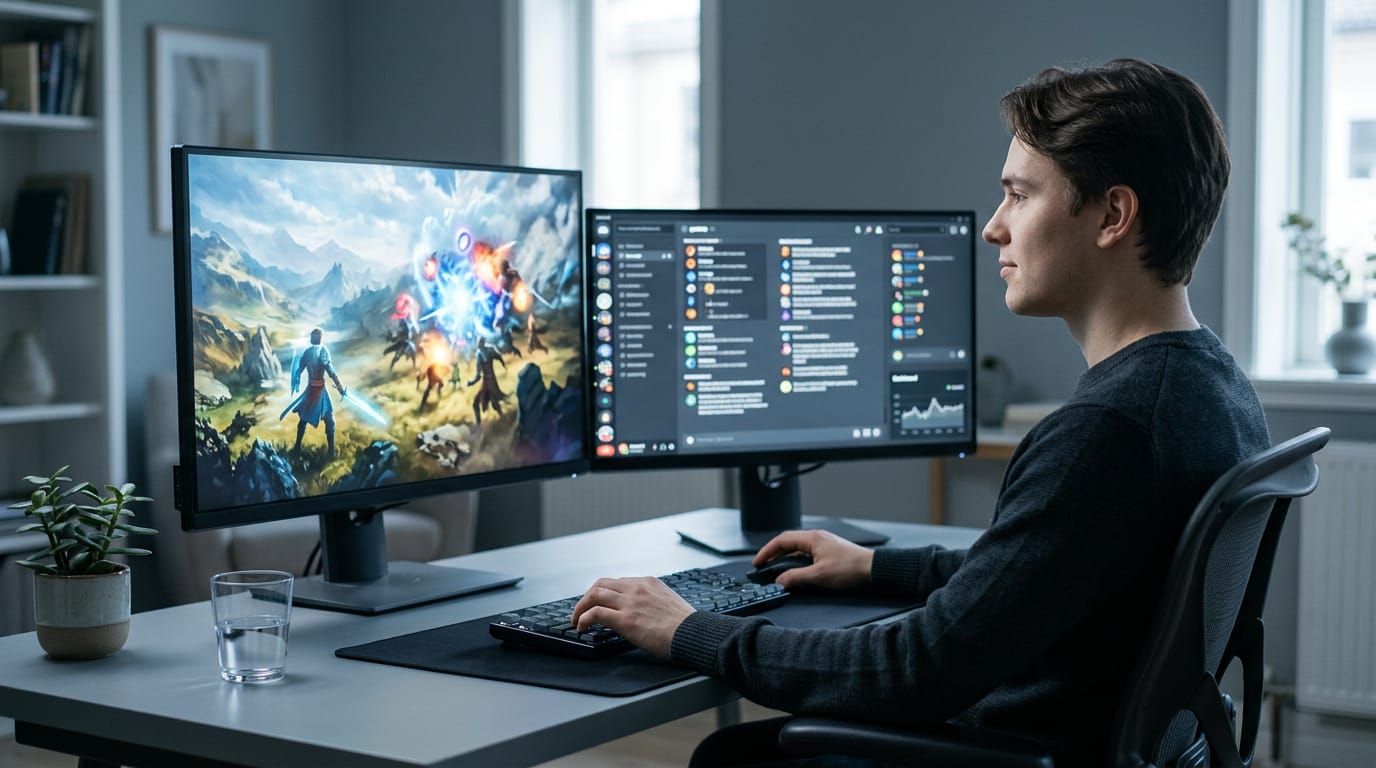
A second monitor earns its spot in a match. Picture a player with the game full screen on the main display and a build guide, Discord, or a stream dashboard on the other. They never alt-tab out of a fight to check a guide.
Set up virtual desktops in Task View
Windows calls these virtual desktops: separate workspaces, each with its own open apps. Press Win + Tab to open Task View, then create a new one from the top of the screen.
Open an app on that desktop and it stays there, so your game and your browser can live apart.
To remove one, click the X on its thumbnail in Task View.
Switch desktops with shortcuts or Task View
Ctrl + Win + Left or Right arrow flips between desktops without opening anything. Shortcuts are for moving fast, and Task View is for seeing everything at once. Want a specific one? Press Win + Tab and select it.
Fewer clicks. More time in the match.
Setup Steps for Windows 10 and 11
Task View is the Windows tool that shows every window you have open, and it’s the starting point for splitting your screen. Before you can use it, you need its button on your taskbar, so here’s how to turn it on in each version of Windows.
Add Task View from Windows 11 taskbar
- Right-click your taskbar.
- Choose Taskbar settings.
- Switch on Task view.
- Select the Task View icon.
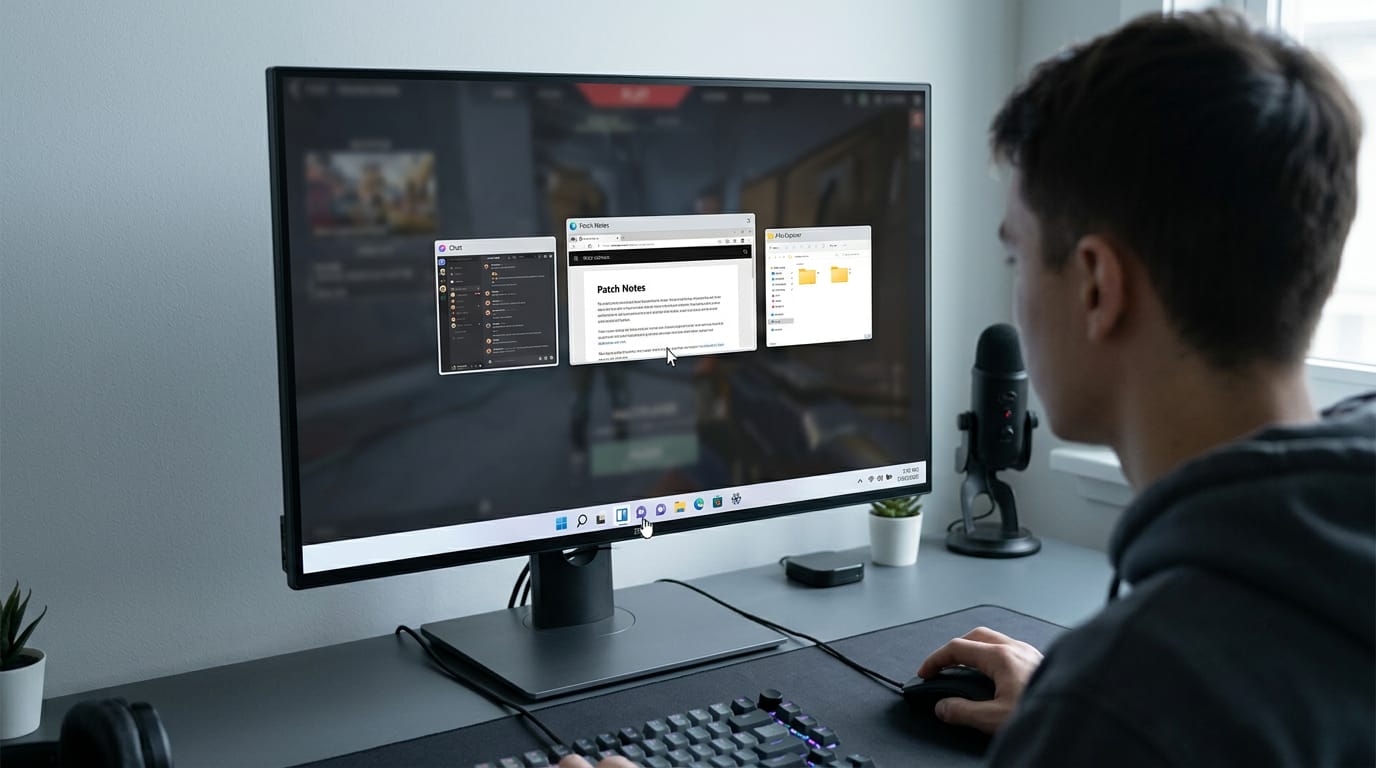
Picture a player in the middle of a ranked match who needs a patch note from a browser tab. With the icon on your taskbar, that window is a quick trip away instead of buried under the game and everything else you have open.
Show Task View button on Windows 10
Windows 10 gets you there with different wording. Right-click the taskbar, choose Show Task View button, then select the Task View icon that appears. You’re switching on a button you already have, not installing anything. That’s the whole setup.
To split your screen on Windows 10, drag a window toward the edge of the display until it snaps into place, then pick the window for the other half. Say your game takes one side and a voice chat takes the other.
The remaining methods, including keyboard shortcuts, come later in this guide.
Splitting your screen comes down to picking the method that fits how you work. Snap handles quick side-by-side windows, virtual desktops keep projects apart, and a second monitor gives you the most room.
For gamers, it’s simple. Your game stays on one screen while the guide, chat, or stream sits on the other, so you never have to leave the match to check something.
Arrange the screen around how you play, and you’ll find every window earns its spot.
Questions
How do you split your screen on Windows 10?
On Windows 10, drag a window by its title bar to the left or right edge of the screen until it snaps into place. Then select another open window to fill the other half. You can also press Windows + Left arrow or Windows + Right arrow, then choose a second window.
How do I split my monitor into two screens?
Drag the first window by its title bar to the left or right edge of the monitor and release it when it snaps into place. Select a second window to fill the remaining half. Snap works on one monitor without extra hardware.
How to play two games at once on PC?
Set both games to windowed or borderless mode, then snap each window to a different part of the screen. Press Windows + Left or Right arrow to position the active game, or drag it to an edge, and repeat with the other game. Some games may not support windowed play or may run poorly when both are active.
How do I enable split-screen?
Turn on Snap in Windows’ multitasking settings if windows do not snap when you drag them to the screen edge. Then drag a window to the left or right edge, or press Windows + Left or Right arrow, and choose another window for the remaining space.
How to lock your computer without signing out?
Press Windows + L to lock your computer without signing out. Your apps remain open, and you can return by signing in again.
How do I change my PC password?
Open Settings, go to Accounts, then Sign-in options, and choose Password to change it. The exact prompts may differ depending on whether you use a local account or a Microsoft account.
How do I lock my screen?
Press Windows + L to lock your screen. You can also open the Start menu, select your account icon, and choose Lock.
What does Windows key +K do?
Windows key + K opens the Connect panel, which lets you connect to compatible wireless displays and other supported wireless devices. It does not split your screen.
Free · The Build Sheet
The Build Sheet: three gaming PCs priced at Canadian stores