First boot on a new gaming PC: BIOS, drivers and Windows
The parts are in and the side panel is off: what to check before power-on, the BIOS settings to change, installing Windows 11 and the driver order.

Check the power cables and the monitor cable before you press the button, then use the first boot to turn on the memory profile, Resizable BAR for an Intel Arc card and the settings Windows 11 needs. Install Windows from an 8GB or larger USB drive, and add the chipset and graphics drivers before you install a single game.
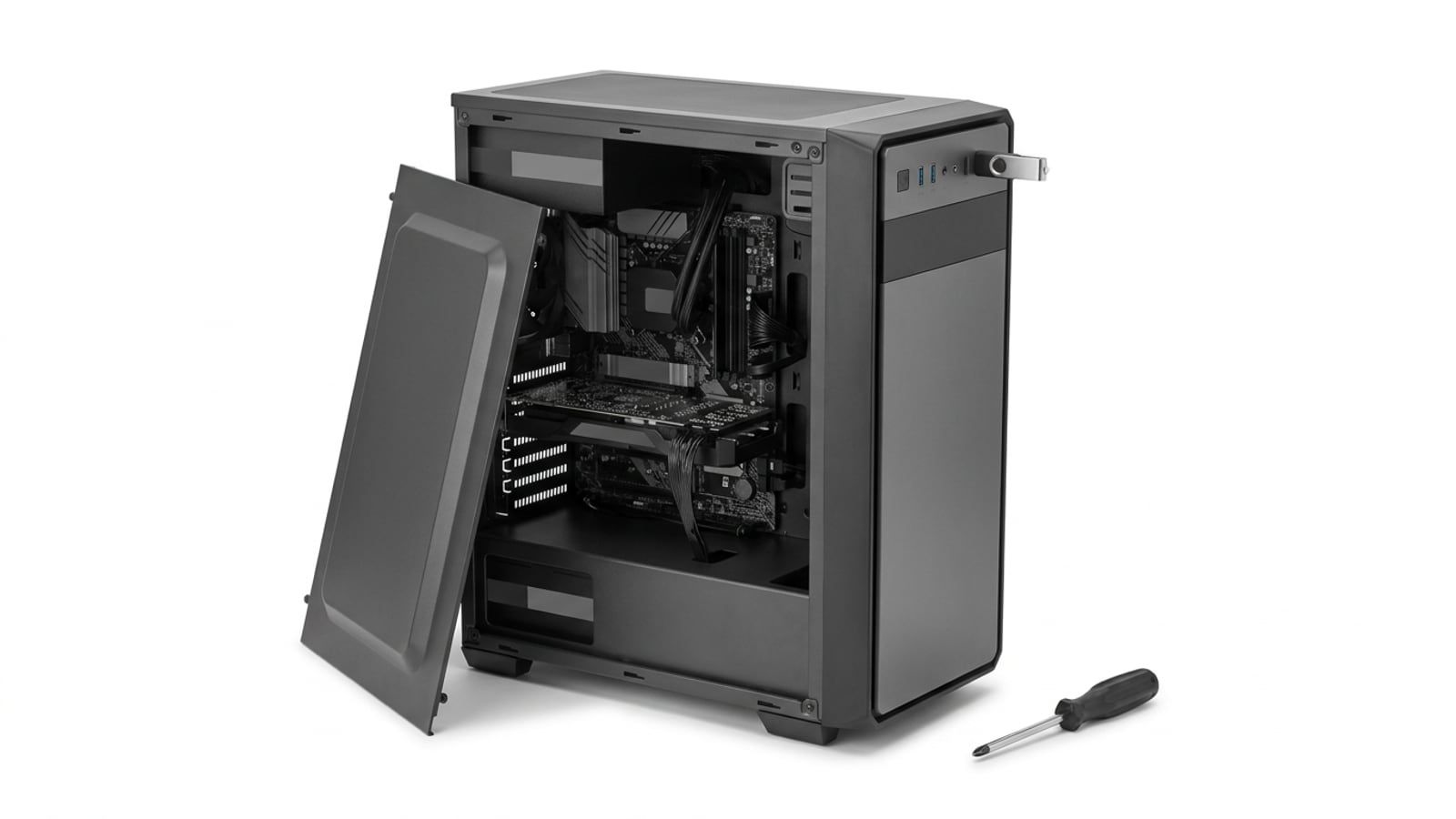
The last screw is in, the cables are tucked and the case is sitting on the desk with the side panel off. This is the part of a first build that worries people most, and it is mostly checking. Press the button too early and a missing cable looks like a dead part. Do it in order and the first boot is an evening’s work, most of it spent waiting for Windows. Leave the side panel off until the end: you will want to see the fans spin and reach the cables without taking anything apart again.
Before you press the power button
Five minutes with a torch saves an evening of guessing. Go through the case once, part by part:
- The processor power cable at the top left corner of the board, usually an 8-pin plug marked CPU or EPS. It is easy to leave out, and without it the board will not start.
- The 24-pin cable on the right edge of the board, pushed in until the clip clicks.
- The graphics card’s power, every socket on the card filled, and the card screwed to the case so it does not sag out of the slot. If you are not sure the power supply has the plugs and the watts for the card, our guide to power supply wattage checks both against the card maker’s figures.
- The memory in the two slots the motherboard manual names for two sticks (often the second and fourth from the processor), with both latches closed.
- The cooler fan on the header marked CPU_FAN, and the front-panel power switch on the pins the manual shows.
Plug the monitor into the graphics card, not into the video port on the motherboard. With a graphics card fitted, the board’s own ports often show nothing at all, and a blank screen at first boot is easy to mistake for a dead card.
What to check in the BIOS first
Press the key the board names on its start screen (usually Delete or F2) and you are in the firmware. Most boards today run UEFI, the replacement for the old BIOS, though everyone still calls it the BIOS; Wikipedia’s UEFI article explains the difference if you want it. You do not need to change much. Look first at the processor temperature on the main screen: if it climbs fast while you are just sitting in the menus, the cooler is not seated, and you should switch off and fix it now.
Turn on the memory profile
New memory starts at a slow default speed. To run at the speed you paid for, turn on its profile. DDR4 kits carry XMP, which Intel boards and AMD’s AM4 boards both read (MSI’s AMD boards call it A-XMP, ASUS’s call it DOCP). DDR5 kits for AMD’s newer AM5 boards use AMD’s EXPO, and many carry XMP as well. Intel’s own guide says an XMP kit first boots at default settings and the profile applies once you select it in the BIOS. Pick the first profile, save and restart. The board may take a little longer on that boot while it settles the new speed.
Turn on Resizable BAR for an Intel Arc card
If the graphics card is an Intel Arc, as on our $1,500 Build Sheet, turn on Resizable BAR before you go further. Intel’s Arc quick start guide says it “must be enabled for optimal performance” and lists the platforms that support it, including Ryzen 5000 processors on AMD 500-series boards like the one on that sheet. Look for it in the PCI or advanced settings: boards call it Re-Size BAR, Resizable BAR or Smart Access Memory, and some ask you to turn on Above 4G Decoding with it. Radeon and GeForce cards can use it too, but they don’t depend on it the way Arc cards do.
Check the settings Windows 11 needs
Microsoft’s Windows 11 requirements include TPM 2.0 and UEFI firmware capable of Secure Boot. On a current board both are usually on already, but the names vary. The TPM is built into the processor and appears as fTPM on AMD boards and PTT on Intel ones. While you are there, set the boot order so the USB drive comes first.
| Setting | What to look for | Why it matters |
|---|---|---|
| Memory profile | XMP, A-XMP, DOCP or EXPO, profile 1 | Runs the memory at its rated speed |
| Resizable BAR | Enabled | Intel Arc cards depend on it |
| TPM | fTPM (AMD) or PTT (Intel) enabled | Windows 11 will not install without TPM 2.0 |
| Secure Boot | Available, standard keys | Windows 11 asks for Secure Boot capable firmware |
| Boot order | USB drive first, for now | Lets the installer start |
| CPU fan | A speed reading above zero | Shows the cooler fan is plugged in |
Make the Windows install drive
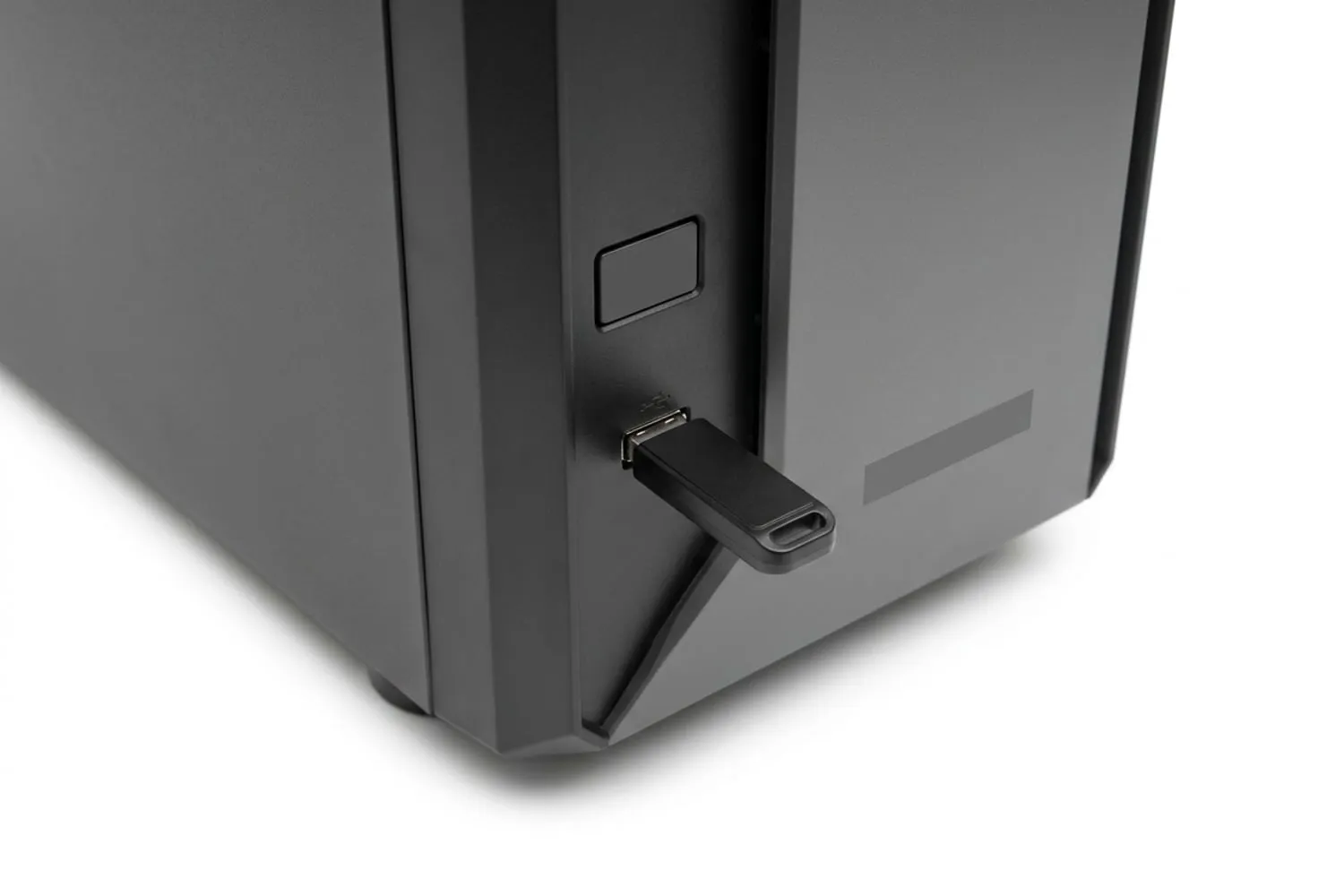
On another computer, download Microsoft’s Media Creation Tool from the Windows 11 download page. Microsoft asks for a USB flash drive with at least 8GB of space, and everything on it is deleted, so use a spare one. Microsoft also says you need a licence to install Windows 11, though the installer lets you skip the product key and enter it later, so a key that hasn’t arrived yet doesn’t have to stop the build. Our Build Sheet totals leave the licence out; the prebuilt vs custom comparison counts what it adds to the cost of building.
Install Windows on the right drive
Boot from the USB drive and follow the installer. When it asks where to install, look at the sizes: if you fitted more than one drive, pick the fast M.2 drive you meant for Windows, not the big storage drive. If you are not sure which is which, switch off and unplug the second drive for the install. Delete any partitions on the new drive and let Windows create its own. When setup finishes, go back into the BIOS and put the Windows drive first in the boot order, or take out the USB drive, so the installer does not start again.
Drivers, in the right order
Windows installs enough drivers to run, not always the best ones. Before you install a game, work through this list:
- Windows Update. Run it until it says you are up to date. It often brings network and chipset drivers of its own.
- The chipset driver from the support page for your exact motherboard model, or from AMD or Intel directly.
- The graphics driver from the card’s maker: AMD’s driver page for Radeon, Intel’s Arc driver page for Arc, and NVIDIA’s driver page for GeForce, where you pick the Game Ready driver if you are offered a choice.
- Anything still missing, such as Wi-Fi, Bluetooth or audio, from the motherboard support page. Device Manager shows a yellow mark next to anything without a driver.
- The board maker’s utility, only if you want it for fan curves or lighting. You can skip it and set the fans in the BIOS instead.
Leave the BIOS update for later. It is worth doing for a reason, not as a habit: if everything works, note the version you have and move on.
Check the PC before you play
Open Task Manager and confirm the memory speed now shows the profile’s speed, not the default. Run a demanding game you know, or a free benchmark, for twenty minutes with a temperature monitor open (LibreHardwareMonitor, free on our Toolkit, does the job), and watch that the processor and graphics card settle rather than keep climbing. If a temperature runs away, the cooler mounting and the thermal paste are the first suspects, and a tube of paste is cheap next to a processor. If the PC freezes or restarts with the memory profile on, run a memory test such as MemTest86, also on the Toolkit, before you suspect anything else. Once the temperatures look sensible and the PC stays up, screw the side panel on.
From here the PC is yours to tune. More builds at fixed Canadian budgets are in PC Builds, and if the memory profile will not hold or a part looks slower than it should, our Components section goes through each part on its own, from memory speed to coolers.
Questions
Why does my new PC show a black screen for a minute on first boot?
A new board with new memory often spends a while testing and training the memory the first time it powers on, and DDR5 systems are known for it. Give it a few minutes before you start unplugging things. If the board has debug lights, the one that stays lit tells you which part it is waiting on.
Do I need to update the BIOS on a new motherboard?
Only if there is a reason: the processor is newer than the board, the maker lists a fix for a problem you have, or the memory profile will not hold. If the PC boots and runs, a BIOS update can wait. When you do update, use the method in the motherboard manual and do not switch the PC off partway.
Is the memory profile safe to turn on?
XMP and EXPO are speed profiles the memory maker has set for that kit, and turning one on is how you get the speed printed on the box. Intel and AMD both call it overclocking, and AMD warns that running memory outside its published specifications can void its processor warranty; the DDR4-3200 kit on our Build Sheets runs at 3200, a speed AMD lists for the Ryzen 5 5600 with two sticks. If the PC will not stay stable with the profile on, set it back to default and check the motherboard’s memory support list.
Do I need a Windows licence to finish the build?
Not to finish it, but you need one to use Windows 11 on Microsoft’s terms. Windows 11 Home is $189 at the Microsoft Store in Canada (before tax, October 2026), and none of our Build Sheet totals include it. The installer lets you skip the product key and activate later; until you do, Windows shows a watermark and locks some personalisation settings.
Sources
Free · The Build Sheet
The Build Sheet: three gaming PCs priced at Canadian stores