How to Build a Tablet PC: Parts, Routes, and Costs
How to build a tablet PC: compare build routes, choose the parts, convert a laptop, and weigh Canadian-dollar costs against what your DIY device can run.

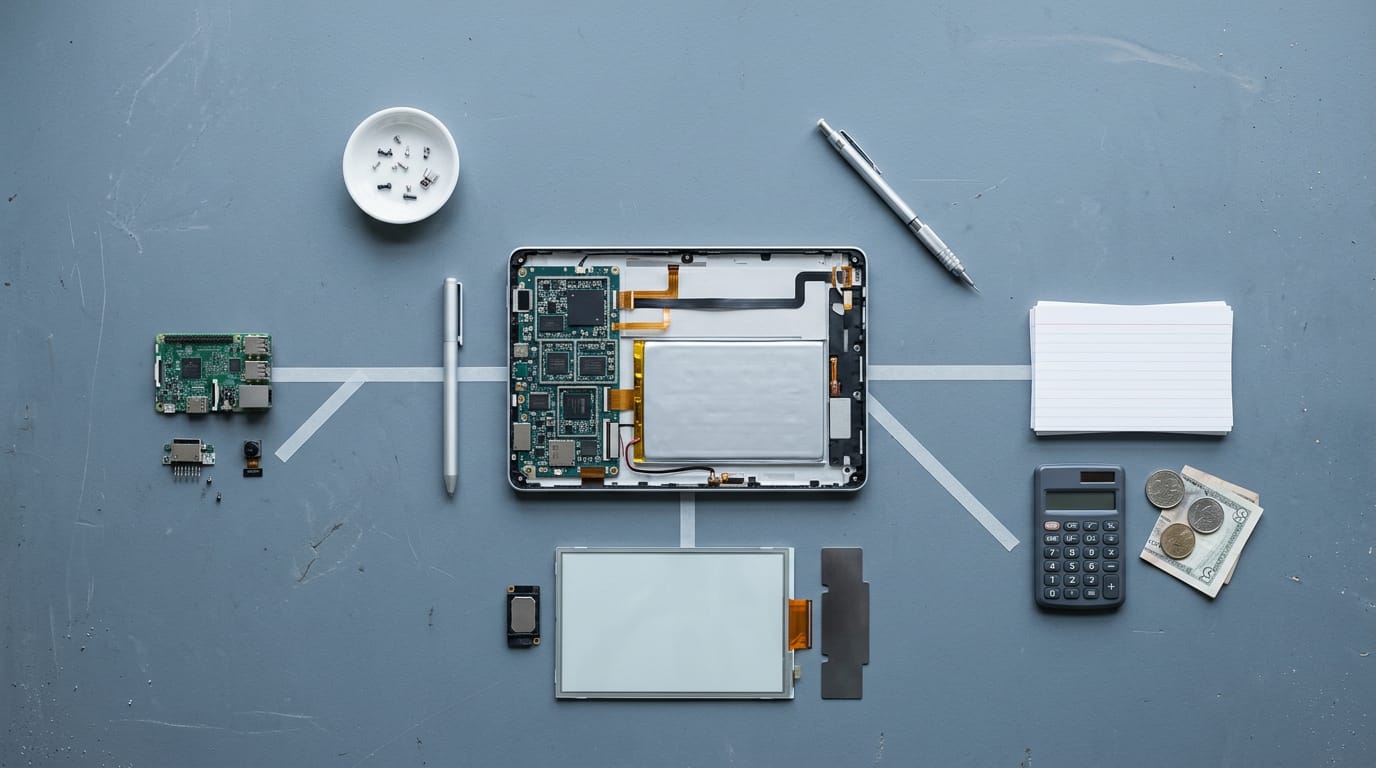
A tablet PC is a full computer in a flat, touch-screen form, and building one means choosing its computing hardware, operating system, display, battery, and case. You can start with a small computer board, repurpose a laptop, modify an Android tablet, or pair a pen display with a laptop, but each route requires careful compatibility, power, cooling, and budget planning. DIY is usually more practical for customization, repair, notes, browsing, drawing, and light games than for saving money or replacing a powerful computer.
Picture a tablet that handles your work, notes, and a few games, yet slips onto the couch or into your bag. That’s the appeal of a tablet PC: a full computer packed into a flat, touch-screen body.
Building one yourself takes more planning than buying off the shelf, but you get to choose every part. Here’s what we’ll cover: the build routes, the parts you’ll need, how to convert an existing laptop, and whether the effort is worth it.
We’ll also look at Canadian-dollar budgets and a realistic check on what a DIY tablet can and can’t run.
Building a Tablet PC and Its Cost
Building your own tablet is possible, but it’s rarely the cheap route. Here’s whether it’s worth your time.
Building versus buying a ready-made tablet
Pre-made tablets are cheaper than a do-it-yourself (DIY) build. A build guide from ElectronNexus puts it bluntly: DIY “only wins on customization control and long-term repairability,” not on cost.
Expect substantial work, and matching a factory tablet’s quality can be hard. Building from scratch isn’t one tricky step. It’s many small steps, done in order.
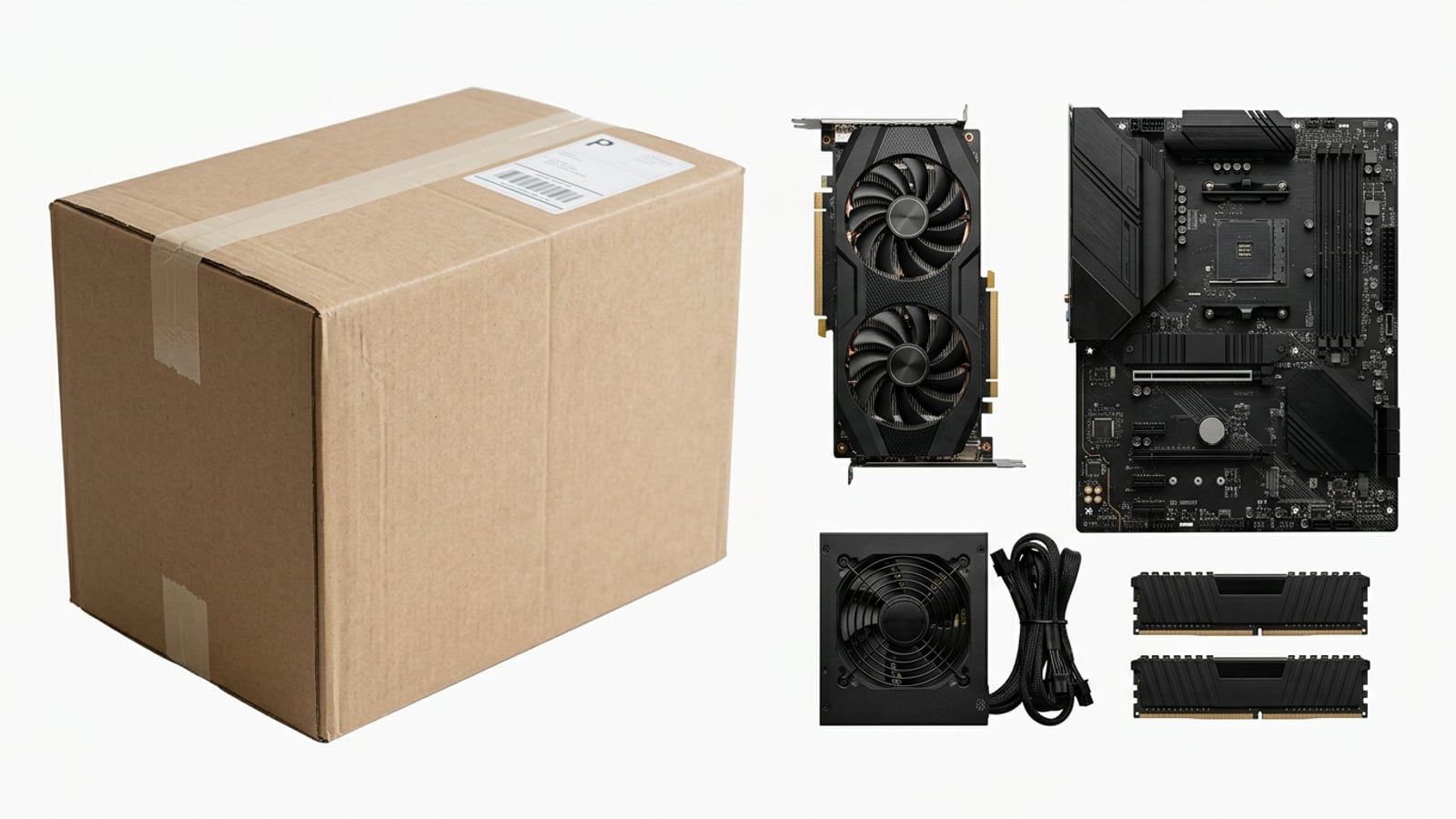
The total depends on your parts, so there’s no single number to quote. Build your list, then price each part in Canadian dollars (CAD) at the Canadian stores you trust:
- Start with a full parts list. Every swap changes the total.
- Compare each part across stores. Check every price is in CAD.
- Add shipping and taxes. They can change which store is the real bargain.
Whether a homemade tablet is practical
For most people, a homemade tablet is doable but impractical. Can a tablet be used like a computer? It can do computer work, but only as far as the hardware inside allows, so don’t count on it replacing a full computer.
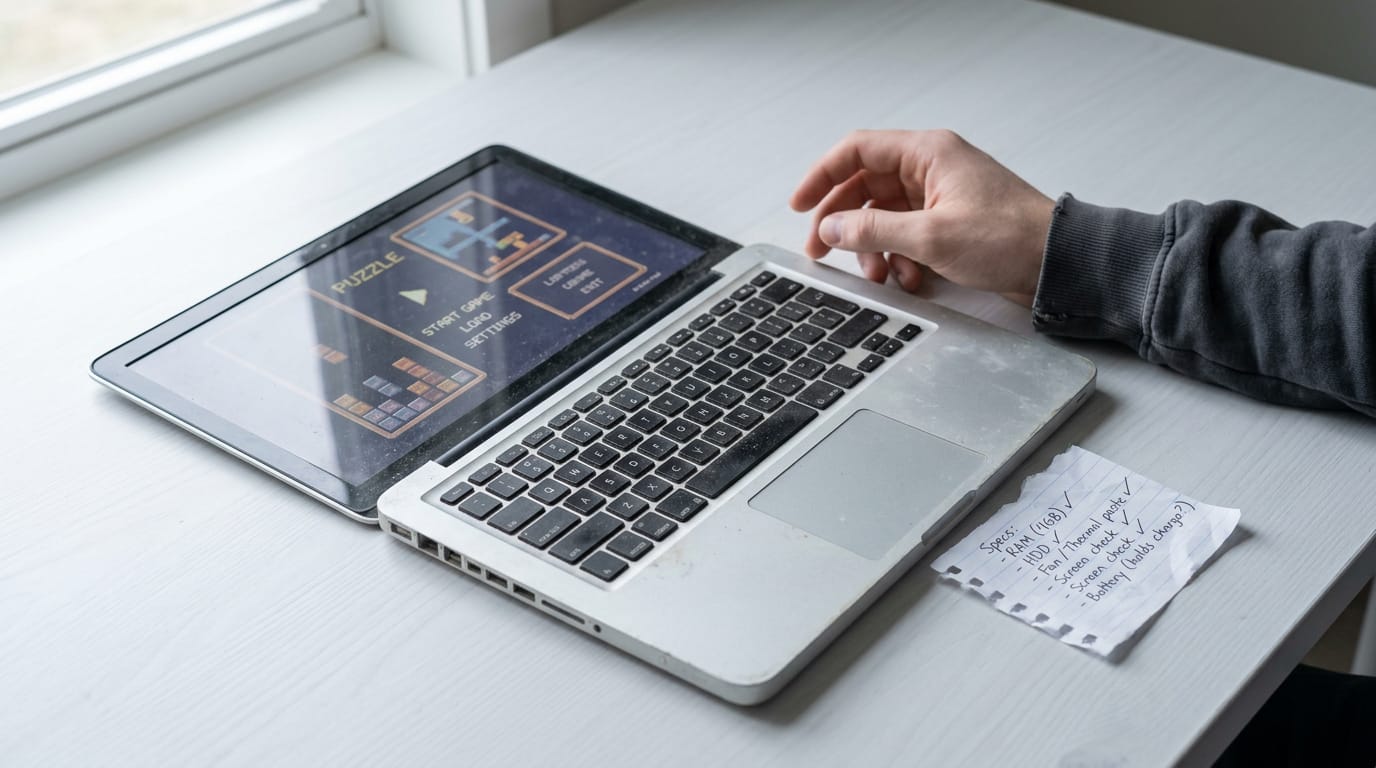
Repurposing an old laptop gives the biggest result, since much of the hardware is already in place. Consider a gamer with an old laptop gathering dust who wants a tablet for light games: they can test a few titles before spending on anything new.
Gaming reality check. Compare each game’s minimum requirements against your tablet’s specs before you buy. A homemade tablet suits lighter games, and the newest demanding titles may be out of reach.
Different Ways to Build a Tablet
There’s more than one road to a homemade tablet, each asking something different of your time.
Match the route to what you want the device to do, or look at a mini PC (a small, complete computer) or x86 tablet board (x86 is the processor design most Windows PCs use).
Building around a Raspberry Pi board
- Raspberry Pi or similar board: a small single-board computer (a whole computer on one circuit board) that runs your operating system and apps.
- Battery power: a rechargeable pack, so the board runs without a wall outlet.
- Touch screen: a display that plugs in and responds to your finger.
Expect wiring and case work. It’s a fun project, not a shortcut. It won’t run demanding games, so know that going in.
Using an old laptop as your base
- Old laptop as base: the existing hardware does most of the work.
- Meets OS minimum requirements: your operating system (OS, the software that runs the machine) needs a minimum spec, so confirm the laptop clears it.
- Convert screen to touch: if the screen isn’t touch-enabled, you’ll add a touch layer (the part that reads your finger), which takes patience.
Consider a gamer whose old laptop is gathering dust. If it clears the minimum, a touch conversion turns it into a sketching device without buying anything new.
Running a different OS on your tablet
- Buy Android tablet: start with a tablet running Android, a mobile operating system.
- Run Ubuntu on it: install Ubuntu, an alternative operating system, in place of the stock software.
- Search for tutorials: find guides written for your exact model, since results depend on the hardware.
This is less about buying a tablet and more about reworking one. Big games are a rough fit here. Back up your files first.
Pairing a pen display with a laptop
- Wacom plus laptop builds: pair a Wacom pen display (a screen you draw on with a stylus) with a laptop you already own.
- DIY (do-it-yourself) Cintiq-style projects: homemade builds that aim for the drawing feel of Wacom’s Cintiq line, with more tinkering and fewer guarantees.
It’s a close cousin of a tablet. The laptop does the computing while the screen adds drawing power, not gaming power.
What Parts Does a Tablet PC Need?
A tablet PC is a full computer packed into a thin, touch-first frame, so every part has to earn its space. Here’s the shopping list we’d start with.
The must-have parts for your build
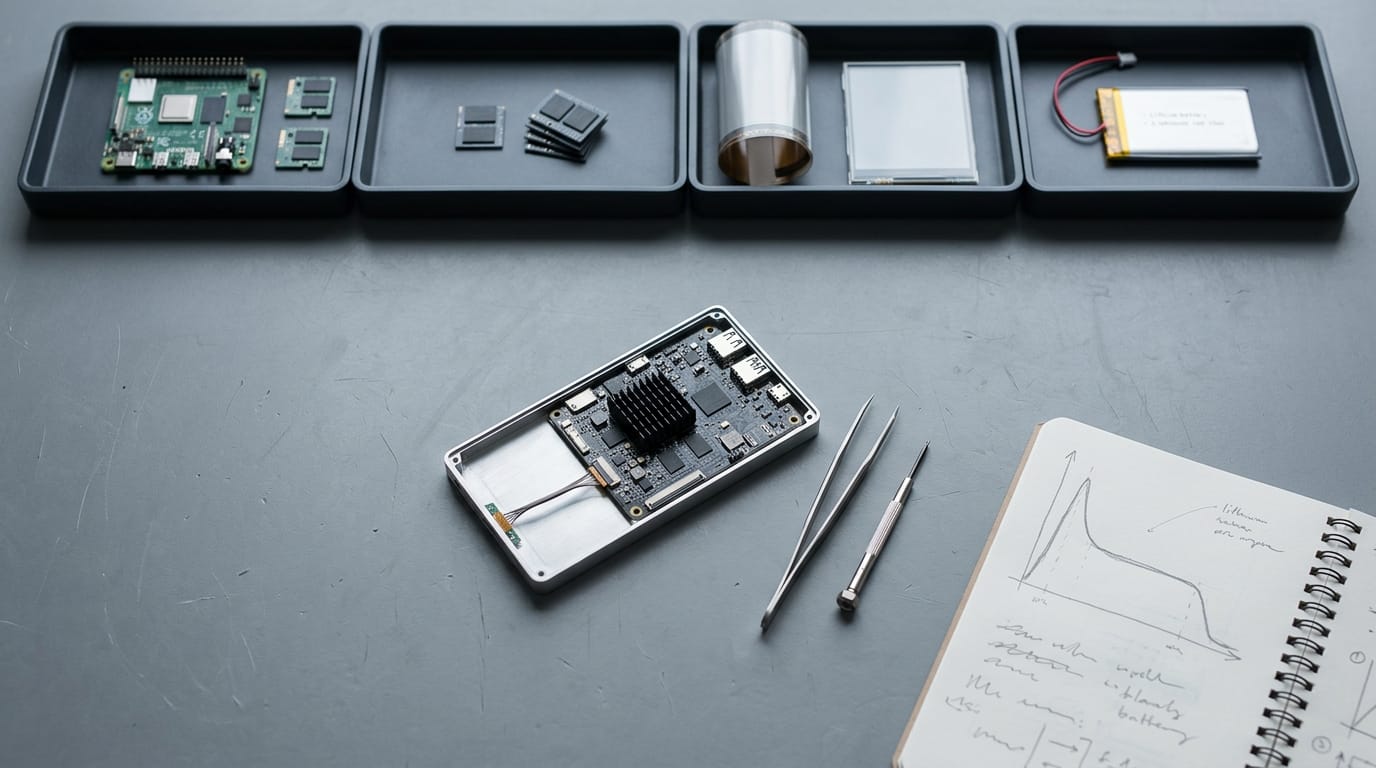
So what parts do you need for a PC? Four core pieces cover it:
- Computing hardware. The board, processor, memory, and storage that do the actual work.
- Operating system. Android, Ubuntu, or Windows 8 decides which apps and drivers you can run, so choose it before you buy anything else.
- Touch screen or conversion kit. Either a panel with touch built in or a kit that adds touch to a display you already own.
- Battery power. The battery sets how long you can work unplugged, so size it to the rest of the build.
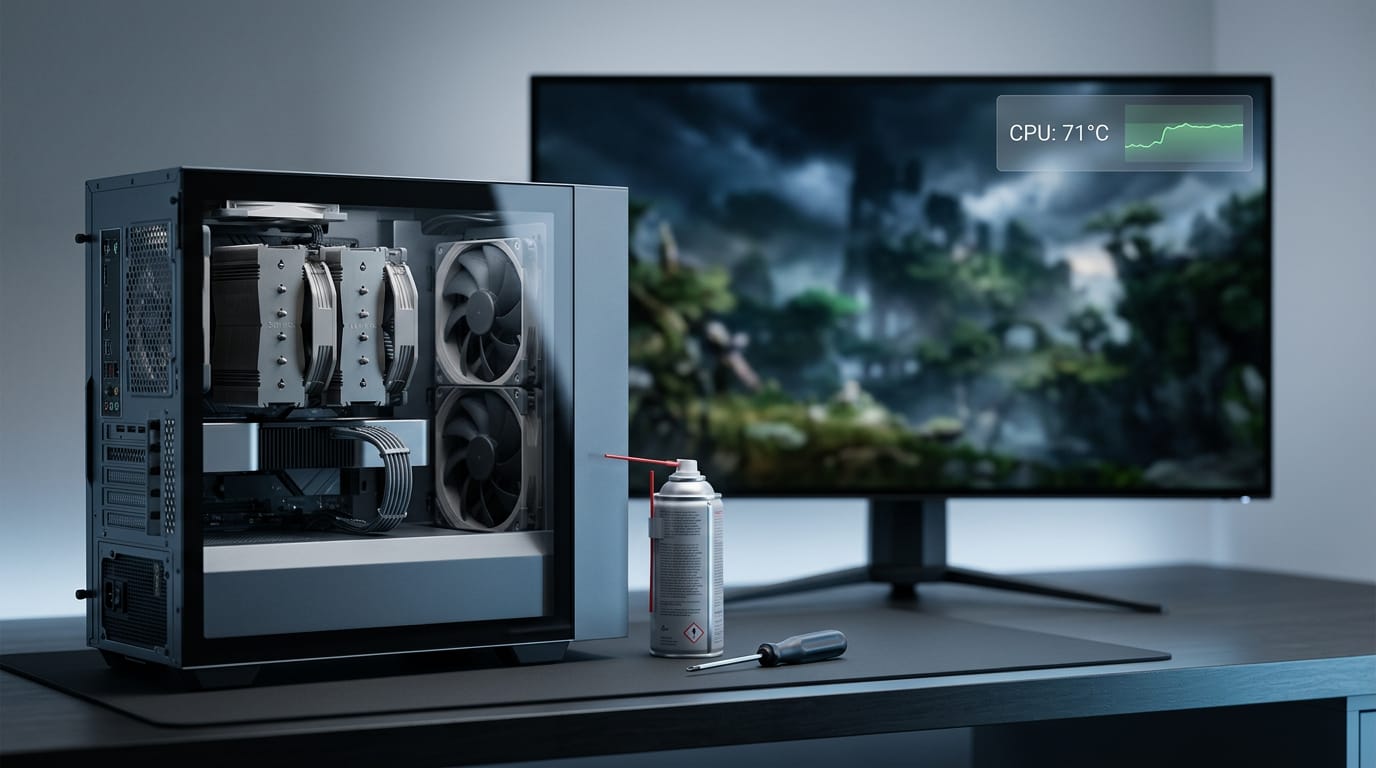
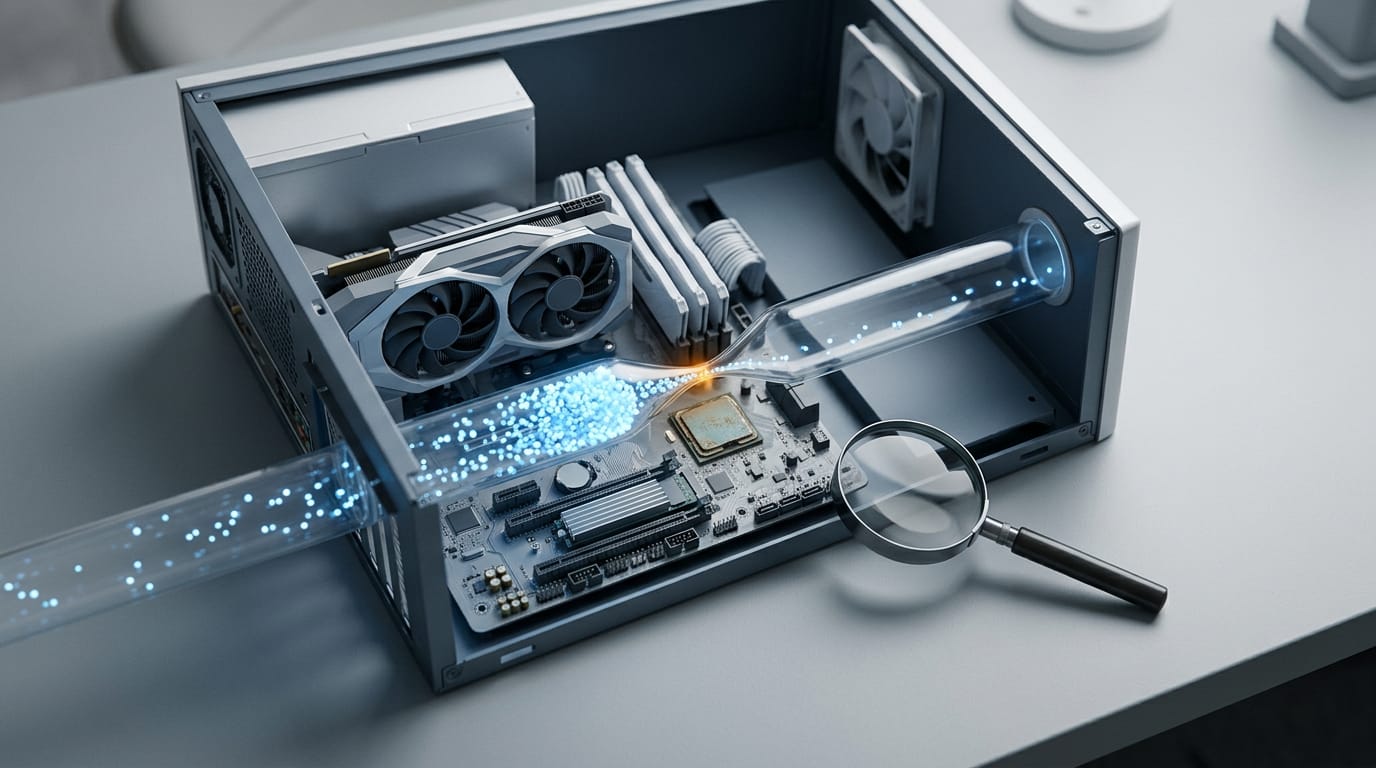
Power and cooling are the limits you’ll hit first. A thin case leaves little room for airflow, so the processor can slow itself down under long loads to stay safe. That’s thermal throttling, and it’s why you should plan for sustained load, not peak speed.
Finding hard-to-find parts and connections
Some parts are harder to track down than others, since a board or panel is often tied to one exact model. Search by model number rather than product name. Then confirm the fit before you pay.
Connections matter just as much as the parts. Your display, board, and battery have to link through the right ribbon cables and connectors. Think of a gamer who buys a panel that fits the frame, only to find its cable won’t reach the board.
Checking connectors first saves a return and another long wait.
Converting a Laptop into a Tablet
This route is hands-on, and it rewards patience. Keep every screw and clip sorted as you go, because you’ll need all of them back.
Take it apart and prep the screen
Work through these steps in order:
- Remove the screen casing. This is the frame that holds the display in place.
- Unscrew carefully. This is a job for careful hands, not quick ones. Stripped screws and snapped clips are easy to avoid if you go slowly.
- Flip the screen onto the keyboard. Once the display is loose, this leaves the back side ready to work on.
Reassembling and finishing the casing
Start by adding spacers between the display and the internal parts. They create small gaps that aid heat sinking, which simply means letting warmth move away from the hardware instead of building up.
Next, install the touch screen, so your fingers can do the work a mouse used to do. Then hot-glue wood strips along the casing edges. Finally, paint the casing and let it dry fully before you handle it. Patience wins again.
What your finished tablet is good for
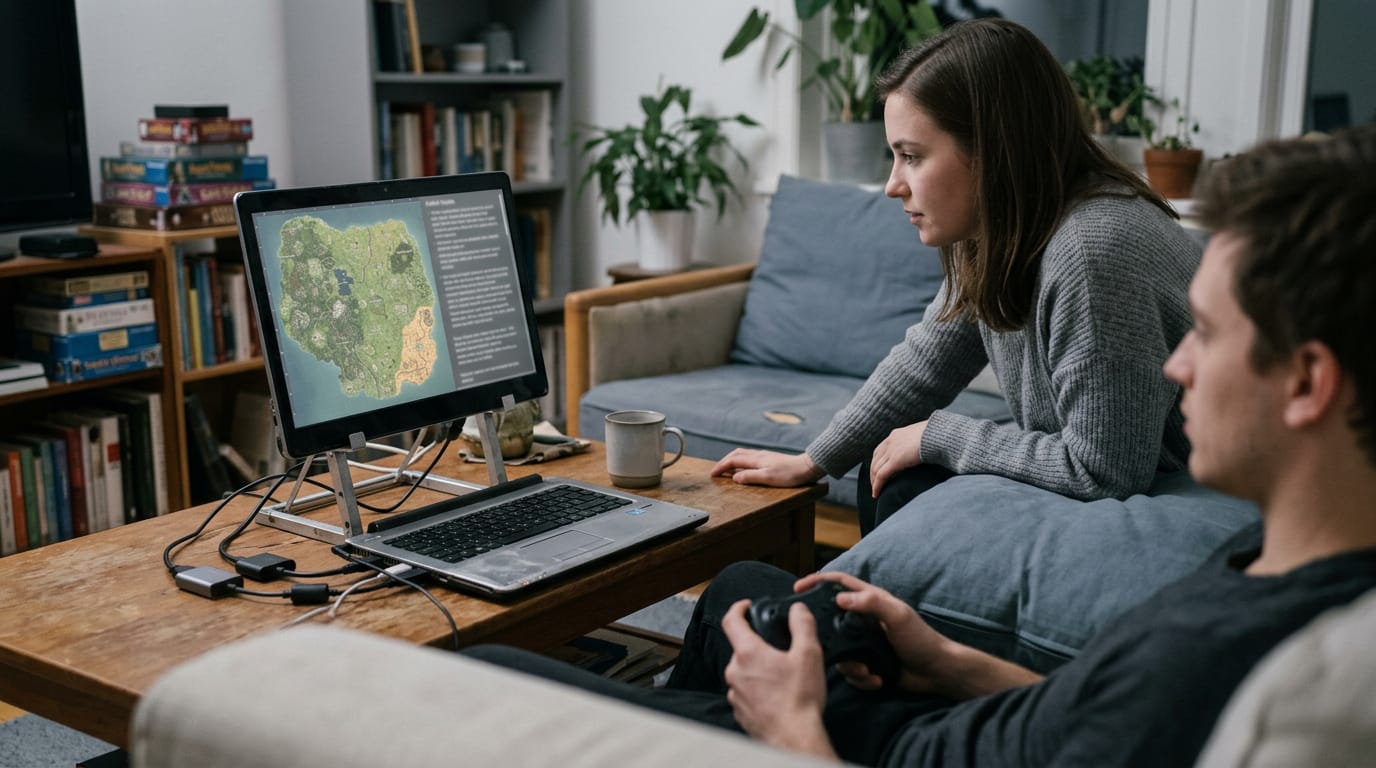
Be realistic about the result. Consider a gamer with an old laptop in the closet who turns it into a big screen for reading patch notes and checking maps while a friend takes the controller on the couch. The win here is size, not speed:
- Large but functional. It’s great for reading, browsing, and watching video, but don’t expect it to run new games just because the screen is big.
- A platform for app development. If you’re learning to code, it gives you real touch hardware to test your own apps on.
Where to Get Help from Other Builders
Nobody has to figure out a tablet PC conversion alone. Other builders have already hit the tricky steps, so you can learn from their missteps before you open a single case.
Learn from forums and build logs
Pick up the most useful help in three places:
- DIY-focused forums. These are communities built around do-it-yourself (DIY) projects, so the members there talk about fitting hardware into unusual cases, not just reviewing finished machines. Search for your exact laptop or tablet model first, then read the threads that actually got answered.
- Build logs for Wacom-laptop combos. A build log is a step-by-step diary of a project, including the parts that failed. Think of a student with a spare laptop and a Wacom pen tablet who wants one device for notes and sketches. Reading a log from someone who’s already paired that combo can save an afternoon of guessing where the cable goes.
- Online tutorials. Video and written guides walk through conversion steps in order, which makes them handy for checking your plan. Compare two or three before you trust one, because a guide written for a different model may skip the step your hardware needs.
Read for why each step works, not just which screw the author removed. You want a plan you understand, so a surprise halfway through doesn’t stop the whole project. Their mistakes are your free lessons.
A DIY tablet rewards planning. Choose the build route that fits your skills, pick parts for the jobs you actually need, and set a Canadian-dollar budget before you shop.
Be honest about the trade-offs: a slim body leaves less room for cooling and upgrades, so lighter games are the realistic target for most builds.
If your main needs are notes, sketching, and casual play, you can end up with something genuinely useful without overspending. A tablet that fits your budget and handles your real jobs beats a flashy one that doesn’t.
References
- ‘Build Your Own Tablet PC Realistic DIY’ — Why 92%… — electronnexus.com (2026)
Questions
What are the essential components of a PC?
The essential components of a PC are a processor (CPU), motherboard, memory (RAM), storage, power supply, and a case. You also need a graphics card if the processor does not have suitable integrated graphics, plus a monitor, keyboard, and mouse to use it.
How much does it cost to build a custom PC?
A custom PC can cost anywhere from a few hundred to several thousand Canadian dollars, depending on its parts and purpose. For a useful estimate, price each component in CAD and include shipping and taxes; building a tablet PC is often less cost-effective than buying one ready-made.
How much does it cost to build a computer?
The cost of building a computer depends on what you need it to do and which parts you choose. Add up the prices of the core components, any peripherals, shipping, and taxes to get a realistic total in your local currency.
How long will a $1000 gaming PC last?
A $1,000 gaming PC may remain useful for several years, but its lifespan depends on the games you play and the performance you expect. Less demanding games can stay playable longer, while newer, demanding games may require lower settings or upgrades sooner.
Can a tablet be used like a computer?
Yes. A tablet can handle tasks such as browsing, email, notes, video, and some work apps, depending on its hardware and software. It may not replace a full computer for demanding software, extensive multitasking, or games that require more powerful hardware.
Is it hard to build a PC from scratch?
Building a PC from scratch is manageable if you follow a compatible parts list and work carefully, but it takes planning and patience. A thin tablet build is more challenging because space, cooling, battery power, and component connections are harder to manage.
What parts do I need for a PC?
A basic PC needs a motherboard, processor, RAM, storage, power supply, and case. You may also need a graphics card, operating system, monitor, keyboard, and mouse; the exact parts depend on what you plan to use the computer for.
Is it recommended to build your own PC?
Building your own PC is a good choice if you want control over the parts, enjoy hands-on projects, or value easier repairs and upgrades. It is not always cheaper or simpler than buying a prebuilt computer, and a DIY tablet can require especially substantial work.
Sources
- ‘Build Your Own Tablet PC Realistic DIY’ — Why 92%… | ElectronNexus, electronnexus.com,
Free · The Build Sheet
The Build Sheet: three gaming PCs priced at Canadian stores