Dead Pixel on a 4K TV: What It Is and How to Check
A dead pixel on a 4K TV can look like a stuck pixel; test for lookalikes and check brand return and warranty rules before the window closes.

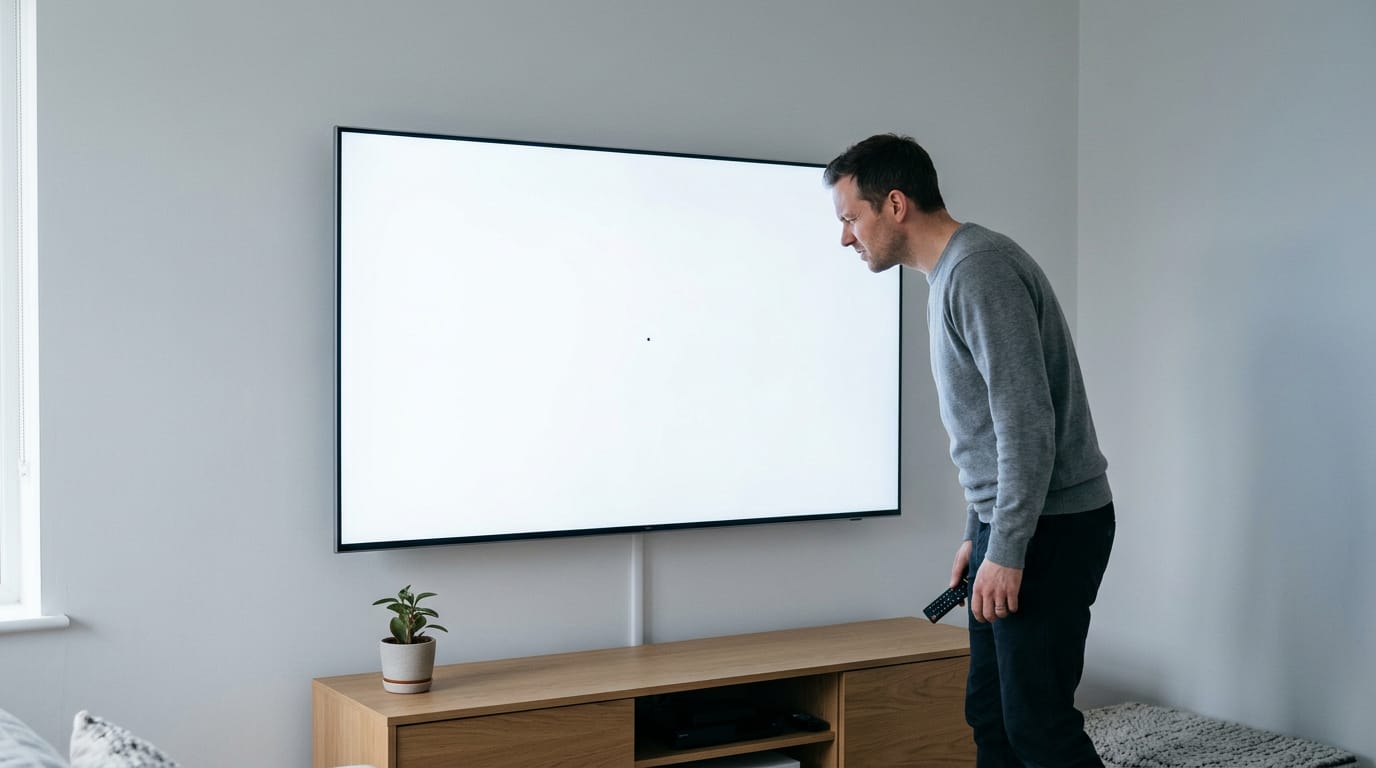
A dead pixel on a 4K TV is a tiny screen dot that stays black because it no longer lights up; stuck pixels remain one color, while hot pixels stay bright. Test the screen with full-screen red, green, blue, white, and black images, and check whether the spot persists across inputs. Dead pixels usually cannot be fixed at home, and replacement depends on the brand’s warranty, so document the fault and check return terms early.
Just unboxed a new 4K TV and spotted a tiny black dot in the middle of a bright scene? You’re not imagining it. That’s a dead pixel, a spot that has stopped lighting up.
Stuck pixels look similar, so it helps to know the difference before you call for a return.
This guide covers what causes them, how to test your screen, what counts as acceptable, and how warranty and return rules vary by brand. If you’re using a TV as a gaming display, we’ll also share Canadian-dollar buying and return tips.
Dead Pixels on 4K TVs and Lookalikes
Several faults look alike at a glance, but they don’t behave the same way.
Telling dead, stuck, and hot pixels apart
A dead pixel stays black no matter what’s on screen. A stuck pixel shows one fixed color, and a hot pixel stays bright white.
Say you’re a PS5 player who spots a dot during a dark cutscene on your new 4K TV. Cycle through solid white, red, green, and blue screens.
A dot that stays black on every one is likely dead, while one that won’t change color is stuck, so you know exactly what you’re reporting.
A failed transistor, the small switch that feeds each pixel its signal, leaves that dot with no signal at all.
Each pixel is built from red, green, and blue subpixels. When only one fails, you get a tinted speck instead of a fully black dot, while a full pixel fault takes out the whole thing.
Does OLED (organic light-emitting diode) have pixels? Yes, and the same dead, stuck, and hot checks apply.
Why one bad dot hides among millions
A 4K panel has about 8.3 million pixels, so one dead dot is a tiny fraction of the picture. Its pixels are also smaller than 1080p ones, which makes a single defect harder to spot.
Clusters are easier to catch, though, because a few bad dots side by side stand out.
A fast, detailed game can mask a lone bad dot, so check on plain screens instead of trusting the action. Busy pictures hide defects.
What owners report and what’s normal
Owners of some Sony 4K sets report dark subpixel splotches, and others describe repeated exchanges that bring back the same issues.
Much of the confusion comes from not knowing what’s normal, so write down exactly what you see before you ask for an exchange.
Where Dead Pixels Come From
Knowing what causes a dead pixel helps you tell whether the fault is the TV’s or yours. Dead pixels usually trace back to the factory or to what happened afterward.
Faults that start at the factory
Each pixel is driven by a transistor, a tiny electronic switch that tells it when to light up. Two factory faults can leave a pixel dead before the TV reaches you:
- Defective pixels leave the factory. Some panels ship with a pixel that never worked. It won’t fix itself.
- Failed transistor. When that transistor stops switching, the pixel can’t get its signal and stays dark.
Either way, the fault started at the factory, not with something you caused.
Pressure, power surges, heat, and wear
Dead pixels can also appear after setup. Here’s what to watch for:
- Pressure or impacts on the screen. Pushing the glass, bumping it while mounting, or a falling object can damage the panel.
- Power surges. A spike from a storm or a faulty outlet can stress the electronics driving the pixels. A surge protector helps guard against it.
- Heat exposure. A TV in direct sunlight or crammed into a tight cabinet runs hot, and heat is hard on electronics.
- Extended use and wear. Like any electronic part, a panel wears down over long hours. Years of nonstop play take their toll.
Think of a gamer who mounts a new 65-inch 4K TV above the fireplace, then spots a black dot a month later. Before calling the store, they work out whether it was there the day they unboxed the TV, so they can describe the timeline clearly.
Checking Your TV for Dead Pixels
That tiny dot on your new 4K TV might be a dead pixel, or it might be dust or a cable issue. Run this check before you call the store.
Cycle through solid colors, not just one
Show each solid color full screen, one at a time:
- Red
- Green
- Blue
- White
- Black fill
Each pixel is made of smaller subpixels, and checking just one color can hide a fault. A problem in one subpixel may only show up when a different color is on screen.
Running the test on your TV
- Smart TV browser test. Open your smart TV’s built-in browser and load a solid-color test page.
- USB drive color images. Load the color images from a USB (Universal Serial Bus) drive and open them on the TV.
- Full-screen mode. Let each image fill the screen, so a border can’t hide a spot near the edge.
- Test with console connected. Repeat the cycle with your console hooked up, since that’s how you’ll game.
How to inspect the screen by eye
Check in this order:
- Stand at arm’s length. Scan the panel up close.
- Scan in rows. Sweep across the screen row by row, from top to bottom.
- Check at normal viewing distance. Sit where you usually game and look again.
- Use game dark scenes. Load a dark scene in your game, since a stuck bright dot stands out most against black.
Check false alarms like dust and cables
Not every spot is a panel fault.
- Wipe dust with microfiber. Gently wipe the screen with a dry microfiber cloth. Dust can look just like a dead pixel.
- Try a different source or input. Move the cable to another port or swap the source device.
- Cable vs panel fault. If the spot moves with the cable, suspect the cable. If it stays put on every input, the panel is the likely culprit.
Think of a gamer who hooks a new 4K TV up to their PlayStation 5 and spots a bright dot during a night level. They wipe the screen, then move the cable to another port. If the dot vanishes, the cable was the problem, and that’s a return trip saved.
If it stays put on every port, it’s time to check your warranty.
Rule out the cheap stuff first.

Fixing and Avoiding Pixel Problems
A spot that won’t change can take the shine off a new TV, but not every problem has the same fix. Let’s sort out which is which.
Home fixes for stuck pixels
A stuck pixel is locked on one color, and it’s the only kind home methods have a real shot at. A color cycling tool flashes the screen through solid colors to shake it loose. Pixel fixer software runs rapid patterns over the bad spot.
Some people also try gentle pressure with a cloth, but skip that on OLED screens.
Keep time limits on cycling: short sessions, checked between runs, beat letting a tool loop for hours.
Software can help a stuck pixel, but it can’t bring back a dead one. Think of a player who spots a red dot mid-match. They run a short cycle, and if the dot changes, they’ve skipped a trip to the service desk.
Caring for an OLED screen safely
If you own an OLED (organic light-emitting diode) TV, the rules change. OLED panels can develop burn-in, a faint ghost of a static image that lingers on screen.
LG Pixel Cleaning and Samsung Pixel Refresh are built-in routines aimed at burn-in, not dead pixels, so run them as upkeep rather than a repair.
Never press an OLED panel, so the cloth trick is off the table.
Does replacing a screen fix dead pixels?
Yes, a new panel clears out the bad pixels, but it’s a warranty repair, not a DIY job. Software and pressure can’t revive a dead pixel, so head straight to your warranty claim instead of trying fixes that won’t work.

Everyday habits that protect your TV
A few simple habits keep your TV in good shape and mean fewer problems to chase:
- Avoid pressing the screen. Hands, pets, and remote bumps add up.
- Use a surge protector. It guards the TV against power spikes from the outlet.
- Ensure ventilation and avoid heat. Leave room around the TV and keep it away from heaters and direct sun.
- Turn it off when idle. A screen left on a static image invites burn-in on OLED.
- Buy reputable brands. Established makers with clear warranty terms are the ones you’ll be glad to deal with later.
Good habits cost nothing.
Warranty and Return Policies by Brand
Dead pixel rules vary by brand, and the fine print decides whether your TV gets replaced. Here’s what each brand says, how to test in time, and what to do when more than one dot shows up.
How many dead pixels are acceptable?
A dead pixel is a dot that stays off no matter what’s on screen. The short answer: it depends on the brand, and the gap between them is wide.
The ISO 9241-307 standard, from the International Organization for Standardization (ISO), sorts displays into classes by pixel-defect criteria, as a Frontiers paper on visual performance standards notes.
- TCL allows 2 defective pixels per million, scaled to the panel’s native resolution, as its pixel policy explains.
- LG replaces a TV after five dead pixels.
- Sony publishes no count at all.
- Vizio runs a zero-bright-pixel guarantee. A bright pixel that stays on triggers replacement, but a dead one that stays off doesn’t, according to LegalClarity’s warranty guide.
Zone matters too. A study on pixel-defect inspection standards describes tighter tolerances in the central zone and looser ones at the edges.
Test it before the return window closes
Testing is the step most people skip. Run solid colours (white, black, red, green, and blue) in a dim room and look for dots that never change. Test early, not on the last day.
- Test on arrival. Do it before the box hits the recycling bin.
- Ask about a day-one exchange. It’s the cleanest fix if a dot shows up immediately.
- Inspect before purchase. Check floor models under the same colours, including corners and edges.
- Test used TVs before buying. Don’t pay until the screen passes.
- Test before the return window ends. Once it closes, the store’s option is gone.
Store return windows and manufacturer warranties are separate, so read your Canadian retailer’s policy in writing before you open the box.
When several dead pixels qualify for replacement
Several dots can qualify, but it depends on the rule. Think of a player with three dead pixels clustered in the centre. Under a tight central tolerance, that cluster might qualify, while the same three dots near the edge might not.
Check with the manufacturer in writing. Photograph each dot on a solid colour with the serial number in frame, and keep the receipt.
What Sony and Best Buy staff say
Sony says dark dots are normal, so ask what it considers abnormal. Best Buy staff expect perfection, so bring photos and test results instead of relying on the counter’s opinion. Your records do the talking.
Dead pixels are easy to overlook until one shows up mid-game. Test your screen with solid colours and dark scenes, learn how your brand’s warranty works, and keep your receipt handy so a return stays simple.
Using a 4K TV as a gaming display? Compare return terms across stores, weigh the Canadian-dollar cost of a swap, and check the policy before you commit. Catch problems early, and you’ll get the picture you paid for.
References
- Frontiers | Visual performance standards for virtual and augmented reality — frontiersin.org (2025)
- TFT-LCD의 품질검사기준 설정을 위한 픽셀결점 탐지도 평가 — earticle.net (2004)
- What Does a TV Warranty Cover? Burn-In, Dead Pixels, and More — legalclarity.org (2026)
- TCL — Politique relative aux pixels de TCL — support.tcl.com
Questions
How to find dead pixels on TV?
Show full-screen solid red, green, blue, white, and black images, then look for a dot that stays black on every screen. Scan the TV up close and again at your usual viewing distance; wipe away dust and try another input to rule out surface marks or a cable issue.
How many dead pixels are acceptable?
There is no universal acceptable number; it depends on the TV brand, its pixel policy, and sometimes where the defects appear. For example, TCL allows two defective pixels per million, while LG replaces a TV after five dead pixels. Check your manufacturer’s policy for the exact threshold.
Does replacing a screen fix dead pixels?
Yes. Replacing the panel removes the defective pixels, but this is a warranty or service repair, not a do-it-yourself fix. Software cannot restore a dead pixel.
Does OLED have pixels?
Yes. OLED TVs have pixels, and each pixel contains red, green, and blue subpixels. They can develop dead, stuck, or hot pixels, which can be checked using solid-color screens.
Sources
- TCL — Politique relative aux pixels de TCL, support.tcl.com
- What Does a TV Warranty Cover? Burn-In, Dead Pixels, and More - LegalClarity, legalclarity.org,
- Frontiers | Visual performance standards for virtual and augmented reality, frontiersin.org,
- TFT-LCD의 품질검사기준 설정을 위한 픽셀결점 탐지도 평가, earticle.net,
Free · The Build Sheet
The Build Sheet: three gaming PCs priced at Canadian stores