Why Is My PC Screen Green and How to Fix It
Why is my PC screen green? Trace the cause with a step-by-step check, then decide whether a fix or replacement fits your Canadian repair budget.

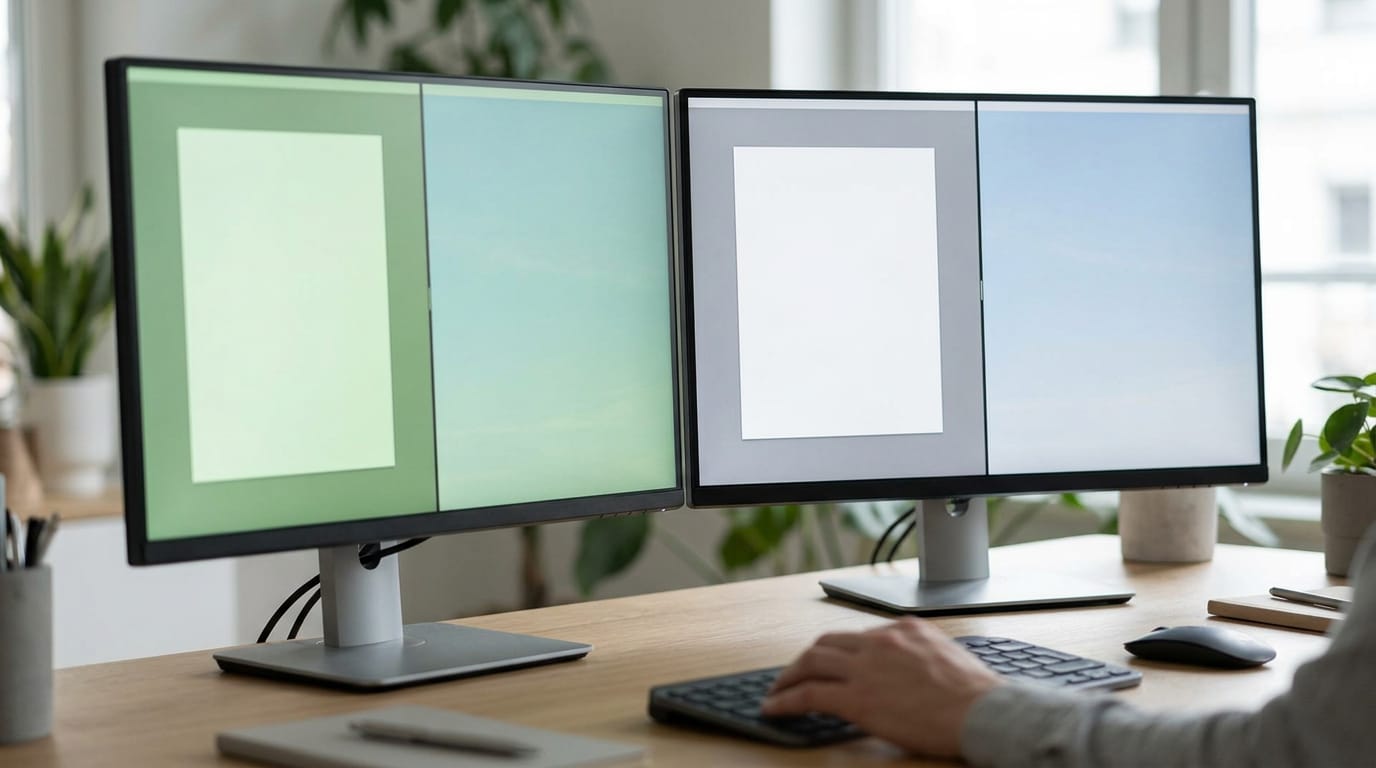
A green PC screen can mean either a Windows crash that freezes the display or a green tint or flashing caused by a problem with the picture signal. Check loose or damaged cables, other monitors and ports, recent hardware changes, overheating, drivers, antivirus software, and sleep settings before assuming the graphics card has failed. If the issue keeps returning after basic checks and clean software reinstalls, the GPU may need repair or replacement, so compare the costs before spending.
Nothing kills a gaming session faster than a green screen. One minute you’re mid-match, and the next the whole display has gone a sickly green. The good news is that it’s usually easier to track down than it looks.
Think of a TV with the colors suddenly off: the picture still arrives, but something is scrambling it. Here, we’ll cover the causes, a step-by-step diagnosis, and whether repair or replacement makes sense on a Canadian budget.
Why Your PC Screen Turns Green
A green screen is alarming the first time it happens. Here’s what it is, what it looks like, and how serious it really is.
The Windows green screen crash
The green screen is a Windows-specific error, and it’s often compared to the Blue Screen of Death (BSOD), the crash screen most people already know. Like the BSOD, it signals a major system failure.
The error is tied to Windows editions, so what you see can vary depending on the version you’re running.
What the green screen looks like
A green screen usually shows up in a few recognizable ways:
- The screen freezes and won’t respond to your mouse or keyboard
- The display turns solid green with a short message
- Open files, videos, and streams get cut off mid-task
It’s frustrating, but it’s less severe than a BSOD.
How serious a green screen really is
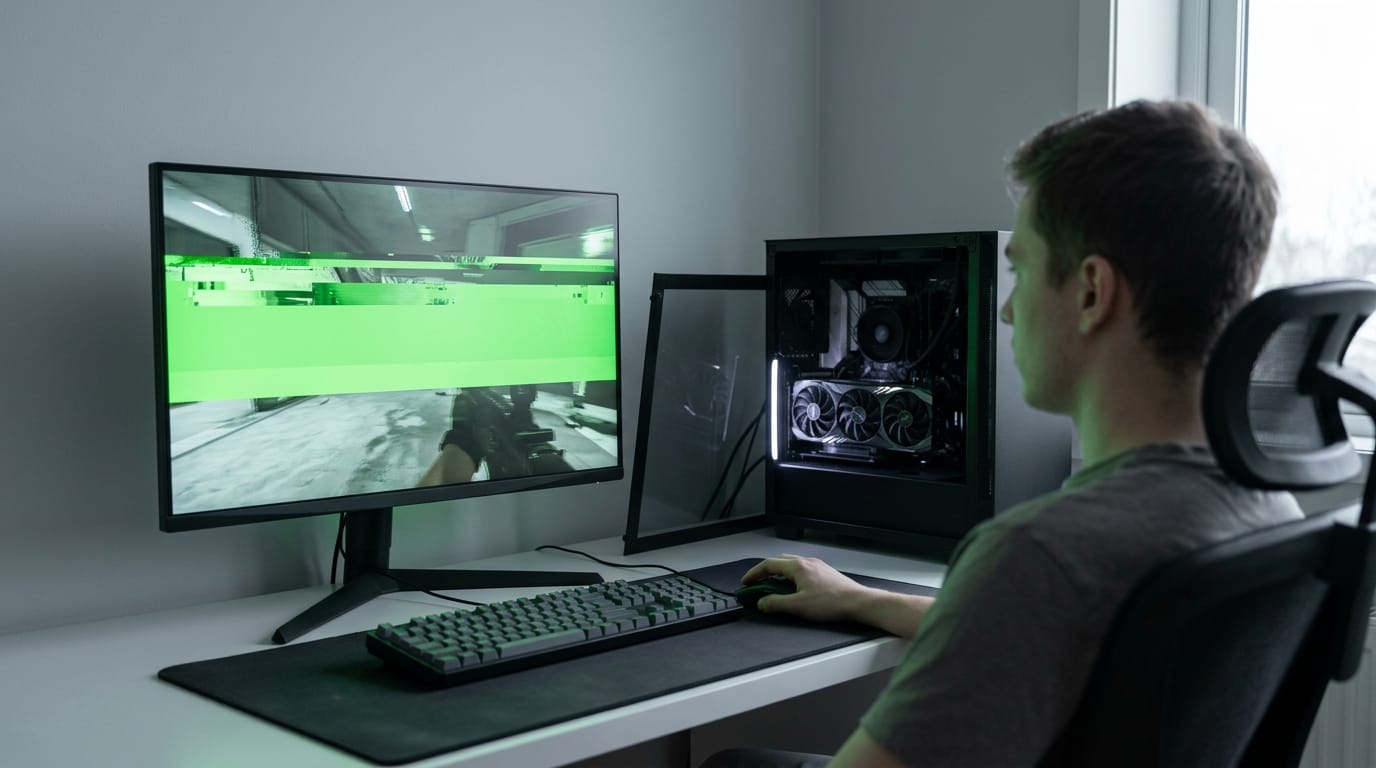
A green screen is often a sign of a failing graphics processing unit (GPU), the part that draws everything on your display. That’s a cause for concern, but the good news is it may not recur.
Picture a gamer in the middle of a ranked match when the screen flashes green and freezes.
The match is gone, but what matters is whether it happens again, since that answer decides whether to wait it out or start shopping for a new card. Treat it as a warning, not a verdict.
What Usually Causes the Green Screen
When your screen turns green, the cause usually sits in hardware, drivers, or the antivirus and sleep settings. Here’s what we’ll check.
When faulty hardware triggers the green screen
A green tint is a color cast over the picture, while a full green screen replaces it entirely. Rule out cheaper causes before blaming your graphics card (GPU):
- Failing or faulty GPU: A dying card is the costliest explanation, so it comes last.
- Loose or faulty display cable: A loose or damaged cable can interrupt the signal to your monitor.
- Recent hardware changes: If the green screen followed a new part, start with that part.
- Hardware failure generally: Any component can fail, so check the rest of the system.
- Overheating or overclock instability: Excess heat, or overclocking (running a part faster than its factory setting), can cause it.
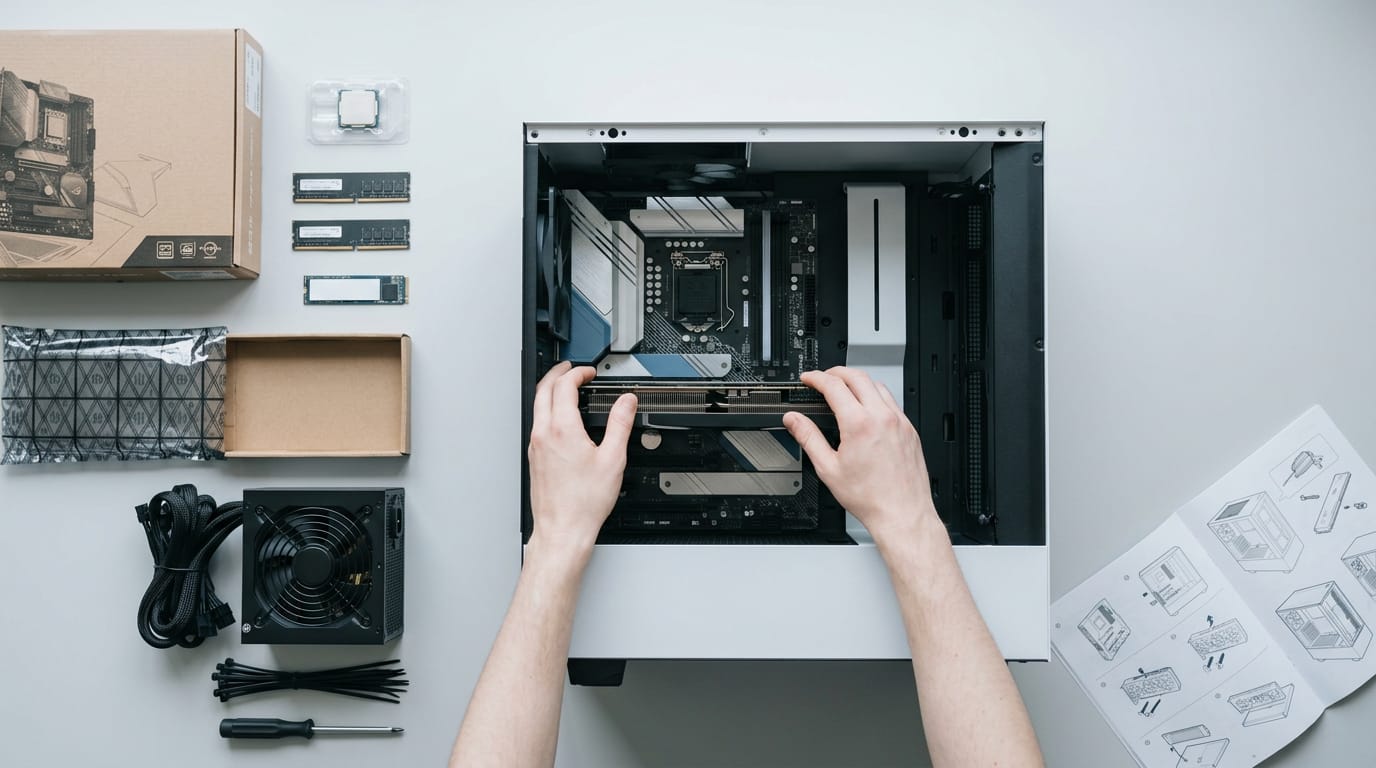
Reseat (unplug and firmly plug back in) the GPU and power cables with the PC off. Think of a gamer who fits a new card and sees green flashes when a match loads. Before booking a return trip, they reseat the card and cables for free.
If the screen stays green, they’ve crossed off the cheapest cause.
Drivers and software that go wrong
Your drivers are the software that lets Windows talk to your graphics card, so a bad one can turn the picture green:
- Outdated or corrupt graphics drivers: Update an old driver, or reinstall one with corrupt files.
- Incompatible drivers: A driver that doesn’t match your card or Windows can cause the same symptom.
- Corrupted files: Damaged Windows system files can trigger it too.
- Virus infection: Run a full scan if nothing else explains the problem.
When antivirus software conflicts
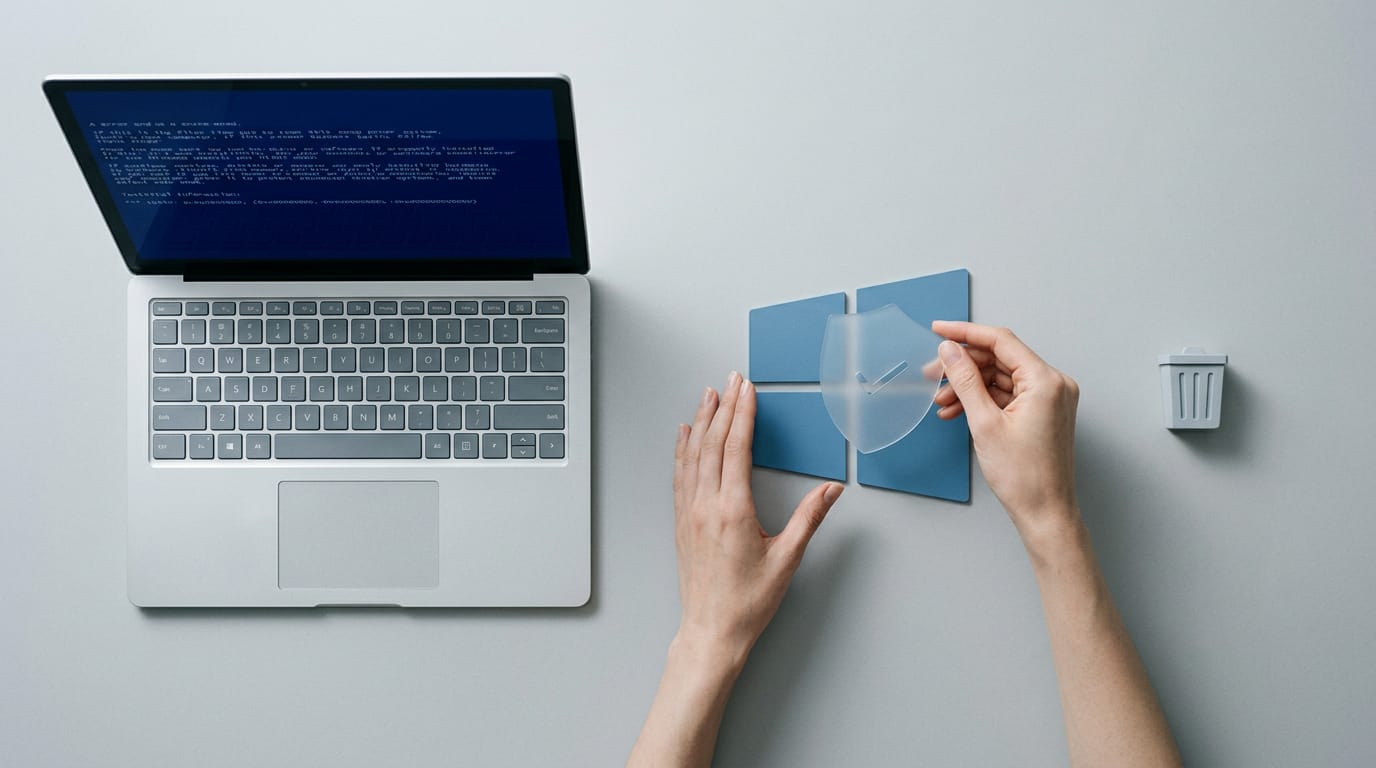
According to Windows Mode’s guide to the DRIVER_IRQL_NOT_LESS_OR_EQUAL error, antivirus programs, virtual private network (VPN) clients, and firewall tools are common triggers, especially after a software update.
- Third-party antivirus conflicts: Security software from a company other than Microsoft can clash with Windows.
- Low-quality free tools: A free tool of unknown quality belongs on the suspect list too.
Uninstall the suspect tool and see what changes.
How sleep mode can trigger it
Sleep mode pauses your PC to save power, and it has been linked to green-screen issues. Until you’ve found the fix, avoid sleep mode and shut down fully rather than sleeping. The slower restart is a small price for ruling it out.
Ways to Fix a Green PC Screen
A green screen usually traces back to a cable, a driver, or the GPU (graphics processing unit). Work through these fixes from cheapest to most involved, and stop once the screen behaves.
Each step should isolate one suspect, so you know which part is really at fault.
Quick checks to try first
- Disconnect external devices. Unplug hubs, extra displays, and docking stations, then check again.
- Check for hardware conflicts. A recently added part can clash with your card and cause tinting.
- Monitor whether it recurs. Note whether the green appears at boot, in games, or after sleep.
- Test with another monitor or port. If a different port or spare monitor runs clean, the original cable or display is the culprit.
Picture a player who only sees green stripes when a game launches. They swap in a spare cable, the stripes vanish, and they skip a store run. Fix the cause, not the symptom.
Update your graphics drivers
A driver is the software that lets Windows talk to your graphics card, so an outdated or corrupted one can cause green. Open Device Manager, expand Display adapters, right-click your card, and choose to update.
If Windows finds nothing new, grab the latest version from the card maker’s website.
Still green? Run Display Driver Uninstaller (DDU), which removes the old driver completely before a fresh install. Clean reinstalls clear out leftover files that a simple update can miss.
Keep all drivers current, not just graphics, since chipset drivers can affect stability too.
Replace a weak antivirus program
A poorly built antivirus can clash with your display drivers, so uninstall it completely and restart. Premium options cost more, so weigh them against your budget, but a well-reviewed suite beats one that’s causing trouble.
Reinstalling Windows as a last resort
It’s the last resort, after every other fix has failed. First, back up your data to an external drive or cloud storage, since a clean install can wipe the drive. Then download Windows directly from Microsoft so you’re working from an official copy.
If the green started after a recent update, reinstalling an older version of Windows is also possible, though it takes more work.
Returning or replacing a faulty GPU
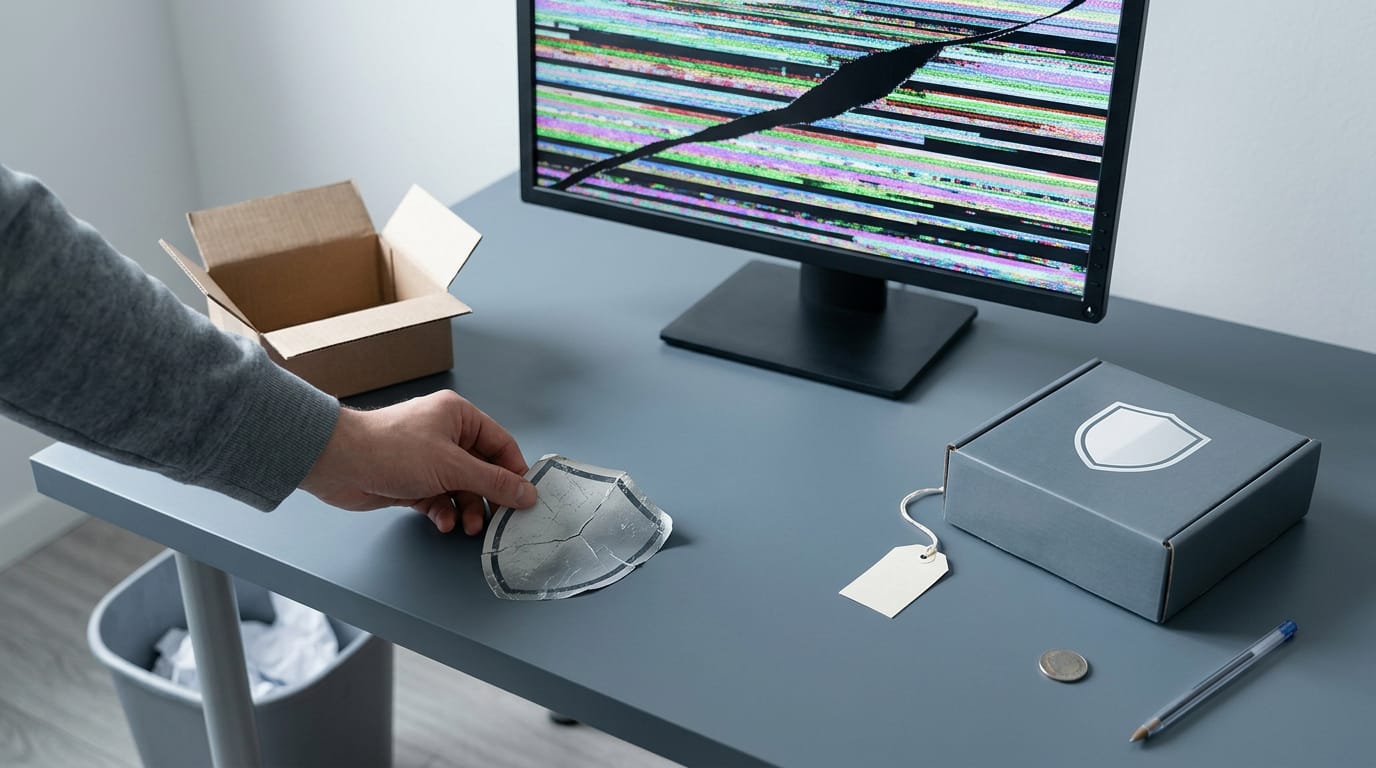
If the green returns after a clean driver and a clean install, the card itself may be failing.
- Return if the issue recurs. If software fixes fail and the green keeps coming back, you have a strong case for return.
- Watch the warranty and return window. Check your receipt now, since return windows keep running while you troubleshoot.
- Weigh repair against replacement. Compare the repair quote with the price of a comparable new card.
Here’s the Canadian-budget call: if a repair costs most of what a replacement would, put that money toward a new card. Consider a builder on a fixed budget whose repair quote nearly matches a new card’s price.
They replace it and stop wondering whether it’ll fail again. Don’t pour money into a card you can’t trust.
A green screen usually traces back to a loose cable, a driver that needs a clean reinstall, or a graphics card that’s failing. Work through those checks in order, and you’ll often know the cause before you spend a dollar.
If the card is the problem, compare the cost of a repair with a replacement, including what a new card would cost at Canadian prices right now. Pick the option that gets your games running at the budget you actually have.
A green tint looks scary, but it’s rarely the end of your rig.
References
- How to Fix DRIVER_IRQL_NOT_LESS_OR_EQUAL on Windows 10/11 (6 Proven Fixes) — windowsmode.com (2026)
Questions
How do I fix a green screen on my PC?
Start with low-cost checks: disconnect external devices, reseat the display cable and GPU power cables with the PC off, and test another cable, monitor, or port. Then update or cleanly reinstall your graphics drivers, and check for recent hardware changes, overheating, antivirus conflicts, or problems after sleep mode. If the screen keeps turning green after software fixes, the GPU or another component may be failing.
What does "Green screen of Death" mean?
A “Green Screen of Death” is a Windows crash screen that signals a major system failure, similar to the Blue Screen of Death. It may freeze the PC or show a solid green screen with an error message; it can be related to hardware or software problems.
Sources
Free · The Build Sheet
The Build Sheet: three gaming PCs priced at Canadian stores