Computer Monitor Yellow Tint: Causes and Fixes Explained
A yellow tint on your computer monitor? Check settings, cables, and drivers first, then spot a failing panel or software fault with clear checks.

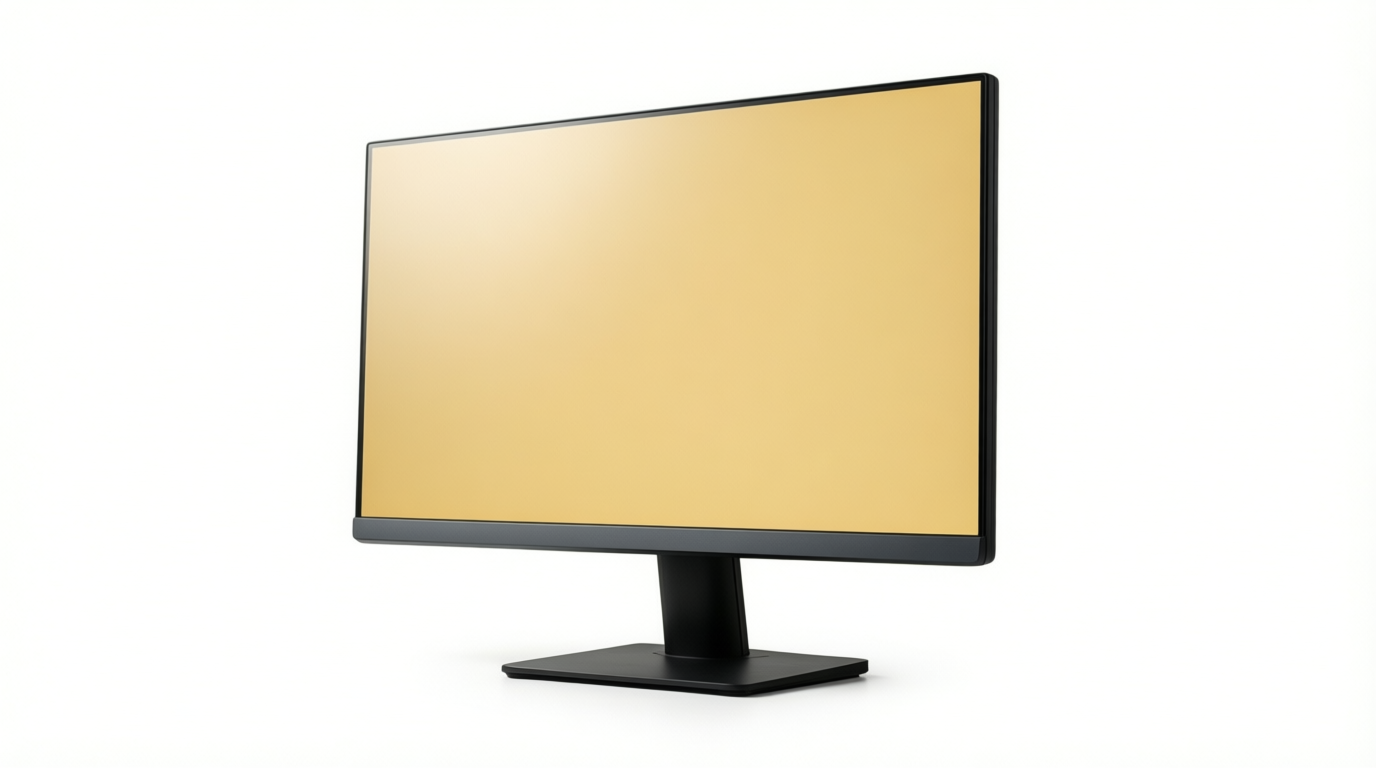
A yellow tint on a computer monitor is a warm cast that makes whites look cream-colored and can affect the whole screen or just certain apps. It often comes from color settings, night filters, drivers, or a loose cable, so check where the tint appears and try neutral monitor settings, disabling filters, updating drivers, and reseating the cable before suspecting a failing panel. A neutral picture can restore accurate, clearer colors, while a warm filter may still be useful in the evening for comfort.
Ever noticed a photo that looks like it’s sitting under an old lamp? That’s a yellow tint, and on a monitor it turns crisp whites into cream.
Your screen mixes red, green, and blue light, so one color running warm shifts the whole picture. The good news is that many causes are quick fixes you can try right at your desk.
Here, we’ll work through the causes in a clear order, from quick settings checks to cable, driver, and panel (the screen itself) faults.
We’ll also cover gamer checks like on-screen display (OSD) presets, graphics card color settings, and high dynamic range (HDR) options.
Causes of a Computer Monitor Yellow Tint
A yellow cast often comes from a setting you can change in minutes, so start there.
Color settings that are set wrong
Check these first:
- Improper color settings. A color mode set away from neutral can warm everything.
- Warmer color temperature. The warm end of the scale can make whites look yellow.
- Generic or default monitor profile. A default profile doesn’t always match your panel.
- Color profiles in specific apps. One app can look warm while your desktop looks fine.
- Graphics card control panel color overrides. Your GPU (graphics processing unit) control panel can add its own color adjustments.
Consider a gamer whose desktop looks normal but whose favorite shooter looks like an old photo. Ask where the color is changing, not whether the monitor works.
Checking the in-game settings and GPU control panel takes minutes and may save you a cable swap.
When blue light filters warm the screen
Blue light filters take the edge off a bright screen by reducing blue light, which makes the picture warmer and can read as yellow.
An app-level night mode or Windows night light can be active in the background. When HDR (high dynamic range, which widens brightness and color range) is on, night light can clash with it.
Think of a player who runs night light for late sessions, then fires up an HDR game the next morning. The monitor looks yellow, so they blame the panel. Turning night light off quickly rules it in or out.
Outdated drivers and software bugs
Start with your graphics driver. An update from your GPU maker is a simple fix.
Next, Windows often uses a generic PnP monitor driver (PnP means plug and play). It covers the basics but misses your monitor’s details, so install the manufacturer’s display driver if it’s missing.
Windows itself can cause trouble. A buggy update can change how color is handled, so check for updates before you blame the hardware.
Loose cables and weak display panels
A damaged or loose display cable can cause odd colors, so reseat both ends.
A low-nit panel (nit is the unit of screen brightness) has weak whites that can look cream-colored. Panels also age, and their backlights can yellow over time.
Some brand-new laptops ship with a tint. Run the checks above before you assume the display is faulty.
Less likely causes to rule out
Magnetic fields from a nearby device can occasionally shift color, so move the device and check again.
Outdated BIOS firmware (basic input/output system, the low-level software that starts your computer) is another uncommon cause. It’s worth updating only if your motherboard maker points to a display fix.
Dead pixels are a different issue. A dead pixel is a spot that won’t change, not a tint across the screen.
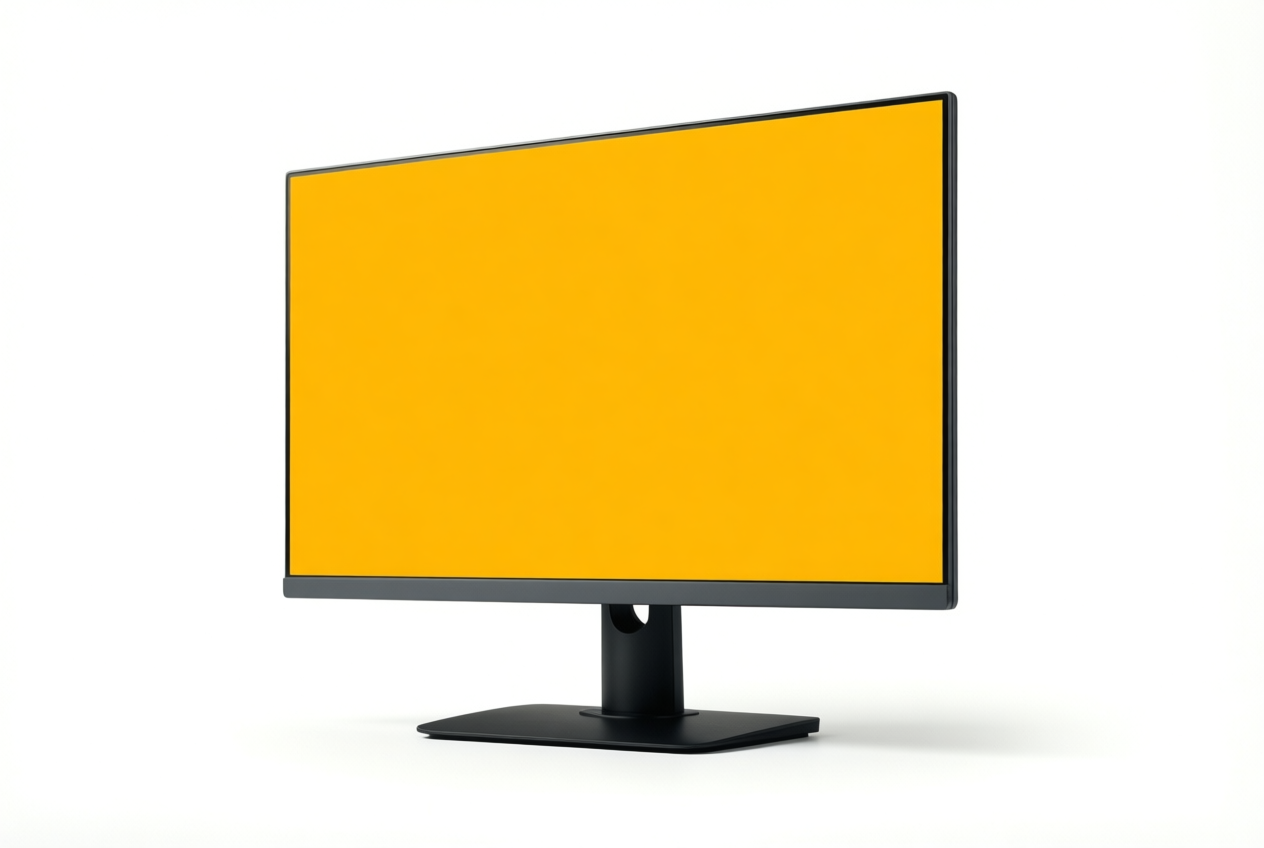
Telling Hardware Problems from Software Problems
Before you change a single setting, work out where the yellow comes from. It could be the monitor, the cable, the graphics card (GPU), or a single app, and each one needs a different fix.
Deciding if the fault is hardware
Start with one question: was the tint there the day you bought the monitor? If so, suspect hardware or a factory setting. If not, a settings change or driver update is more likely.
Say a player unboxes a new monitor and sees yellow before installing anything. That’s a tint since purchase, so they ask the manufacturer about remote troubleshooting, where support walks them through checks before any return.
For a blue tint, follow the same steps. If it covers the whole screen, check the color temperature preset in the monitor’s on-screen display (OSD) menu, then try another cable.
Weird colors, like green or magenta casts, or a flickering tint, often point to a loose or failing cable.
Test with a second display
Run these quick checks:
- Connect a second display. Use a laptop screen or another monitor and compare them with the same image open.
- Accurate colors point to the laptop screen. If the laptop looks right and your monitor doesn’t, the tint is coming from that monitor or its cable.
- Tint on both suggests software or GPU. Check your system’s color settings and your graphics card’s color controls.
- Test on a console or TV. Hook a console or TV up to the same monitor. If it looks right there, the PC output is the suspect.
Tint that appears in only some apps
If the tint shows up in some apps but not others, the monitor probably isn’t the culprit.
- App color profiles. Some apps manage color on their own, so they can show colors differently from your desktop.
- Photo editing software. A builder who edits photos on their gaming PC sees correct colors in the editor but yellow in a browser. That points to the app, not the monitor.
- App night mode settings. Night mode warms the screen to cut blue light, so it can look yellow. Turn it off and compare.
Telling a color tint from dead pixels
Look at where the color sits. A global color issue covers the whole screen evenly. A localized fault stays in one spot, line, or patch.
A dead pixel is a single point stuck on one color, such as black. Dead pixels need repair, since no color setting can fix them. Note the location and check your warranty before asking for a return. Settings can fix a tint. They can’t fix a dead pixel.
How Do I Fix a Yellow Tint?
Work through these from the quickest checks to the most involved, and save the cable for last.
Calibrate colors in Windows
If you’re asking, “How do I change the color of my monitor?” start with the monitor’s own on-screen display (OSD), the menu you open with the buttons on the bezel. Pick the most neutral color temperature preset, then compare the picture again.
In Windows, open Control Panel, go to Color Management, and check the color profile attached to your monitor. Then launch the Calibrate display wizard. Its RGB (red, green, and blue) sliders control the color mix.
A yellow tint means too much red and green compared with blue, so lower red and green and keep blue where it is.
Prefer Settings? Use Start, Settings, System, Display, then look for the color calibration option. Think of a player whose new monitor makes every white menu look like cream paper.
A couple of nudges to the red and green sliders can bring those whites back.
Use a standard color profile
Windows uses a color profile to show color, and sRGB, a widely used standard color space, gives you a known baseline. Under Color Management, select Add, choose the sRGB virtual device profile, and set it as the default profile.
Once you’ve calibrated, create a new, whiter profile and keep it alongside the standard one. If the profile and OSD settings have drifted too far, a factory reset on the monitor returns it to its defaults.
Turn off or dial back the filter
Windows’ night mode, called Night light, adds warmth after dark, and that warmth can look like a yellow tint. Turn it off under Settings, System, Display, then Night light, or drag its strength slider down if you still want some warmth.
A warm filter is built for comfort, not accuracy, so switch it off for gaming or any color-critical work.
Keep drivers and Windows up to date
Driver faults can show up as color problems, so check these:
- Graphics drivers. Install the latest driver from your graphics card’s maker.
- Windows Update. Go to Settings, Windows Update, and check for updates, including optional driver updates.
- Operating system (OS) updates. Install pending Windows updates, then restart.
Say you swapped your graphics card and kept the old driver. A fresh install and a restart may clear the tint.
Tweak brightness, power, and viewing angle
Raise brightness until whites look crisp, since a screen turned too dim can make whites look muddy. On a laptop, turn off battery saver mode, because it dims the screen to save power.
Finally, adjust the screen angle: sit where you normally game and look straight on, since a tint that shows up from only one seat points to the angle.
Check or replace the display cable
- Visual inspection for damage. Check both ends for bent pins, cracks, or frayed sheathing.
- Check loose connections. Reseat the cable firmly at the monitor and at the graphics card.
- Consult a professional technician. If the tint survives both checks, have a technician look at the cable and monitor.
Say you bumped your desk and the picture turned yellow the next morning. Reseat the cable, and if the tint disappears, you’ve avoided a repair call.
How Yellow Screens Affect Eyes and Sleep
A yellow tint is more than an eyesore. It can make your eyes work harder and even shift when you feel ready for bed, so it’s worth sorting out early.
Why tinted screens cause eye strain
A yellow cast can leave you with headaches and tired eyes after a long night of play. Part of the problem is contrast, the gap between light and dark areas on screen.
A study on color and visual resolution found that low contrast and yellow reduce visual acuity, or how sharp what you see looks. Text and minimap details get harder to pick out.
Check the tint before you turn up the brightness. Think of a gamer on a 27-inch monitor who grinds ranked matches on a warm picture preset.
Switching to a neutral mode is a quick test: if chat and the minimap suddenly look crisper, you’ve found the culprit.
How warm colors affect sleep
For many people, the bigger issue is what happens after dark. Melatonin is the hormone that helps cue your body for sleep.
Scientific American notes that device light is “short-wavelength-enriched,” and blue light affects melatonin more than any other wavelength.
A study in Communications Biology found that low melanopic light (the light that most affects your body clock) in the evening shortened the time people took to fall asleep and eased evening melatonin suppression.
So warmer screen tones can help you wind down.
Use filters in the evening. Think of a player who streams after dinner: switching to a warm filter once the sun goes down, then back to a neutral picture for daytime play, keeps colors accurate when you need them and eases you toward bed.
A yellow tint usually traces back to a setting that drifted, a loose cable, an outdated driver, or a failing panel. Work through the checks in order and you’ll often find the culprit before you reach for a screwdriver.
Gamers have a few extra spots to check, from monitor presets to graphics card color and HDR, and if nothing helps, a warranty return or replacement may be the right move.
Fix the tint once, and every game you play will look the way its makers intended.
References
- Melanopic irradiance defines the impact of evening display light on sleep latency, melatonin and alertness — nature.com (2023)
- Impact of Color and Polarity on Visual Resolution with Varying Contrast Ratios and Different Text Backgrounds — pmc.ncbi.nlm.nih.gov
- Q&A: Why Is Blue Light before Bedtime Bad for Sleep? — scientificamerican.com
Questions
How do I change the color of my monitor?
Open your monitor’s on-screen display (OSD) menu and choose a neutral color-temperature preset. In Windows, check Color Management and run the display calibration wizard; for a yellow cast, lower red and green slightly while keeping blue steady.
How to fix a color problem in a laptop?
Check whether Night light or another blue-light filter is warming the display, then choose a neutral color preset in the monitor’s OSD menu. If the color problem continues, check Windows color profiles, update graphics drivers, reseat the display cable, and compare the laptop with another display to help identify the cause.
Why does white look yellow on my monitor?
A warm color-temperature setting, Night light, or another blue-light filter can make white look yellow by reducing the amount of blue in the picture. Check the monitor’s OSD preset and turn off the filter to see whether the whites return to neutral.
Why has my monitor turned yellow?
Your monitor may have a warm color preset, an active blue-light filter, or an incorrect color profile. A loose or damaged cable, outdated graphics driver, or aging backlight can also cause a yellow cast; start by checking settings and connections.
Why does my screen color look weird?
A color preset, app-specific profile, night mode, or graphics-card color adjustment can make the picture look unusual. If the tint affects the whole screen, also check the cable and driver; if it appears in only one app, check that app’s color settings or filters.
Why is my laptop screen changing colors?
A changed color profile, display preset, blue-light filter, or graphics-driver setting can shift your laptop’s colors. Compare the built-in screen with another display: if both show the tint, software or the GPU may be responsible, while a tint limited to the laptop screen may indicate a screen or cable issue.
What to do if your screen turns yellow?
Turn off Night light or other blue-light filters, then set the monitor’s color temperature to a neutral preset. If the yellow tint remains, check the Windows color profile, update your graphics driver, and reseat the display cable.
My computer screen has blue tint. How can I fix it?
Choose a neutral color-temperature preset in the monitor’s OSD menu, then try a different display cable. If the blue tint remains, check the system’s color profile and graphics-card color settings; comparing with another display can help determine whether the problem is the monitor or the computer.
Sources
- Impact of Color and Polarity on Visual Resolution with Varying Contrast Ratios and Different Text Backgrounds, pmc.ncbi.nlm.nih.gov
- Q&A: Why Is Blue Light before Bedtime Bad for Sleep? | Scientific American, scientificamerican.com
- Melanopic irradiance defines the impact of evening display light on sleep latency, melatonin and alertness | Communications Biology, nature.com,
Free · The Build Sheet
The Build Sheet: three gaming PCs priced at Canadian stores