Logitech G Hub Infinite Loading: Causes and Fixes
Logitech G Hub infinite loading can leave your mouse and keyboard settings out of reach. Try quick fixes, then a clean reinstall for Windows or Mac.

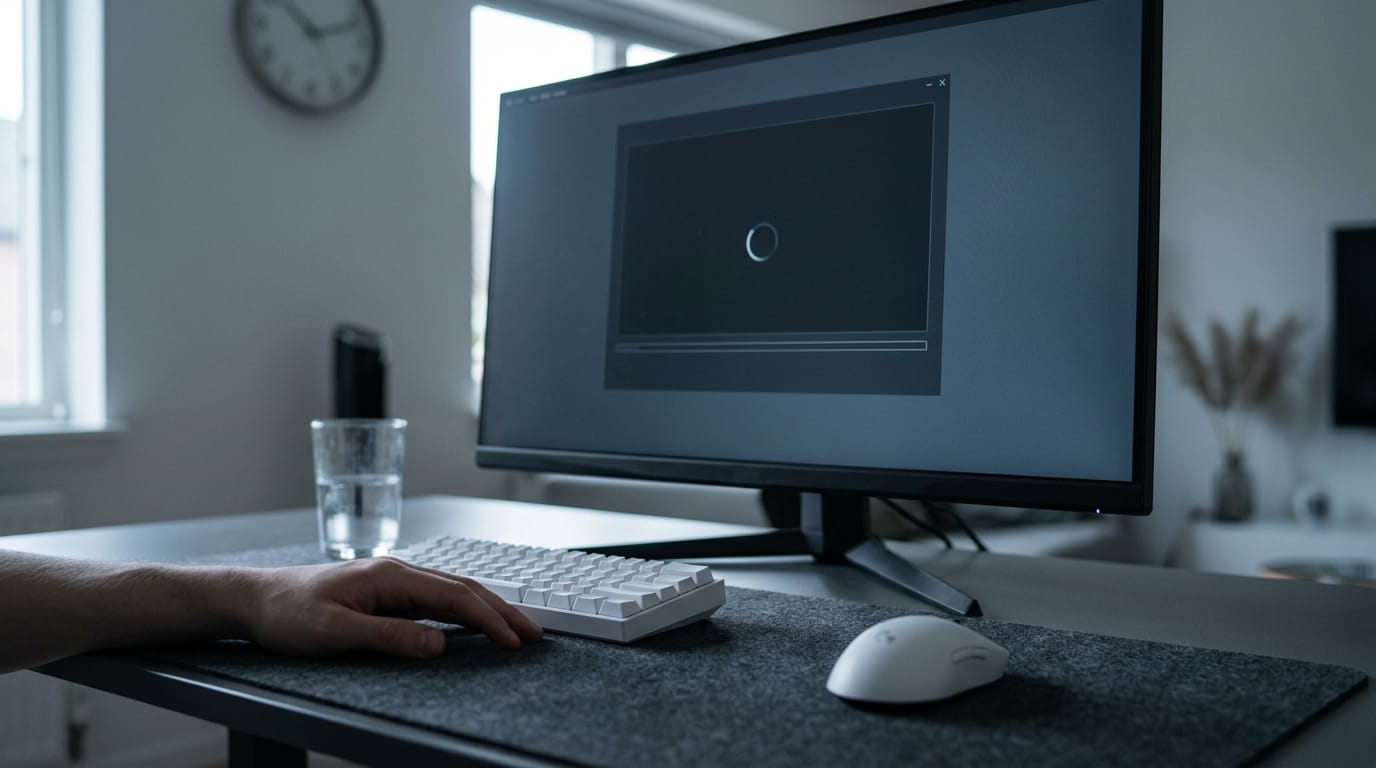
Logitech G Hub infinite loading is when the app stays on its startup screen instead of opening device settings, often because a background helper or updater is stuck. Restart its processes, try administrator access, disable automatic updates, and update drivers before moving to a clean reinstall; on Mac, check and re-register the updater daemon. Export profiles first, and use onboard device memory to keep saved settings available while G Hub is broken.
Think of a coffee maker stuck on ‘brewing’ long after your coffee should be ready. You wait, check again, and wonder what’s going on.
That’s a lot like Logitech G Hub, the app that manages your mouse and keyboard settings, when it hangs on its loading screen. It’s waiting on something it can’t finish, and you’re left without your setup.
You don’t need to be a software expert to get past it. We’ll go from the quickest fixes to a full clean reinstall, for both Windows and macOS, then cover how to keep your mouse and keyboard usable while it’s broken.
What Causes Logitech G Hub Infinite Loading
Why can’t you use Logitech G Hub? Usually it’s stuck starting up, because one of the background helpers it needs never finishes.
Signs it’s stuck and who’s affected
Look for these signs:
- Stuck on the logo screen. G Hub never gets past its splash screen to your settings.
- Long-running known bug. This is an established problem, not a one-off glitch on your PC.
- Affects Windows and macOS. Both platforms are hit.
- Affects new device purchases. It can show up right after you add new hardware.
Picture a gamer who just plugged in a new mouse and wants to tweak its sensitivity, only to watch the logo spin. This is less about the mouse and more about the software stuck trying to start.
What usually breaks G Hub’s startup
G Hub leans on a few background helpers that run before its main window appears. When one misbehaves, the whole app waits:
- Updater daemon not registered. A daemon is a background helper with no window. If the updater never registers with your system, the app can get stuck waiting on it.
- Background agent never exits. When this helper doesn’t shut down cleanly, it can block the next launch.
- Automatic update scanning. G Hub checks for updates on its own at startup, and that check can stall the load.
- Outdated drivers. Old driver software can clash with the current app.
- Lost registration after system update. A system update can knock out the app’s registration, so it hangs on the next start.
Think of a student who updated Windows over the weekend and can’t get past the logo before a match. Checking for a lost registration first points them to a quick fix before a full reinstall. Know the likely culprit first.
How Do I Fix G Hub Stuck Loading?
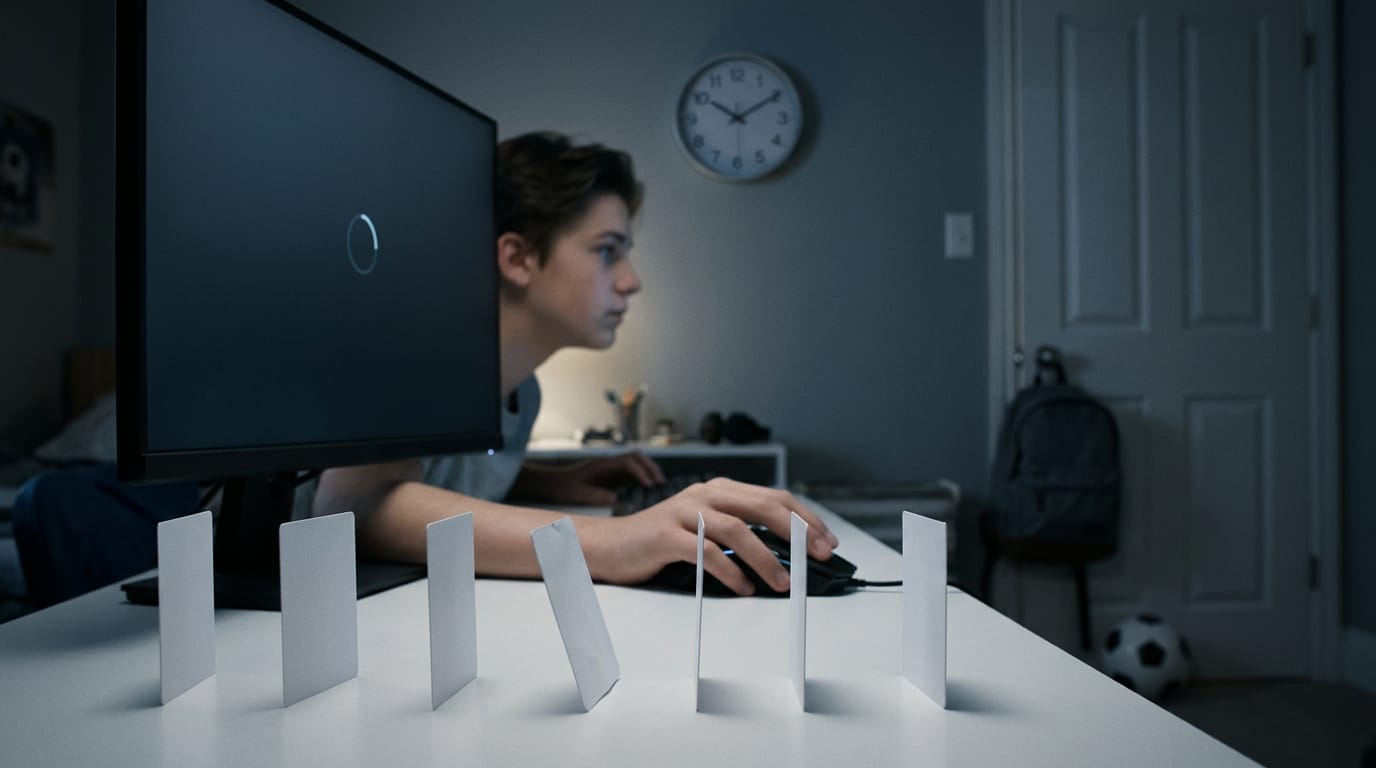
To fix G Hub stuck loading, work through the steps below from quickest to last resort, and stop once the app opens. Ever tried to change one setting and watched the spinner just sit there?
The early fixes only restart G Hub’s pieces, not reinstall the whole app, so they cost you the least time.
Shut down G Hub’s background processes
Open Task Manager and end the lghub_agent process, then stop the LGHUB Updater service. Unplug your Logitech gear before you start, so nothing is connected while the processes restart. When they’re closed, plug your gear back in and reopen G Hub.
Think of a player who needs to change their mouse sensitivity before a ranked match. They end the stuck processes, reconnect their mouse, and reopen G Hub to see whether their settings load this time.
Run G Hub with admin rights
If G Hub still hangs, try running it with administrator rights. Right-click the G Hub shortcut and choose to run it as administrator. If that works, set it to always run as admin so you don’t have to repeat the step.
Apply the same setting to the lghub_agent and LGHUB Updater executables so the background programs get the same access.
Turn off G Hub’s automatic updates
Automatic updates are handy, but when the updater is the problem, you want manual control. Uncheck Enable Automatic Updates in G Hub’s settings. If the app keeps stalling, disable the LGHUB Updater service permanently so it stops launching on its own.
When you want a newer version, download the installer yourself and update by hand.
Update drivers and restart your PC
Outdated drivers can also leave G Hub hanging. Check Windows optional updates for any driver packages waiting for you, then open Device Manager and update the drivers for your Logitech devices.
Restart your PC afterward so the new drivers load before you open G Hub again.
If it’s still stuck, look at conflicting software and antivirus next. Security tools can interfere with the background processes G Hub needs, so pause the scanner while you test and turn protection back on once G Hub loads.
Change one thing at a time so you know what actually worked.
Starting Fresh with a G Hub Reinstall
When quick fixes fail, a clean reinstall clears out the broken install. The first subsection keeps your setup intact, and the second starts from zero.
Reinstall without losing your settings
Start with the lightest fix. Open appwiz.cpl (the Windows Programs and Features panel), select G HUB, and try the Change option before removing anything.
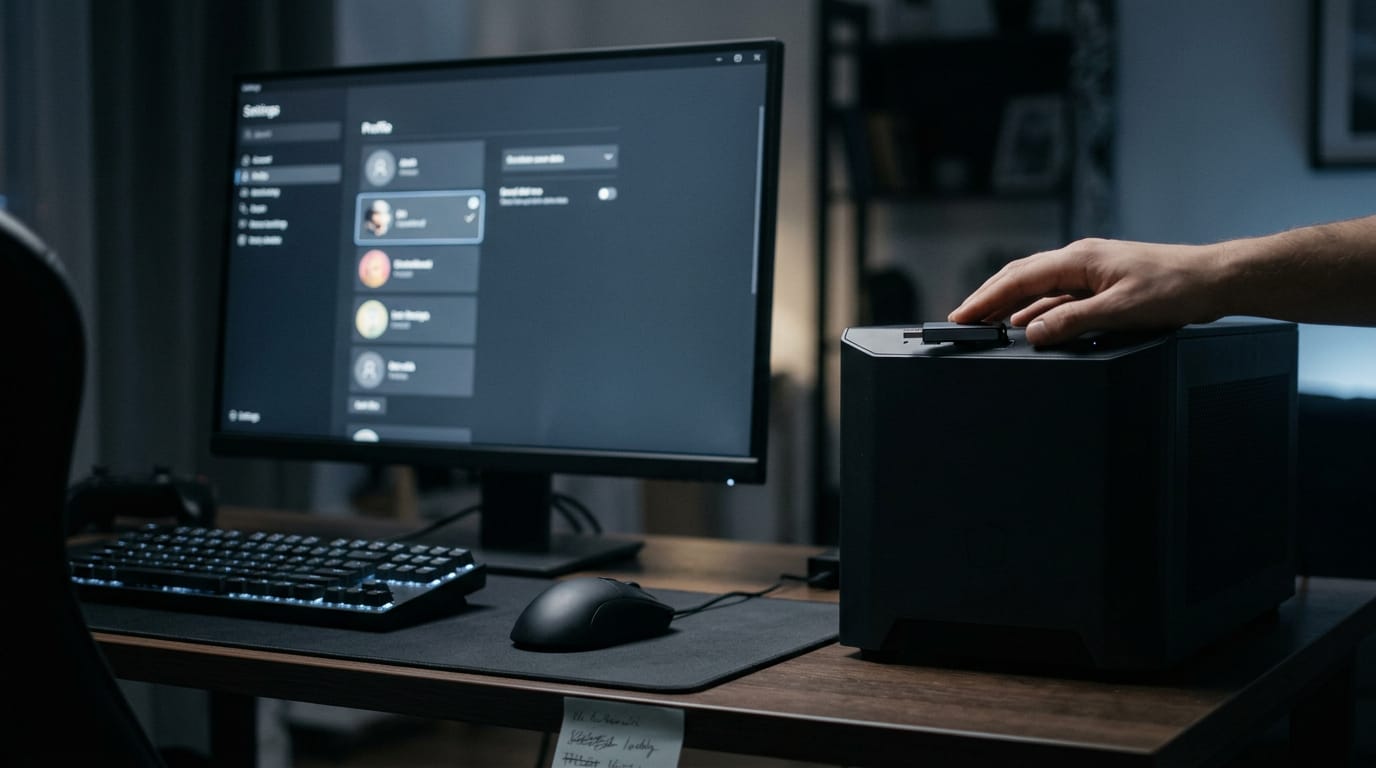
If that doesn’t clear the hang, transfer your current settings and create a backup you can restore once the new install is running.
Export your profiles before you uninstall anything. Macros are saved inside them, so this step keeps them safe.
Consider a player who spent an evening building a ranked-match macro: with an export, one import brings it back; without one, they’re rebuilding it from memory. Skip the export, and you start over.
If a macro still fails after reinstalling, its profile probably didn’t come back. Re-import your exported file, then check the macro is still assigned to the right button.
Wipe old files and install fresh
Only wipe if the steps above didn’t work. Work through these in order:
- Uninstall without saving settings. Choose the option not to keep saved settings, since you already exported them.
- Show hidden files and folders. In File Explorer, turn on hidden items so the leftovers are visible.
- Delete leftover LGHUB folders. Remove every LGHUB folder the uninstaller missed.
- Delete the LGHUB registry key. The registry is Windows’ settings database, so delete only the LGHUB key.
- Reboot before reinstalling. A restart lets the removal finish.
- Download the latest installer. Get it from Logitech’s official website.
Fixing the Stuck Screen on a Mac
When G Hub sticks on a Mac, the answer is rarely in the app window. We’ll find the error the app hides, then rebuild the piece that keeps it running.
Spotting the launchd error the app hides
G Hub won’t say what went wrong. Behind the window, launchd (macOS’s built-in manager for background services) starts the app’s updater, and it can fail silently.
To see the failure, open Terminal and run the G Hub agent directly so its output prints as readable text.
Look for a line reading “Bootstrap failed.” That’s the clue: launchd couldn’t load the updater’s daemon, the background program that runs without a window. The graphical interface (GUI) never shows this message, so you’re left watching a spinner.
The spinner tells you the app is busy, not that it’s broken.
Re-register the updater daemon and relaunch
Work through these steps:
- Quit G Hub and stop any leftover lghub processes still running in the background.
- Recreate the updater plist (property list), the small settings file that tells launchd how to start the daemon. Write a fresh one rather than patching the old copy.
- Fix the ownership and permissions on those files so your user account can read and run them.
- Load the daemon with
launchctl, the Terminal command that hands the file to launchd. - Verify the daemon is running, then relaunch G Hub.
Order matters, so don’t skip ahead.
Consider a gamer who needs to change their mouse sensitivity before a tournament night but can’t get past the loading screen. Once the daemon is running again, they open G Hub, make the change, and they’re back in their game that same evening.
What Other Users Say and Try
Many people have already hit this hang, and their workarounds show which fixes buy you time and which ones come with trade-offs.
Common complaints and workarounds
The complaints tend to repeat. One of the most common is that G HUB’s process restarts itself, so the software keeps coming back no matter how many times you close it. Plenty of players also say the software feels heavy for what it does.
The workarounds usually come down to a few options:
- Disabling the service. Some users turn off G HUB’s background service entirely. That can stop the hang, but the app can’t apply your settings until you turn the service back on.
- Saving to onboard memory. Many mice can store your DPI (dots per inch, which sets how far the cursor moves per inch of hand travel) and your profile, the saved set of button and sensitivity settings, on the device itself. Some players even edit those settings there instead of in the app, so the mouse keeps working without G HUB running.
- Video tutorial help. Lots of people turn to video walkthroughs, since watching the exact clicks often beats reading about them.
If you’ve had enough, other vendors make mouse and keyboard software too. Switching means rebuilding your bindings in a new app, so weigh that against how often the hang actually bites you.
The goal is less about fixing G HUB and more about keeping your settings alive while it’s broken. Think of a player who sets their DPI and button bindings the night before a ranked session.
If G HUB hangs the next morning, a mouse that already holds those settings in onboard memory still plays exactly the way they left it. Your aim doesn’t wait for the software.
Getting G Hub past its loading screen comes down to working from the simplest fix up. Start with the quick steps, move to a clean reinstall only if you need it, and keep your mouse and keyboard usable in the meantime.
Each step rules something out, so you’re never guessing for long.
Start simple, work in order, and you’ll be back in control of your gear before you know it.
Questions
How to fix logitech g hub stuck loading?
End the lghub_agent process and stop the LGHUB Updater service in Task Manager, unplug your Logitech devices, then reconnect them and reopen G Hub. If it still hangs, run G Hub and its helper programs as administrator, disable automatic updates, and update your Logitech drivers before restarting your PC. If those steps fail, export your profiles and macros, then try a clean reinstall.
Why can't I use Logitech G Hub?
Logitech G Hub may be stuck starting because a background helper, such as lghub_agent or the LGHUB Updater, has stalled or failed to register. Automatic update checks, outdated drivers, or a recent system update can also interfere with startup. The problem can affect both Windows and macOS, even when the connected device is working properly.
Why is my Logitech G Hub macro not working?
A macro may stop working if its profile was not restored or imported correctly after reinstalling G Hub, or if the macro is no longer assigned to the intended button. Re-import the profile that contains the macro, then check its button assignment in G Hub. Export profiles before uninstalling, since macros are saved inside them.
Free · The Build Sheet
The Build Sheet: three gaming PCs priced at Canadian stores