Unlock Your Dell Monitor: Every Way to Fix a Locked Menu
Unlock a Dell monitor’s menu with button holds, reset steps, and model-specific fixes when the OSD stays unresponsive, plus what to try if unlocking fails.

Unlocking a Dell monitor means restoring access to its on-screen display (OSD), the menu used to change settings such as brightness and input. Try the menu-button hold first, then the button combination specific to your model; if needed, set Menu Lock to Unlock, reset the monitor, or contact support after checking the warranty. Work through the least disruptive fixes first, since a persistent lock may indicate faulty controls rather than a settings problem.
Ever pressed the menu button on your Dell monitor and gotten nothing back? It’s like a TV remote that ignores every press, leaving the screen stuck on whatever brightness you last set.
That menu is the on-screen display (OSD), and when it’s locked, you can’t change brightness or input. The good news is that unlocking it is usually simpler than it looks.
In this post, we’ll cover every working way to unlock it, from button holds to menu resets and support, ordered by model. We’ll also flag the settings gamers need back fast.
Signs You Need to Unlock Dell Monitor
Before you start pressing buttons, it helps to know what a locked Dell monitor looks like.
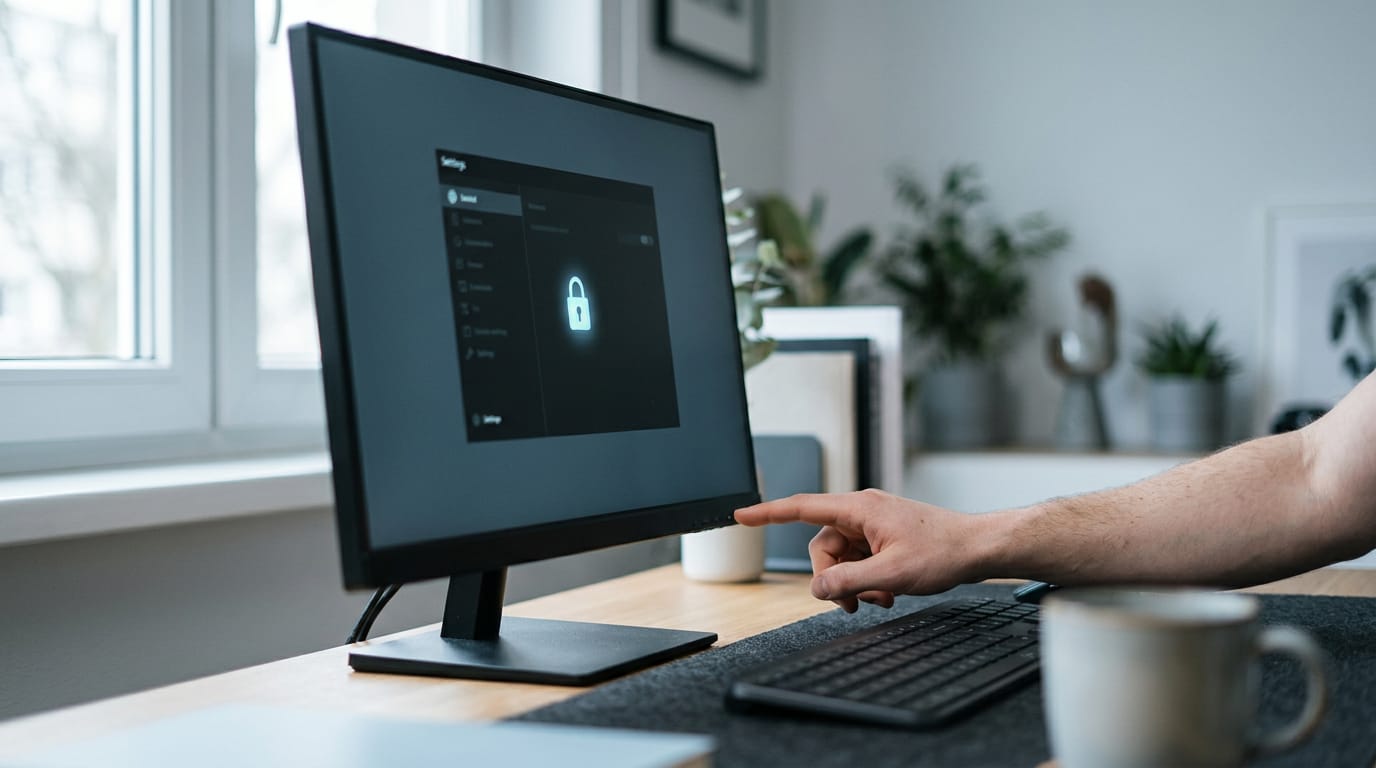
Padlock icon and buttons that stop working
The clearest sign is a padlock icon on screen, often with one or more of these:
- Your on-screen display (OSD), the menu you open with the monitor’s buttons, won’t open.
- Only the menu button responds while the rest stay inactive.
- You can’t change the input source.
A lock is about controls, not the picture. A no-signal or power save message is different: the monitor isn’t getting a picture at all, so check for one to tell them apart.
What usually causes the lock
Locks usually follow a change in how you use the monitor:
- Switching PC or cable type: moving between a PC and a console, or swapping cables, can leave the controls locked.
- New monitor out of the box: a brand-new unit can arrive with its controls already locked.
- Controls locked after months unused: a monitor that sat idle for a while can come back locked.
- No-signal or power save message: this can look like a lock, so revisit the difference above.
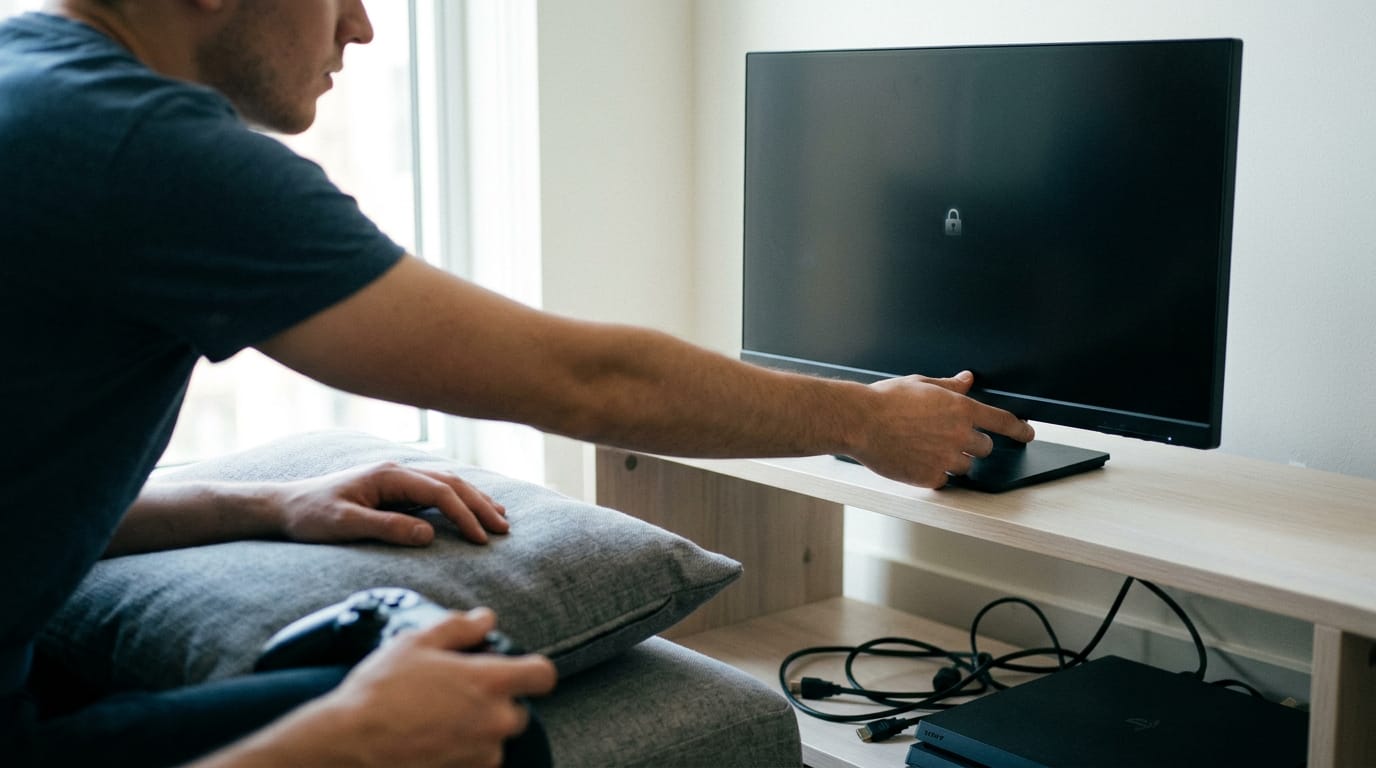
Consider a gamer who moves their monitor from the PC to a console for a weekend of couch play. They press the input button, nothing happens, and they assume the monitor is dead. Nothing’s broken.
The controls are just locked, and we’ll walk through the fix later in this article. That knowledge saves them a needless return.
How to Unlock the Menu with Buttons?
Locked out of your settings right when you need them? Button tricks are the fastest fix, so we’ll start there. First, find your model’s lock method, since the right combo depends on which model you have.
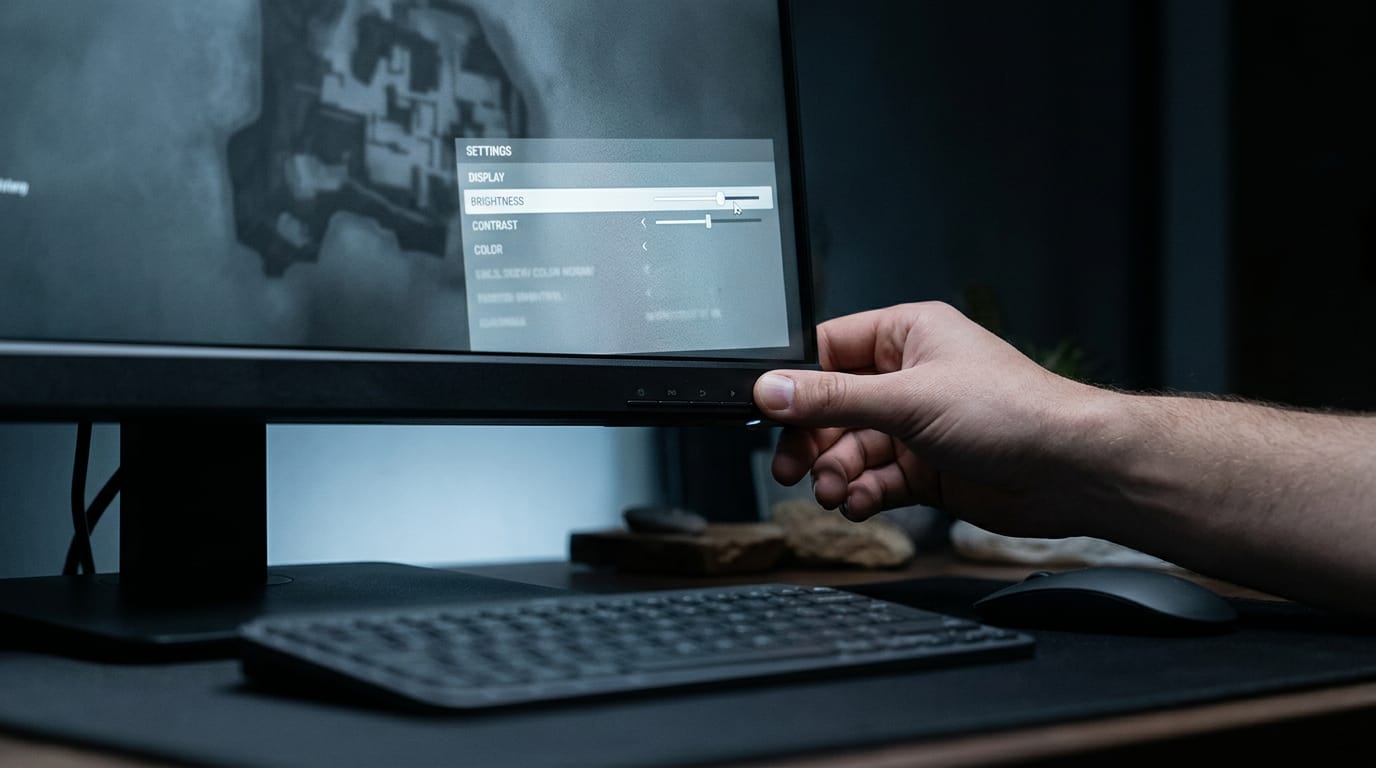
Hold the menu button about 15 seconds
Press and hold the OSD/Menu button for about 15 seconds. Here, OSD stands for on-screen display, the settings menu that appears on your screen. If nothing happens, try again and hold it longer than the first time.
Say you’re a gamer who sat down for a late-night match and the screen is stuck too dim to see the corners of the map. One hold gets you back into the menu, and you can raise the brightness before your match starts. Not bad for a few seconds of holding.
If you have a P2214H, start with this menu hold, since it’s the simplest method to try first.
Press two buttons together on some models
On some models, the single hold won’t do the job, and you’ll need a two-button combo instead:
- Press buttons 1 and 4 together.
- Hold them for up to a minute.
This combo is model-specific, and the ST2320L is the model it’s tied to, so if you own a different model, don’t assume it applies.
For a generic monitor or one from another brand, these combos may not match either, so look up its model’s lock method before you press anything.
These steps are for unlocking. To lock a Dell monitor, check your model’s manual for its lock setting.
Change Menu Settings or Reset the Monitor
Start with the least invasive fix and work down. Only move on if the step above didn’t do the job.
Set Menu Lock to Unlock in settings
Open the on-screen display (OSD), the menu you reach with the buttons on the bezel (the frame around the screen), and go to Other Settings > Menu Lock. Set it to Unlock. You’re changing a setting, not repairing hardware.
Exit the menu, wait a few seconds, then reopen it and confirm Menu Lock still reads Unlock. Recheck your gaming modes, refresh rate, and overdrive too, since they may not match what you set before the lock.
That’s the whole fix.
To unlock your Dell monitor for brightness, use that same Menu Lock change. Think of a gamer with a screen too dim for a late match. Two minutes in the OSD and one setting later, they’re playing at the level they want before the queue pops.
Restore the monitor to factory settings
Run the unlock check above first. If the lock survives, choose Factory Reset in the OSD. It returns every setting to its original value, so you’ll need to set brightness and gaming modes again. You’re done once the menu opens and the unlock holds.
Unplug everything and do a full reset
Use this only if the reset above didn’t help. Follow these steps in order:
- Power off your PC and your monitor.
- Disconnect the monitor’s power and all cables.
- Hold the power button for 5 seconds.
- Reconnect everything and select your input source.
What to Do If Unlocking Fails
If every method in this guide fails, the monitor itself may be the problem, not your settings. Here’s how to tell, and how to get help without losing a weekend to button presses.
Failed fixes may mean a faulty monitor
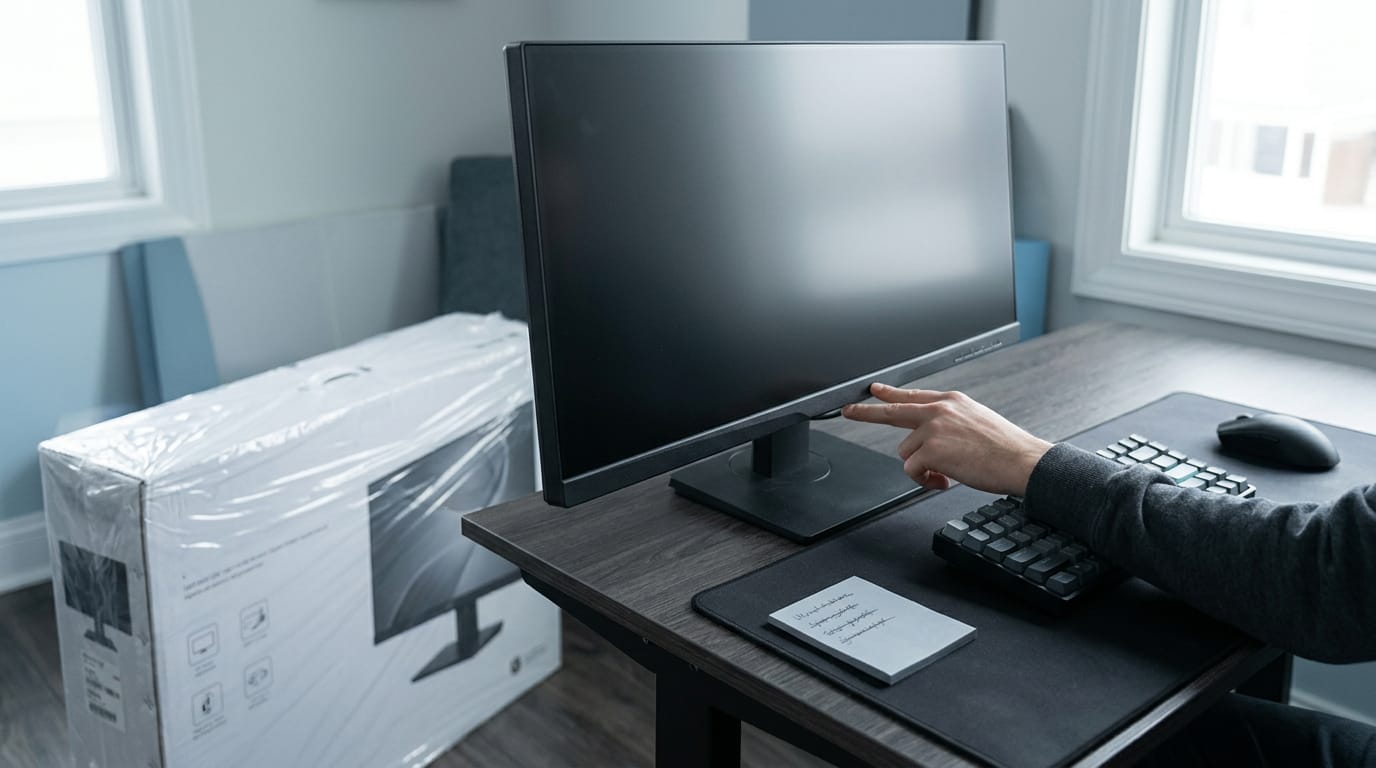
Say you’re a gamer who bought a 27-inch monitor on its own. You’ve held the buttons, run the menu reset, and the on-screen display still won’t open. When every fix fails, the controls are the likely suspect.
It’s your monitor that’s misbehaving, not your settings, and that calls for a different plan.
Stop pressing buttons for hours. At that point, the smart move is getting the monitor replaced.
Reaching Dell support the right way
Your purchase decides which team you contact, so check that first:
- Monitor-only purchase: contact Order Support.
- Bundled with a PC: contact Technical Support.
Before you reach out, have these ready:
- Your service tag, the code that identifies your specific monitor.
- Your PPID, the product identifier code Dell uses to match your exact unit.
- A list of the troubleshooting you’ve already done, including every button hold and reset you tried.
With that list in hand, you won’t waste time repeating steps on the call.
Check your Dell warranty before buying a replacement. If the monitor is still covered, you may not need to pay for a new unit at all. Check first, then decide.
Unlocking a Dell monitor usually comes down to trying the simplest fix first: a button hold, then a menu reset, then support if you’re still stuck. Work through them in order and you’ll often have the answer before you need to make a call.
Once the menu responds, set brightness and input the way you play, and you’re back in the game without the guesswork.
A locked menu is a small problem with a clear fix, and your monitor is ready to do its job again.
Questions
How to unlock Dell P2214H monitor?
For a Dell P2214H, press and hold the OSD/Menu button for about 15 seconds. If that does not unlock it, try holding it longer, then open the OSD and set Other Settings > Menu Lock to Unlock.
How to unlock Dell monitor to adjust brightness?
Unlock the OSD by holding the Menu button for about 15 seconds, then open Other Settings > Menu Lock and select Unlock. Once the menu responds, adjust brightness in the OSD.
How to lock Dell monitors?
To lock a Dell monitor, use the Menu Lock setting in its OSD if the model provides one. The exact steps vary, so check the monitor’s manual for its lock method.
How to unlock a computer monitor screen?
If the monitor’s control buttons are locked, use its model-specific button combination or unlock option in the OSD. For a Dell monitor, first try holding the Menu button for about 15 seconds; if it remains locked, consult the manual for that model’s method.
Free · The Build Sheet
The Build Sheet: three gaming PCs priced at Canadian stores