What Are the Parts of a Computer and How They Work
What are the parts of a computer? See how core, external, and newer hardware work together, then price a parts list in Canadian dollars to match your budget.

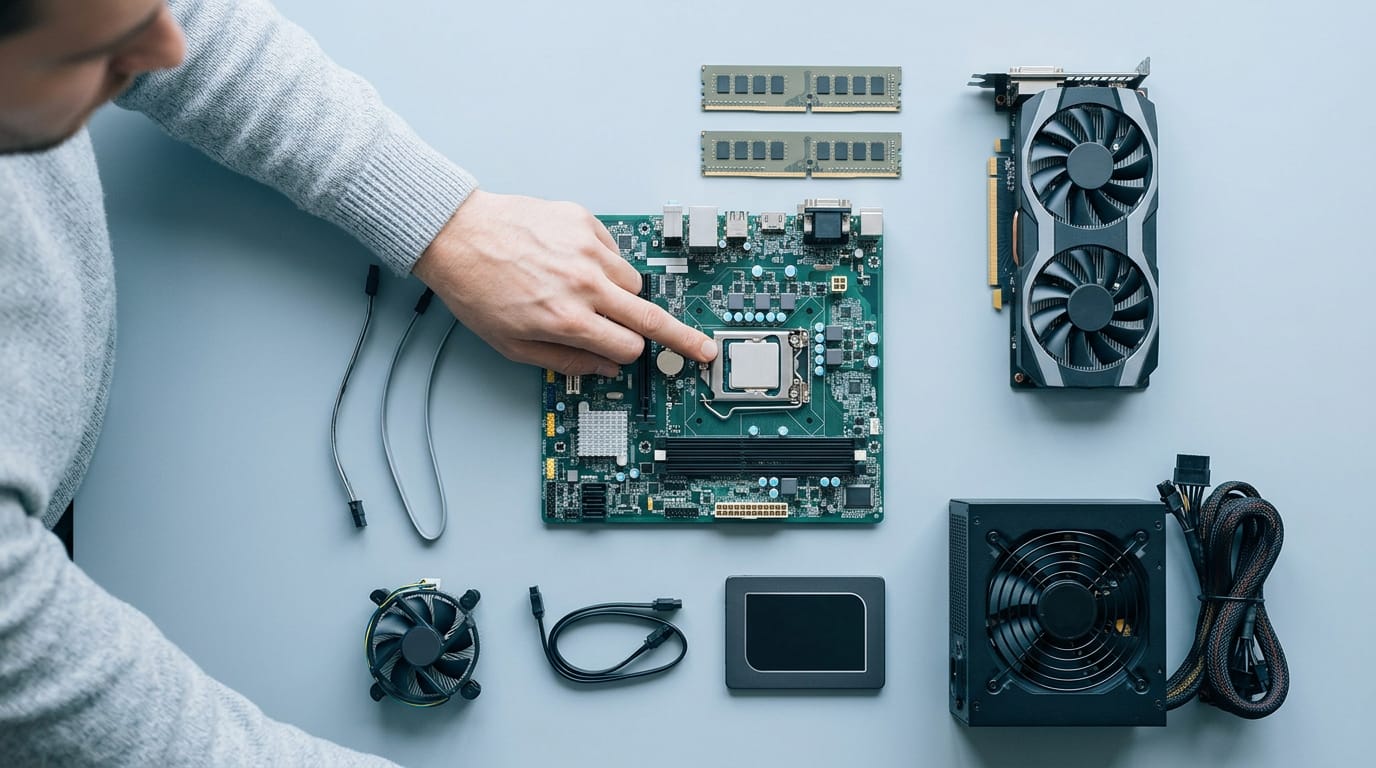
A computer is a system of physical parts that process information, store files, supply power, and connect to devices such as a monitor, keyboard, and mouse. Its main components include the motherboard, processor, memory, storage, power supply, cooling, and often a graphics card; they must work together and match your needs. Choosing compatible, balanced parts for your tasks and budget helps the computer run reliably and makes upgrades easier.
Think of a kitchen. The stove cooks, the fridge keeps food cold, and the sink handles the water, but none of them does much until they work together. A computer is built the same way.
Each part has a clear job, and the whole machine only runs well when those jobs line up.
This guide walks through every part of a computer, from the core components inside the case to the monitor and mouse on your desk.
Then we’ll show you how to turn those parts into a priced list in Canadian dollars, so you know exactly what your budget buys.
Core Parts of a Computer Inside
Every personal computer (PC) runs on the same core parts. Some are essential, and some are optional, so you’ll know where to focus.
The motherboard that links everything
The motherboard (also called the mainboard or mobo) is the central hub everything plugs into. It links your processor, memory, storage, and graphics card, supplies them with power, and provides the input/output (I/O) ports on the back.
Its chipset manages how those parts communicate, and its socket must match your processor. Check socket compatibility first.
How the CPU shapes overall performance
The central processing unit (CPU) is the brain of the computer. Cores handle tasks, and threads are the separate streams of work they juggle.
Clock speed, in gigahertz (GHz), shows how fast each core runs, and cache is a small pool of fast memory on the chip for data it uses often. More cores help with many tasks at once, while clock speed matters most for one demanding task.
The two names you’ll see most are Intel and AMD, so compare specific models rather than brands. Together, they set your overall performance.
Why RAM matters for multitasking
Random access memory (RAM) is short-term, volatile memory, which means it’s wiped when the power goes off. It holds what your computer is actively using, so it’s working space, not storage.
Consider a gamer with a game, a voice chat app, and a dozen browser tabs open. With enough RAM, everything stays responsive. Modern games lean on memory too, so skimping can hold back a strong processor.
Capacities vary, and many boards let you add sticks later.
Picking HDD, SSD or NVMe storage
Storage keeps your operating system, apps, and files, even when the power’s off. A hard disk drive (HDD) uses spinning platters and is the cheapest per gigabyte (GB). A solid-state drive (SSD) has no moving parts and is much faster, but costs more per GB.
NVMe (Non-Volatile Memory Express) drives use small M.2 slots, while SATA (Serial ATA) is the older connection standard. Speed is about how fast data moves, while capacity is about how much fits. USB external drives handle backups.
When you need a dedicated graphics card
The graphics processing unit (GPU) is the chip that renders the images on your screen. A graphics card is the board that holds a GPU and its own memory, and it’s the part you actually buy.
Many processors include integrated graphics, which share your computer’s memory and handle everyday tasks. A dedicated card with its own memory is what gaming, video editing, and design work call for.
If gaming is the goal, the card usually takes the biggest share of your budget first.
Matching the power supply to your parts
The power supply unit (PSU) converts wall electricity into the lower-voltage power your parts run on, then distributes it through the motherboard. Its wattage, measured in watts (W), must cover everything your parts draw together.
Poor quality causes instability, so a cheap or underrated unit can mean crashes under load. Aim for headroom rather than the bare minimum.
Consider a first-time builder planning a stronger card next year: spare capacity now means one purchase instead of two.
Keeping your PC from overheating
Every part makes heat as it works, so cooling keeps everything in check:
- Air coolers and heatsinks: a metal heatsink draws heat off the processor while a fan moves air across it.
- Liquid or all-in-one (AIO) coolers: these move heat through a sealed liquid loop to a radiator.
- Case fans and airflow: fans pull cool air in and push warm air out.
- Thermal paste: a compound that fills tiny gaps between the chip and its cooler.
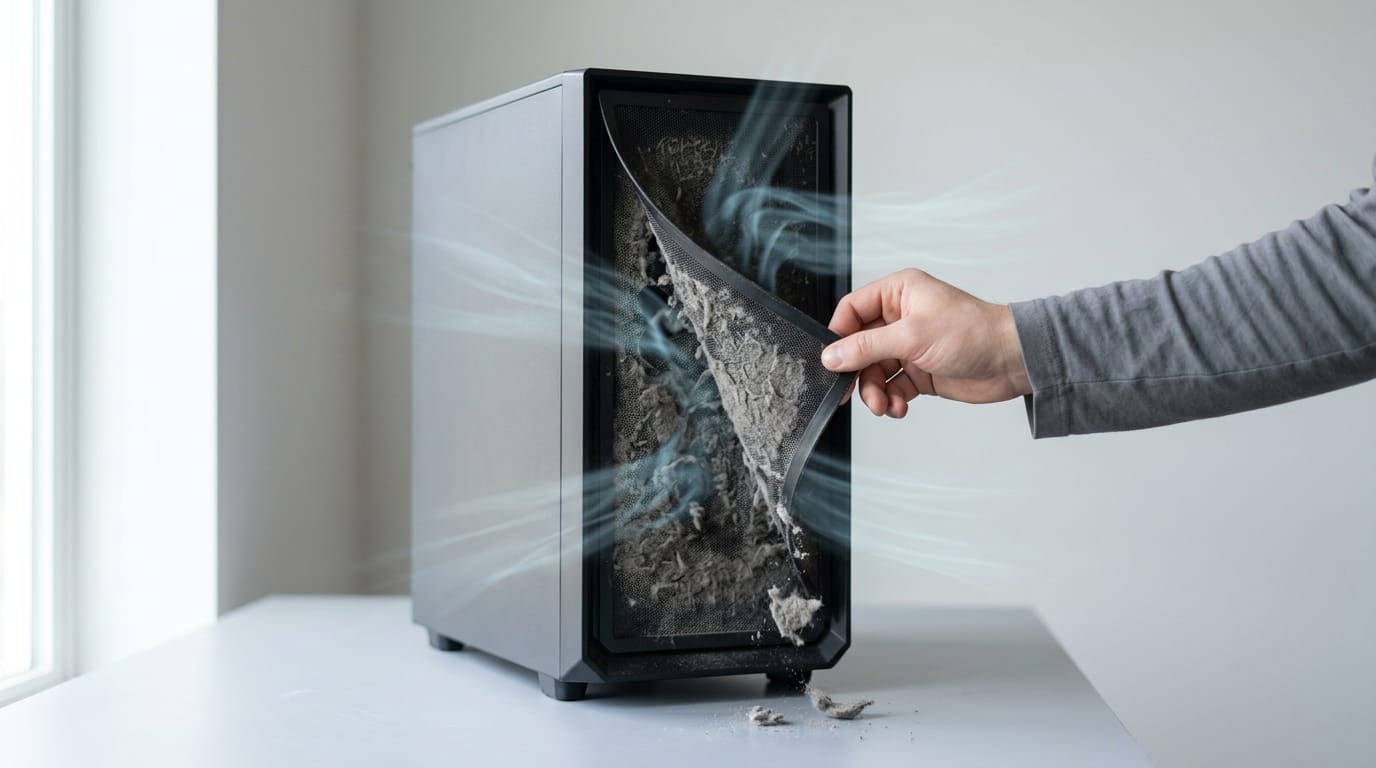
Overheated chips slow down to cool off, which is called thermal throttling. If heat keeps building, the system can shut down to protect its parts. It’s less about one big fan and more about airflow across the whole case.
Consider a gamer whose PC slows after an hour of play. A clogged dust filter can be the culprit, and cleaning it may restore smooth play.
The Case and Newer Add-on Hardware
The case gets the least attention, but it sets the limits for everything inside. Here’s how we fit the drives, cards, and ports around it.
Choosing a case and tower size
A case houses and protects the motherboard, processor, memory, graphics card, and power supply, and good ventilation keeps them cool.
- Full tower: the most room for long graphics cards and extra cooling.
- Mid tower: the common middle ground for most gaming builds.
- Mini tower: compact, but tight on space for big cards.
The case is also the hub for cables and ports, with front panel connections running to the motherboard.
[Labelled photo of the parts inside a mid-tower case goes here.]
Consider a gamer building their first PC who picks a mid tower with room for a bigger graphics card later. When the upgrade comes, they swap one part and keep the case.
CD, DVD and Blu-ray drives today
An optical drive reads Compact Disc (CD), Digital Versatile Disc (DVD), and Blu-ray discs, and discs are one way to install the operating system (OS). Many new builds skip the drive entirely, and it’s increasingly outdated.
It’s a drive you used to need, not one you have to have.
Add-on cards for sound and Wi-Fi
Add-on cards plug into Peripheral Component Interconnect Express (PCIe) slots on the motherboard. The common ones are:
- Network interface card (NIC): handles your PC’s network connection.
- Sound card: dedicated audio for when built-in sound isn’t enough.
- Wi-Fi and Bluetooth adapters: Wi-Fi for wireless internet, Bluetooth for controllers and headsets.
Your Ethernet port takes a wired cable from the router. Wi-Fi is convenient, but a cable is usually steadier for online games. A player with dropouts mid-match can often fix it with one cable instead of a new card.
New AI and security chips inside
Newer PCs add two chips worth knowing:
- Neural processing unit (NPU): speeds up artificial intelligence (AI) tasks without pulling as hard on the processor your games need.
- Trusted Platform Module (TPM): a security chip that stores encryption keys.
Windows 11 requires TPM 2.0, and a Microsoft Q&A thread lists it among the general requirements for a PC. Microsoft’s Copilot+ PCs carry their own specs on top, so check the spec sheet before you buy.
Think of a gamer with an older PC who checks for TPM 2.0 before upgrading to Windows 11. One quick check shows whether the upgrade is possible before they spend an evening on it.
Ports for USB, HDMI and Thunderbolt
Ports are the plugs you use every day:
- Universal Serial Bus (USB): the common port for keyboards, mice, and drives.
- High-Definition Multimedia Interface (HDMI): sends video and audio to a monitor or TV.
- Thunderbolt: a fast port for data and displays on many newer machines.
Inside the case, PCIe slots are the internal interfaces that cards plug into. USB-C is the common reversible plug on newer gear, but it’s about the shape of the plug, not the speed, so check the label before you count on fast transfers.
Consider a gamer who wants to show a laptop on a big monitor while keeping a fast drive plugged in. A quick look at the back of the PC shows which ports are free, so they buy the right cable on the first trip.
Outside Parts and Plug-in Devices
Not every part of your PC (personal computer) lives inside the case. Here’s what the outside pieces do.
Choosing a monitor and its specs
A monitor is the display that shows everything your computer produces. Size and resolution (the pixel count, such as 1080p or 1440p) shape how sharp games look, while the refresh rate, measured in hertz (Hz), sets how smooth fast motion appears.
Check the inputs too: HDMI (High-Definition Multimedia Interface) and DisplayPort are common plugs, and your graphics card needs to match one.
Think of a gamer who wants smoother shooters. They need a higher refresh rate and a cable their graphics card has. A monitor is a separate purchase, so check whether a quoted price includes one.
Keyboards, mice and other inputs
Input devices send your commands in. Mechanical keyboards put a switch under each key, while membrane models use a flatter pad. Layouts range from full-size to compact. A mouse, or a touchpad on a laptop, tracks your hand.
A webcam and microphone capture video and sound for calls, and a scanner turns paper into digital files.
Consider a streamer whose viewers notice muffled audio fast. A clear microphone is worth pricing before a fancier keyboard, so viewers hear every word.
Printers, speakers and other extras
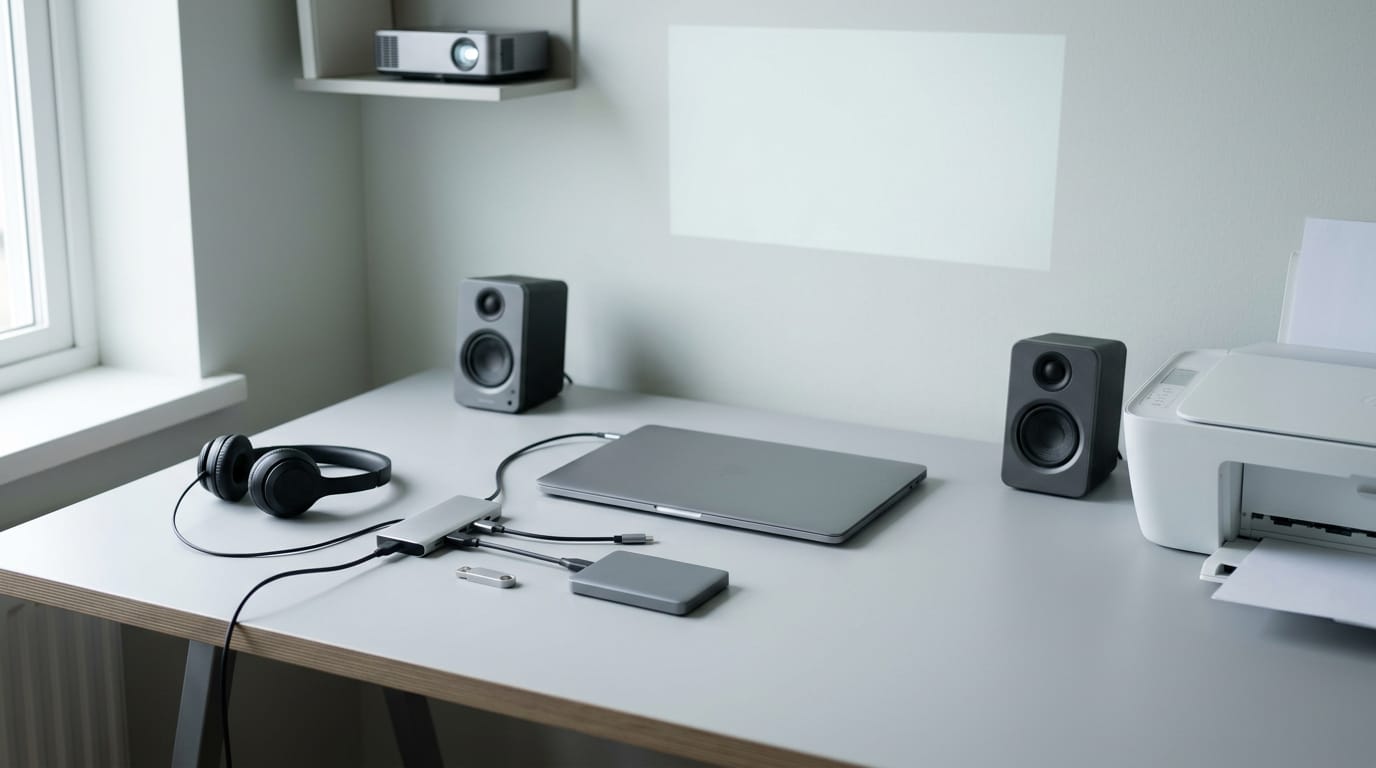
A printer puts your files on paper, and speakers send sound into the room. A headset combines a speaker and microphone in one device, and a projector throws your screen onto a wall.
External drives and USB (Universal Serial Bus) sticks add storage without opening the case.
A docking station or hub adds ports to a laptop, but it adds connections, not processing power. A laptop gamer with two ports can run a mouse, a headset, and an external drive through one USB hub without swapping cables.
Telling inside parts from outside ones
Inside parts, like the processor and memory, decide how fast your PC runs. The outside devices, called peripherals, decide how you use it by expanding what your computer can do.
Every part fits one of four functional categories:
- Input: sends data in, like a keyboard.
- Output: shows results, like a monitor.
- Processing: does the work, like the processor.
- Storage: keeps files, like a drive.
Sort your priced list this way first, then shop.
How the Parts Work as One System
No single part does the work alone. Your computer runs as one connected system, and the weakest link sets the pace for the whole thing.
What happens from power-on to desktop
Here’s what happens when we press the power button:
- POST and firmware. The power supply unit (PSU) feeds your parts, and a power-on self-test (POST) checks that they respond. The basic input/output system (BIOS), or its newer successor the Unified Extensible Firmware Interface (UEFI), then finds your storage.
- Boot loads the operating system. The operating system (OS) loads into random access memory (RAM), your short-term workspace.
A keypress from you reaches the central processing unit (CPU), which pulls data from RAM and does the work. Your games sit on your solid-state drive (SSD), and the graphics processing unit (GPU) sends finished frames to your monitor.
Why your slowest part holds you back
Your system only runs as fast as its slowest part. Think of a gamer who spends most of a budget on a strong GPU but keeps an old hard drive. The card is ready, but levels take forever to load and the frame rate stutters once the action picks up.
It’s about balance rather than peak numbers, so match your CPU, GPU, and RAM to the same goal.
Running short on RAM hurts too. When memory fills up, your OS leans on storage as a stand-in, a process called paging. Storage is much slower than RAM, so everything drags.
Storage deserves a close look too. According to a MakeUseOf article, upgrading to an SSD can be an old computer’s most noticeable performance upgrade: “upgrading your storage can be equally, if not more, impactful than upgrading your RAM.”
Where hardware ends and software begins
Hardware is the physical gear: the chips, boards, and drives you can actually touch. Software is the set of instructions that tells that gear what to do.
Firmware sits between them, a small program stored on the motherboard that wakes the hardware up before your OS takes over.
The two depend on each other completely. A game is just a file of instructions until a CPU and GPU run it, and the hardware sits idle without software to direct it. Neither is much use alone.
Comparing PC parts to the human body
A body comparison makes each part’s job easy to remember:
- CPU as brain. It makes the decisions and does the thinking.
- Motherboard as nervous system. It carries signals between every part, much as nerves link your brain to the rest of your body.
- PSU as heart. It pumps steady power to everything, and if it falls short, nothing else keeps running.
Choosing Parts, Building and Upgrading
Parts have to fit, suit your use, and go together safely. A Phillips screwdriver, cable ties, and an anti-static wrist strap cover most home builds.
Making sure your parts fit together
Start with the socket where your central processing unit (CPU) sits, and the chipset on your board, which must support it. Your random access memory (RAM) comes as DDR4 or DDR5, and the two are keyed differently, so the wrong kind won’t seat.
Your power supply unit (PSU) needs enough wattage and connectors for your graphics card.
A first-time builder grabs a CPU on sale, then finds its socket doesn’t match the board. Checking first saves a return trip. Parts that fit beat parts with the biggest numbers, and your motherboard dictates the rest.
Matching parts to what you do
For gaming, the graphics processing unit (GPU) gets the biggest share. A player on a fixed budget spends most of it on the card, then picks a CPU and RAM that won’t hold the card back.
Editing leans on the CPU, RAM, and GPU together, so balance all three. For browsing and streaming, a solid-state drive (SSD) and enough RAM matter more than a big GPU.
Newer chips add a neural processing unit (NPU) for artificial intelligence (AI) tasks, so only pay extra if you’ll use them.
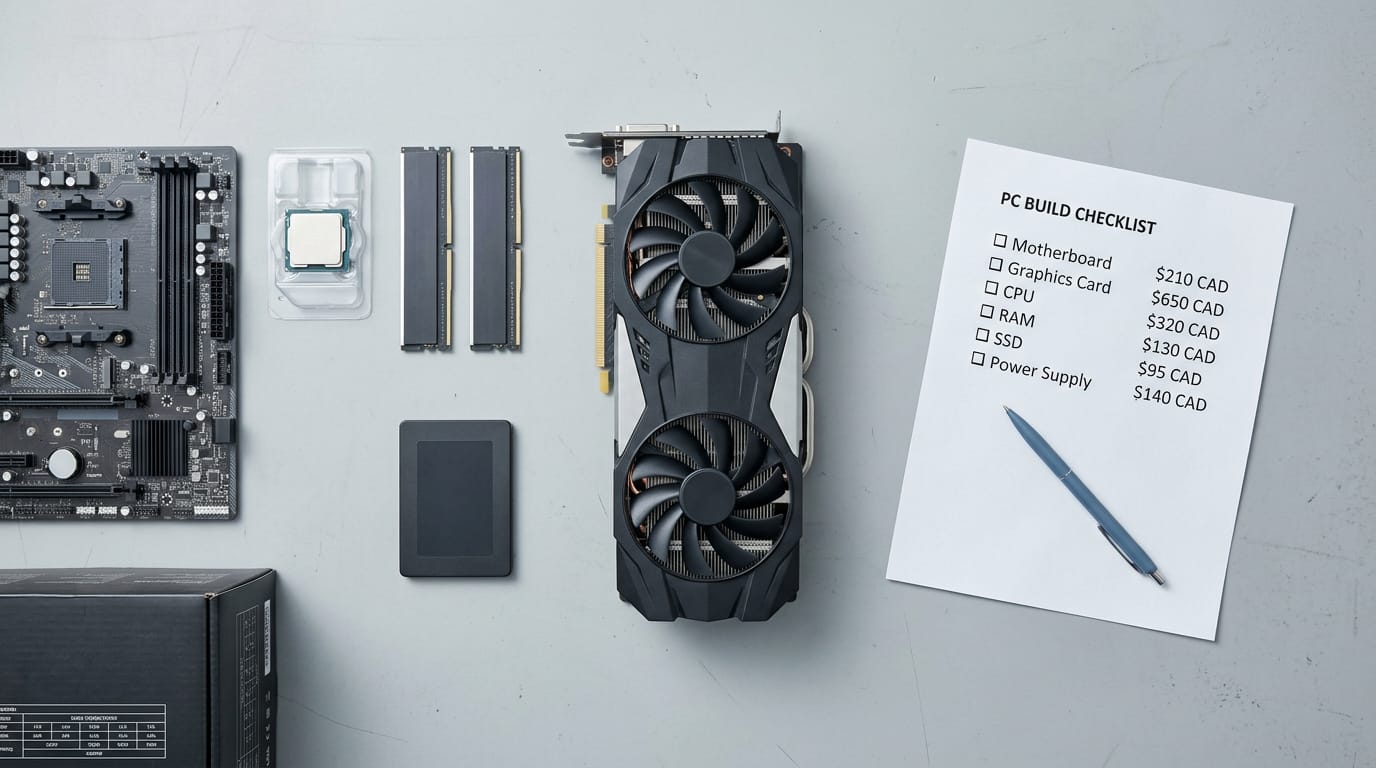
Build your list line by line in Canadian dollars (CAD):
- CPU: model and price
- Motherboard: matches the CPU socket
- RAM: matches the board
- GPU: biggest gaming line
- SSD: system and games
- PSU: covers the GPU
Which upgrades are easiest to make
RAM and SSD upgrades are the easiest: usually a slot and a screw or two. Desktop graphics cards come next, if the new card fits your case and your PSU covers it. CPU upgrades are socket-limited, so the new chip has to fit your board.
Laptops are the exception, since many have parts soldered to the board. Check before you buy.
Avoiding damage and common build mistakes
Static electricity can harm parts, so wear an anti-static wrist strap or touch bare case metal often. Parts should slide in gently; if you’re forcing one, recheck its orientation. Tuck cables away from fans so air can move freely.
Before the case goes together, test boot the motherboard outside it. If it won’t start, you’ll fix it in minutes.
Common beginner mistakes:
- Forgetting to plug in the CPU cooler
- Skipping the standoffs under the motherboard
- Skipping the test boot
Desktops and Laptops Side by Side
Laptops and desktops run the same kinds of parts, just packed very differently. That packing decides what you can upgrade later and what you can take to a friend’s place.
How laptop parts differ from desktop ones
A desktop uses full-size parts you can swap out one at a time. A laptop uses compact parts built to fit a thin case, so every piece is smaller and designed to work with the others. That’s great for carrying.
Desktops are about flexibility; laptops are about fit.
The biggest difference is soldered memory. In many laptops, the RAM is soldered directly onto the board, so it can’t be pulled out and replaced. On a desktop, adding a second stick is a weekend job.
On a laptop, the memory you buy on day one is the memory you’ll have for the life of the machine.
Laptops also tend to use integrated central unit designs, where the processor and its supporting pieces are packed into one tight unit. That saves space and power, but it limits how much you can change later.
A desktop usually relies on a separate mouse. A laptop has a built-in touchpad that handles pointing and clicking, which is fine for email and browsing. For shooters and strategy games, though, most players still plug in a mouse.
Consider a player who games at a friend’s place on weekends and at a home desk during the week. A laptop covers both, but they’ll need a mouse for the desk and should buy enough memory up front, since they can’t add more later. Choose with that in mind.
Hardware for Offices and the Cloud
Windows 10’s end of support has many people asking whether their PC is worth keeping.
Windows 11 requirements after Windows 10 ends
Microsoft’s Windows Experience Blog noted that support would end on Oct. 14, 2025, after nearly a decade. That date has passed, so Windows 10 PCs no longer get regular security updates.
Windows 11 requires the Trusted Platform Module (TPM) 2.0, a security chip that stores encryption keys. Without one, a PC can’t upgrade, even if everything else checks out.
Think of a gamer whose desktop runs their favorite shooter well but has no TPM. They can keep playing on it, but their banking should move to a device that still gets full updates.
Your PC won’t stop working when support ends. What changes is how safe it is online.
If you need more time, Extended Security Updates (ESU) offer a temporary bridge. Treat them as a stopgap, not a plan.
Reusing old hardware with cloud desktops
A cloud desktop runs your Windows environment on a remote server, and your old PC just shows the screen. Here’s how that plays out:
- Repurposing old hardware. A PC that fails the Windows 11 check can become a simple display for a cloud desktop instead of going to the recycle bin.
- Virtual desktop benefits. Your work follows you across devices, and the environment is managed in one place.
- Network latency limits. Every click and keypress travels to the server and back, and that delay, called latency, is the catch. For email it’s usually barely noticeable, but for a fast shooter it can mean a missed shot.
Cloud desktops suit office work better than fast-paced gaming. Old hardware can still do useful work, so check your connection before you commit.
Once you know what each part does, a computer stops looking like a box of mystery hardware. The processor, memory, storage, and power supply all have a job, and the peripherals you plug in shape how you actually use the machine.
Take that knowledge and build your list one part at a time, checking each choice against the games you play and the money you have. Your budget doesn’t have to stretch to the top of the shelf.
Know the parts, and the right build becomes much easier to see.
References
- what’re the requirement of installing Windows 11? — learn.microsoft.com (2026)
- Stay secure with Windows 11, Copilot+ PCs and Windows 365 before support ends for Windows 10 — blogs.windows.com (2025)
- This Is The #1 Upgrade That Makes an Old PC Feel Brand New — makeuseof.com (2025)
Questions
What is the purpose of RAM?
RAM provides short-term working space for the data and programs your computer is actively using. Having enough RAM helps apps and tasks stay responsive; its contents are erased when the computer loses power.
What are the four parts of a computer?
The four functional parts of a computer are input, output, processing, and storage. A keyboard is input, a monitor is output, a processor handles processing, and a drive provides storage.
What's the difference between hardware and software?
Hardware is the physical equipment, such as chips, boards, and drives. Software is the instructions that tell the hardware what to do, and both are needed for a computer to work.
What tools do I need to build a PC?
A Phillips screwdriver, cable ties, and an anti-static wrist strap cover most home PC builds. You’ll also need compatible components, including a case, motherboard, CPU, RAM, storage, power supply, and, if required for your needs, a graphics card.
Sources
- what're the requirement of installing Windows 11? - Microsoft Q&A, learn.microsoft.com,
- Stay secure with Windows 11, Copilot+ PCs and Windows 365 before support ends for Windows 10 | Windows Experience Blog, blogs.windows.com,
- This Is The #1 Upgrade That Makes an Old PC Feel Brand New, makeuseof.com,
Free · The Build Sheet
The Build Sheet: three gaming PCs priced at Canadian stores