Xbox One Display Issues: Causes and Fixes Explained
Xbox One display issues can ruin movie night, but start with cable and TV-input checks before settings, resets, or paying for a repair in Canada.

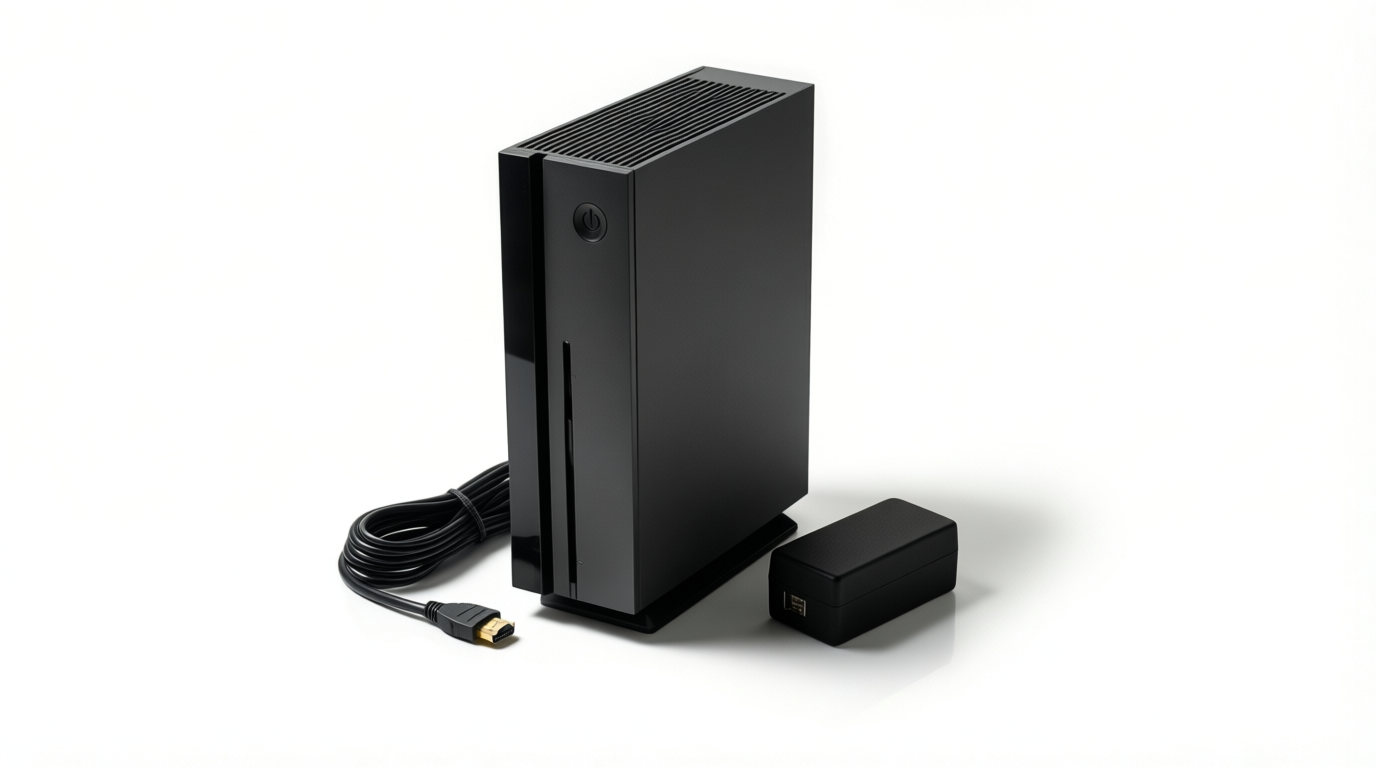
Xbox One display issues are problems such as a blank, flickering, corrupted, or partly black picture, often caused by a loose HDMI connection, incompatible display settings, TV problems, or a software glitch. Check the cable, input, and ports first, then power-cycle the console and adjust Xbox or TV settings, including VRR and resolution; try network or video-mode resets before a factory reset. These steps can restore the picture without unnecessary purchases, while persistent faults after testing another cable and screen may need professional repair.
Imagine settling in for movie night, pressing power on your Xbox One, and getting a black screen before the first trailer. Many display problems trace back to a loose cable, a drifted setting, or the wrong TV input.
A display issue is any time your picture goes blank, flickers, or looks wrong. Plenty can be fixed at home, starting with the simplest checks.
We’ll cover cables and ports first, then restarts, settings, TV fixes, network checks, resets, and when to call a pro, plus budget-friendly replacement cable and capture card pass-through advice priced in Canadian dollars.
Common Xbox One Display Issues and Causes
Before you buy a new cable, let your screen point you to the problem.
What players see on screen
Find the symptom that fits:
- Corrupted images. Scrambled shapes or colour bands sit where the picture should be.
- Nothing appearing on screen. No image shows up, even though the TV is on.
- Black screen of death. The display goes fully black and stays that way.
- Black on right side only. Part of the image is blacked out down the right edge.
- Flashes fading to black. The picture pops up briefly, then dims out.
The symptom tells you where to look, not what broke, so read the causes below alongside it.
What usually causes the problem
Here are the usual suspects:
- 4K/120Hz feature problems. 4K is ultra-high-definition resolution, and 120Hz is how often the image refreshes each second. If your console asks for both and your TV can’t keep up, the picture fails.
- TV compatibility issues. Your TV may reject a signal the console sends, even when both work fine on their own.
- Dashboard software glitch. A bug in the home screen can leave the video output in a bad state.
- Failed startup or power glitch. An interrupted boot or power hiccup can leave the display misbehaving.
- Connection problems. A loose or damaged cable, or the wrong port, can interrupt the signal.
Sound with no picture usually means the console is running, so the trouble is likely in the video signal. Think of a player who hooks their Xbox One to a bedroom TV, hears the startup chime, and sees a blank screen.
Before they buy a new cable, they can try the other HDMI (High-Definition Multimedia Interface) port and check the video settings, which could save them a replacement. Start there.
Restart and Power Cycle Your Console
Before you touch a cable or dig into settings, start with the quickest fix: a full restart. It needs no tools and no menu changes, so it’s a smart first move.
Fully restart your console
A full power cycle goes further than a normal reboot. It’s less about what you press and more about how completely you cut the power. Here’s the routine:
- Hold the Xbox button for 10 seconds.
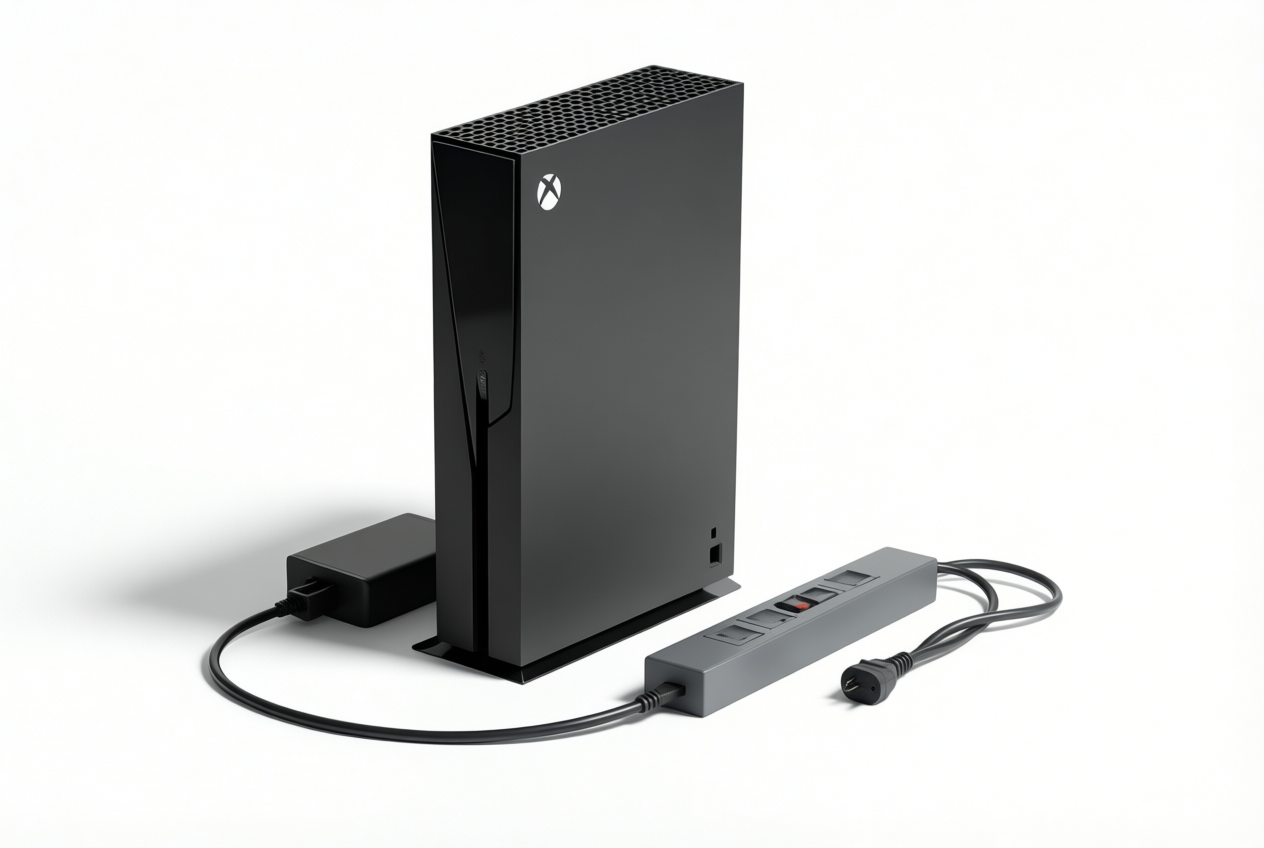
- Unplug the power cable from the wall or power strip, and wait a moment.
- Plug the cable back in, then power the console on.
- Watch for the green startup animation. If it appears, the restart took.
- Repeat if needed. If the animation never shows or the picture still fails, run through the steps again.
Say your kid’s Xbox One goes black every time a game loads. Before you order a new cable, run through the steps above. If the green animation shows up and the game comes back, you just saved yourself a trip to the store. Sometimes that’s all it takes.
If the picture still won’t come back after a couple of tries, it’s time to check your cables.
Tweak Your Console Display Settings
Before you buy a new cable or blame the TV, check your console’s own settings. A couple of toggles cause more trouble than people expect.
Turn off variable refresh rate
Variable refresh rate (VRR) adjusts the screen’s refresh rate to match the frames your game is producing. It sounds helpful, but VRR can corrupt images, so it’s the first thing to test.
Go to Settings > General > TV & display options, open Video Modes, and turn off Allow variable refresh rate. Restart after changing it, then check the picture again.
Say you’re a player with a Series S on the living room TV, and the picture looks off in a fast racing game. Turn VRR off, restart, and see if the glitches disappear before you touch anything else.
Does the Xbox Series S support 120Hz?
The honest answer depends on your display as much as the console. Open the display settings menu and see what your TV or monitor accepts. Then match resolution to TV capability, so you pick settings your screen can actually handle.
From there, experiment to find a working setup. Change one option at a time and play for a few minutes. Keep what looks right: aim for a working setup, not the highest number on the menu.
The same goes for 4K at 120Hz. Which consoles can manage it depends on both the console and the display, so check both before you spend money.
Want to start over? To reset display settings on the Series S, work back through the display settings menu and return each option you changed to its earlier value.
Fixes to Try on Your TV
If your Xbox One won’t connect to your TV via HDMI (High-Definition Multimedia Interface), don’t blame the console just yet. Work through these fixes in order, starting with the software that runs your screen.
Update your TV firmware
Your TV is often the culprit, not the Xbox. Its firmware is the built-in software that tells the screen how to handle incoming signals, and an outdated version can stop the console from syncing.
Samsung, LG, and Vizio sets are among those affected, so look for an update in your TV’s settings or on the manufacturer’s site, and install the latest firmware before you touch any cables.
Check the VRR setting on your TV
Next, look at variable refresh rate (VRR), a feature that lets the TV adjust its refresh rate to match what the console sends. VRR can cause picture problems on some TVs, so it’s worth checking.
Follow your manufacturer’s instructions to find the setting, since its menu name differs from brand to brand.
Consider a player who turns VRR off, plays a few matches, then turns it back on. Judge the result by the picture, not by which setting sounds more advanced. Trust your eyes: keep whichever looks cleaner.
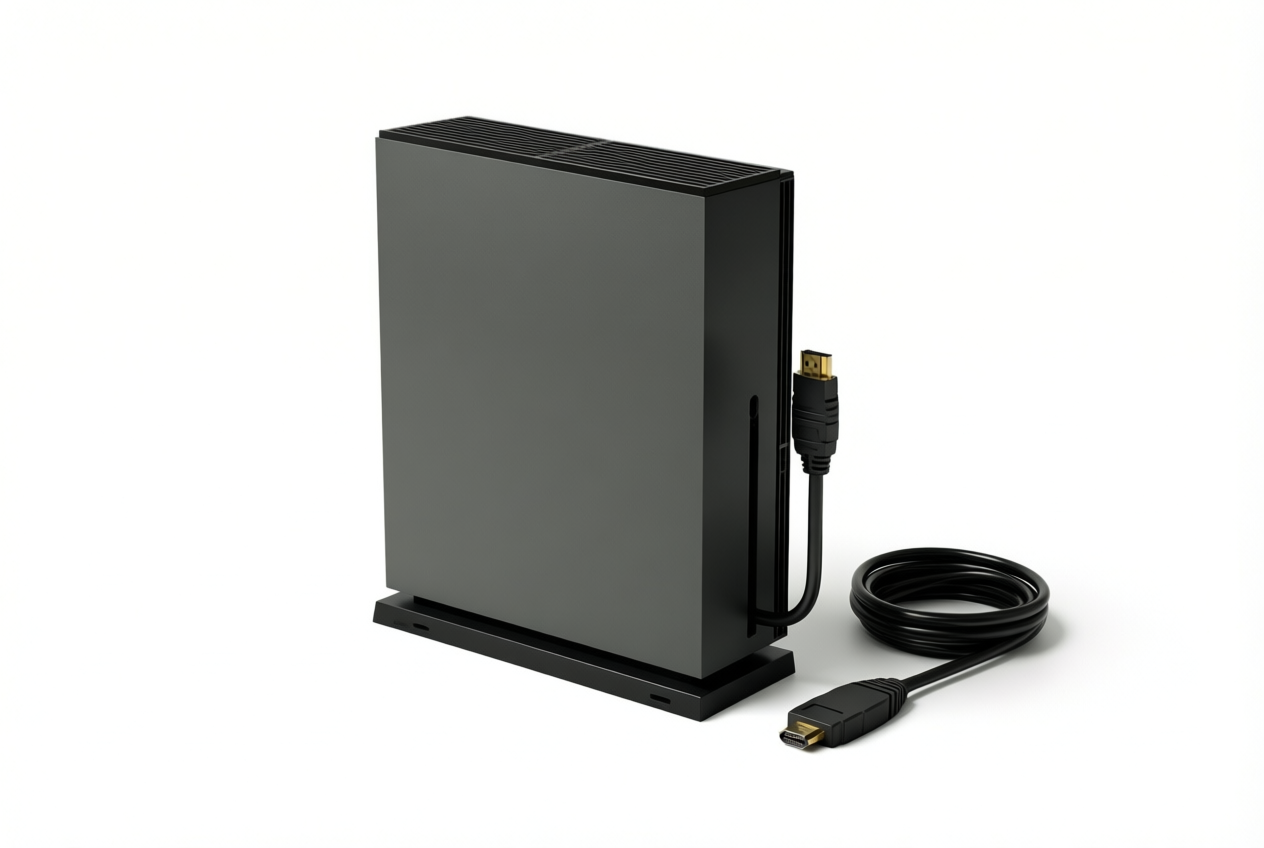
If the picture still won’t appear, swap the HDMI cable for a known-good one and try a different port on the TV. Using a capture card (a device that records gameplay)?
Its pass-through, the feature that sends the signal on to your display, can cause a blank screen, so connect the Xbox straight to the TV to test. Connecting to a monitor instead?
Plug the HDMI cable into the console and an HDMI input on the monitor, then select that input on the monitor.
Network and Xbox Live Fixes to Try
Not every display problem starts with a cable. When your screen goes dark, the console itself may be stuck on its connection, so it’s worth trying these network fixes once the physical checks come up clean.
Go offline to clear a black screen
Think of a player who powers on their Xbox One for a quick match and gets a black screen before the dashboard loads. A black screen is often Xbox Live related.
According to Windows Latest, users reported their consoles stuck on the black screen while many gamers also had trouble connecting to Xbox Live.
Going offline is a quick reset rather than a permanent change, and it’s easy to try:
- Go to Profile & system > Settings > Network.
- Select Go offline.
- Reboot the console, then reconnect to Xbox Live once it restarts.
If the picture comes back, the trouble was likely on the network side, not your TV or cable. Cheap, fast, and worth trying first. That player gets back to the match without swapping a single cable.
Reset Options for Stubborn Screens
If the picture stays blank, stretched, or stuck after you’ve checked your cables and ports, it’s time for a reset. We’d start with the gentler option, which only touches the picture rather than the whole console.
Reset your video mode with buttons
Think of a gamer whose TV goes black the moment they switch on their Xbox One. A video mode is the resolution the console sends to your screen, and a quick button reset gets you back to a usable picture.
Here’s how it works:
- Hold the power button for five seconds.
- Hold the Xbox and eject buttons together.
- Wait for two beeps.
The console then boots in low resolution, so you’ll see a basic picture. Choose the correct resolution for your display, and you’re done. Simple, and your games stay put.
Factory reset and what gets erased
The button reset fixes the picture, but a factory reset restores the whole console to factory settings. It also deletes accounts and saved games.
Consider a parent handing a used console to their kid. A factory reset gives the kid a clean start by clearing the old profile, but only if the parent has already synced and backed up the saves worth keeping.
Before you start:
- Sync first. Make sure your games and saved data are synced.
- Back up. Copy anything you can’t afford to lose.
Don’t skip it.
When to Get a Professional Repair
A repair shop is the last stop, not the first. Work through the fixes earlier in this guide, and only call in a technician once they’ve all failed.
Seek help once fixes fail
A professional repair is a last resort, so it’s worth being sure you’ve earned it. Think of a player who has swapped the HDMI cable, tried another port on the TV, and tested a second display, and the picture still flickers.
That’s your signal. Don’t keep guessing.
At that point, a technician’s job is to find the root cause of the fault. You’re after the cause, not a patch that hides the symptom for a week, and a good tech will test the console and its connection until the real failure shows up.
When you’re ready, schedule a repair appointment and ask what they’ll test and what it’ll cost. Same-day service is possible at some shops, but it isn’t guaranteed, so ask when you call.
Before you book, check current Canadian prices for a replacement HDMI cable. It’s the cheapest part to test, and prices move often, so compare live listings in dollars rather than trusting a number in an article.
Working through display problems in order saves you time and money. Start with cables and ports, move on to restarts and settings, then check your TV before you reach for a reset or a repair.
A loose cable or a wrong input takes minutes to fix, while a replacement part is a bigger commitment. Keep your budget in Canadian dollars in mind, and only buy what your symptom actually points to.
Start simple, work down the list, and your picture will be back before the opening credits roll.
References
- Xbox One hits black screen issue, Microsoft confirms Xbox Live outage — windowslatest.com
Questions
How long do XBOX Ones typically last?
Xbox One consoles often last around 5 to 10 years, though actual lifespan varies with use, care, and hardware condition. Keeping the console ventilated and free of dust can help it last longer.
How to reset display settings on Xbox Series S?
Turn off the Series S completely. Press and hold the Pair button, then press the Xbox button on the console; keep holding Pair until you hear the second startup tone, which starts the console in low-resolution mode. Once you see a picture, open Settings > General > TV & display options and choose settings your screen supports.
How to fix black screen of death?
Start with a full power cycle: hold the Xbox button for 10 seconds, unplug the console for a short time, then reconnect it and turn it on. Check the HDMI cable, TV input, and another HDMI port, and disconnect any capture card to test the console directly on the TV. If needed, boot in low-resolution mode and adjust the display settings.
How to fix XBOX display on TV?
Confirm the TV is set to the HDMI input connected to the Xbox, then reseat the HDMI cable and try another cable and TV port. Power-cycle the console and TV, update the TV firmware, and check whether VRR or a high-resolution setting is causing an incompatibility. Connect the Xbox directly to the TV if you use a receiver or capture card.
Why does my XBOX have sound but no picture?
Sound without a picture usually means the Xbox is running but its video signal is not reaching or being accepted by the display. Check the HDMI cable, try another TV port or display, confirm the correct input is selected, and test lower-resolution settings if needed.
Is HDR or 4K better for gaming?
Neither is universally better because they improve different things. 4K provides a sharper image, while HDR can produce a wider range of brightness and color; the best choice depends on your display, game, and preference.
Can my Xbox Series X run 4K?
Yes. Xbox Series X supports gaming at up to 4K resolution, though the game and display must support the resolution, and performance can vary by title.
Does the Xbox Series S support 120Hz?
Yes. Xbox Series S supports up to 120Hz output in supported games and display modes, but you need a TV or monitor that accepts 120Hz at the selected resolution. Check the console's display settings and select a mode your screen supports.
Sources
- Xbox One hits black screen issue, Microsoft confirms Xbox Live outage, windowslatest.com
Free · The Build Sheet
The Build Sheet: three gaming PCs priced at Canadian stores