How to Connect a Wii Controller to a PC (Step by Step)
How to connect a Wii controller to a PC: pair it with Windows 10 or 11, set up Dolphin, and see whether you need a Bluetooth dongle or sensor bar.

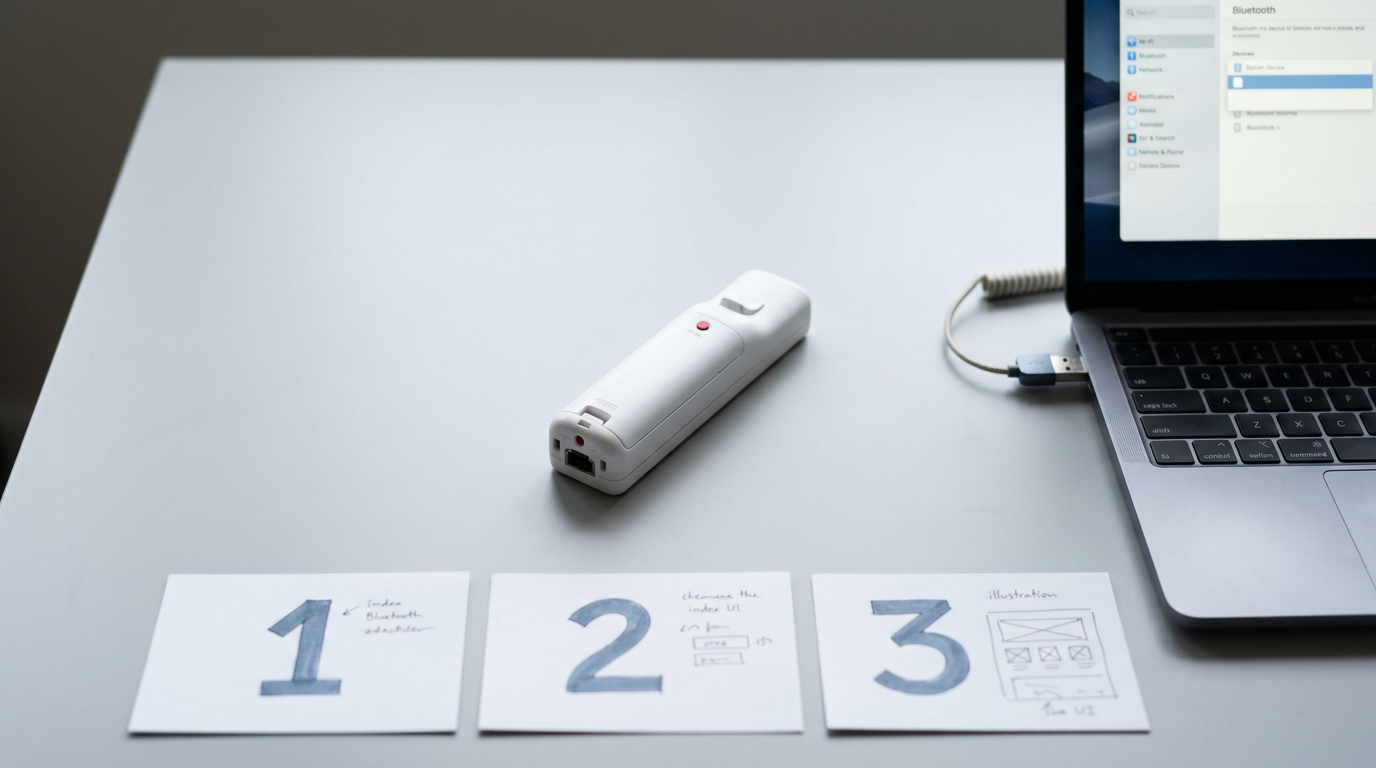
A Wii Remote connects to a PC over Bluetooth, while a separate infrared sensor bar helps its pointer aim at the screen. Pair it through Windows or Dolphin by holding buttons 1 and 2, then choose Dolphin for Wii games or a HID Wiimote driver for standard PC gamepad use; the driver is unmaintained and has compatibility and security trade-offs. Check Bluetooth, batteries, and software conflicts before buying anything, and add only the accessories your setup needs.
Think of your Wii Remote like a TV remote that’s been sitting in a drawer for years. It still works, but your PC won’t recognize it until the two are properly introduced.
The short answer is that the remote connects over Bluetooth, so you need a compatible adapter, the right software, and a few minutes of pairing.
In this guide, we’ll walk through the parts you’ll need, pairing steps for Windows 10 and 11, the Dolphin emulator (software that runs Wii games on a PC) and driver options, and fixes for common problems.
We’ll also flag where budget Bluetooth dongles and sensor bars fit in, so you don’t overspend.
Parts Needed to Connect a Wii Controller
Before you pair anything, you need a remote, a sensor bar, and a PC with Bluetooth, the wireless standard that pairs devices. Check what you own first.
Which Wii remote and accessories to get
Start with a Wii remote, plus the Nunchuk attachment if your games need it. Think of a player who dug an old Wii out of the closet: they may already own the remote and need only a bar and an adapter.
Buying online? Compare the total in Canadian dollars (CAD) with shipping included, and confirm that third-party remotes from other brands are compatible before you buy.
Picking a sensor bar for your setup
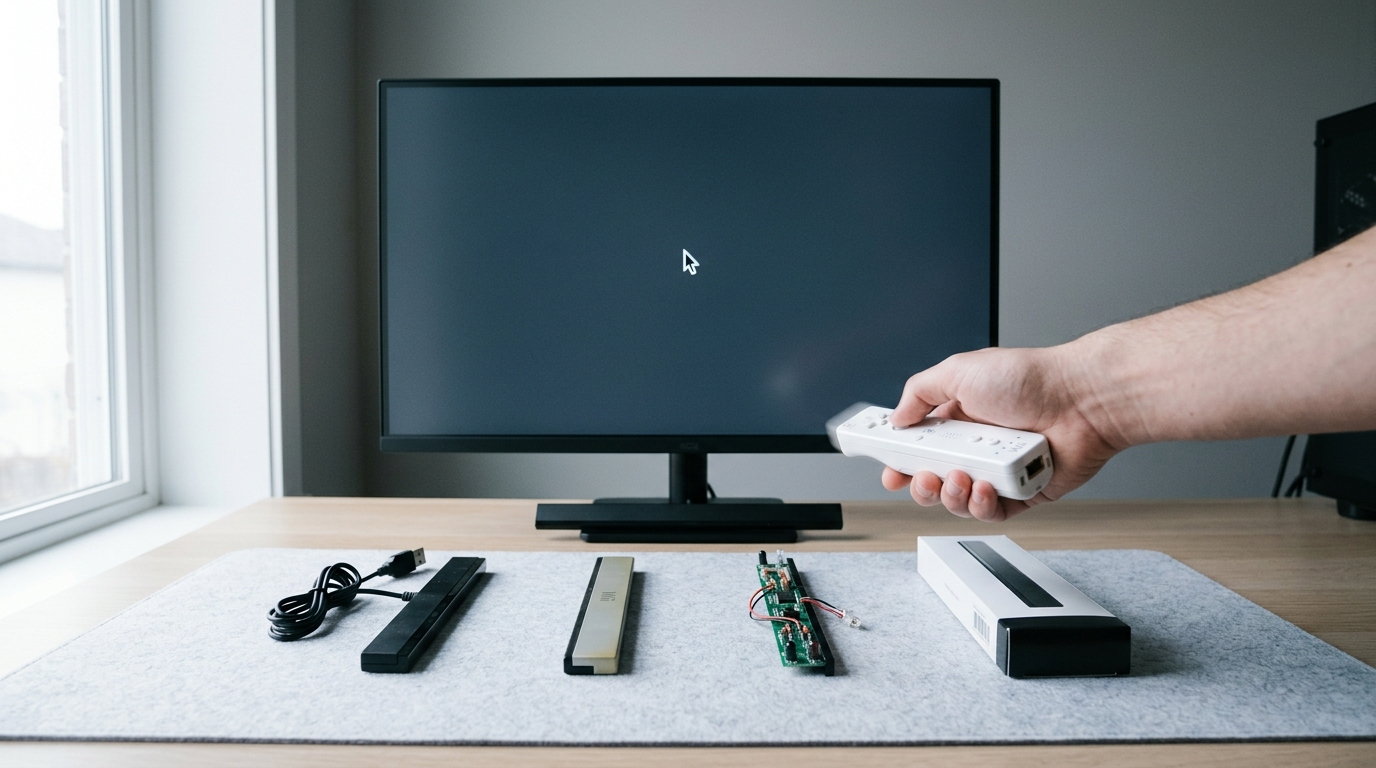
A sensor bar gives your remote something to aim at. It emits infrared (IR) light, not Bluetooth, so it doesn’t pair with your PC. Pick the one that works for your setup, not just the cheapest.
Your main options:
- USB sensor bar: A USB (universal serial bus) bar draws power from your PC.
- Original console bar: Reuse your old Wii bar if you have one.
- Do-it-yourself (DIY) IR LED bar: A homemade option built from light-emitting diodes (LEDs).
- Mayflash Dolphin bar: A ready-made option, so there’s no building.
Place it above or below your screen, centred. Compare the Dolphin bar with a DIY build by checking the CAD price and your build time.
Checking your PC for Bluetooth
Open Settings and look for a Bluetooth option. If it’s missing, plug in a USB Bluetooth adapter, a small stick often called a dongle. Without one, you’ll get an error that no adapter was found.
Cheap Canadian-priced dongles are easy to find, so compare CAD listings with shipping included. Check your PC first, then buy.
Pairing a Wii Remote with Windows
Connecting a Wii controller via Bluetooth is a normal pairing job: you add the remote through your PC’s Bluetooth settings, just like headphones or a keyboard.
Below you’ll find the Windows 10 and 11 steps, the Dolphin path, what the lights mean, and how to handle the code prompt.
How do I pair a Wii Remote on Windows?
Say your kid finds an old Wii Remote and wants to play on the family desktop tonight, with nothing new to buy. To connect a Wii Remote to a PC on Windows 11:
- Open Bluetooth settings from the Settings app.
- Select Add Bluetooth device.
- Press and hold the 1 and 2 buttons (a quick tap won’t do it) until the lights start blinking.
- Select Nintendo RVL-CNT-01 from the list.
- Pair without a code if Windows asks for one.
On Windows 10, the walkthrough is close to the same: open Settings, go to Devices, choose Bluetooth & other devices, then follow the add-device flow. Don’t rush the hold.
Pairing through the Dolphin emulator
If you’d rather play through Dolphin, the emulator that runs Wii and GameCube games on your PC, set up the remote in its settings:
- Turn on the Emulate Bluetooth adapter setting.
- Choose the real Wii Remote option so Dolphin uses your physical remote.
- Enable continuous scanning so Dolphin keeps looking for it.
- Press 1 and 2 on the remote to pair.
- If nothing connects, refresh and retry.
What the connection lights mean
The remote shows where it stands through its small blue light-emitting diodes (LEDs).
- Blinking blue LEDs. The remote is still searching, not yet linked.
- Solid LED. You’re connected.
- Vibration on connect. The remote buzzes when the link is made.
Getting around the empty PIN prompt
When Windows asks for a personal identification number (PIN), leave the box empty and continue. If the Settings flow stalls, the Devices and Printers dialog is another route to finish pairing.
Heads up: the Windows 10 Creators Update has a limitation with this prompt. If you’re on that version and the steps above don’t match what you see, use the Devices and Printers route.
Software to Use Your Remote on PC
Which method suits which game comes down to one question: are you playing Wii games, or PC games that need a gamepad?
Setting up the Dolphin emulator
Dolphin is an emulator, a program that runs Wii games on your PC. Download it from the official site, extract it to its own folder, and open it from there.
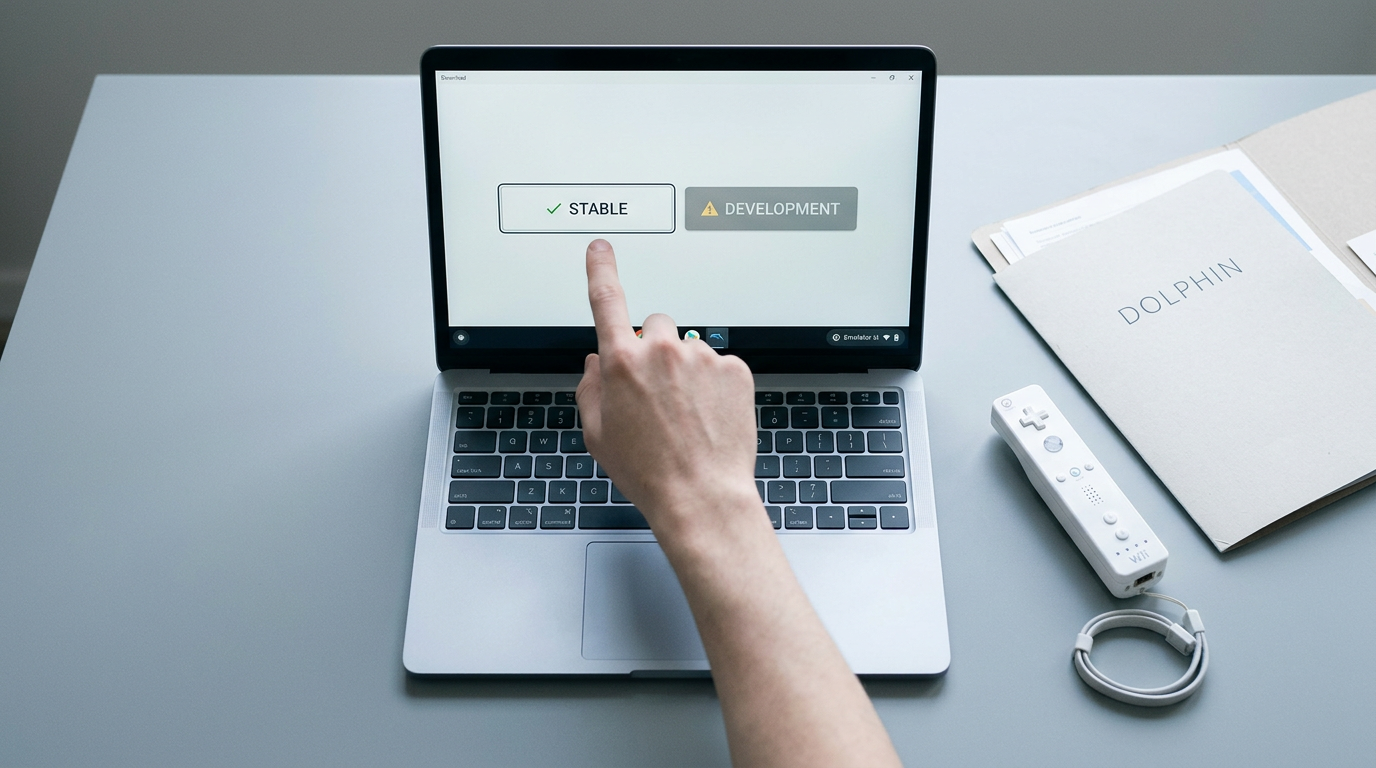
Development builds carry the newest changes but may have more bugs, so pick stable builds for a first setup. Close Dolphin before you pair your remote.
Tweaking Dolphin’s Wii and graphics settings
Start in Dolphin’s Wii settings. Set the sensor bar position to match where your real sensor bar sits, above or below your screen, so the pointer lines up. Then adjust:
- infrared (IR) sensitivity
- speaker volume
- rumble
Vulkan is a graphics backend, the layer between Dolphin and your graphics card. Pick it in the graphics settings, then set fullscreen and resolution for your monitor.
Fix the pointer before the graphics: a drifting cursor ruins a game faster than blurry textures do.
Adding game files and starting a game
Dolphin runs game dumps, copies of discs you own, usually saved as ISO files, a common disc image format. Add the folder that holds them under Paths in Dolphin’s settings, then select the game and click Play. That’s the whole trick.
Take a parent who wants to share a favourite Wii game with the kids on the family desktop. Once Dolphin is set up, they can play with a remote the household already owns, and no second console is needed.
Using the HID Wiimote driver for gamepads
The other route is the HID (Human Interface Device) Wiimote driver, which makes your remote a native gamepad. Games read it like any standard controller, so you can skip key-mapping programs.
It supports the Nunchuk and Classic Controller, and it works with the Wii U Pro and Balance Board.
Two limits matter. It isn’t for emulators like Dolphin, so keep Wii games on the emulator path above. Also, the project is no longer maintained, so expect rough edges.
Installing the driver and getting it signed
Windows checks driver signatures, so this route takes a few extra steps:
- Install the certificate, then the driver.
- Disable driver signature enforcement, or turn on Test Mode with bcdedit, the Windows boot settings tool, from an administrator Command Prompt. Restart afterward.
- In Device Manager, change your remote’s driver to the HID Wiimote driver.
To uninstall, remove the driver in Device Manager and reverse the change from step 2. These settings weaken Windows’ protection against unsigned drivers, so turn them back on when you’re done.
Fixing Common Problems and Known Issues
Most connection failures have a few usual causes. Check your side first, then the driver’s limits.
Why isn’t my Wii Remote connecting to my PC?
If your PC won’t detect the remote, start with the basics. Check the batteries first. Then retry pairing by pressing 1 and 2 on the remote.
Two other things can block the connection. Close the Dolphin emulator before you pair, not after, since an open Dolphin window can block pairing. Also turn off any nearby Wii console, which can interfere.
Picture a player who keeps Dolphin minimized. Their remote won’t pair until they close it, then connects on the next try. If pairing drops after your PC sleeps, repeat these steps to reconnect.
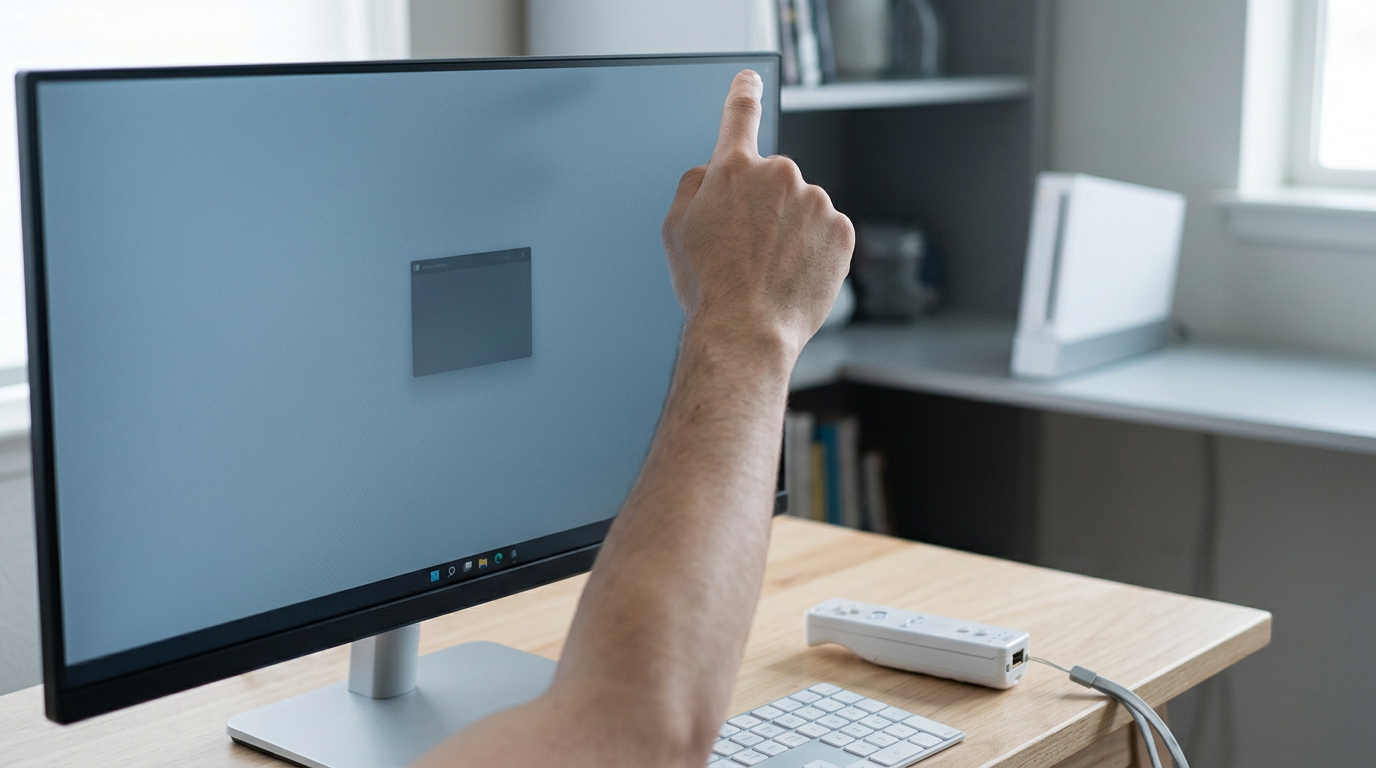
Where the driver falls short
The driver doesn’t detect disconnects, so you may need to remove the device manually and pair it again.
- Other Bluetooth devices may fail. Your other gear can stop working while the driver runs.
- Incompatible Bluetooth stacks. Some Bluetooth software setups won’t work with the driver at all.
- Anti-cheat signature conflicts. Anti-cheat software can clash with the driver, so check before you launch a competitive game.
Many of these are software limits, so rule them out before spending on a new dongle.
When the console won’t sync up
If the remote stays silent during sync, check these:
- Programs running block sync. Close background programs first.
- Batteries dead or misplaced. Confirm they’re fresh and seated correctly.
- Sensor bar in the wrong place. Position it so the remote can see it.
- Reset console and remote. Reset both before syncing again.
Most of these cost nothing but a few minutes. Start there.
Pairing with a Wii or Wii U
Every Wii Remote starts out by syncing (pairing) with a console. The steps differ a little between the original Wii and the Wii U, so here’s each one.
Syncing your remote to a Wii
- Turn on the console and wait for the main menu.
- Open the SD card cover.
- Press the SYNC button on your remote.
- Press the SYNC button on the console.
Press the remote first, then the console, and don’t skip either press. According to Can Wii™ work it out?, a Wii console can sync up to four Wii Remotes.
Think of a parent setting up the Wii for a Saturday game night with the kids: sync every remote in one sitting, and nobody waits on a controller when the first round starts. Four is the limit.
Steps to sync on a Wii U
- Hold the Sync button on the console.
- Wait for the Sync screen to appear.
- Press the SYNC button on your remote.
Wii Mode needs a paired remote, so get that done before you try any Wii games. Consider a player who picked up a used Wii U with one remote and wants to play older Wii games on it. Pair the remote once, and Wii Mode is ready whenever you are.
Connecting a Wii Remote to your PC comes down to three things: the right adapter, the right software, and pairing done in the right order. Start with the parts that fit your budget, and only upgrade once you know what you actually need.
That drawer ornament can be a real controller again, and it’s closer than you think.
References
- Can Wii™ work it out? — hdl.handle.net (2011)
Questions
How to connect wii controller via Bluetooth?
Open your PC’s Bluetooth settings and choose Add Bluetooth device. Hold the Wii Remote’s 1 and 2 buttons until its lights blink, select “Nintendo RVL-CNT-01,” and continue without entering a PIN if prompted. A solid blue light indicates it connected.
How to connect a Wii Remote to a PC Windows 11?
On Windows 11, open Settings, go to Bluetooth settings, and select Add Bluetooth device. Hold the Wii Remote’s 1 and 2 buttons until the lights blink, select “Nintendo RVL-CNT-01,” and leave the PIN field empty if Windows asks for a code. If you’re using Dolphin, close it before pairing through Windows, or configure the real Wii Remote option and continuous scanning in Dolphin’s controller settings.
Why isn't my Wii Remote connecting to my PC?
Check that the batteries are fresh and installed correctly, then try pairing again by holding 1 and 2 until the lights blink. Close Dolphin before pairing and turn off any nearby Wii console, which can interfere. If the connection drops after the PC sleeps, repeat the pairing steps; some Bluetooth adapters or software configurations may also be incompatible.
Sources
- Can Wii™ work it out?, hdl.handle.net,
Free · The Build Sheet
The Build Sheet: three gaming PCs priced at Canadian stores