Can You Connect AirPods to Xbox? A Complete Guide
Can you connect AirPods to Xbox? Not directly; compare transmitter options, audio lag and party-chat limits, plus a budget pick in Canadian dollars.

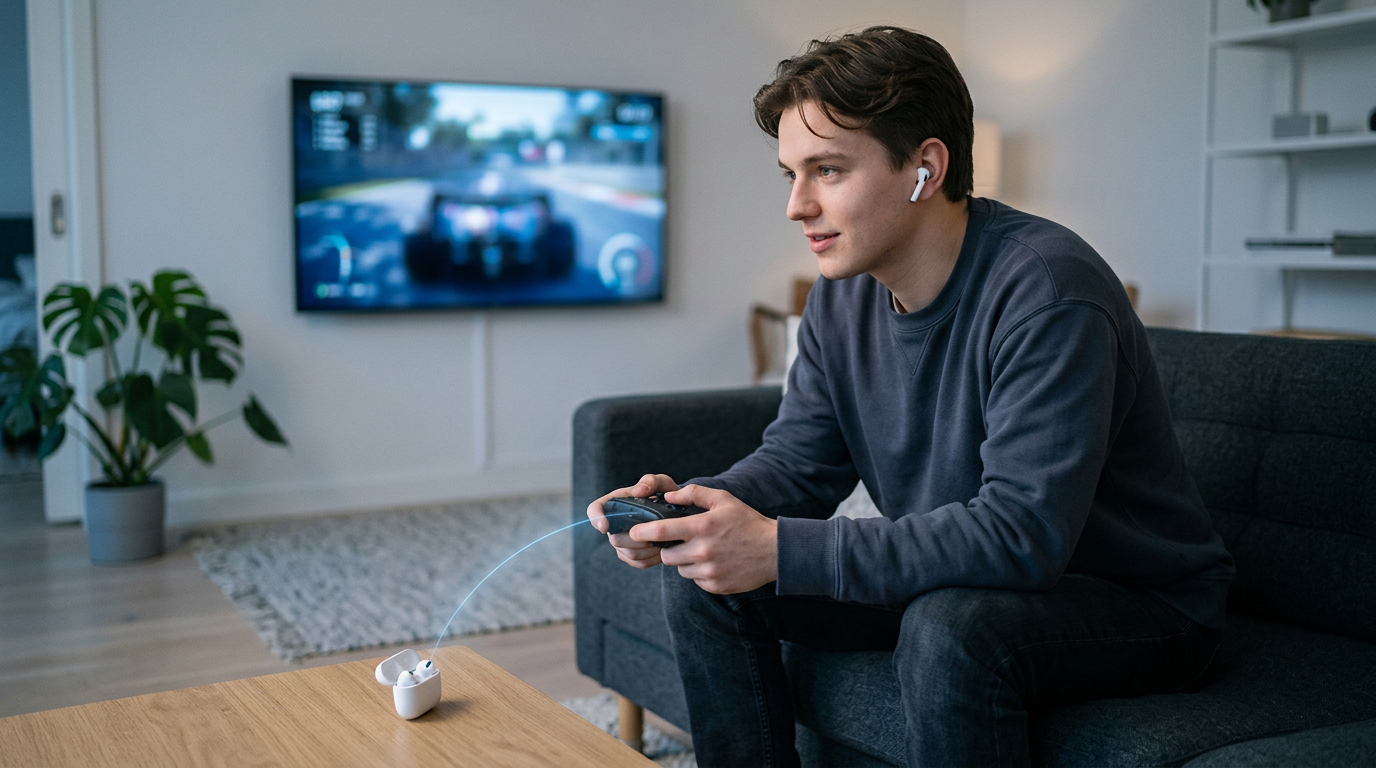
AirPods are Bluetooth earbuds, but they cannot pair directly with an Xbox because the console does not support Bluetooth headphone audio. You can hear Xbox sound by routing it through a controller-connected Bluetooth transmitter, a Bluetooth TV, or a phone using Remote Play, but each option can add lag or limit party chat and microphone use. For casual solo play, a transmitter may work; for reliable game audio and team chat, an Xbox Wireless headset is the simpler choice.
Picture settling onto the couch with your controller in hand and your AirPods already in your ears, only to find the sound stuck on the TV. It’s a common snag, and the short answer is that AirPods can’t pair directly with an Xbox.
You’ll need a small middleman, a Bluetooth transmitter, that takes your console’s sound and sends it wirelessly to your earbuds.
In this post, we’ll walk through every working workaround, the lag and party-chat trade-offs that come with each, and a budget pick in Canadian dollars for the best-fit audio option.
Can You Connect AirPods to Xbox?
Short answer: no, AirPods won’t pair directly with an Xbox. Here’s why that’s the case, and what you can still do about it.
Why Xbox skips Bluetooth headphone pairing
Xbox doesn’t offer native Bluetooth audio, so there’s no built-in way to pair headphones the way your phone does. Instead, the console runs on a proprietary wireless protocol, meaning Microsoft’s own system rather than the standard one your earbuds use.
This applies to all Bluetooth headphones, not just AirPods, so the answer to “Can you connect Bluetooth earbuds to Xbox?” is also no.
So does Bluetooth work with Xbox? Not for headphone audio. This is less about whether your earbuds are good and more about how their sound reaches the console.
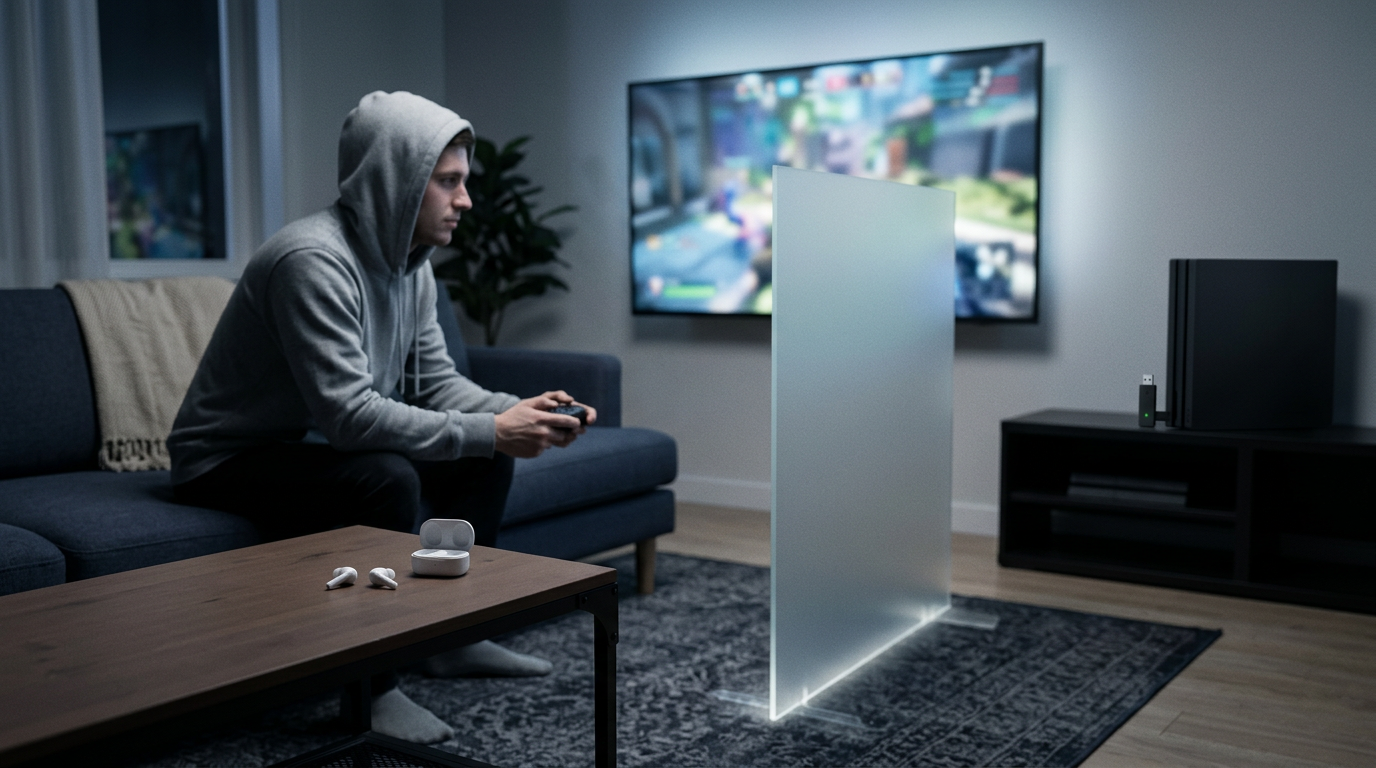
Think of a player who bought AirPods for the commute and wants them for late-night matches on the living room Xbox. The console won’t see them as a headset at all, so that plan needs a second route. Same wall, every brand.
Ways to get AirPods working anyway
Direct pairing isn’t possible, so you’ll need a workaround. Several indirect options exist, and each one sends audio along a different path:
- USB transmitter. A small adapter plugs into the console and sends its audio to your earbuds.
- Routing through another device. The console’s audio goes through a phone or PC first, which then connects to your earbuds.
Each route has trade-offs. Before you buy, check how much delay it adds, since that matters in fast shooters, and whether it carries party chat so your squad can hear you.
If you’re asking about PlayStation, the answer is similar: AirPods don’t pair cleanly there either, so the same workaround thinking applies.
Methods for Hearing Xbox Through AirPods
AirPods won’t pair directly with an Xbox, so every working option routes the sound through something else. Here are four routes and their trade-offs in latency (the lag between what you see and what you hear) and party chat.
Use the Xbox app and Remote Play
Pair your AirPods to your phone first, since the phone is where the audio plays. Then use Remote Play, which streams your console’s game to the Xbox app on that phone. Set it up in two steps:
- Turn on Remote Features in your Xbox settings.
- Open the Xbox app and start streaming.
You can also join a party from the app for chat. The catch is that Remote Play depends on network quality, so a weak connection shows up as lag.
Add a Bluetooth transmitter to your controller
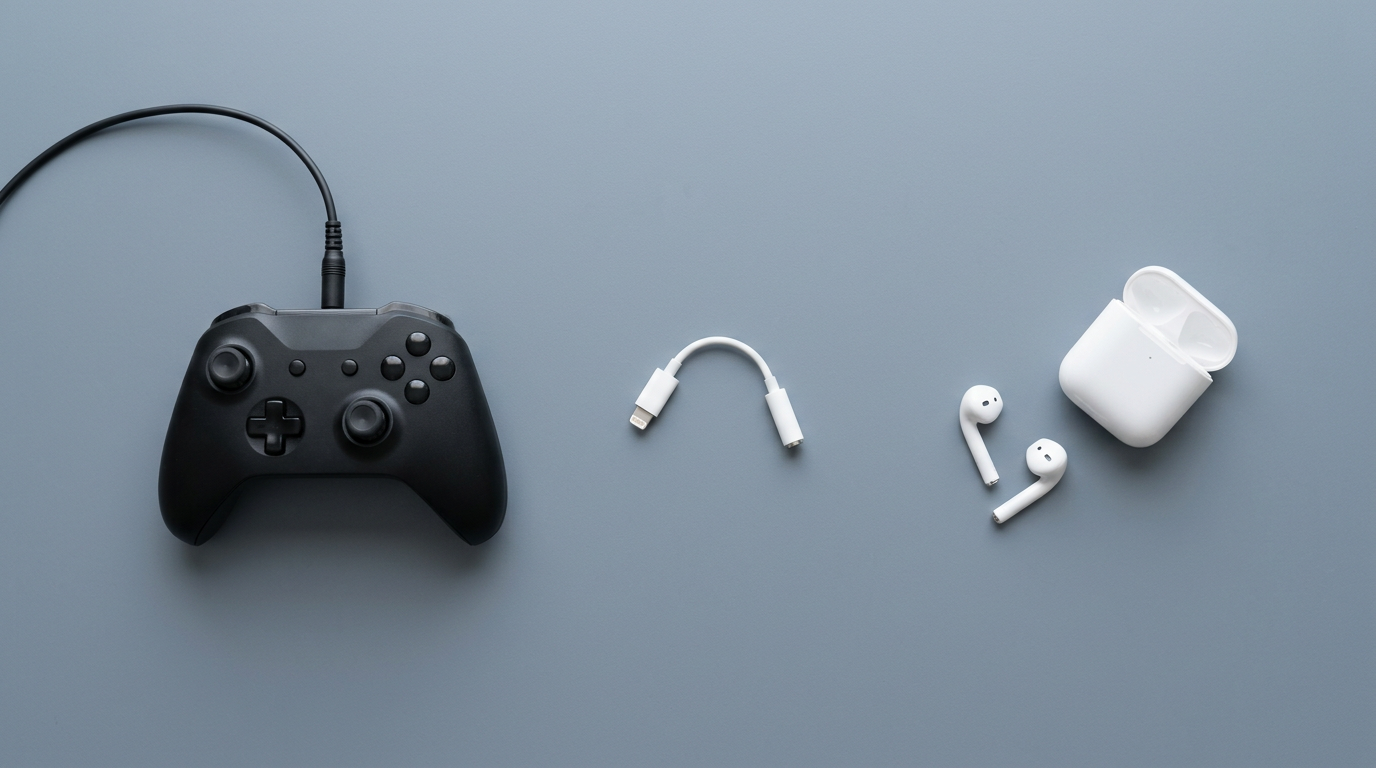
A Bluetooth transmitter is a small adapter that plugs into the controller’s 3.5mm jack (the standard headphone port) and sends audio wirelessly to your AirPods. Third-party adapters like Skull & Co and Avantree are worth comparing.
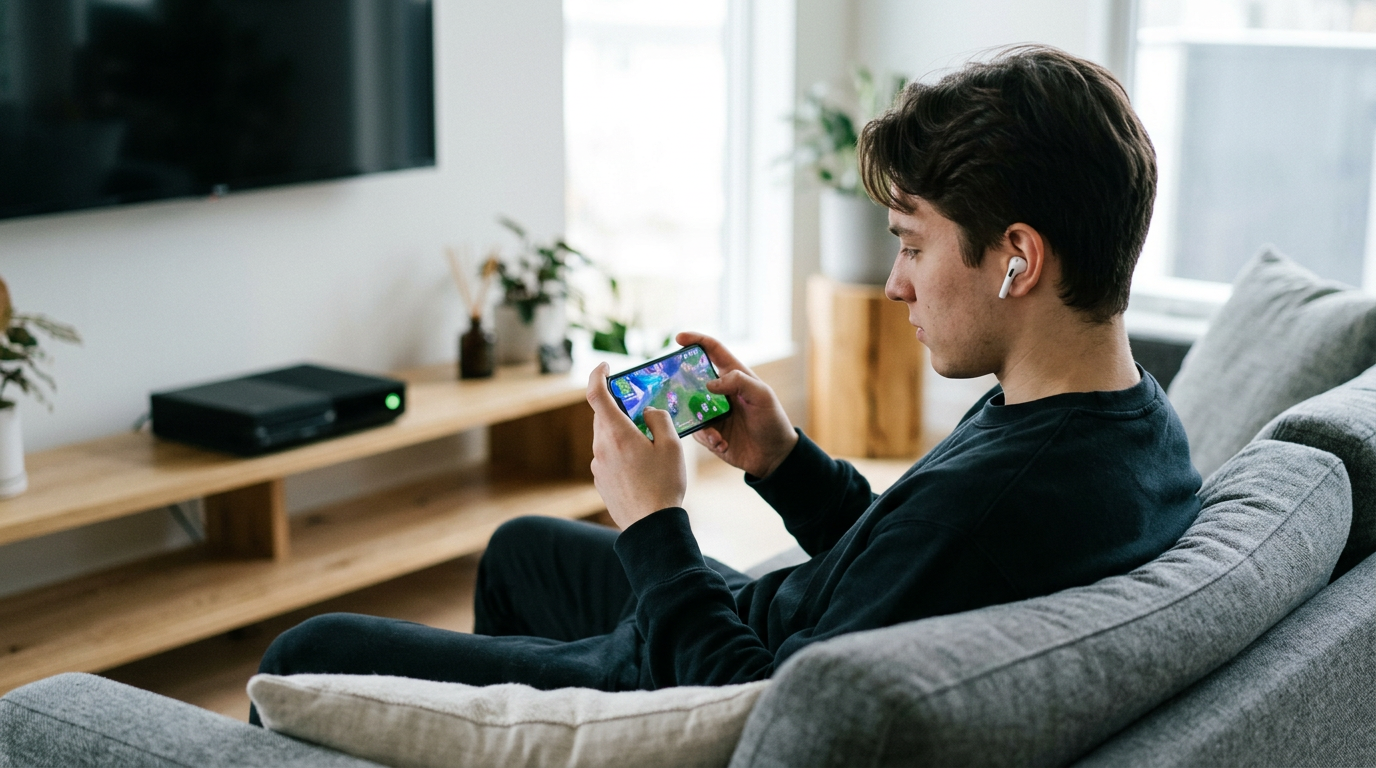
Think of a player who games solo after everyone’s asleep. A transmitter sends the sound straight to their AirPods, so nobody else in the house gets woken up. It’s built for solo play, not party chat. Plan around that.
For most solo players, a transmitter is the best-fit pick. Before you buy, check that it lists low-latency and mic support, then compare the current price in Canadian dollars, since prices change.
Route Xbox sound through a Bluetooth TV
If your TV supports Bluetooth sound, you can skip the controller’s jack entirely. Turn on the TV’s Bluetooth sound setting, then pair your AirPods to the TV. The Xbox audio passes through the TV, so your AirPods play whatever the TV is playing.
Because the sound takes that extra hop, test it in a fast game before you rely on it.
Plug a wired adapter into the controller
The controller’s 3.5mm headphone jack takes a wired headset directly, which is the simplest setup if you already own one. AirPods have no cable to plug in, so they need a transmitter or the TV route instead.
The Lightning-to-3.5mm adapter is an Apple accessory for iPhones that converts that phone’s Lightning port into a standard headphone jack, so it can’t link your AirPods to the controller.
Is It Okay to Use AirPods for Gaming?
Short answer: AirPods can work for casual play, but on Xbox they’re a compromise. Here’s where they fall short and what to get instead.
Why audio lags and chat gets harder
AirPods are great for music, but in a match it’s not just what you hear, it’s when you hear it. Here’s what usually goes wrong:
- Audio latency, the small delay between the screen and your ears, is noticeable, so footsteps can land a beat late.
- Mic support may be limited, so your squad might not hear you clearly.
- Hearing game audio and party chat together is hard, so a callout can slip past you.
- Party chat limits show up with adapters, so check what your setup supports first.
Consider a player who queues a ranked match after work on AirPods through an adapter. Footsteps land late, and the squad keeps asking them to repeat callouts. A console headset would have fixed both.
Can you use AirPods as a mic? You can try, but don’t count on it. Test it with a friend before a match that matters.
Get an Xbox Wireless headset instead
Rather than fight the setup, go with a headset built for the console. An Xbox Wireless headset connects natively, with no adapter to juggle. Less fiddling. Better audio.
- Smoothest all-in-one option: one headset covers game audio, party chat, and your mic.
- Native wireless support: it connects to your Xbox without workarounds.
- Better for chat and game audio: you hear teammates and the game at the same time.
- Canadian-priced picks: compare Xbox headsets in Canadian dollars at a few retailers and choose one that fits your budget, since prices shift.
AirPods won’t pair straight to an Xbox, but that’s the only real roadblock. A transmitter or adapter bridges the gap, and each route asks for a trade-off in delay, party chat, or cost.
Weigh those against how you play. A fast-paced shooter rewards low delay, while a relaxed session with friends might put party chat first. Choose the setup that fits your playstyle and your budget.
Match the setup to your games, and every session starts with sound you’ll actually enjoy.
Questions
How to use an Xbox wireless adapter?
Plug the Xbox Wireless Adapter into a USB port on your Windows PC, then press its pairing button. Turn on the controller and press its Pair button until the Xbox light flashes; press the adapter’s pairing button again if needed. When the light stays on, the controller is connected.
How to connect your controller to your PC wirelessly?
On a Windows PC, pair an Xbox controller using Bluetooth if the controller supports it: open Bluetooth settings, choose Add device, and select the controller while its Xbox light is flashing. For controllers without Bluetooth, or for a more reliable connection, use an Xbox Wireless Adapter and pair the controller with it. You can also connect many Xbox controllers by USB cable.
Why is my Xbox One controller flashing and not connecting to PC?
A flashing Xbox light usually means the controller is searching for a connection or has lost its pairing. Check that the controller has fresh batteries or a charge, make sure Bluetooth is enabled and the controller is in pairing mode, then remove it from the PC’s Bluetooth list and pair it again. If it still fails, try a USB cable or Xbox Wireless Adapter and update the controller’s firmware.
Is there an Xbox controller app for iPhone?
Yes. The Xbox app for iPhone lets you manage your Xbox account, message friends, join parties, and use Remote Play on supported consoles and networks. AirPods can connect to the iPhone, so Remote Play can route Xbox audio through the phone to them.
Is it okay to use AirPods for gaming?
Yes, AirPods are fine for casual gaming, but they can be a compromise for competitive play because audio may be delayed and microphone or party-chat support can be limited. On Xbox, AirPods cannot pair directly, so you need a workaround such as Remote Play, a Bluetooth transmitter, or a Bluetooth-enabled TV.
Can you connect Bluetooth earbuds to Xbox?
No, Xbox consoles do not natively support Bluetooth headphone audio, including Bluetooth earbuds. You can route sound through a phone using Remote Play, a compatible Bluetooth transmitter, or a TV that supports Bluetooth audio.
Can I use my AirPods as a mic?
AirPods can work as a microphone when connected to a compatible phone or computer, but Xbox does not support pairing them directly as a headset. With workarounds, microphone support may be limited, so test the setup before relying on it for party chat.
What Xbox controllers work on PC?
Most Xbox One and Xbox Series X|S controllers work with Windows PCs by USB, Bluetooth on supported models, or the Xbox Wireless Adapter. Xbox 360 controllers also work on PC, but wireless models require an Xbox 360 Wireless Gaming Receiver rather than Bluetooth. Check the controller model and your PC’s connection options to choose the right method.
Free · The Build Sheet
The Build Sheet: three gaming PCs priced at Canadian stores