Bitrate for Twitch Explained: Settings That Work
Bitrate for Twitch depends on upload capacity. Find target settings, do the upload-speed math, and tune OBS resolution and frame rate for smoother streams.

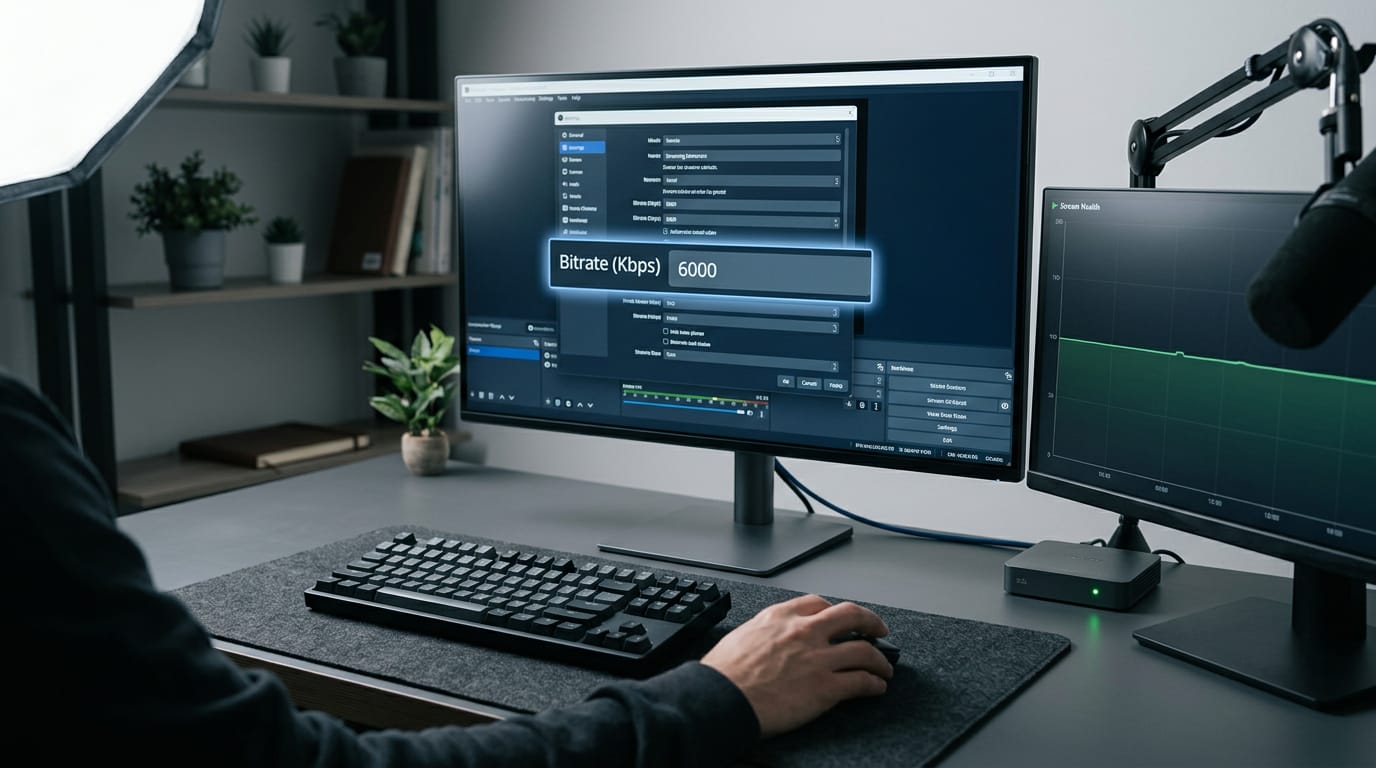
Bitrate for Twitch is the amount of video and audio data your stream sends each second, measured in kilobits per second. Choose a rate your upload can sustain, leave room for game traffic, and match resolution and frame rate to your connection and PC; 6,000 kbps is a common target for 1080p at 60 fps, while slower content or weaker uploads may need less. A steady stream with few dropped frames matters more than a sharper picture that buffers or stutters.
Ever watched a stream turn to mush the moment the action picks up? That’s usually bitrate at work. Bitrate is how much data your stream sends to Twitch every second, measured in kbps (kilobits per second).
Think of it like a moving truck: more capacity fits more detail into each trip, but only if the road can carry the load.
The short answer is to match your bitrate to what your upload connection can reliably sustain, then choose a resolution and frame rate (fps, or frames per second) your PC can run smoothly.
Let’s break down the targets, the upload math, and the OBS Studio settings that tie it all together.
Bitrate for Twitch, Explained Simply
Bitrate is how much data your stream sends to Twitch each second, measured in kilobits per second (kbps).
How much data you send each second
Your encoder, the software that compresses your gameplay, packs each second into a fixed amount of data. More kilobits keep more detail in every frame, but only up to what your upload can carry. Bigger bitrates also mean bigger local recordings.
Audio uses that same upload, so it counts against your total too. Aim for a steady stream, not a maximum one.
What low bitrate does to your stream
Too low a bitrate forces the encoder to throw detail away, so fast scenes turn blocky and on-screen text blurs. First-person shooters (FPS games) suffer most, since nearly every pixel changes between frames.
Picture a player streaming a shooter on a home connection a roommate uses for video calls. Push the bitrate past what the upload can handle and the stream stutters, while the same congestion delays the player’s own game traffic, so their shots land late.
Dial it down and you’ve got both a steady stream and a responsive game.
Balancing picture quality against stability
Stability matters more than peak quality, since viewers forgive a softer picture long before they’ll forgive a stream that buffers.
Don’t judge by the download figure; check the upload number on your plan and run a speed test at the hour you usually stream.
Match settings to your goal:
- Smooth, fast action: high frame rate, at a bitrate you can hold.
- Crisp detail: prioritize resolution, raising bitrate only if your upload allows.
- Shaky connection: favor stability and step down.
The best settings are the ones your upload can carry all night. Steady beats sharp.
Good Bitrate Settings to Aim For
Your bitrate is how much data your stream sends to Twitch every second, measured in kbps (kilobits per second). Here’s where we’d start, matched to your game’s pace and your fps (frames per second), the number of frames shown each second.
1080p at 60fps for fast games
For fast-motion games at 1080p, aim for 6,000 kbps at 60fps. A live-streaming research paper, LL-GABR, names 6,000 kbps as a commonly cited Twitch target for this setup.
Fast action changes the picture constantly, so this setting needs an upload speed that can hold the rate. The goal is a bitrate your connection can hold steady, not one that peaks high for a minute.
Dialing down to 1080p at 30fps
Slower-paced content can drop to 30fps with a bitrate between 4,500 and 6,000 kbps. Fewer frames is a smart trade when little moves on screen. A study on Twitch classroom streams found that with low movement, more than 30 fps is unnecessary.
So match your fps to the motion on screen, not to the number on the box.
Is 4,000 kbps enough for 1080p? It can work for slow content, but it’s the floor, not the sweet spot.
The LL-GABR paper also notes that Netflix recommends going above 4,000 kbps for 1080p video, so 4,000 sits right at the edge. For fast games, stay with 6,000.
Settings if you stream in 720p
If your monitor isn’t 1080p, streaming in 720p is the natural match. Choose 60fps or 30fps using the same logic as above. 720p also works as a compromise for slower connections, since it asks less of your upload than 1080p does.
Consider a student streaming a slow puzzle game from a shared apartment connection. At 720p, the stream needs far less upload, so viewers get a smooth picture instead of one that keeps buffering.
Standard cap and what partners get
Twitch’s standard guidance centers on 6,000 kbps. A study on optimizing video quality for Twitch livestreaming reports Twitch’s recommendation as 6 Mbit/s, the same as 6,000 kbps.
Twitch Partners, creators in the platform’s partner program, may be able to go higher. Pushing above 6,000 kbps can make your stream unstable, so treat a higher rate as a test, not a default.
For everyone else, 6,000 is the cap, and that’s the number to hit.
Upload Speed and Connection Basics
Your stream can only be as good as what your connection can send. Start with the number: it’s the upload speed that counts here, not the download speed that gets all the attention.
Test upload speed and leave headroom
Upload speeds vary across Canadian plans.
A practical guide to the new ‘typical speed’ internet rules notes that a 1.5 Gbps (gigabits per second) download plan with much slower upload isn’t equivalent to a 1 Gbps symmetric plan (one with matching upload and download speeds).
Follow these steps:
- Run an upload speed test on the device you’ll stream from.
- Use about 75% of your upload as your working budget.
- Confirm at least 5 Mbps (megabits per second) of upload before you go live.
- Leave headroom for game traffic. Your game sends data up the line too, so keep spare capacity for it.
Think of a player whose test shows 10 Mbps of upload, comfortably above the 5 Mbps minimum. At about 75%, they have roughly 7.5 Mbps for the stream, which keeps the rest of the line free for their game.
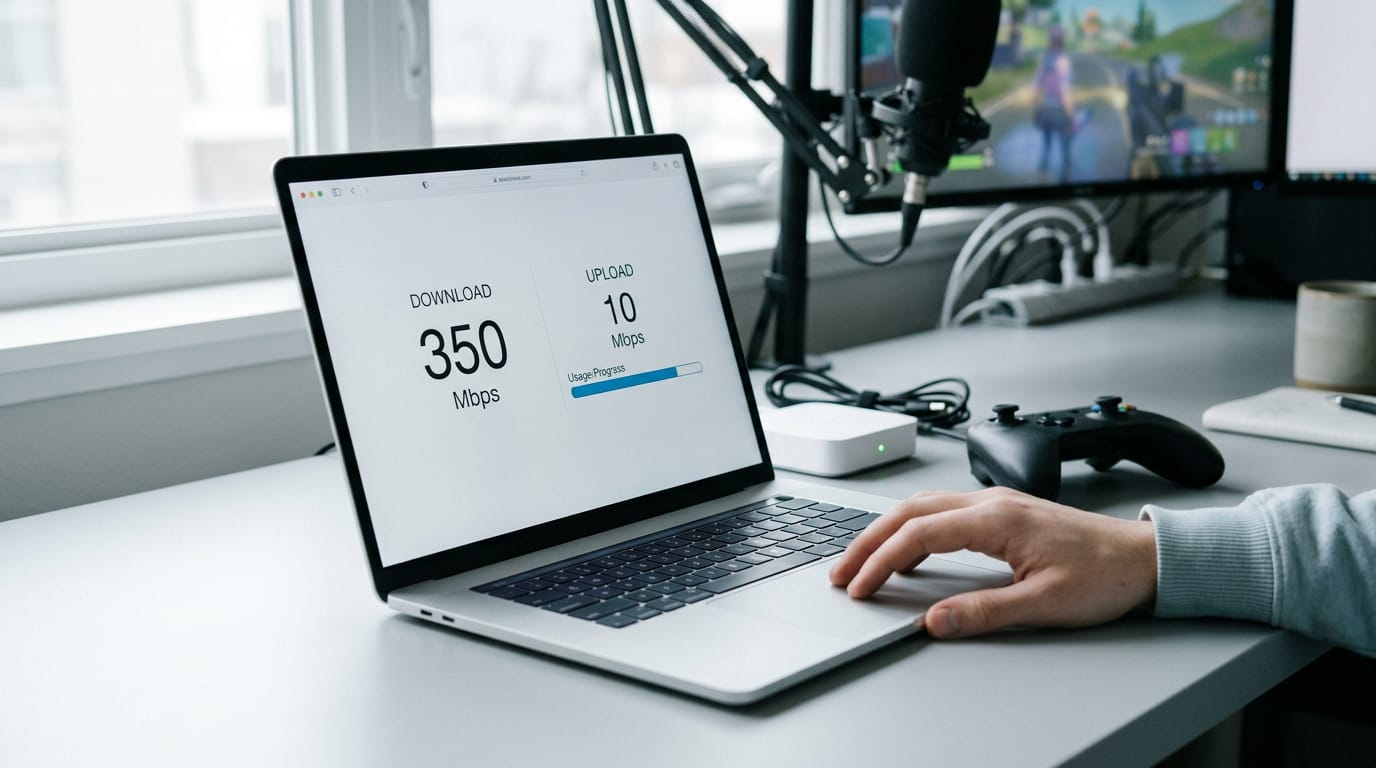
Keeping your connection steady
Wi-Fi is convenient, but a cable is steadier. Here’s how to keep your line that way:
- Wired Ethernet over Wi-Fi. Run an Ethernet cable (a wired network connection) from your router to your streaming computer whenever you can.
- Fewer lags and disconnections. Your viewers get a smoother picture with fewer pauses.
- Invest in faster internet. If your upload can’t cover the stream and your game at once, a faster plan is the real fix. Compare upload before you sign, since extra download speed you’ll never use is wasted money.
What Are the Best OBS Settings for Twitch?
The best OBS (Open Broadcaster Software) settings for Twitch come down to a steady bitrate, the amount of data your stream uploads each second in kbps (kilobits per second), plus an encoder that spares your processor.
Your other output settings should match that upload, not the other way around.
Dialing in bitrate inside OBS
Open File, then Output settings, and choose CBR (constant bitrate) as your rate control. Then enter your bitrate and click Apply.
Picture a player with one gaming PC who streams on weekend nights. They set it once, click Apply, and never touch it mid-stream, so the stream stays steady while they play.
Choosing an encoder that spares your CPU
An encoder compresses your video before it heads to Twitch. Pick NVENC, NVIDIA’s encoder built into the graphics card, over x264, which runs on your processor, whenever you have an NVIDIA card.
The payoff is less CPU strain, so your game and stream both run smoother.
Consider a builder whose game stutters the moment they go live. Switching to NVENC moves the compression onto the graphics card, leaving the processor free for the game.
Got a second PC? A dual-PC setup can offload encoding entirely, so your gaming machine can focus on the game.
Other tools worth a look
Three options are worth knowing about:
- OBS auto-configuration wizard. A built-in helper that suggests starting settings, and a fair first stop if the panels feel like a lot.
- Streamlabs. A streaming app you can use as an alternative to OBS.
- StreamElements cloud overlays. Your on-screen graphics are hosted online instead of stored on your PC.
Set it once. Then play.
Watching Performance and Overall Stream Quality
A stream can look right in your settings and still stutter for viewers. Here’s how to spot the warning signs.
Checking how your stream performs
- Check the stream health dashboard. Glance at it early in every stream, not only when chat complains.
- Watch dropped frames. Dropped frames never made it out cleanly, and viewers see them as stutter. A steady climb means a real problem.
- Track bitrate swings and CPU load. Your bitrate is the data you send each second, and steady beats high. If your CPU (the processor) is pinned mid-match, the PC is the bottleneck.
Think of a player on a midrange PC whose chat flags stutter every time a team fight starts. The drops spike at that exact moment, so the PC is buckling under load. Work through these in order to fix it:
- Close background apps, like a browser loaded with tabs.
- Pause downloads sharing your connection.
- Lower your bitrate a notch and check whether the drops stop.
- Switch to hardware encoding, which lets your graphics card handle the stream, if your card supports it.
Closing tabs and switching encoding usually smooths the next fight.
Gear worth upgrading for a better show
- Webcam, lighting, and microphone. Clear audio keeps people watching, and a well-lit face beats an expensive camera in a dim room.
- Powerful GPU and RAM. Your GPU (graphics card) does double duty when it encodes while running the game. Memory (RAM) runs short when the game, browser, and chat compete, and the whole PC stutters.
- Overlays and green screen. Overlays add work for your PC, so fix the stream before you dress it up. A green screen needs even lighting behind you to look clean.
Bitrate Limits on Other Platforms
If you restream your Twitch broadcast or send a copy to another site, each platform sets its own ceiling on bitrate, the amount of data your stream sends each second, measured in kilobits per second (kbps).
Know those caps before you go live so you don’t pick a setting one platform rejects.
How high each platform lets you go
Here’s what each one accepts:
- YouTube: up to 8000 kbps, with a higher limit for 4K streams.
- Facebook: up to 4000 kbps.
- LinkedIn: up to 3500 kbps.
- TikTok: around 3000 kbps.
- Apple’s HTTP Live Streaming (HLS): up to 7800 kbps.
Those are ceilings, not targets. They tell you the most each platform will take, not the setting you should aim for. Only the 4K stream gets the higher YouTube limit, so a 1080p restream doesn’t need it.
Think of a gamer who restreams a ranked match to YouTube and Facebook at the same time. Sending the 8000 kbps YouTube setting to Facebook means sending twice what it accepts.
Instead, they set the encoder to 4000 kbps, the lower cap, and both streams stay within limits. Check the smallest number first.
You don’t need the fastest connection or the priciest rig to stream well. You need a bitrate your upload can hold steady, a resolution and fps your PC handles without dropping frames, and OBS Studio settings that match both. If you are still gathering gear, a first setup checklist lays out what you need to start streaming.
Test conservatively, watch your dropped frames, and raise settings only once the stream holds up. A steady stream beats a sharper one that stutters.
Build to your upload, not your wish list, and your stream will look better for it.
References
- LL-GABR: Energy Efficient Live Video Streaming Using Reinforcement Learning — doi.org (2024)
- Teaching the Masses on Twitch — dl.acm.org
- Optimizing Video Quality for Twitch Livestreaming — monami.hs-mittweida.de (2025)
- CRTC’s New ‘Typical Speed’ Internet Rules: A Practical Guide to … — refdesk.ca (2026)
Questions
What is the recommended internet speed for streaming on Twitch?
Aim for at least 5 Mbps of upload speed and use about 75% of your measured upload as your working budget, leaving room for game traffic. For stable streaming, an Ethernet connection is preferable to Wi-Fi.
What are the best OBS settings for Twitch?
In OBS, set rate control to CBR and choose a bitrate your upload can sustain; 6,000 kbps is a common Twitch target and the standard cap for most streamers. Use NVENC if you have an NVIDIA graphics card, and choose a resolution and frame rate your connection and PC can handle smoothly.
What does the bitrate mean on Twitch?
Bitrate is the amount of data your stream sends to Twitch each second, measured in kilobits per second (kbps). A higher bitrate can preserve more visual detail, but only if your upload connection can carry it steadily.
Is 4000 bitrate enough for 1080p?
4,000 kbps can work for 1080p content with little motion, but it is at the low end. For 1080p at 30fps, 4,500 to 6,000 kbps is a better range; fast-moving games at 1080p and 60fps generally need about 6,000 kbps.
What's the maximum bitrate on Twitch?
For most Twitch streamers, the standard maximum is 6,000 kbps. Twitch Partners may be able to stream at a higher bitrate, but going above 6,000 kbps can make the stream unstable.
Sources
- LL-GABR: Energy Efficient Live Video Streaming Using Reinforcement Learning, doi.org,
- Teaching the Masses on Twitch, dl.acm.org
- Optimizing Video Quality for Twitch Livestreaming, monami.hs-mittweida.de,
- CRTC's New 'Typical Speed' Internet Rules: A Practical Guide to ..., refdesk.ca,
Free · The Build Sheet
The Build Sheet: three gaming PCs priced at Canadian stores