OLED Grey Uniformity Test Explained, Step by Step
An OLED grey uniformity test shows whether cloudy patches or bands are normal and how viewing angle affects what you see before your return window closes.

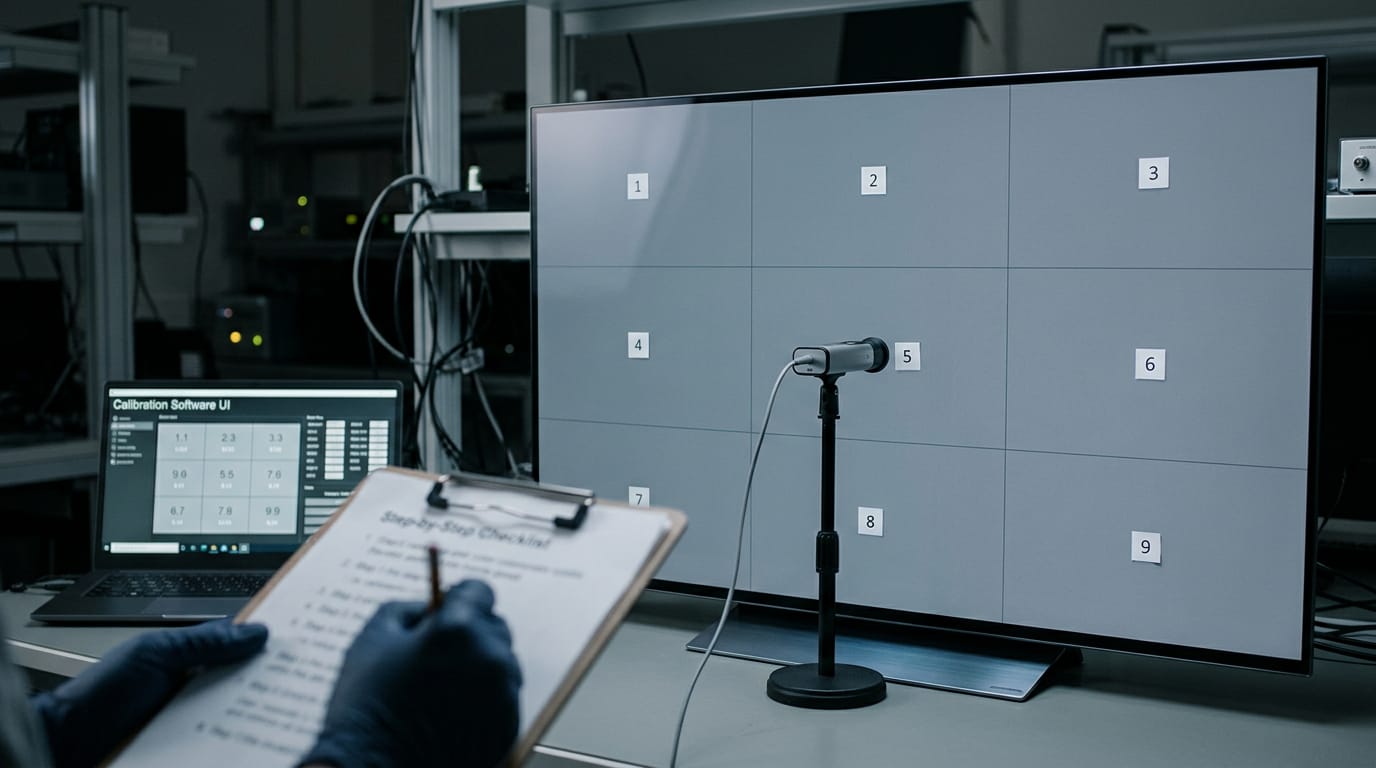
An OLED grey uniformity test checks whether a flat grey shade looks consistent across the screen, revealing patches, lines, or color tints. View dark and mid-grey patterns in a dim room from your usual seat, then check gradients and everyday scenes; some variation is normal, and banding is a separate issue. Test soon after purchase, document flaws that remain after panel refreshes and varied use, and compare them with your return or warranty terms.
Picture unboxing a new OLED monitor, pulling up a flat grey screen, and spotting a faint cloudy patch in one corner. Is that normal, or did you just get a dud? The answer depends on how the grey looks and where you’re viewing it from.
OLED, short for organic light-emitting diode, lights each pixel on its own, which is why blacks look so deep and colours so vivid. That same design can make grey look uneven across the panel.
Here’s how to test it, what the common patterns mean, and how to check before your return window closes.
What an OLED Grey Uniformity Test Reveals
An OLED (organic light-emitting diode) gray uniformity test checks whether one flat shade looks even from edge to edge.
How even gray looks across the screen
A good panel shows the same flat gray in every corner. Put up a solid mid-gray and look for patches, smudges, or blotchy areas. These show most on solid backgrounds and get worse on large uniform scenes.
The test is less about motion and more about stillness.
Say you’re a gamer who’s just unboxed a new monitor. You put up full-screen gray, step back, then lean in. If the left side looks brighter than the right, you’ve caught it before the box hits the recycling. Better now than mid-match.
What causes uneven gray across panels
- Manufacturing and material variance: materials and build can differ from panel to panel.
- Thin-film transistor (TFT) characteristic differences: each pixel’s switch can respond a little differently.
- Pixel aging and burn-in: pixels lit for long periods can dim unevenly, leaving a faint ghost of static content.
- Physical damage or pressure: a hard press can leave a patch that stays put.
- Unit-to-unit panel variation: two panels of one model can still differ.
Other visual flaws that look similar
Some flaws look similar at a glance:
- Banding: visible steps in smooth gradients, like a dim sky.
- Mura: the industry term for blotchy brightness patches.
- Vignetting: corners that look darker than the center.
- Low-gray color tint shifts: a faint color cast in the darkest shades.
OLED compared with LCD and LED screens
LCD (liquid crystal display) and LED (light-emitting diode) screens use a backlight, and some of that light leaks through to cause dirty screen effect (DSE): a cloudy glow on dark backgrounds.
According to recent research on consumer OLED monitors, OLED’s self-emissive diodes light each pixel without a backlight, removing that leakage. OLED usually shows less severe DSE, but uniformity can still vary by panel type.
OLED also comes as WOLED (white OLED), RGB (red, green, blue) OLED, and QD-OLED (quantum-dot OLED), so check your screen’s design before comparing test results.
AMOLED (active-matrix OLED) isn’t a step up or down from OLED. Its active matrix is the grid of TFTs that switches each pixel, so when you ask whether OLED is better or AMOLED, judge the panel, not the label.
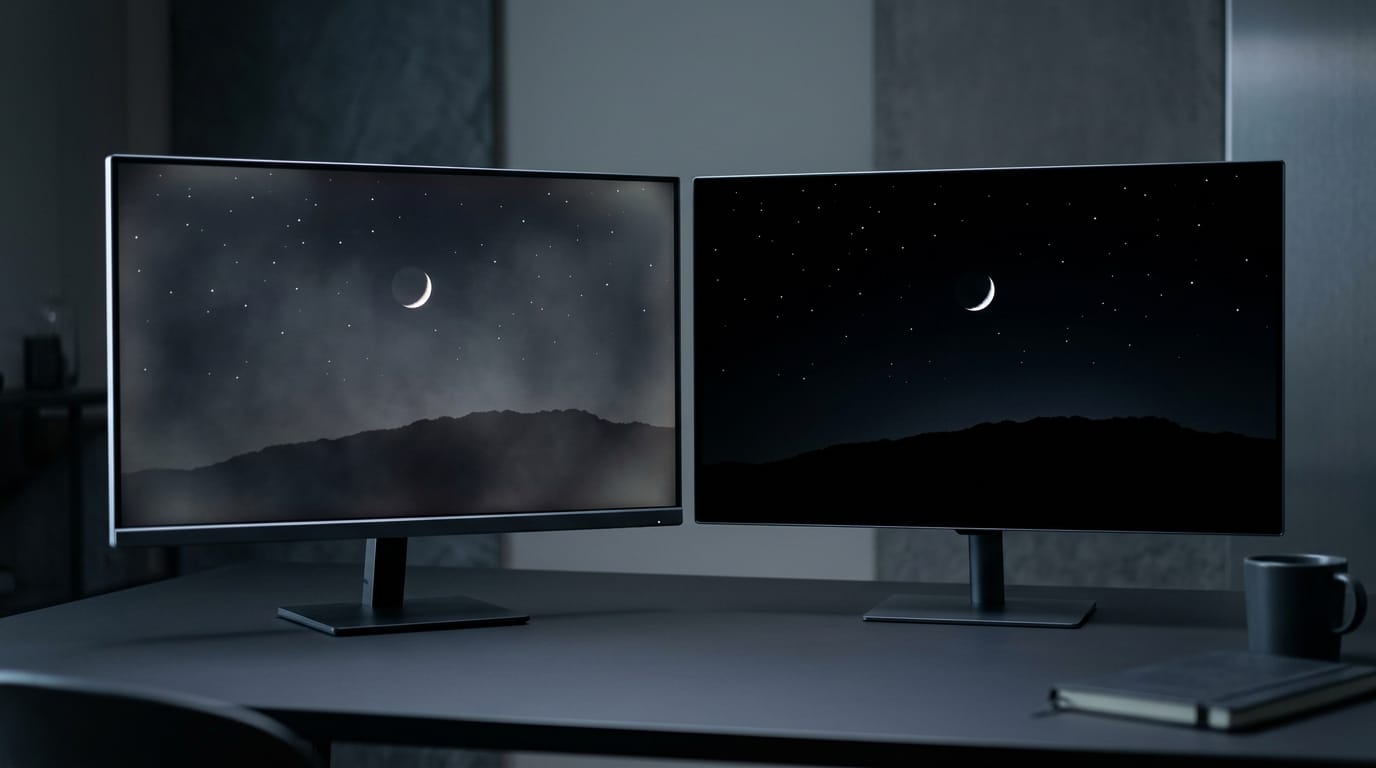
How OLED Pixels Make Gray Tones
Every gray on an organic light-emitting diode (OLED) screen comes from pixels that make their own light. Here’s how that gray is built and kept even, so you know exactly what to check when you test.
How pixel layout and current set brightness
Each pixel is split into three subpixels: red, green, and blue, and each one emits its own light. Some panels, called white OLED (WOLED), add a white subpixel alongside those three.
A subpixel’s brightness depends on how much current flows through it. The panel adjusts how much light each one gives off, rather than simply whether it’s on or off.
When red, green, and blue get the same current, they blend into a neutral gray. Raise all three together and the gray gets lighter; lower them and it darkens. That’s the whole trick.
For example, a gamer testing a new monitor loads a flat mid-gray pattern. If one corner looks tinted or brighter than the rest, they’ll want to flag it before the return window closes.
How panels get calibrated and compensated
First, the panel is measured at a set of fixed levels, and each one is adjusted until the overall brightness response, called gamma, lands on target. That step is gamma calibration.
The measured points don’t cover every shade, so the panel fills the gaps with interpolation, estimating in-between levels from the points we already have.
According to a research paper on OLED source driver chips, pixel-level compensation circuits sense the characteristics of each pixel’s driving transistor and correct errors with real-time RGB data.
That’s the basis of real-time aging compensation, which keeps adjusting the panel as it ages.
Ways to Check OLED Gray Uniformity
Gray uniformity means a flat gray screen looks even across the whole OLED (organic light-emitting diode) panel. Here’s how we’d check it at home, then how pros do it.
Use solid gray and color screens
Start with these test patterns: a 5% gray screen (very dark) and a 50% gray screen (mid-tone). Then try gray, white, and green backgrounds. Look for:
- Patches: darker or brighter blotches
- Lines: thin streaks across the screen
- Tints: a color cast, like faint green or pink
Online test videos and images show these screens too.
Testing it yourself at home
Pick a dim room, since bright light hides faint unevenness. Then work through this routine:
- View a 50% gray screen from your normal seat, checking corners and center.
- Repeat on the other test screens.
- Run the console and personal computer (PC) inputs separately.
- Do it soon after purchase, while the return window is open.
Pass if the gray looks even with no patches, lines, or tints. Fail if you spot any of them, and document it.
Picture a gamer with a new 42-inch OLED television. A faint green tint shows in one corner of the 50% gray screen on the console, and the PC input shows it too. With photos and days left on the return window, they can act before it closes.
Spotting banding with gradient ramps
Banding is when a smooth shade change breaks into visible stripes. Use these gradient ramps (smooth strips of shades) to spot it:
- Black-to-gray ramps for dark-shadow smoothness
- Gray-to-white lines for brighter tones
- Red, green, and blue gradient lines for color steps
Photograph any banding on each line as evidence for a warranty claim.
How professional reviewers measure it
Reviewers use specialized luminance (brightness) and color measurement tools to find how much unevenness there is, not just whether there is any. Their setup includes:
- 10-bit HDR10 test pattern: a high dynamic range (HDR) signal with finer shade steps
- A signal generator (a device that sends an exact test image), with smoothing disabled so processing can’t hide flaws
- The RTINGS HDR native gradient test, which you can look up online
- Subjective per-line scoring, judged by eye
Your eyes and a good test pattern go a long way. Document what you see. Then decide.
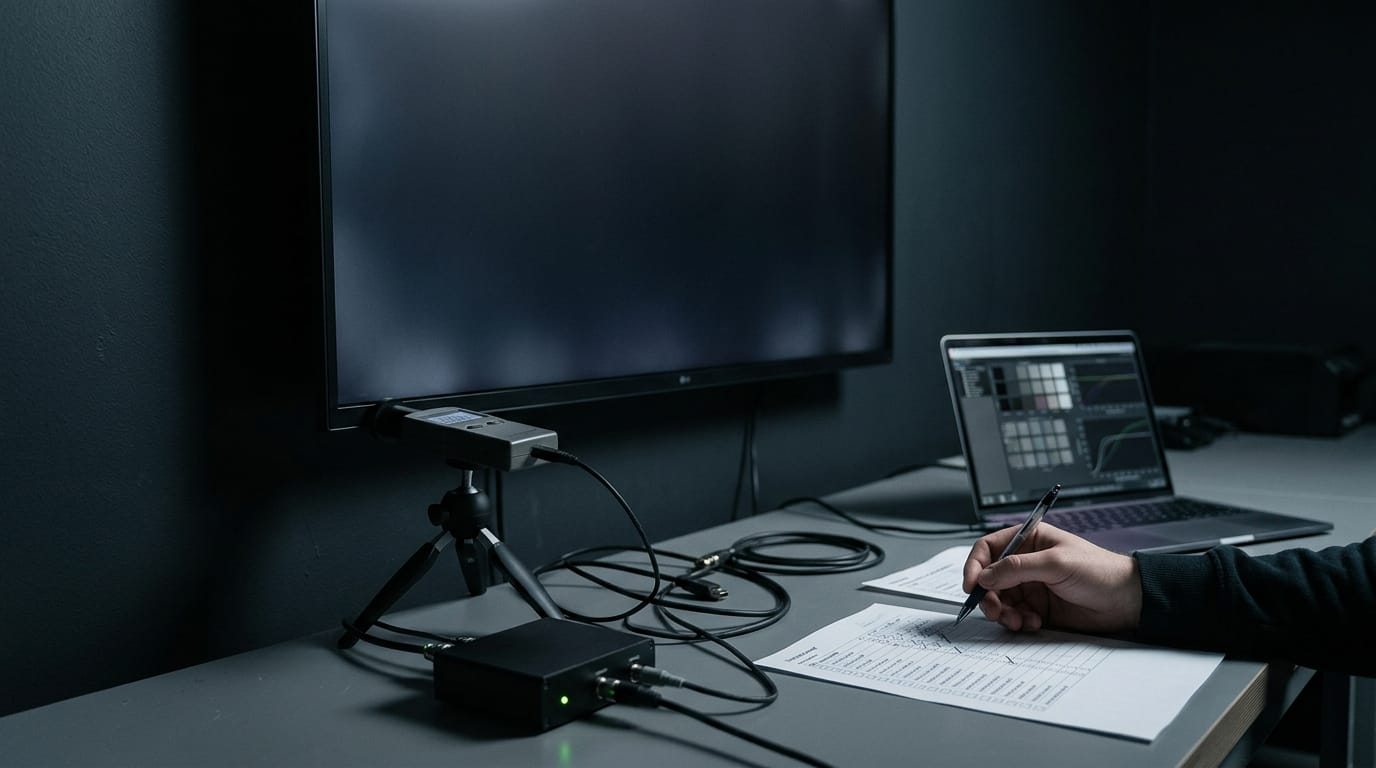
How Screens Handle Banding in Gradients
Banding is the stripes you see in a sky or shadow that should look smooth. Here’s what causes it and how we’ll work through the fixes.
Why smooth gradients turn into bands
A smooth fade needs many small steps in shade. When those steps are too far apart, you see banding: visible steps or stripes where the fade should flow. Skies, sunsets, and shadows are the usual culprits.
Posterization is the extreme case, where a gradient collapses into a few flat blocks. Insufficient signal or panel bits can cause both, and TV processing can introduce banding of its own.
How bit depth limits gray steps
Bit depth sets how many shades a screen can show per channel, so the real question is how many steps a panel can place between black and white.
According to a medical imaging study on 10-bit grayscale, an 8-bit signal provides 256 possible levels per channel, while a 10-bit signal provides 1,024.
Some 8-bit panels use FRC (frame rate control), which flickers pixels between nearby shades to fake the in-between ones. It helps, but it isn’t the same as native 10-bit. Higher depth reduces banding, and high dynamic range (HDR) content benefits most.
How panel size, not resolution, matters
Resolution doesn’t affect gradients. Bigger panels show flaws more, though, since a larger screen stretches the same steps across more area.
Think of a player who moves from a 27-inch monitor to a 42-inch TV and spots bands in a dark cave that were always there. The flaw didn’t get worse; the bigger screen makes it more visible.
Adjusting smoothing settings for gradients
Start with these three checks:
- Brand-specific smoothing. Names vary by brand, so check your manual for the exact labels. Turning smoothing up reduces banding, but you lose fine detail.
- Disable dynamic contrast. It shifts brightness on its own, which skews how you judge a gradient.
- Enable enhanced signal format. Turn it on if your device offers it, since the signal needs that to carry the full range of levels.
Think of a player who bought a new TV for a game full of foggy caves. They turn off dynamic contrast, enable the enhanced signal format, and keep smoothing low so the fog keeps its texture. Now the fog reads as fog, not stripes.
Reducing and Fixing Uniformity Problems
Plenty of gray uniformity trouble can be managed at home before it’s worth a warranty claim.
Using built-in refreshes and break-in time
OLED (organic light-emitting diode) panels can run pixel refresher cycles as built-in maintenance.
According to a paper on optimizing color performance for the Ngenuity 3-Dimensional Visualization System, it can be enabled in the menu and runs when you turn the display off, as long as it’s plugged in.
Give the panel a break-in period of 100-200 hours before you judge it. Run varied content too: mix games, movies, and desktop work.
Take a gamer who spots a faint haze on dark scenes. They leave the monitor plugged in overnight, and if the haze fades, they’ve skipped the warranty process.
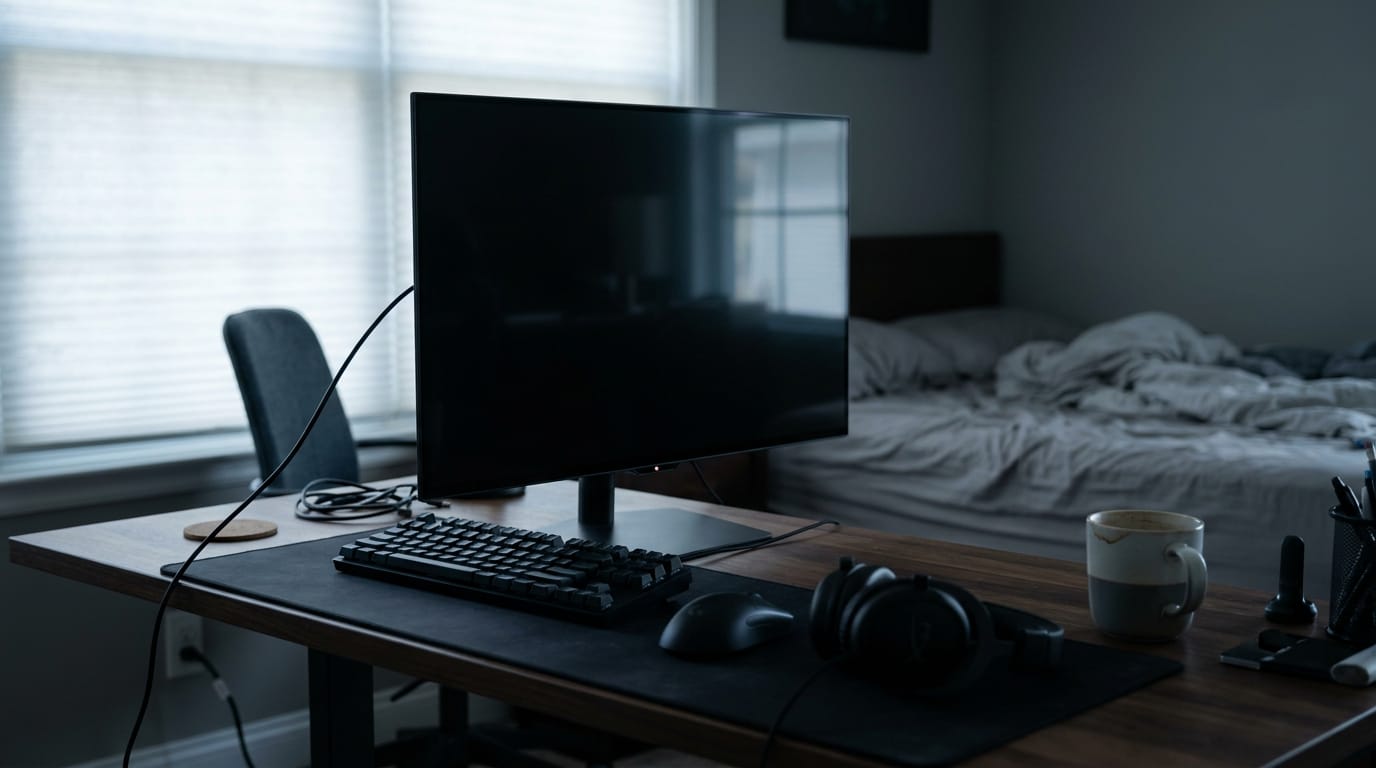
Warranty, replacement, and buying tips
Severe DSE (the uniformity defect this article covers) that survives refreshes and break-in calls for a panel replacement. Minor DSE within tolerance may not qualify, so read the warranty wording.
Buy from reputable brands with clear warranty terms, and check how they define a qualifying defect. Handle the panel carefully, since physical damage complicates any claim.
DSE qualifies for return when it’s clearly beyond what the warranty allows. Photograph it under the same lighting and settings so your evidence holds up.
For Canadian buyers, the clock matters most. Check your retailer’s return window before you test:
- Test early. Run gray tests in the first few days.
- Act fast. Start any return while there’s still time.
Using calibration and picture settings
Calibration can hide minor issues, but it can’t fix them. Hardware defects aren’t fixable with settings, so a flaw in the panel itself won’t go away with a profile.
Turn off processing features before you test, since motion smoothing and sharpening can change how gray steps look.
How to keep burn-in from forming
Burn-in happens when the same image sits in one place for hours, so avoid static logos and HUDs (heads-up displays like a game’s health bar).
Screen savers and refresh routines help break up static content, so let them run.
Is OLED burn-in still a thing in 2026? Yes, it can still happen, but the risk comes from static content left on screen for long stretches. Habits beat repairs.
Where Flaws Show up in Everyday Use
Uniformity problems on an OLED (organic light-emitting diode) screen rarely appear on a spec sheet. They appear on screen, whenever something should look even edge to edge and doesn’t.
Scenes that reveal uniformity problems
Some content is less forgiving. Flat, even color leaves a patch nowhere to hide, so use these scenes when you test:
- Sports fields and ice. A soccer pitch or hockey rink fills the frame with near-identical color, so any uneven spot stands out.
- Open skies in games. Dark gradient skies fill much of the screen during quiet moments.
- Large uniform color areas. Title screens and menus leave nothing else to look at.
- HUD-heavy scenes. Test with the heads-up display (HUD: health bars, minimaps, ammo counts) fully on, since those overlays sit over flat areas.
Consider a gamer who spends evenings in a space sim. A dim patch in the upper corner is invisible on a bright desktop but obvious during a long, quiet flight.
Testing in the game they actually play catches it while the return window is open. Quiet scenes expose it.
Casual viewers versus professional users
Casual viewers rarely notice uniformity problems in movies. Footage moves constantly, so small variations have little room to show. The question isn’t whether a flaw exists but where it shows up for you.
Professionals need high uniformity. Photo and video editors push shadows and gradients to reveal detail, which exposes patches a casual viewer would miss.
Users report satisfaction with their panels in everyday use. Match the panel to your work, though, since a screen that suits movies may not suit photo editing.
Grey uniformity testing comes down to one simple habit: put up a flat grey screen, look closely, and check it from a few angles in a dim room.
Note any patch you can spot at a glance, and check gradients for banding, since those are the flaws worth documenting.
Test early, while you’re still inside the return window, so your decision rests on evidence rather than hope. The panel doesn’t need to be flawless. It needs to look right for the way you actually play and work.
References
- An Area and Power Efficient Source Driver IC With Multi-Line Sensing Real-Time Pixel Compensation for OLED Displays — doi.org (2025)
- Recent consumer OLED monitors can be suitable for vision science — doi.org (2025)
- The assessment of diagnostic medical images using 10-bit grayscale — pmc.ncbi.nlm.nih.gov (2018)
- Optimizing Color Performance of the Ngenuity 3-Dimensional Visualization System — pmc.ncbi.nlm.nih.gov (2021)
Questions
What tech is replacing OLED?
MicroLED is a leading technology that could replace OLED, particularly in premium displays, but it is not yet a universal replacement. New OLED variants such as QD-OLED and WOLED are also continuing to develop.
Is OLED better or AMOLED?
AMOLED is a type of OLED that uses an active matrix of thin-film transistors to switch pixels. Neither label is inherently better; compare the specific panel’s image quality, brightness, and performance.
Is OLED burn-in still a thing in 2026?
Yes. OLED burn-in can still happen when static images, such as logos or game HUDs, remain in the same place for long periods. Varying content and allowing screen savers and built-in refresh routines to run can reduce the risk.
Is OLED healthier for eyes?
OLED is not automatically healthier for eyes than other display technologies. Eye comfort depends on factors such as brightness, viewing distance, room lighting, and sensitivity to flicker; taking breaks and using a comfortable brightness can help.
Sources
- The assessment of diagnostic medical images using 10-bit grayscale – fact or myth?, pmc.ncbi.nlm.nih.gov,
- Optimizing Color Performance of the Ngenuity 3-Dimensional Visualization System, pmc.ncbi.nlm.nih.gov,
- An Area and Power Efficient Source Driver IC With Multi-Line Sensing Real-Time Pixel Compensation for OLED Displays, doi.org,
- Recent consumer OLED monitors can be suitable for vision science, doi.org,
Free · The Build Sheet
The Build Sheet: three gaming PCs priced at Canadian stores